
Parallax Effects Overview
This tutorial will help one to learn how to create Horizontal Parallax, Vertical Parallax, Mouse Move effect, Scrolling Zoom, Scrolling Rotate, Scrolling Blur, Scrolling Transparency, and 3D Effect on any page of the WordPress website using Elementor and JetElements plugins.
JetElements Section Parallax extension is a tool that adds some dynamics to WordPress websites. Parallax is an effect that creates an illusion of depth in the page’s background. It is achieved by setting different scrolling speeds and movement directions for separate layers of the image.
There are several types of parallax effects that can be applied to a website using JetElements, and in this tutorial, we will check how to apply all of them.
Preparing a Website for Parallax Effects
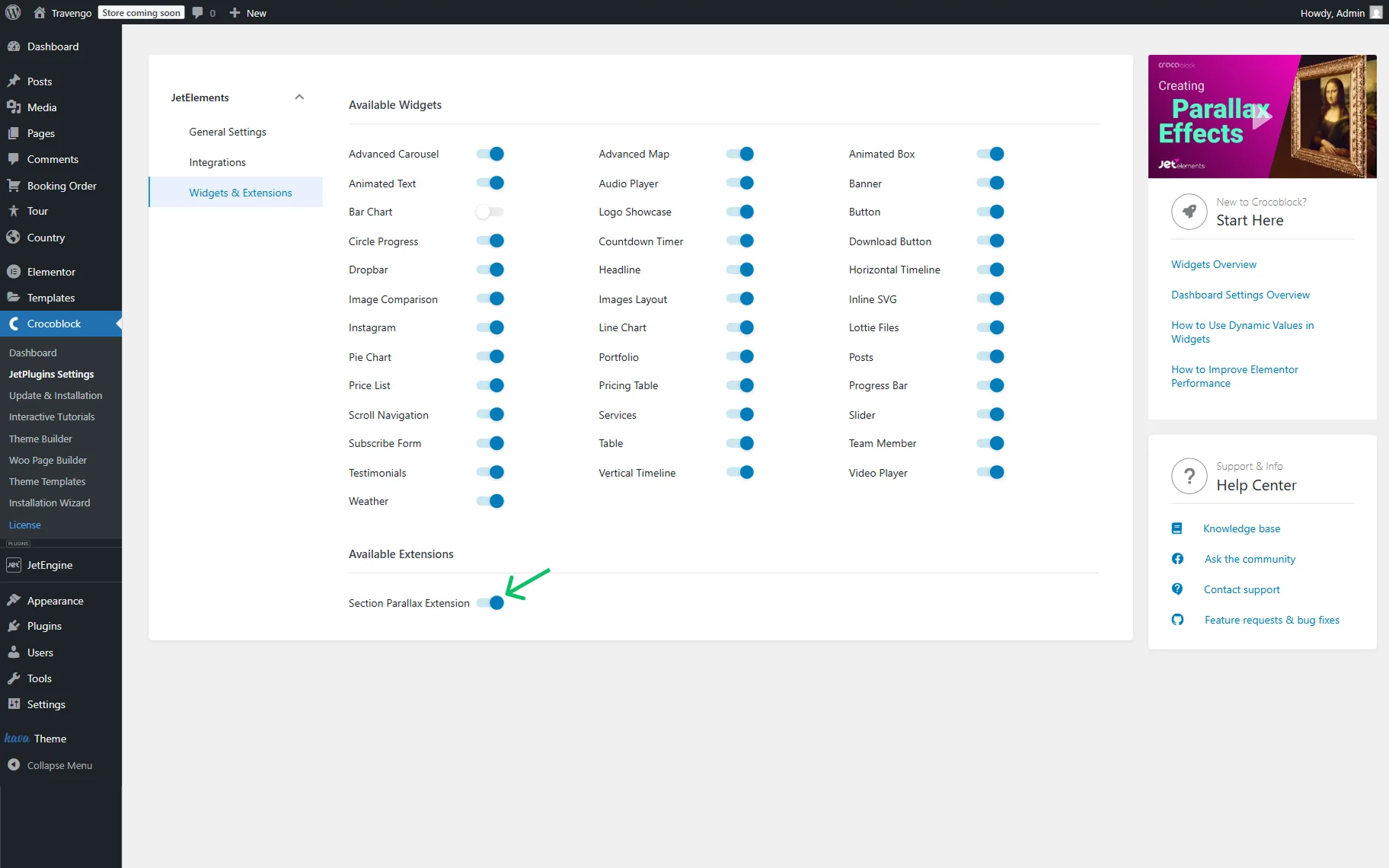
First, one should activate the extension in the WordPress Dashboard > Crocoblock JetPlugins Settings > JetElements. To do so, one should switch on the Section Parallax Extension toggle in the Available Extensions tab.
Adding a Parallax Effect
Now, one should go to the page where the parallax effect should be added and edit it using Elementor.
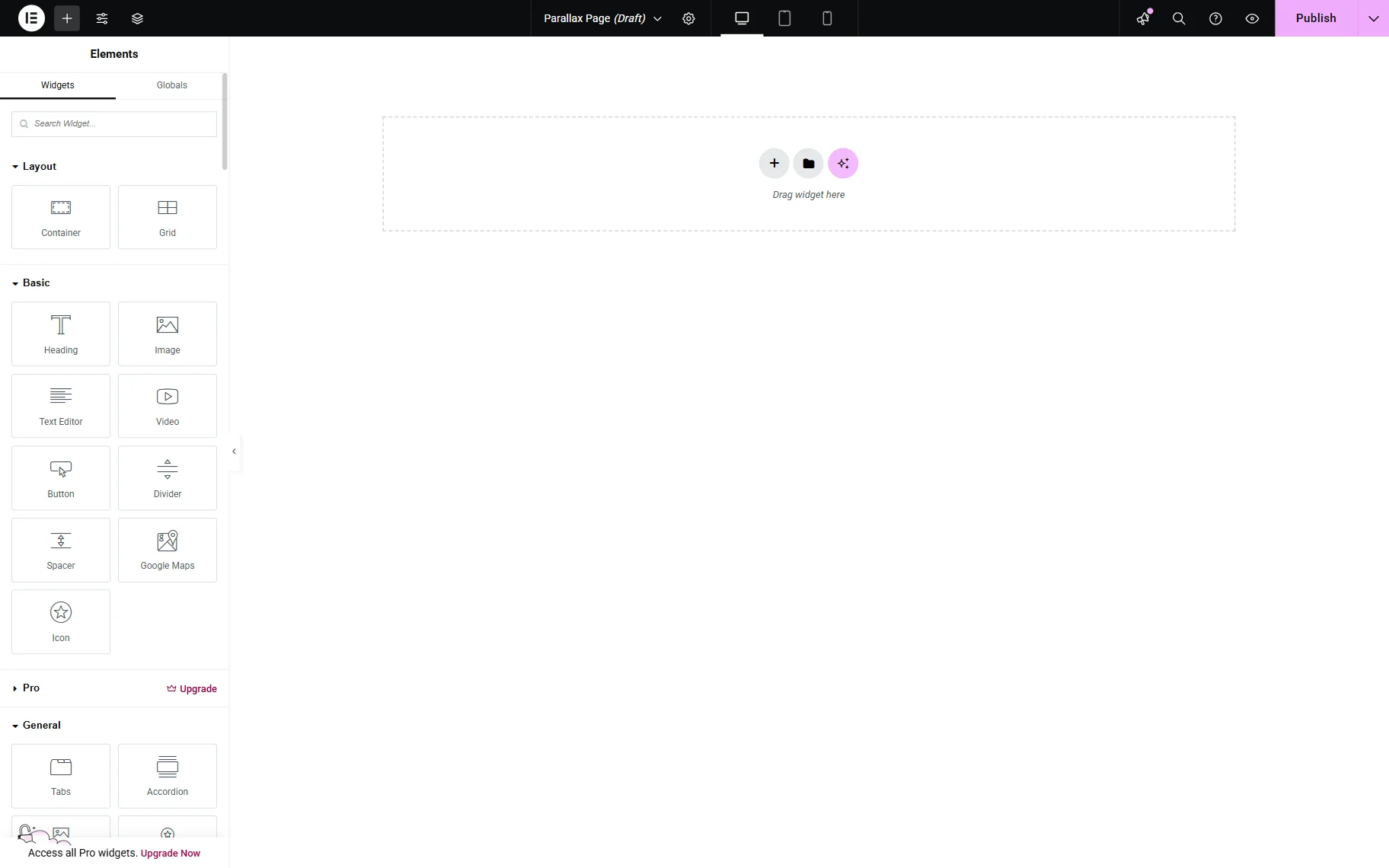
On the opened page, the “+” button should be pressed to add a new Container to the section.
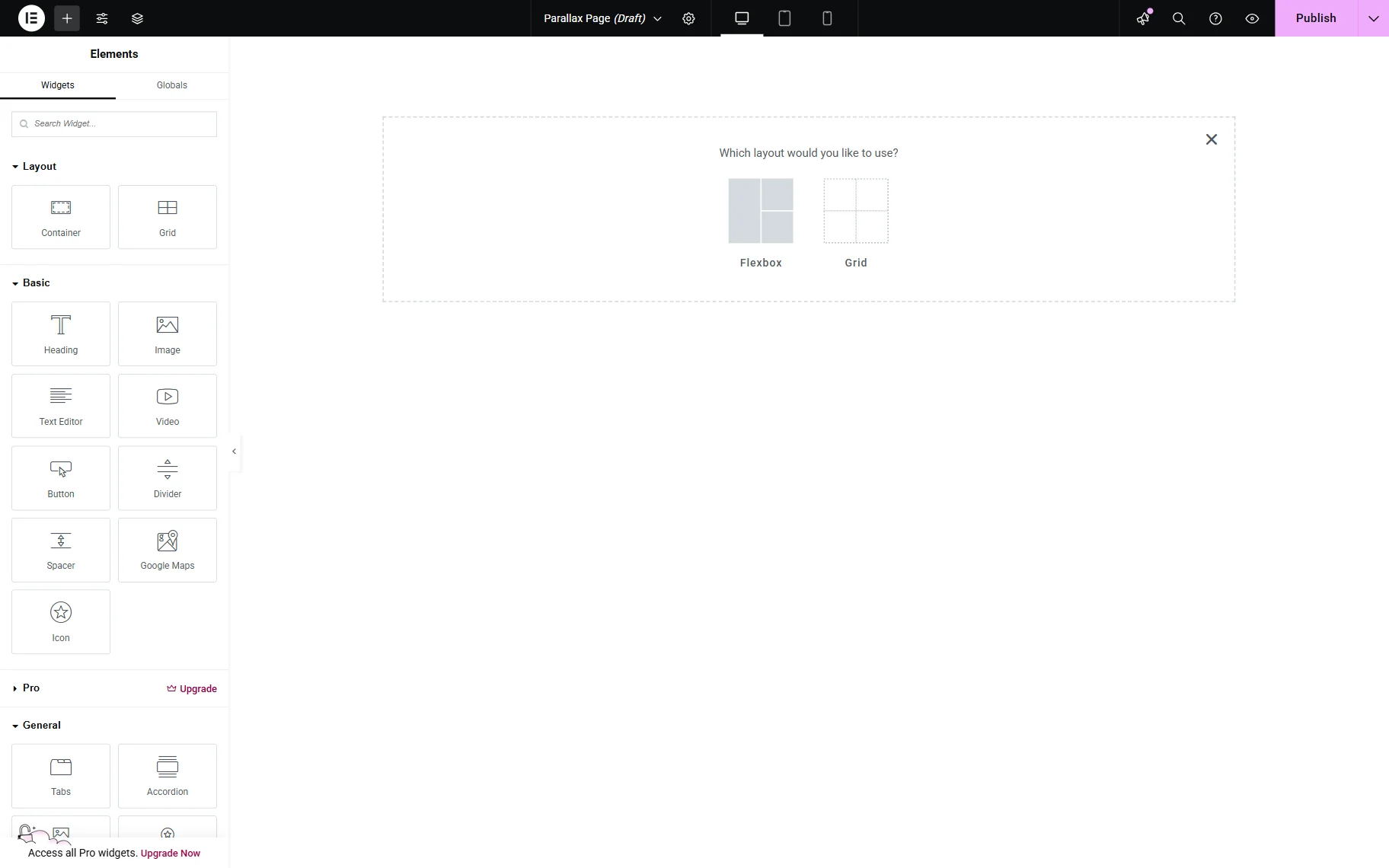
Now, one should select the layout: either “Flexbox” or “Grid”.
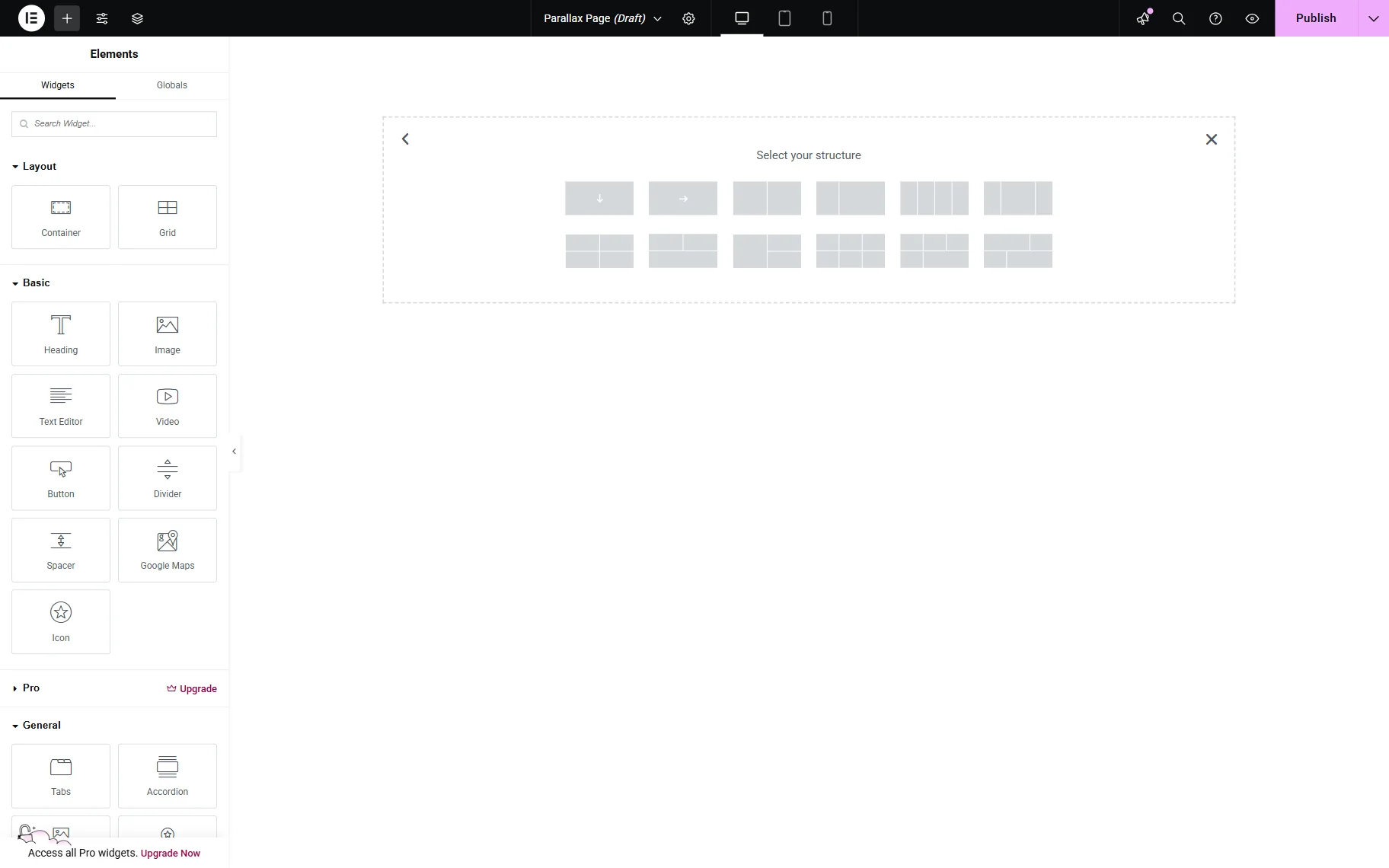
After that, the structure should be selected.
In the Container section, set the “Full Width” Container Width and complete the Min Height field with the “100vh” value. Other settings can be adjusted if needed.
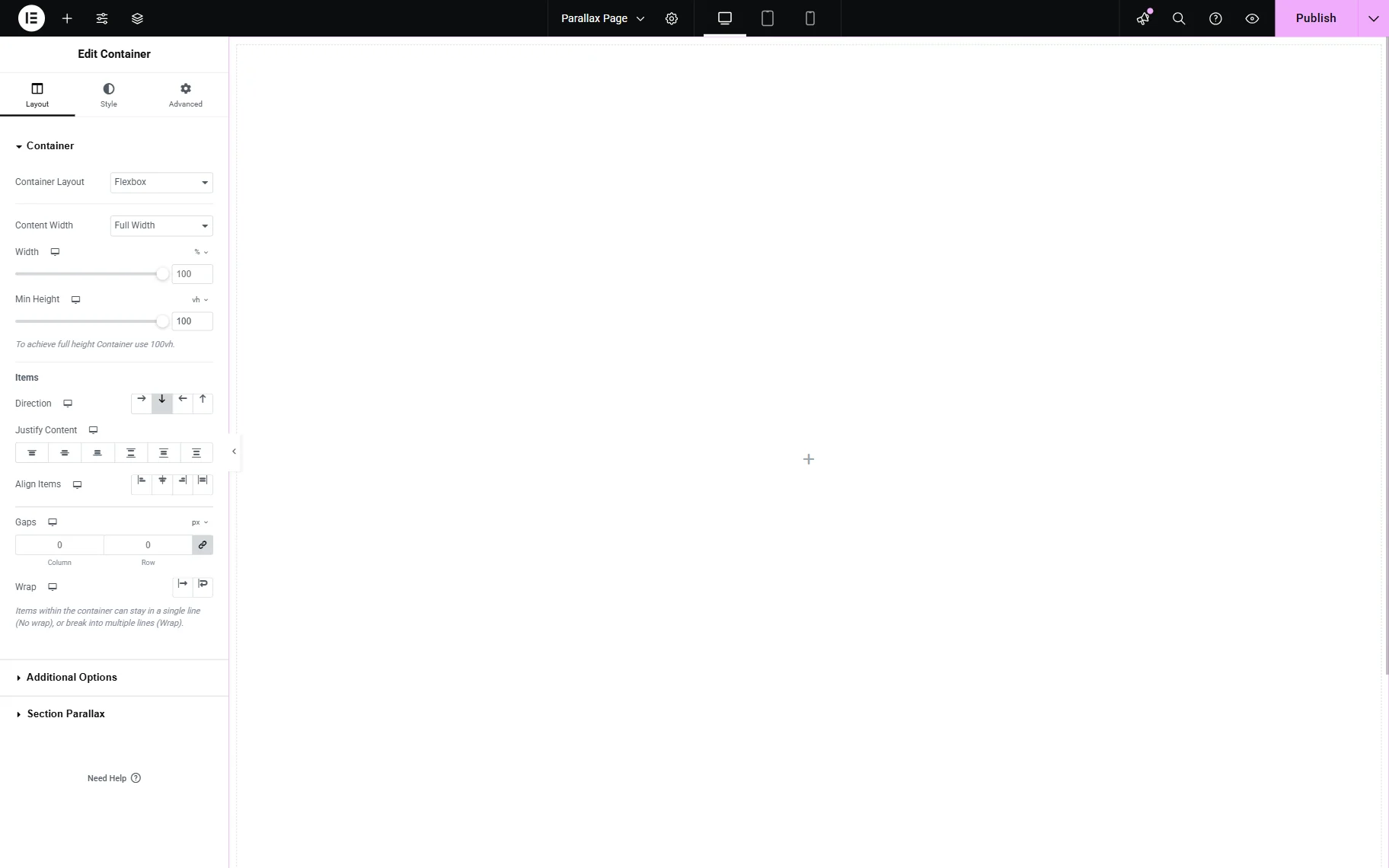
In the Style > Background section, the “Classic” Background Type (a “Brush” icon) should be selected, and the “plus” button should be clicked in the Image field to select the background picture.
One can upload a picture or select it from the Media Library.
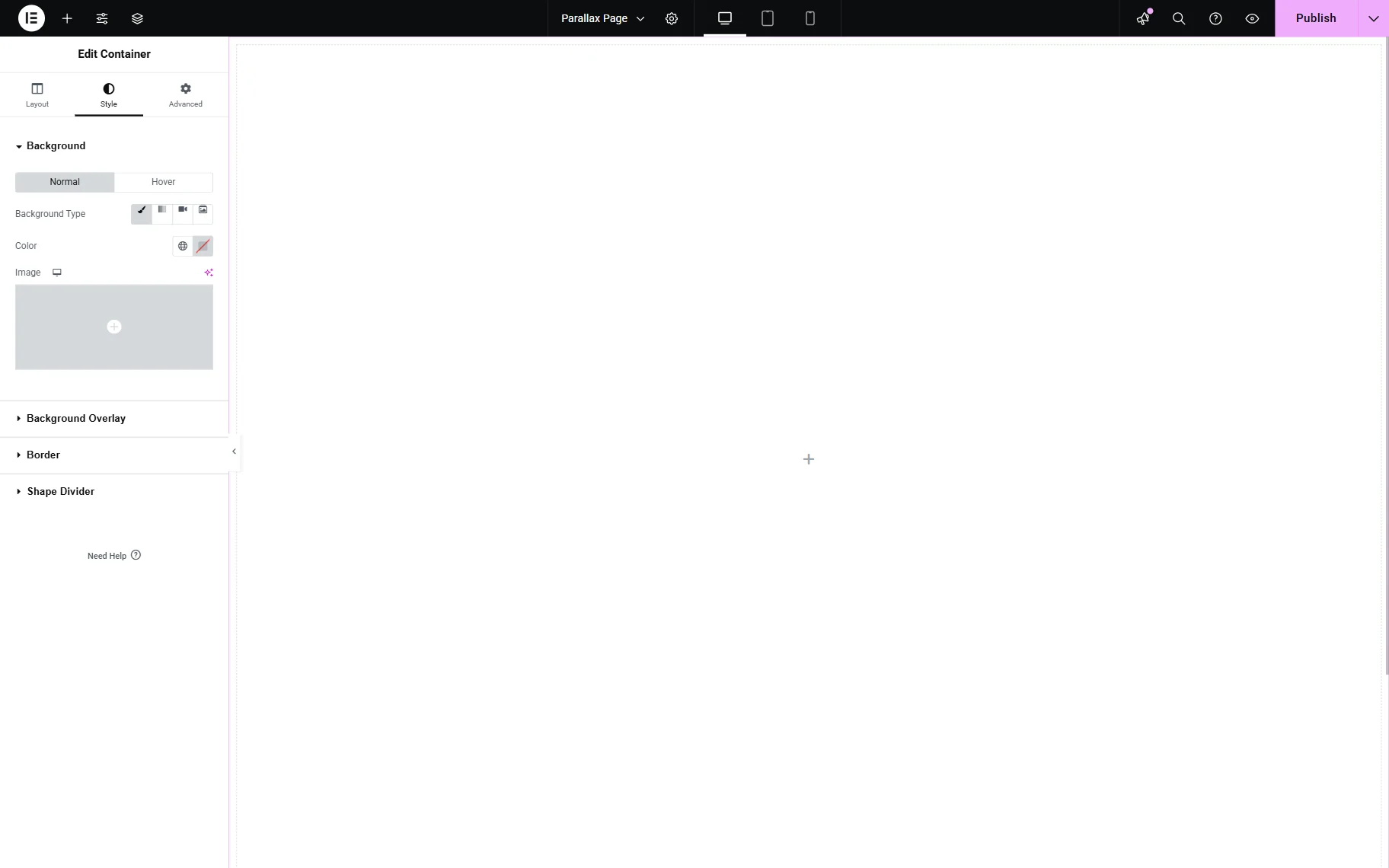
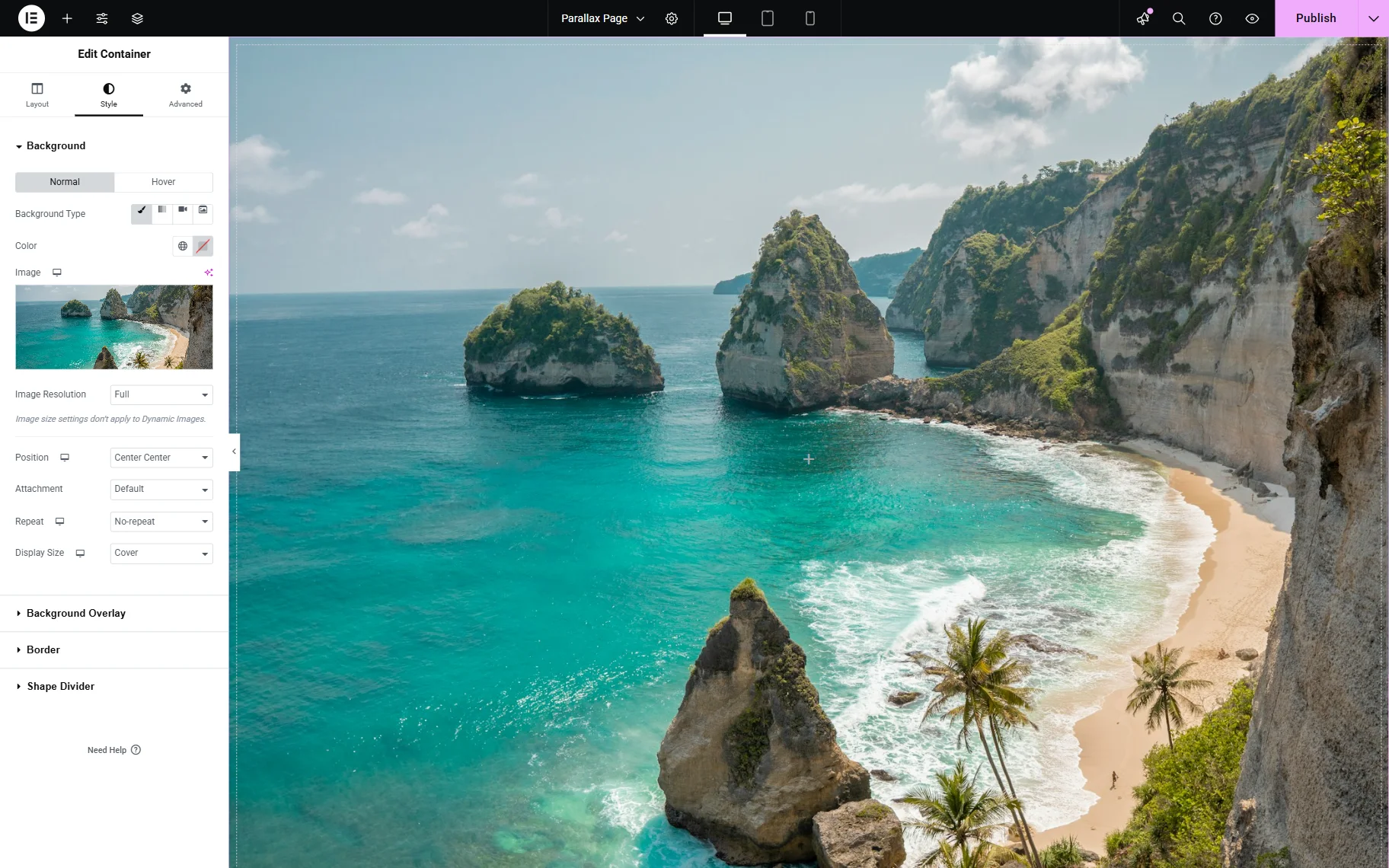
Once done, additional settings fields appear. The Position should be set to “Center Center,” Repeat to “No-repeat,” and Display Size to “Cover.” This ensures that the background image fits the section. If the resulting picture is blurry, an image with a higher resolution should be used.
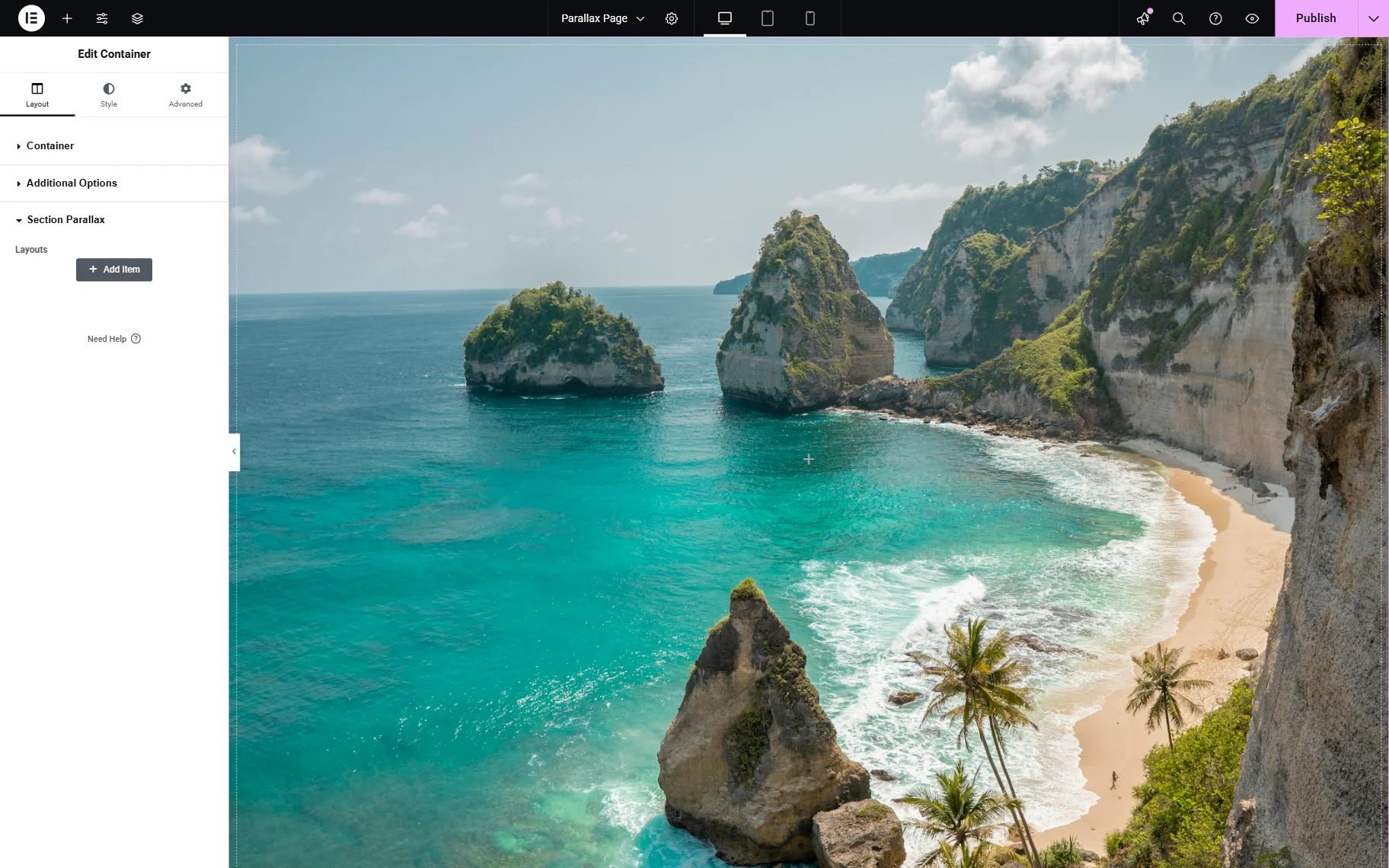
Now, one should go back to the Layout section. Here, in the Section Parallax tab, one can add new layers that move at different speeds, creating the effect of depth and dynamics. As many layers as needed can be added by clicking the “Add Item” button.
Creating Parallax Effects
To start the parallax customization, the “Add item” button should be clicked. The following settings can be adjusted in this section:
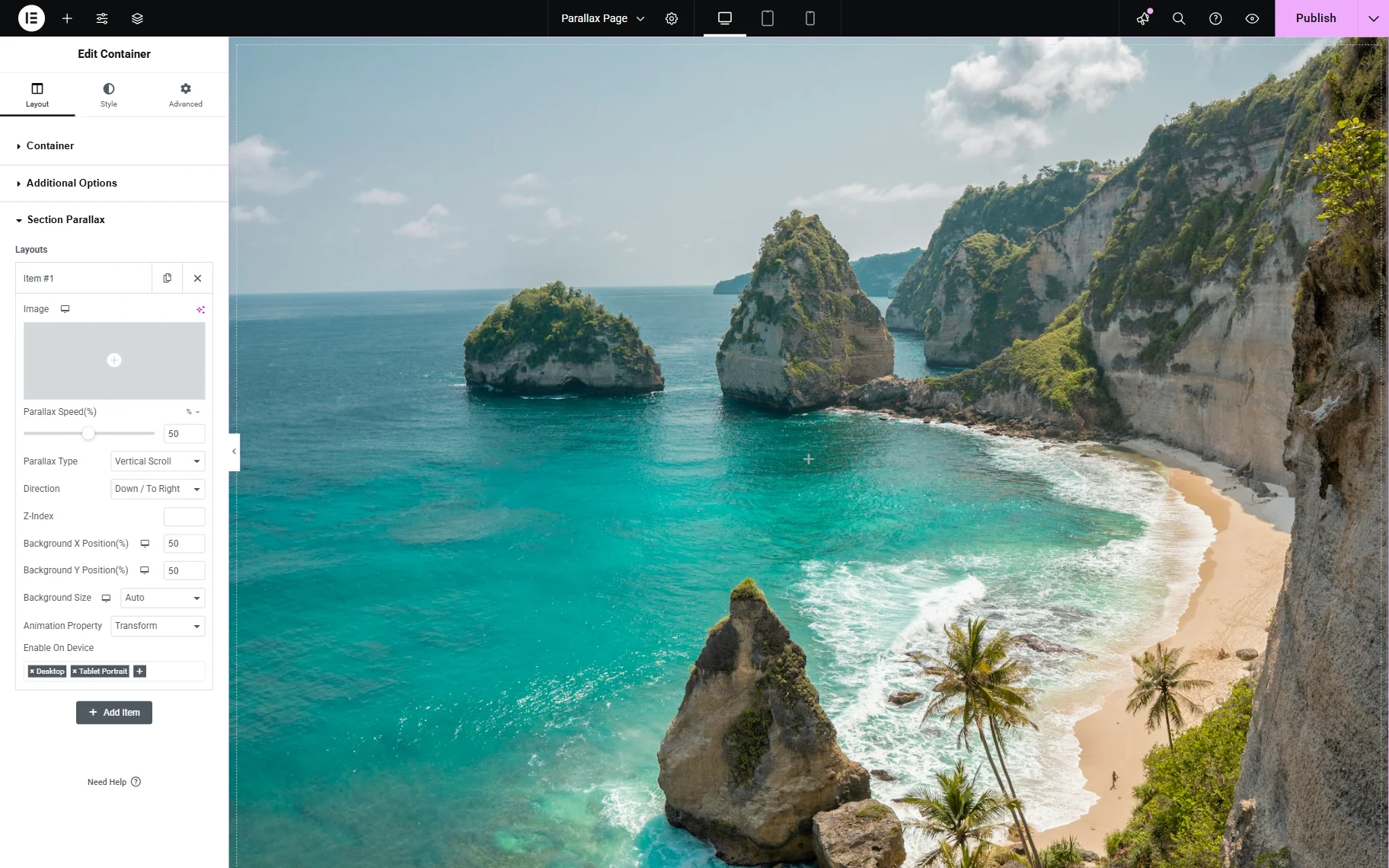
- Image — the image layer that will move over the previously chosen background picture;
- Parallax Speed (%) — an option allows setting the speed of movement for this layer. It is shown in percent; the bigger this value is, the faster and more visibly this layer’s picture will move. Take into consideration that this value can be bigger than 100;
- Parallax Type — a type of applied parallax effect. More information about the available options can be found below this list;
- Direction — a direction of the applied parallax effect. More information about the specific direction options can be found below this list in the Parallax Types descriptions;
- Z-Index — the number typed into this bar will define the priority of the layer. If the pictures overlap each other, the one with a bigger Z-index will be shown on top of those with a smaller Z-index;
- Background X Position (%) — the horizontal position of this layer’s picture regarding the background image (in percentage terms). Take into consideration that this value can be bigger than 100 and smaller than 0 (it can have a negative value);
- Background Y Position (%) — the vertical position of this layer’s picture regarding the background image (in percentage terms). This value can also be bigger than 100 and smaller than 0 (it can have a negative value);
- Background Size — an option that defines the size of this layout’s picture. “Auto” means that the image will be displayed in its original size. “Cover” will resize the image so that it fills the whole section, even if it is stretched or cut on one side. “Contain” changes the size of the image so that it becomes fully visible in the section, but doesn’t alter its proportions;
- Animation Property — the drop-down menu with the available animation properties. One should choose “Background Position” if the image of this layer fills the whole background. “Transform” is for smaller elements, and “Transform 3D” in combination with “Mouse Move” Parallax Type makes the element look like a 3D object;
- Enable On Device — the field that allows setting the parallax effect only on specific devices. Here, one can choose which devices this specific parallax effect will be displayed on.
Now, more information about the available options in the Parallax Type field.
None
When this option is selected, the picture of the layer won’t move.
Vertical Scroll
In this case, the element of the layer will move vertically, from top to bottom (or vice versa), but at a different speed than the background image. With this option, the Direction can also be set: “Down / To Right” or “Up / To Left”.
Horizontal Scroll
With this option, the layer’s picture will move horizontally as it is scrolled. One can also choose the Direction of movement, whether the element will move “Down / To Right” or “Up / To Left”.
Mouse Move
This parallax type causes the layer’s image to move in the opposite direction to the mouse movement.
3D
If this Parallax Type is selected and the Animation Property is set to “Transform 3D” as well, the layer’s image will still be moving in the opposite direction to the mouse. However, it will also rotate to create an illusion of a 3D object.
Scrolling Zoom
As the page is scrolled down, this parallax type will zoom in the layer’s image. Be aware that the picture should be high-resolution to look good when zoomed.
Scrolling Rotate
In this case, the image will be rotating around the center of the section. One can choose the Direction of rotation – “Down / To Right” or “Up / To Left”. This parallax effect adds lots of dynamics to the page.
Scrolling Blur
To draw a user’s focus to a specific element within the section, this parallax effect can be added. As the page is scrolled down, the layer’s image will change its sharpness. As for the available Direction options, “Fade In” means that the picture is sharper at the beginning and becomes blurrier as it is scrolled, while “Fade Out” is the opposite; the image becomes sharper as it is scrolled.
Scrolling Transparency
With this option, the layer’s picture will change its transparency as the page is scrolled down. The available Direction options are: “Fade In,” which makes the image less visible from top to bottom, and “Fade Out,” which makes the image transparent at the beginning and more visible as the section is scrolled.
That’s all about the parallax effects available as a part of the JetElements plugin functionality for WordPress websites. The parallax effects can now be applied to any preferred pages and can be combined and mixed as needed.