
Can't Access a Wp-Admin Page
What to do if I can't access the WP-Admin page and log in to my WordPress website?
The most common reasons include security plugins blocking access, incorrect website URL settings, corrupted .htaccess files, theme or plugin conflicts, PHP errors, insufficient memory limits, or incorrect file permissions.
Below, we describe the most common issues and ways to fix them.
Check your Firewall
Some firewalls block the login page, so temporarily disable your firewall and try again.
Clear Cache and Cookies
This method is useful when the login page opens, but you can’t log in successfully. However, it’s recommended to clear your browser cache and cookies before trying other troubleshooting steps.
Your Security Plugin Caused the Problem
Security plugins are one of the most common reasons for WordPress login issues. Typically, there are two possible scenarios.
Temporary block due to failed login attempts
You are blocked because you exceeded the maximum number of login attempts set by the security plugin. The first solution is to wait because such blocks are temporary.
The second solution is to deactivate the plugin via FTP or the hosting file manager.
Go to wp-content > plugins > {your security plugin folder} and rename it. The simple way to do this is to add -old to the folder’s name. It will automatically deactivate the plugin.
Try to log in again (it might also be helpful to clear your browser cache before doing it).
After the successful login, don’t forget to rename the plugin folder back.
The login URL was changed
Many security plugins allow changing the default WordPress login URL as an additional security measure. Instead of using:
yoursite.com/wp-adminThe website may use a custom URL like:
yoursite.com/custom-login However, this unique URL can be easy to forget. In this case, use the instructions from the previous paragraph: using an FTP client or hosting file manager, rename the plugin’s folder responsible for the URL change (e.g., by adding “-old”), and log in using the default yoursite.com/wp-admin link.
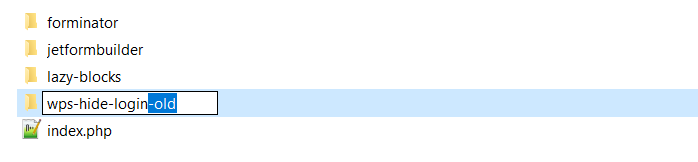
If you’re not sure which plugin is causing the issue, you can deactivate all plugins via FTP. To do this, navigate to {yoursite.com}/wp-content and rename the plugins folder (“plugins-old”, for example).
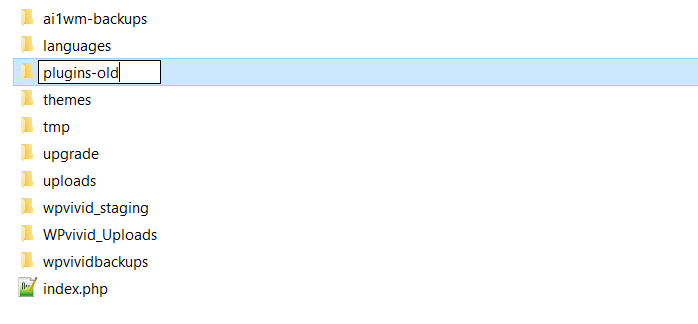
Don’t forget to rename them back after you have logged in successfully.
Your Theme Caused the Problem
If your theme is incompatible with a new WordPress version or has been modified incorrectly, it may prevent access to the login page. To fix this issue, deactivate the theme via FTP by renaming its folder—just as described earlier for plugins.
500 Internal Server Error or White Screen of Death
These errors can have several causes, but the most common is insufficient memory. To fix this, open the wp-config.php file via FTP, locate the WP_MEMORY_LIMIT setting, and increase its value. For example, change it from 128M to 256M:
define('WP_MEMORY_LIMIT', '256M');
Another frequent reason is a corrupted .htaccess file.
To fix it, go to your website root directory, locate the .htaccess file, and create a backup on your computer. Then delete the file from the website folder and try accessing your site again.
If you did, don’t forget to regenerate the new .htaccess file. To do so, go to WordPress Dashboard > Settings > Permalinks and click “Save Changes.”
PHP Errors
If you see a white screen accompanied by a PHP error message and cannot access the login page, the issue is likely caused by recent changes to a PHP file (commonly functions.php).
PHP error messages usually (unless you have manually disabled it) include the exact file path and line number where the issue occurred, making it easier to locate the problem.
Using an FTP client or your hosting file manager, open the indicated file and correct the error. In most cases, removing the recently added code snippet resolves the issue quickly.
If you’re unable to fix the issue manually, restore the file from a recent backup where the site was functioning correctly. For more details, refer to the How to Backup and Restore WordPress Website with Plugin tutorial.
File Permission Issues
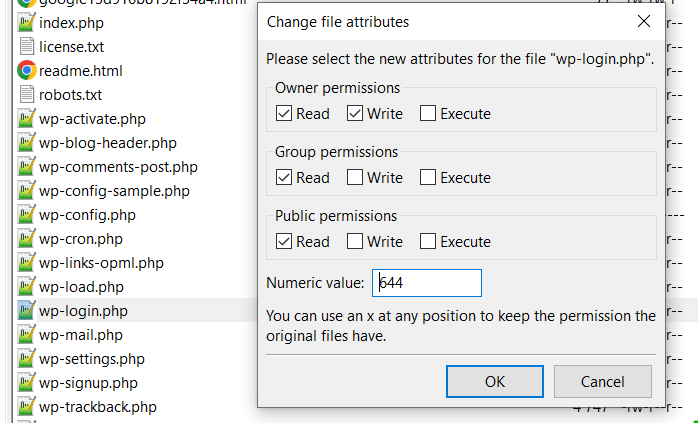
Due to different reasons, file permission errors can also prevent proper site access. To fix this, connect to your site via FTP, locate the wp-login.php file, right-click it, and select the “File Permissions” option. Ensure the numeric value is set to “644”.
Also, check the permissions for the wp-admin folder and ensure the value is “755”.
The Website URL Has Been Changed
The website URL can be changed in WordPress Dashboard > Settings > General, and sometimes the admin can accidentally change it to the wrong or non-existent one. In this case, the URL will look like anothersite.com/wp-admin instead of yourwebsite.com/wp-admin.
There are three methods to fix it.
Edit the Database
This is the most reliable method.
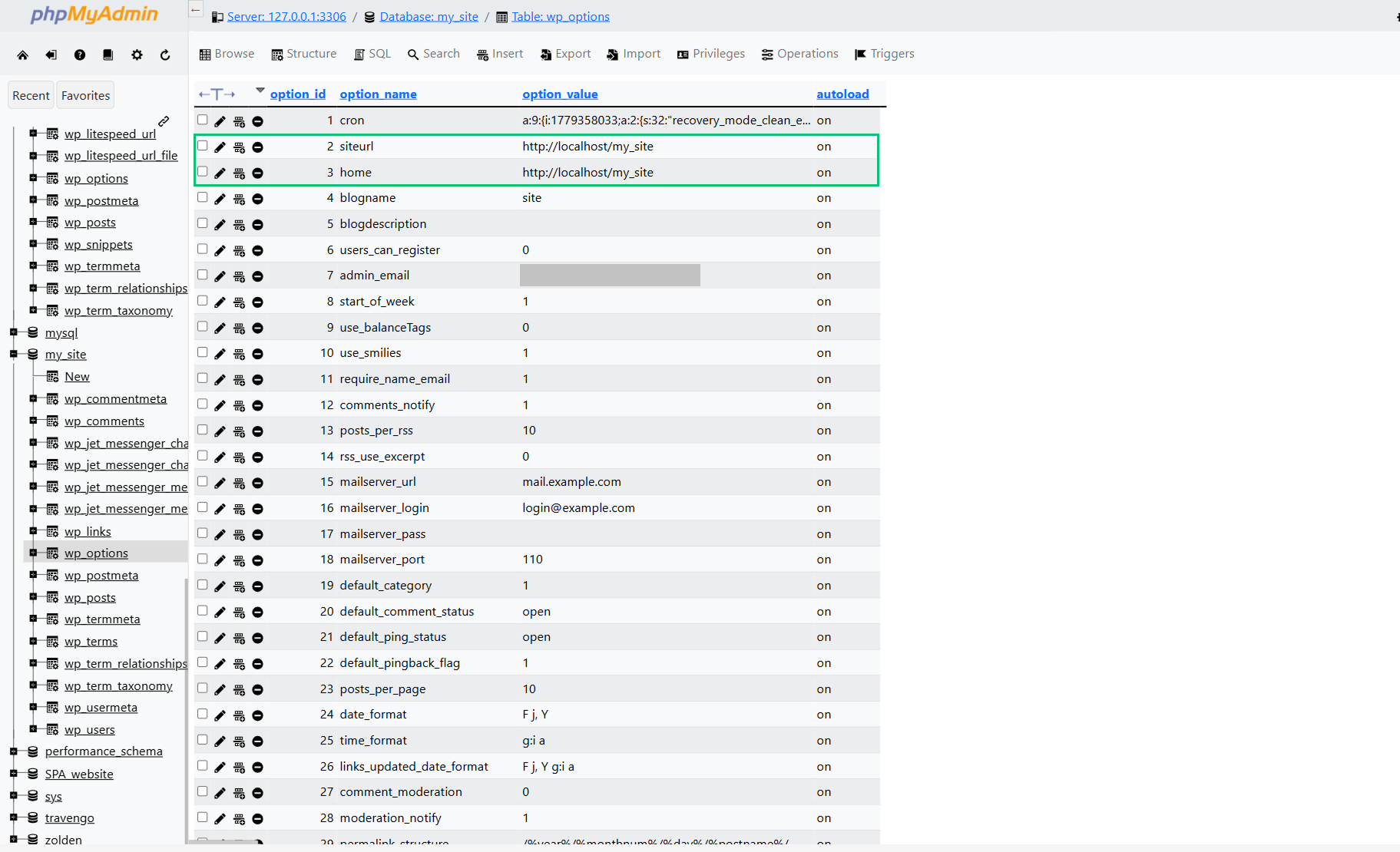
First, back up the database and save it locally. Then log in to phpMyAdmin and find the wp-options table. In that table, find siteurl and home records, click the “Edit” button, and replace their values with the correct website URL. Save the changes for both records.
Edit the functions.php File via FTP
Connect to your website via FTP and open the functions.php file located in:
{yoursite.com}/wp-content/themes/your-theme/functions.phpAdd the following lines immediately after the opening <?php tag:
update_option( 'siteurl', 'https://yoursite.com' );
update_option( 'home', 'https://yoursite.com' );
Replace the “https://yoursite.com” with the actual URL of your website.
After that, try opening the login page. Clearing your browser cache beforehand may also help. Once you regain access to the dashboard and correct the URL in WordPress Dashboard > Settings > General, remove these lines from the file.
Hard-Code the URL in wp-config.php
You can also define the website URL directly in the wp-config.php file via FTP.
Find this line:
/* That's all, stop editing! Happy publishing. */Insert the following code directly above it:
define('WP_HOME','https://yoursite.com');
define('WP_SITEURL','https://yoursite.com');
Replace the “https://yoursite.com” with the actual URL of your website.
Restore the Website from a Backup
If none of the methods above resolve the issue, restore your website using a recent backup provided by your hosting provider.
FAQ
This issue is usually caused by corrupted cookies, caching problems, incorrect site URLs, or conflicting plugins. Clearing browser cookies and checking the siteurl and home values often resolves it.
Yes, security rules, bot protection, rate limiting, or cached redirects in services like Cloudflare can accidentally block the login page or admin area. Temporarily disabling these protections can help identify the issue.
This usually indicates a browser-related issue, cached DNS records, firewall restrictions, VPN conflicts, or browser extensions interfering with the login process.
Updates can create compatibility issues with plugins, themes, custom code, or outdated PHP versions. This is especially common on websites using older themes or heavily customized functionality.
Yes, some malware modifies login URLs, corrupts files, changes administrator accounts, or blocks access to WP-Admin entirely. Running a malware scan and restoring clean backups may be necessary.
This error usually appears because of incorrect site URL settings, browser privacy restrictions, caching conflicts, or faulty plugins affecting cookie handling.
Yes, limited PHP memory, CPU throttling, or exhausted server resources may prevent the admin panel from loading properly, especially on large or high-traffic websites.
Slow admin performance is commonly caused by overloaded plugins, database bloat, external API requests, insufficient hosting resources, or server-side performance issues.
Yes, depending on the hosting provider, you may use:
– a hosting file manager;
– phpMyAdmin;
– backup restoration tools;
– WordPress recovery mode links sent by email.
That’s all. Now you know how to fix issues when you can’t access the WP-Admin page or log in to the WordPress admin panel.