
Canceling the Subscription
Read about canceling your subscription and what it entails.
According to the Crocoblock Terms of Use, you can cancel your subscription at any time while it is valid. The cancellation means there will be no auto-renewal for this subscription, but everything you’ve created with our products will be saved and will continue to work. There will be no updates or support.
To cancel the subscription, first log in to your Personal Account. Then, navigate to the Purchase Details block and press the “View details” link.
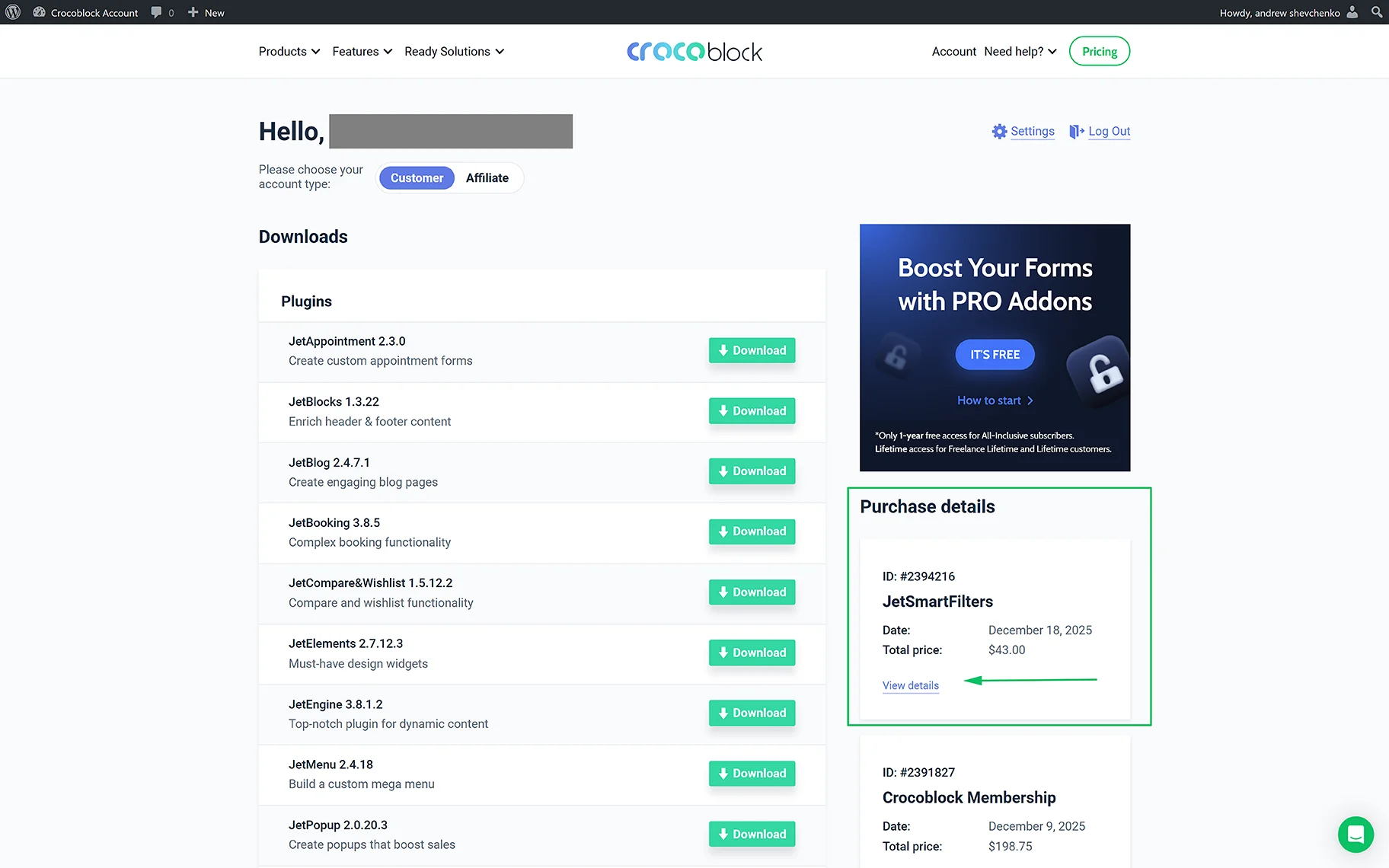
After pressing the “View Details” link, the current Subscription details will be displayed.
In this case, we select the subscription with ID #1941873, which has the “Complete” Payment Status, and then move to the Subscription details block of this subscription.
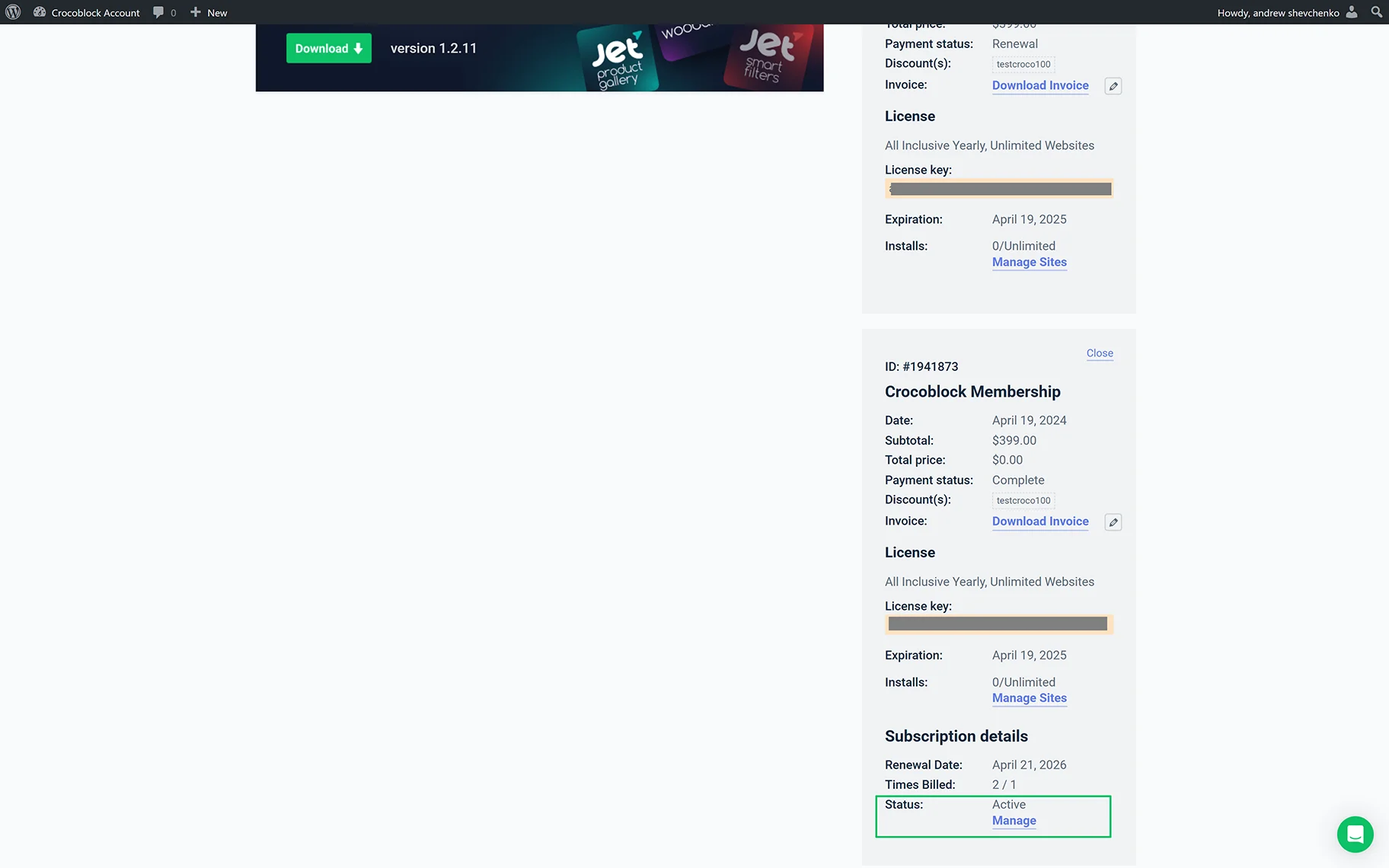
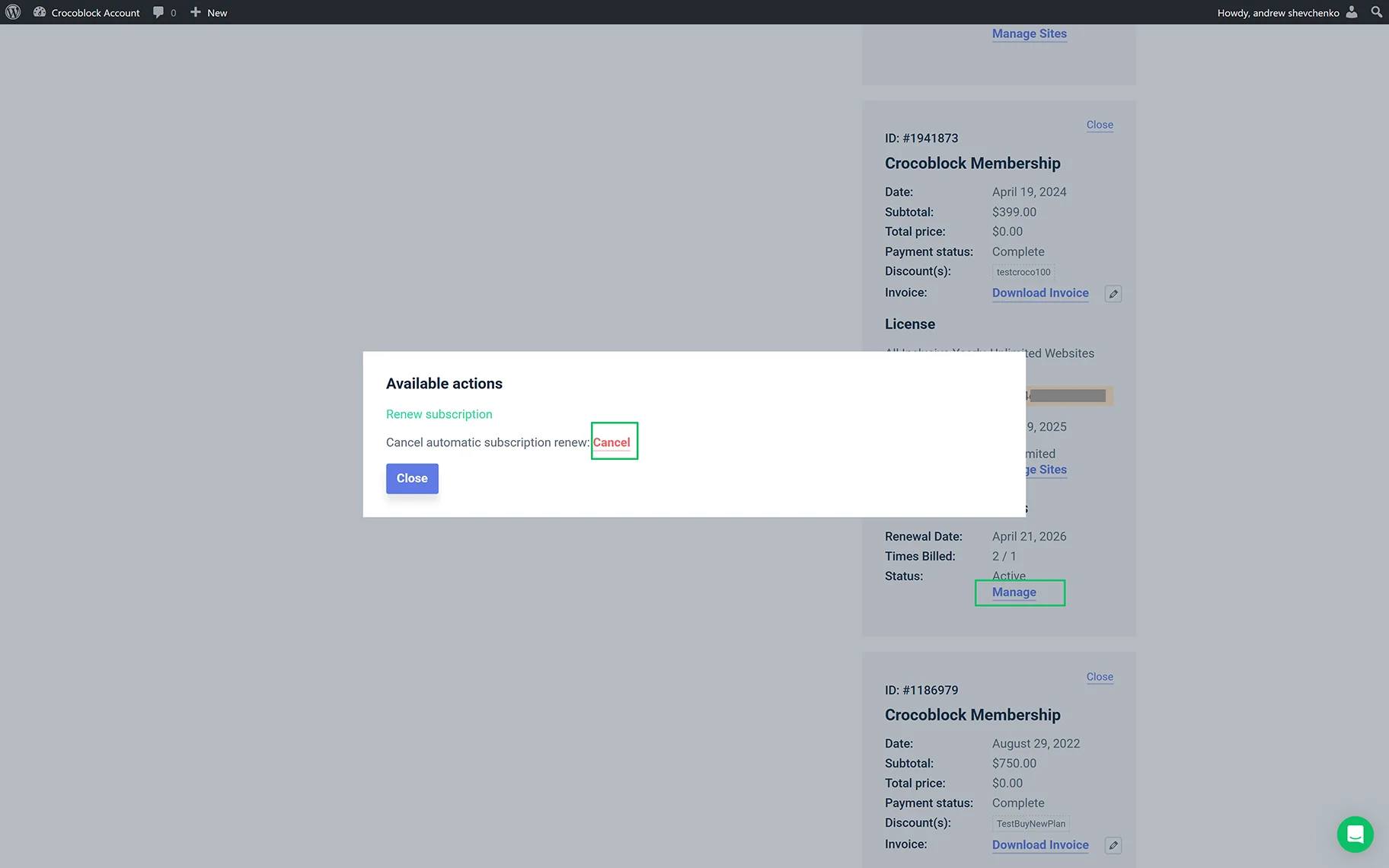
Here, press the “Manage” link and, after that, click the “Cancel” link in the newly appeared Available actions pop-up.
After that, the Status of the subscription will be changed to “Cancelled”.
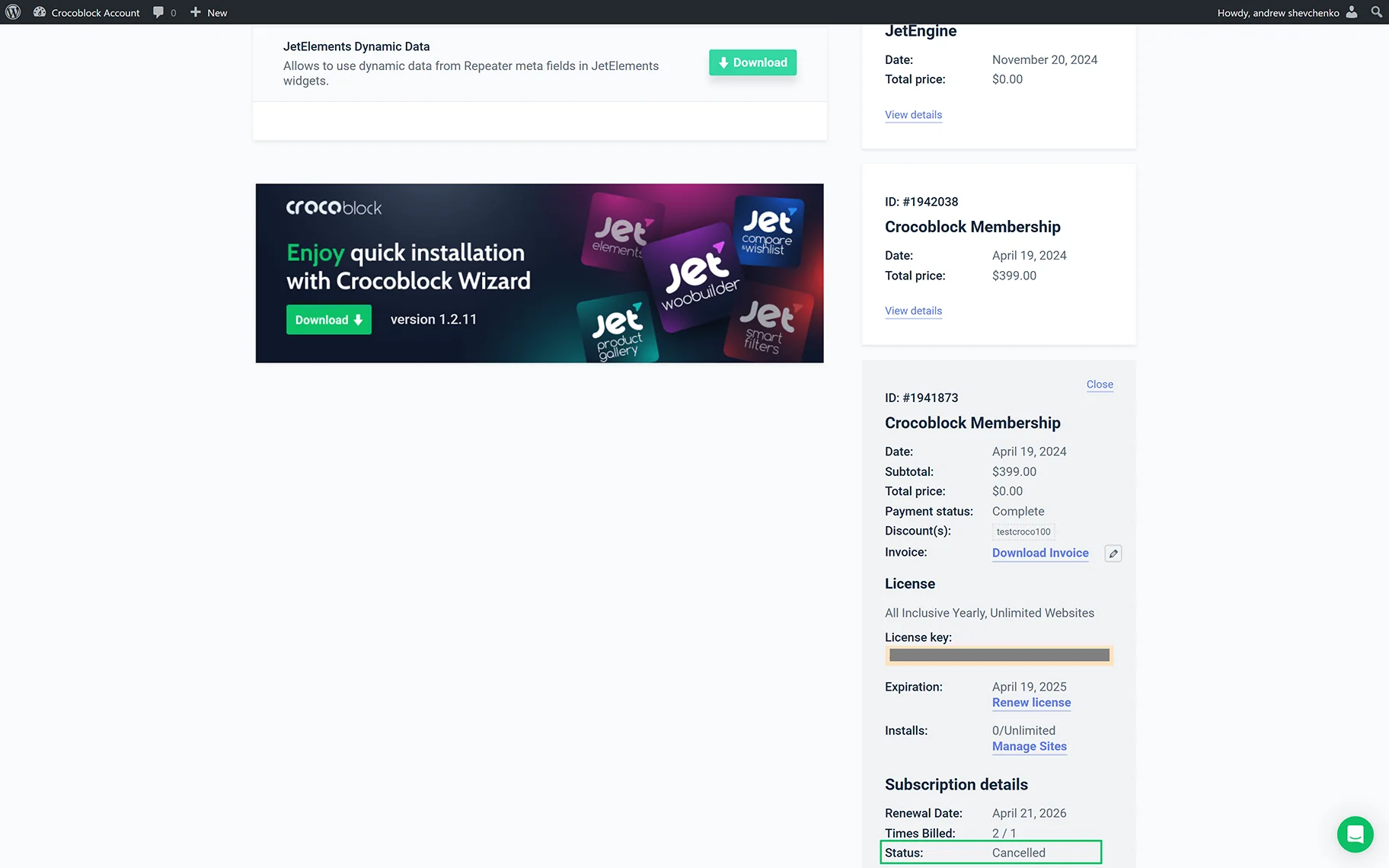
The subscription can also be renewed. Read the Renewing the Crocoblock Subscription License tutorial for more details.
That’s all about canceling the Crocoblock subscription via your Crocoblock account and what subscriptions can be cancellated.