
How to Set Up Multivendor Functionality in Plain Mode with WooCommerce Checkout
In this tutorial, you will find out how to configure JetBooking in “Plain” mode with WooCommerce checkout so that each vendor can manage their posts and booking orders.
Before you start, check the tutorial requirements:
- Elementor (Free version), Block editor (Gutenberg), or Bricks
- WooCommerce plugin installed and activated
- JetBooking plugin installed and activated
with the “Plain” mode set up
This use case is suitable for multivendor marketplaces where:
- Each vendor can create their own posts;
- Customers can book any vendor’s listings using WooCommerce checkout;
- Vendors see only their booking orders and cannot access other vendors’ data;
- The site administrator can still see all the orders.
Enable the “Plain” Mode in the Settings
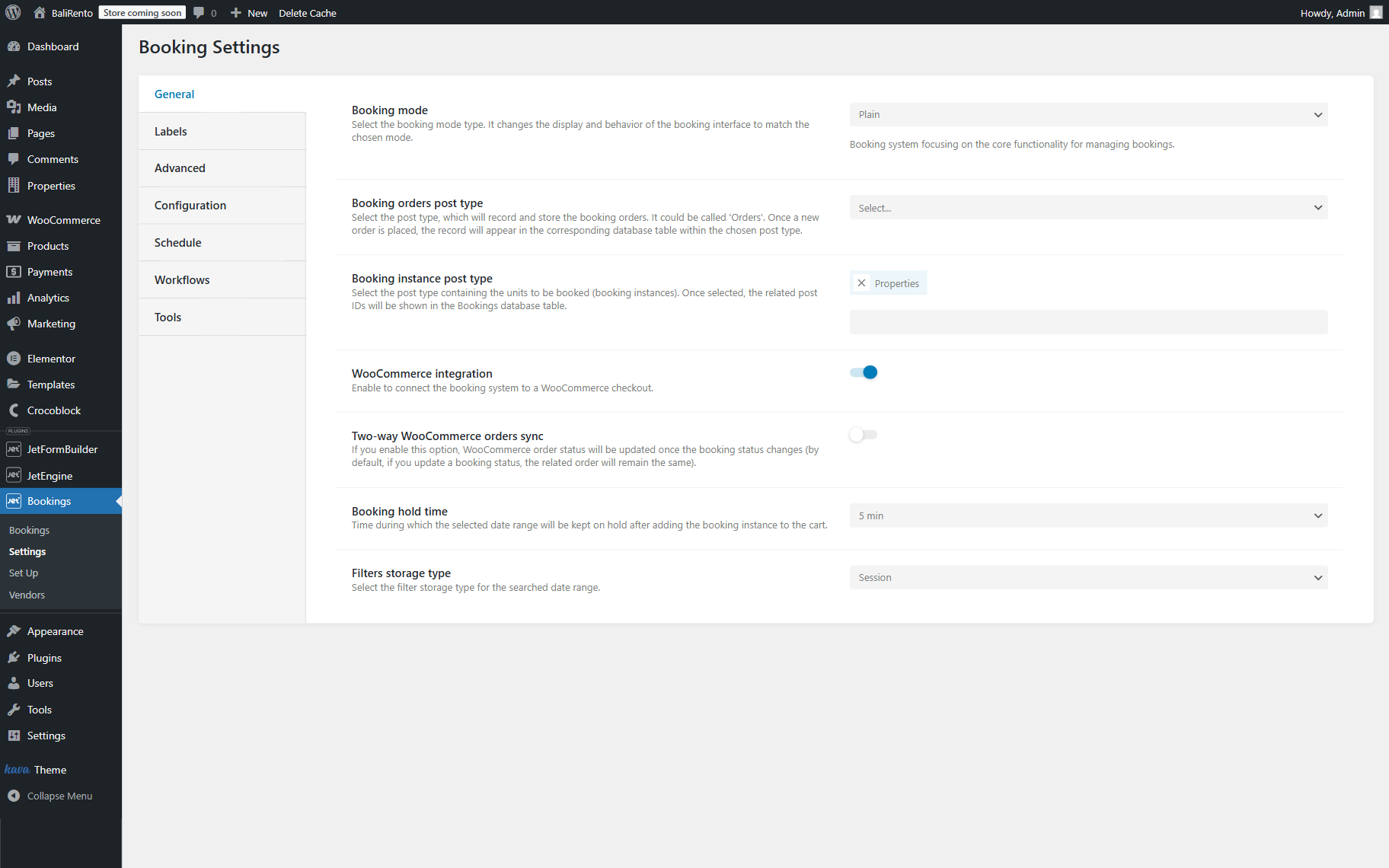
In “Plain” mode, JetBooking stores booking data in a separate booking table and links the booking to a WooCommerce order only at checkout.
If you haven’t activated the “Plain” mode in the settings, you can do it in the WordPress Dashboard > JetBooking > Settings by enabling the “Plain” Booking mode.
If you want to work with the WooCommerce “Orders” instead of the custom Booking orders post type, activate the WooCommerce integration toggle.
Click the “Save” button.
Check our How to Create a Booking Form with WooCommerce Integration to find out more about setting up a form with a WooCommerce checkout.
Add Vendors
Initially, the website administrator should add vendors. It can be done in the WordPress Dashboard > Bookings > Vendors.
Click the “Add New” button.
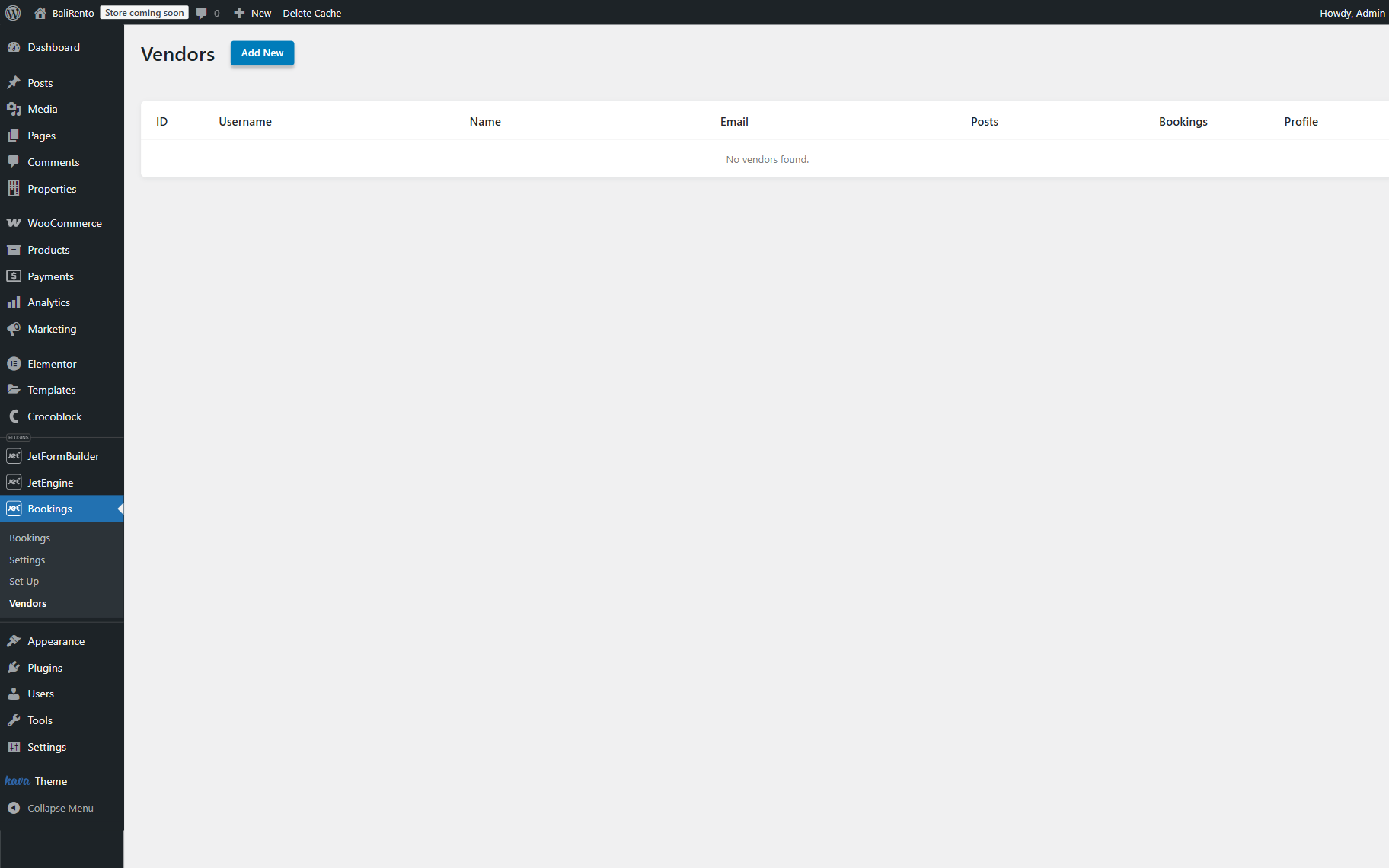
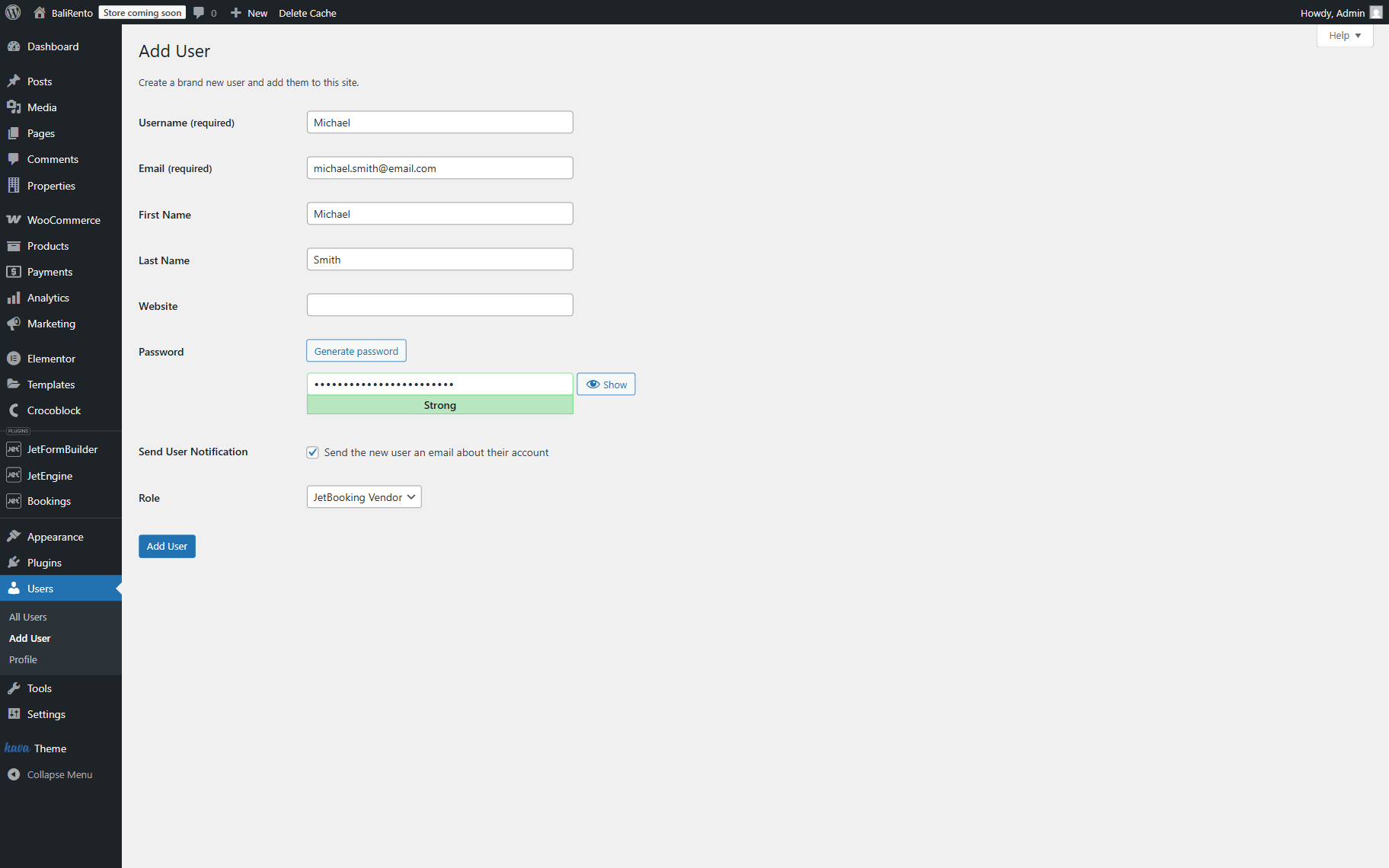
You will be redirected to the Add User screen.
Complete all the required fields, make sure that the “JetBooking Vendor” Role is selected, and press the “Add User” button.
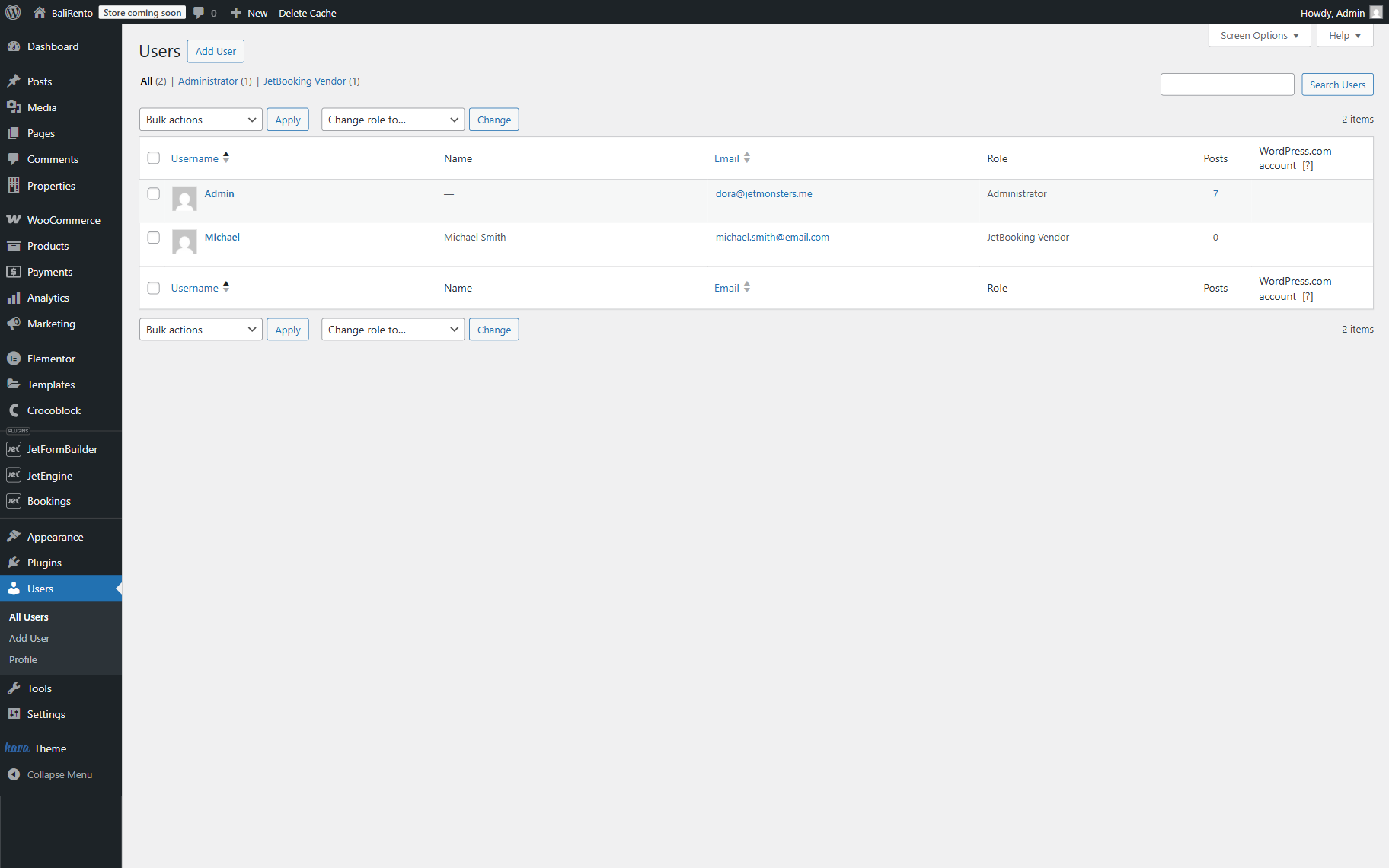
The added user with the “JetBooking Vendor” Role can now be reviewed in the WordPress Dashboard > Users > All Users directory.
This way, as many vendors as needed can be added.
Check Vendors’ Capabilities
When the vendor logs in to the website, they have restricted access to the dashboard.
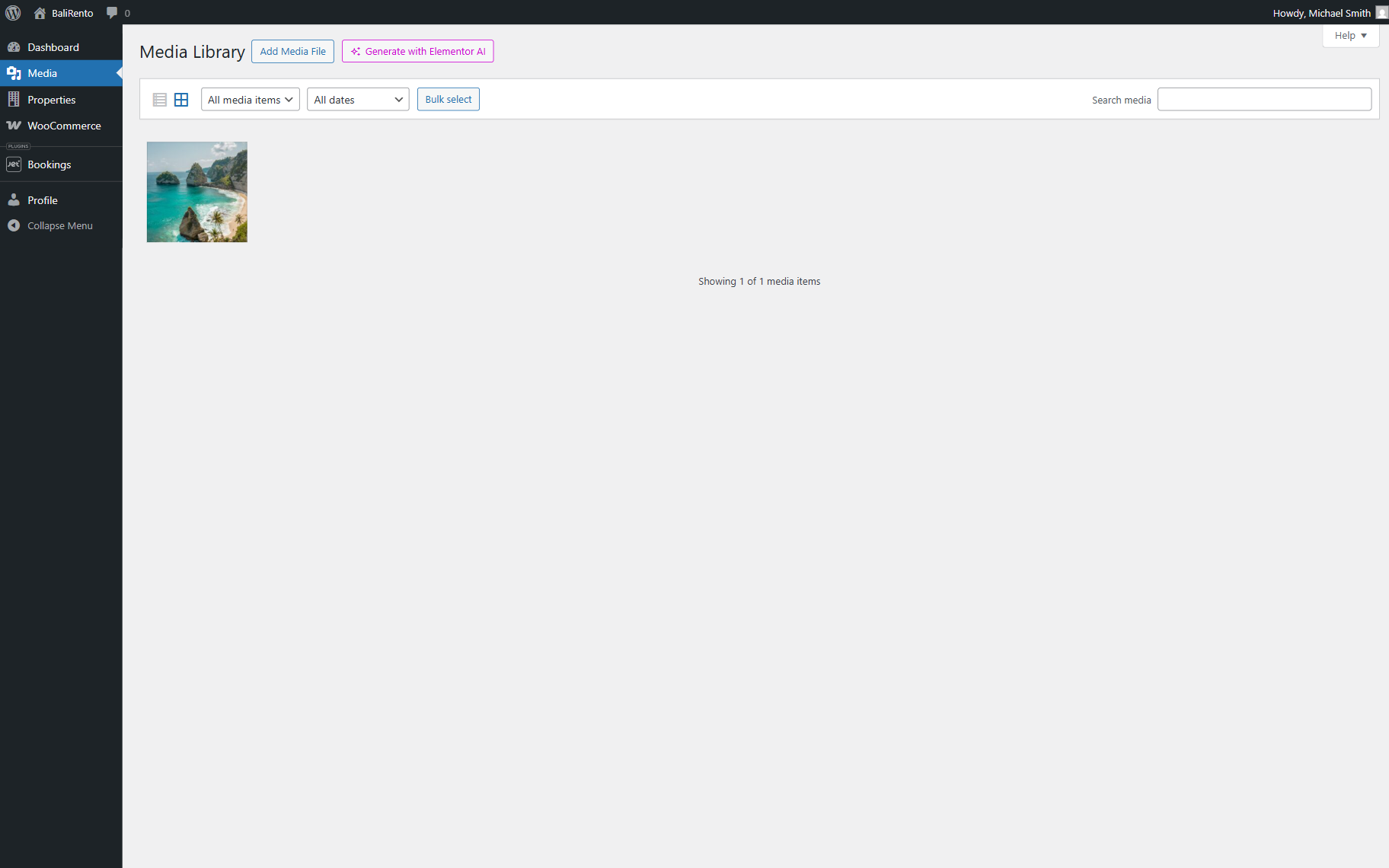
Initially, they can proceed to the Media Library but only see the files they uploaded.
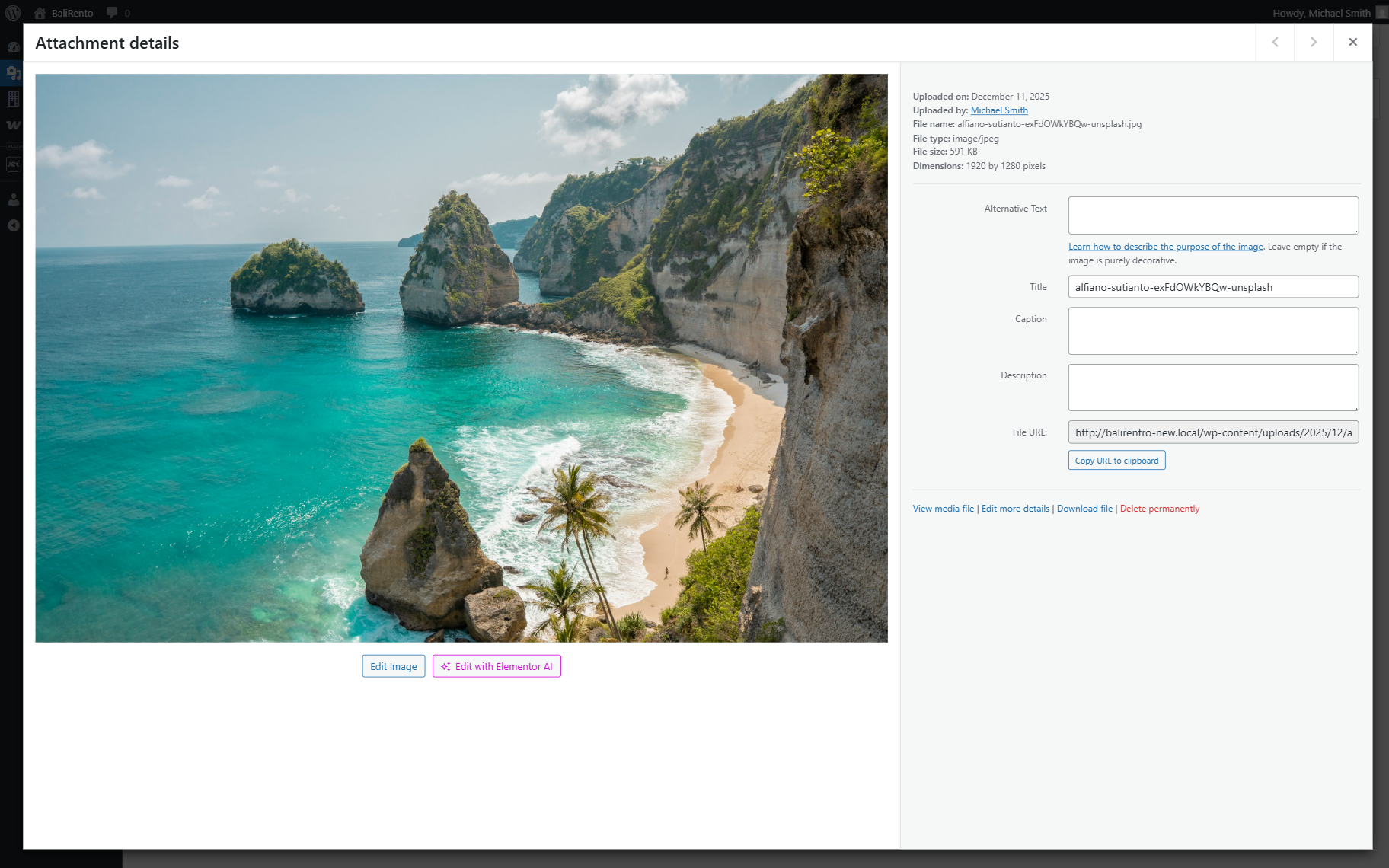
If the vendor clicks on the media, they can make all necessary changes to the image data.
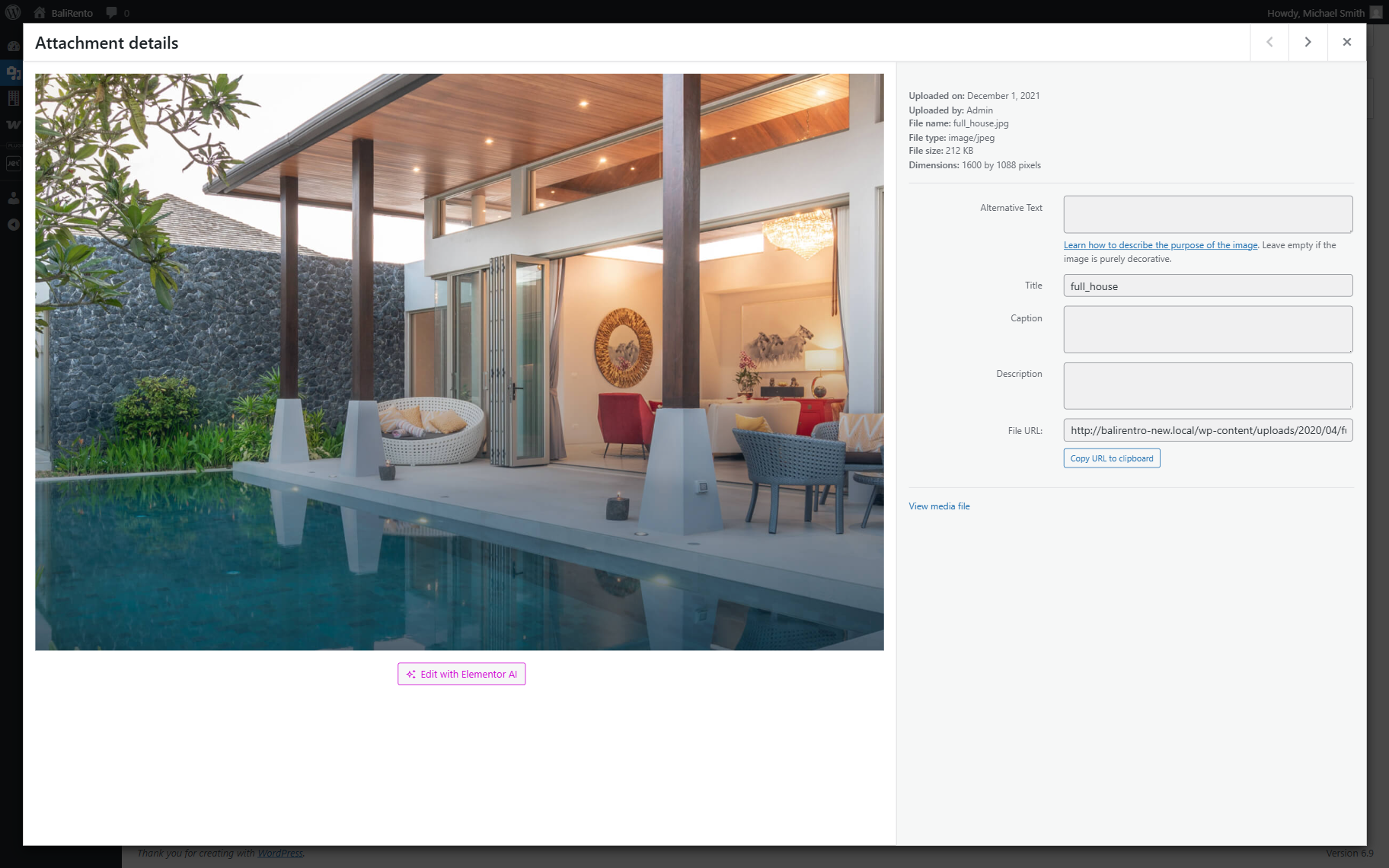
Also, vendors can access the media shared by other users via their links. However, this file has limited capabilities.
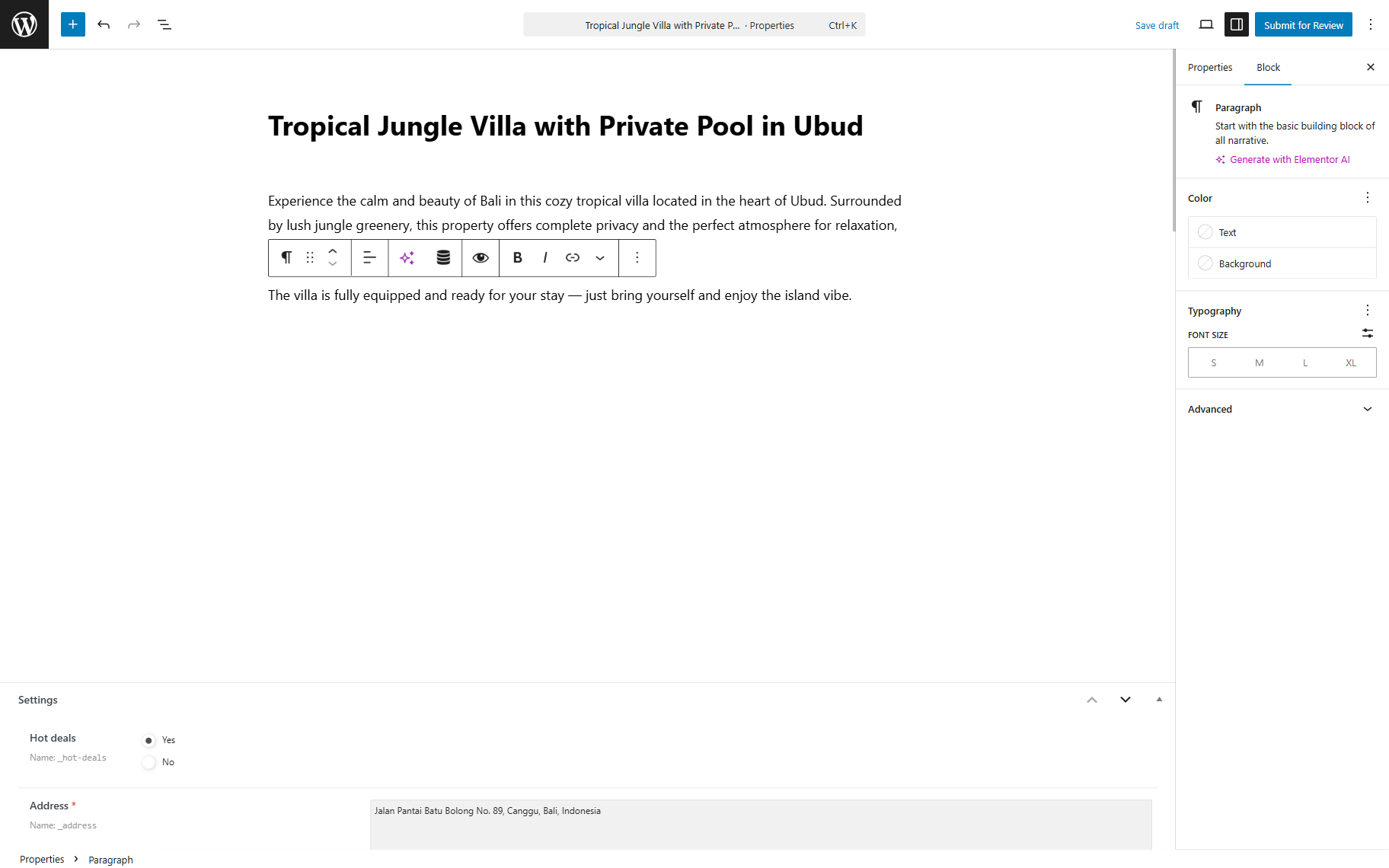
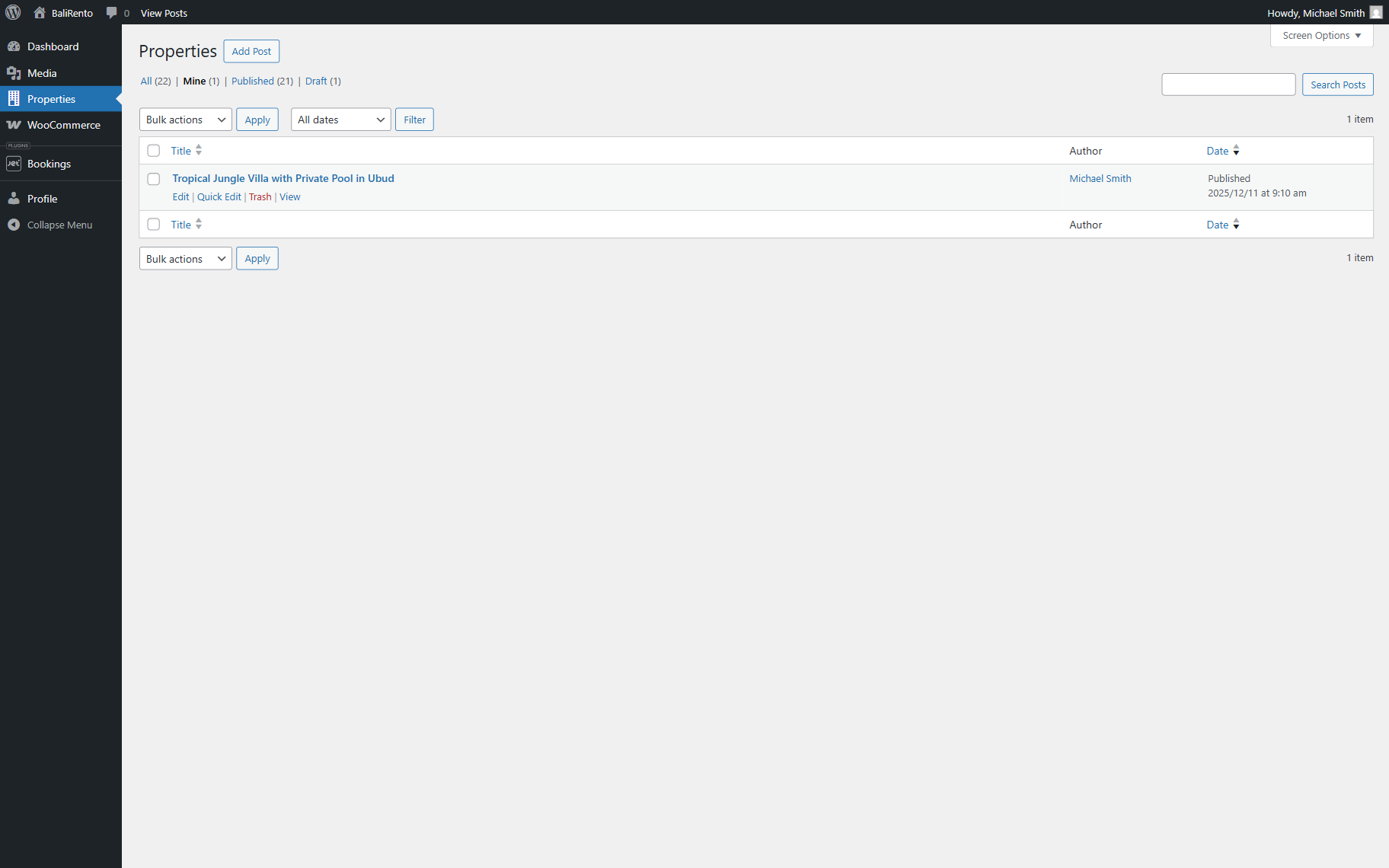
Next, the vendor can add posts to the post types assigned as the Booking orders post type and Booking instance post type in the JetBooking settings.
The post-editing looks the same for the vendor as for other roles allowed to edit/publish posts. The vendor can change the post’s title, content, and media data.
However, the vendor can’t publish posts themselves; they can only send the post for review by clicking the “Submit for Review” button.
Once the website’s administrator approves the post and publishes it, the vendor will see that their post’s status has been changed to “Published.”
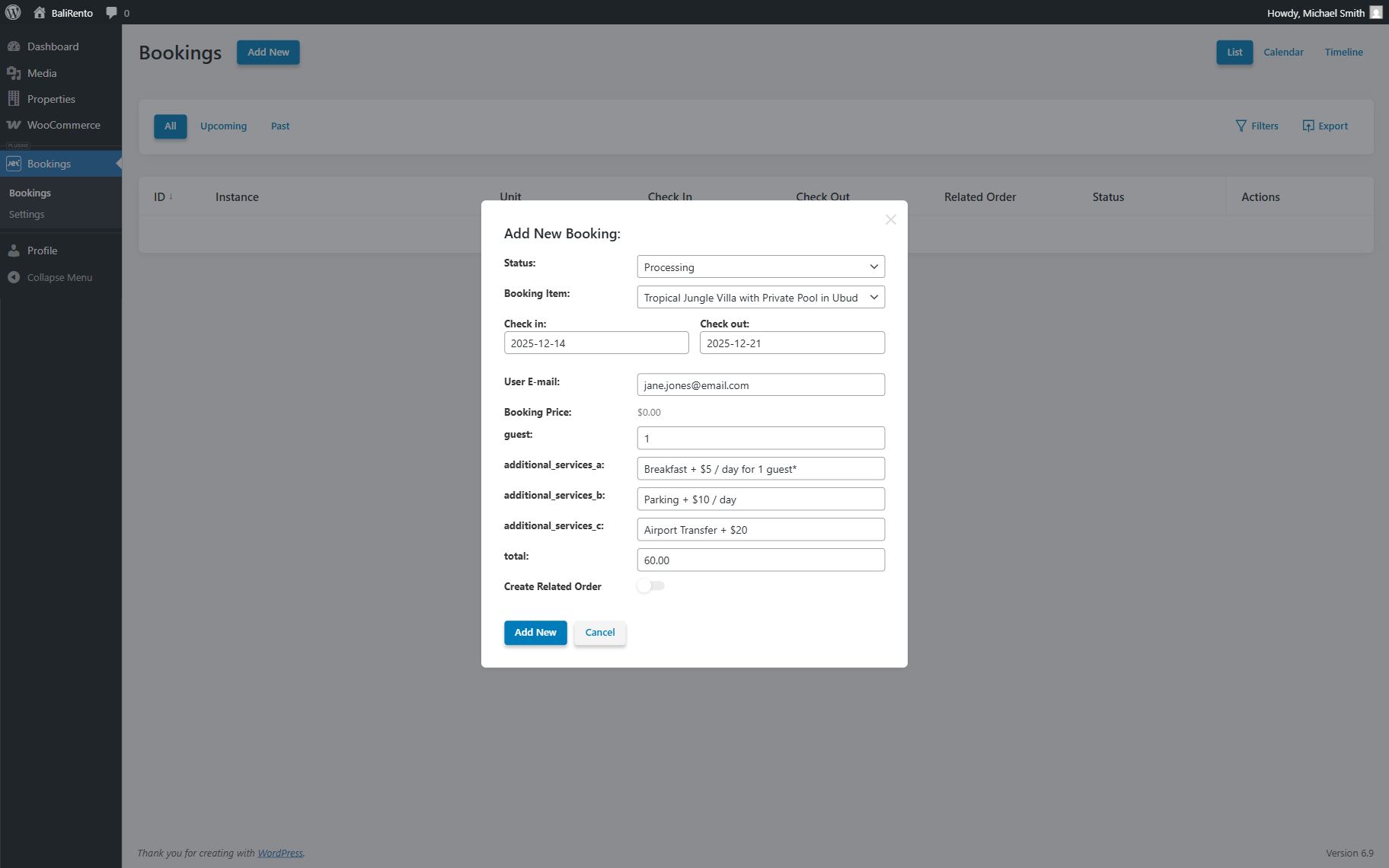
The vendor can also manage and add new bookings in the WordPress Dashboard > Bookings dashboard. Vendors can only see bookings associated with their posts.
The new booking can be added by pressing the “Add New” button.
All the changes to the booking can be made in the Add New Booking pop-up. To save them, press the “Add New” button.
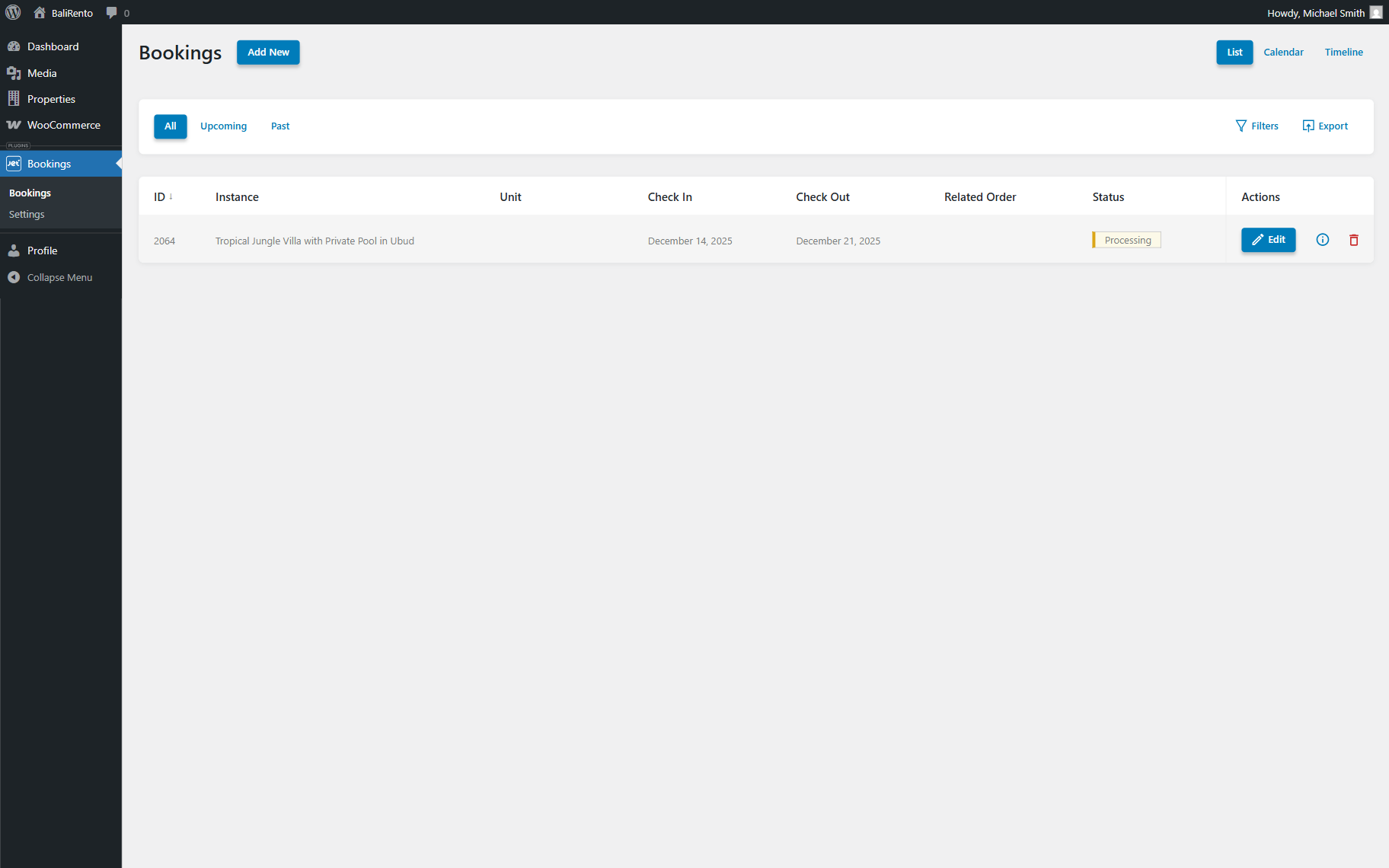
The vendor can now see the booking they just added. They can edit the added bookings, check their information, or delete them.
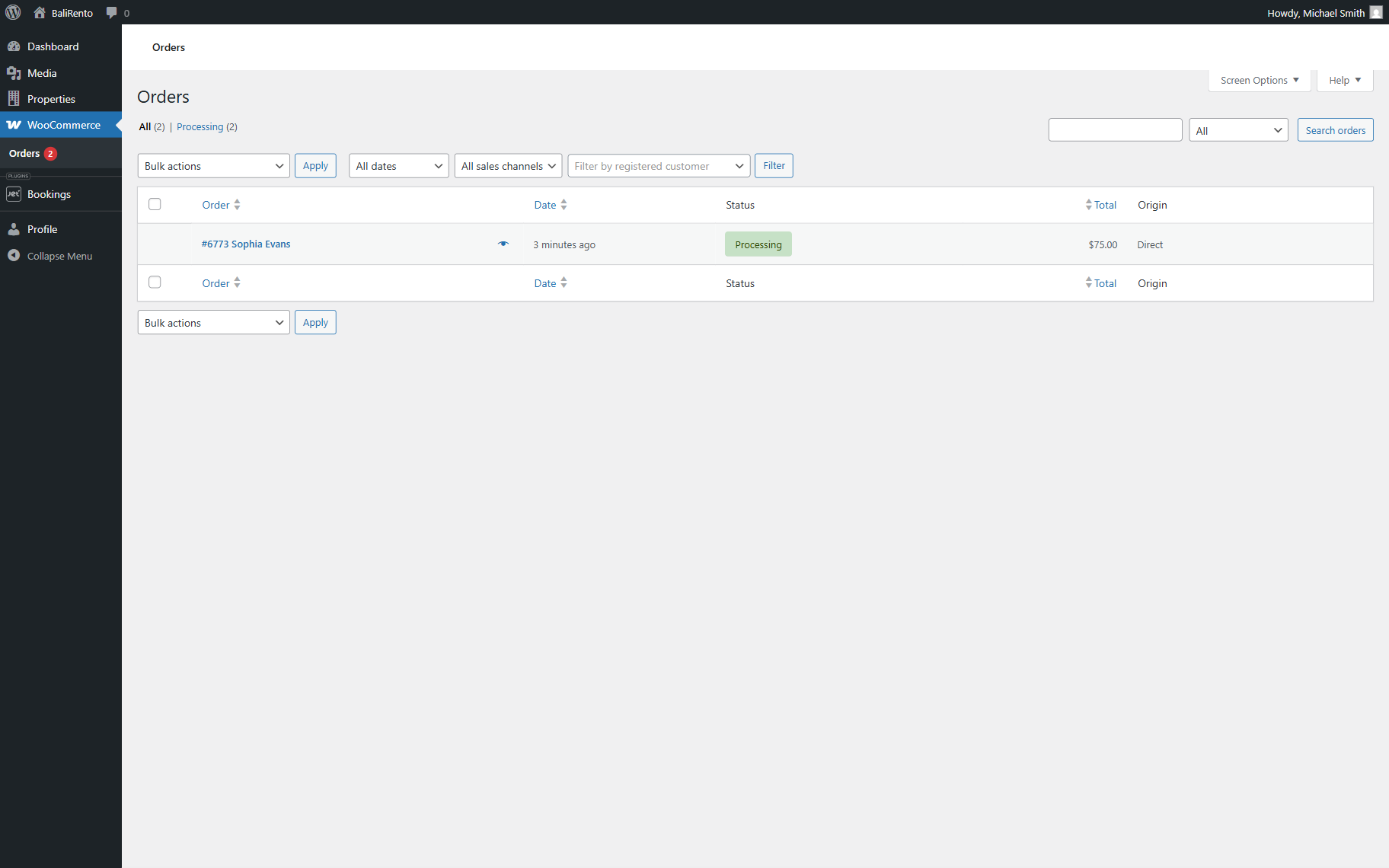
Vendors can also view the orders associated with their posts and bookings in the custom post type for orders or in the WordPress Dashboard > WooCommerce > Orders directory if the WooCommerce Integration was activated, as in the described case.
That’s all about setting up the multivendor functionality in the “Plain” mode with WooCommerce checkout by using the JetBooking plugin for WordPress websites.