
How to Apply a Scroll Reveal Effect
Discover what the JetTricks’ Scroll Reveal effect is and how to apply it to widgets and blocks on your WordPress site.
Before you start, check the tutorial requirements:
- Elementor (Free version) or Block editor (Gutenberg)
- JetTricks plugin installed and activated
A 2.0.0 JetTricks release offers a Scroll Reveal effect for the widgets and blocks on your WordPress site. One of the main features of the Scroll Reveal effect is its ability to animate elements on scroll in Elementor and Gutenberg builders with no coding natively.
In this guide, we explain what the JetTricks Scroll Reveal extension is, how it works, and how to apply and set it up.
What is Scroll Reveal in JetTricks
The JetTricks Scroll Reveal effect extension is a user interface animation technique where elements on a webpage become visible or animated as they enter the viewport during scrolling.
In simple terms, instead of showing all content at once, parts of the page are initially hidden (or styled with reduced opacity/offset position) and are revealed progressively when the user scrolls down.
Why the JetTricks Scroll Reveal effect can be useful:
- improves visual engagement;
- guides the user’s attention through content;
- makes long pages feel more dynamic and less overwhelming.
You can also refer to our video overview of the JetTricks Scroll Reveal effect extension.
How to Enable Scroll Reveal Extension
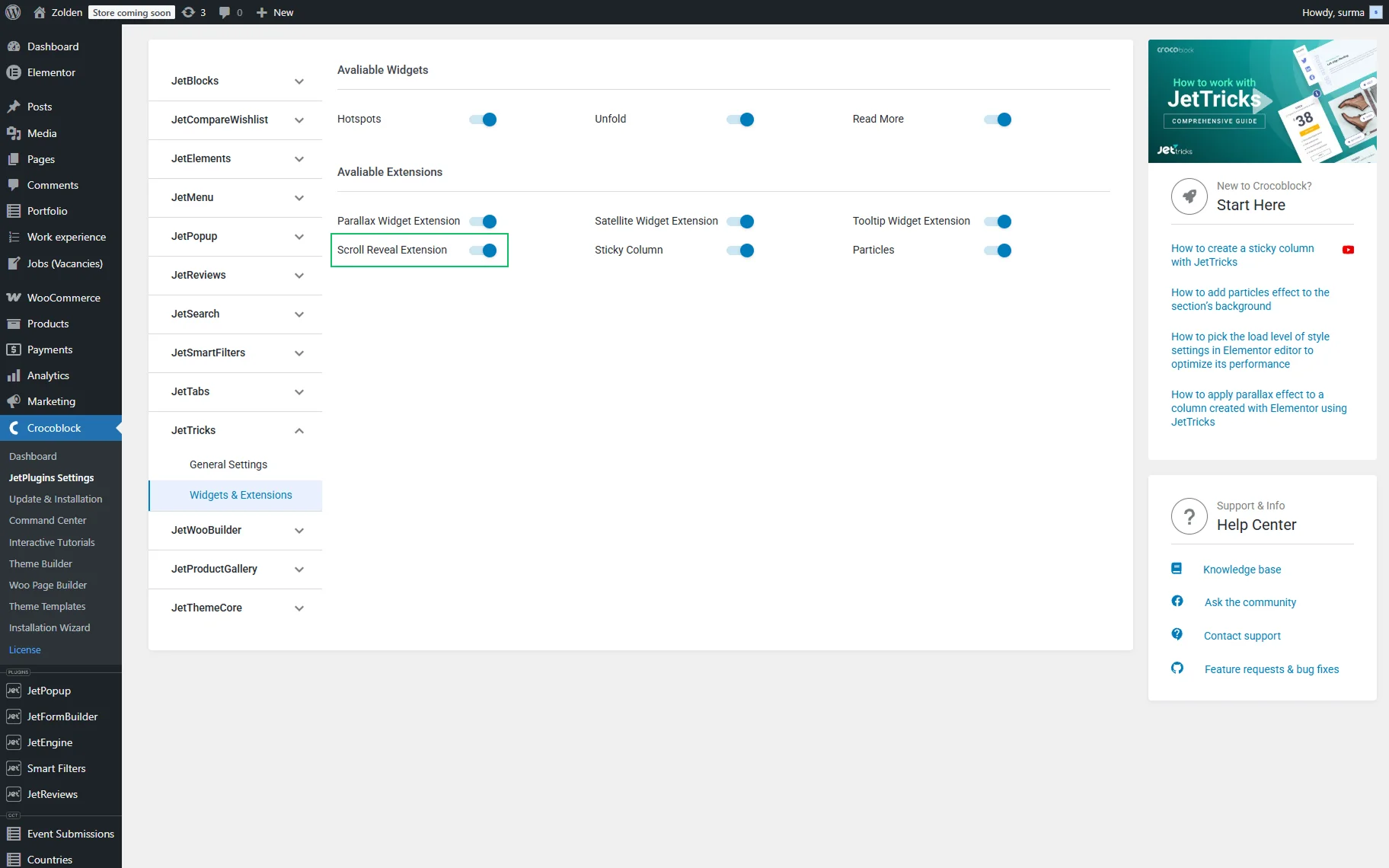
To enable the Scroll Reveal extension, proceed to WordPress Dashboard > Crocoblock > JetPlugins Settings > JetTricks > Widgets & Extensions > Available Extensions and enable the Scroll Reveal Extension toggle.
How to Apply Scroll Reveal to a Widget/Block
Once the extension is enabled, open the page in the Elementor or Gutenberg editor. Add or edit the needed widget.
Proceed to the Advanced tab of the widget’s settings and open the JetTricks section. Here, enable the Scroll Reveal toggle.
Once the JetTricks Scroll Reveal toggle is on, the following settings appear available. First, you can select the desirable Effect from the dropdown menu:
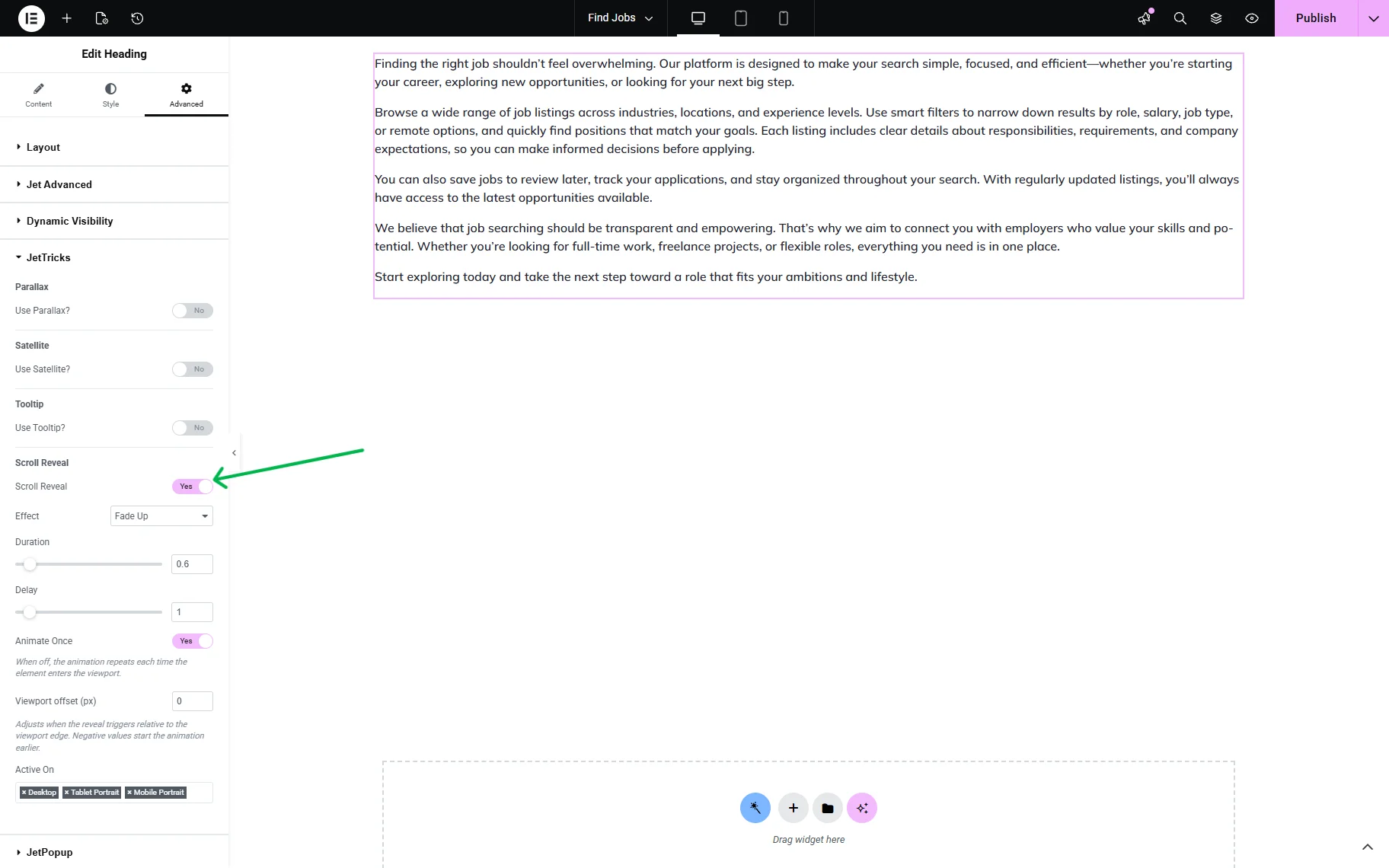
- Fade Up — the element appears gradually while moving upward into its original position. Creates a smooth and lightweight entrance effect;
- Fade Down — the element fades into view while slightly moving downward. Often used to create a soft descending animation;
- Fade Left — the element becomes visible while sliding in from the left side. Helps direct attention horizontally across the page;
- Fade Right — the element fades in while moving from the right side toward its final position. Commonly used for balanced content layouts;
- Zoom In — the element scales up from a smaller size while appearing. Adds emphasis and makes content feel more dynamic;
- Zoom Out — the element appears from a larger scale and settles into its normal size. Creates a cinematic transition effect;
- Flip Up — the element rotates upward during its appearance, creating a 3D flip-style animation that adds depth and interactivity;
- Flip Out — the element flips away as it disappears or transitions, producing a more energetic and attention-grabbing effect;
- Mask — the element is revealed through a masking or clipping animation, where content appears progressively from a hidden area. Often used for modern, visually polished transitions.
There are also other settings offered:
- Duration — the scale allows defining the time the animation will take;
- Delay — the scale allows defining the time after the element is visible and before the animation takes place;
- Animate Once — the toggle defines whether the animation repeats once only (when enabled), or if the animation repeats each time the element enters the viewport (when disabled);
- Viewport offset (px) — the input adjusts when the reveal triggers relative to the viewport edge. Negative values allow the animation to be started earlier;
- Active On — the input defines the devices on which the animation will be applied.
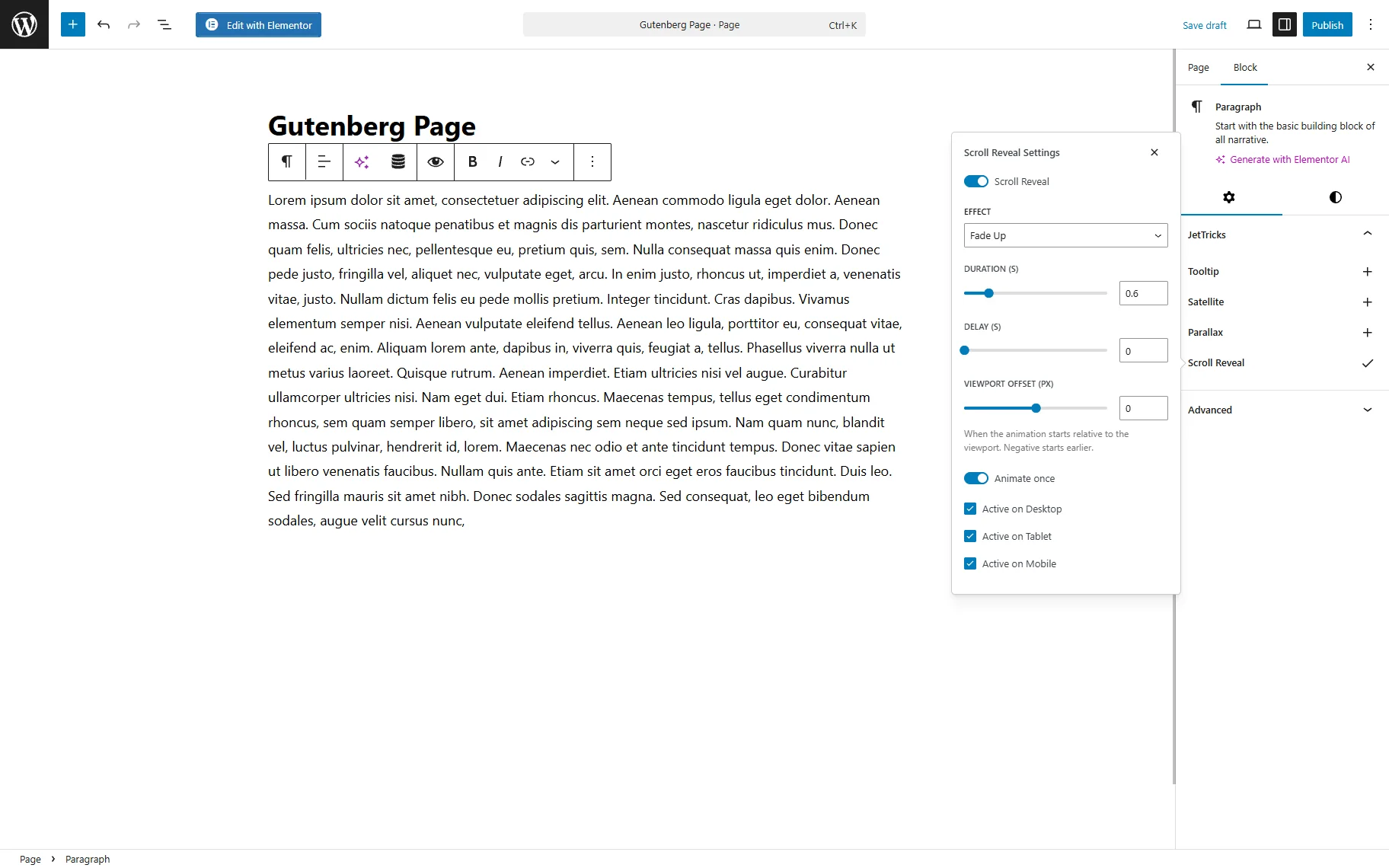
All the same settings can be found in the Gutenberg editor. To reveal the animation block in Gutenberg, open the JetTricks section and enable the Scroll Reveal toggle.
Mask effect: Special use case
The Mask Scroll Reveal effect is a type of animation for your WordPress site, added to the JetTricks’ functionality. For WordPress sites focused on creative work, the Mask animation can be used to achieve a cinematic image display. Using this animation, architecture studios or photographers can have project photos gradually emerge as a visitor scrolls. This technique replaces abrupt image appearances with fluid clipping motions from any side, fostering a professional atmosphere and ensuring that users pay close attention to each specific work.
The Mask effect can also be useful for:
- hero section banners;
- full-width gallery transitions;
- before/after showcases;
- product presentation sections;
- storytelling landing pages.
Because the animation reveals content progressively, it adds visual depth without overwhelming the page with aggressive motion effects. Combined with minimal layouts and high-quality visuals, the Mask effect can make scrolling interactions feel more immersive and modern.
FAQ
The Scroll Reveal effect is an animation technique that makes page elements appear or animate when they enter the viewport during scrolling. In JetTricks, this effect can be applied to Elementor widgets and Gutenberg blocks without custom coding.
– The Fade effects reveal elements through opacity and movement transitions, such as sliding up, down, left, or right while gradually appearing.
– The Mask effect, in contrast, reveals content through a clipping or masking animation, where the element progressively emerges from a hidden area.
Fade animations are lighter and simpler, while the Mask effect creates a more cinematic and visually polished appearance.
Yes. The JetTricks Scroll Reveal extension works natively in both Elementor and Gutenberg editors. In Gutenberg, the settings can be accessed through the JetTricks section after enabling the Scroll Reveal toggle for the selected block.
The Scroll Reveal effect can be applied to individual widgets, blocks, containers, or sections, depending on the builder structure. Applying the animation to separate elements usually provides better control over the visual sequence and user experience.
The animation behavior can be adjusted using the Duration and Delay settings in the JetTricks section. Duration controls how long the animation takes, while Delay defines the waiting time before the animation starts after the element enters the viewport.
It depends on the Animate Once setting. When enabled, the animation plays only once. When disabled, the effect repeats each time the element re-enters the viewport.
Using many animated elements on the same page may slightly affect performance, especially on low-powered devices. For the best experience, use animations selectively and avoid applying heavy effects to every page element simultaneously.
Yes. The Active On setting allows you to choose on which devices the animation will be displayed, including desktop, tablet, and mobile.
That’s it. Now you know what the JetTricks’ Scroll Reveal effect is and how to apply it to widgets and blocks on your WordPress site.