
Unable to Output the Slot Price on the Service/Provider Single Template
How can I display the slot price on the service or provider single template?
That’s true, that in the Dynamic Field widget, JetAppointment does not provide a separate price field for the slots. Let’s break down how to display the price per slot on a single page using the JetEngine and JetAppointment WordPress plugins.
It is important to understand that the price per slot is stored in the “_app_price” field in the Database.
So, let’s proceed to the service or provider single template and add the Dynamic Field widget.
Select the “Meta Data” option in the Source field and keep the Meta Field input empty. Paste the “_app_price” value to the Object field / Meta field / Repeater key / Component prop input.
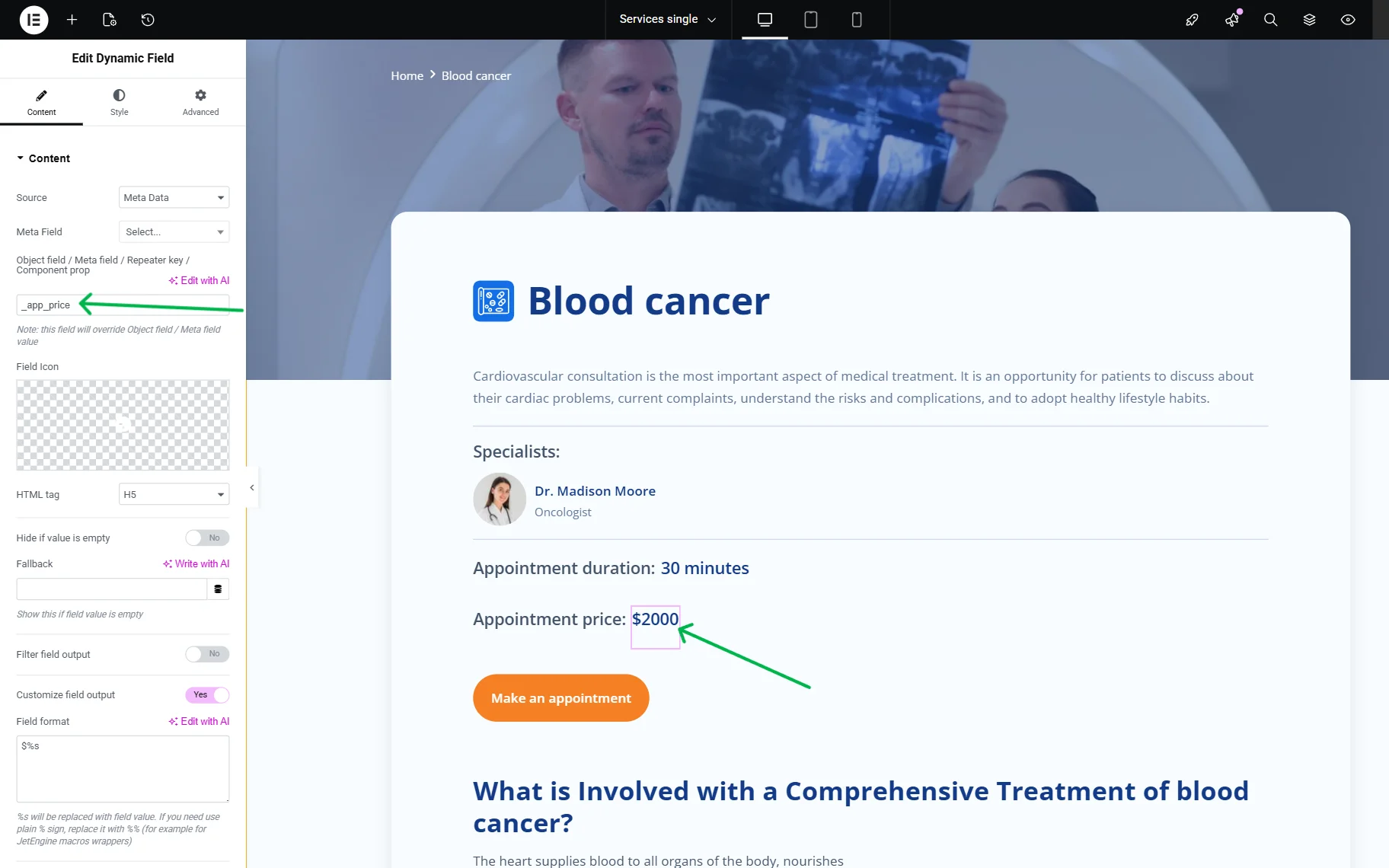
In this case, we also added the “$” sign to the Field Format.
This solution works on the service’s single page to show the price per slot for the service, and on the provider’s single page to show the price per slot for the provider.
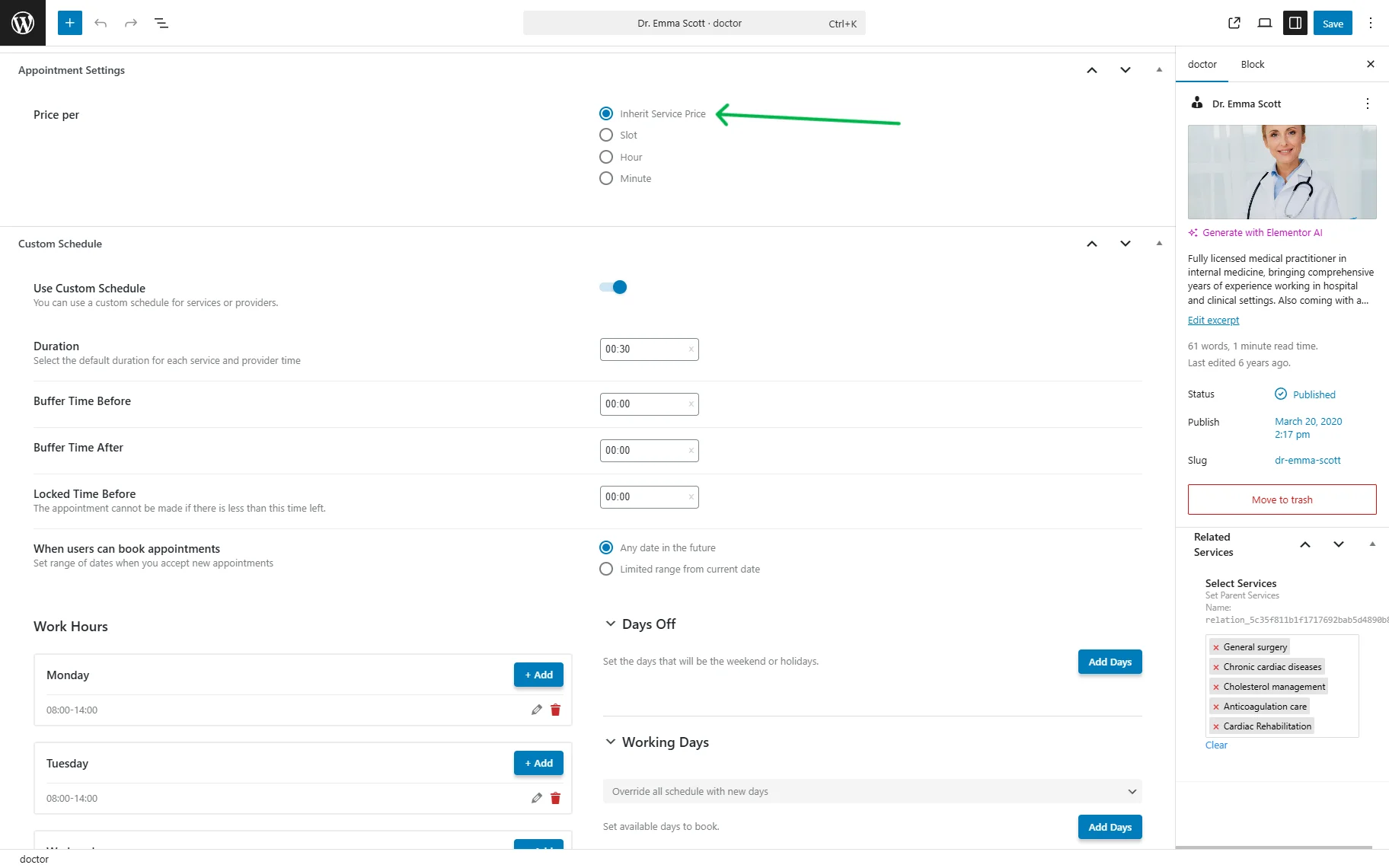
So, ensure that the “Slot” option is selected for the Price per field.
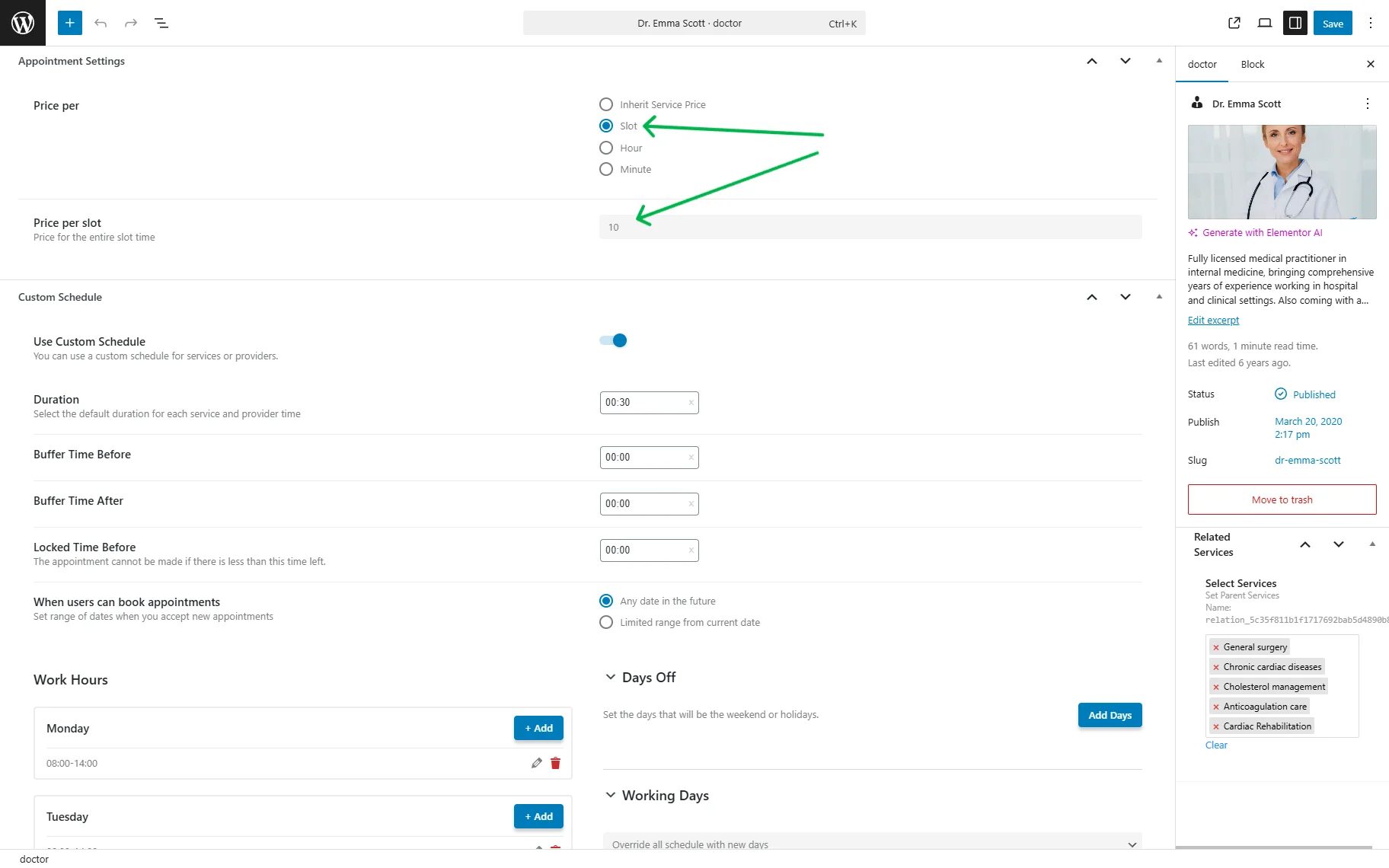
Following this short guidance, we can display the price per hour on the service’s single page.
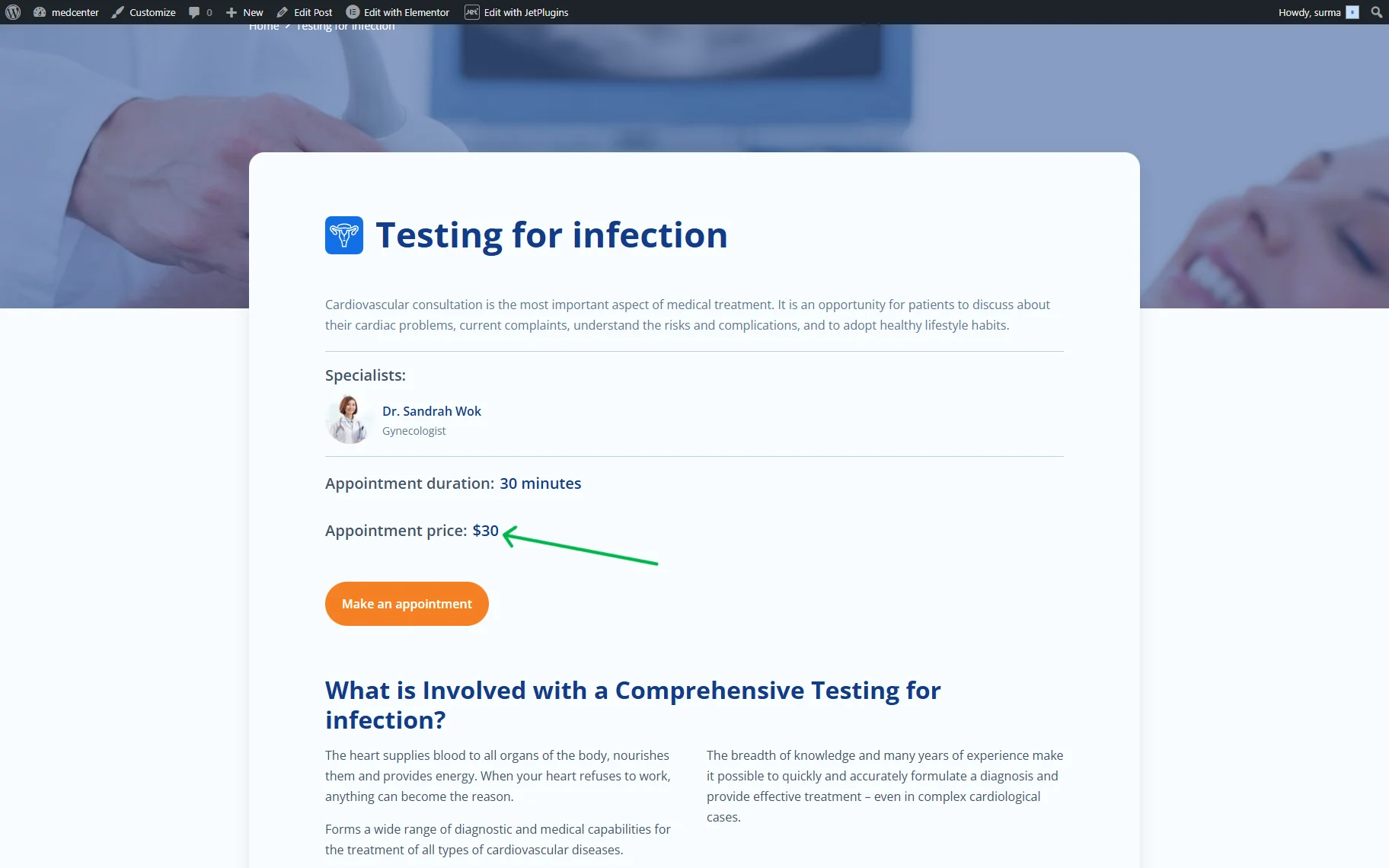
Similarly, the price per hour is listed on the provider’s single page.
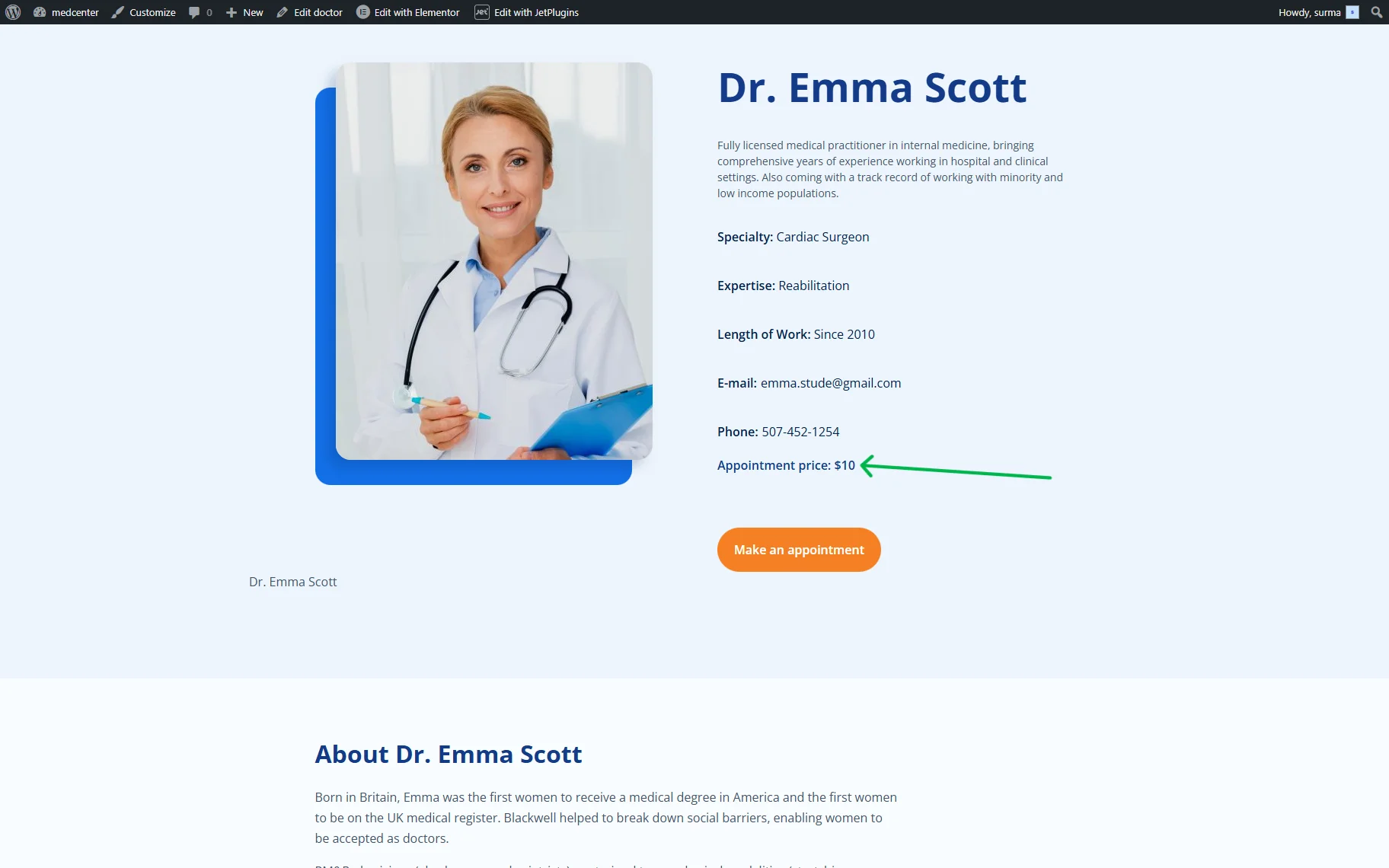
Additionally, we can display the price per hour and per minute. A similar approach can be used for both cases.
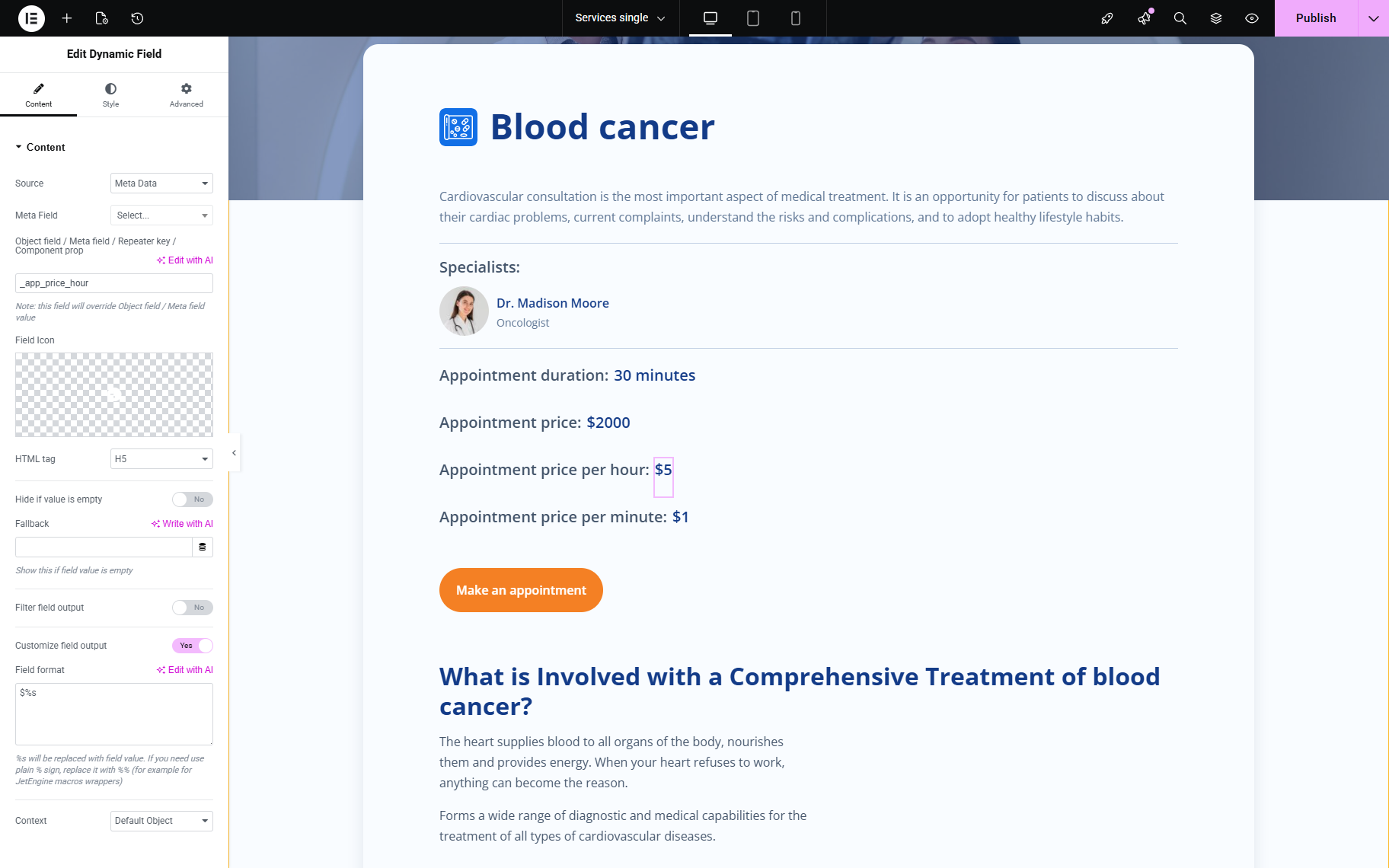
To display the price per hour, add the Dynamic Field widget and select the “Meta Data” option in the Source field. The Meta Field input should be kept empty. In the Object field / Meta field / Repeater key / Component prop input, type the “_app_price_hour” value.
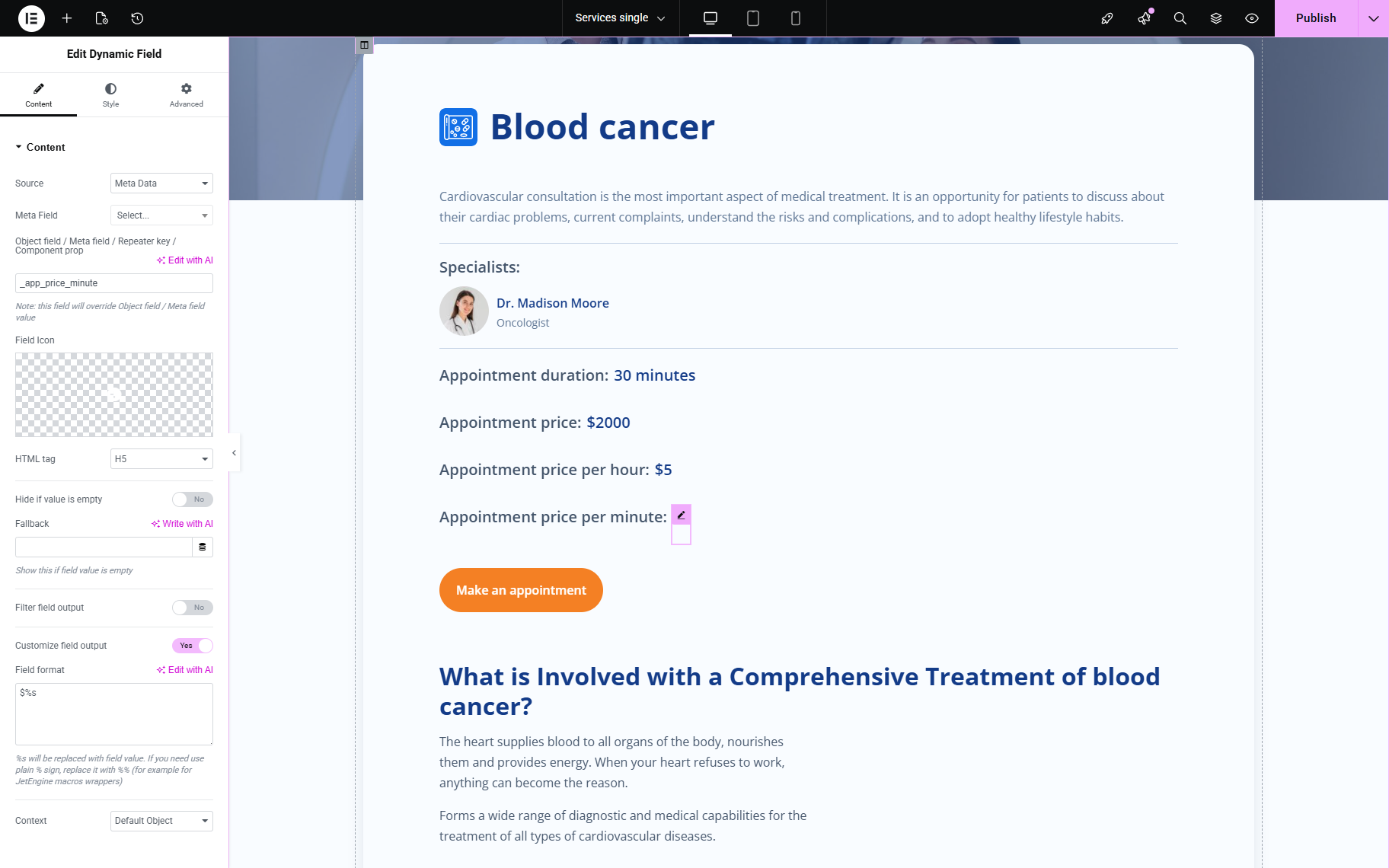
To display the price per minute, add the “_app_price_minute” value to the Object field / Meta field / Repeater key / Component prop input instead.
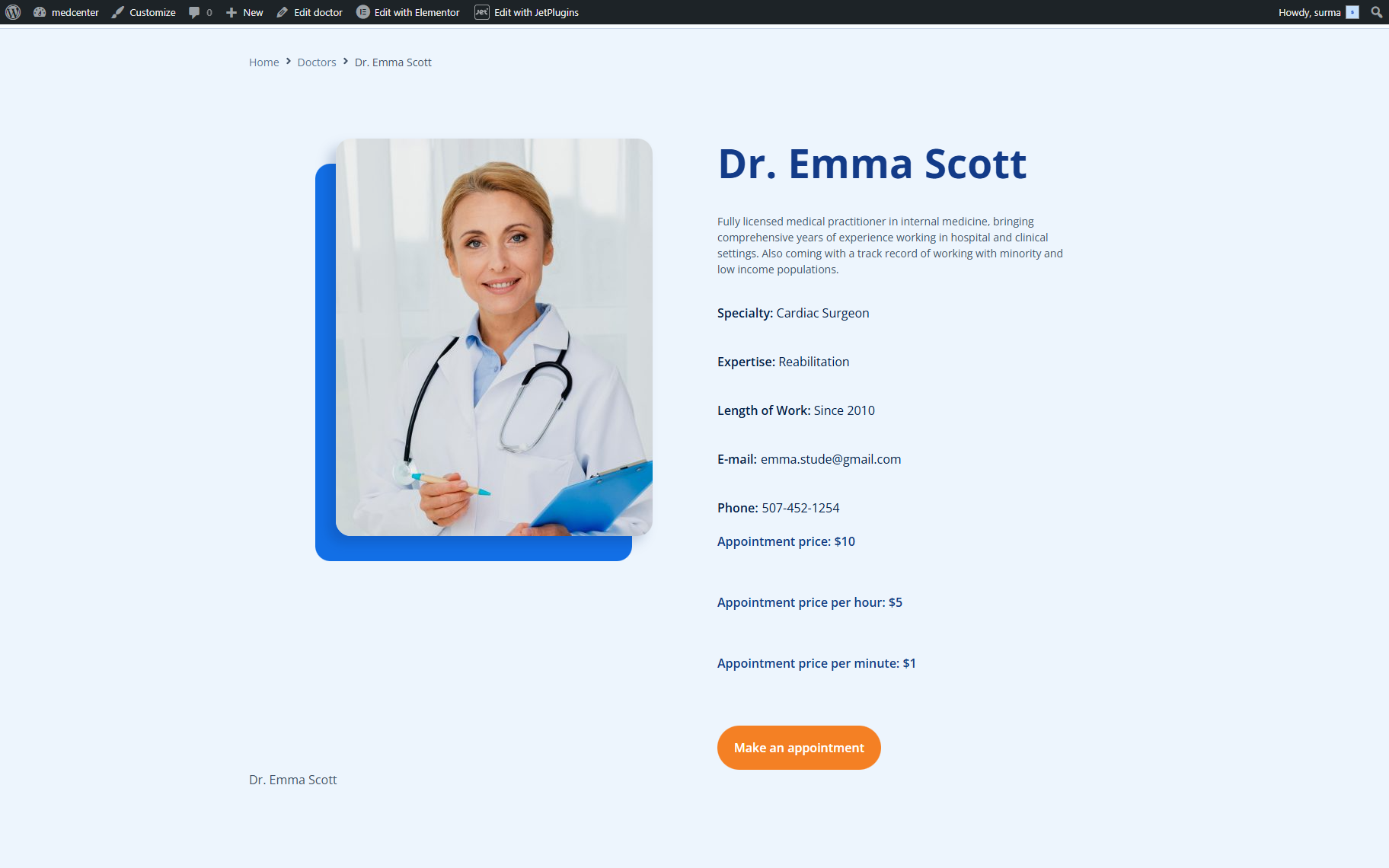
On the service single page, the prices are displayed properly.
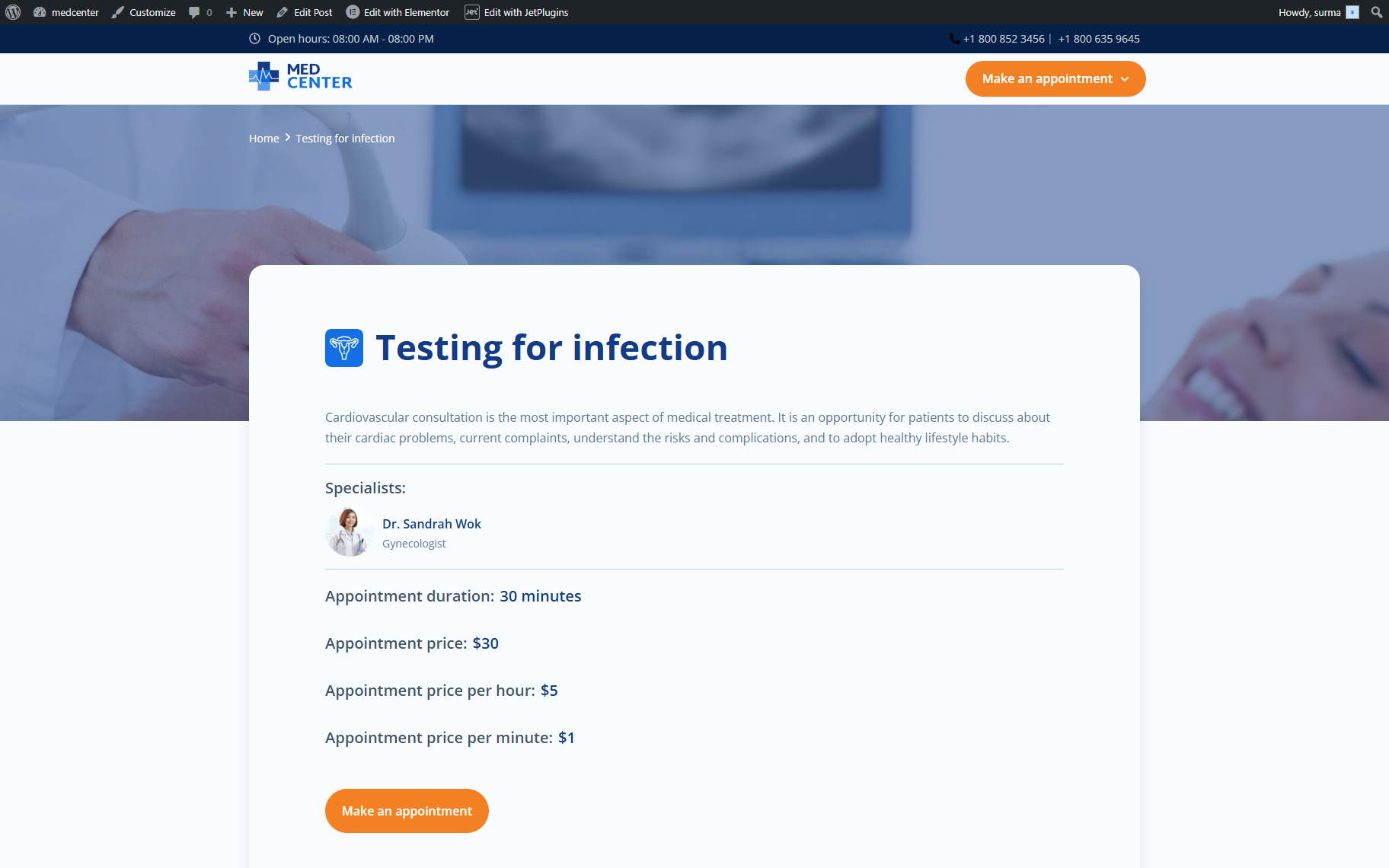
Similarly, prices per slot, per hour, and per minute can be displayed on the provider’s single page.
That’s it. Now you know how to display the slot price on the service or provider single template using JetEngine and JetAppointment WordPress plugins