
Site Logo Widget Overview
The tutorial details the settings and options of the Site Logo widget of the JetBlocks plugin, intended to insert a custom image/text or take a logo image and the site name’s text from the WordPress settings.
Activation of the Site Logo Widget
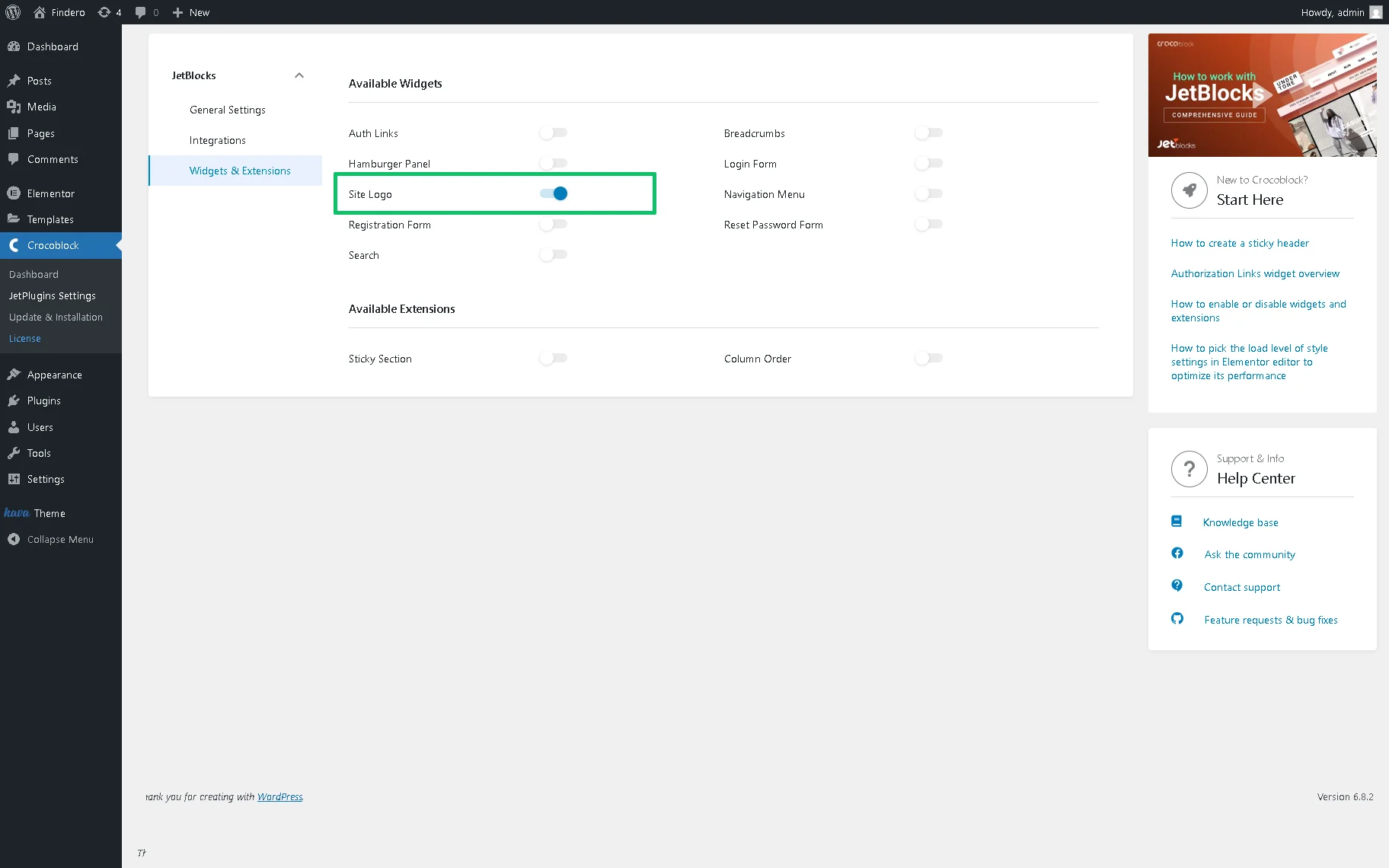
After installation and activation of the JetBlocks plugin, the widget should be activated in the WordPress Dashboard > Crocoblock > JetBlocks > Widgets & Extensions tab by moving the Site Logo toggle.
Adding the Site Logo Widget to a Page
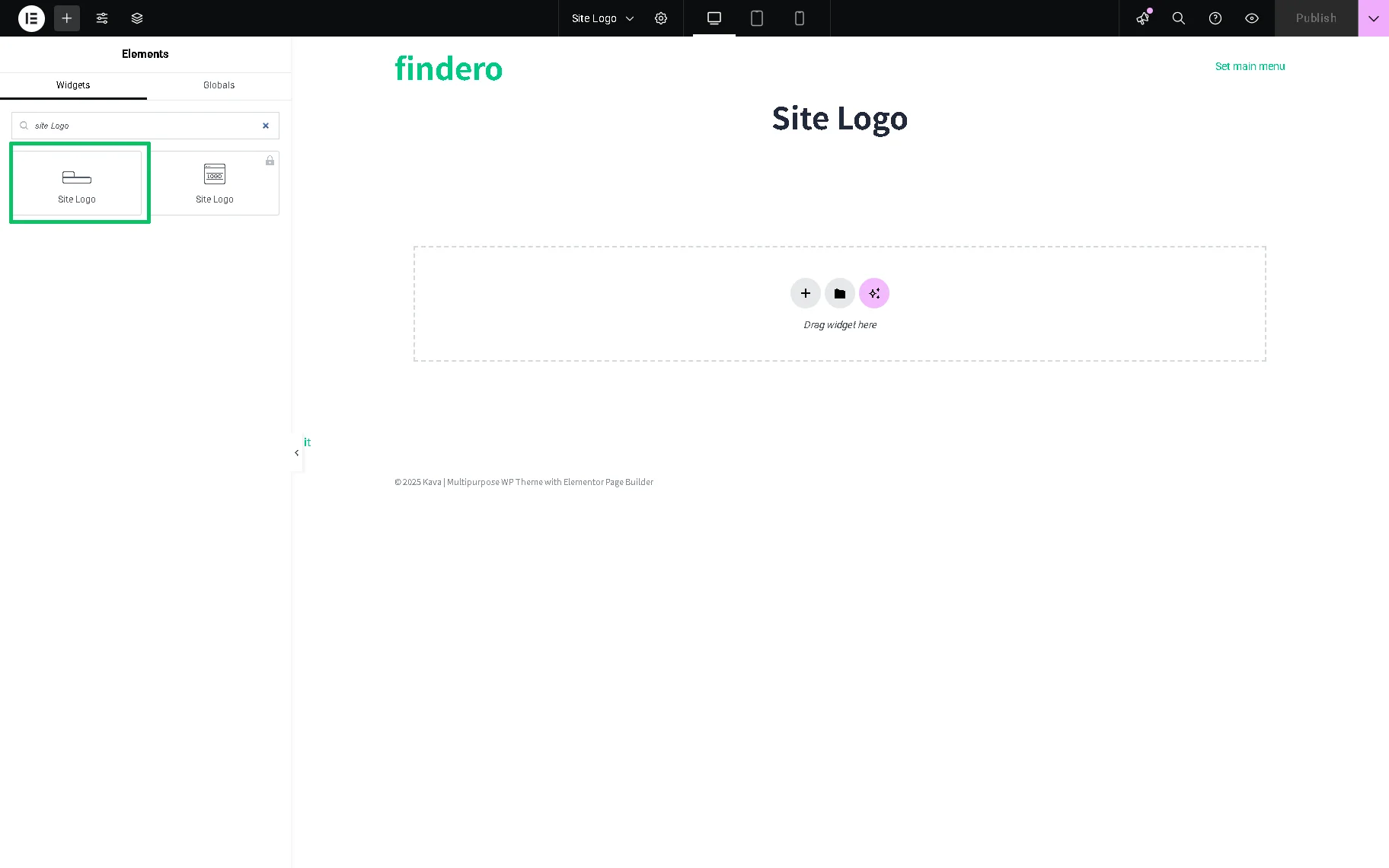
The widget can be inserted as any Elementor widget by finding it in the search bar and dragging and dropping it where needed.
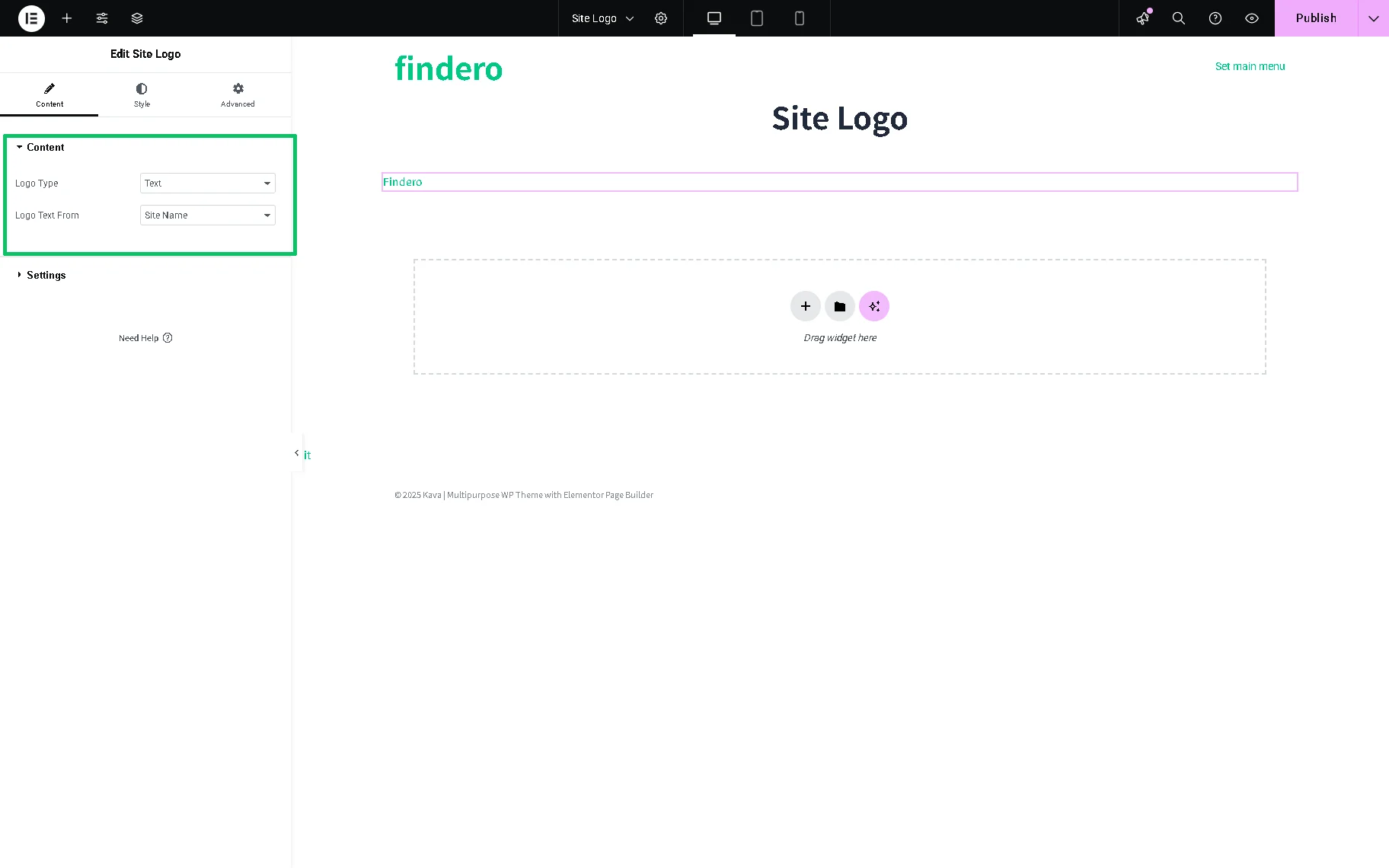
After inserting the widget, the Content tab will be opened, and the site’s name will be added by default.
Content Settings
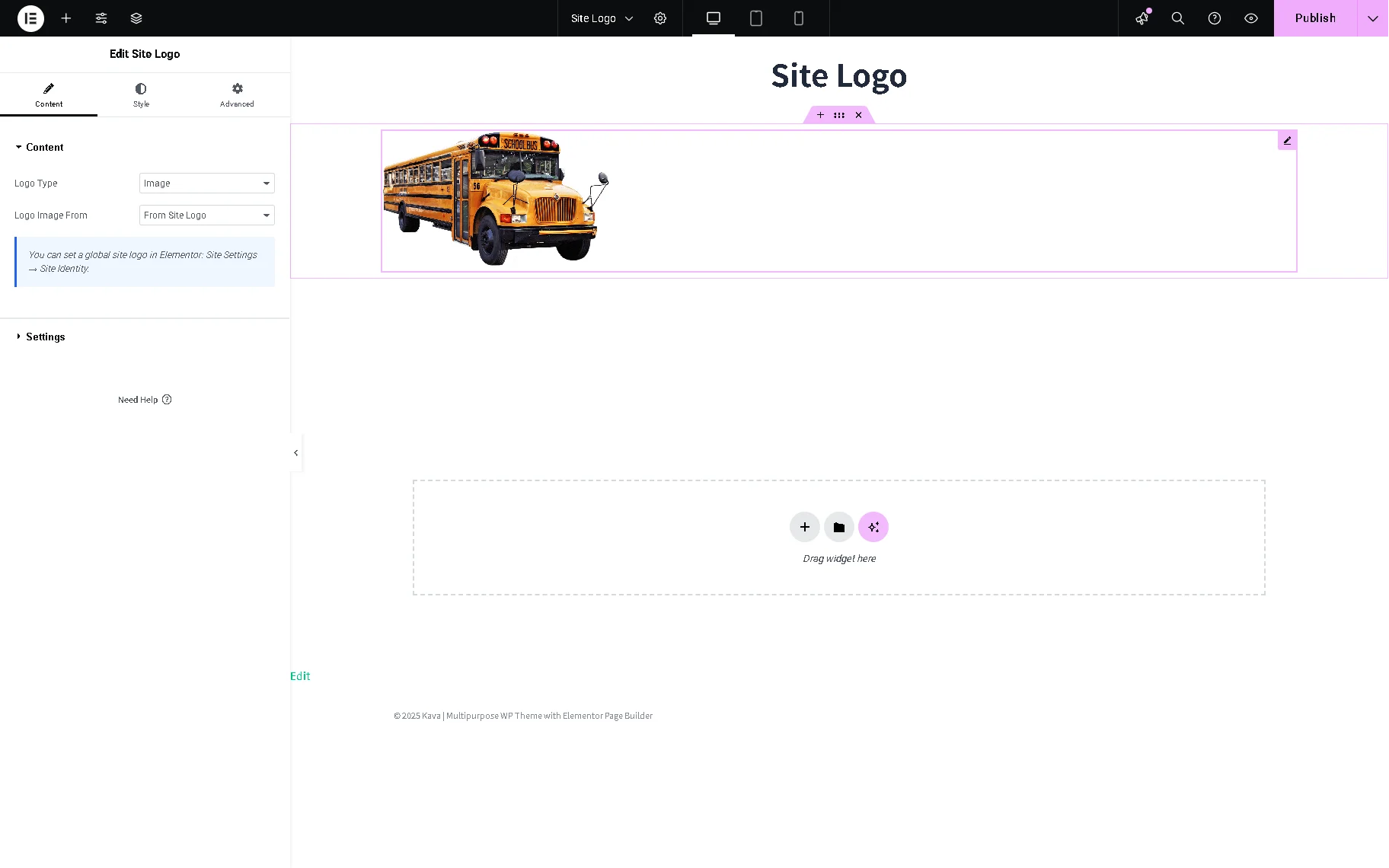
The Content section settings are specified by the option set in the Logo Type drop-down list:
- Text 一 an option that activates the Site Name drop-down list with the “Site Name” option to display the corresponding name by default and the “Custom” option to type the needed text in the Custom Logo Text field to insert the required inscription;
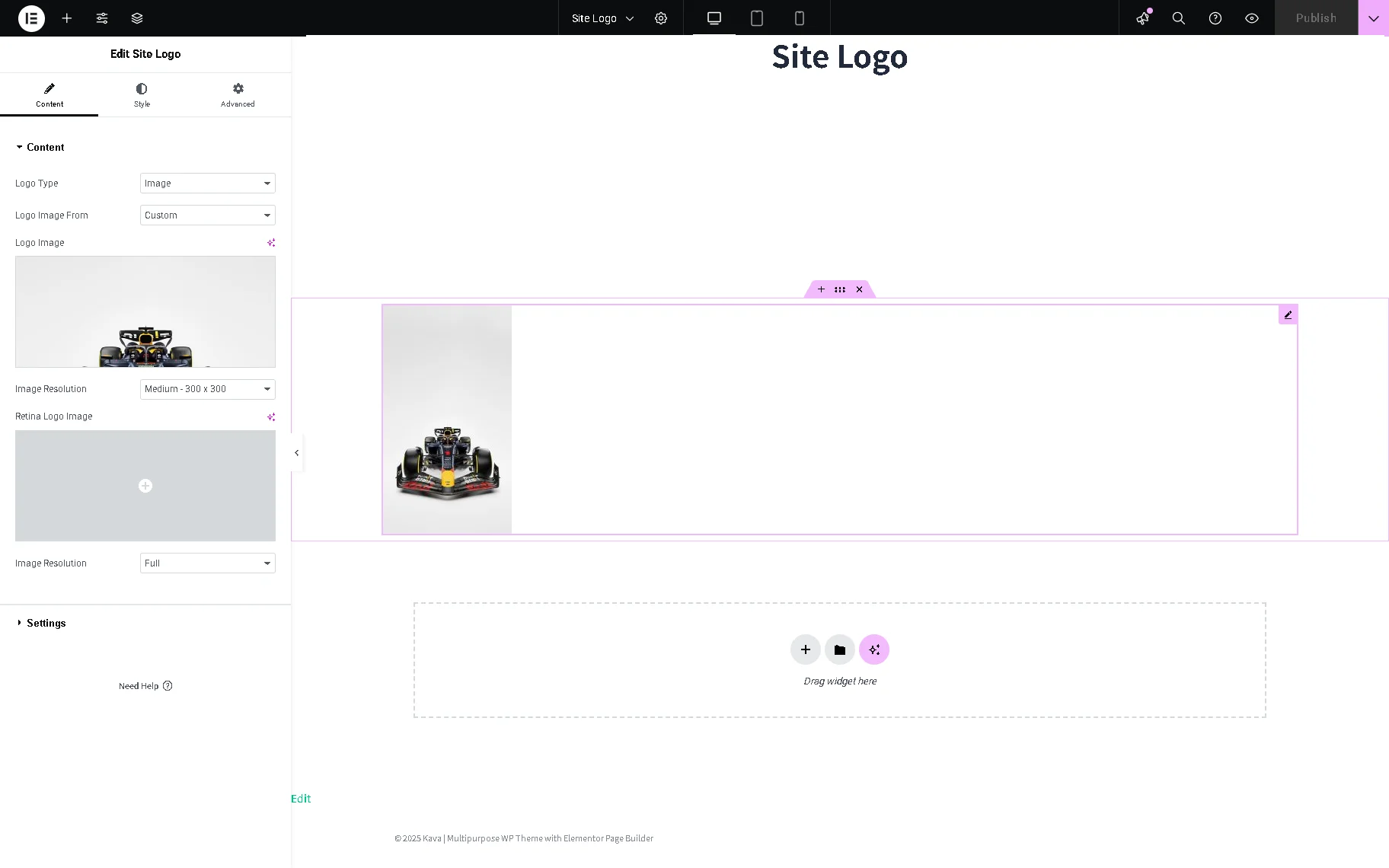
- Image 一 an option to show a specific image as the site’s logo. If selected, the Image Logo From drop-down list will appear with the “Custom” and “From Site Logo” options:
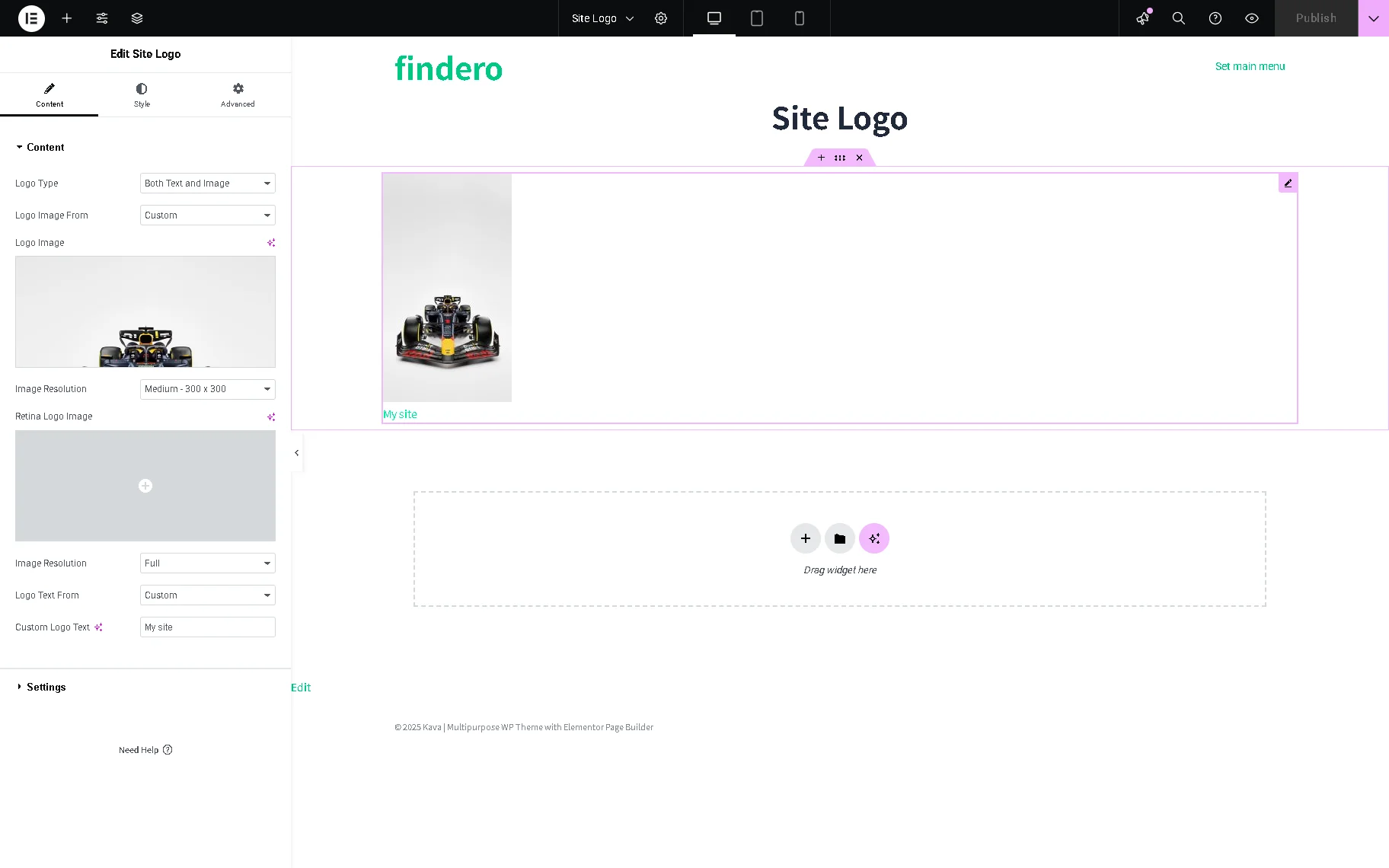
- Custom 一 an option that activates field for adding and configuring the custom image: Logo Image field to upload the image or choose it from the library, Image Resolution drop-down list to select the image’s size, Retina Logo Image field to upload the image or choose it from the library, and Image Resolution drop-down list to select the retina image’s size;
- From Site Logo 一 an option that takes the image from the standard WordPress settings (Site Settings > Site Identity). If set, it activates the Image Resolution drop-down list to select the image’s size
- Both Text and Image 一 an option to display both the image and text. If selected, the Image Logo From drop-down list will appear with the “Custom” and “From Site Logo” options, which are similar to the corresponding settings of the “Image” option. Also, the Logo Text From drop-down field with the “Site Name” and “Custom” options allows taking the site’s name from the WordPress settings or inserting it manually, correspondingly.
The Settings section of the Content tab is presented by the following fields:
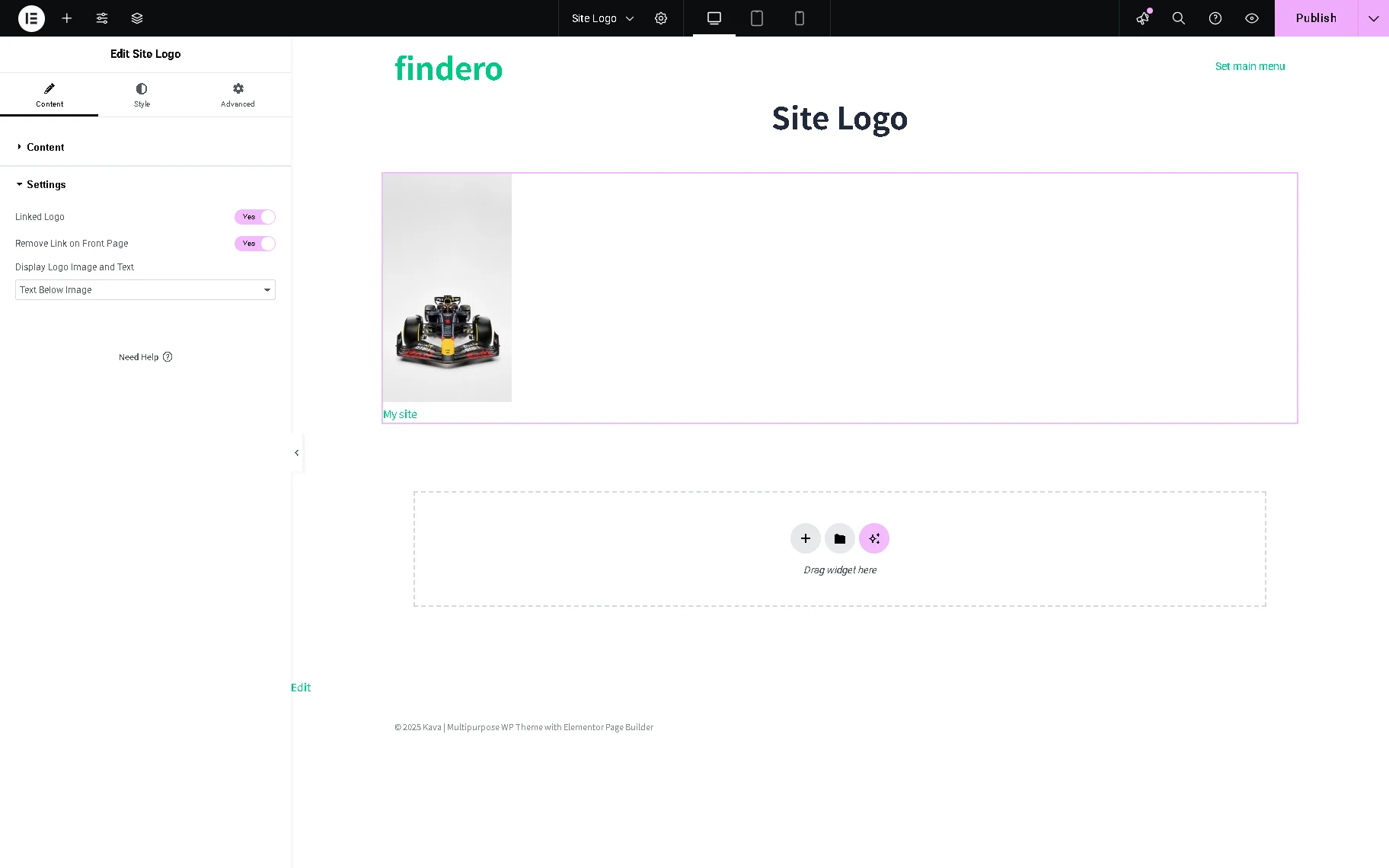
- Linked Logo 一 a toggle, if enabled, links the logo to the front page;
- Remove Link on Front Page 一 a toggle, if enabled, takes off the link on the front page;
- Display Logo Image and Text 一 a drop-down menu that places the text and image inline or the text below the image.
Style Settings
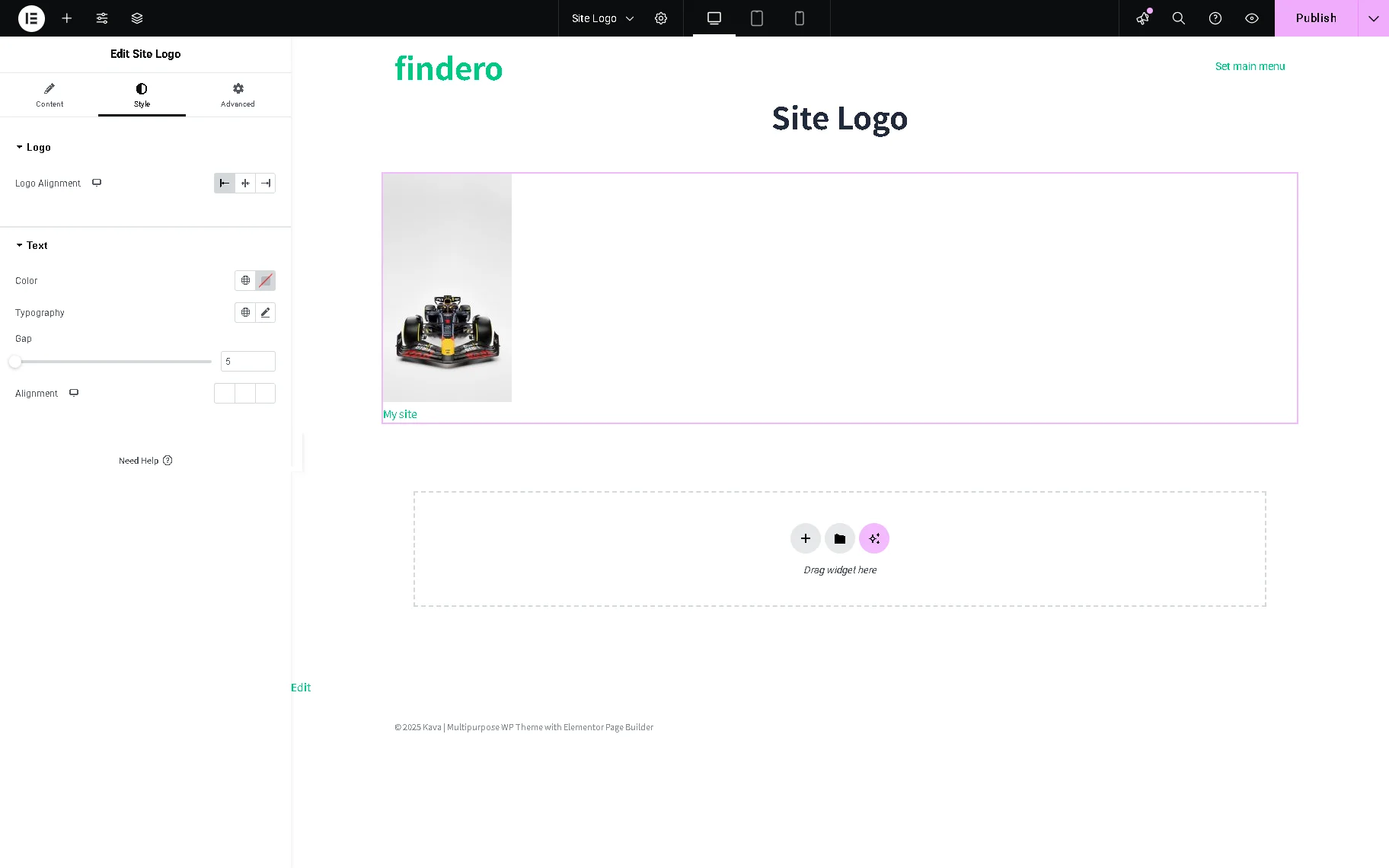
The settings depend on the option set in the Logo Type field of the Content section. If the “Text” option is set, the Logo section with the Logo Alignment button is available.
If the “Image” option is set, the Logo section with the Logo Alignment buttons and the Text section with the Color and Typography fields are available.
If the “Text and Image” option is set, the Logo section with the Logo Alignment buttons and the Text section with the Color, Typography, Gap, and Alignment fields are available.
Advanced Settings
The Advanced settings allow the customization of the Margin, Padding, Width, Position, Z-Index, CSS ID, CSS Class settings, and more.

That’s it. Now you know how to configure the settings of the Site Logo widget of the JetBlocks plugin for Elementor to insert a custom image/text or take a logo image and the site name’s text from the WordPress library.