
How to Build a Listing for WooCommerce Product Review
This tutorial provides all the information you need to create a Listing template for showcasing WooCommerce Product Reviews.
Before you start, check the tutorial requirements:
- Woocommerce plugin installed and activated
- Elementor (Free version)
- JetEngine plugin installed and activated
- JetWooBuilder plugin installed and activated
Build a Custom SQL Query for Pulling Product Reviews
Go to WordPress Dashboard > JetEngine > Query Builder and click the “Add New” button.
In the General Settings section, complete the Name field (for example, “Query for Product Reviews”) and switch Query Type to the “SQL/AI Query” option.
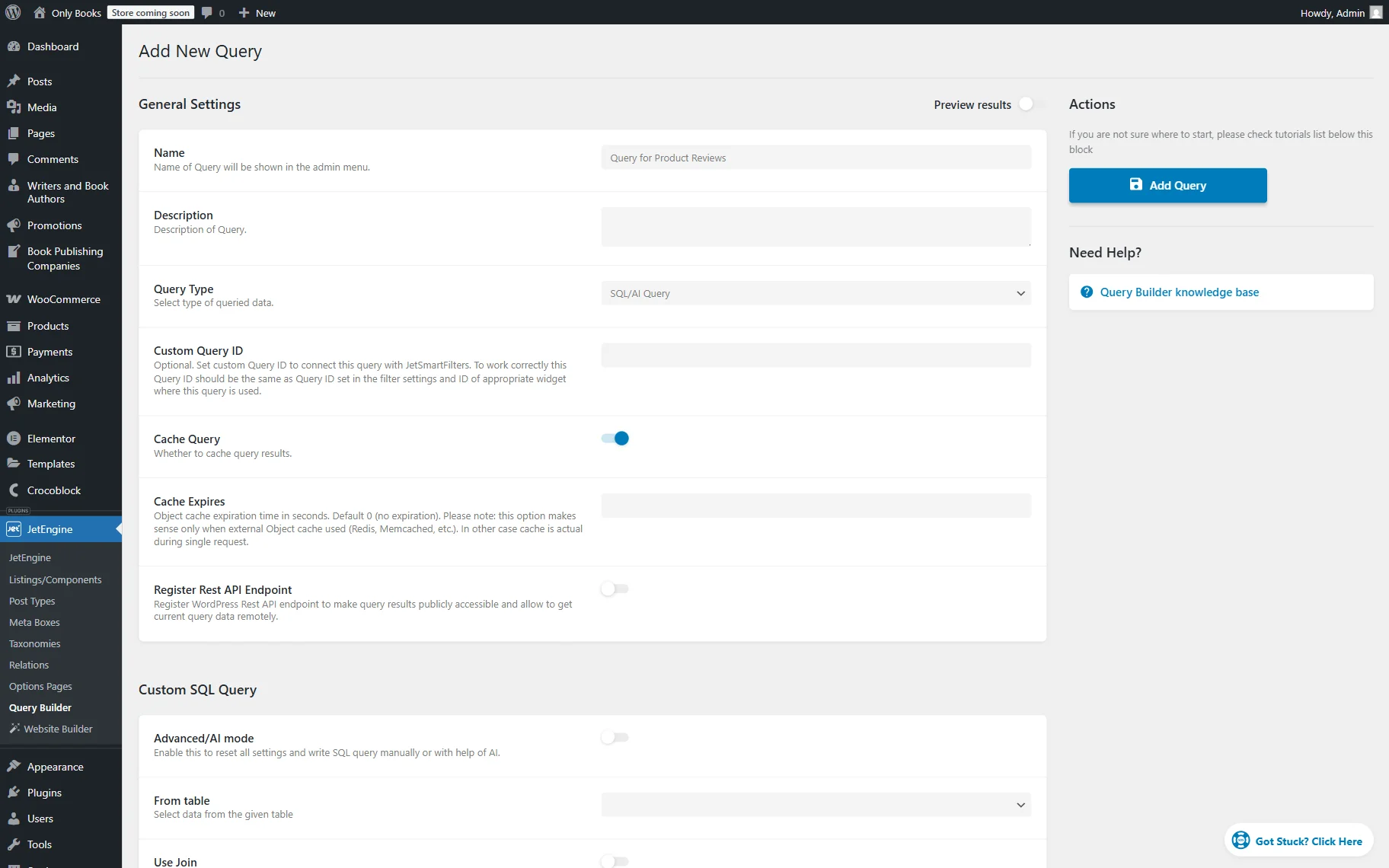
In the From table field of the Custom SQL Query section, select the “commentmeta” table. Then enable the Use Join toggle.
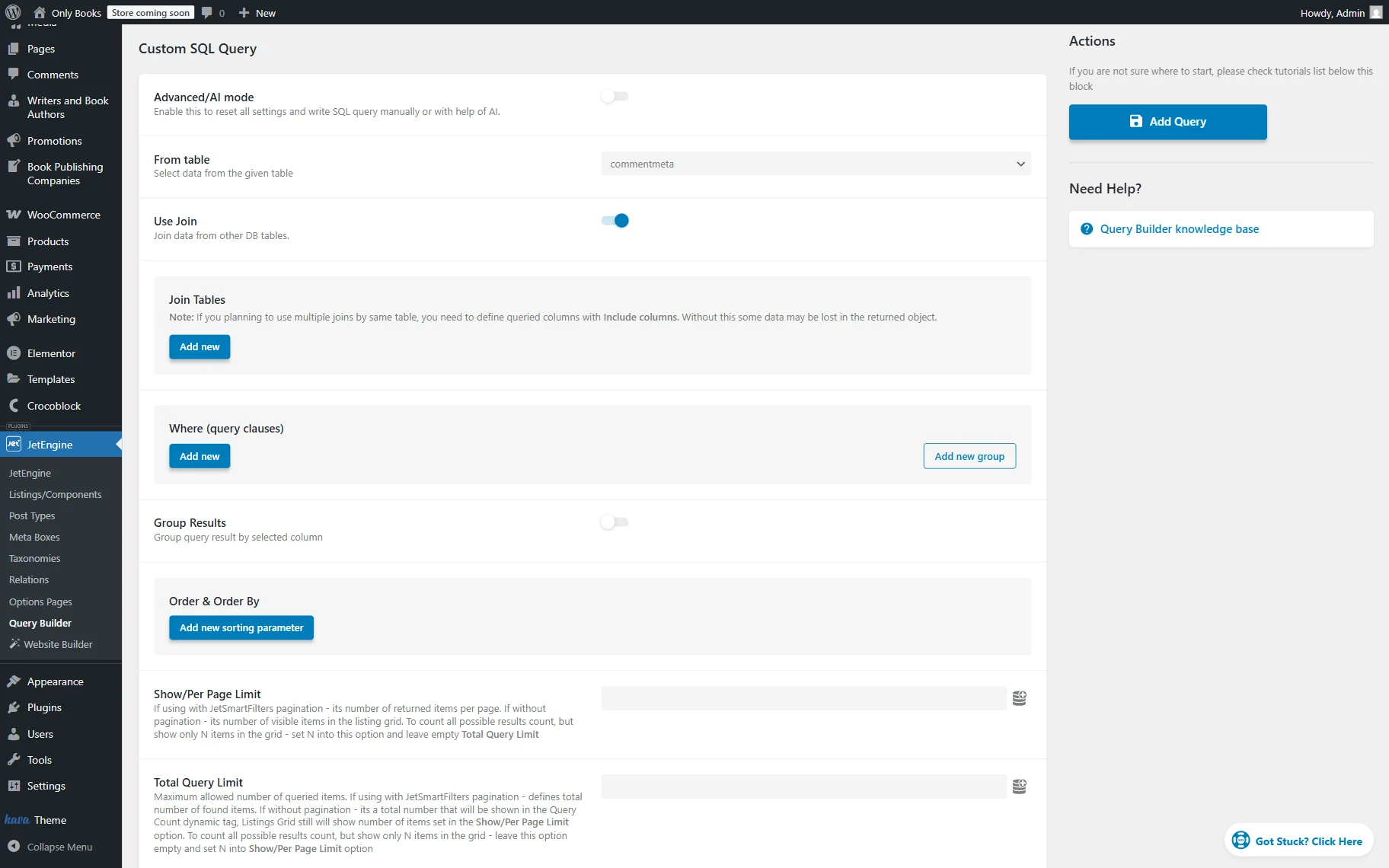
Select “Inner Join” Join Type and add the “comments” option as the Join Table. Also, set a “comment_ID” value to the When current table column field and “column_id” in the Is equal to other table column field.
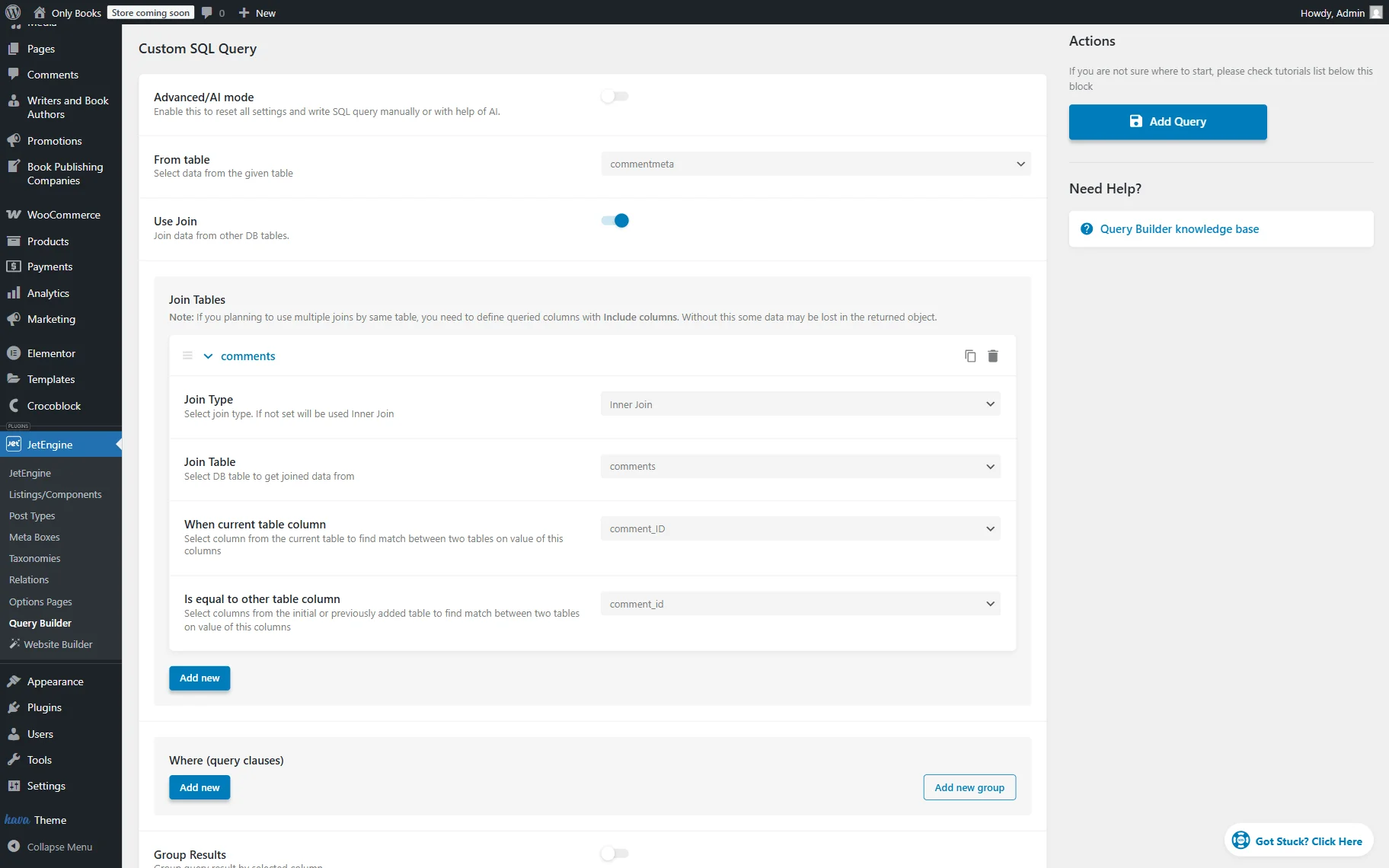
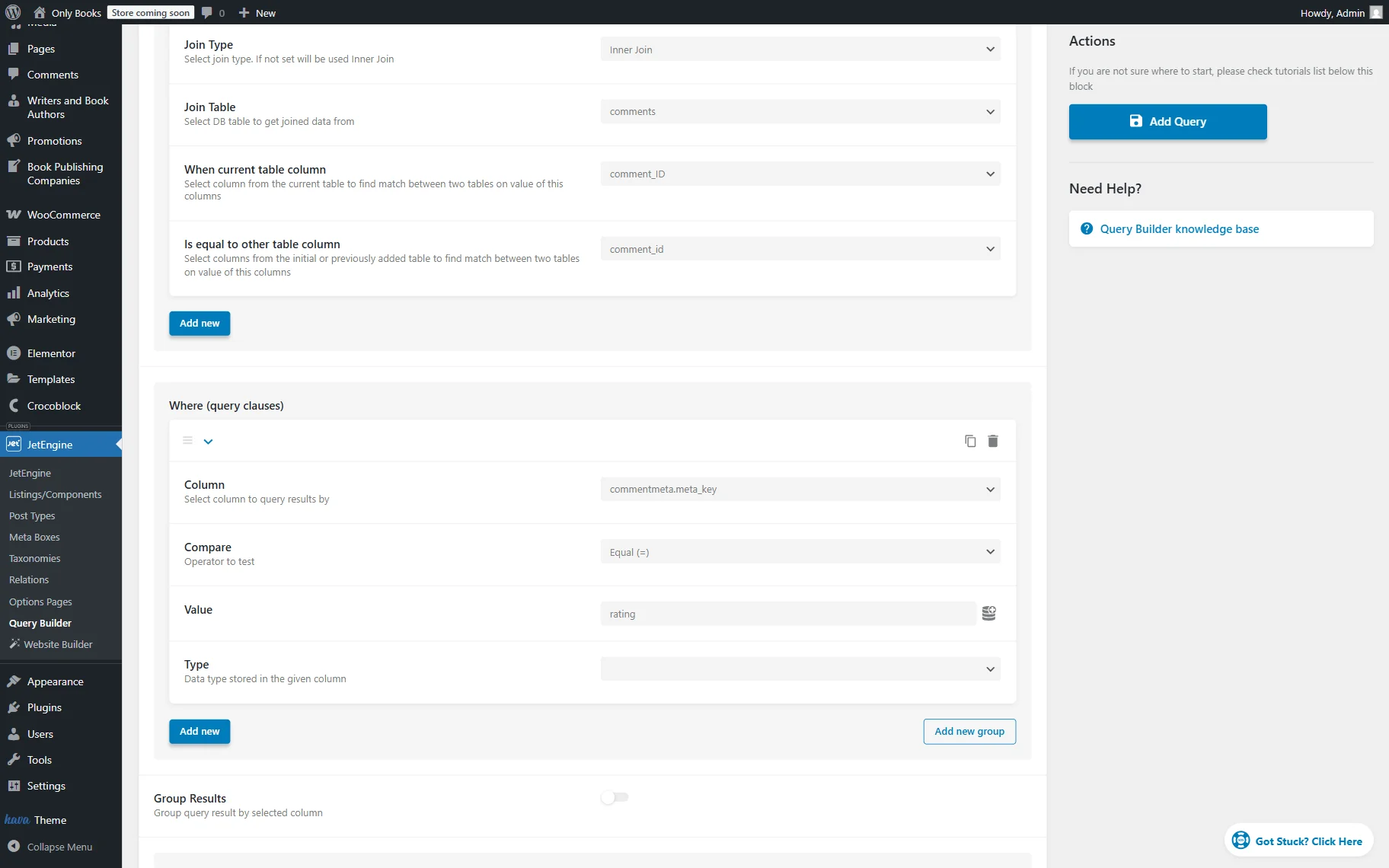
After it, let’s add Where (query clauses) by clicking the “Add new” button in the corresponding section.
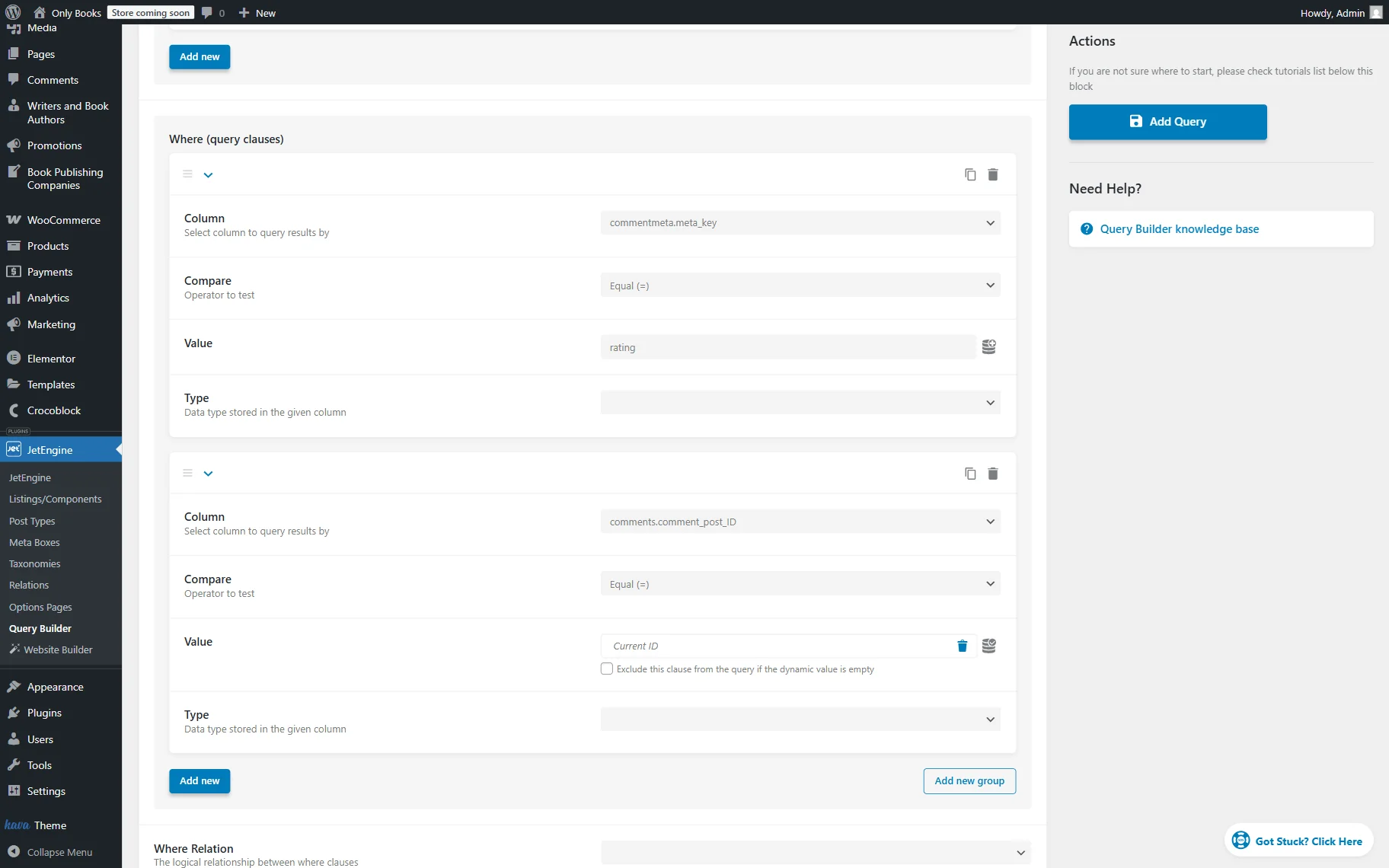
In the first clause, we need to set the “commentmeta.meta_key” Column to be “Equal” (Compare operator) to the “rating” Value. This way, we can pull the rating value in the Listing template.
The following query clause should include “comments.comment_post_ID” Column that is “Equal” (Compare field) to the “Current ID” Value. This clause allows pulling the reviews left for the current product only.
Set the following clause’s Column to “comments.comment_approved”, Compare operator to “Equal”, and Value to “1.”
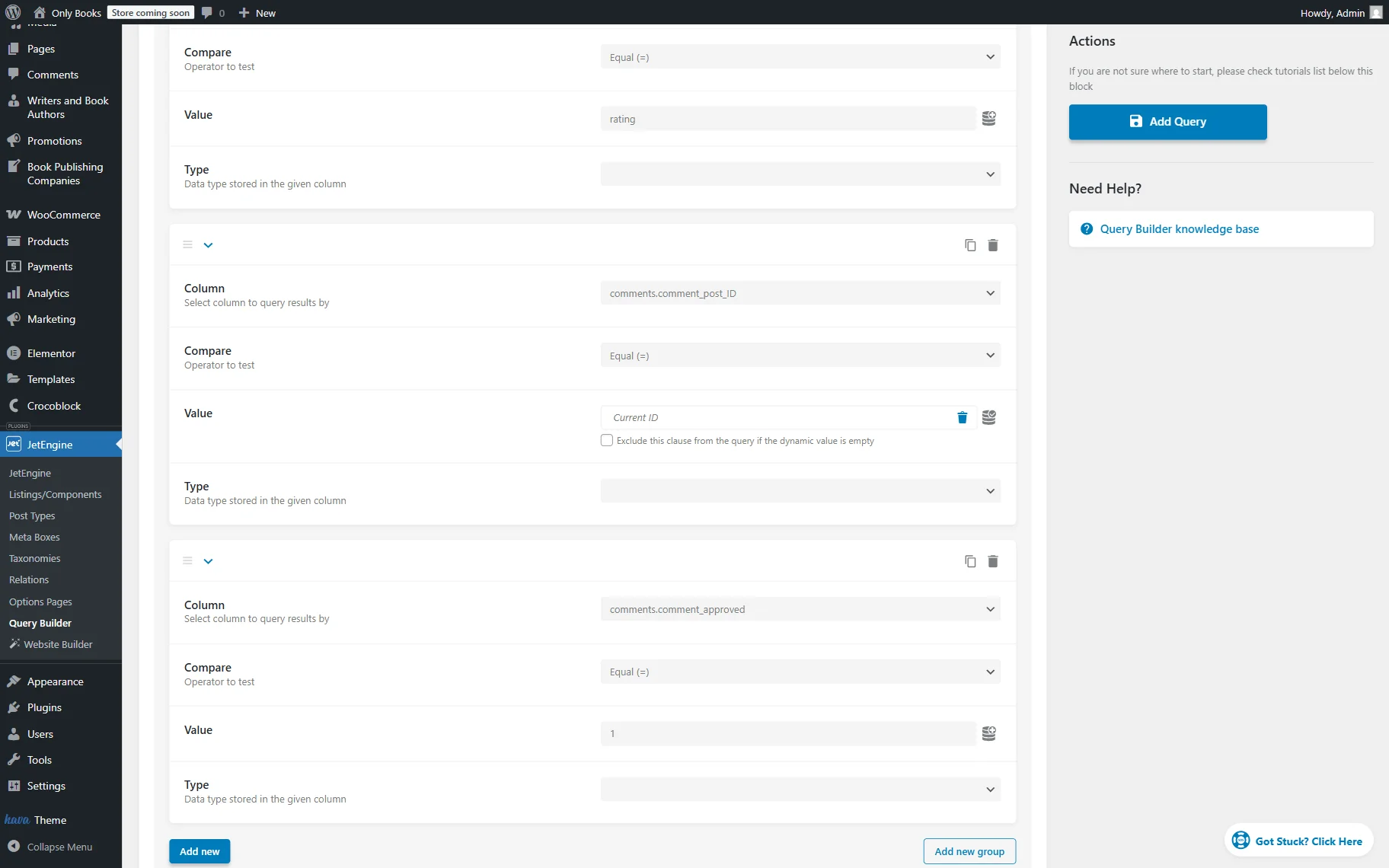
The custom Query is now completed; save the query by pressing the “Add Query” button.
Create a Listing Template for Custom Query
Proceed with creating a Listing template for the custom query.
Go to WordPress Dashboard > JetEngine > Listings/Components. To create a new item, click the “Add New” button.
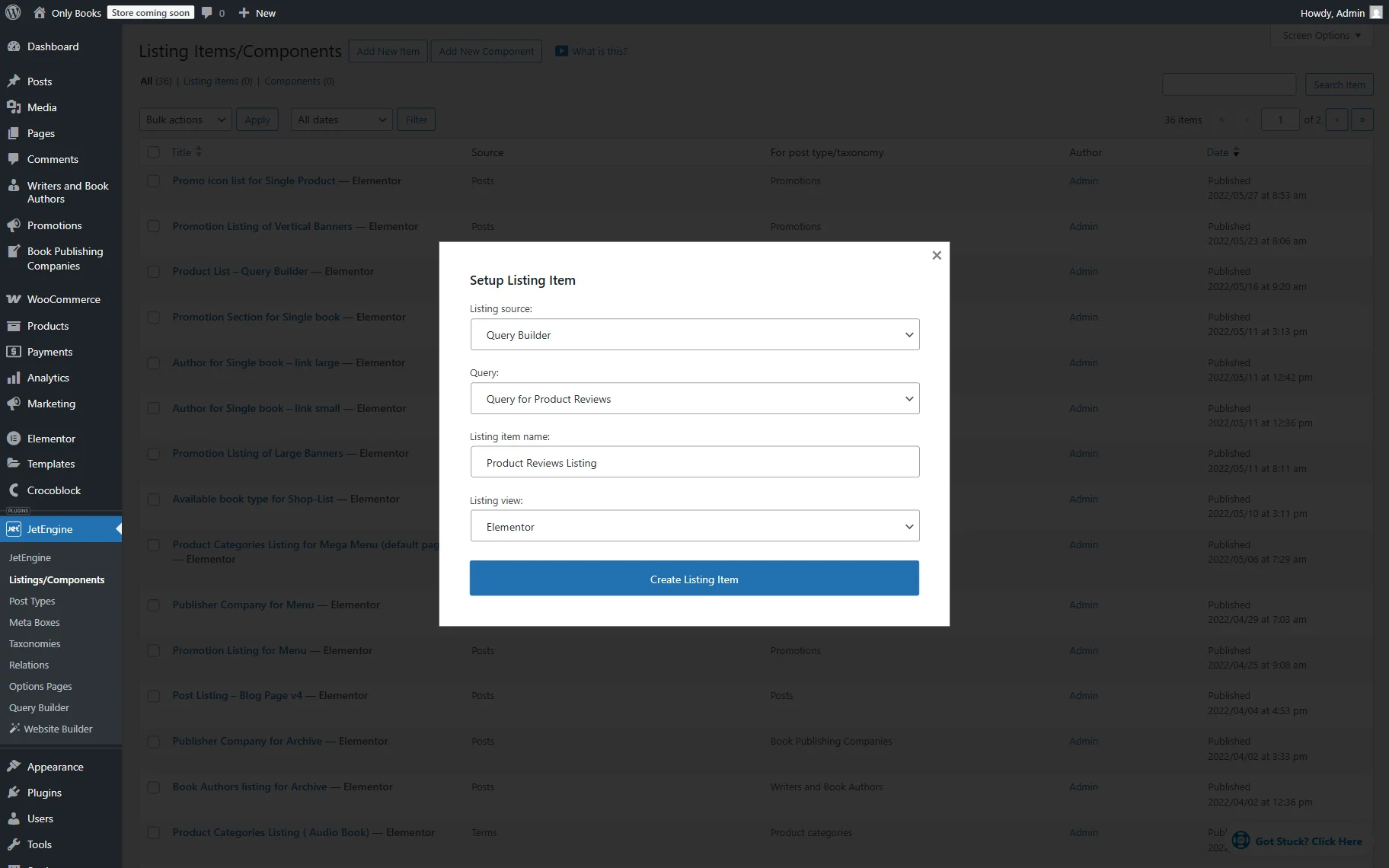
Choose “Query Builder” as a Listing source, pick the SQL query created in the previous step in the Query field, and set the Listing item name to the preferred value (here, we set the “Product Reviews Listing” name.)
Then click on the “Create Listing Item” button to open the editor.
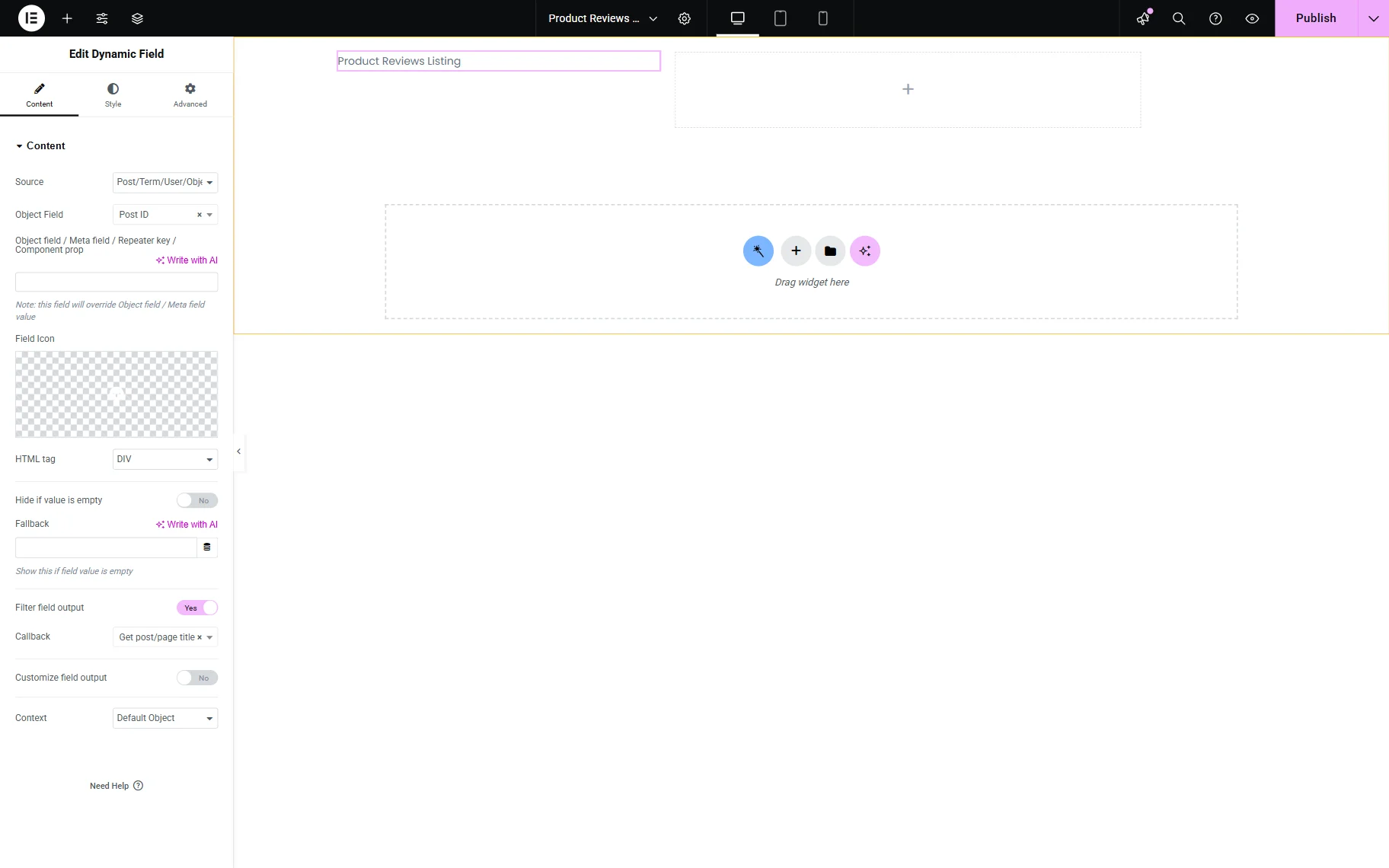
In the Elementor editor, you can use the Dynamic Field widget to output the data from the custom Query.
Set “Post/Term/User/Object Data” as the Source. In the Object Field, we can select fields under the Comment section, as the custom Query is built for the “comments” and “commentmeta” tables.
For example, we use the “Post ID” option field and activate the Filter field output toggle to set the “Get post/page title” Callback. This callback shows the product title for which the review is written.
Next, the star rating can be displayed using Elementor’s Rating widget.
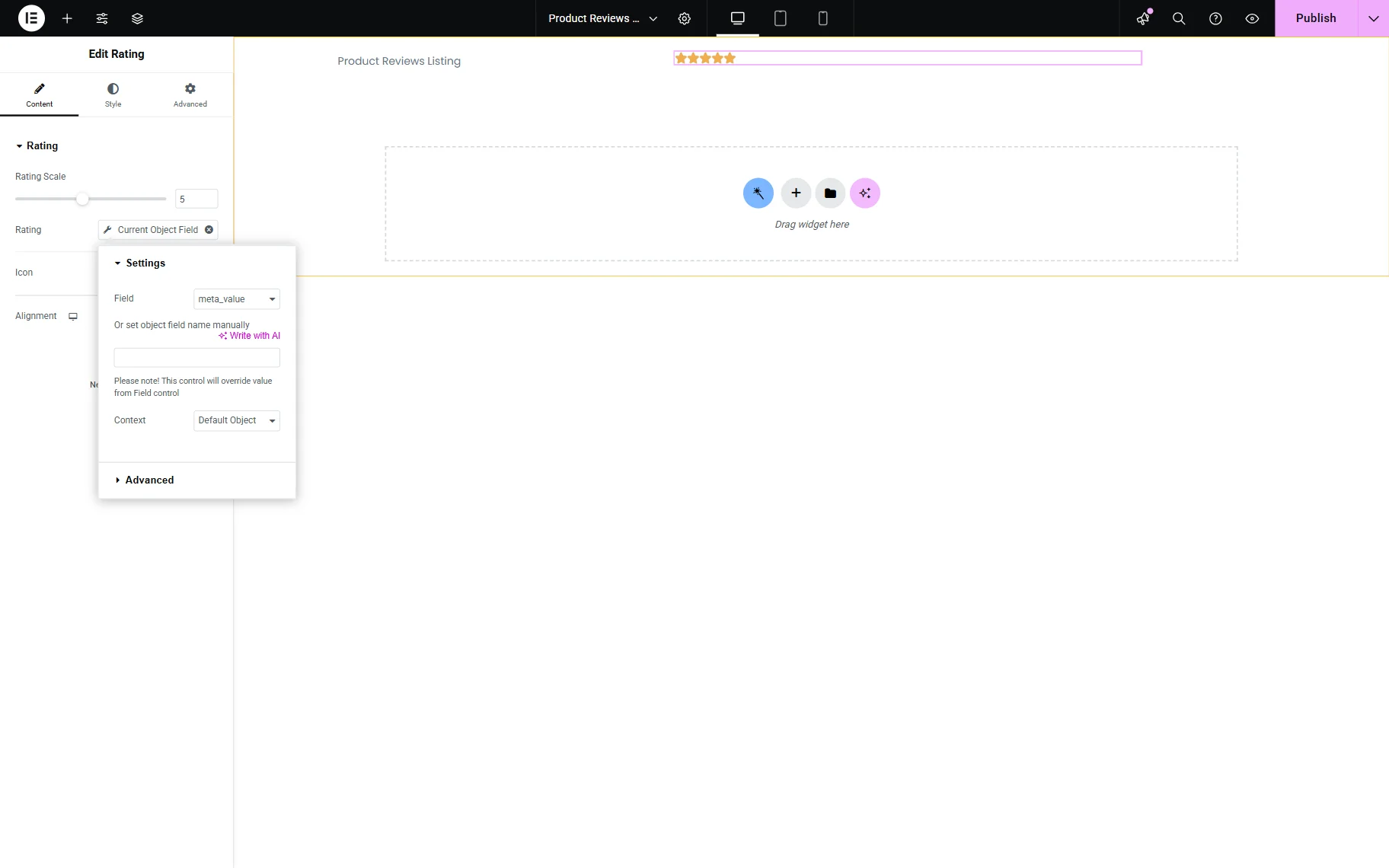
In the Rating field, press the “Dynamic Tags” button and pick the “Current Object Field” option, in which the “meta_value” field under the section with the Query for the product review should be selected.
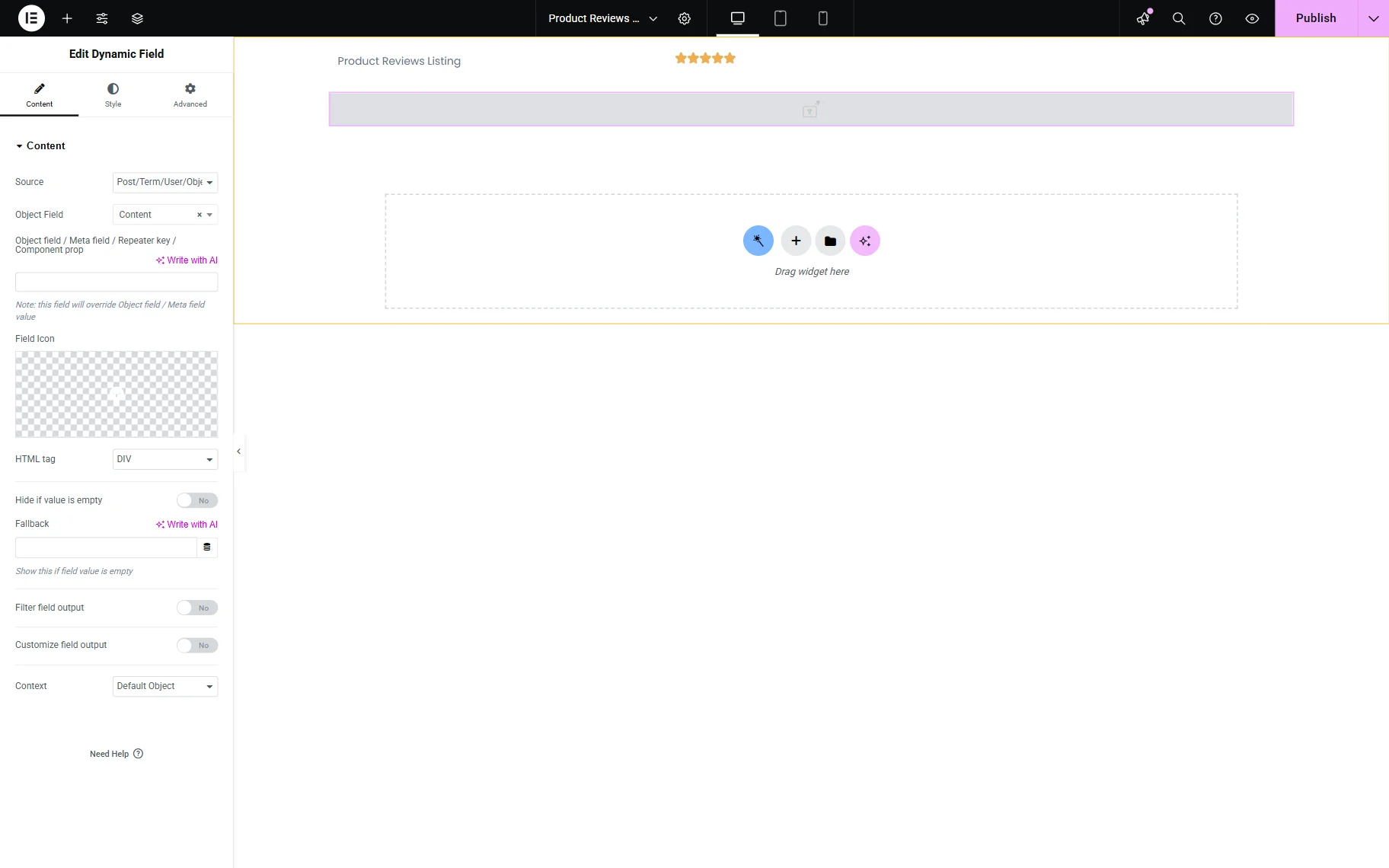
Ultimately, we can also show the content review using the “Content” option as the Object Field.
Now you can add other fields to the Listing template if needed and save it by pressing the “Publish” button.
Add a Listing Grid to a Single Product Page
Once the Listing item is saved, we should open the Single Product Template to add the Listing Grid widget. In the described case, we use a Single Product Template provided by the JetWooBuilder plugin. Therefore, we proceed to WordPress Dashboard > Woo Page Builder and open the template’s editor.
In the template, we add a Listing Grid widget and select the Listing template for product reviews.
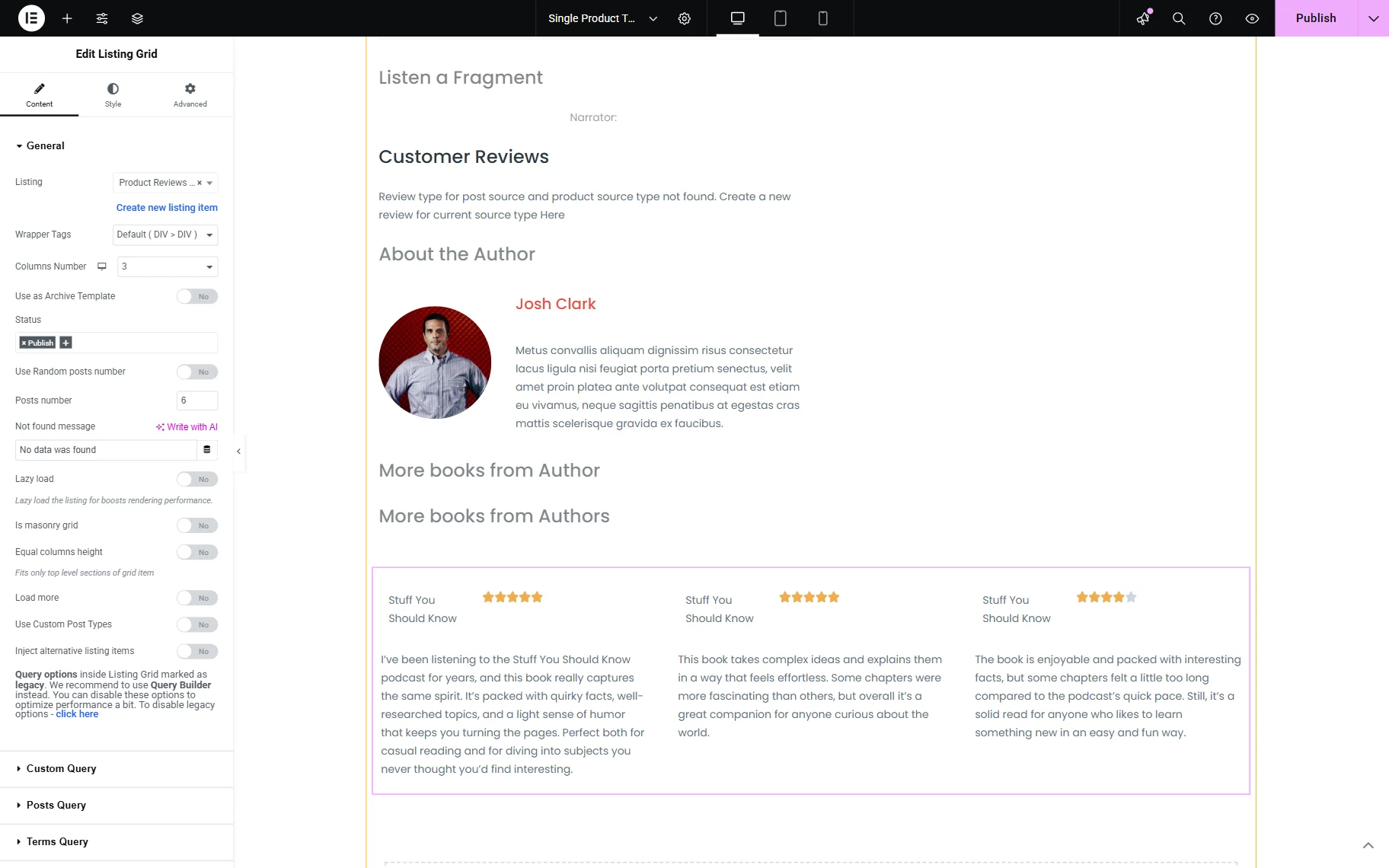
Customize the widget as preferred and, when ready, press the “Publish” button to save the result.
Check the Result
Open one of the products on the front end. The Listing Grid now shows the reviews of the current product.
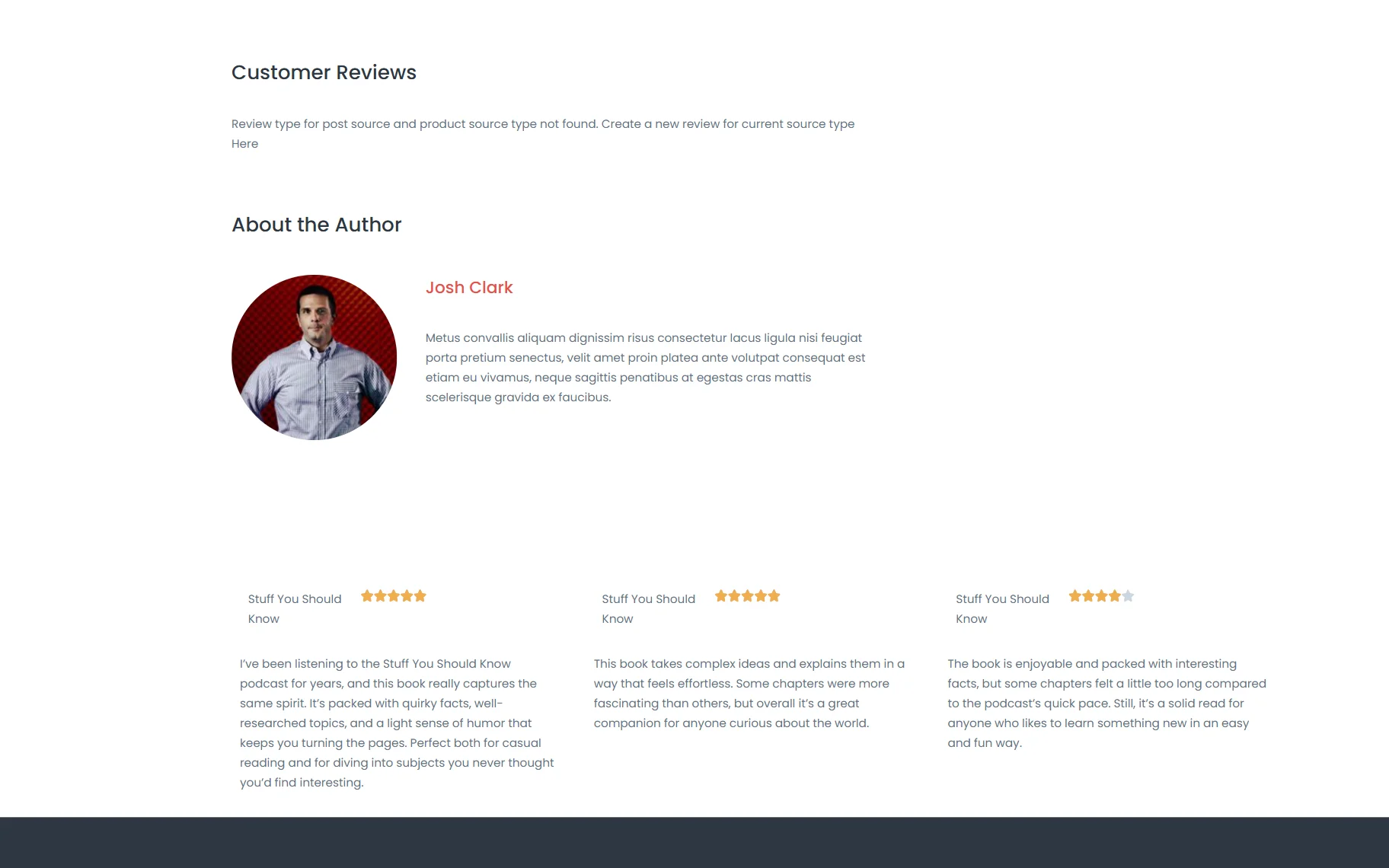
That is it; now you know how to create an SQL query for showing the product reviews and display them on the Single Product Page of your WordPress website by using the JetEngine plugin.