
JetThemeCore Not Working and Crashes Website
Can’t figure out why JetThemeCore fails to work
When users encounter problems with the visual theme editor JetThemeCore, they usually face one of two common scenarios indicating plugin conflicts or compatibility issues:
- Users might encounter a completely inaccessible website, usually displaying either a blank white screen or a 500 Internal Server Error message;
- Users might find their site still works, but the content may not display properly in some areas.
Let’s examine them closely.
Issue 1: Site crashes
This crash generally signals a plugin conflict where JetThemeCore conflicts with another active plugin on your site.
Enable safe troubleshooting mode
To fix the site-crashing problem, you need to identify the conflicting plugin. To do this, you must put the site into troubleshooting mode:
- Install the free Health Check & Troubleshooting plugin;
Follow the path: WordPress Dashboard > Tools > Site Health> Troubleshooting and click “Enable Troubleshooting Mode.”
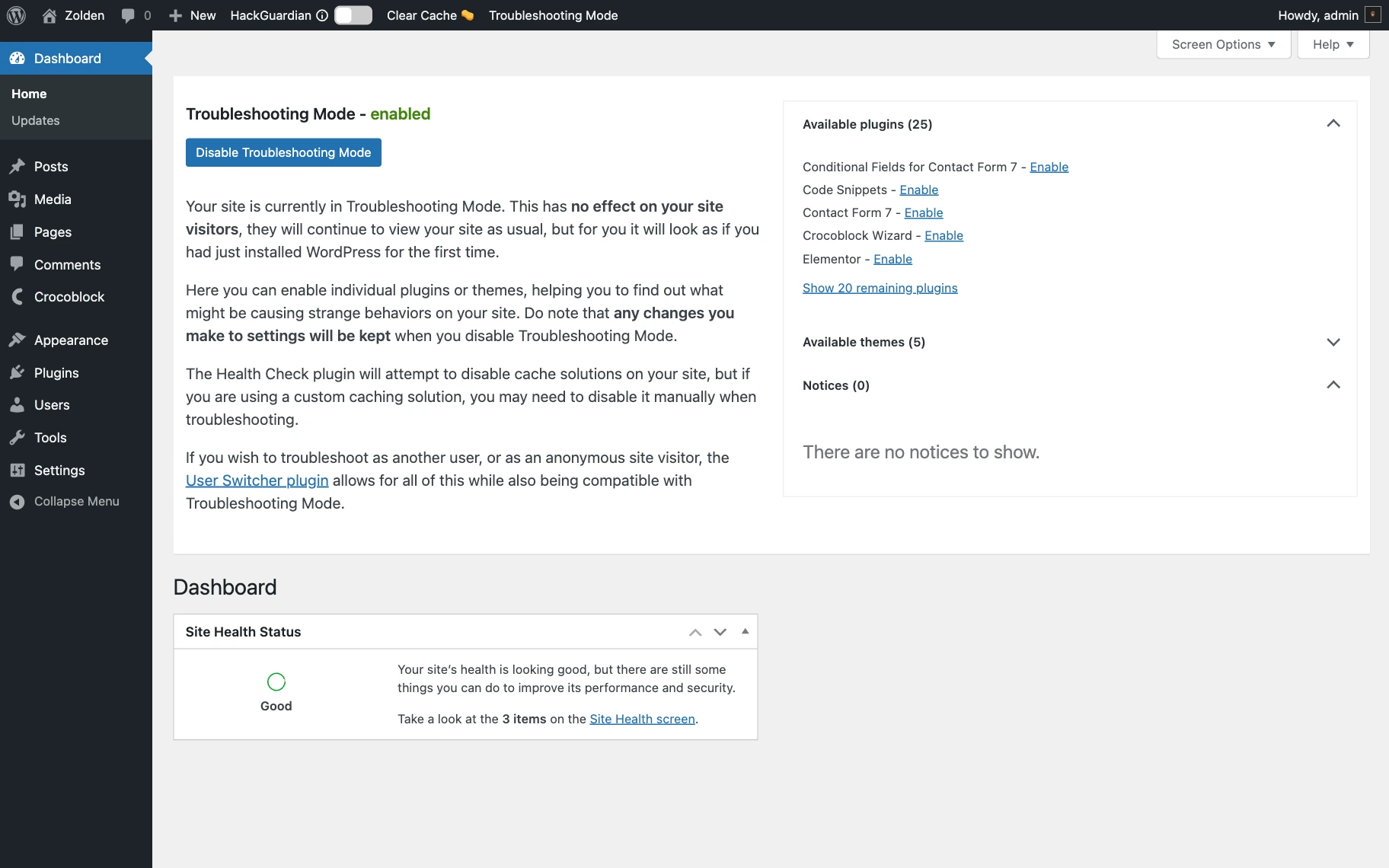
While in that mode, ensure that JetThemeCore is the only active plugin. Reactivate other plugins one at a time, reloading the front-end each time. As soon as the crash occurs again, you’ve identified the conflicting plugin.
Once you’ve identified the problematic plugin, you have several options:
- Check if newer versions are available for both JetThemeCore and the conflicting plugin;
- If the conflict cannot be resolved, consider replacing the conflicting plugin with an alternative;
- Contact both plugin developers with detailed information about the conflict.
Issue 2: No images or text in sections
When your site loads without crashing, but some content appears missing or broken in certain areas, this usually indicates template conflicts or corrupted conditions.
Test using the default theme
First, let’s isolate whether the issue is theme-related:
- Switch to a default WordPress theme (Kava or Hello Elementor) with only JetThemeCore active;
- Check if your content suddenly appears correctly.
If content appears correctly with the default theme, the issue is in your current theme’s template system.
Check template conditions
JetThemeCore uses “conditions” to determine where templates should appear on your site. These conditions can sometimes become corrupted or conflict with each other.
To review your template conditions:
- Follow the path: WordPress Dashboard > Crocoblock > Theme Builder; switch to the Grid view;
- Click three dots on the template tile to access the conditions pop-up;
- Verify that conditions make sense and don’t overlap inappropriately.

Repair corrupted conditions
If conditions appear correct but the content still doesn’t display, the conditions data may be corrupted in your database. JetThemeCore includes a built-in repair tool:
- Follow the path: Crocoblock > JetPlugins Settings > JetThemeCore > General Settings;
- Click the “Sync site conditions” button.
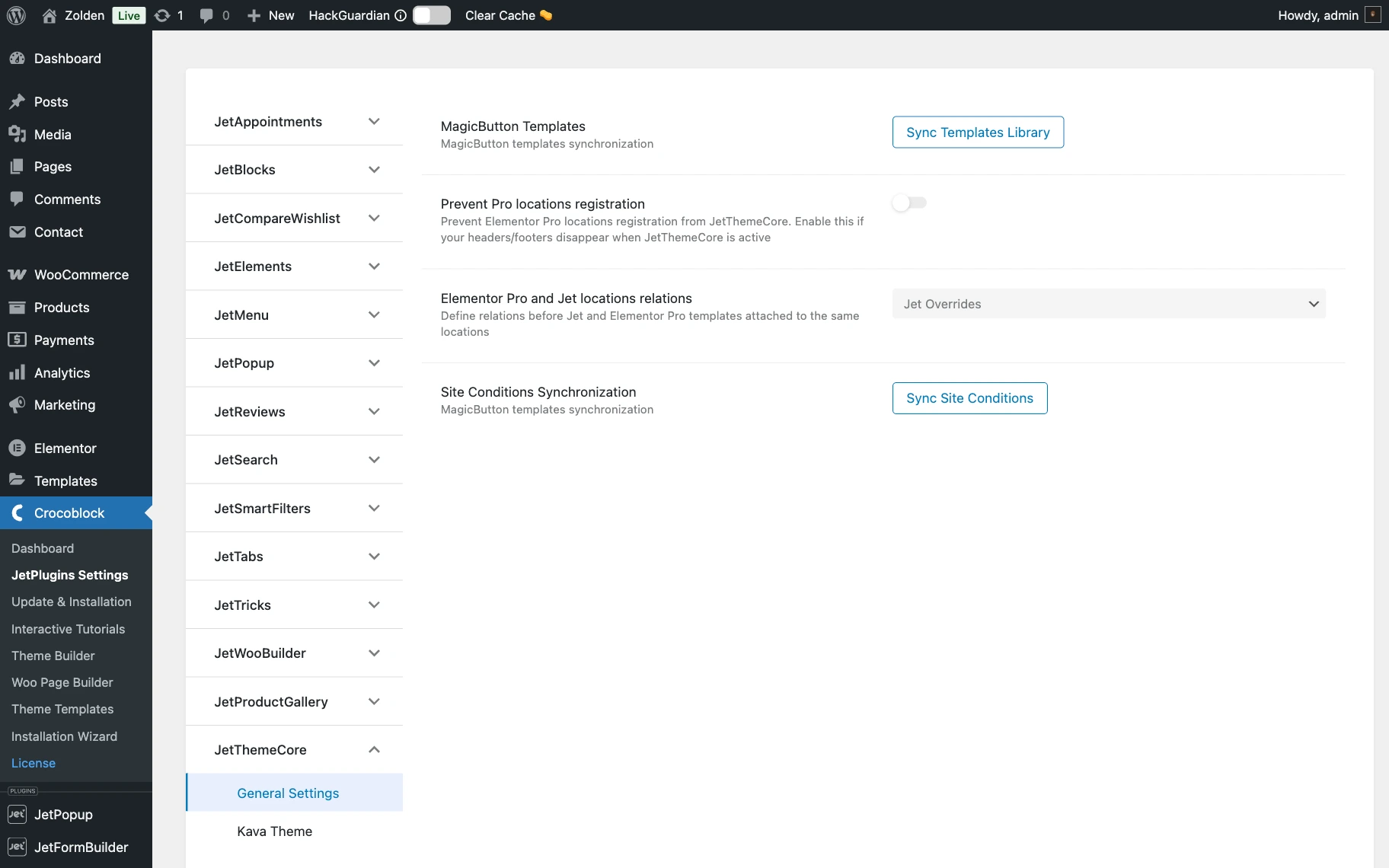
This will re-scan and repair your site’s template conditions.
Resolve Elementor Pro conflicts
If you are using Elementor Pro, alongside JetThemeCore, you may face template condition conflicts:
- Follow the path: WordPress Dashboard > Elementor > Templates > Theme Builder;
- Check if any Elementor Pro templates (header, footer, single, archive) are assigned to the same locations as your JetThemeCore templates.
When both plugins try to render a template for the same condition (e.g., “Entire Site”), JetThemeCore often fails to output anything. You should deactivate conflicting Elementor Pro templates or modify their conditions to prevent overlap.
Refresh the license
In the least frequent cases, license connection issues can prevent templates from displaying properly; that’s why deactivating and reactivating the Crocoblock license resolves the issue with template display:
- Follow the path: WordPress Dashboard > Crocoblock > Update and Installation, and click the “Licence Manager“ button.
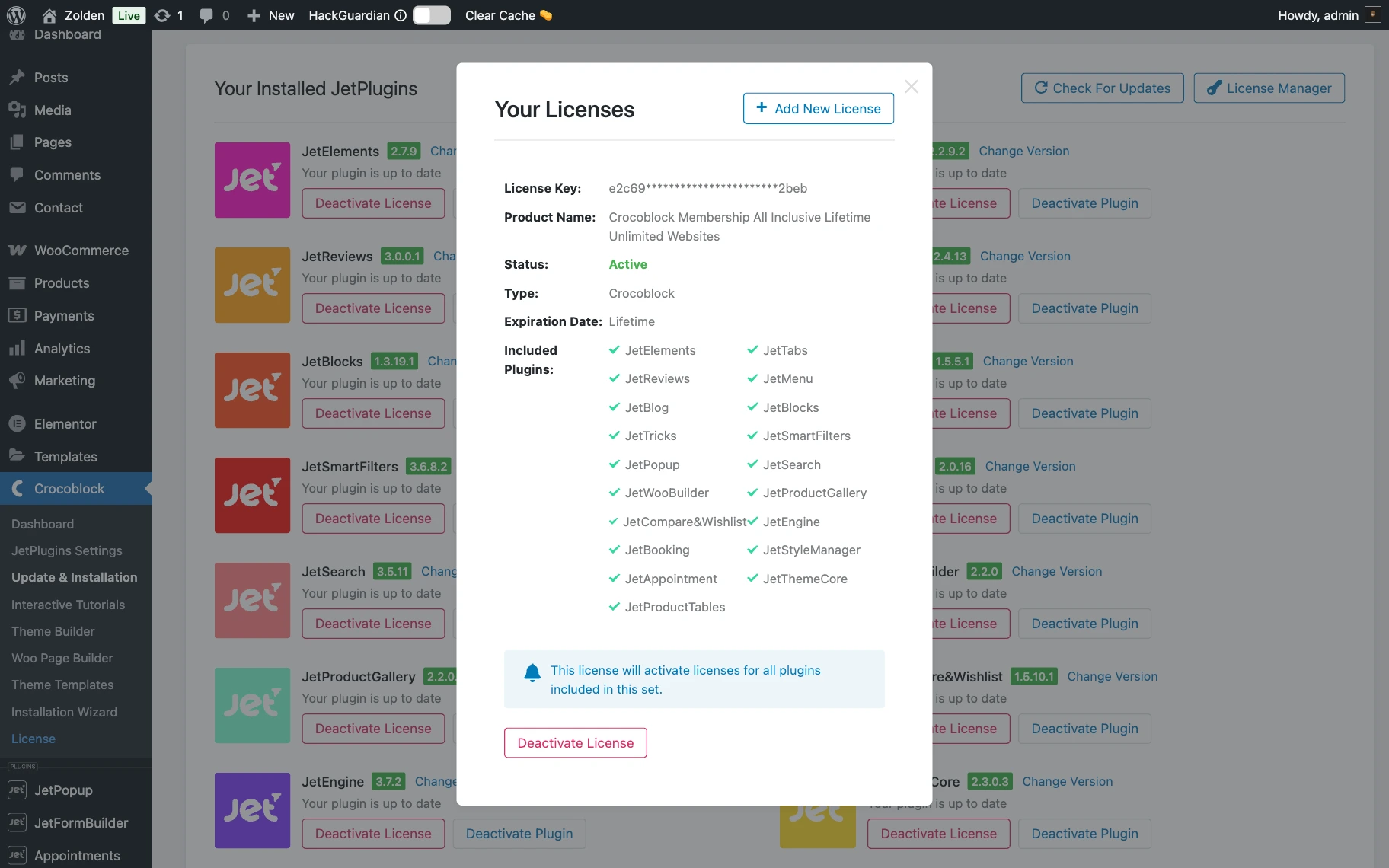
In the Your License pop-up, click on the “Deactivate License“ button and then reactivate it by entering your license key. This refreshes the connection and can resolve display issues.
Update all components
Finally, ensure you have the latest version of the JetThemeCore plugin installed. Go to WordPress Dashboard > Crocoblock > Update and Installation, and click the “Check for Updates” button to get the latest updates if available.
Keeping all of your plugins up-to-date is necessary because outdated plugin or theme files can sometimes cause conflicts with JetThemeCore templates.
If the problem persists
If none of these steps resolve your issue, consider checking your site’s error logs for specific error messages. Finally, you can contact the Crocoblock support team or address your problem in the Discord community for more specific troubleshooting.
Now you know how to fix the most common issues when running a WordPress website powered by the visual theme editor JetThemeCore.