
How to Set Multiple Units Booking in Plain Mode with WooCommerce Integration
Learn how to enable multiple units booking in JetBooking’s Plain mode with WooCommerce integration on your WordPress website. Configure the booking form, related orders, and JetEngine’s Dynamic Visibility.
Before you start, check the tutorial requirements:
- WooCommerce plugin installed and activated
The JetBooking plugin lets you define the number of available units for a specific room type directly in the Units Manager block when editing its post.
In this tutorial, we’ll show you how to configure multiple units booking in the booking form when the “Plain” Booking mode is selected and the WooCommerce integration is activated.

Setting the Multiple Units Booking
Go to the WordPress Dashboard > JetFormBuilder > Forms tab and open a booking form.
First, add the Number Field for the number of units.
In the Block settings, enter the FIELD LABEL and FORM FIELD NAME in the General tab.
Then, scroll down to the Field tab and press the “database” icon near the MAX VALUE field.
In the Edit Preset pop-up, set the following options for fields: SOURCE — “Post”, GET POST ID FROM — “Current Post”, and POST PROPERTY — “Post Units Number”.
After that, push the “Update” button to close the pop-up.

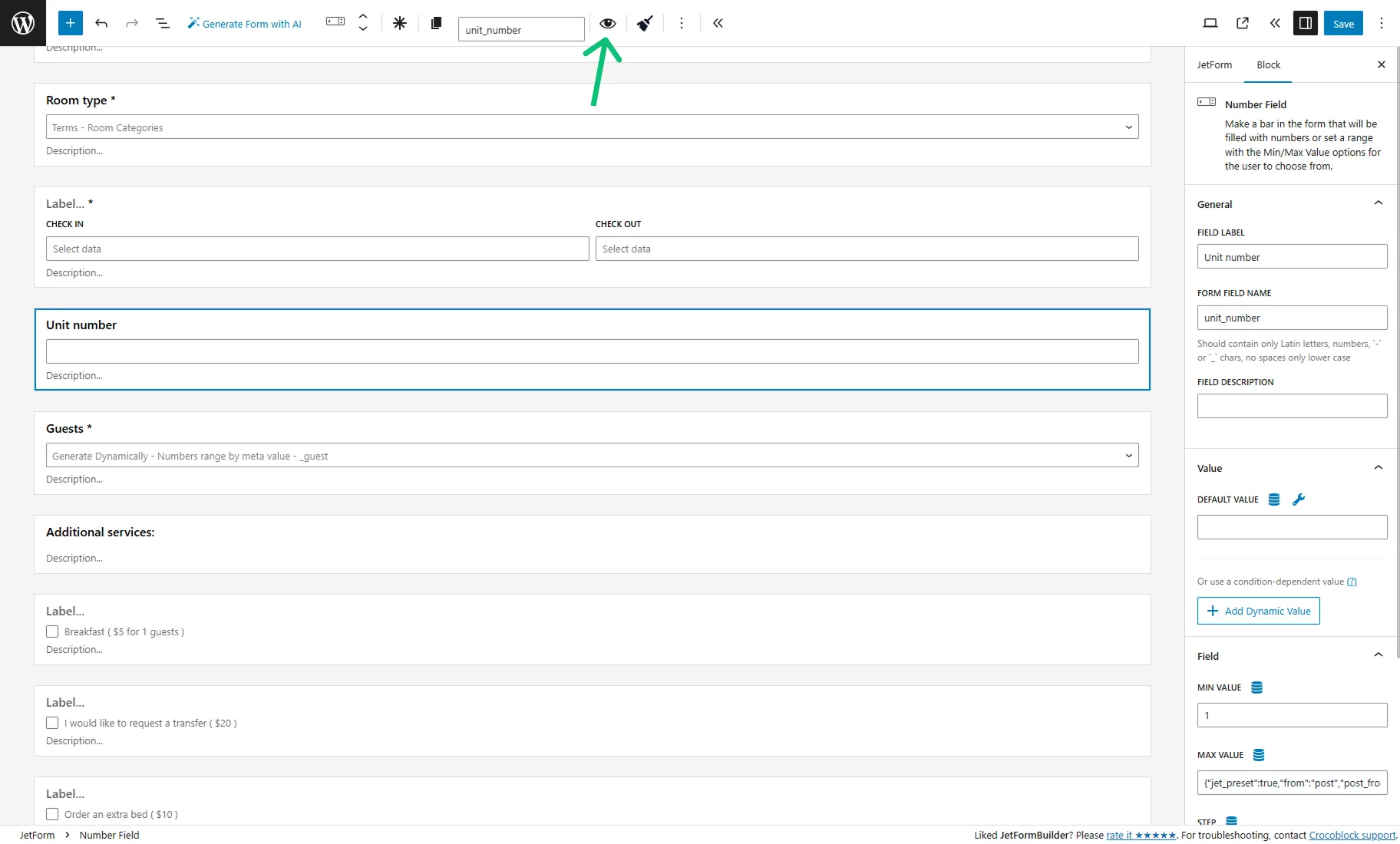
We recommend applying JetEngine’s Dynamic Visibility to this field, so it will be shown only when an apartment has available units. To do so, press the “eye” icon in the block’s upper toolbar.
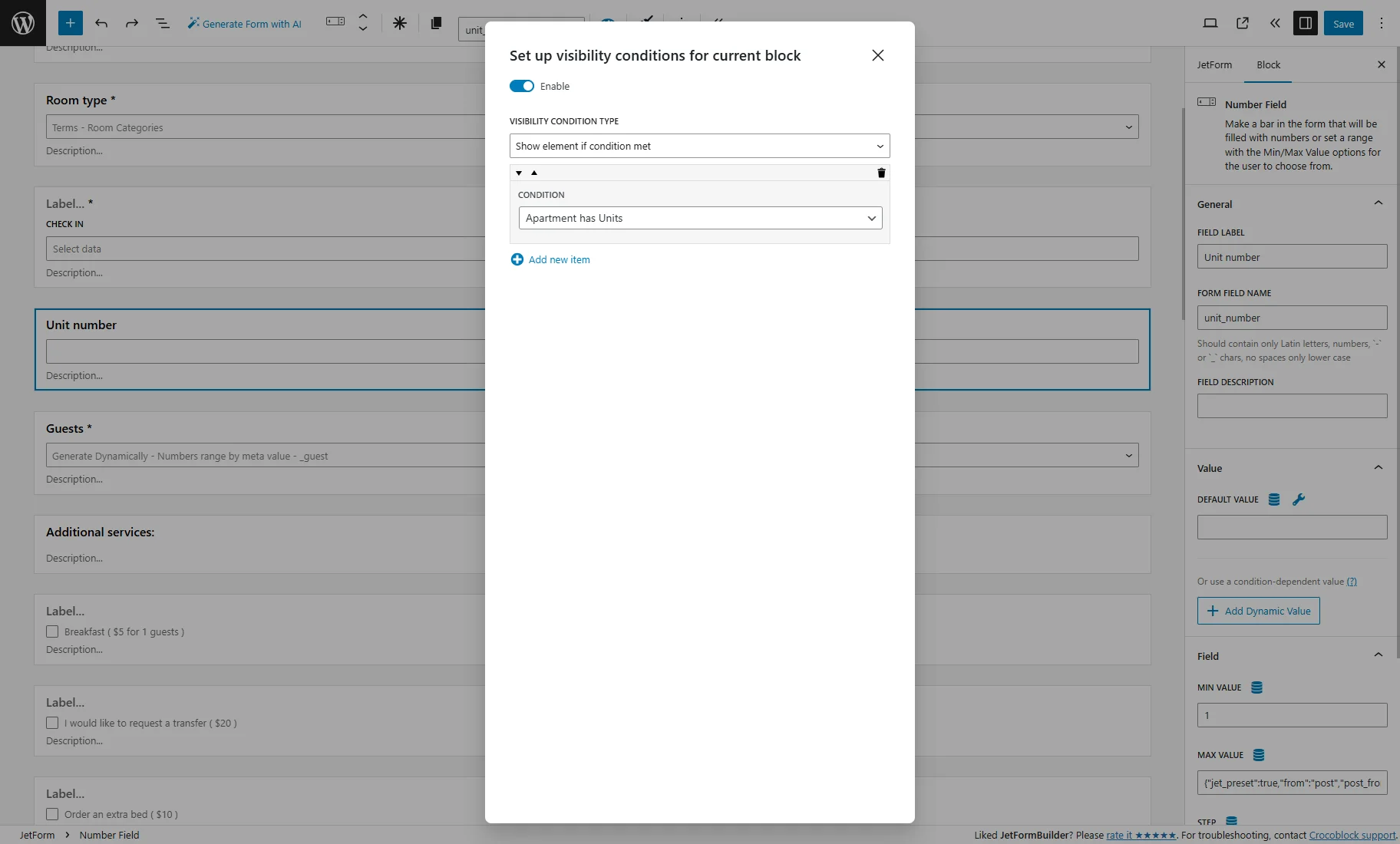
In the Set up visibility conditions for current block pop-up, activate the Enable toggle, select the “Show element if condition met” in the VISIBILITY CONDITION TYPE dropdown, click the “+ Add new item” button, and pick the “Apartment has Units” CONDITION.
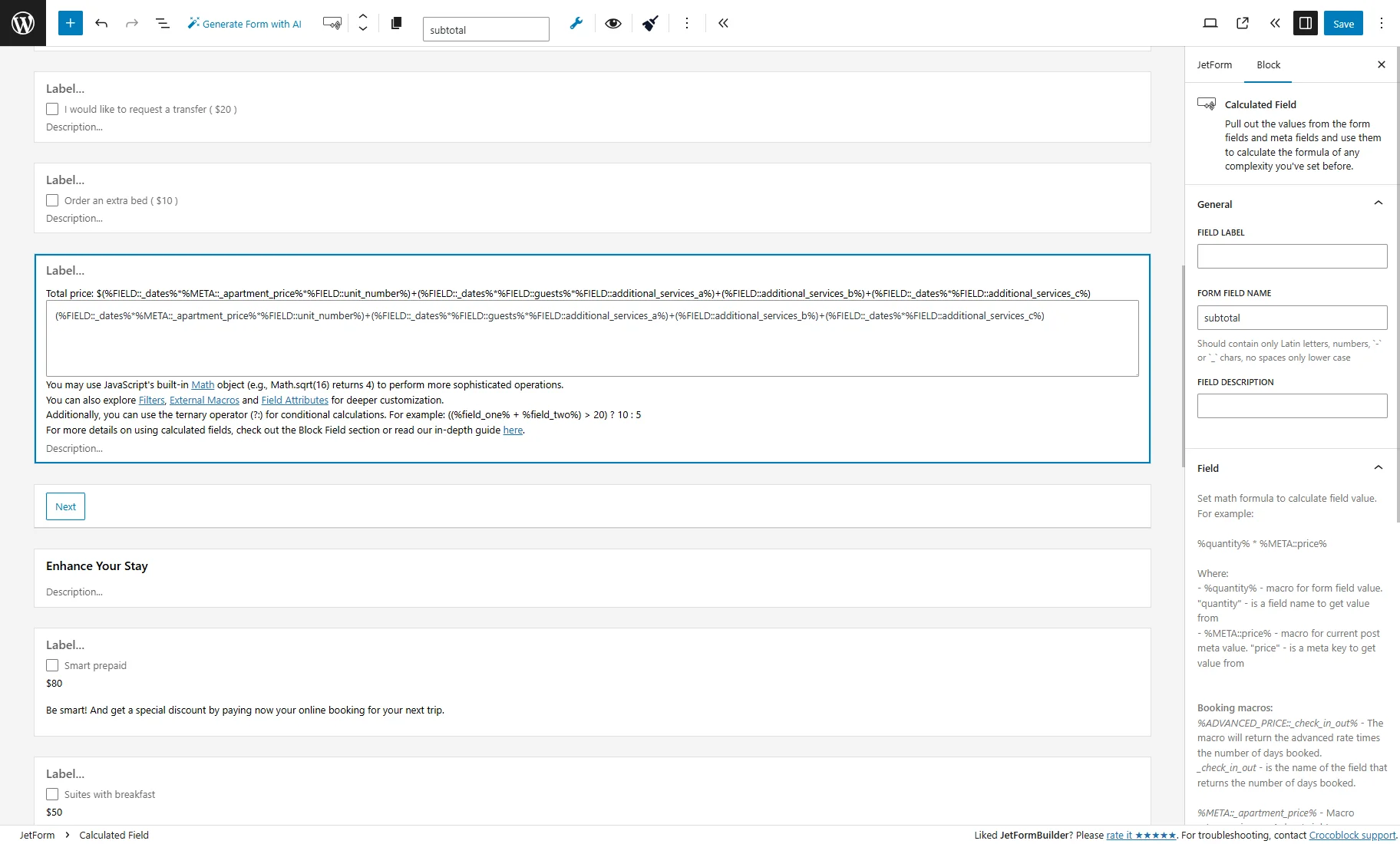
The Number Field value can be added to the Calculated Field formula, for example:
%FIELD::_dates%*%META::_apartment_price%*%FIELD::unit_number%shows the apartment price multiplied by the number of dates and units.
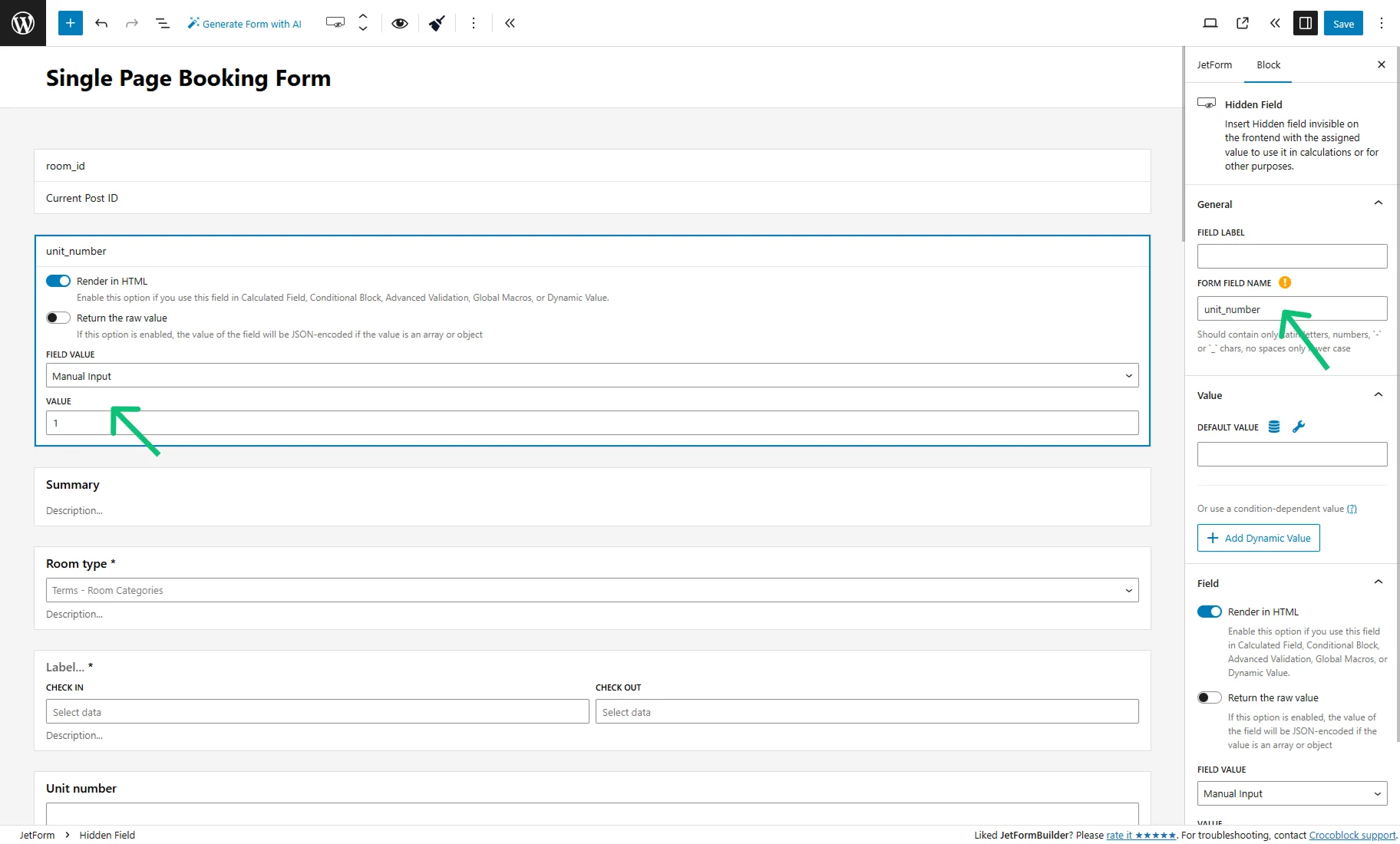
To avoid this, add a Hidden Field with the same FORM FIELD NAME as the Number Field.
Select the “Manual Input” option for the FIELD VALUE and enter the “1” VALUE.
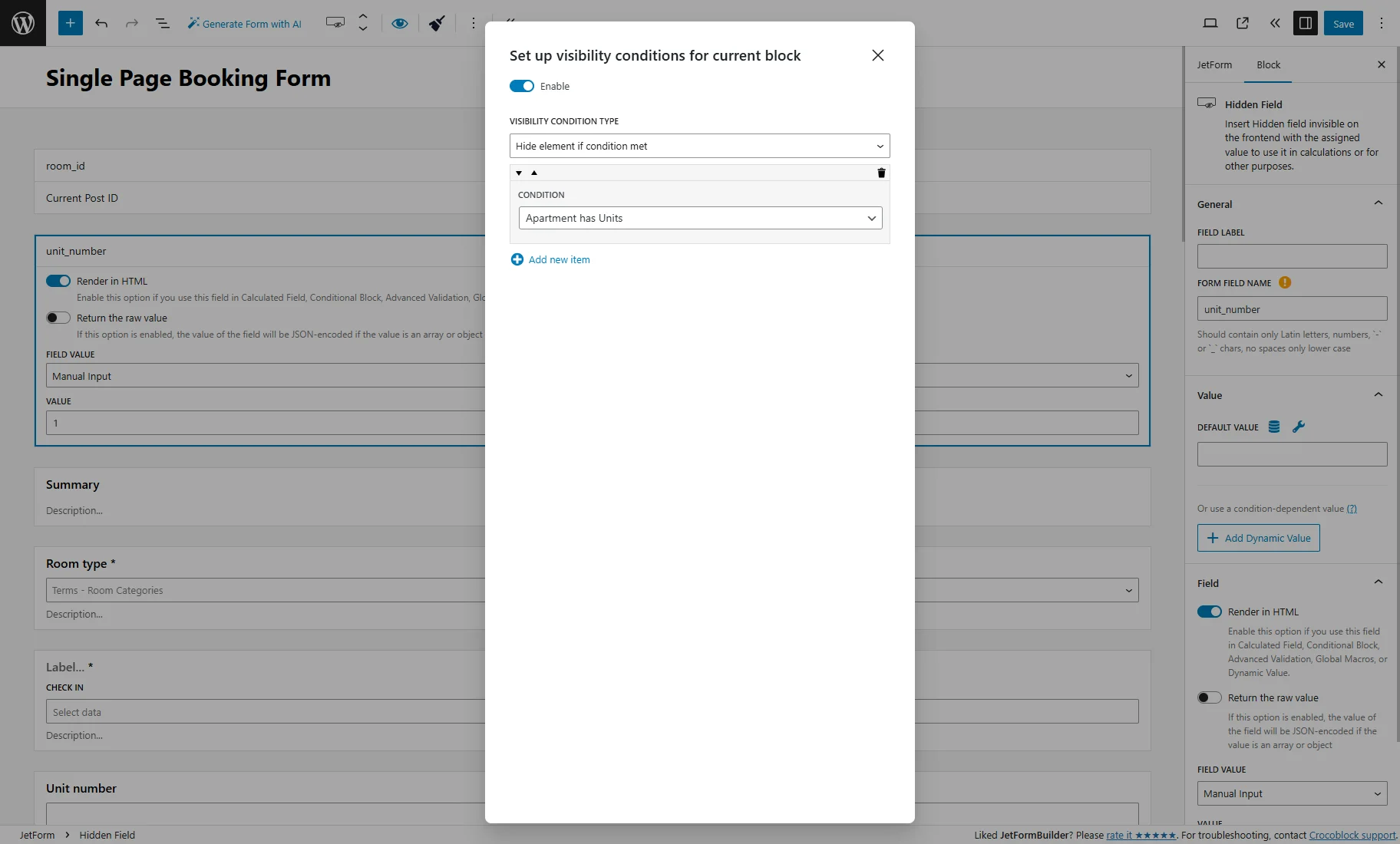
Press the “eye” icon to apply the opposite visibility condition to it. Activate the Enable toggle in the pop-up, select the “Hide element if condition met” in the VISIBILITY CONDITION TYPE dropdown, click the “+ Add new item” button, and pick the “Apartment has Units” CONDITION.
Next, click to edit the “Apartment Booking” post submit action in the JetForm tab from the right panel and enable the Booking multiple units toggle in the pop-up.
It activates the CAPACITY FIELD, where the Number Field for the unit number should be selected.
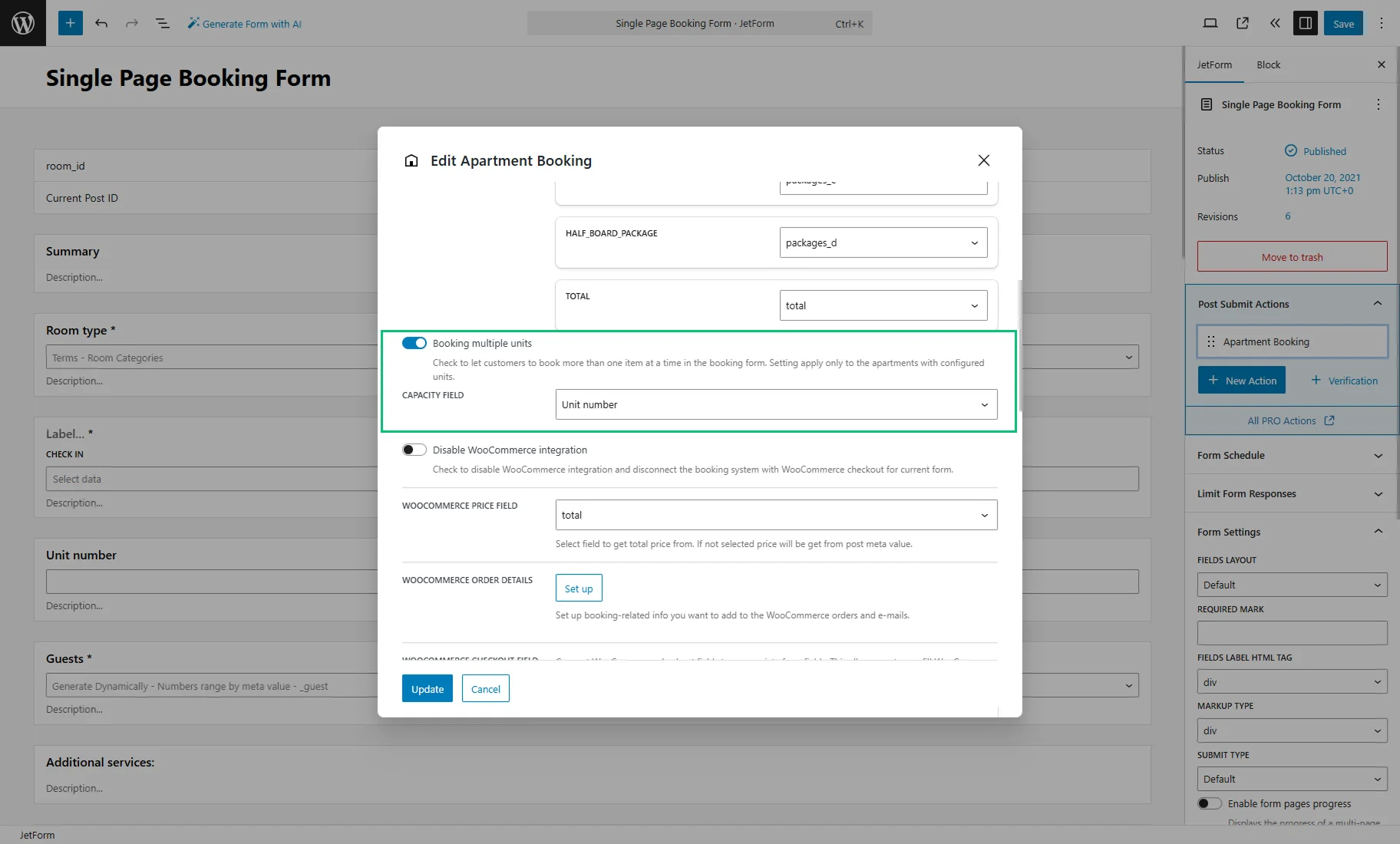
Finally, press the “Update” button to close the pop-up and the “Save” button to save the changes in the booking form.
Checking the Results
Proceed to the front end with the booking form.
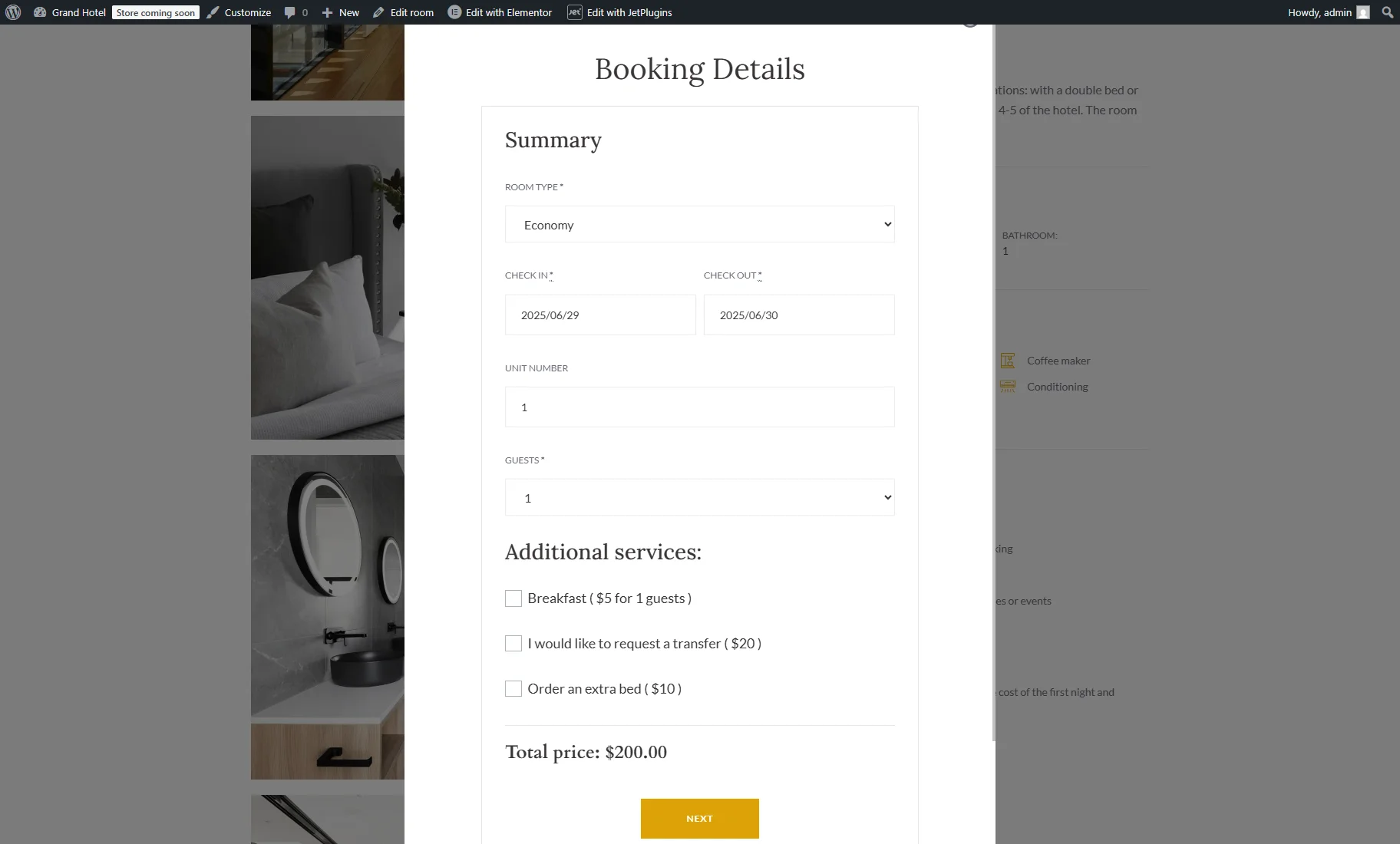
We select one night in the date selection fields and set “1” in the UNIT NUMBER field. The total price is “$200”.
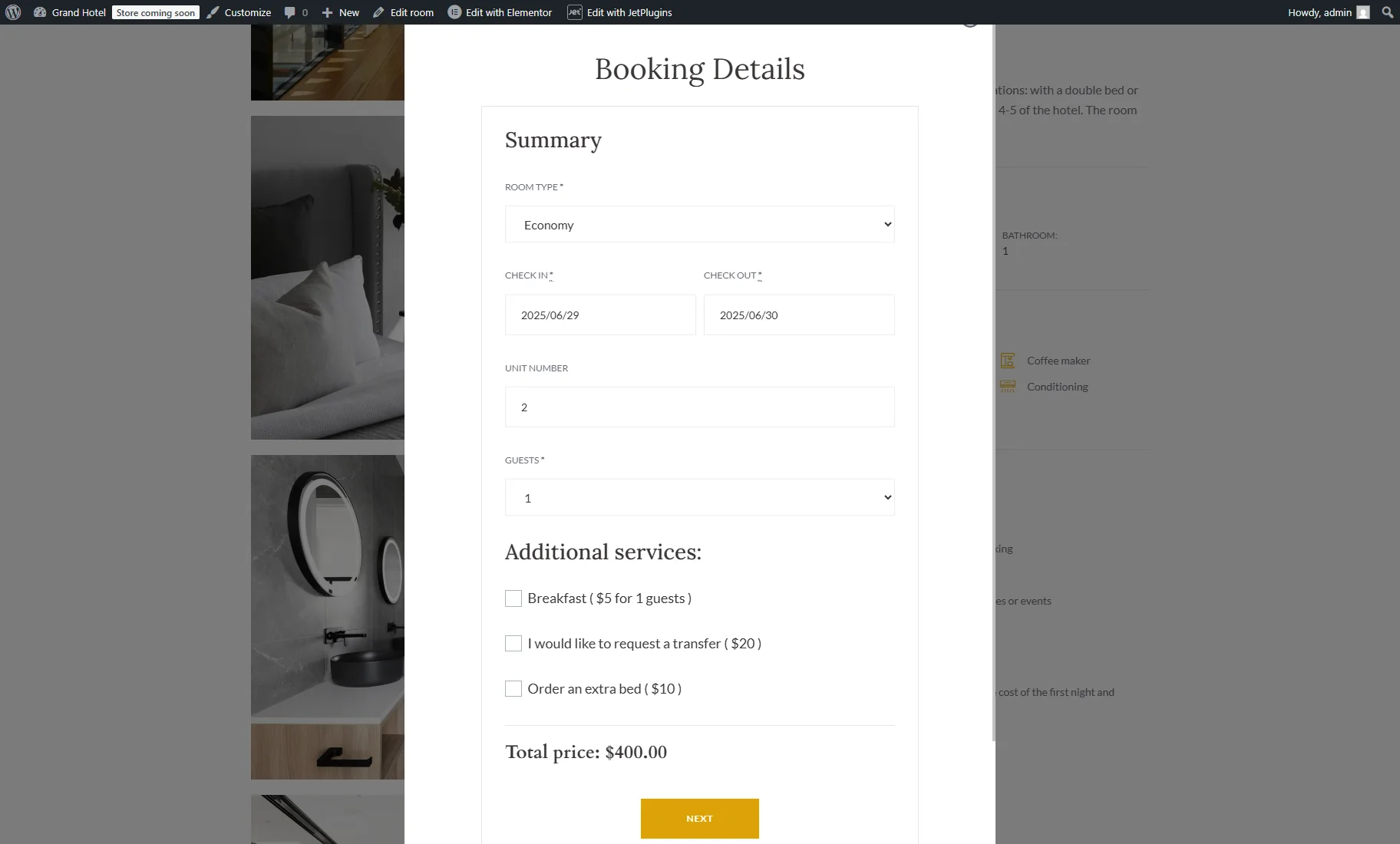
When we set “2” in UNIT NUMBER, the price becomes “$400”.
In case there are not enough units for booking, the “Not enough available units. Only n available.” error message will be shown.

After submitting the booking, users can view the order details, including the individual price for each unit and the total price for all units.

The Thank you Page also displays a list of all booking units in a table.

In the WordPress Dashboard > Bookings tab, individual bookings are displayed for each booked unit. All of these bookings are linked to the same order.
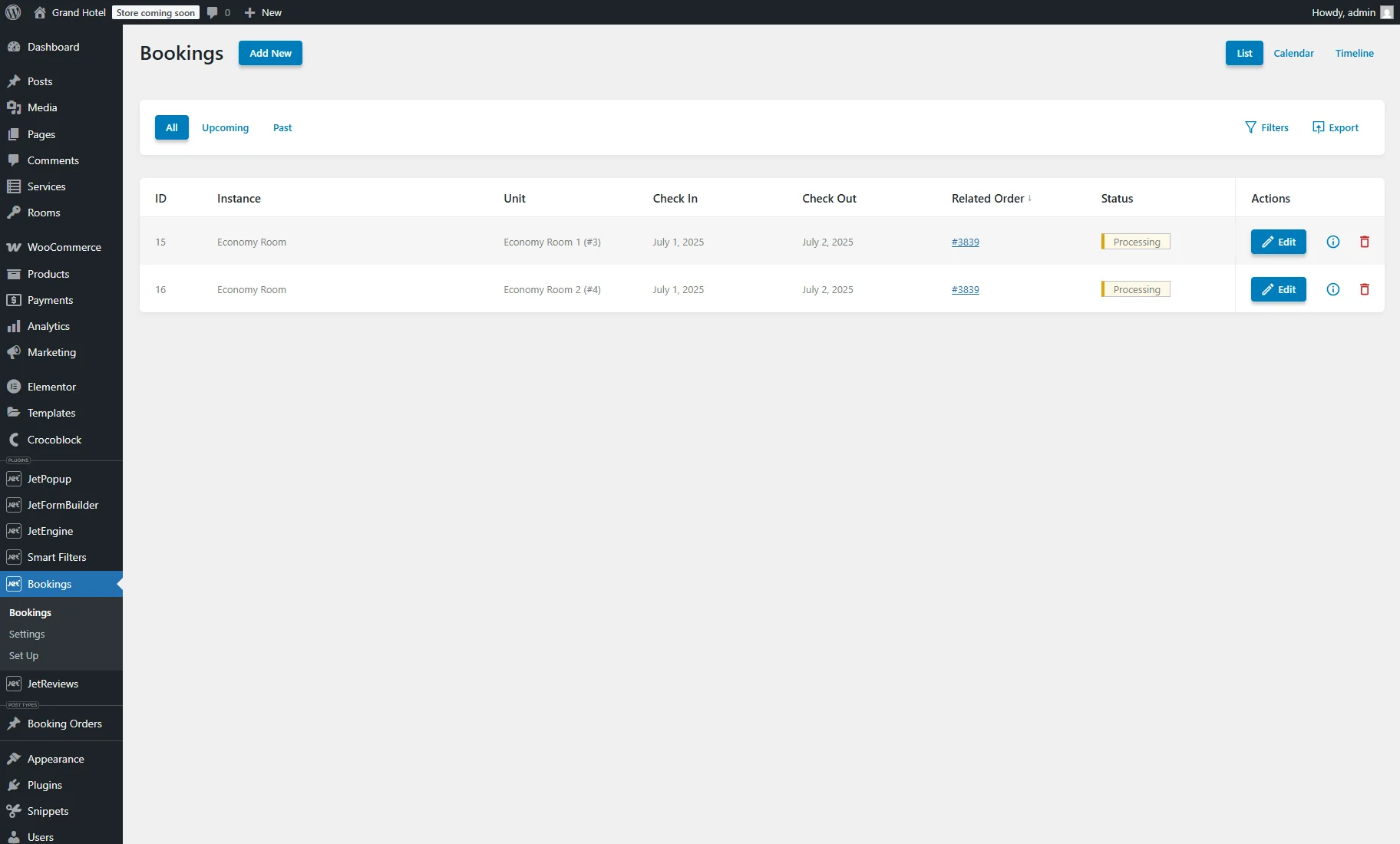
Detailed order information can be reached by clicking on the Related Order or in the WordPress Dashboard > WooCommerce > Orders directory.

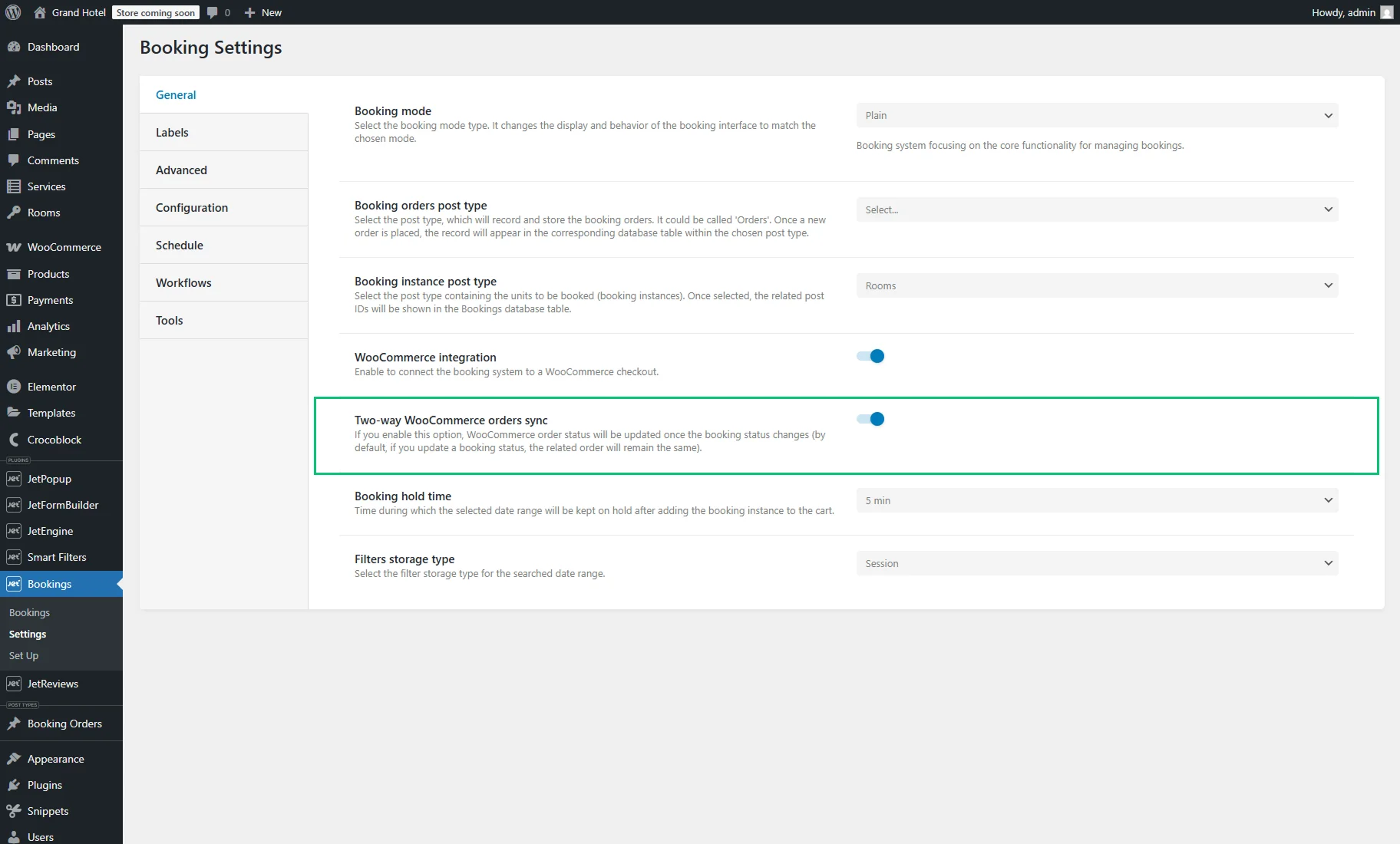
This means if an order contains a single booking, changing the order’s status updates the booking’s status and vice versa. However, if one order contains multiple bookings, changing the order status will update all linked bookings; changing the status of an individual booking, on the other hand, will not affect the order.
Dynamic Visibility
With the JetEngine’s Dynamic Visibility feature, you can display a label or other elements on the Single Property page or booking form, depending on whether an apartment has units or not.
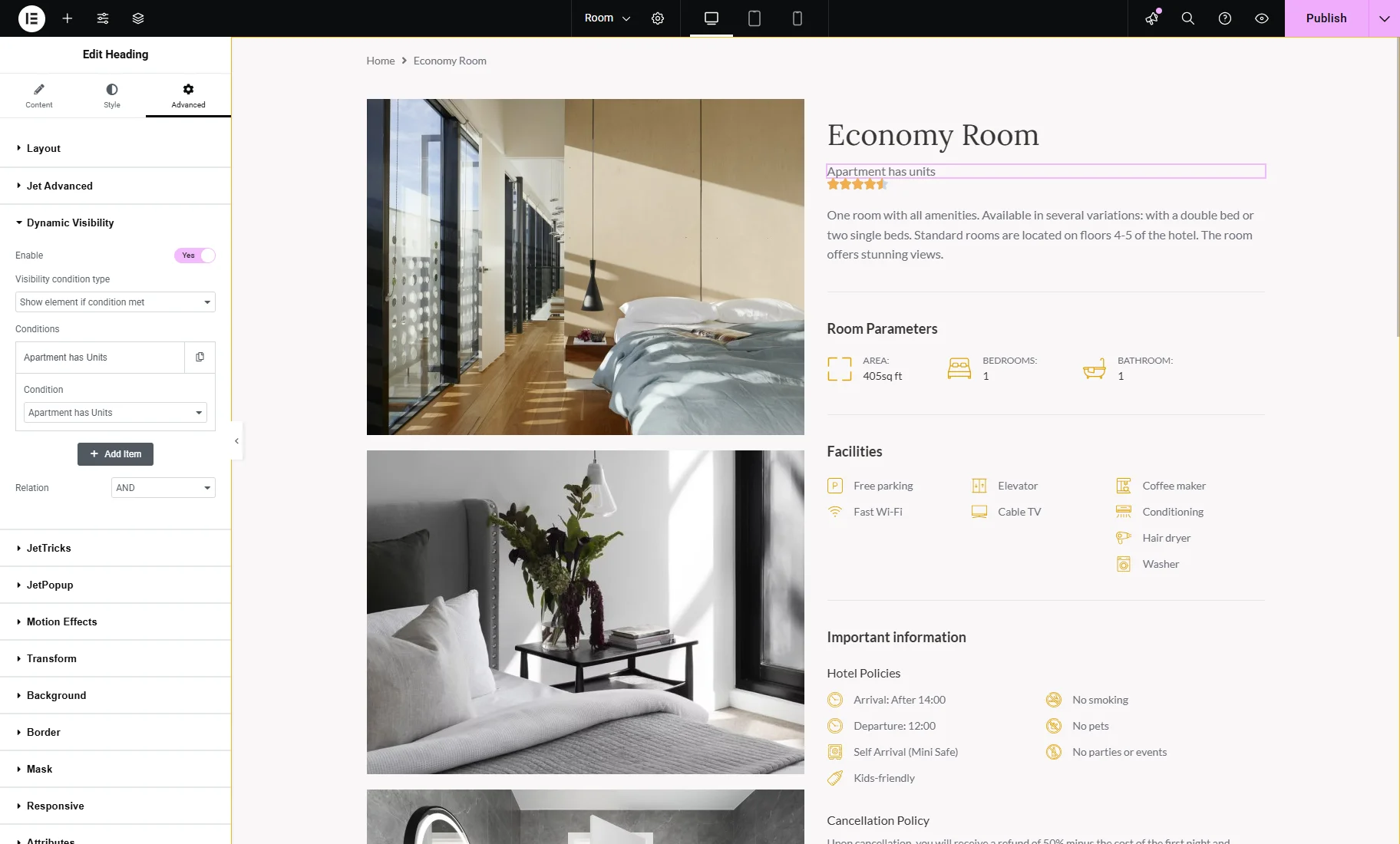
Two conditions are available in the Elementor, WordPress block, and Bricks editors:

- Apartment has Units — element is shown if an apartment has configured units, and the unit number is more than one;
- Apartment has no Units — element is shown if an apartment doesn’t have configured units, or the unit number is equal to one.
That’s all. Now you know how to enable multiple units booking in JetBooking’s Plain mode with WooCommerce integration on your WordPress website.