
JetAppointment Time Slots Not Working: How to Fix
JetAppointment Time Slots are not showing, display the wrong schedule, or show errors. How to fix them?
If your booking system is acting up, it can quickly disrupt your scheduling. Whether time slots fail to appear, display the wrong hours, or throw unexpected errors during checkout, most of these issues stem from a few misconfigured settings in the backend.
This guide will walk you through the essential steps of Crocoblock JetAppointment troubleshooting to get your system back on track.
Slots Not Showing at All
Problem: The available JetAppointment time slots are not showing in the form after selecting a service or provider.
The possible causes are:
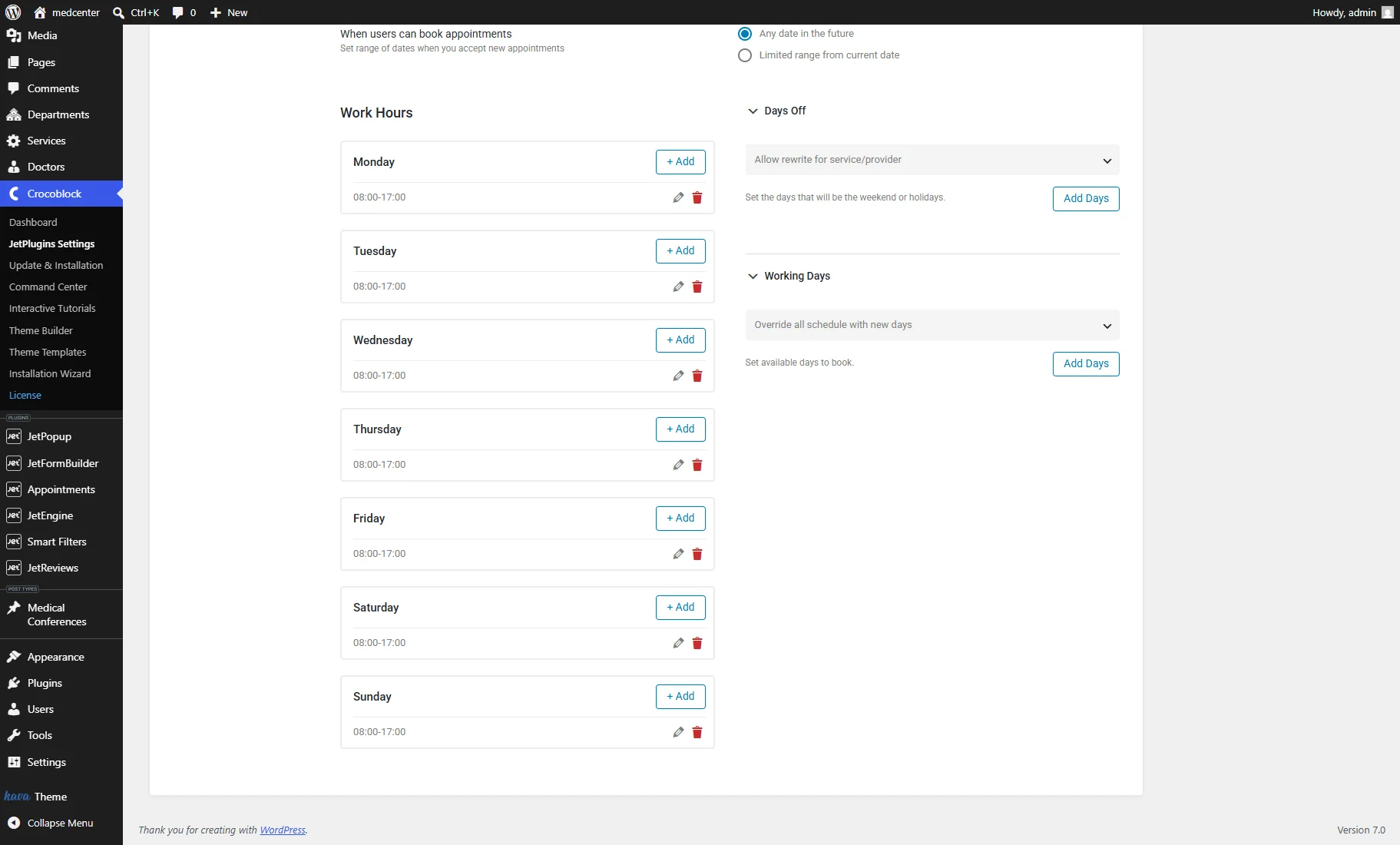
- The global JetAppointment Working Hours are not set;
Proceed to the WordPress Dashboard > JetAppointments > Settings > Working Hours tab, scroll down the page, and ensure the Work Hours are adjusted for every working day.
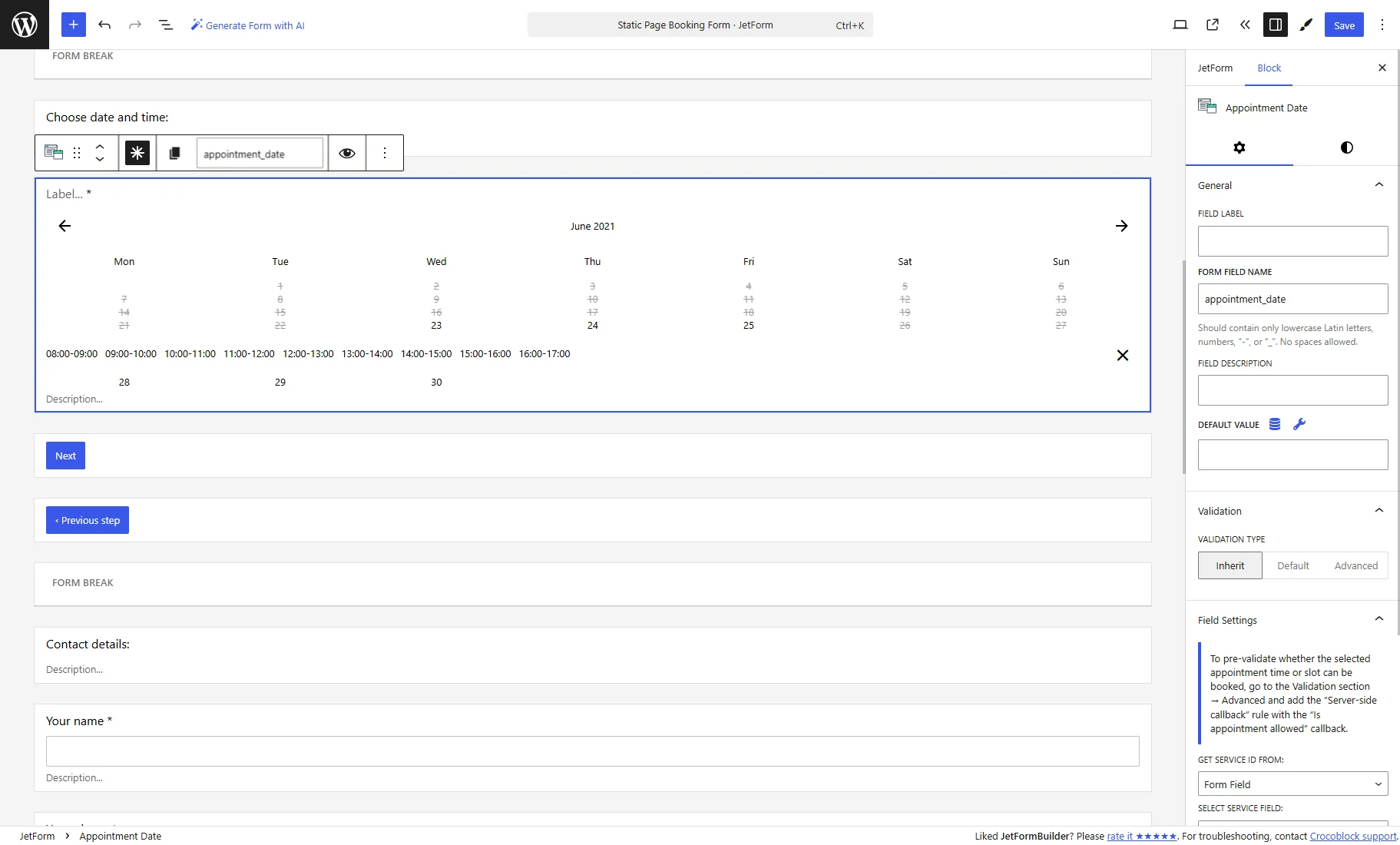
- The Appointment Date field is missing from the appointment booking forms;
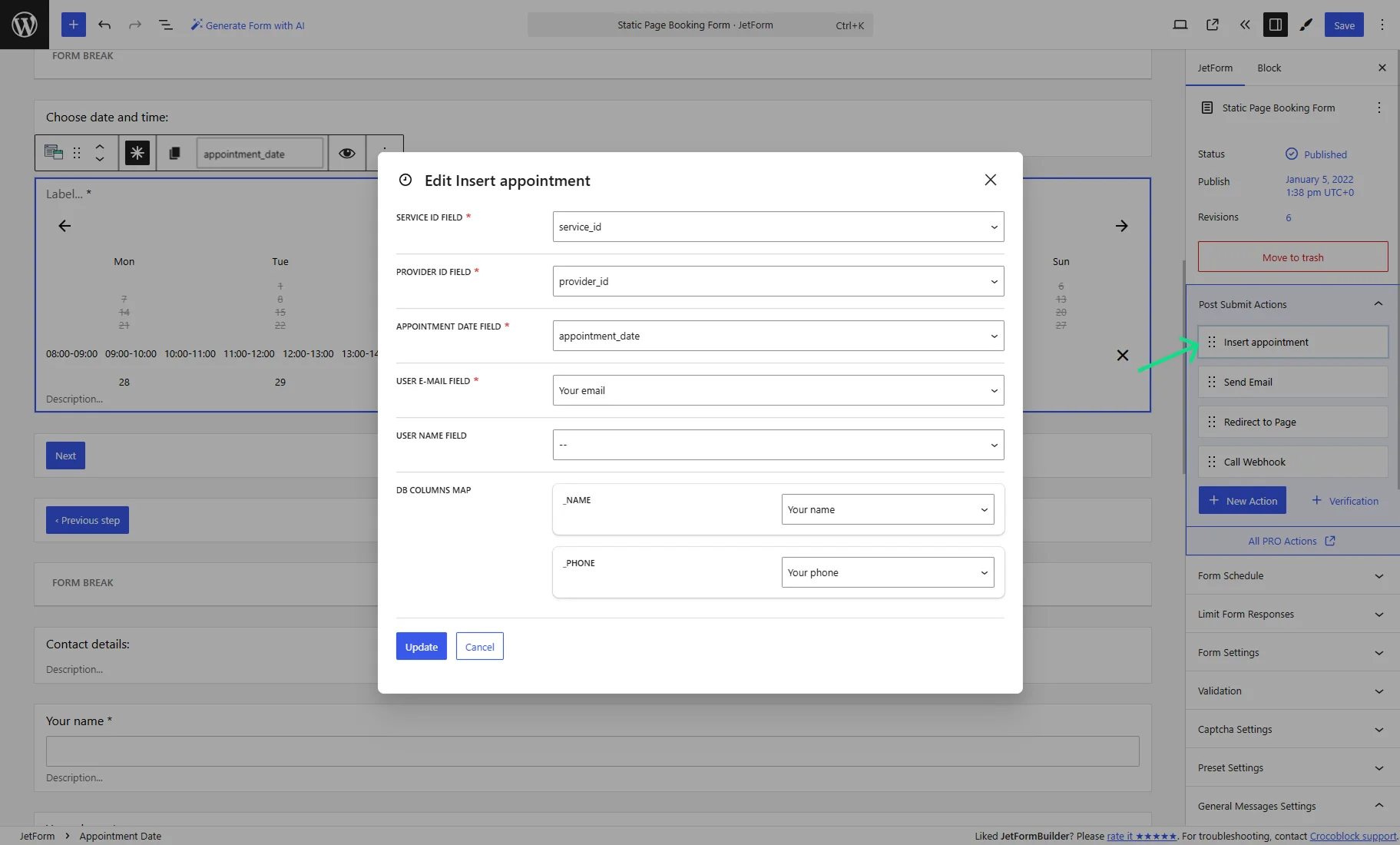
- The “Insert appointment” action is missing from the JetForm > Post Submit Actions settings. If it’s added, check if all required fields are mapped in the Edit Insert appointment pop-up, especially the APPOINTMENT DATE FIELD.
Wrong Slots Displayed
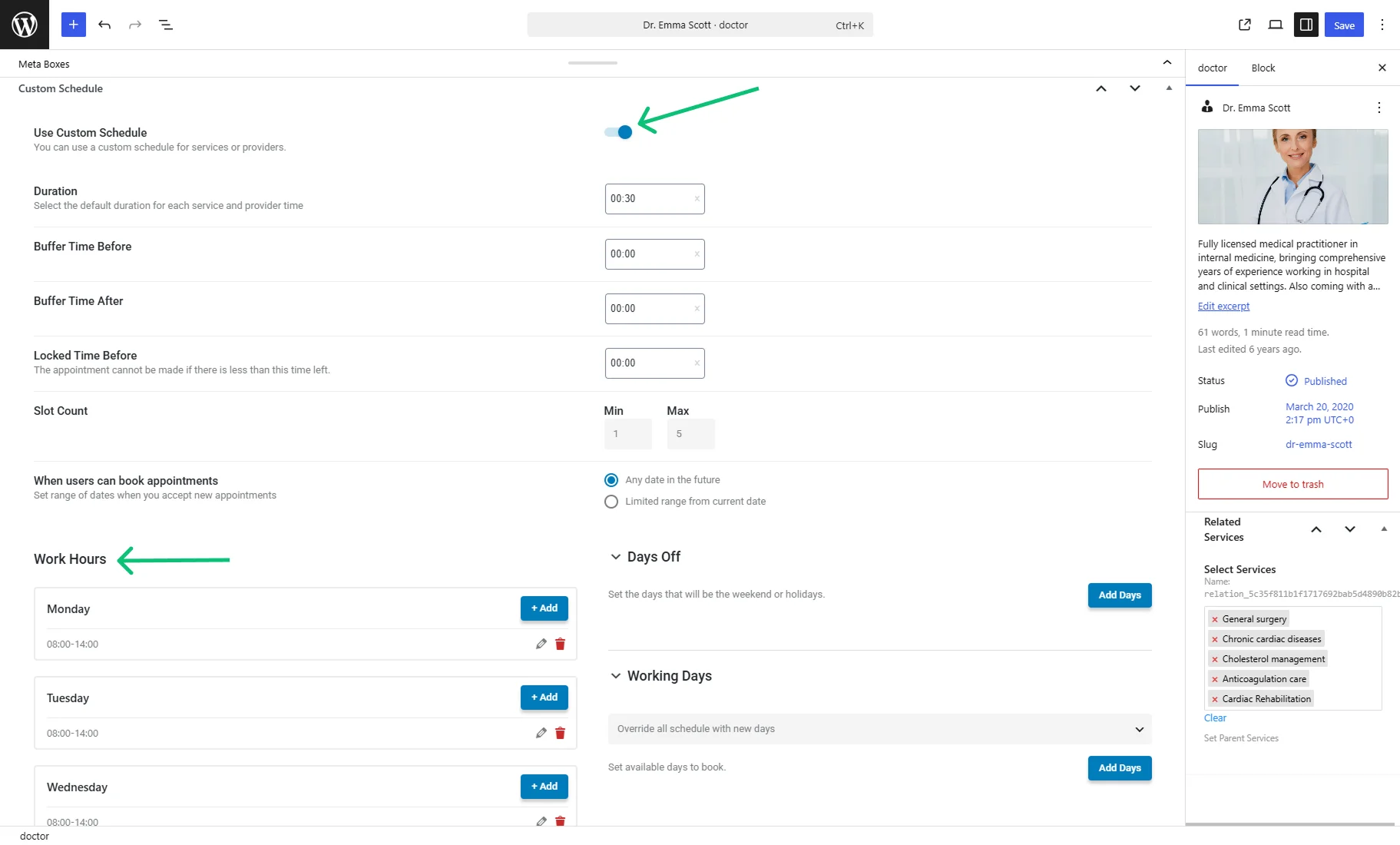
Problem: The booking form displays default business hours instead of the custom schedule configured for a service or provider.
Cause: When a JetAppointment custom schedule is not applied directly within a provider’s profile, the system defaults to global settings.
Solution: Go to the backend post for that specific service or provider and scroll down the settings. Ensure the Use Custom Schedule toggle is activated and configure the unique custom Work Hours per service or staff member right there; otherwise, the global working hours will be applied.
Slot Appears Available but Shows “Appointment Time Already Taken”
Problem: A slot appears available in the booking form, but users receive an “Appointment time already taken” error during submission.
Cause: This happens when old appointment records or past vacation days remain stuck in the system’s memory because the JetAppointment excluded dates are not cleared properly.
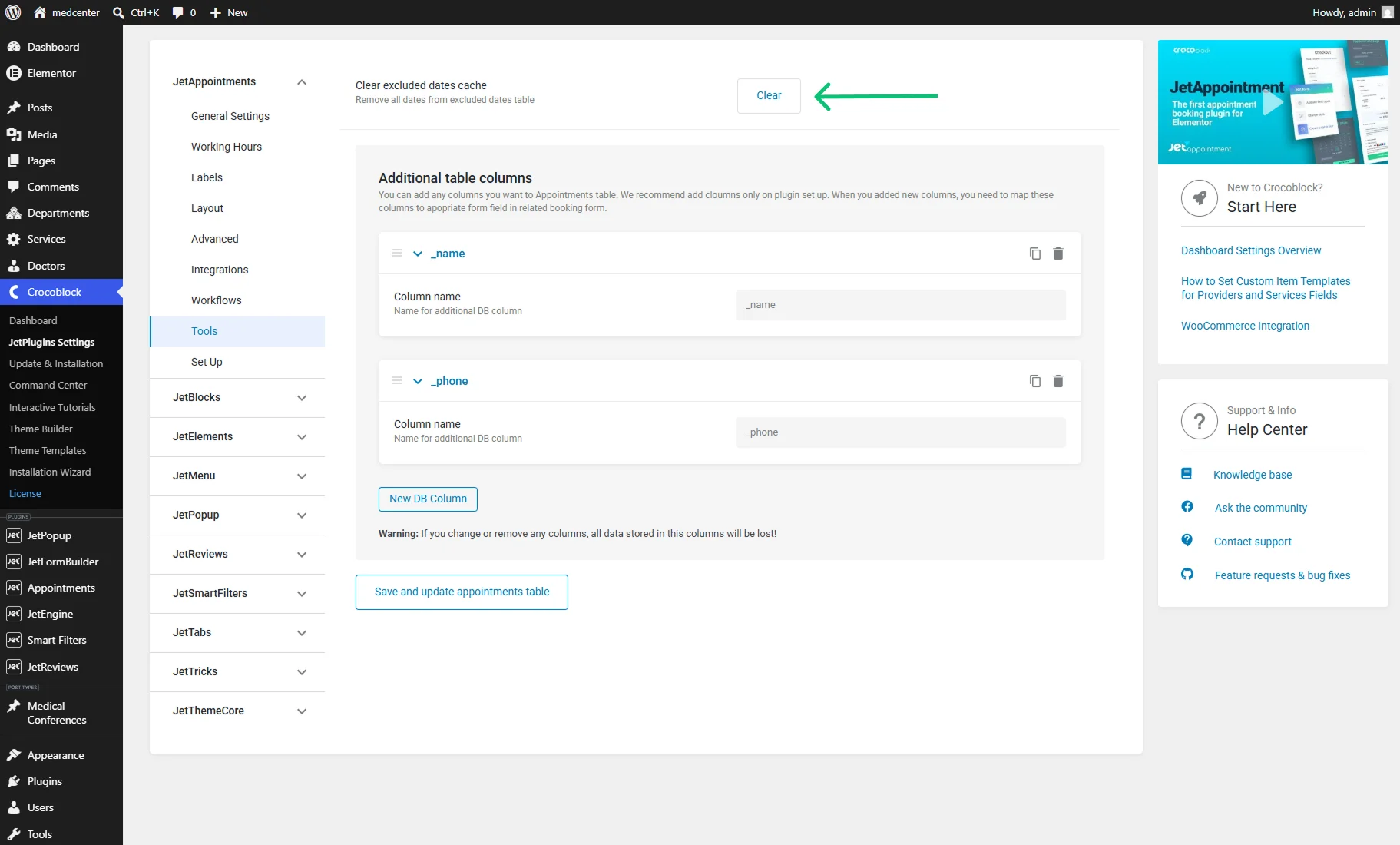
Solution: Go to WordPress Dashboard > JetAppointments > Settings > Tools and press the “Clear” button near the Clear excluded dates cache field.
Also, remove obsolete appointments if necessary and clear all website, server, and plugin caches.
Buffer Time Causes Incorrect Slot Availability
Problem: Some time slots appear available even though they should be blocked by Buffer Time settings in the WordPress Dashboard > JetAppointments > Settings > Working Hours tab.
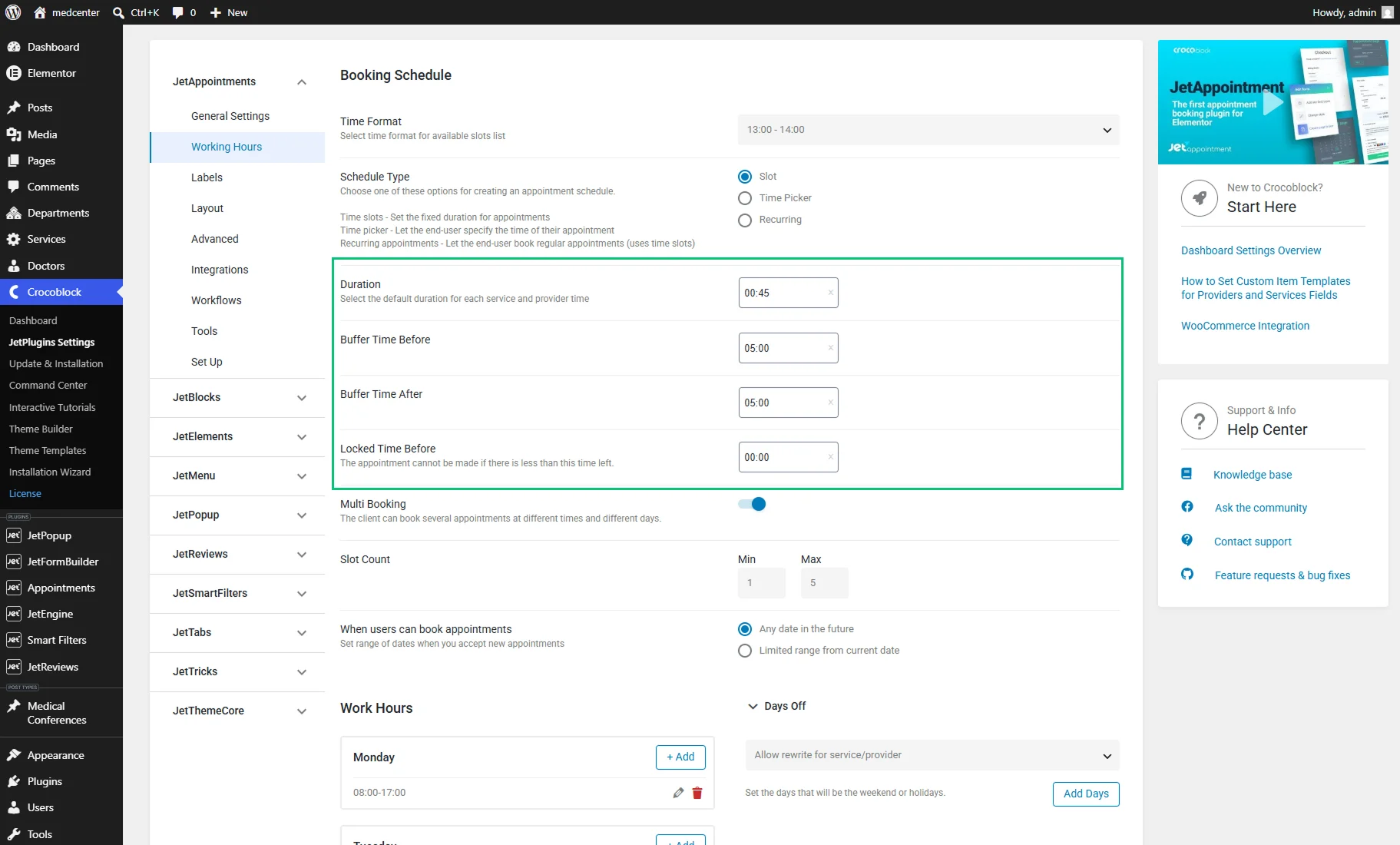
Cause: The front-end availability data may be cached and not updated immediately after new appointments are created, creating a temporary JetAppointment cache issue with time slots.
Solution: Clear your server-level page cache and ensure your site’s wp-cron is functioning normally, as background tasks are required to recalculate slot states dynamically.
Recurring Appointments Available Only for Logged-In Users
Problem: Guest users cannot create recurring appointments, while logged-in users can complete such bookings successfully.
Cause: Because features like recurring appointments for WordPress link a chain of dates together, the system natively expects a registered user ID to group them. This is why recurring appointments for logged-in users function seamlessly while guests hit a wall.
Solution: Use custom code (PHP snippet) to handle guest sessions.
FAQ
The backend may display the latest appointment data immediately, while visitors can still see cached versions of booking pages. This can create temporary differences until the cache refreshes.
Yes. JetAppointment allows service-specific settings, so different services can have different appointment lengths, pricing, and availability configurations.
JetAppointment relies on your WordPress site’s global time zone settings by default, but you can configure advanced behavior in WordPress Dashboard > JetAppointments > Settings > Layout by using the corresponding options.
That’s all. Now you know how to fix JetAppointment time slot issues, including missing slots, incorrect availability, appointment conflicts, Buffer Time problems, and recurring booking restrictions on your WordPress site.