Angie is one of the first AI agentic plugins available in the WordPress plugin directory, introducing a completely new way to interact with your WordPress site. Instead of navigating multiple screens and settings, you can perform many operations through a single interface – a chat window. It’s an early look at a type of user interface that may soon become the new normal.
In this article, I will show you how it works and how the integration with JetEngine by Crocoblock opens up even more powerful automation options.
How Does Angie Work With JetEngine?
Angie is on a mission to be a revolutionary tool that lets you tell AI what should be done right on your website in chat mode – and this new type of user interface may become the new normal for us.
Out of the box, Angie provides a configured AI model, a chat interface, and a certain set of basic tools. But obviously, it’s impossible to implement tools for every possible use case in a single plugin. So the real power of Angie is revealed through integration with other plugins.
Starting with JetEngine 3.8.0, we added the dedicated integration. In the first version of this integration, the following tools are available:
- JetEngine modules management – manage JetEngine modules (get information about a needed module, activate/deactivate modules).
- Getting JetEngine configuration – get information about the JetEngine setup. It’s important to pass context to the AI model so it can process other requests more accurately.
- Getting website configuration – to get information about the entire website setup.
- Getting JetEngine macros – it retrieves information about available JetEngine macros. This allows the model either to generate macros for you or to use them in a query.
- Adding Custom Content Types – to add new CCTs.
- Adding JetEngine glossaries – to add a new glossary (convenient for large glossaries with standardized data on your website, such as lists of cities, countries, etc.).
- Adding Listing items – to generate a new listing item based on a specific query. The item is generated without styling, with all possible fields for that query, and you then leave only the ones you need and style them as you want.
- Adding a custom post type – to add a new CPT.
- Adding a Meta Box – to add a new Meta Box by JetEngine.
- Adding a taxonomy – to add a custom taxonomy.
- Adding a custom query – to add a query by the Query Builder.
Elementor’s Angie MCP Agent Working With JetEngine: The Demonstration
Let’s break down a case in which we can use several of these tools one after another without leaving the chat UI.
To begin, I will create a new CPT called Team with a set of meta fields and a Department taxonomy.
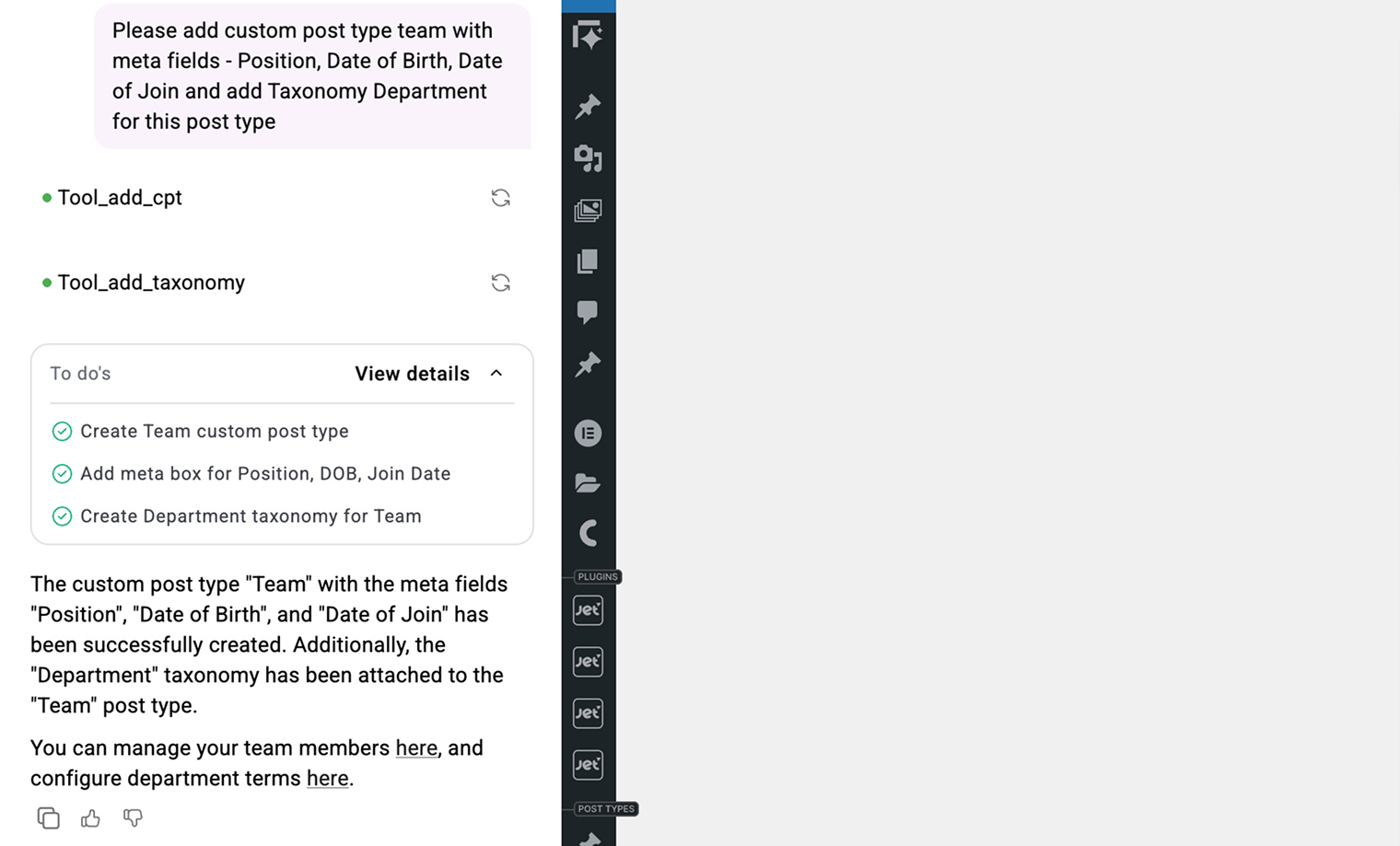
I enabled a dev-mode in Angie’s settings to see which tools it executes under the hood, and, as we can see from my request, it correctly identified the tools needed to create a CPT and a taxonomy.
Let’s check the result of adding these entities to the JetEngine UI.
This is the Team custom post type:
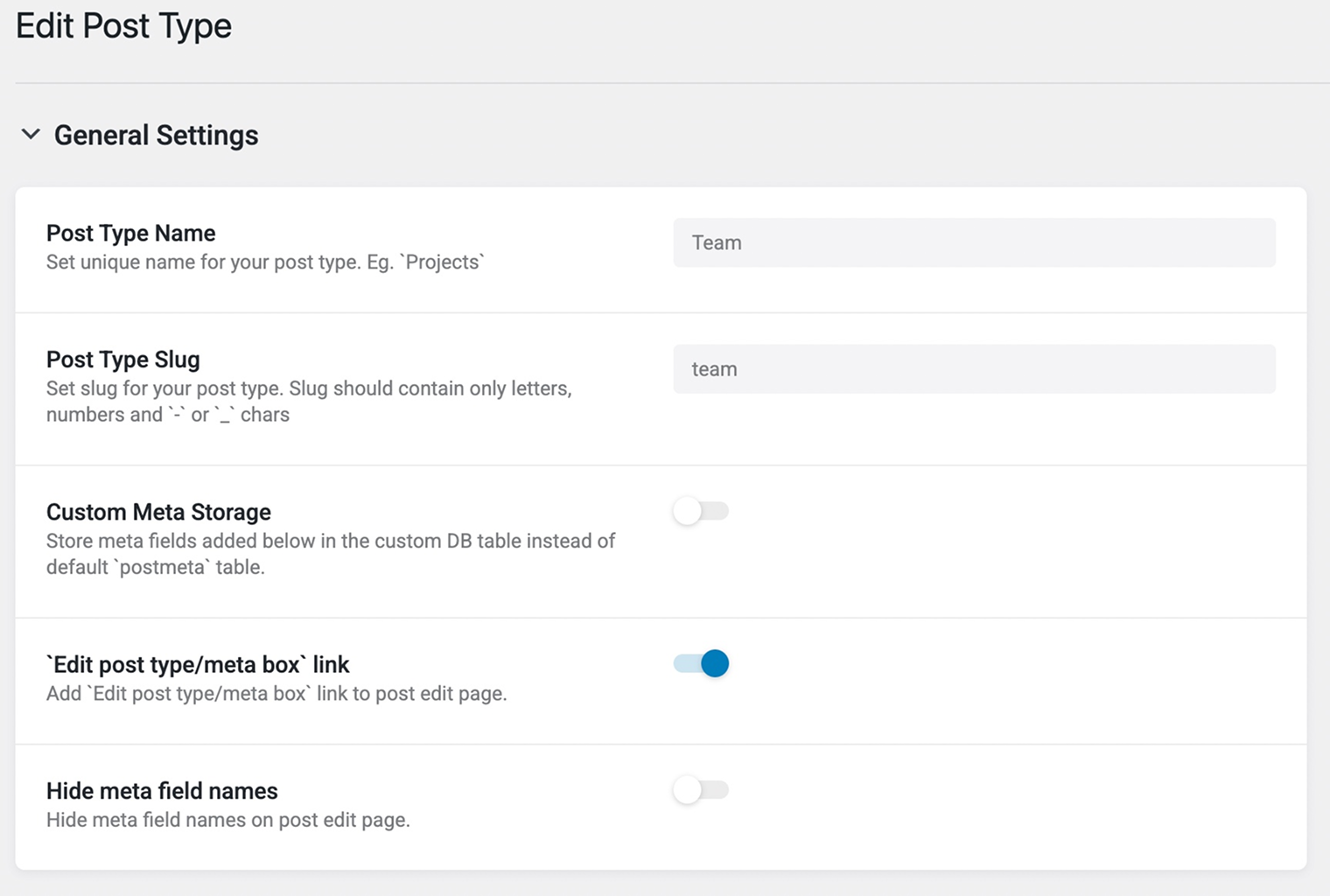
And it has all the required meta fields:

The Department taxonomy has been attached to this CPT, as requested:

Without leaving this same chat, I will ask to create the query I need based on the newly created CPT:
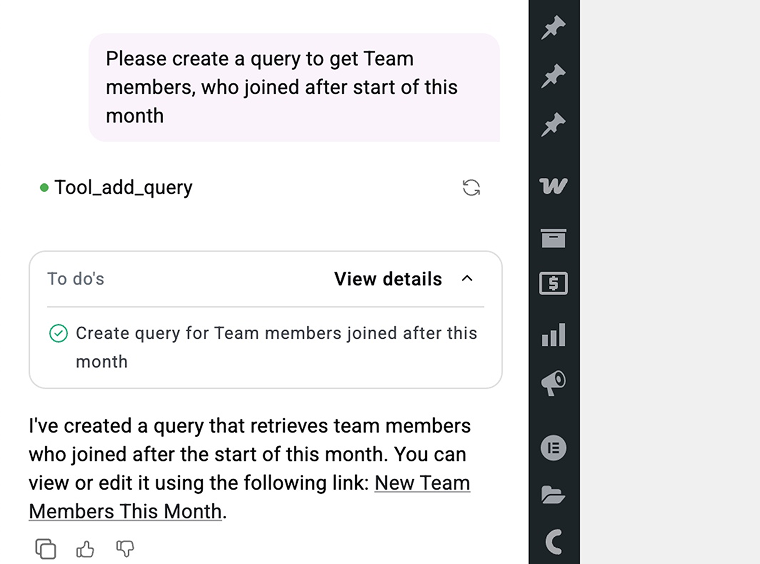
As you can see, Angie already knows everything it needs about this CPT – its slug and which meta fields it has, and can use it in the query. This is it:
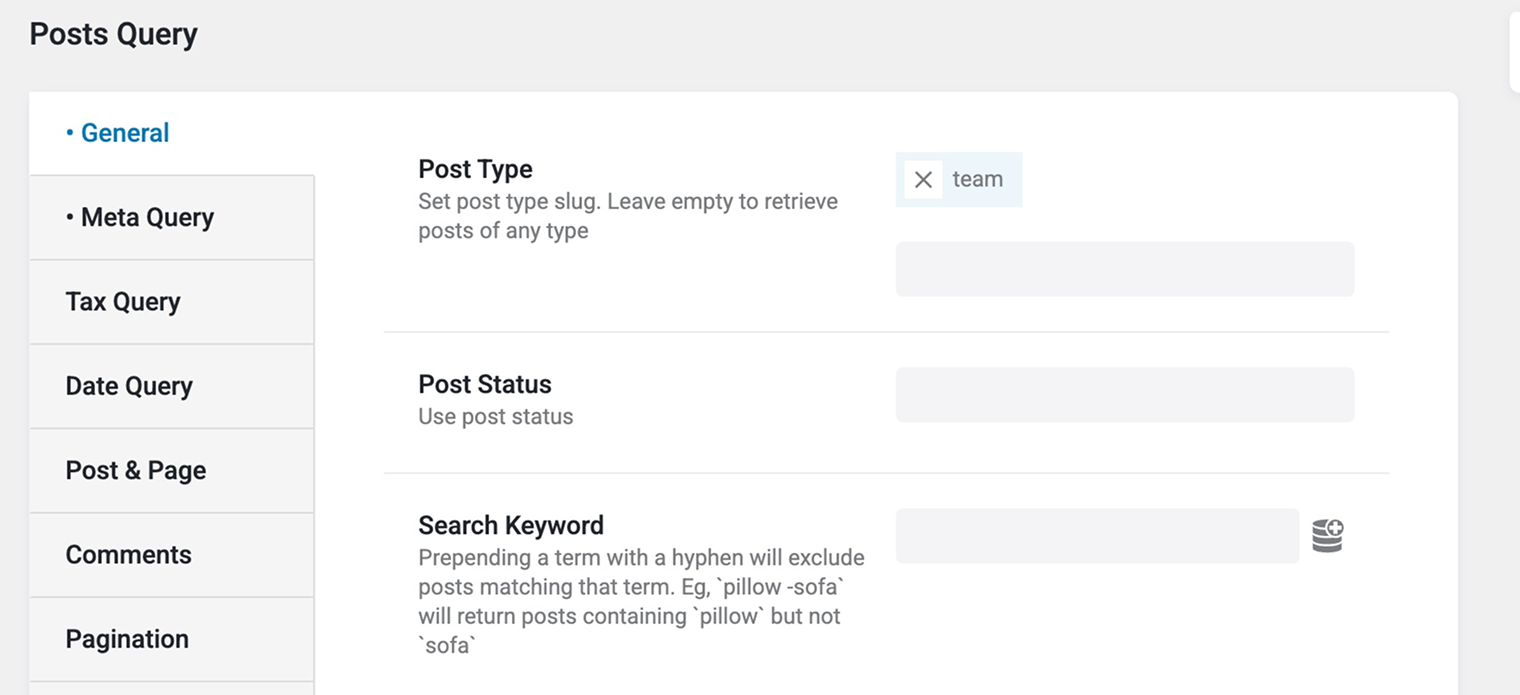
And in the next step, based on this query, I can create a listing item to use it on the website page (again – without leaving the chat window):
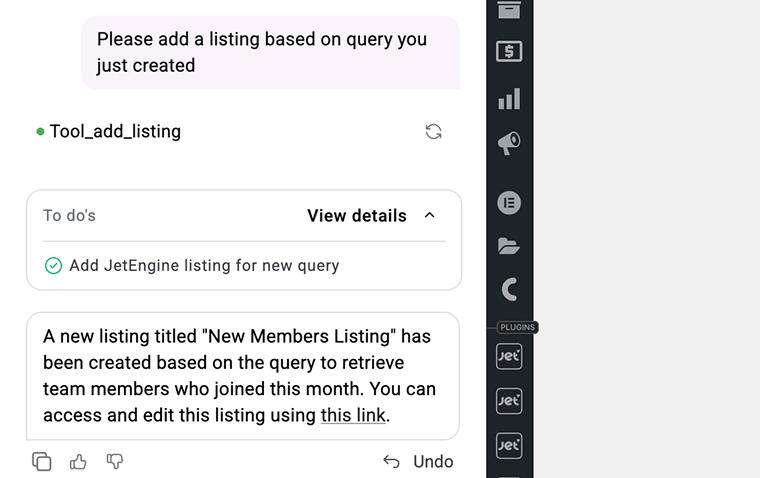
As I mentioned earlier, we get all the data but without any design:
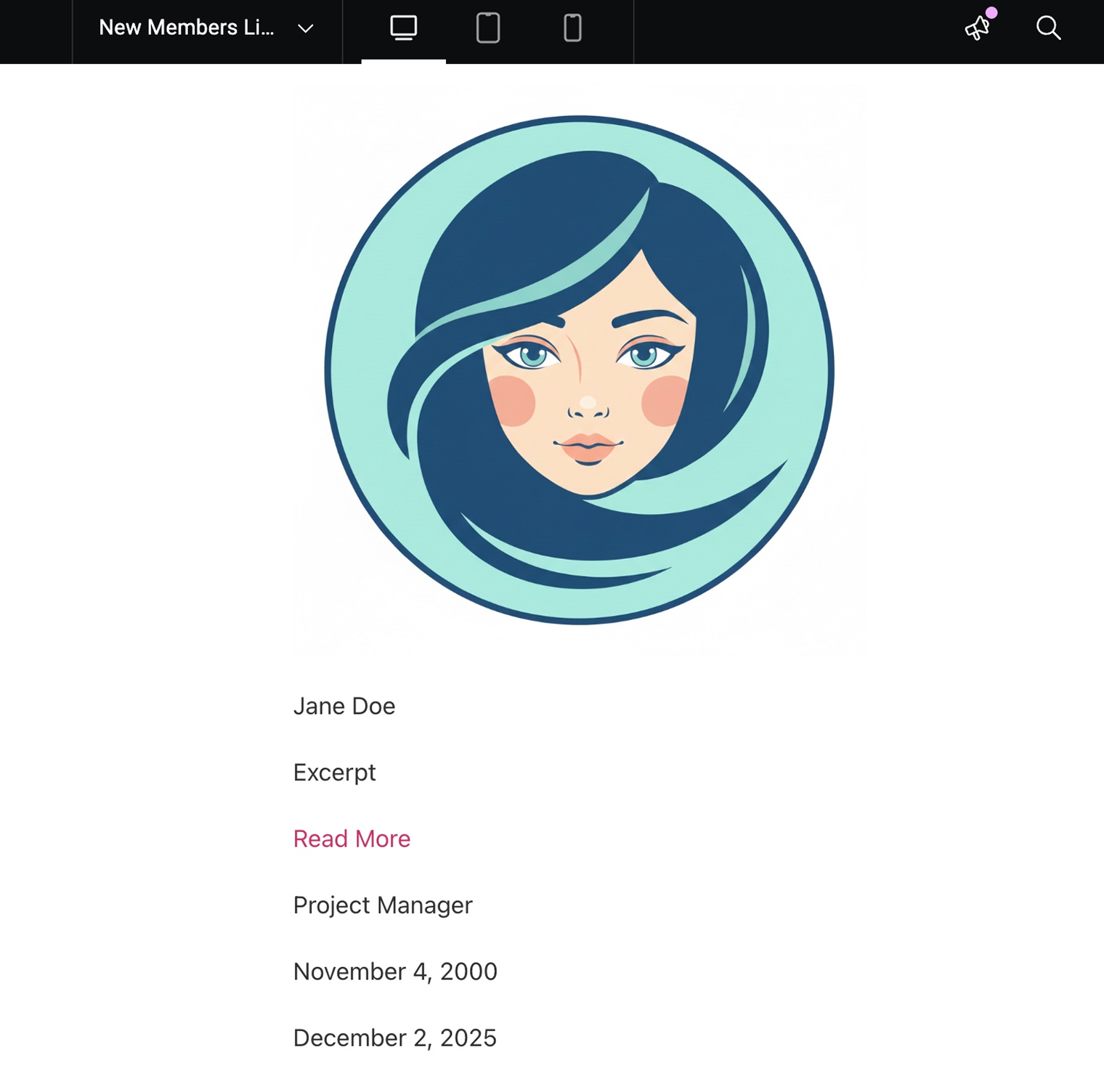
As you can see, Angie’s AI agent functionality works. But these are only the first steps in the long journey of implementing AI agents into your site’s workflow. Moreover, some JetEngine tools, primarily those that are complex, such as adding queries and listings, have very complicated logic and a huge number of variations. That’s why the agent may produce unpredictable results that sometimes may not work as expected on the first try. We will continue working to improve the accuracy of our tool’s results and add new ones, further expanding your ability to manage your site from one place and in one UI.
Takeaway
This is the first version of the AI chat agent that can make changes on your website, and there’s definitely more to come. Also, don’t miss the AI tools Crocoblock has implemented. But such integrations as Angie and JetEngine move the progress even further.