You have to admit: slow websites bug everyone, even you. Do you remember how many times you had to patiently wait for a single page to load? I don’t even mention all the eye-rolling, groaning, and silent swearing.
Luckily, there is a way to speed up a website and protect nerve cells. It’s caching. A WordPress caching plugin can help you optimize the website to the extent that it boasts higher loading times and better performance. Today, I will review a caching plugin many consider the most popular option – WP Rocket. I will investigate its performance, features, and real compatibility with dynamic WordPress sites. WP Rocket is one of the most popular caching plugins, but when it comes to dynamic WordPress sites (JetEngine listings, aka content loops, filters, AJAX), configuration matters more than activation. So let’s get started!
What Is WP Rocket?
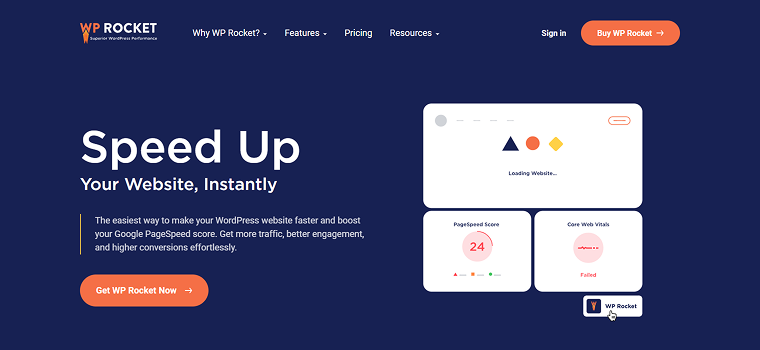
Designed to enhance site performance and Core Web Vitals immediately, WP Rocket is an accessible WordPress plugin that requires no technical expertise. It provides automated performance optimizations such as page caching, file optimization (including minification and compression), cache preloading, and options to delay JavaScript execution, helping improve load times with minimal manual setup.
Featuring an intuitive layout, the plugin keeps all its tools within reach and provides direct links to documentation from its control panel. While it is a premium solution, the value offered by WP Rocket is substantial, with smooth integration across major themes and hosting providers.
To sum it up, WP Rocket delivers a comprehensive toolkit for improving site speed, performance metrics, and overall search engine visibility, making it suitable for both beginners and advanced users.
WP Rocket Features
As mentioned previously, WP Rocket is a performance plugin aimed at making WordPress websites “blazing fast.” It boasts many optimization features; check out those in the avant-garde below:
- Caching
Page and browser caching can significantly increase a website’s loading speed. WP Rocket makes the browser store images, CSS, and JS in its local cache storage. Moreover, WP Rocket automatically preloads the cache every time you make some changes to your web pages. It’s the key to higher conversions and improved SEO rates.
- File optimization
Uploading too many files to the website can have a toll on its performance. WP Rocket combines the JS and CSS website files and optimizes CSS delivery. Moreover, WP Rocket includes a Remove Unused CSS feature that effectively addresses the related PageSpeed Insights recommendation and helps optimize CSS files.
Besides, it can reduce the primary website load time by setting a restriction for JavaScript files. They won’t execute until there’s a real user interaction, therefore improving the Core Web Vitals metrics. Additionally, the Load JS deferred feature is available, allowing you to eliminate JS render-blocking resources after the page rendering.
- Media
WP Rocket has a LazyLoad feature applicable to images, video content, and iFrames. The visuals will be kept “off-screen” until they enter the viewport on the user’s device. WP Rocket identifies the Largest Contentful Paint element and top-of-page images, optimizing them by automatically omitting them from lazy loading. That’s how the plugin helps you optimize the actual and perceived loading time.
- GZIP compression
Utilizing GZIP compression allows for server-side file reduction and browser-side expansion, resulting in smaller assets and faster loading times for site guests.
- Preloading
It is possible to cache and preload the site content in order to make the website load and open every page faster. WP Rocket preloads links, fonts, and sitemap-based cache, and can prefetch DNS requests if you use external files on the website. The process can be jump-started both manually and automatically.
- Database
It’s vital to optimize the database when having to handle too much content. WP Rocket lets you clean up posts, comments, and transients and optimize DB tables. Automatic cleanups are possible as well. You can schedule those to run every day, week, or month. Just remember to do the backup first.
- CDN
A Content Delivery Network can help you improve the website load speed for international visitors. WP Rocket’s got its custom CDN called RocketCDN, which you can use at a fixed $8.99 per month. Have you got another CDN? It’s totally fine. The plugin lets you integrate it through the dashboard at once.
Last but not least, this WordPress performance plugin comprises several add-ons that help to extend the core functionality:
- Varnish — ensures that the content on the server is up-to-date;
- WebP Compatibility — helps the browser parse WebP images;
- Cloudflare — helps to clean Cloudflare cache through WP Rocket;
- Sucuri — does the same but for the Sucuri cache.
We couldn’t help but admit that these features create a powerful set, but it is also worth noting that many of them can conflict with dynamic content if applied globally. We will talk about it further.
Pricing
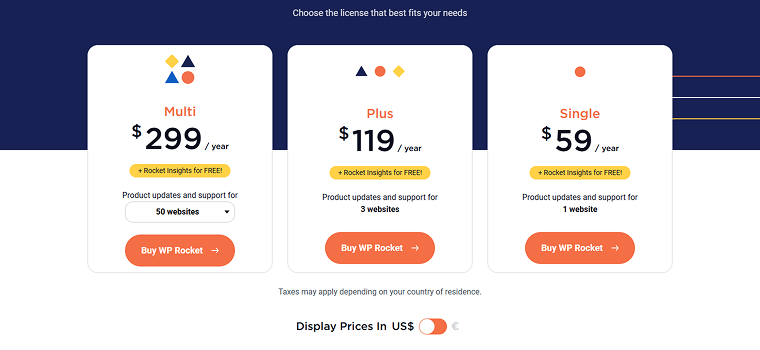
WP Rocket is not a free plugin. It doesn’t offer a free trial, either. To try it out, you are supposed to purchase a license. There are three pricing plans that give access to the same premium features and the Rocket Insights tool (it is a built-in performance hub that helps you monitor your website performance and keep improving speed over time). The only difference between them is the number of website activations:
- Single — covers one website, costs $59 per year.
- Plus — covers three websites, costs $119 per year.
- Multi — covers unlimited websites, costs $299 per year.
In addition to that, WP Rocket offers a 14-day refund policy. It means that you can safely test the waters and claim a full refund if the plugin is not up to your expectations.
How to Install and Configure WP Rocket
WordPress.com has its Page Optimize plugin, which may contradict the one by WP Rocket. That’s why it’s advised to disable Page Optimize before installing and activating another caching plugin.
To install WP Rocket, download the plugin archive first. For that, proceed to the My Account dashboard and press the orange “Download WP Rocket” button in the profile menu.
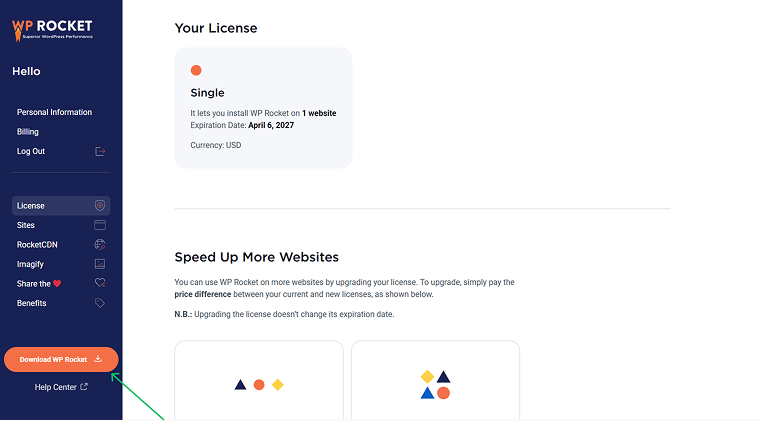
Now, upload the ZIP archive to the WordPress dashboard through Plugins > Add New. Once done, activate the plugin.
Normally, the plugin settings are applied to the website automatically. It’s handy since the system detects what needs to be done and saves you time and effort. However, you can still configure anything you wish manually.
To apply custom settings, open the Settings > WP Rocket pathway. You’ll see the first tab, which is the plugin’s Dashboard. It stores the License details, RocketCDN subscription availability, and Rocket Analytics status. More to it, there are quick links to the Account page and support, a Quick Actions section, a FAQ section, and Getting Started guidelines.
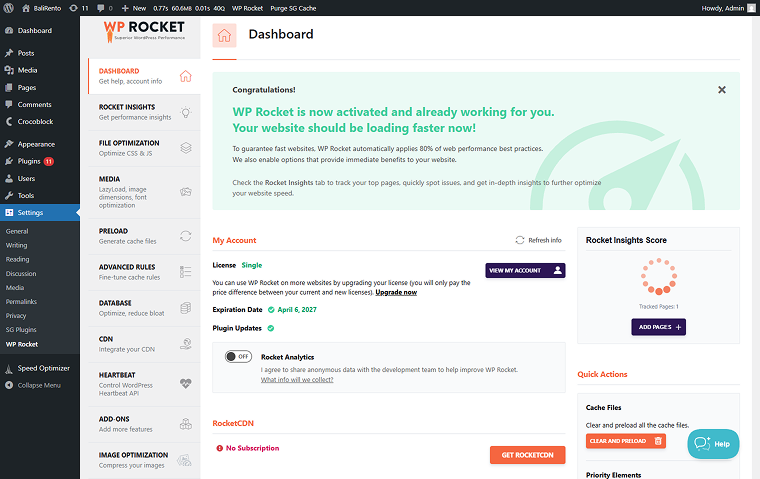
Now, let’s check all the other tabs we can spot there:
- Rocket Insights. It is a section, powered by GTmetrix, designed to run tests and generate your performance results and recommendations.
- File optimization. Need to optimize CSS and JavaScript files throughout the website? It’s the right tab to do so. You can minify and combine both JS and CSS files, remove unused CSS, load deferred JavaScript, and delay its execution.
- Media. It’s a tab where you can apply the LazyLoad feature to images, iFrames, and videos, and add missing image dimensions if needed.
- Preload. Activate the cache, links, and fonts preloading, and set the plugin to prefetch DNS requests. This way, every site visitor will be served a cached file.
- Advanced rules. Configure the advanced rules according to which certain URLs, User agents, cookies, and Query strings will not be cached.
- Database. Clean the site’s database and optimize its columns. Schedule automatic cleanups if needed.
- CDN. Integrate a website with a desired content delivery network and exclude specific files from it.
- Heartbeat. Reduce server resource usage by limiting the WordPress Heartbeat API.
- Add-ons. Enable/disable additional Rocket and one-click extensions.
- Image optimization. Install Imagify by WP Rocket to compress website images easily.
- Tools. Export and import settings, and roll back to the previous plugin version.
- Tutorials. Watch video tutorials and show/hide the sidebar from this tab.
- Our plugins. The tab presents other plugins for performance optimization, traffic boost, and security settings.
More details can be found in the Getting Started guide.
NOTE
Avoid enabling all optimizations at once on dynamic websites.
How Crocoblock & WP Rocket Work Together
Mostly, Crocoblock plugins and WP Rocket are compatible. However, there are cases when the default automatic setup may not be enough. Let’s check out the most common plugin compatibility issues and how to configure the plugin safely.
WP Rocket and JetEngine: practical compatibility guide
Infinite Scroll and Load More issues
From the clients’ requests and testing, we see a particular behavior pattern for the Infinite Scroll and Load More functionality:
- Infinite Scroll and Load More work correctly when WP Rocket is deactivated, or as soon as the cache is cleaned, and/or WP Rocket is turned off.
- Infinite Scroll and Load More stop functioning properly as soon as WP Rocket is activated, especially when the Delay JavaScript Execution setting is on.
Talking about the reasons why the issue appears, consider the following:
- The scroll event is delayed, which directly affects the Infinite Scroll and Load More functionality.
- JS execution is postponed.
To fix the issue, try the following steps:
- First, ensure that the Delay JavaScript Execution setting in the File Optimization tab does not affect the scroll event by turning off the setting.
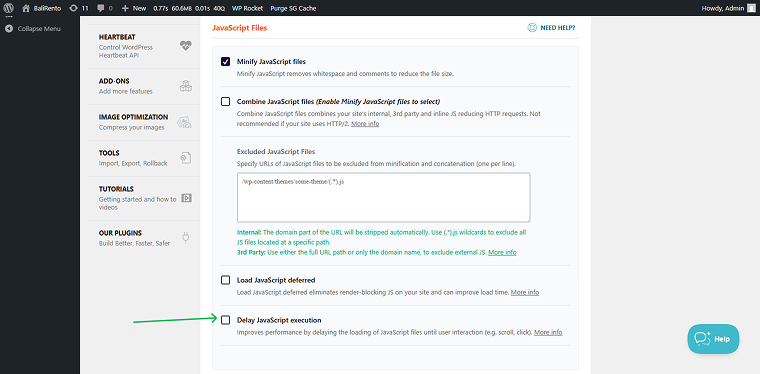
- You can also try to exclude the following file in the same directory:
/wp-content/plugins/jet-engine/assets/js/frontend.jsIf JetSmartFilters are connected, try to exclude the next file — using the broader path is often more future-proof than listing every file:
/wp-content/plugins/jet-smart-filters/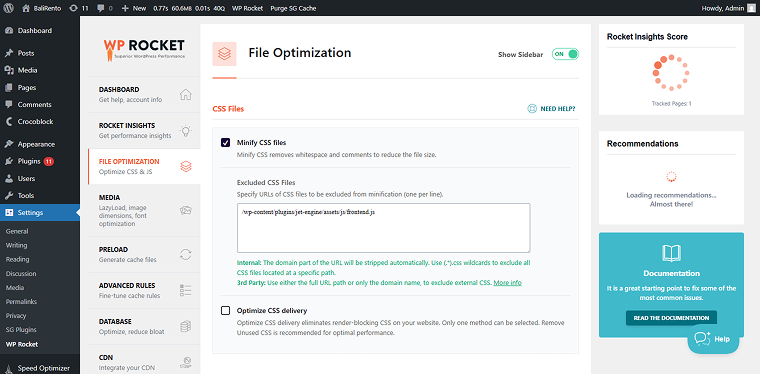
Remember to click the “Save Changes” button after applying any changes.
“Works logged in, broken for visitors” issue
One of the common issues related to the cache is a different behavior for logged-in users and guests. The issue can occur in the dynamic and style settings for JetEngine’s Listing Grids, JetSmartFilters, JetMenu, or JetSearch. In such a case, the very first step to be taken is to differentiate whether it is Dynamic Visibility settings or a users’ cache.
Dynamic Visibility is a JetEngine module intended to configure the content visibility logic according to custom conditions. Conditions can be mixed, but shouldn’t contradict one another. The feature is accessible through Elementor widget settings, Gutenberg dynamic content, and Bricks element settings.
So if listings, menu, or filters look or work differently for logged-in users and guests, first check if the Dynamic Visibility is applied.
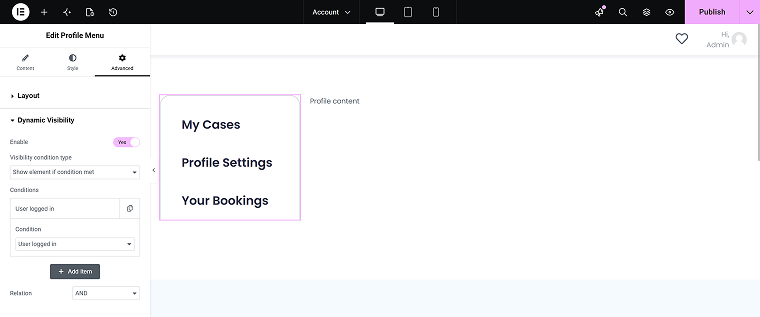
But, once you see that there are no Dynamic Visibility conditions applied, consider checking and setting up the cache, as this is usually the factor that causes the difference between a site’s look and behavior for logged-in users and guests.
- When there are not many logged-in users on your site, it might be more convenient not to apply caching to them.
- Once there are many logged-in users on your site, and personalization does not matter much, you can enable User Cache and carefully test it for different roles and scenarios.
Generally speaking, when styles or dynamic settings work well for admins and logged-in users but not for guests, and deactivation of the WP Rocket plugin solves the issue, the cache is usually the reason. Typically, it is recommended to contact the cache plugin support team as the first checkpoint.
Important limitation: fragment caching
It is important to emphasize that WP Rocket works with full-page caching and cannot exclude specific JetEngine shortcodes, Listing Grid widgets, or dynamic fragments from cache independently. This means that if a page contains highly personalized or user-dependent dynamic content, the cached version may be shown to other visitors. Typical examples include:
- user dashboards;
- membership/account pages;
- user-specific listings;
- dynamic visibility based on logged-in status;
- personalized profile data;
- carts, wishlists, or saved items.
In such cases, consider one of the following approaches:
- exclude the entire page from cache;
- load dynamic sections via AJAX;
- disable caching for logged-in users;
- carefully test User Cache behavior.
For pages with heavily personalized content, excluding the whole page from cache is usually the safest option.
JetSmartFilters and WP Rocket: known issues and patterns
I want to draw your attention to the work of the JetSmartFilters together with the WP Rocket, because JetSmartFilters is one of the most cache-sensitive plugins in the Crocoblock ecosystem. That’s why, further, I’ve gathered the most popular issues our customers face while working with JetSmartFilters and WP Rocket, and recommendations on preventing/fixing the issues.
Filters not updating
A known pattern falls when the filters do not update the results, or pagination looks stuck, and after cleaning/disabling the WP Rocket, the issue seems to be gone.
First and foremost, check the filter’s settings — often the solution lies here, not in the incompatibility. Ensure that:
- the correct provider is selected;
- the same Custom ID is applied to the needed filter, its provider, and the custom query if applied;
- the needed Apply Type is selected;
- in case you are using the URL Aliases feature, ensure that the settings are correct.
However, it is also recommended to consider the possibility of page cache conflicts with AJAX. In case JetSmartFilters stop working after enabling WP Rocket, try to add the following file to exclusions:
admin-ajax.phpYou can also try to exclude this file, but only if filters work after cache clear or work with Delay JS disabled:
/wp-content/plugins/jet-smart-filters/Indexer issues
Another popular issue is that filters become empty. The issue might occur on the live site only, while the staging environment seems to be okay. Or the counter looks empty or disappears completely. All of these tell about the issue connected to the Indexer work.
That is often tied to:
- aggressive cache/CDN layers;
- blocked REST/AJAX requests;
- server-level cache;
- optimization/minification.
WP Rocket itself does not usually cache REST endpoints directly, but hosting/CDN/server cache layers often do. Ensure that REST API and AJAX requests used by the Indexer are not cached or blocked by optimization layers.
You can try to exclude the filter JS files:
/wp-content/plugins/jet-smart-filters/

/wp-content/plugins/jet-engine/assets/js/frontend.js
But, in such cases, it is strongly recommended to contact the WP Rocket support team, especially because many production-only issues are hosting/CDN-specific.
Preload cache behavior
The preloading mechanism is tied to cache clearing, triggering a reload every time a page’s cache is wiped. This process is streamlined because it skips over any URLs that already have active cache files. In terms of working with JetSmartFilters, WP Rocket preloads the default page state, but not AJAX-filtered states.
So WP Rocket caches the default (unfiltered) state. Filtered results generated dynamically via AJAX are not individually preloaded into cache.
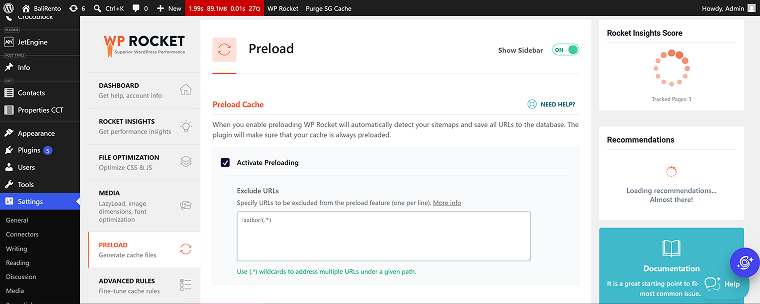
In case you need to preload the pages with the filters, you can try to disable preload for the dedicated pages in the Settings > WP Rocket > Preload > Exclude URLs directory.
JetSearch and WP Rocket
JetSearch is another Crocoblock plugin that is heavily AJAX-dependent. That’s why you can often face the following typical symptoms:
- empty dropdown;
- search works after cache clear;
- random front-end failures;
- delayed live search.
To fix the issue:
- ensure that the cache is cleaned;
- try to exclude the following file:
/wp-content/plugins/jet-search/assets/js/jet-search.jsJetFormBuilder and WP Rocket
Forms are often blamed for cache, but the issue can be elsewhere. Let’s have a look at the JetFormBuilder working together with the WP Rocket plugin.
Login forms
A popular type of form — the login form usually:
- no special config needed;
- Dynamic Visibility often causes confusion — so, check it first.
Nonce and reCAPTCHA
We couldn’t help but mention the nonce and reCAPTCHA, as far as these settings are closely related to the cache:
- cached pages may contain expired nonces;
- reCAPTCHA tokens may expire;
- login/session forms are sensitive to page lifetime.
To solve the issue, try the following steps:
- exclude pages from cache;
- reduce cache lifespan;
- disable cache for logged-in users;
- use AJAX submission type for the form where possible.
JetMenu and WP Rocket
Menu breaks after enabling LazyLoad
Sometimes, JetMenu content cannot be cached, leading to the mega menu malfunction on the front end. To fix it up, try doing the following:
Open the File Optimization tab on the WP Rocket dashboard. In the CSS Files section, disable the Optimize CSS delivery option.
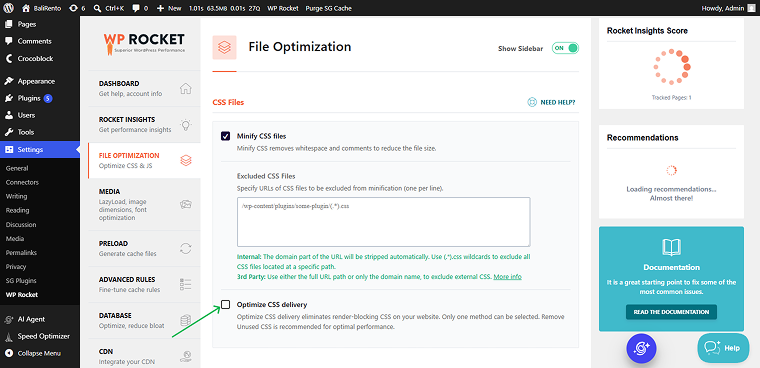
Scroll down to the next section, JavaScript Files, and check whether its options are active.
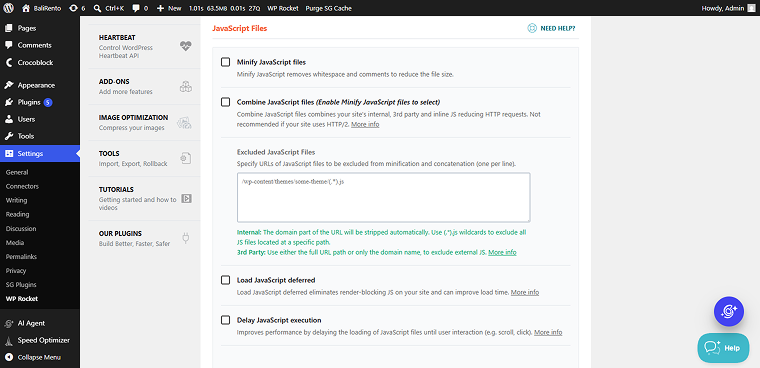
If yes, disable the Minify JavaScript files, Combine JavaScript files, and, most importantly, Delay JavaScript execution options. Press the “Save Changes” button and check the menu in the front.
Mega Menu not working properly on mobile
Sometimes, the desktop menu version is shown on mobile even if configured otherwise.
With the Mobile Cache feature, WP Rocket applies page caching and all the additional optimizations to mobile devices. WP Rocket will create a separate set of cache files for mobile devices. With this approach, any mobile-specific content will be cached and served independently.
Additionally, if the Activate Preloading option is enabled in the Preload tab, the mobile-specific cache files will be generated in addition to the desktop-specific cache files.
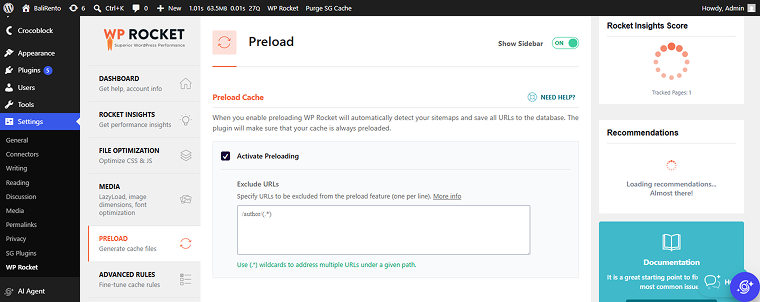
Now, it’s time to exclude JavaScript files related to JetMenu. Basically, you need to open the File Optimization tab, scroll down to JavaScript Files, and activate the Delay JavaScript execution option. Then paste the code below into the Excluded JavaScript Files text area and save the changes. Here is the full guide.
/jquery-?[0-9.](.*)(.min|.slim|.slim.min)?.js
/jquery-migrate(.min)?.js
/elementor-pro/
/elementor/
/jet-blog/assets/js/lib/slick/slick.min.js
/jet-elements/
/jet-menu/
elementorFrontendConfig
ElementorProFrontendConfig
hasJetBlogPlaylist
JetEngineSettings
jetMenuPublicSettings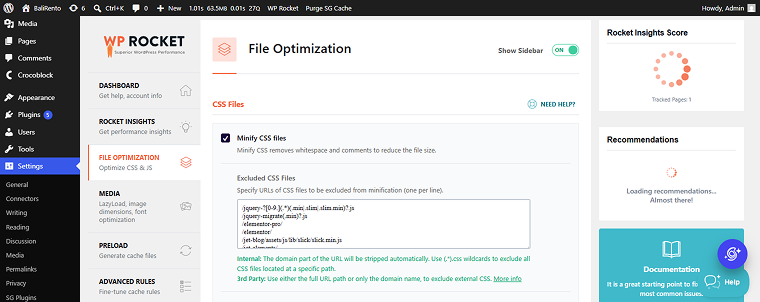
JetReviews and WP Rocket
Another known issue is when the JetReviews’ widgets disappear when cached. To put it otherwise, it takes the Reviews section forever to load on the front end. It’s due to poor compatibility between JetReviews and the WP Rocket caching plugin. To troubleshoot the issue, try disabling the Load JavaScript deferred option in the WP Rocket > File Optimization tab. Please note that the remaining JS files option in this tab should be inactive. Don’t forget to press “Save Changes.”
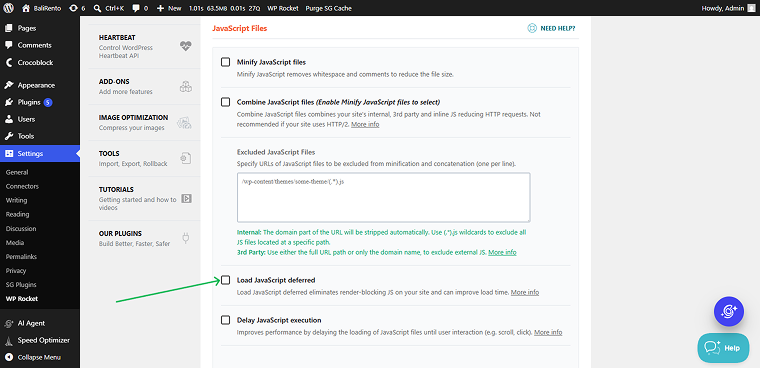
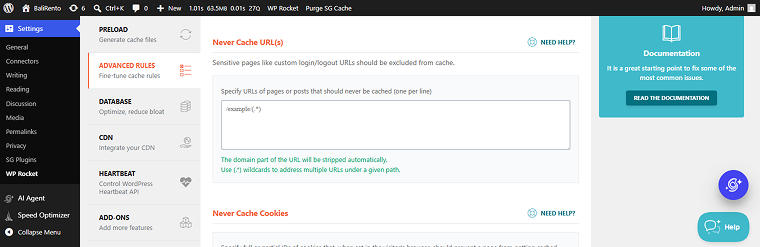
Another way to “save the day” is to exclude the pages where JetReviews widgets are. Proceed to the Advanced Rules tab on the WP Rocket dashboard. In the Never Cache URL(s) section, you can specify which URLs should never be cached.
JetCompare&Wishlist and WP Rocket
The JetCompare&Wishlist plugin might not save the data correctly when updating/refreshing the Compare and Wishlist pages. It can be due to poor compatibility between JetCompare&Wishlist and some WP Rocket features. For instance, when the JavaScript files minification and deferred JS loading are active, you might have trouble making the compare and wishlist functionality work as intended.
To fix it up, you need to exclude some cookies used by JetCompare&Wishlist from caching. Go to the Advanced Rules tab in the WP Rocket dashboard and find the Never Cache Cookies section. Paste the following cookies into the corresponding text area and save the changes:
woocommerce_items_in_cart
wp_woocommerce_session_
woocommerce_recently_viewed
woocommerce_cart_hash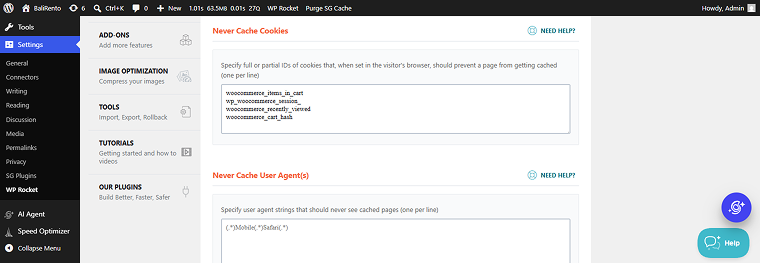
You can exclude the whole session from caching, too. Just paste “PHPSESSID” into the Never Cache Cookies text area and save the settings.
JetTabs and WP Rocket
Sometimes, you might face trouble opening the JetTabs components in the front end, notably the Classic Accordion widget, when putting it inside a pop-up. The solution is simple; you need to add the plugin to the exclusion list.
Proceed to the File Optimization tab on the WP Rocket admin panel, locate the Delay JavaScript execution feature, and tick the checkbox. Paste the following code into the Excluded JavaScript files text area and save the changes. Read the full guide.
\/jquery(-migrate)?-?([0-9.]+)?(.min|.slim|.slim.min)?.js(\?(.*))?( |'|"|>|$)
/elementor/
/elementor-pro/
/wp-includes/js/imagesloaded.min.js
ElementorProFrontendConfig
elementorFrontendConfig
/wp-content/plugins/jet-tabs/assets/js/jet-tabs-frontend.min.js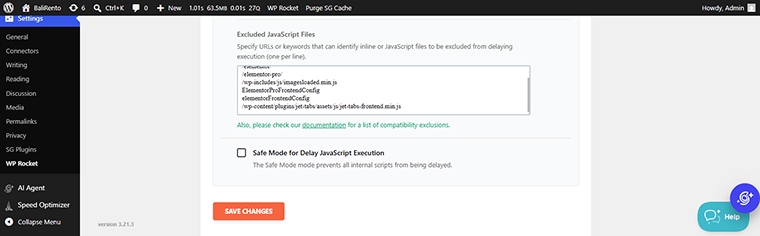
When It’s NOT WP Rocket
Obviously, there are cases related to the cache and not caused by WP Rocket. As we saw with the JetSmartFilters plugin, there might be a range of reasons for the issue to appear. So while testing and looking for what causes the trouble, consider the following:
- Elementor Element Cache might become a trigger. For example, there is a known issue when the empty Listing Grid returns wrong results after the page is resaved or opened in Elementor;
- server cache;
- theme incompatibility;
- plugins’ bugs.
The first recommendation is usually to consult the WP Rocket support. Not to blame the WP Rocket plugin, but because they are the most knowledgeable about the product.
Caching Plugins Comparison
Here is a comparison table of the most popular caching plugins in terms of JetEngine compatibility. Most of them can work with JetEngine and other Crocoblock plugins. However, projects that use AJAX filters, Listing Grids, Infinite Scroll, dynamic visibility, or personalized content may require additional cache and JavaScript optimization adjustments.
| Plugin | Compatibility Level | Typical Notes |
| WP Rocket | Compatible with adjustments | Delay JS may affect Listing Grid, Filters, and Infinite Scroll |
| LiteSpeed Cache | Compatible with adjustments | Full-page cache and JS optimization may affect Crocoblock plugins |
| W3 Total Cache | Requires manual configuration | AJAX filters and live search may need exclusions |
| WP Super Cache | Basic compatibility | Works best on sites without complex AJAX functionality |
| SG Optimizer | Compatible with some exclusions | Listing Grid, Filters, and Search pages may require exclusions |
WP Rocket Reviews
What do others say about the WP Rocket plugin? Is it worth the attention? These are the questions I had when doing the review. I bet you all need the same answers. 😉
Pascal Claro (WP Roads) emphasizes the immediate impact: “It will speed up your website instantly as soon as you install it,” noting he was “pretty impressed” when his own site loaded instantly upon activation. Claro shared his specific metrics, stating, “I was able to go from 61% performance… up to a grade A performance 100%… and in fact my website now loads on half a second.“
Pascal Claro points out its versatility for different skill levels: “This is going to work perfectly if you are a beginner but don’t worry even if you are a pro you’re going to find inside WP Rocket all the settings that you need to dive deeper.” Claro also describes the interface as a “simple dashboard” where users can enable optimizations in a “very intuitive way.”
Ben (Blog With Ben) echoes this sentiment, calling WP Rocket “the easiest and most powerful solution to boost your website’s loading time” and a tool that can “supercharge your website’s performance.” Ben also noted that upon activation, the plugin “automatically applies 80% of web performance best practices” to provide immediate benefits. Following his setup, he saw his mobile score jump from 53 to 98, and his desktop score hit 100.
Ben highlights that “no matter your technical knowledge, the plugin saves you a ton of time and effort while solving performance issues.“
One of the most valuable insights is the specific data showing how effectively the plugin reduces load times. In real-world testing, it was able to cut Largest Contentful Paint (LCP) — a key Core Web Vital — by over 65%: “WP Rocket stands as a robust choice for those seeking to enhance their website’s speed and overall performance.”
SiteSaga and aThemes frequently contrast WP Rocket’s interface with complex free alternatives like W3 Total Cache, noting it is much more accessible for beginners: “If you’ve ever tried to configure W3 Total Cache, WP Rocket is going to feel like a breath of fresh air.“
“WP Rocket distinguishes itself from other cache plugins with user-friendly features and advanced optimization features.“
Before you say it, I admit: these are all bloggers. What about regular developers? I’ve dug a bit and found out the opinions are divided. While some Crocoblock Community members consider WP Rocket a decent caching plugin, others deem it useless and bug-prone.
“…we definitely won’t be using WPRocket since it’s not caching at server level. (…)” – Crocoblock Community.
“Wp Rocket is a really good plugin. But optimizing is a task for specialized people, those cache plugins aren’t the solution if just activate them. They need to be properly configured.” – Crocoblock Community.
“Had to remove that … because it was crashing my site….” — Reddit discussion.
FAQ
Yes, WP Rocket generally works well with JetEngine and other Crocoblock plugins. However, dynamic functionality such as Listing Grids, Infinite Scroll, AJAX filters, dynamic visibility, and personalized content may require additional configuration. In some cases, excluding specific JavaScript files or disabling certain optimization features, such as Delay JavaScript Execution or Elementor Element Cache, helps prevent conflicts.
This usually happens because page caching or JavaScript optimization interferes with AJAX requests. First, check the filter configuration itself, including the Provider, Custom ID, Apply Type, and URL Alias settings. If the issue appears only after enabling WP Rocket, try excluding “admin-ajax.php” and the “/wp-content/plugins/jet-smart-filters/” script path from JavaScript optimization or Delay JS execution.
Usually, no. Elementor Element Cache can cause dynamic Listing Grids and other JetEngine-powered widgets to appear empty or display outdated content until the page is resaved. Since Listing Grids are dynamic by nature, enabling widget-level caching for them is generally not recommended.
This is a common caching-related pattern. Logged-in users often bypass the cache, while visitors receive cached versions of the page. As a result, dynamic content such as filters, menus, user-specific listings, or visibility conditions may work for administrators but fail for guests. First, check whether Dynamic Visibility conditions are configured correctly. If not, review the cache settings and test whether disabling WP Rocket resolves the issue.
Usually, no special configuration is required. However, login forms can still be affected by caching behavior, expired nonces, or Dynamic Visibility settings. If login or session-related issues appear, check whether the page is cached, reduce the cache lifespan if necessary, and verify that Dynamic Visibility conditions are not conflicting with the login state.
WP Rocket works with full-page caching and cannot exclude individual JetEngine widgets, shortcodes, or dynamic fragments independently. If a page contains user-specific data such as dashboards, account pages, personalized listings, or wishlist content, it is usually safer to exclude the entire page from cache or load dynamic sections via AJAX.
Bottom Line
To sum it up, WP Rocket is a quality plugin. It’s easy to use, has a comprehensive interface, and automatically adjusts to the hosting environment. The plugin boasts several exclusive features to optimize the Core Web Vitals metrics. You can access all technical documentation from the dashboard so that you will always know how to configure every setting. Plus, you get dedicated support for a year because WP Rocket is a premium plugin.
Have you ever used WP Rocket? Feel welcome to share your experience in the Crocoblock Community. 🚀