
Booking Availability Calendar Overview
Learn how to use the Booking Availability Calendar in JetBooking to display available dates and sync them with booking forms in Elementor, Block Editor, or Bricks on your WordPress site.
The Booking Availability Calendar widget/block/element is only available for custom single pages built in Elementor, Block Editor, or Bricks, and works with JetEngine or JetFormBuilder booking forms. More details are available in the How to Display the Booking Form on the Single Post Page tutorial.
Booking Availability Calendar Widget/Block Overview
JetThemeCore or other plugins can be used to create Single Post page templates in the Elementor or Block editors. The How to Create a Custom Single Page for CPT-Based Booking tutorial provides more information.
In Elementor, the Booking Availability Calendar can be added to the page as a usual widget.

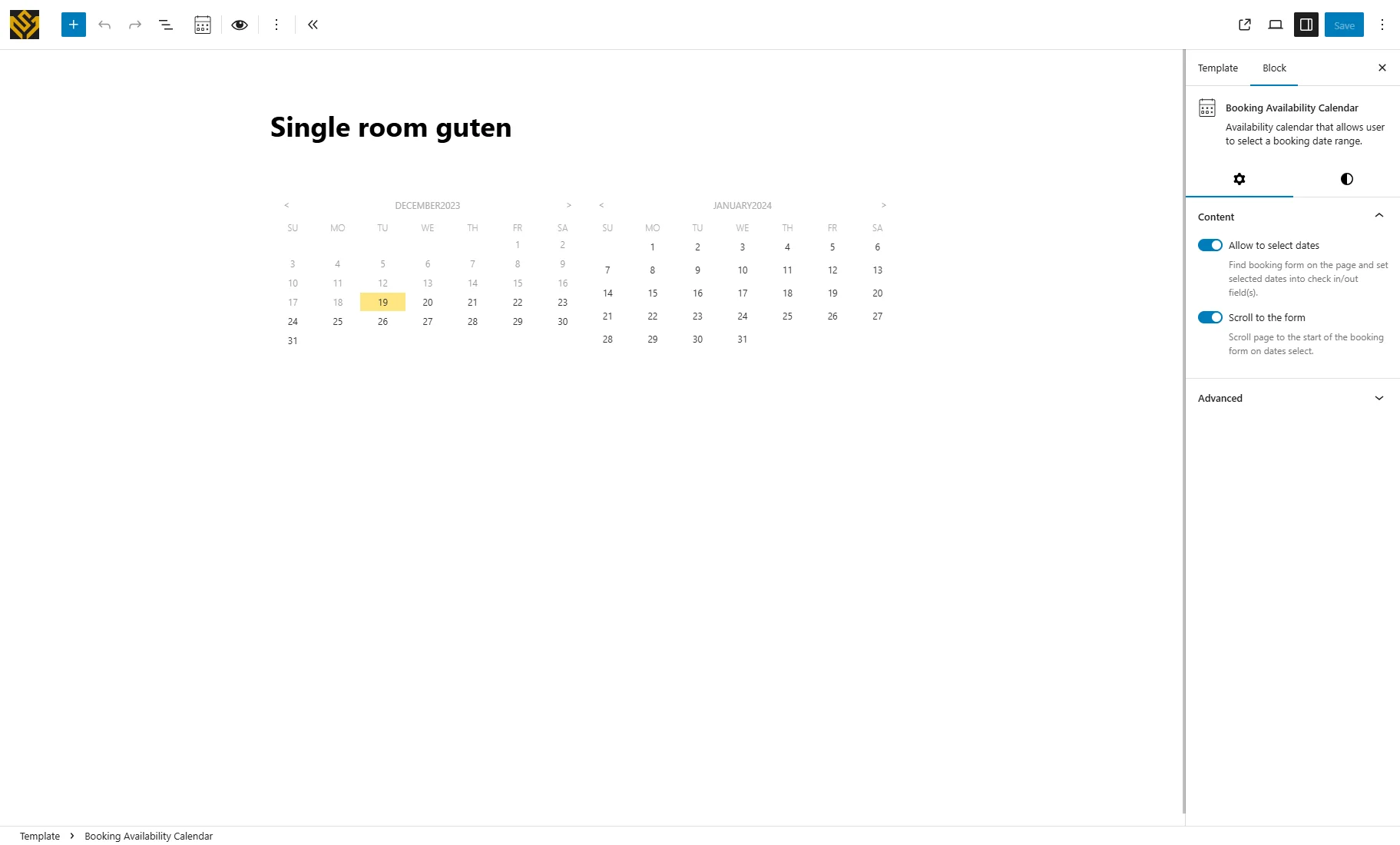
This widget has two settings:

- Allow to select dates — when disabled, users can still select dates in the calendar, but the booking form is not affected. When enabled, the selected dates are automatically filled into the check-in / check-out fields of the booking form;
- Scroll to the form — when enabled, the page will automatically scroll to the booking form after dates are selected in the Booking Availability Calendar widget.
In the WordPress block editor (Gutenberg), the Booking Availability Calendar can be added to the page as a usual block.
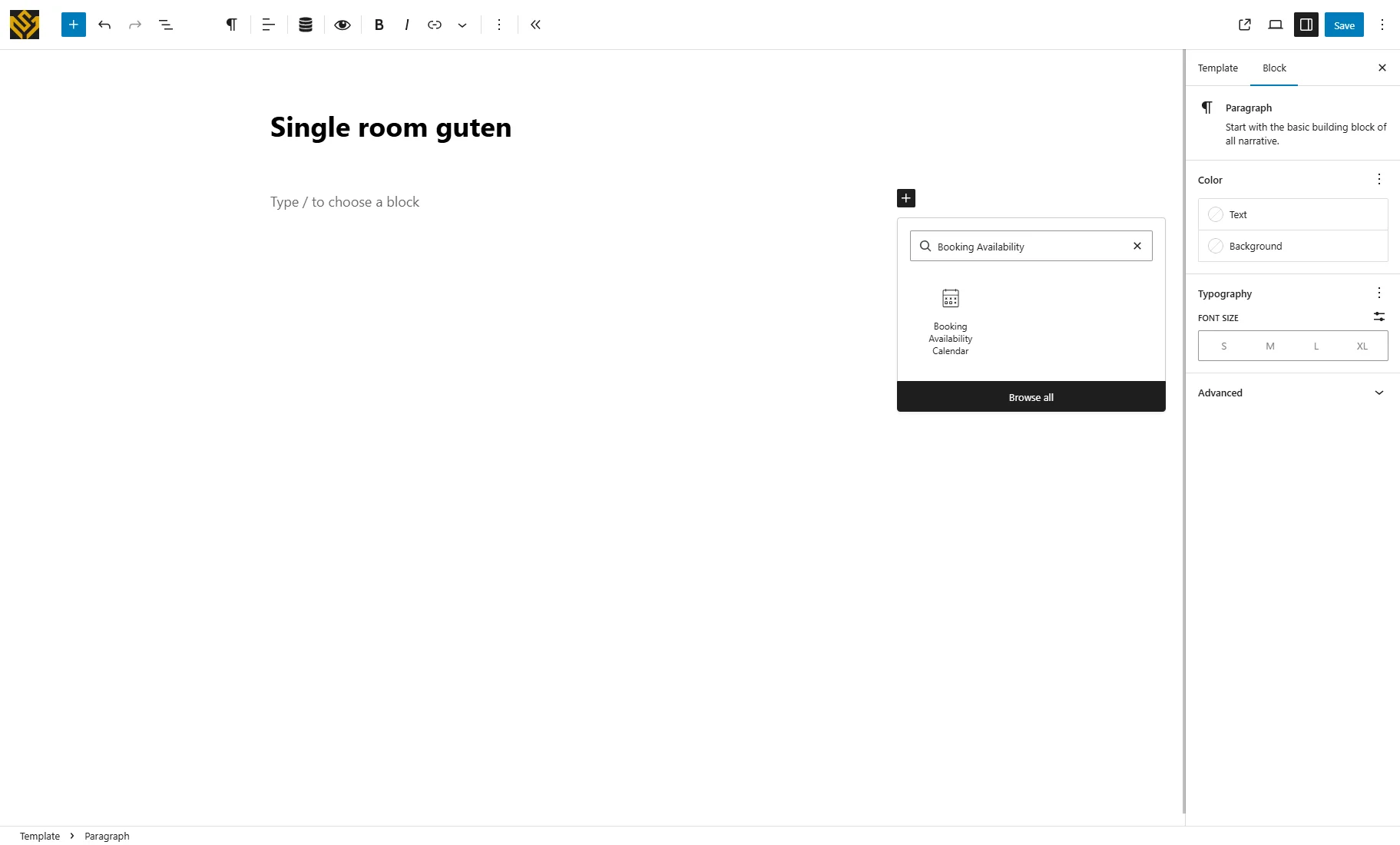
The block has the same settings as the widget.
Booking Availability Calendar Element Overview
The Booking Availability Calendar element can be placed on custom single pages created in the WordPress Dashboard > Bricks > Templates tab using the Bricks editor.
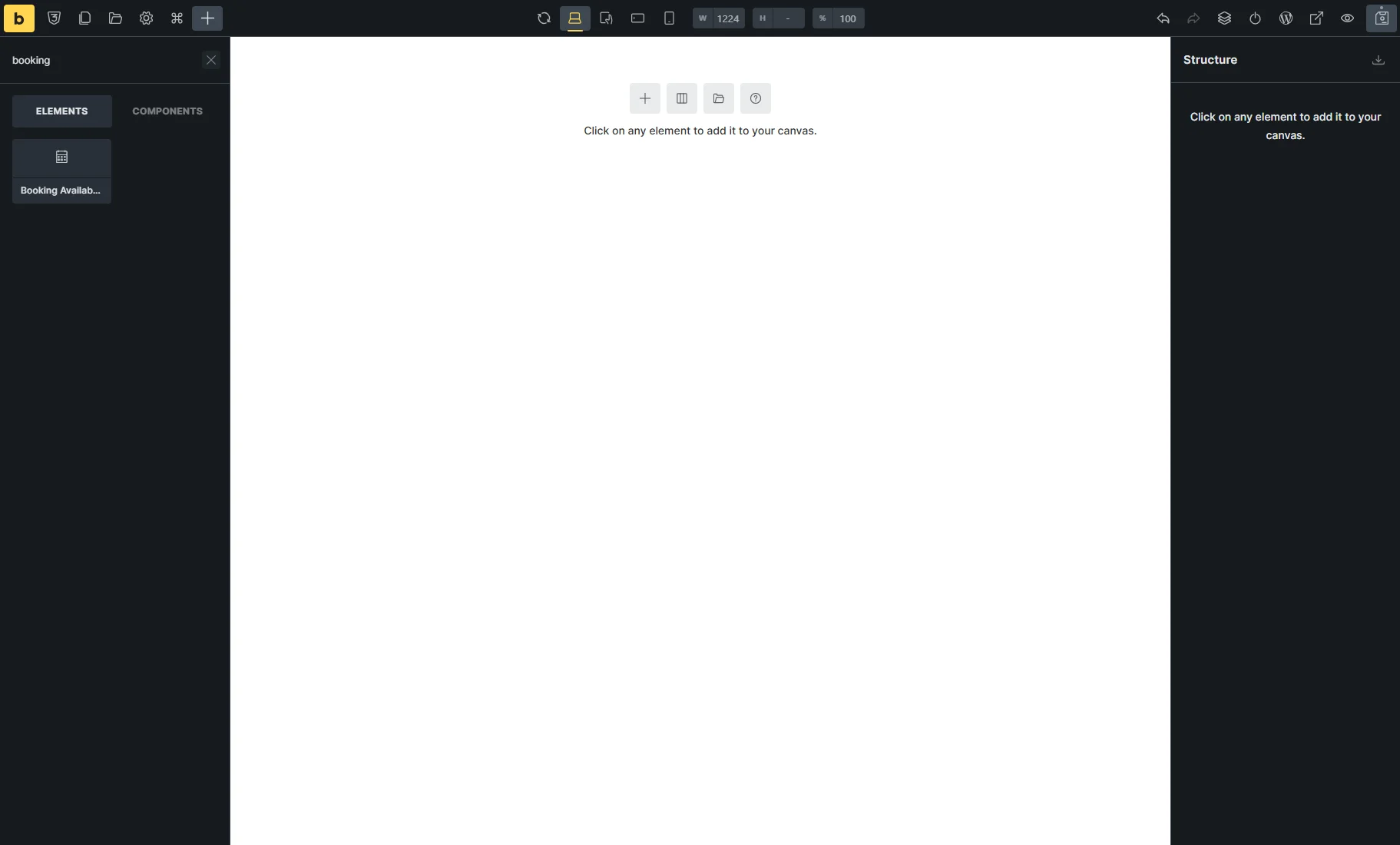
The element has the same settings as the widget and block.

That’s all. Now you know about the Booking Availability Calendar widget/block/element settings available with the JetBooking plugin for your WordPress website.