
How to Create the Related Products and Up-Sells Product Page Templates
This tutorial explains how to display related and upsell products on an archive template using the JetWooBuilder plugin.
Before you start, check the tutorial requirements:
- Elementor (Free version) plugin installed and activated
- WooCommerce plugin (Free version) installed and activated
- JetWooBuilder plugin installed and activated
Upsell products are more expensive or premium versions of the items customers select. They are displayed on the product’s Single Page to encourage customers to purchase higher-priced items.
Related products are items that share the same tags or categories as the current products visible on the page. These products aim to showcase additional items and encourage customers to keep shopping, ultimately leading to more purchases.
Setting the Related Products and Up-Sells Templates
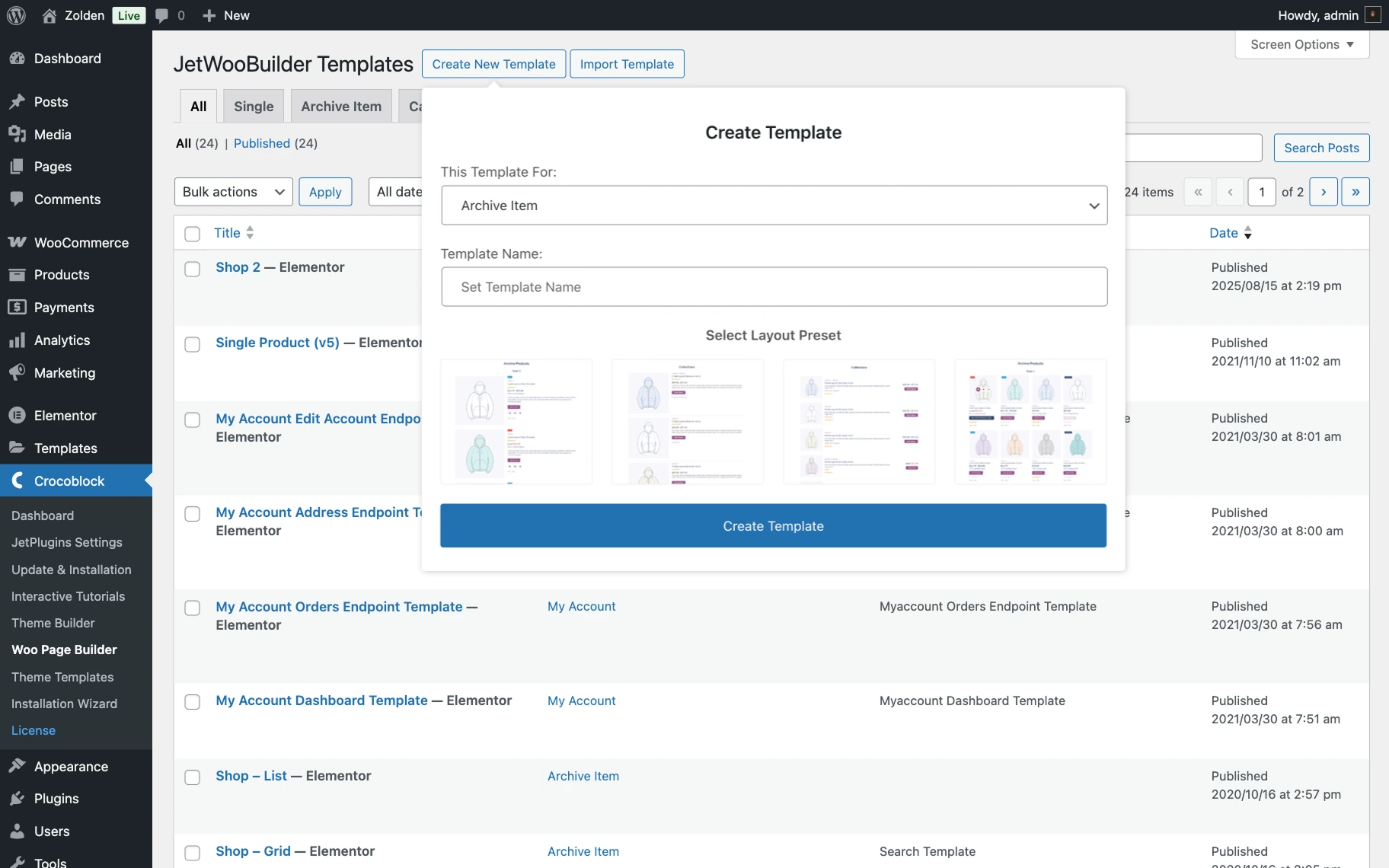
Navigate to the WordPress Dashboard > Crocoblock > Woo Page Builder, and click the “Create New Template” button.
Select the “Archive Item” option from the This Template For drop-down menu, type the template name into the Template Name field (here, “Up-Sell”), and Select Layout Preset.
You can select one of the pre-designed layouts below or ignore that option and create the layout from scratch. Afterward, click the “Create Template” button.
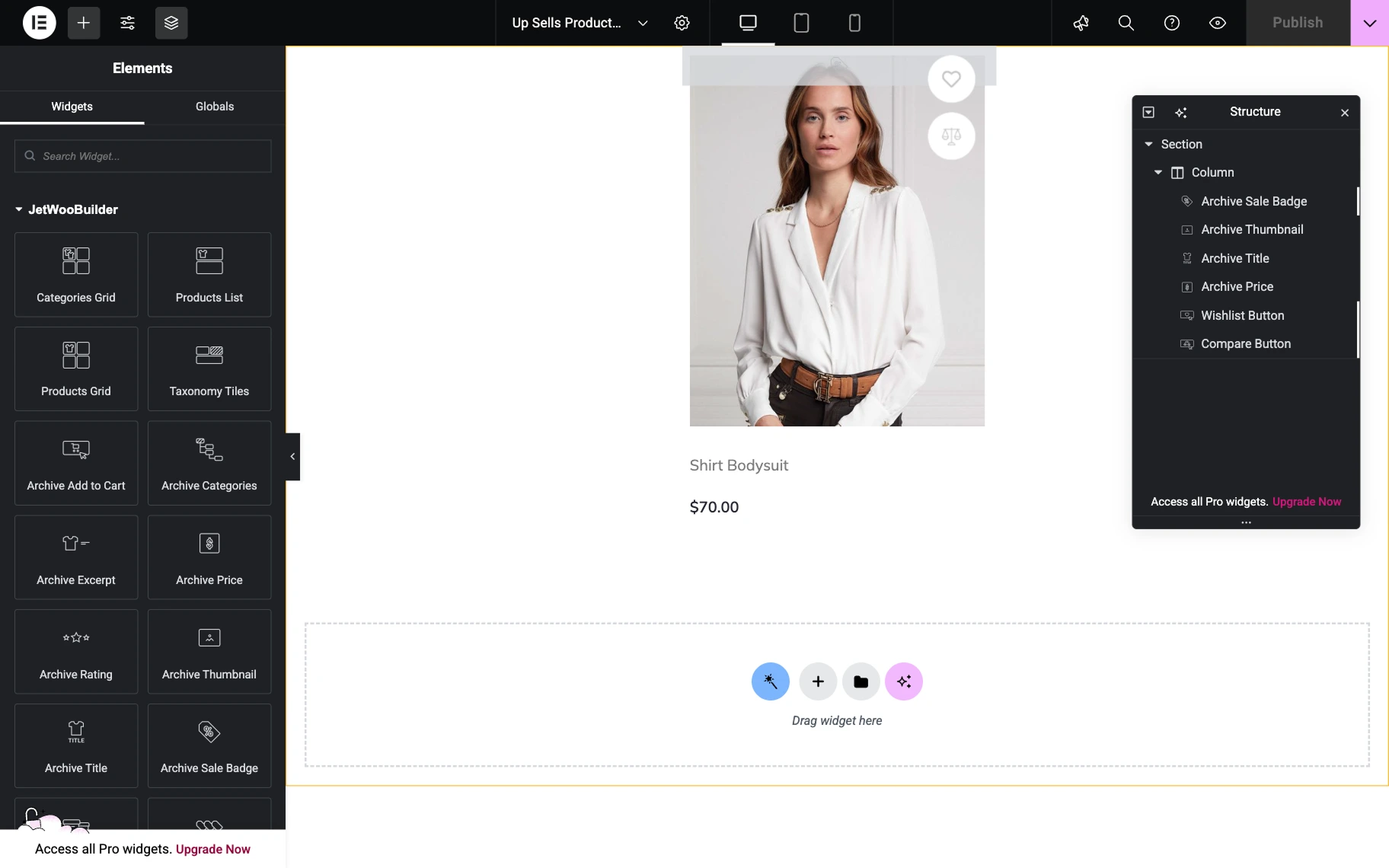
Once the page opens in the Elementor page builder, you can customize the appearance of your upsells or related products.
Add necessary widgets and publish the page.
Adding Upsell Products to the Single Product Template
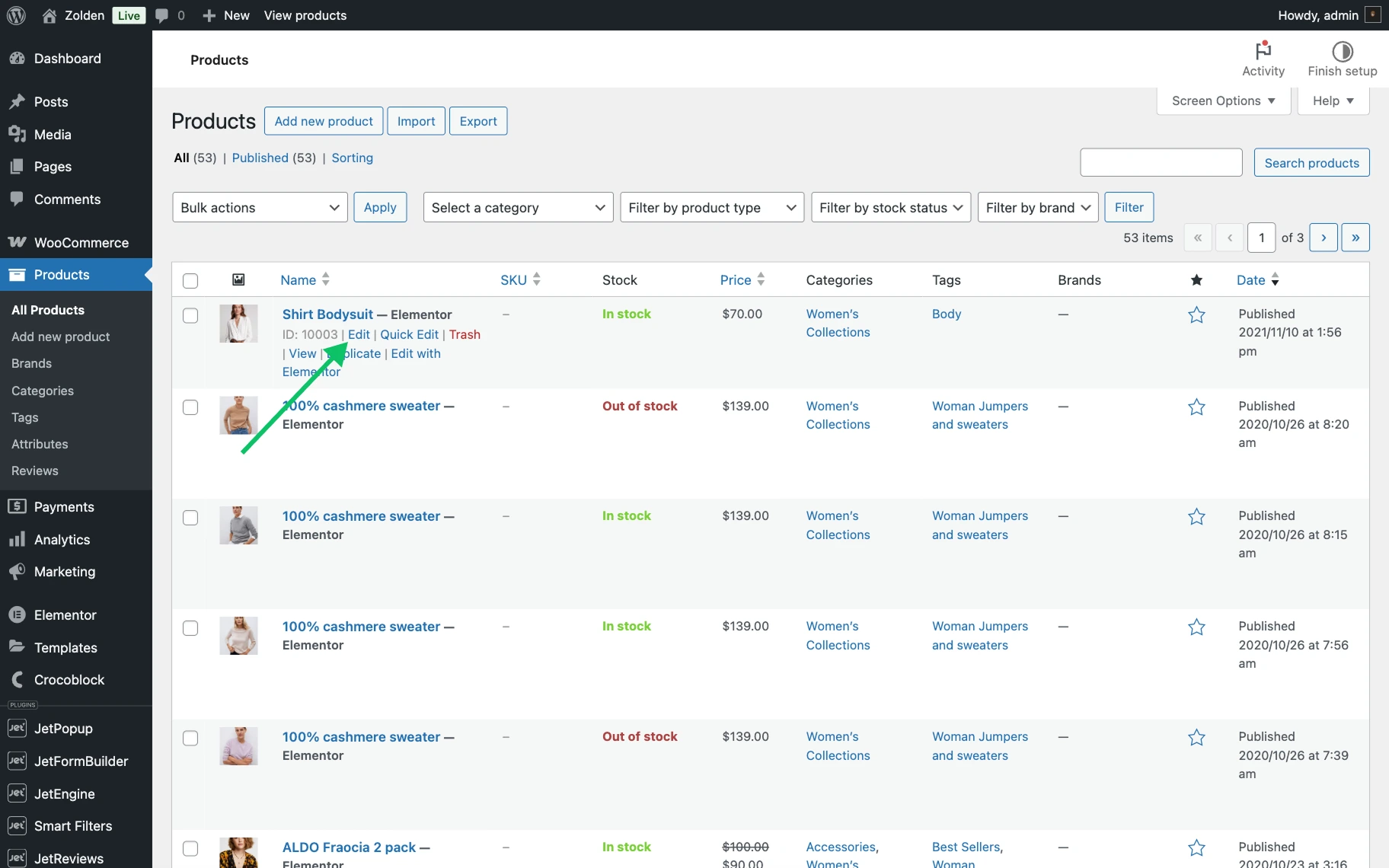
Navigate to WordPress Dashboard > Products > All Products and open the product you want to assign the upsell items to by clicking on the “Edit” link.
Scroll down to the Product data block, select the “Simple product” or “Variable product” option from the Product data drop-down menu, and open the Linked Products tab.
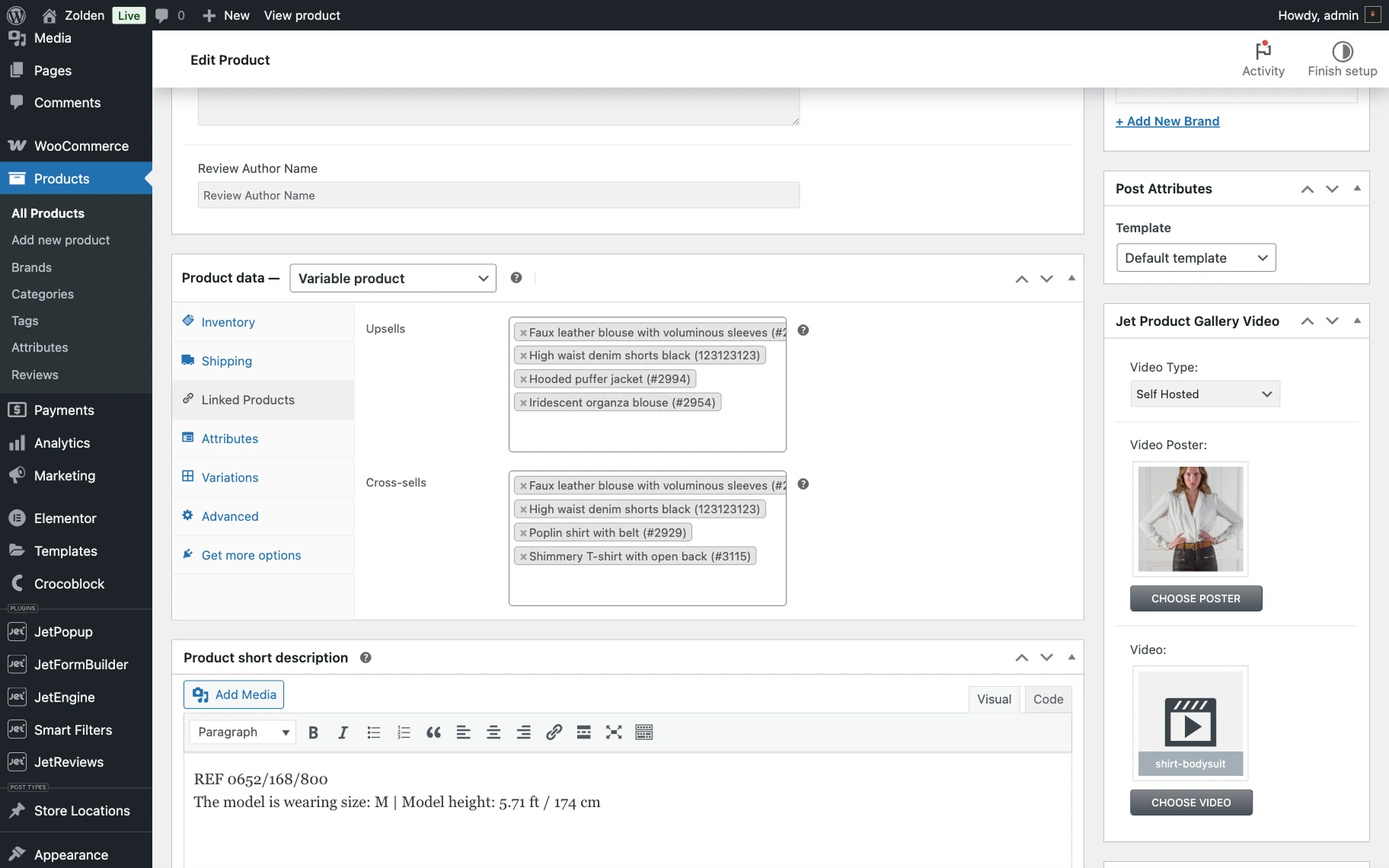
The Upsells and Cross-sells fields, respectively, enable the selection of products for Upsells and Related pages. Upsells are designed to appear on the single product page, encouraging customers to select higher-value options. At the same time, cross-sells are designed for display on the cart page to suggest complementary or related items.
When you’ve finished adding the upsells or related products, click the “Update” button to save your changes.
Assigning the Templates and Customizing Them
Go to WordPress Dashboard > WooCommerce > Settings, and switch to the JetWooBuilder tab.
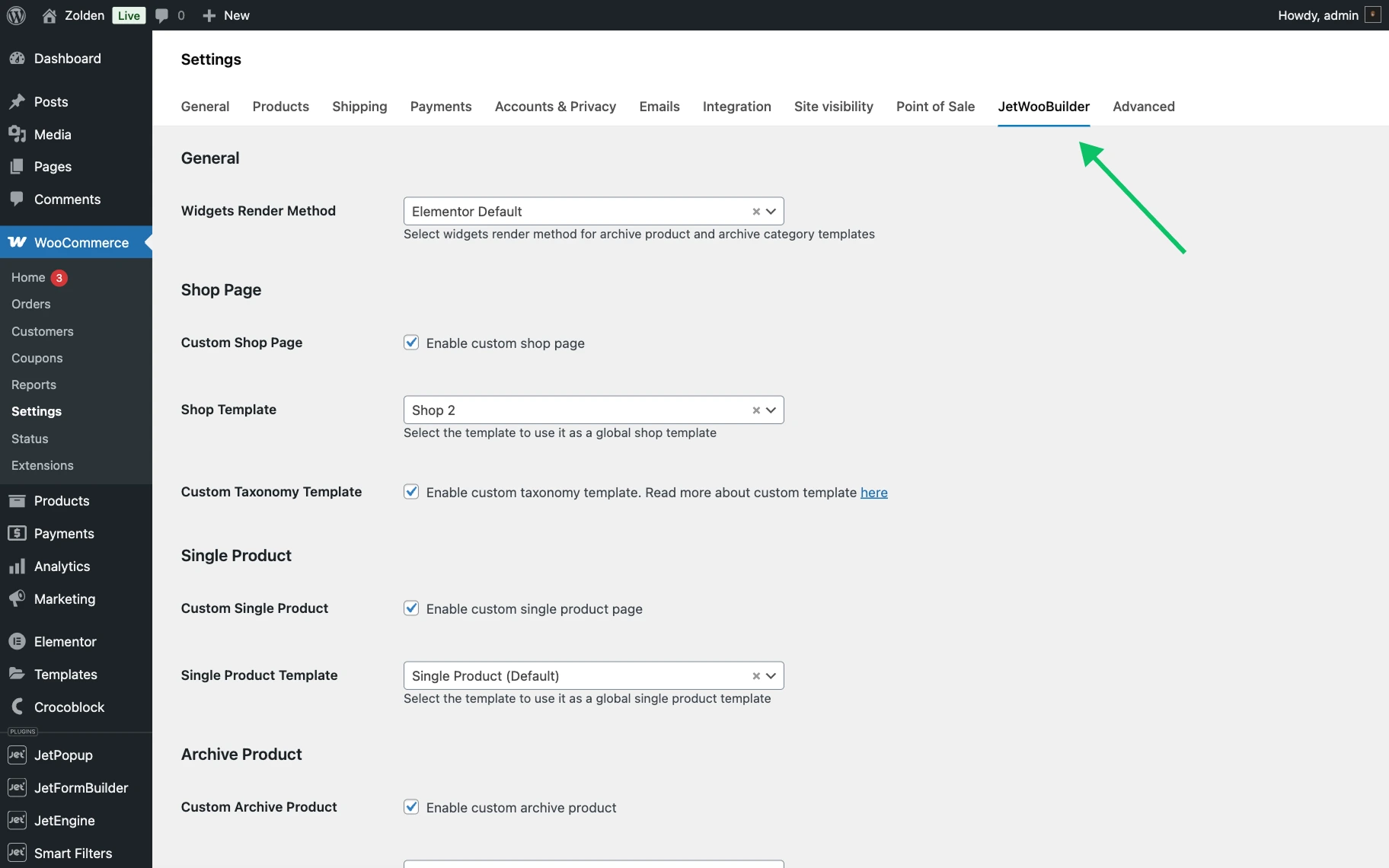
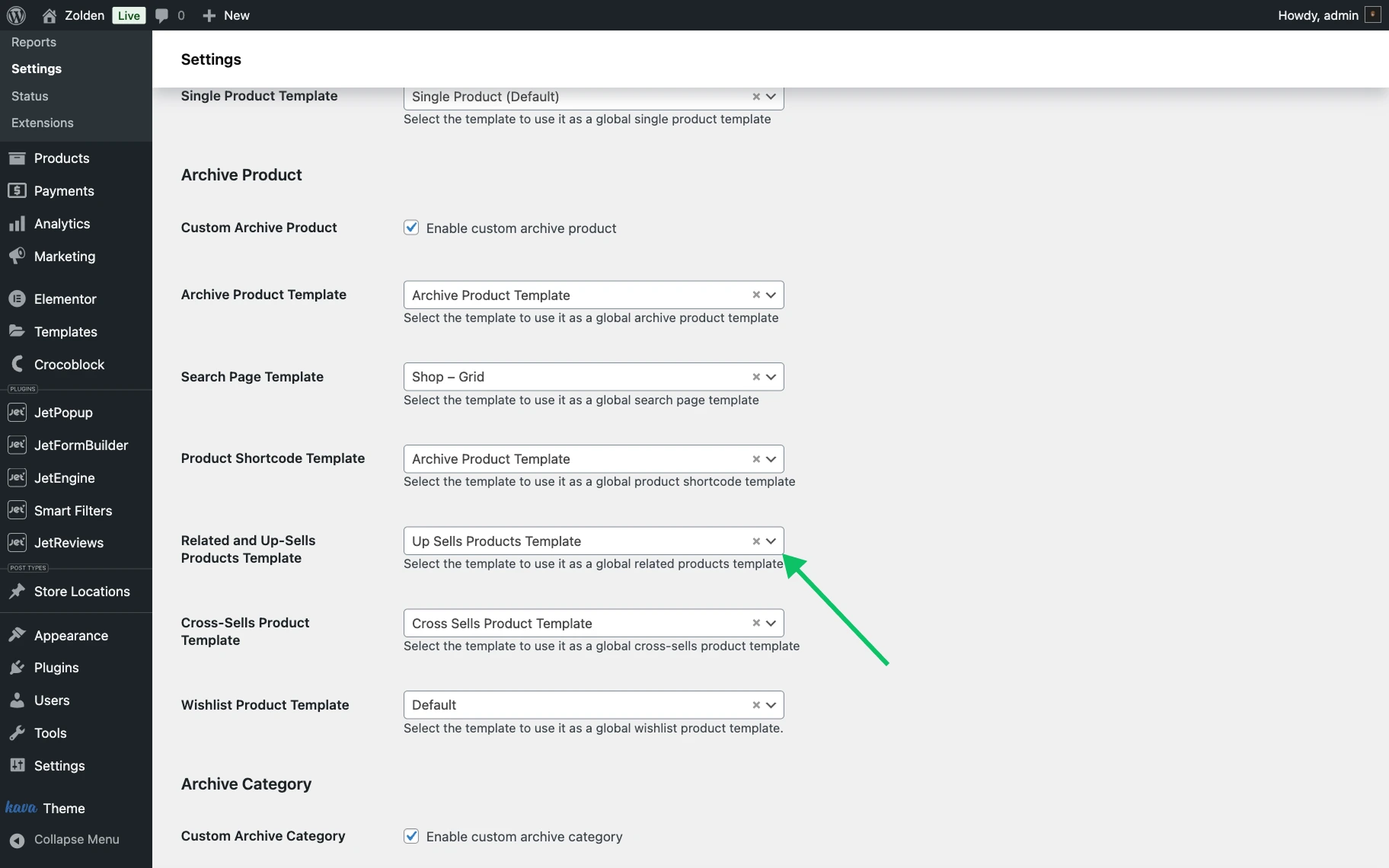
Scroll to the Archive Product section of the settings page. Activate the Enable custom archive product toggle and select the created JetWooBuilder template (here, “Up Sells Products Template”) from the Related and Up-Sells Products Template drop-down.
You can set the Number of related/up-sells products to show in the Other Options section.
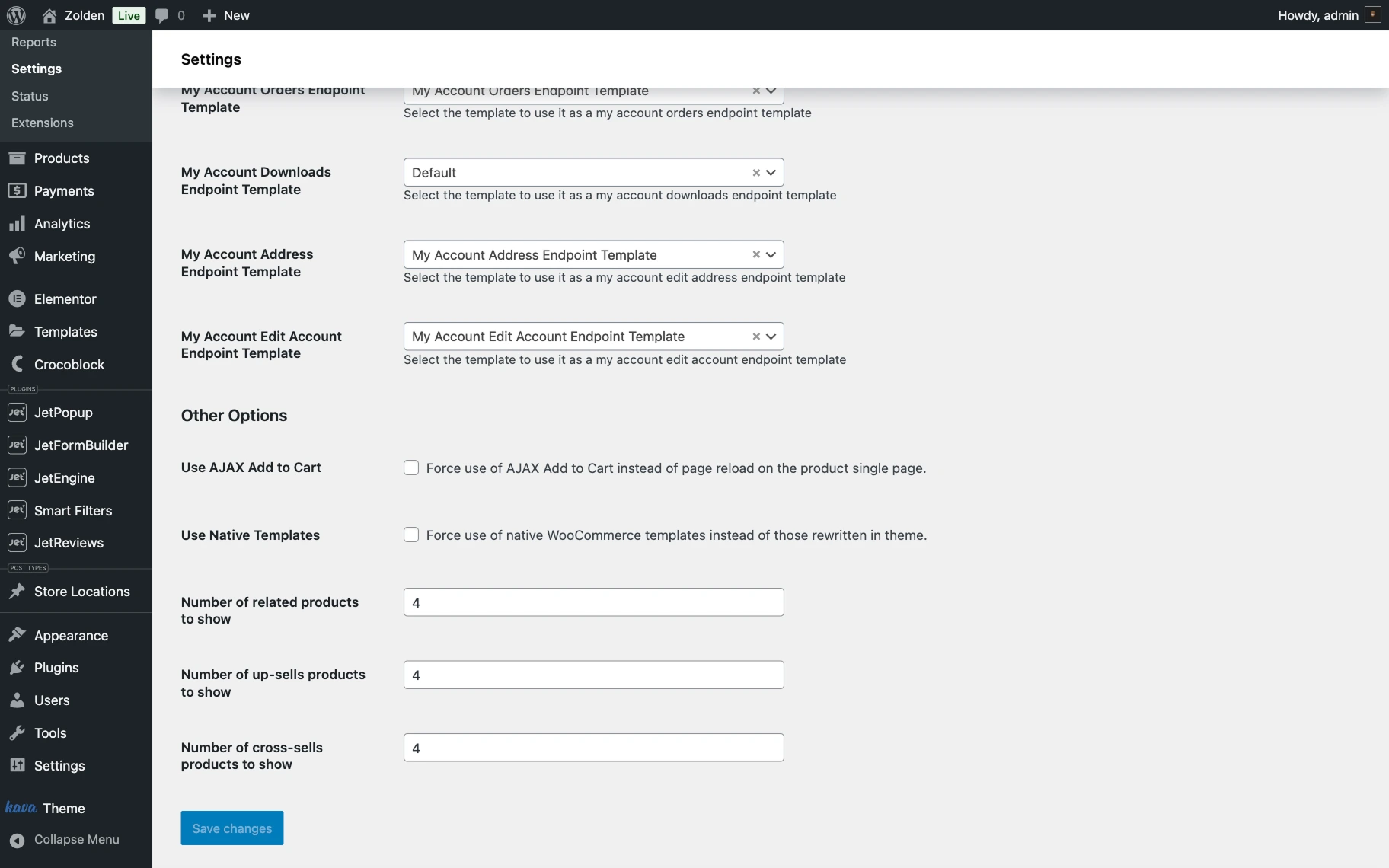
When done, press the “Save changes” button.
The related and upsell products will be added to the single product page by default.
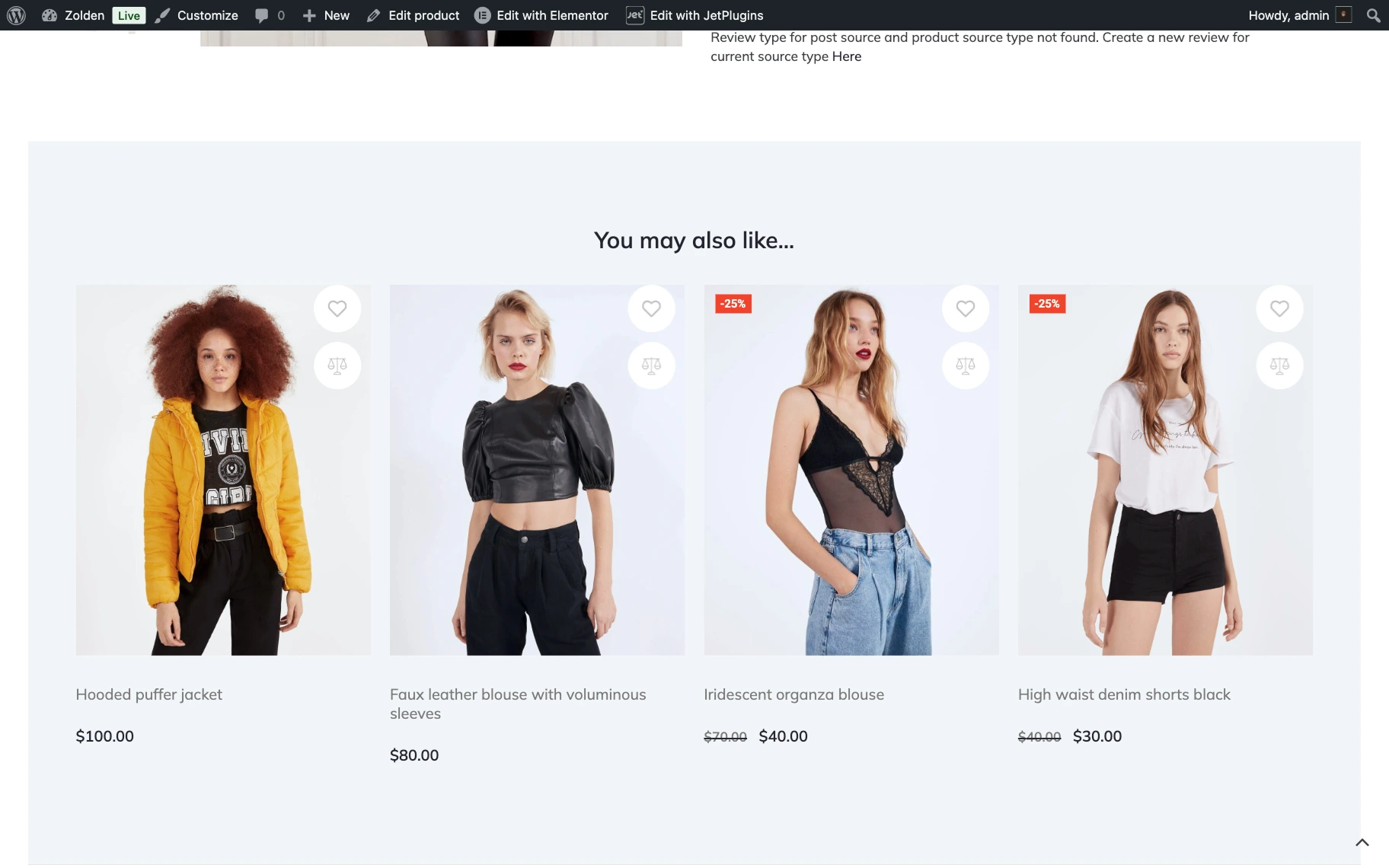
That’s all; now you know how to add upsells and related products to individual product pages with the JetWooBuilder plugin on a WordPress store powered by WooCommerce.