

Macros Guide for JetSmartFilters
Explore JetSmartFilters Macros, including Query, SEO Title, SEO Description, and learn how to create dynamic, filter-based content in WordPress.
This tutorial explains how the JetSmartFilters macros work and how to use them to dynamically pull selected filter values.
JetSmartFilters Macros
The JetSmartFilters Query macro extracts the selected value from the current query filters. In this context, the filter query is the complete array of arguments that the filter passes to the provider for further processing. Essentially, this encompasses user-selected filter values and the default values they merge with — everything that affects the filtering result.
The use cases:
- Filtering for advanced SQL queries;
- Use for dynamic visibility inside filterable listings;
- Change the banner after filtering by categories.
This macro and other macros can be created in the Macros Generator feature on the JetEngine > JetEngine > Macros Generator tab.
Here, the “JetSmartFilters Query” macro can be chosen from the Macros drop-down menu.
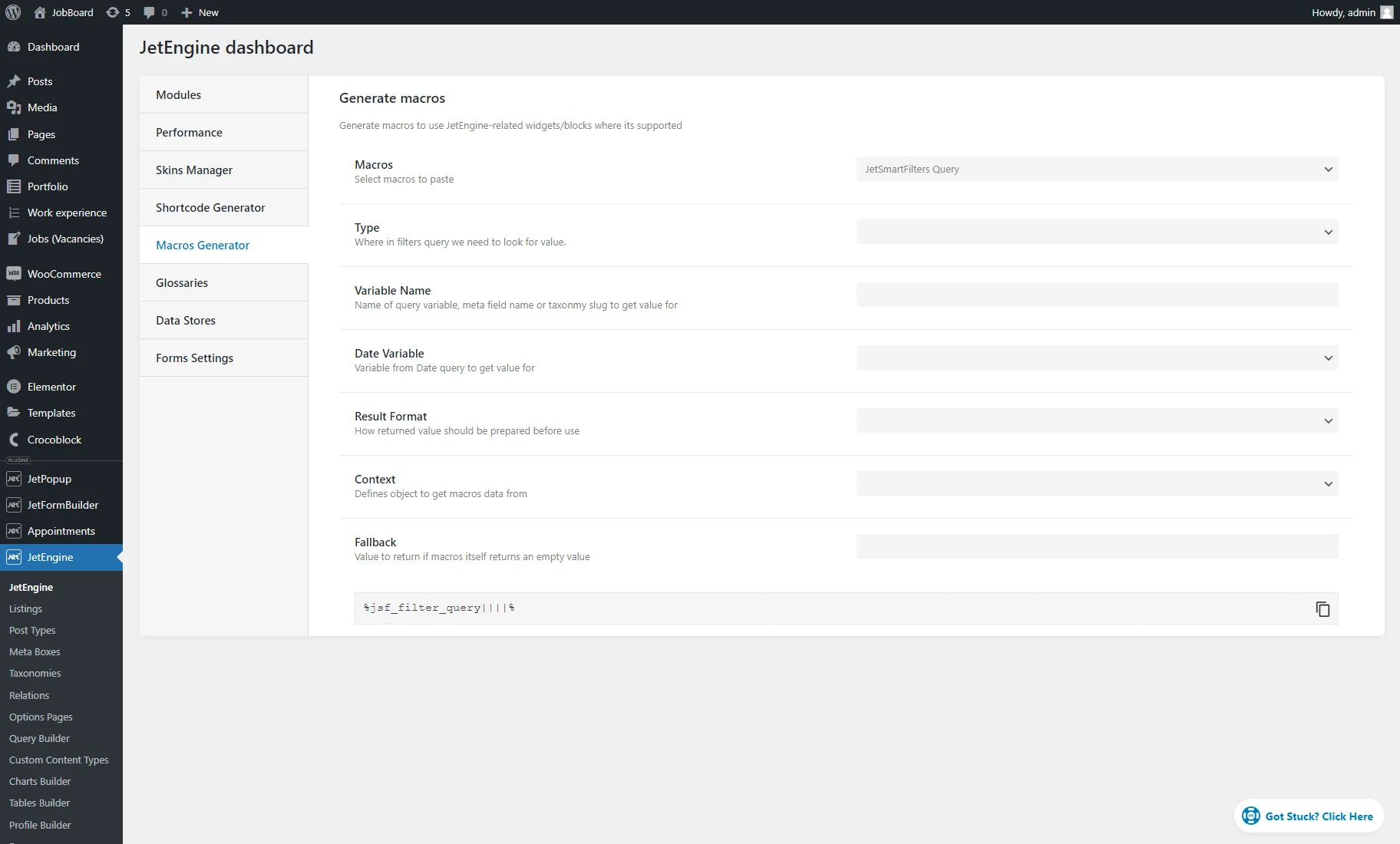
This macro has such settings:
- Type — a dropdown menu to pick where in the filters query we need to search for the value:
- Plain Query Var — the top-level variable from a query, for example, in the case of the WP_Query, could be post_type, author, post_in, etc.;
- Taxonomy — selected terms from a specific taxonomy from the Tax Query. It searches by taxonomy slug using top-level tax_query elements;
- Date — dates from the date_query array;
- Meta field — selected field value from the meta_query.
- Variable Name — a field to enter the query variable name, meta field name, or taxonomy slug for which you need to retrieve a value. For different types, the variable name may differ:
- Plain Query Var — for this type, enter the name of the query element to be obtained;
- Taxonomy — type the taxonomy slug whose terms need to be obtained from the tax_query;
- Date — for this type, keep the Variable Name field empty;
- Meta field — enter the name of the field whose value needs to be obtained from the meta_query.
- Date Variable — if the “Date” Type is set, here, one can pick the “Before” or “After” query variable to fetch items (e.g., posts) published before or after a certain date.
- Result Format — a dropdown to select how the retrieved value should be processed before usage:
- Plain — for an unformatted presentation;
- Prepare for SQL — it involves organizing and presenting values to align with SQL syntax and requirements.
- Context and Fallback — these two options are the same for all macros and are described in the Macros Generator overview.
The next two macros are created for the JetSmartFilters Seo Rules:
- JetSmartFilters SEO Description — outputs a dynamically generated SEO description based on the applied filters; useful for SEO-optimized archive pages;
- JetSmartFilters SEO Title — outputs a dynamic SEO title reflecting the current filter state; ideal for improving the visibility of filtered listings.
More details are available in the How to Set Up SEO Title and Description for Filtered URLs tutorial.
Query Results Macro vs. JetSmartFilters Query Macro
Although both macros contain the word “query,” they serve different purposes.
The JetSmartFilters Query macro works with the filter state. It shows what the user currently enters or selects on the front end.
Use Case: Injecting user choices into a custom “SQL Query” inside the JetEngine Query Builder. For example, your SQL might look like this: SELECT * FROM my_table WHERE color = ‘%jsf_filter_query|color|plain%’.
The Query Results macro of JetEngine works with the query results. Its purpose is to take the final list produced by one query and hand it over to another.
It’s ideal for complex queries. Because JetSmartFilters sometimes struggles to filter advanced SQL queries directly, use this macro to pass the resulting IDs from your complex SQL query into a standard “Posts Query,” for example.
The usage example is provided in the How to Combine Custom Field and Post Properties in Search Filter tutorial.
That’s all. Now you know about JetSmartFilters macros and how to use them on a WordPress website. Additionally, you can check the general Macros Guide for JetEngine and other Crocoblock plugins.