
Listing Blocks Overview
Learn how to use Listing Blocks in JetSmartFilters. This tutorial explains the settings for the Listing Field, Listing Image, Listing Link, and Listing Terms blocks, allowing one to build dynamic listings in WordPress.
Before you start, check the tutorial requirements:
- Block editor (Gutenberg)
- JetSmartFilters plugin installed and activated
The Listing Field, Listing Image, Listing Link, and Listing Terms blocks for JetSmartFilters Listing enable the creation of a grid layout for items that will be filtered.
In the WordPress Dashboard > Smart Filters > Listings > Item section, one can click the “Create new item” button. Here, the blocks can be added and customised.

Listing Field
The Listing Field block outputs text or values from posts, terms, users, or options (e.g., titles, custom fields).

The General tab of the block contains such options:
- SOURCE — this dropdown contains a list of available sources from where the data will be pulled out:
- Post/Term/User/Object Data — content will be pulled from the default meta fields of the post, term, user, or object. The field can be specified in the POST OBJECT select;
- Meta Data — this option retrieves content from one of the meta fields, which name can be specified in the META KEY field;
- Option Value — retrieves data stored in the WordPress options table (wp_options). The option key (name) can be specified in the OPTION NAME field to fetch its corresponding value. This feature is useful for displaying global settings or data saved via plugins, themes, or custom options that are not tied to specific posts or users.
- FALLBACK — a text that will be shown if the field is empty.
The Settings tab contains such options:
- FIELD TAG — a dropdown that allows selecting HTML tags in which the field will be wrapped. “DIV” is a tag that is used to define containers, “H1-H6” turns the field into a headline, “P” defines the field as a paragraph, and “SPAN” marks it as an inline part of the document;
- Filter Value Before Output — a toggle that activates the FILTER CALLBACK dropdown, which allows displaying different data types. The description of all options can be found in the Filter Field Output Overview chapter;
- Customize Output — a toggle that activates the CUSTOMIZE OUTPUT FORMAT textarea, which adds text before and after the value pulled from the meta field; ‘%s’ stands for the value that is pulled.
Listing Image
The Listing Image block displays dynamic images, such as thumbnails or avatars, with fallback and link options.

The General tab contains such options:
- SOURCE — a dropdown that allows selecting the source of the image, i.e., the “Post thumbnail,” “Image From Meta Field,” and “Image From Options”. For the last two options, the field name should be specified in the META KEY or OPTION NAME field;
- IMAGE URL PREFIX — a text field for the “Image From Meta Field” and “Image From Options” variants. Allows adding a prefix to the image URL if the meta field stores only part of it, such as a filename from an external server;
- FALLBACK IMAGE 一 allows adding an image to be shown if the meta field doesn’t include data. The image can be uploaded or selected from the Media Library.
The Settings tab contains such options:
- IMAGE SIZE — a dropdown that allows selecting the required image size (i.e., “Full,” “Thumbnail,” “Medium,” “Large,” and more);
- ALT TEXT — a field that allows setting an alternative text for an image.
The Image Link tab includes such settings:
- Linked Image — a toggle that makes the image clickable. It turns on the following dropdown:
- LINK SOURCE — selects a link applied to the image, i.e., “Permalink,” “Attachment URL,” “URL From Meta Field,” and “URL From Options.”
Listing Link
The Listing Link block generates dynamic links (permalinks, meta URLs, or custom labels) with accessibility and SEO settings.

The General tab contains such options:
- SOURCE — allows selecting where the link will be taken from, i.e., “Permalink,” “Attachment URL,” “URL From Meta Field,” and “URL From Options”;
- FALLBACK — defines what will be displayed or used if the dynamic source is empty or unavailable.
The Label tab includes such adjustments:
- LABEL TYPE — defines how the link label is set:
- Static Text — activates the LABEL TEXT to enter a custom label manually;
- Generate Dynamically — pulls the label dynamically from the selected LABEL SOURCE (i.e., “Post/Term/User/Object Data,” “Meta Data,” and “Option Value”). Also, allows specifying the LABEL OBJECT, LABEL META KEY, and LABEL OPTION NAME, respectively.
- ARIA LABEL TYPE — sets accessibility labels. One can inherit the main label or define a custom one for screen readers.
The Settings tab:
- URL PREFIX — adds a prefix to the link if the meta field stores only part of the URL (e.g., filename);
- URL ANCHOR — appends an anchor to the URL (without #). Useful for scrolling to specific sections;
- Open in a New Window — opens the link in a new browser tab/window when clicked;
- ADD “REL” ATTRIBUTE — selects a rel attribute to the link (e.g., “Alternate,” “Nofollow”, “Noopener”). Improves SEO and security.
Listing Terms
The Listing Terms block displays taxonomy terms, including categories or tags, with sorting, linking, and formatting controls.
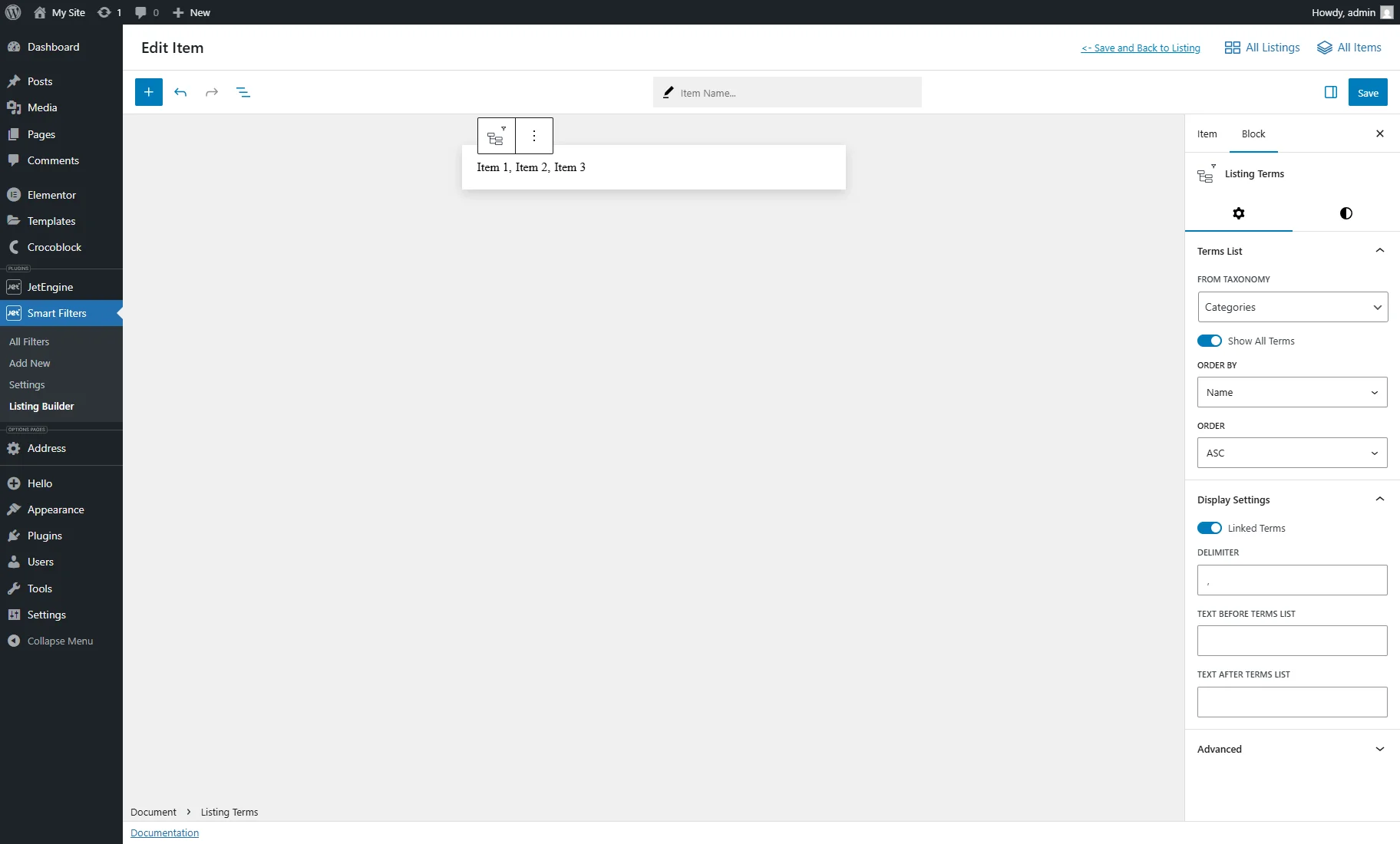
The Terms List tab contains such options:
- FROM TAXONOMY — chooses from which taxonomy to display terms (e.g., “Categories,” “Tags,” or any custom taxonomy).
- Show All Terms — if enabled, shows all terms from the chosen taxonomy. If disabled, only terms linked to the current post/item are displayed;
- ORDER BY — defines how the terms are sorted (e.g., by “Name,” “Slug,” “Term ID,” etc.);
- ORDER — sets the sorting direction: “ASC” (ascending, A→Z) or “DESC” (descending, Z→A).
The Display Settings tab:
- Linked Terms — if enabled, each term becomes a clickable link (usually linking to the term’s archive page). If disabled, only plain text is shown;
- DELIMITER — the character(s) used to separate terms in the list;
- TEXT BEFORE TERMS LIST — a custom text/HTML that will appear right before the terms list;
- TEXT AFTER TERMS LIST — a custom text/HTML that will appear immediately after the terms list.
Listing Section
The Listing Section is a block that controls the layout and alignment of items inside the listing. It functions similarly to a container or group block, but it’s specifically designed for JetSmartFilter’s listings.

- CONTENT DIRECTION — defines the flow of content within the section: horizontal (→) or vertical (↓) arrangement of items;
- JUSTIFY CONTENT — manages horizontal alignment of elements inside the section. One can align items to the start, center, end, or distribute them evenly across the available space;
- ALIGN ITEMS INSIDE SECTION — adjusts the vertical alignment of content within the section, allowing for positioning items at the top, center, bottom, or stretching them.
That’s all. Now you know about the settings for the Listing Field, Listing Image, Listing Link, and Listing Terms blocks, allowing one to build dynamic listings in WordPress.