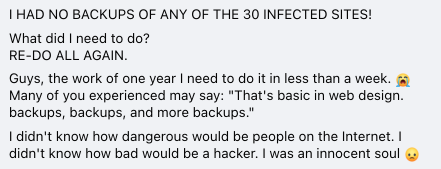
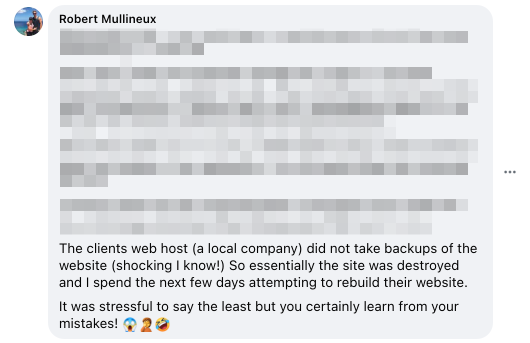
I guess, if we were to make a community questionnaire for Halloween, asking about the biggest web-development horror stories and fears, the scariest one would be a non-existent website backup.
So, let’s analyze these monsters under your bed to make your life a bit more predictable, in a good way.
Why Do You Need a WordPress Site Backup?
Every website is vulnerable to unexpected issues, and WordPress sites are no exception. In fact, WordPress powers over 43% of all websites globally, according to W3Techs, which means it’s a frequent target for hackers and malware. And no wonder it has the highest statistics for hacks, because of its popularity, often due to outdated plugins or weak security setups.
But hacking isn’t the only risk – a simple plugin conflict or theme update can break your site. Hosting providers can also experience some hardware failures. Or just a human factor, as even experienced users can accidentally delete important content or misconfigure something critical. Without a backup, fixing these problems can cost hours or even days – it means downtime, lost traffic, and frustrated customers.
A solid backup strategy guarantees that you can quickly restore your site to a working version with minimal loss. For eCommerce sites or businesses that rely on leads from their site, even one hour of downtime can mean lost revenue. That’s why experts recommend setting up automated daily backups, stored in a secure off-site location.
Think of backups as your insurance policy. You hope you never need them, but when you do, they can save your entire online presence from disaster.
How Does WordPress Website Backup Work?
All your website data is stored on the hosting provider’s server. When you create a backup copy of your current website, you copy data to another location – to your computer, server, cloud storage, hard drive, and so on.
Keeping a single version of the backup is not enough. Sometimes issues with the site become noticeable not immediately, but after a while. For example, malware can quietly be destroying your data for several days before you realize it. Thus, your backup from yesterday will not help restore the site in any way. It’s better to keep backups for a month or even three months.
There are several types of backups you can use for your WordPress site, each with different storage and performance implications:
- Full backup – a complete copy of your WordPress site, including all files (themes, plugins, media) and the entire database. This type of backup takes the most space but is the most comprehensive and easiest to restore.
- Incremental backup – only new or changed files and database entries since the last backup (whether full or incremental) are saved. This method saves storage space and reduces server load, making it ideal for frequent backups.
- Differential backup – backs up all changes made since the last full backup, regardless of any incremental backups in between. It grows larger over time until the next full backup is made, but it is faster to restore than a long chain of incremental backups.
- Mixed (hybrid) backup – combines a full backup with a sequence of incremental or differential backups. For example, you might take a full backup weekly, with daily incremental backups in between. This approach balances storage use and restore speed.
However, if you’re using shared hosting or a lower-tier managed hosting plan, the provider typically only performs full backups, and no incremental or differential options are included.
3 Ways to Backup a WordPress Site
Automatic backups from hosting providers
Most hosting providers offer some form of automatic backups, especially for shared and managed WordPress hosting plans. These backups usually include your site files (themes, plugins, media) and your database.
Pros:
- backups are created automatically on a daily or scheduled basis, with no manual setup required;
- some hosts let you choose backup frequency and how long backups are stored.
Cons:
- backups are stored on the same server as your website, which poses a risk – if the server is compromised or fails, you could lose both your site and the backup;
- backup retention is often limited (e.g., 7-30 days), so older issues may go unnoticed until it’s too late;
- backup services may not be included in cheaper plans and could incur extra costs;
- not all providers guarantee successful backups – failures can occur without notice.
Best WordPress Backup Plugins
There are many ready-to-use WordPress backup plugins that make the process simple and user-friendly. While they offer convenience, in general, it’s not recommended to rely solely on plugins for backing up your WordPress site. Here’s why.
Pros:
- quick and easy to set up, even for beginners;
- many plugins offer scheduled backups and cloud storage integrations.
Cons:
- a minor server issue or misconfiguration can silently cause backup failures – you may not realize it until it’s too late;
- backups are often stored on the same hosting account, which puts them at risk if your site is hacked or the server fails;
- plugins may not reliably back up the database, which contains your actual content – restoring files is easier than restoring database content correctly;
- some plugins only back up WordPress files and skip server-level settings, cron jobs, or custom configurations.
For critical sites, the most reliable approach remains a manual backup via cPanel or your hosting control panel. It gives you full control and ensures everything is copied securely. Let’s take a closer look at how to do that.
How to create a WordPress backup via cPanel or hosting control panel
The majority of hosting providers offer a control panel, such as cPanel, Plesk, or a custom dashboard, that allows you to manage your website, files, and databases easily. These panels typically include tools for creating full backups of your site, including both files and databases.
Creating a manual backup through your hosting panel gives you more control over the process and ensures that you have a complete copy of your site stored in a secure location of your choosing.
You can also download it to your computer or upload it to a cloud storage, to have a backup before making any big changes.
Pros:
- reliable and transparent, as you’re in control of when and where the backup is created;
- you can download and store the backup locally, off-server, for better security;
- works independently of WordPress, so it’s effective even if your site is down.
Cons:
- the process may feel a bit technical for very beginners, but most hosting providers offer step-by-step guides or tutorials;
- the backup process varies slightly between hosts: cPanel, Plesk, and proprietary panels may look different, though the core steps remain similar.
If your hosting uses cPanel, you can usually find the Backup or Backup Wizard tool in the main dashboard. From there, you can generate a full backup and choose a destination for download. If your host uses a custom panel, check their documentation or support section – they almost always offer a backup option with similar steps.
Option #1 – if the website is under 2-5 GB (smaller websites)
If your website is relatively small – let’s say, under 2-5 GB in total – it’s generally quick and easy to back it up using your hosting provider’s control panel.
As I’ve mentioned above, most modern hosting dashboards, whether cPanel-based or custom, offer a built-in backup tool that lets you generate a full website backup with just a few clicks. This process typically includes both your site files and the database, packaged into a single archive that you can later restore if needed.

To perform a full backup, you usually just need to open the backup section in your hosting panel, select the option to generate a full website backup, and specify where you’d like the backup stored (such as your home directory or a custom folder). Some hosts also allow you to input an email address to receive a notification once the backup is complete. After the process finishes, you can download the backup file to your local machine or upload it to a cloud storage service for added security.
This method is efficient for small to medium-sized websites because the file size is manageable, and the process rarely runs into timeouts or memory issues. It’s also a good option if you don’t want to rely on WordPress plugins or third-party services. Just remember that these backups should still be downloaded and stored separately from your hosting account to avoid losing them in case of server failure or a security breach.
Option #2 – if the website is over 5 GB
When your website exceeds 5 GB in size, creating a full backup becomes more resource-intensive and may require a more hands-on approach. Many backup tools, especially those included with shared hosting, may time out or fail silently when dealing with large sites. For this reason, it’s recommended to split the backup into two separate parts: the site files and the database.
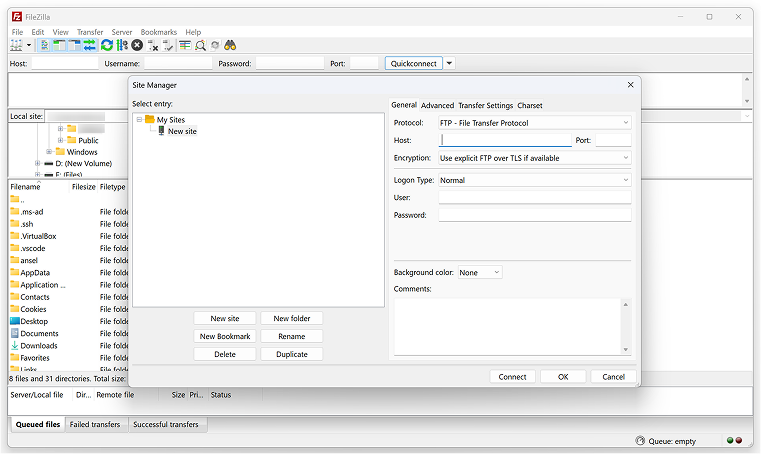
To back up the site files, use an FTP client like FileZilla to connect to your hosting server and manually download the entire contents of the public_html directory (or the root folder where WordPress is installed). This folder includes your themes, plugins, media uploads, and core WordPress files. Depending on the size of your media library, this step might take some time, so ensure you have a stable connection and sufficient local storage space.
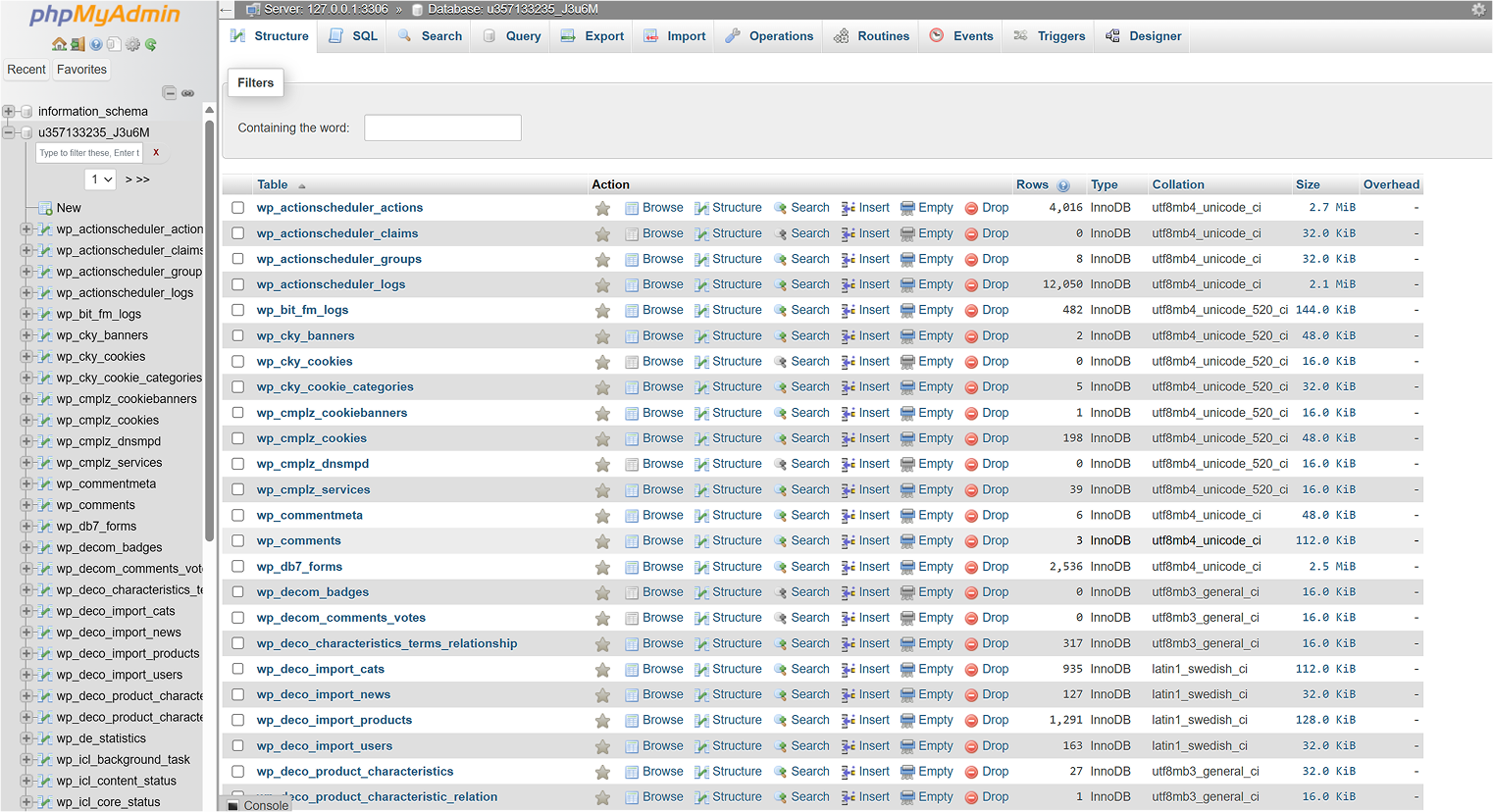
Next, you’ll need to back up the MySQL database. This can be done through phpMyAdmin, which is available in most hosting control panels. First, locate the name of the database used by your site – it’s listed in the wp-config.php file under the DB_NAME setting. Once in phpMyAdmin, select the appropriate database from the sidebar, then go to the “Export” tab. You can use the “Quick” export option for a standard backup or choose “Custom” if you want more control over which tables to include. Export the database in SQL format and save the file securely.
Although this manual process requires more effort than using a single-click tool, it offers better control and reliability, especially for large or complex WordPress sites. It’s also independent of your WordPress installation, so you can perform it even if your website is temporarily down or the admin panel is inaccessible. This method guarantees that you have a clean, restorable copy of your entire site, both the content and the structure, at any time.
However, if you have a big website, the best solution is to have not a cheap shared hosting but a VPS or a dedicated server, and there you can use advanced backup tools – e.g., those for incremental backups.
Website Backup Errors
Let’s outline the most common mistakes people make when backing up their WordPress site.
- Backing up only the database.
While having a database backup is better than nothing, it’s not enough. Your media files, themes, and plugins must be saved, too. If your site is content-heavy, consider setting up a separate database for large media collections and backing it up incrementally. - Not verifying the backup.
Just because a backup process was initiated doesn’t mean it completed successfully. Server issues, high traffic loads, or configuration errors can cause failures. Always check if the backup file exists, is complete, and can be restored. - Storing backups on the same server as the website.
This defeats the purpose of a backup. If your server is compromised, hacked, or goes down, both your live site and your backup could be lost. Use remote storage like external drives, cloud services, or an off-site server. - Infrequent backups.
Websites change daily, whether it’s new content, orders, or user data. Backing up weekly or monthly isn’t enough. Set up a daily backup routine, and use multiple storage locations to avoid single points of failure. Data loss can be far more expensive than a few extra gigabytes of storage.
WordPress Backup FAQs
A WordPress backup is a complete copy of your website’s files and database, used to restore the site in case of technical issues, hacks, or accidental data loss.
You can use free methods (manual backups, basic hosting tools) or premium solutions. Paid backup plugins or hosting plans typically start around $49 annually.
You can use the built-in WordPress export feature or create manual backups via FTP and phpMyAdmin. Many hosting providers also offer backup tools in their control panels.
Wrapping Up
Always back up your site before making any major changes, like plugin or theme updates.
Keep multiple copies of your backups, stored in separate locations, for at least one to three months.
While there are several ways to back up a WordPress site, we recommend manual backups via cPanel or your hosting panel as the most reliable method. If you prefer another option, make sure you fully understand how it works and what it includes.
And finally, remember – a proper backup routine might save you from losing months of hard work.