If you’re looking to display Google reviews dynamically on your WordPress website using JetEngine, you’ll need the Google Place ID. The Place ID serves as the bridge between your website and Google’s data. Instead of manually updating reviews, this unique identifier allows you to fetch reviews, business information, and other data directly from the Google API.
The Place ID is a unique identifier assigned to every business, landmark, or location in Google’s database. It’s a text string that typically starts with “Ch” and resembles the following format: “ChIJN1t_tDeuEmsRUsoyG83frY4.” This ID remains constant even if the business changes its name or address, making it perfect for API integrations.
This guide outlines five methods for finding a location’s Google Place ID, making it easier for you to add Google Reviews to your WordPress website.
Method 1: Google Place ID Finder Tool (Recommended)
The most straightforward method is using Google’s official Place ID Finder tool.

Steps to retrieve Place ID:
- Visit the Google Place ID Finder.
- Enter your business name or location in the search bar.
- Select the correct location from the dropdown suggestions.
- Copy the Place ID that appears in the results panel.
Method 2: Extract from Google Maps Embed Code
This method allows you to extract the Place ID from a Google Maps embed code.

Steps to retrieve Place ID:
- Search for your business on Google Maps.
- Click the “Share” button on the business listing.
- Go to the Embed a map tab.
- Right-click on the reviews count and select “Inspect Element.”
- Look through the HTML code for the Place ID.
Method 3: Browser Extensions
Another easy method is to use a Chrome extension, such as PlePer Local SEO Tools, to find Place IDs.
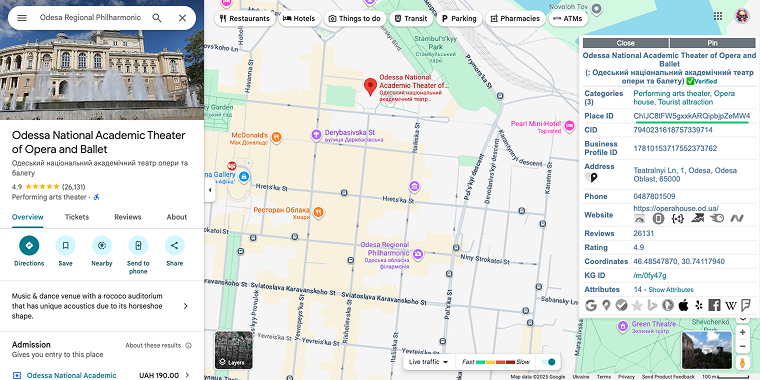
Steps to retrieve Place ID:
- Install a Chrome extension from the Chrome Web Store.
- Visit your business listing on Google Maps.
- The extension will automatically display the Place ID in a pop-up.
Method 4: Review Pop-up Inspection
This method allows you to extract the Google Place ID directly from the Google Maps review interface, without the address.
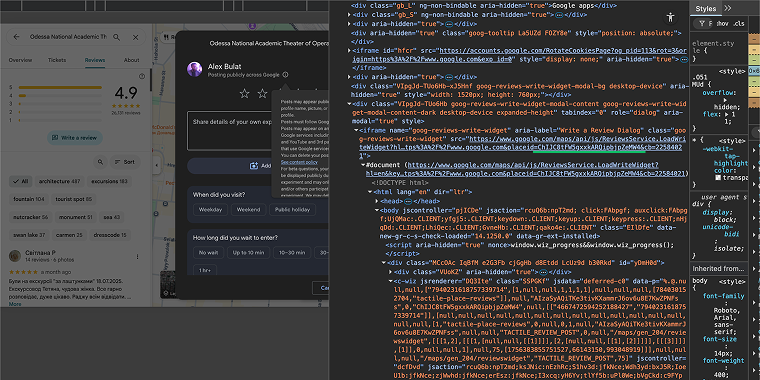
Steps to retrieve Place ID:
- Open your business listing on Google Maps.
- Click the “Write a review” button.
- Right-click anywhere on the review pop-up.
- Select “Inspect” from the context menu.
- Look for the iframe’s src attribute – the Place ID appears after “Ch” and before the “&” symbol.
Method 5: Google Search Page Source
The last method in our list allows you to find the Place ID in the page source of a Google Search result for your business.
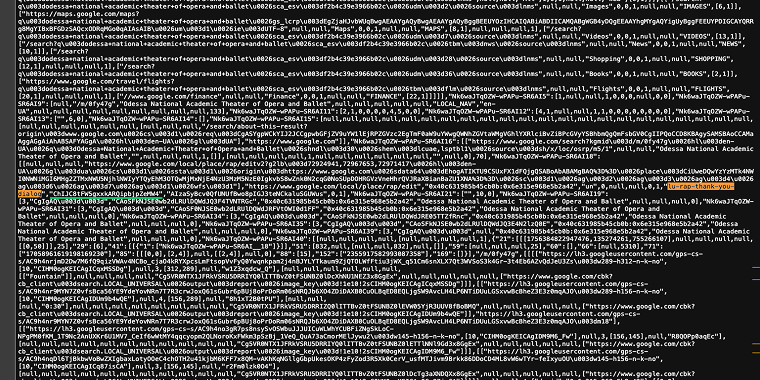
Steps to retrieve Place ID:
- Search for your business name on Google.
- Right-click anywhere on the page and select “View page source.”
- Use Ctrl+F or Cmd+F to search for “lu-rap-thank-you-dialog.”
- The Place ID will show up right after this string.
Tips and Tricks
Always verify your Place ID by testing it with the Google Places API or in your WordPress setup before going live. An incorrect Place ID will result in no reviews being displayed.
Don’t forget about Google Places API usage limits and pricing. Monitor your API usage to avoid unexpected charges.
Implement caching for your Google Reviews to reduce API calls and improve site performance. Most WordPress caching plugins work well with JetEngine’s dynamic content.
FAQ
Google Place ID without address remains constant even if your business name, address, or other details change. This makes them ideal for WordPress integrations, as you won’t need to update your website code when business information changes.
Most businesses find that updating reviews every 24 hours is enough and helps control API costs. If reviews come in more frequently, you can set shorter intervals (1-6 hours), but this will consume more API quota and increase expenses.
First, ensure your business is listed and verified on Google My Business, as unverified companies may not appear in search results. Try different search variants or use Methods 2-5 from this guide if your business appears directly on Google Maps. If it doesn’t show up anywhere, you’ll need to create or claim your Google My Business listing first.
Conclusion
Finding a Google Place ID is crucial for displaying Google Reviews on your WordPress site. Whether you use the official Google tool, browser extensions, or HTML inspection, each method offers the unique identifier necessary for API integration.
By following this guide and applying proper security measures, you can showcase authentic Google Reviews on your WordPress site, thereby boosting credibility and providing valuable social proof to your visitors.
Remember to regularly monitor your reviews and API usage to ensure everything operates smoothly. With the right setup, your WordPress site will always show the most current Google Reviews automatically.