
How to Create a Single Page via Lovable
Learn how to create a single page using the Lovable builder and the JetEngine WordPress plugin. Find out how to set up endpoints, connect data, and display dynamic content on your WordPress site.
Before you start, check the tutorial requirements:
- Being signed in to the Lovable platform
- JetEngine plugin installed and activated, with a Custom Content Type created
Discover how to create a single page using the Lovable builder. This guide explains how to connect your WordPress data through the JetEngine WordPress plugin REST API endpoints, configure the prompt, and display dynamic content seamlessly on your website.
From our WordPress and AI Builders Integration using Crocoblock: Bolt and Lovable Cases article, you can learn about the integration with Crocoblock. In this guide, we focus on setting up a single page for displaying dynamic content.
Setting Up a Query Builder Source
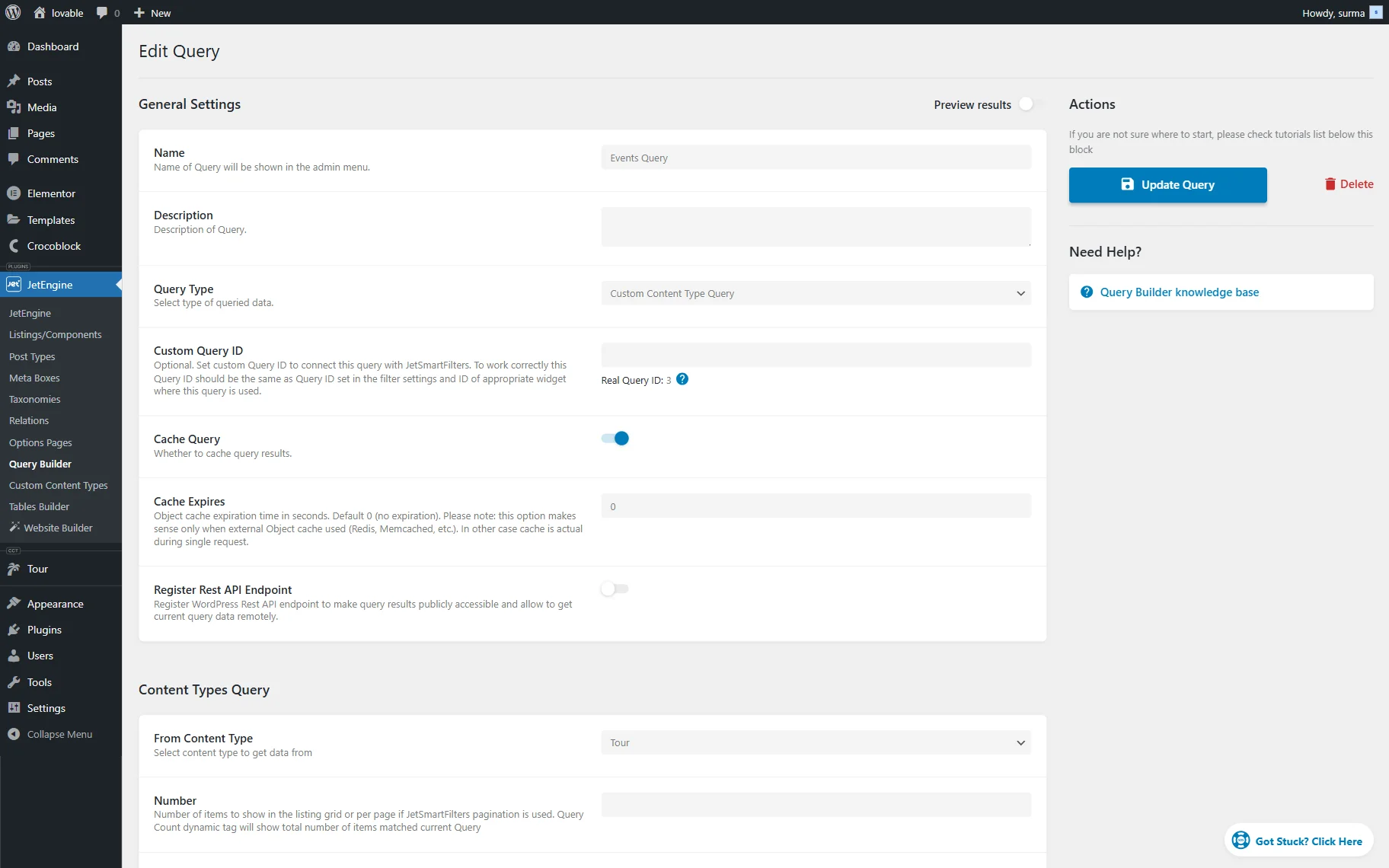
Proceed to WordPress Dashboard > JetEngine > Query Builder and click the “Add New” button. Type the query Name and select the “Custom Content Type Query” option as a Query Type.
REST API Activation
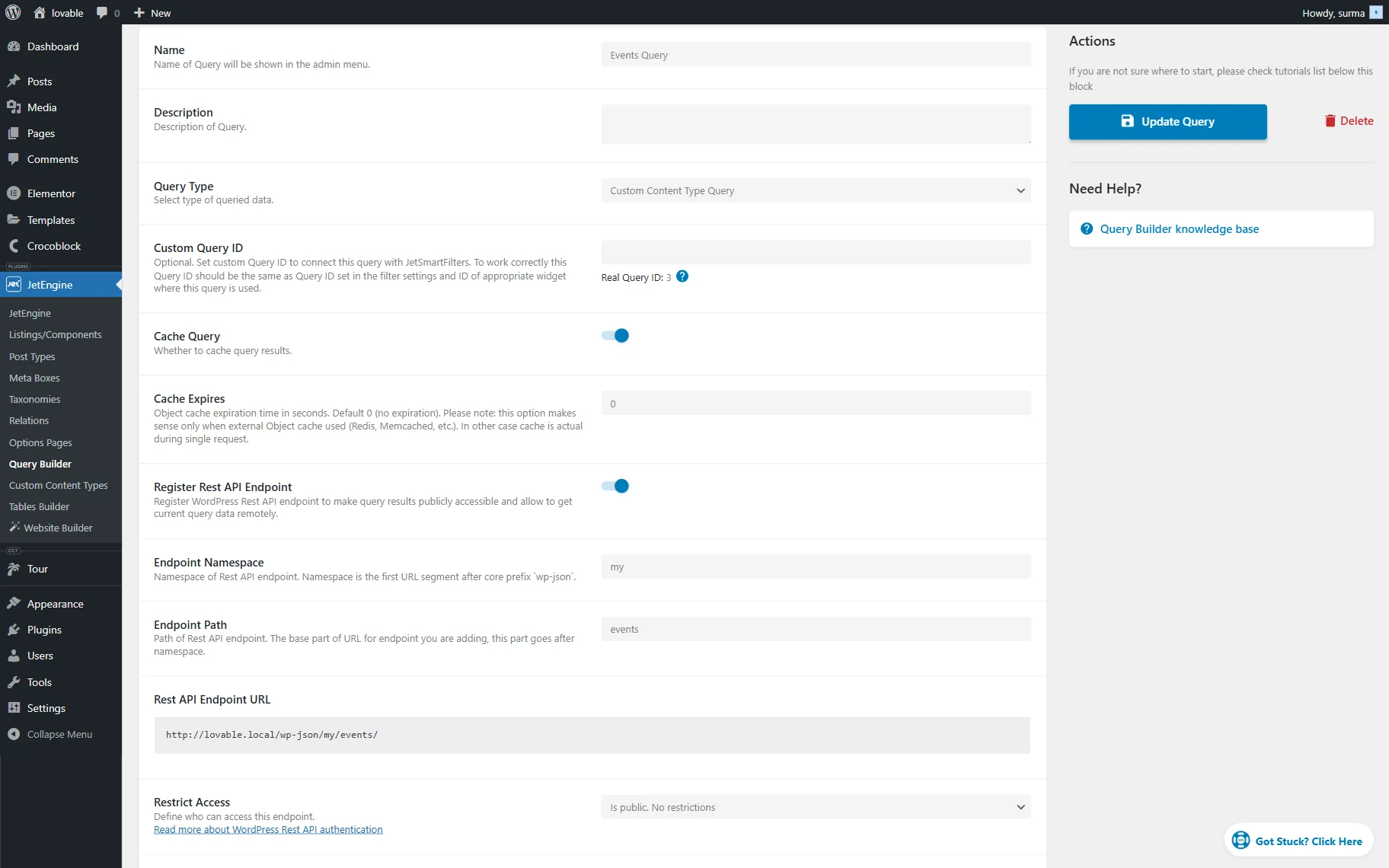
In the query you created, enable the Register REST API Endpoint toggle. Then, set up the Endpoint Namespace and Endpoint Path.
You receive the REST API Endpoint URL; keep it, as we will use it in the prompt later.
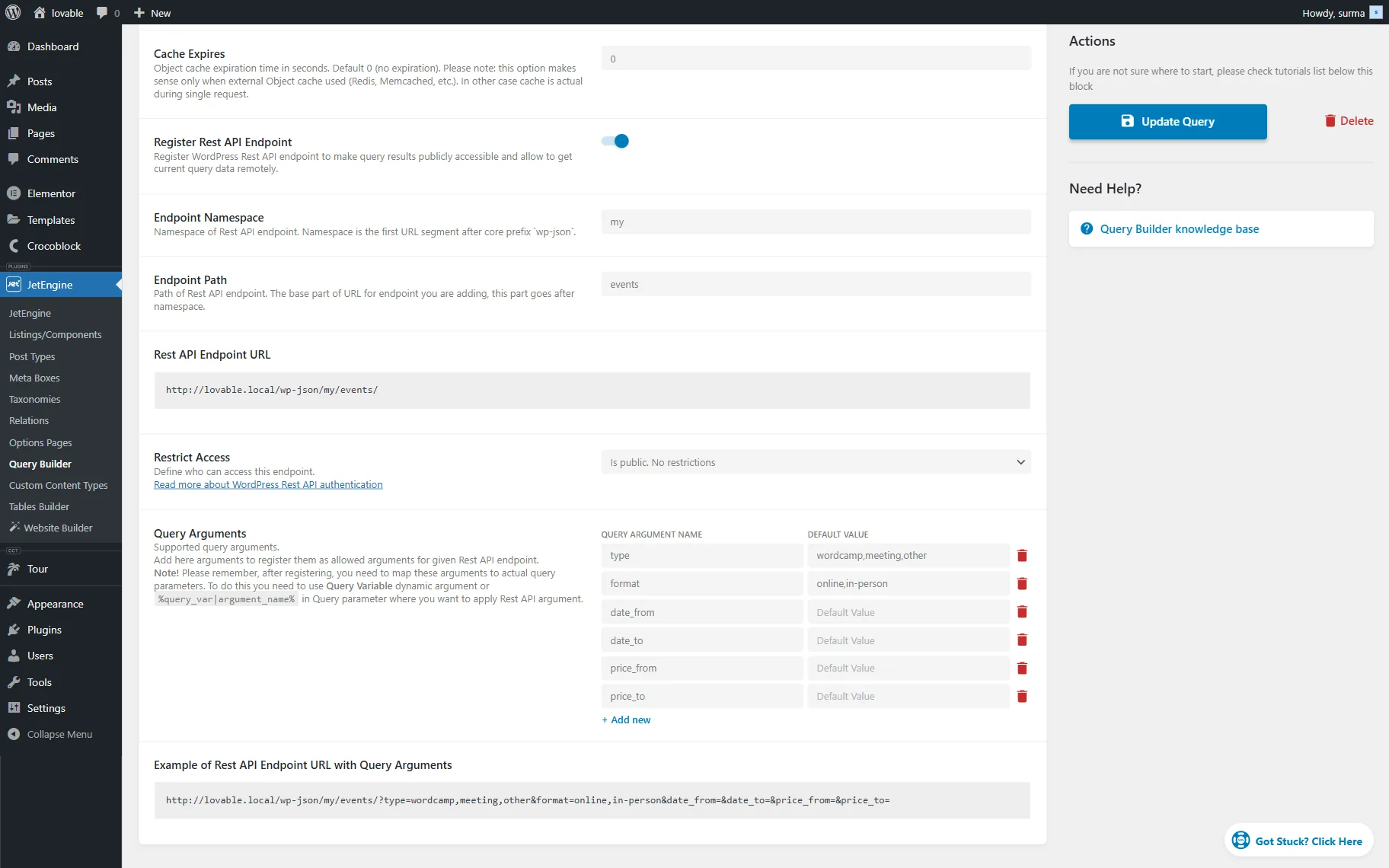
In the Query Arguments, add the parameters that will filter the listing. Refer to our How to Build a Listing with Filters via Lovable guide to learn more about setting up filters for your listing.
Click the “Update Query” button.
Creating a Prompt
Now, proceed to the Lovable platform and sign in or log in.
The prompt should include information about the site you need to create, such as its type and purpose, as well as the main functions that are expected to be implemented. You can also share some existing sites as examples and any other context that may be helpful for the builder.
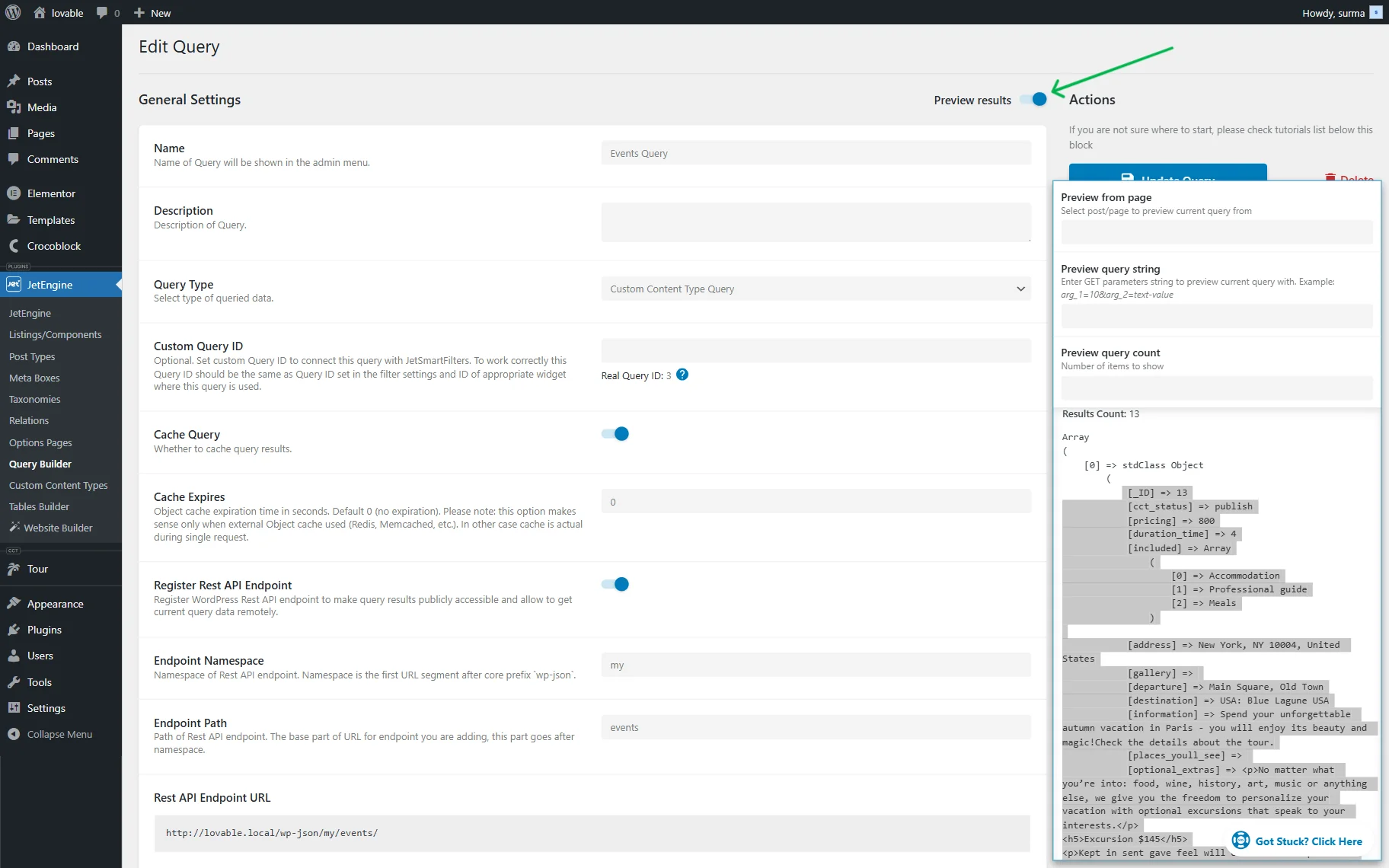
It should also be noted that the data should be retrieved from the REST API, and the URLs you saved earlier should be shared. It is recommended to describe the specific data that will be obtained from the URLs. If you use the CCT as a source, describe the specific meta fields from the CCT that you utilize. When you use the query as a source, you can copy an item from the Preview results section for the AI builder.
As a single page needs to be created on the site, request its creation and share the Endpoint URL from which the single page will be obtained:
I need a single-page website based on the data from the API. A single website can be retrieved from the API using the following URL: https://demo.crocoblock.com/lab/wp-json/jet-cct/websites/{_ID}, where {_ID} should be replaced with the actual item ID.
Here is a prompt we used to create a website with a listing that includes filters, allowing items to be opened as single pages.
I want to build a website, which is a showcase of other websites built with Crocoblock plugins, like this - https://crocoblock.com/websites-made-with-elementor-and-crocoblock/

You can grab the data by the API from here - https://demo.crocoblock.com/lab/wp-json/jet-cct/websites

I need a listing of websites that includes filters by used plugins, website type, topic, and optionally by author.

Additionally, I require a single-page website that utilizes data from the API. A single website can be retrieved from the API using the following URL: https://demo.crocoblock.com/lab/wp-json/jet-cct/websites/{_ID}, where {_ID} should be replaced with the actual item ID.

Allowed plugins for the filters

JetEngine
JetSmartFilters
JetFormBuilder
JetThemeCore
JetElements
JetMenu
JetTabs
JetWooBuilder
JetProductGallery
JetCompareWishlist
JetPopup
JetTricks
JetReviews
JetSearch
JetAppointment
JetBooking
JetBlog

Allowed types

E-Commerce
Directory
Personal Blog
Portfolio
Corporate Website
Landing Page
News Portal
Online Magazine
Membership Site
Forum / Community
Educational Website
Nonprofit / Charity
Government Website
Web App / SaaS
Booking Website
Event Website
Resume / CV Website
Affiliate / Review Website
Marketplace
Wiki / Knowledge Base
Podcast Website
Restaurant / Menu Website

Allowed topics

Fashion
Technology
Lifestyle
Travel
Food
Health & Fitness
Personal Finance
Education
Entertainment
Photography
Parenting
Home & Garden
DIY & Crafts
Beauty
Automotive
Business
Marketing
Sports
News & Politics
Gaming
Music
Art & Design
Real Estate
Science
Spirituality & Religion
Pets
Environment & Nature
Careers & Jobs
Relationships & Dating
Reviews & Product Comparisons

Example of the API URL with filter parameters

https://demo.crocoblock.com/lab/wp-json/jet-cct/websites/?cct_author_id=1&_orderby=_ID&_order=desc&_ordertype=integer

Here is a description of all API response props (which also can be used as request parameters in _filters)

_ID - Item ID;
website_name - Website Name;
website_url - Website URL;
preview_image - Preview Image;
developer_name - Developer Name;
plugins_used - Plugins Used;
website_type - Website Type;
website_topic - Website Topic;
description - Description;
cct_author_id - Item Author;
cct_created - Created Date;
cct_modified - Modified Date;
cct_status - Status;
_cct_search - Search string, type: string;
_cct_search_by - Comma-separated field names list to search only by these fields, type: string;
_limit - Items limit, type: number;
_offset - Items offset, type: number;
_orderby - Order items by field, type: string;
_order - Order - asc or desc, type: string;
_ordertype - Order value type - integer, float, timestamp, date, string, type: string;
_filters - JSON-encoded filters string, type: string;
Paste the prompt into the Lovable input and click the arrow-shaped icon or the “Enter” button.
Check the Result
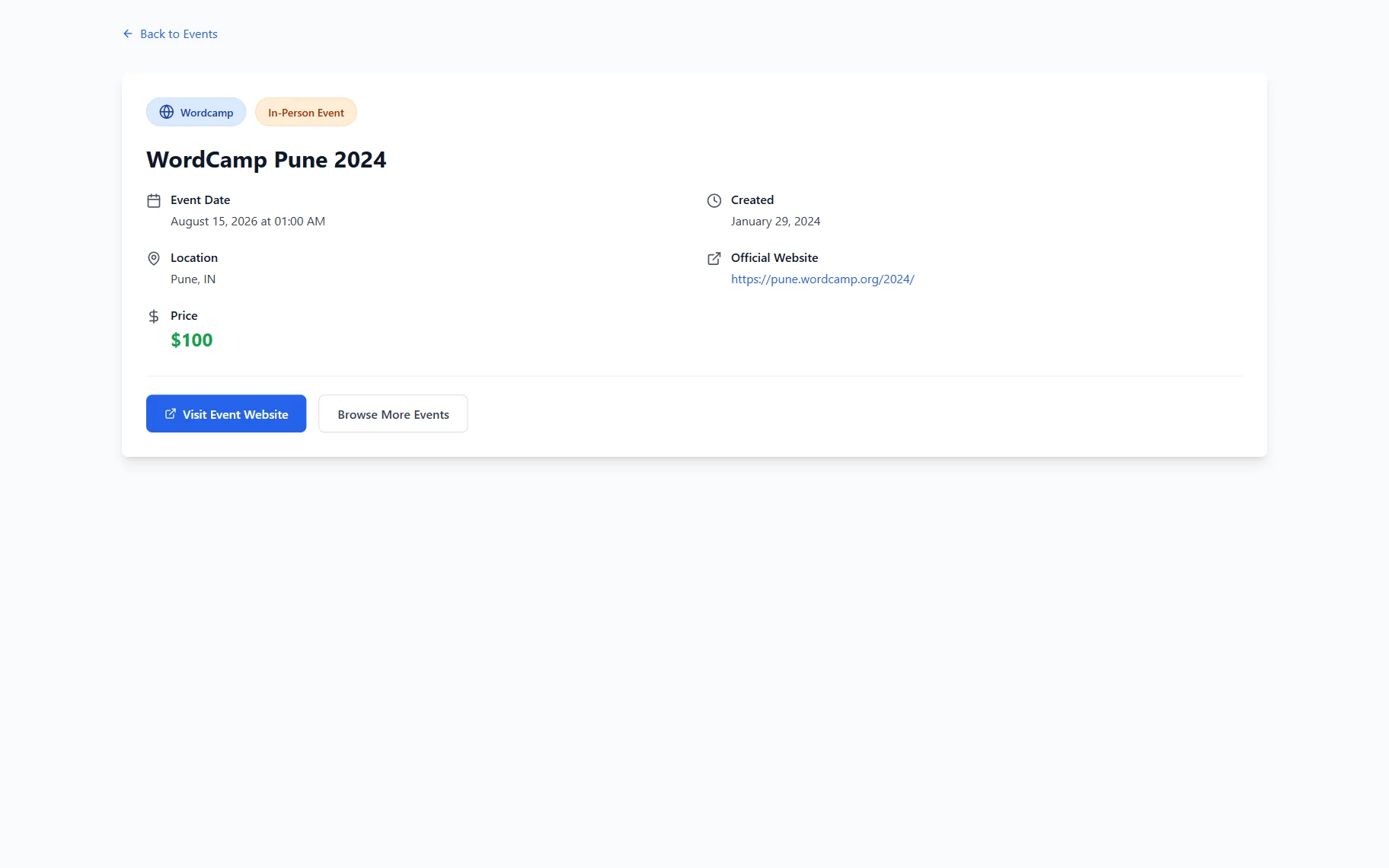
Here is a single page from the site we got: https://tiny-khapse-cf4a4f.netlify.app/event/18
The event single page is displayed on the front end correctly.
That’s it. Now you know how to create a single page using the JetEngine WordPress plugin and Lovable builder.