
JetMessenger Dashboard Settings Overview
This overview explains how to configure JetMessenger Dashboard Settings, including contexts, rate limits, notifications, privacy controls, analytics, and diagnostics in WordPress and WooCommerce.
JetMessenger Settings
The JetMessenger Settings page will be available after completing the JetMessenger Setup Wizard or after pressing the “Skip” button in the first setup step.
Also, the settings are available in the WordPress Dashboard > Crocoblock > Messenger tab.
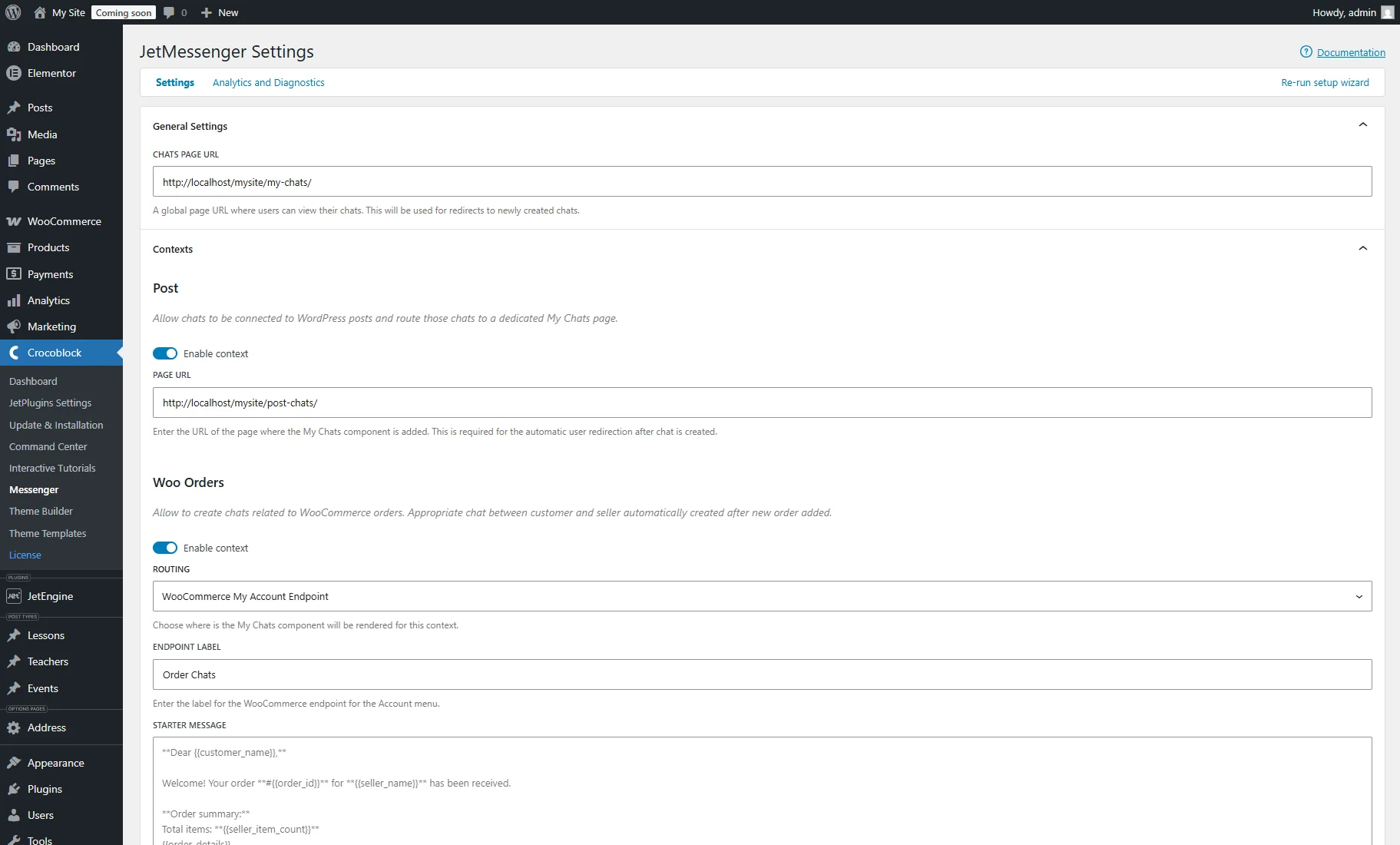
At the top of the page, there are three tabs:
- Settings — a current tab that allows managing the site’s communication flow;
- Analytics and Diagnostics — a secondary tab for monitoring system performance and troubleshooting connection health to keep the messenger running smoothly;
- Run setup wizard/Re-run setup wizard — a button on the right side that allows starting the setup wizard or re-running it.
General Settings
This section contains the CHATS PAGE URL, which defines the global chats page where users are redirected to view their conversations. It is also used as the redirect page after a new chat is created.
Context settings
The Contexts section enables chats for different WordPress or WooCommerce entities.
The Post context lets users create chats connected to WordPress posts.
Available settings include:
- Enable context — activates chat support for posts;
- PAGE URL — specifies the page containing the My Chats component for post-related conversations. Users are redirected to this page automatically after a chat is created.
The Woo Orders context enables chats related to WooCommerce orders.
When enabled, a chat between the customer and seller can be created automatically after a new order is placed.
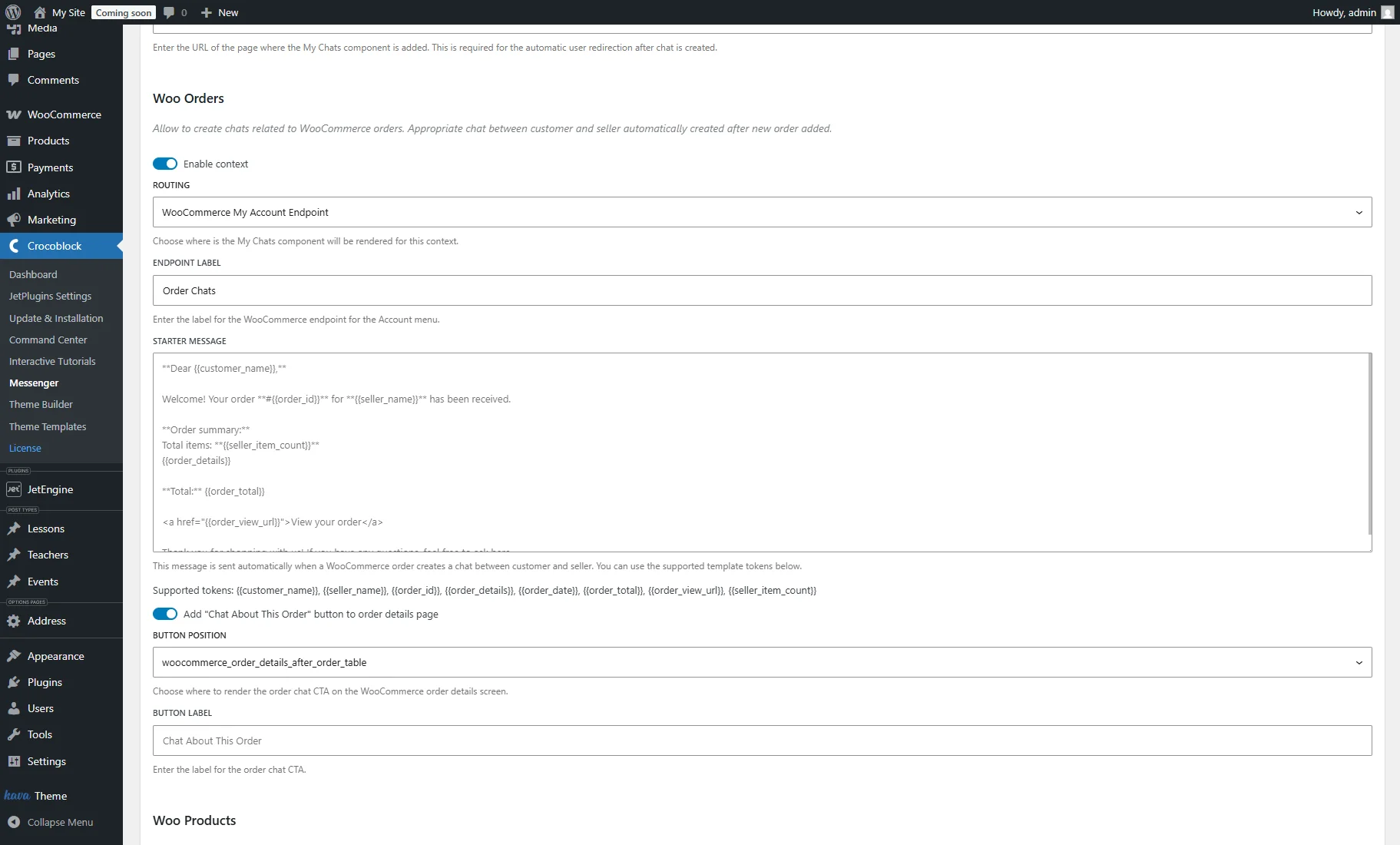
Available settings include:
- Enable context — activates order-related chats;
- ROUTING — determines where the My Chats component will be rendered. The same as during the setup wizard, the “Static Page” or “WooCommerce My Account Endpoint” options can be selected;
- ENDPOINT LABEL — sets the label displayed in the WooCommerce Account menu for the chat endpoint;
- STARTER MESSAGE — defines the default message automatically sent when the order chat is created. The message supports dynamic placeholders such as: {{customer_name}}, {{seller_name}}, {{order_id}}, {{order_details}}, {{order_date}}, {{order_total}}, {{order_view_url}}, {{seller_item_count}};
- Add “Chat About This Order” button to order details page — enables the order chat CTA button on the WooCommerce order details page. If this toggle is disabled, users cannot start order-related chats. When enabled, additional settings become available:
- BUTTON POSITION — defines where the order chat CTA button will be displayed on the WooCommerce order details page. The “woocommerce_order_details_after_order_table” hook renders the button after the order details table, while the “woocommerce_view_order” hook displays it within the order view section;
- BUTTON LABEL — sets the text displayed on the order chat CTA button, e.g., “Chat About This Order”.
The Woo Products context enables chats related to specific WooCommerce products. When enabled, customers can initiate a conversation with the seller directly from the product page.
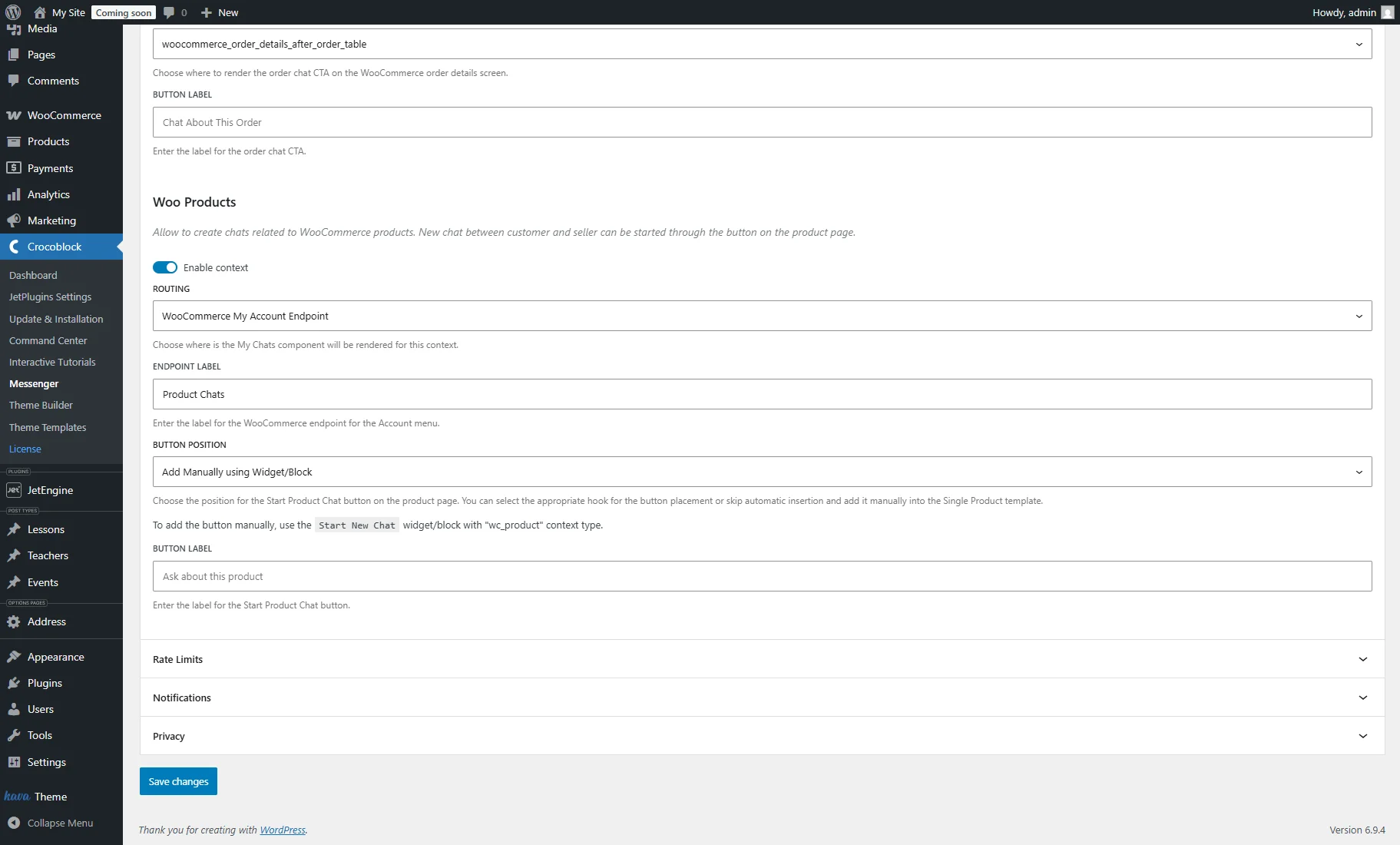
Available settings include:
- Enable context — activates messaging capabilities for WooCommerce products;
- ROUTING — the same as during the setup wizard, the “Static Page” or “WooCommerce My Account Endpoint” options can be selected;
- ENDPOINT LABEL — sets the label displayed in the WooCommerce Account menu for the chat endpoint (e.g., “Product Chats”);
- BUTTON POSITION — controls where the “Start Chat” button appears on the single product page:
- Add Manually using Widget/Block — allows placing it customly using the Start New Chat component;
- woocommerce_before_single_product_summary — automatically hooks the button at the top of the product page, appearing before the product summary;
- woocommerce_single_product_summary — displays the order chat CTA inside the single product summary section;
- woocommerce_after_single_product_summary — positions the button lower on the page, appearing after the primary product summary and description.
- BUTTON LABEL — defines the call-to-action text displayed on the button (e.g., “Ask about this product”).
Rate Limits settings
The Rate Limits section provides essential tools to control the frequency of interactions within the chat system. Enabling these limits helps prevent spam and protects server resources.
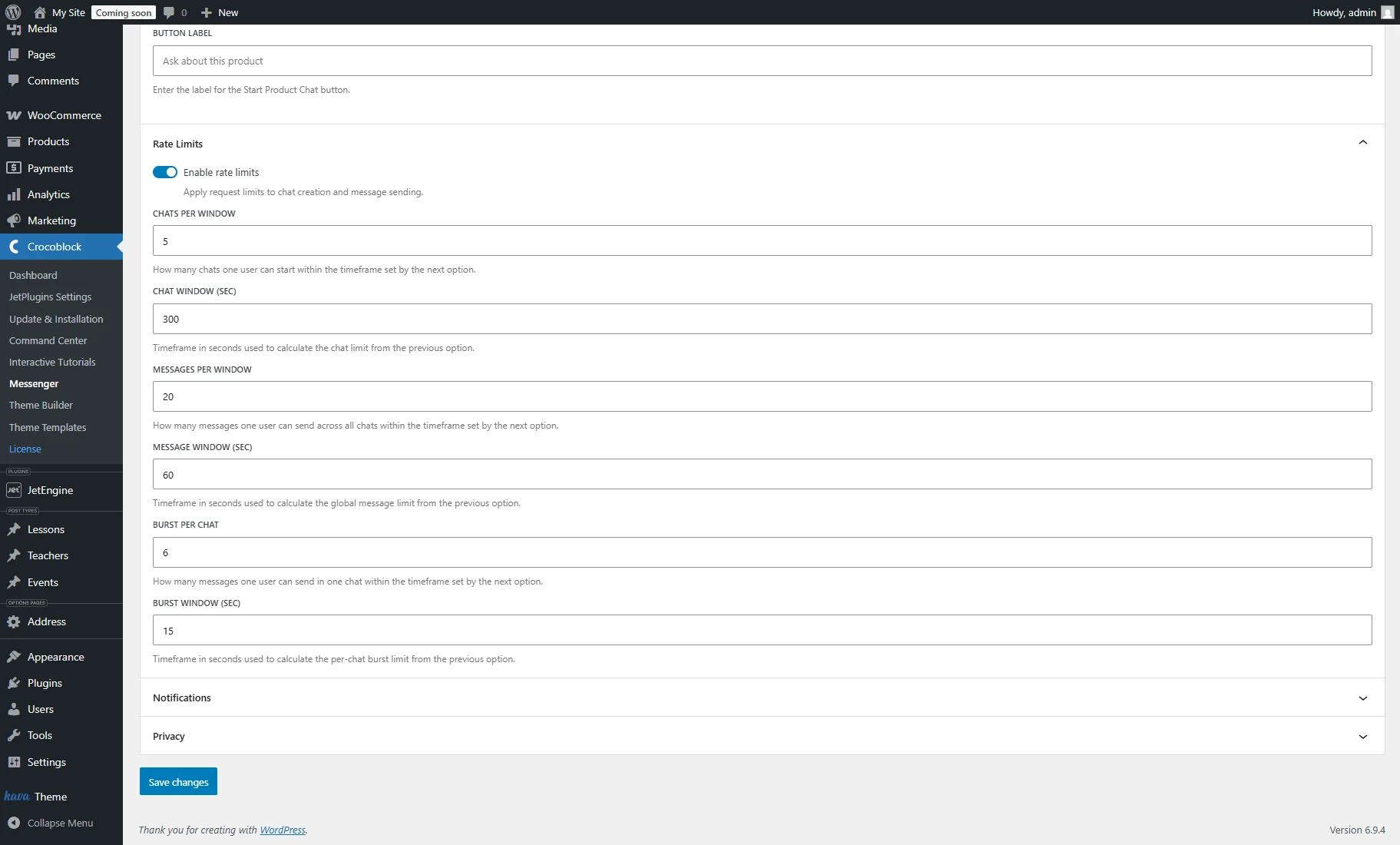
Available settings include:
- Enable rate limits — toggles whether request limits are applied to chat creation and message sending;
- CHATS PER WINDOW — defines the maximum number of new chat sessions a single user can start within a specified time period;
- CHAT WINDOW (SEC) — sets the duration (in seconds) used to measure the chat creation limit;
- MESSAGES PER WINDOW — limits the total number of messages a single user can send across all their active chats within a designated period;
- MESSAGE WINDOW (SEC) — specifies the timeframe (in seconds) used to calculate the global message limit;
- BURST PER CHAT — determines how many messages a user can send in a rapid session within one chat, within the timeframe set by the next option;
- BURST WINDOW (SEC) — sets the timeframe (in seconds) used to calculate the per-chat burst limit, effectively cooling down the user’s ability to send multiple quick-fire messages.
Notifications settings
The Notifications section allows site administrators to manage global email alerts for chat activity for both users and administrators. Notification messages can also be customized for different triggers.
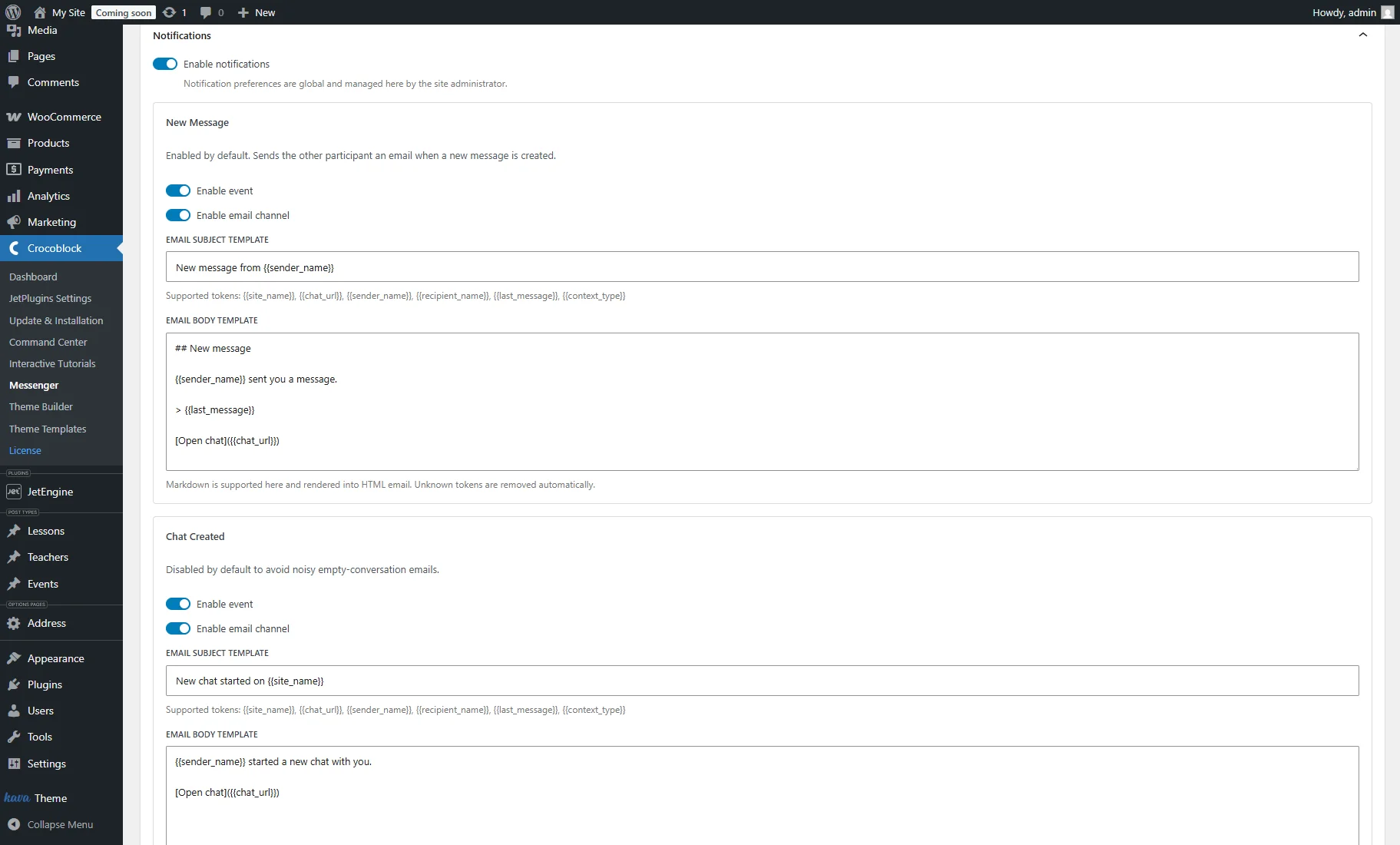
- Enable notifications — the master toggle to activate or deactivate the global notification system;
- New Message settings:
- Enable event — enables or disables email alerts sent when a participant receives a message. Enabled by default;
- Enable email channel — specifies that the notification should be delivered via email for this event;
- EMAIL SUBJECT TEMPLATE — allows customizing the subject line using dynamic tokens. Supported tokens: {{site_name}}, {{chat_url}}, {{sender_name}}, {{recipient_name}}, {{last_message}}, {{context_type}};
- EMAIL BODY TEMPLATE — a customizable field for email content that supports Markdown and dynamic tokens such as {{last_message}};
- Chat Created — contains the same set of settings as the New Message.
- New Message settings:
Privacy settings
The Privacy section allows managing how user data is handled, exported, and deleted within JetMessenger. These tools are essential for maintaining compliance with data protection regulations and ensuring user privacy.
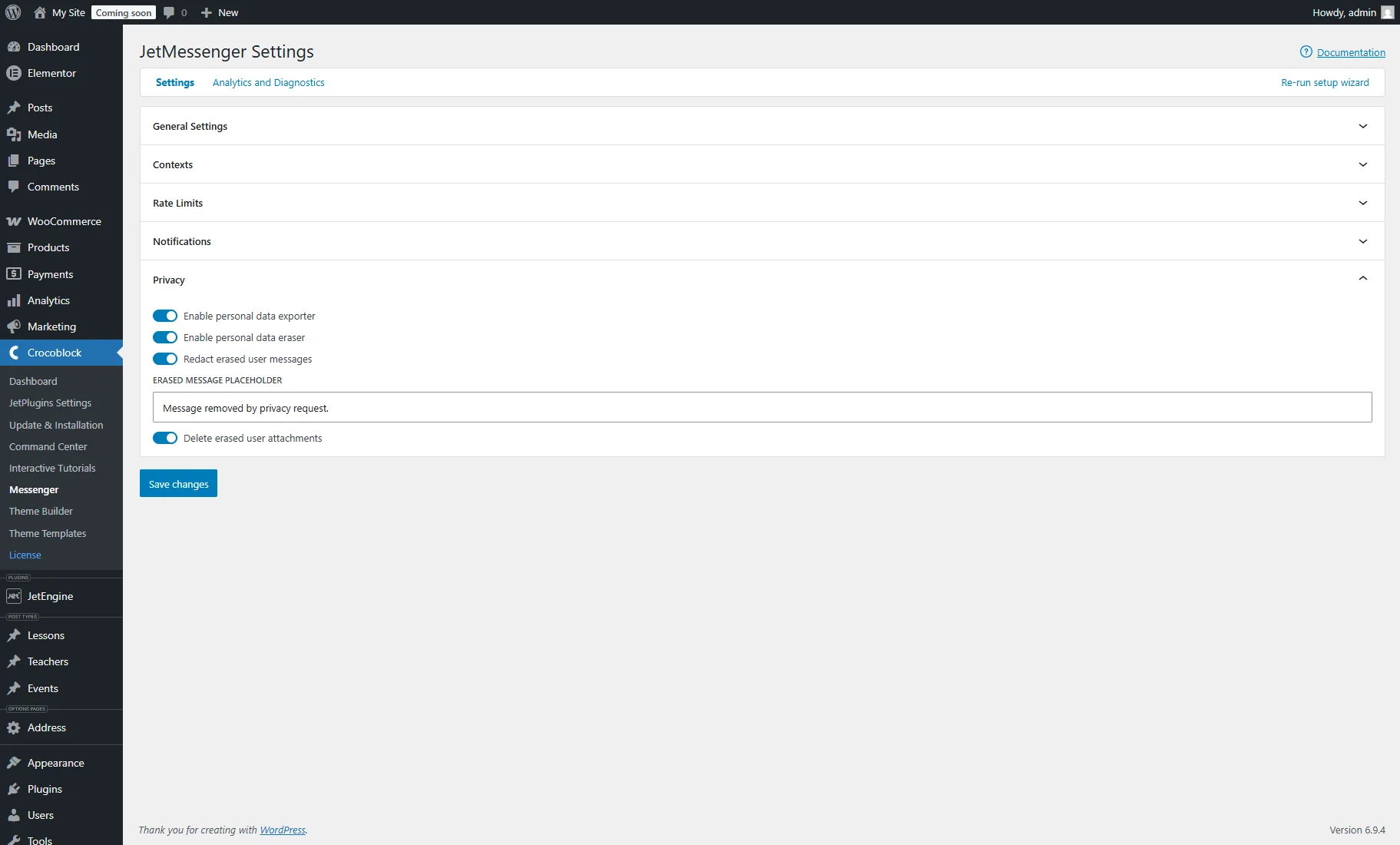
Available settings include:
- Enable personal data exporter — includes user chat data in WordPress personal data export requests;
- Enable personal data eraser — enables the automatic removal of chat data when a WordPress personal data erasure request is fulfilled;
- Redact erased user messages — replaces deleted messages with a placeholder instead of removing them to preserve conversation structure;
- ERASED MESSAGE PLACEHOLDER — defines the specific text displayed in place of a deleted message (e.g., “Message removed by privacy request”);
- Delete erased user attachments — permanently deletes user-uploaded files and images when their data is erased.
Analytics & Diagnostic
The Analytics & Diagnostic tab provides an overview of the chat system’s performance and user engagement. It allows monitoring communication trends over specific periods, helping to understand how customers interact with the site.
This tab contains the “Copy support snapshot” button on the top-right side of the page that generates a technical overview of the current setup, which can be shared with the support team for faster troubleshooting, such as:
- Plugin version and WordPress/PHP versions;
- Enabled contexts (where chats work);
- Analytics summary (counts of chats, messages, attachments, etc.);
- Date range used for analytics;
- System diagnostics status (e.g., “needs_attention”).
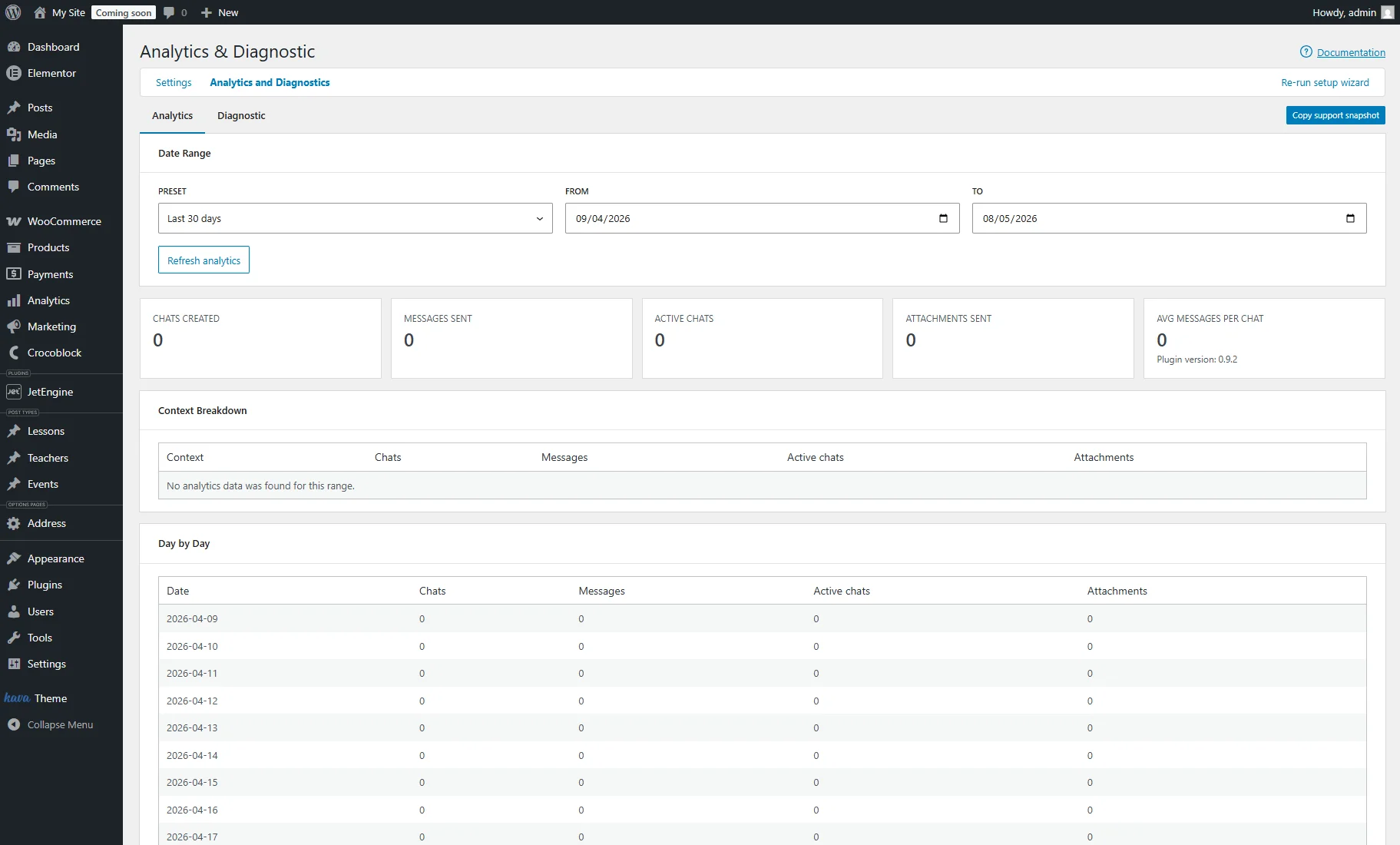
Available Analytics settings include:
- Date Range — allows filtering data using PRESETS (e.g., “Last 30 days”) or by selecting custom FROM and TO dates;
- Refresh analytics — a button that updates the dashboard to display the most current data for the selected range;
Lower on the page, cards display total counts for CHATS CREATED, MESSAGES SENT, ACTIVE CHATS, ATTACHMENTS SENT, and the AVERAGE MESSAGES PER CHAT.
- Context Breakdown — a table that categorizes engagement data by specific context types, such as Posts or WooCommerce Orders;
- Day by Day — a chronological log that tracks chat activity on a daily basis, useful for identifying peak engagement times.
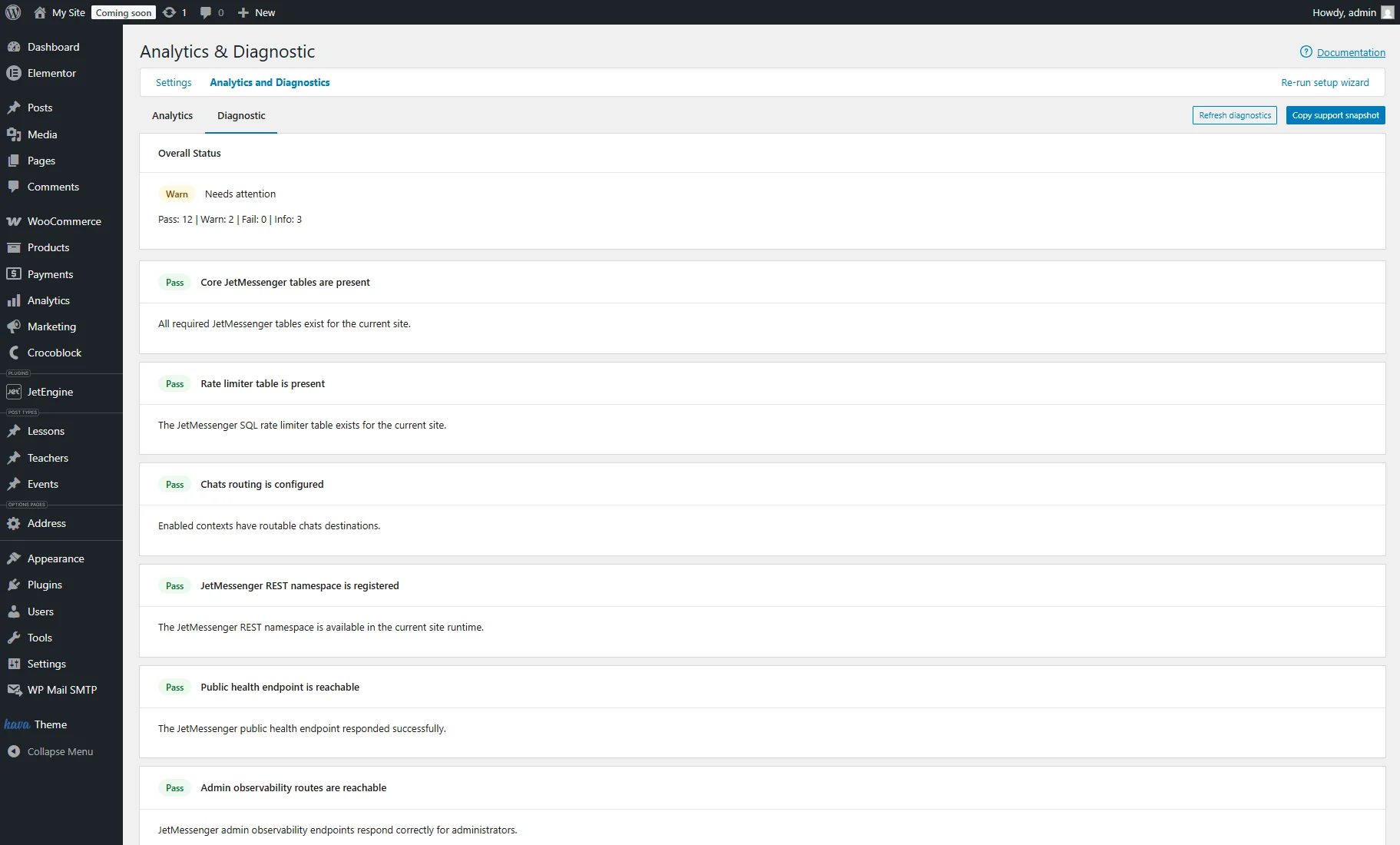
The Diagnostic tab provides a real-time health check of the JetMessenger system. It monitors database tables, configuration settings, and server-side requirements to ensure the chat functionality is running correctly.
Additionally to “Copy support snapshot,” this tab contains the “Refresh diagnostics” button in the top-right corner. It manually triggers a new system scan to update the status after changes are made.
FAQ
No, for Woo Orders, enabling the context isn’t enough — if the button toggle is disabled, users simply won’t have a way to initiate the conversation from their order details. Unlike other contexts, this one strictly depends on that specific call-to-action button being active.
Yes, in the Rate Limits tab. To prevent spam or server strain, you can configure burst limits. The Burst Per Chat setting defines how many messages a user can send in rapid succession within one specific conversation, while the Burst Window (SEC) sets the “cool-down” period in seconds before they can send a quick-fire batch again.
In the Privacy section, you can enable automatic data removal for erasure requests, replace deleted content with a custom placeholder to preserve the conversation’s flow, and ensure all user-uploaded attachments are permanently deleted.
In the Analytics & Diagnostic tab, you can use the “Copy support snapshot” button. This generates a technical report including your plugin, PHP, and WordPress versions, active chat contexts, an analytics summary, and the current health status of your system diagnostics.
The Chat Created email event is turned off initially to prevent “noisy” inboxes. Since many new chats may be empty or accidental, keeping this disabled ensures that administrators or participants only receive emails when a New Message is sent.
That’s all. Now you know how to configure JetMessenger dashboard settings, including contexts, rate limits, notifications, privacy controls, analytics, and diagnostics in WordPress and WooCommerce.