
Macros Guide for WooCommerce
Learn how WooCommerce macros work and how to use them in JetEngine listings, single product pages, and queries to display dynamic product data in WordPress.
Before you start, check the tutorial requirements:
- WooCommerce plugin installed and activated
- JetEngine plugin installed and activated
With the JetEngine plugin, such WooCommerce macros are available: “Add to Cart Text,” “WC Product Title,” “WC Products in Cart,” “WC Products On Sale,” “WC Purchased Products.“
Like other JetEngine macros, these can be configured using the Macros Generator. Below, we describe their possible use cases.
Macros in Products Listing Template or Single Page
The first two macros can be used in the products Listing template or the Product Single page.
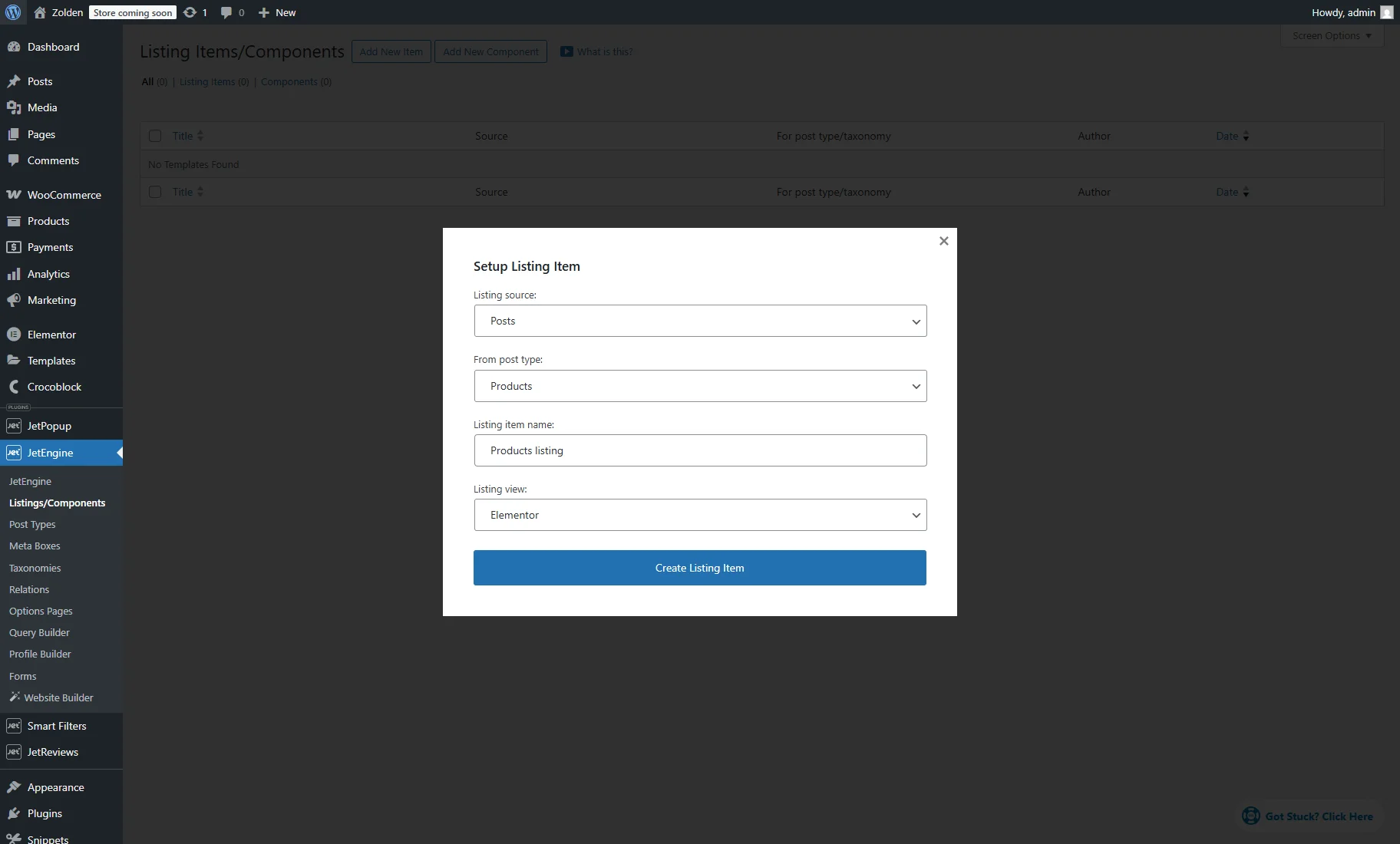
For example, to create a listing template, we proceed to the WordPress Dashboard > JetEngine > Listings/Components tab and press the “Add New Item” button.
In the Setup Listing Item pop-up, we pick the “Posts” option as the Listing source, set “Products” in the From post type field, enter the Listing item name, and choose the Listing view (for this case, we choose “Elementor”).
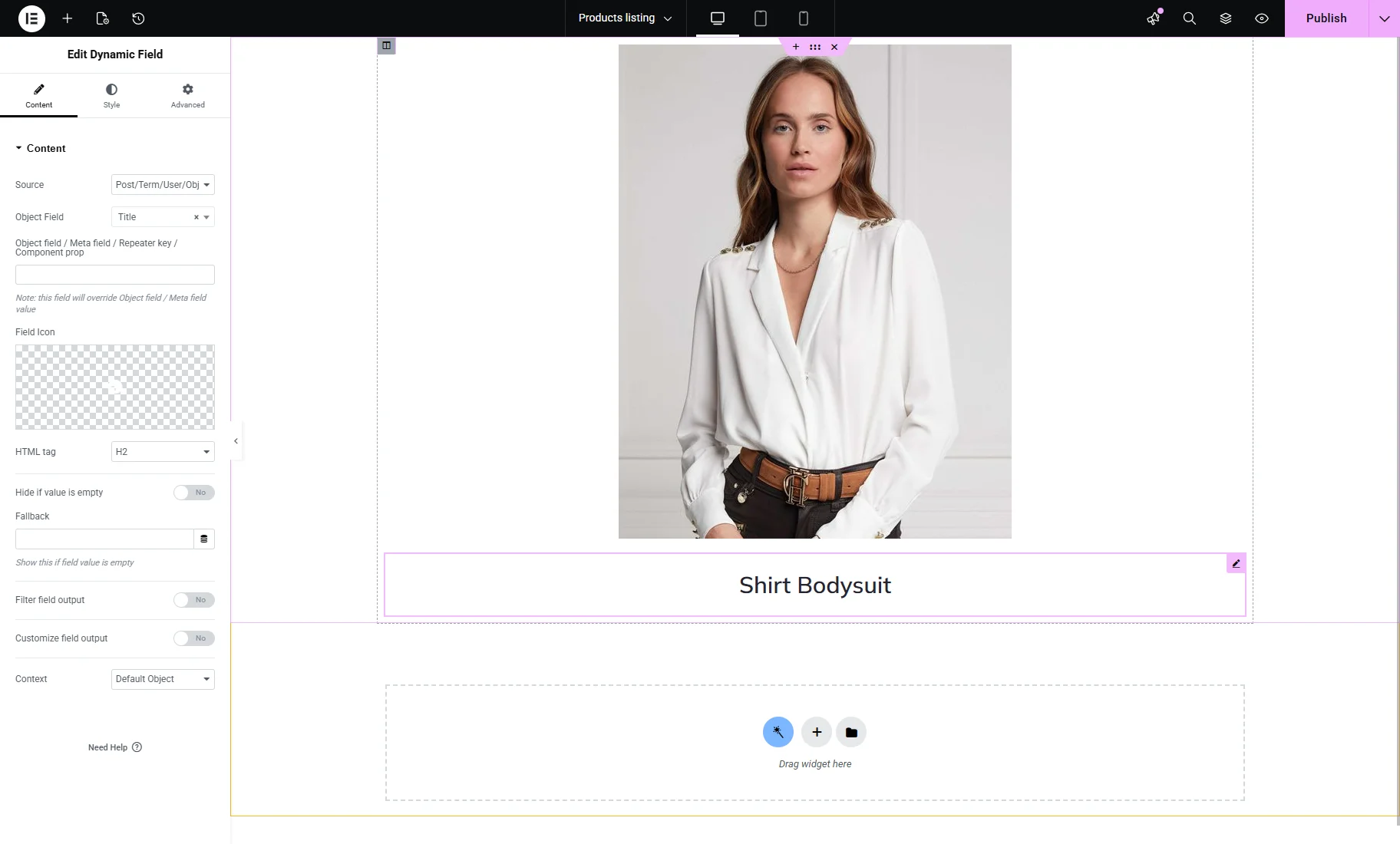
In the editor, we display the “Featured image” with the Dynamic Image and the product “Title” with the Dynamic Field.
Also, you can check the How to Build WooCommerce Products Listings with the Dynamic Tag tutorial to learn how to create a product listing with the Query Builder source.
The following macros can be used in the WooCommerce Products listing template or single page:
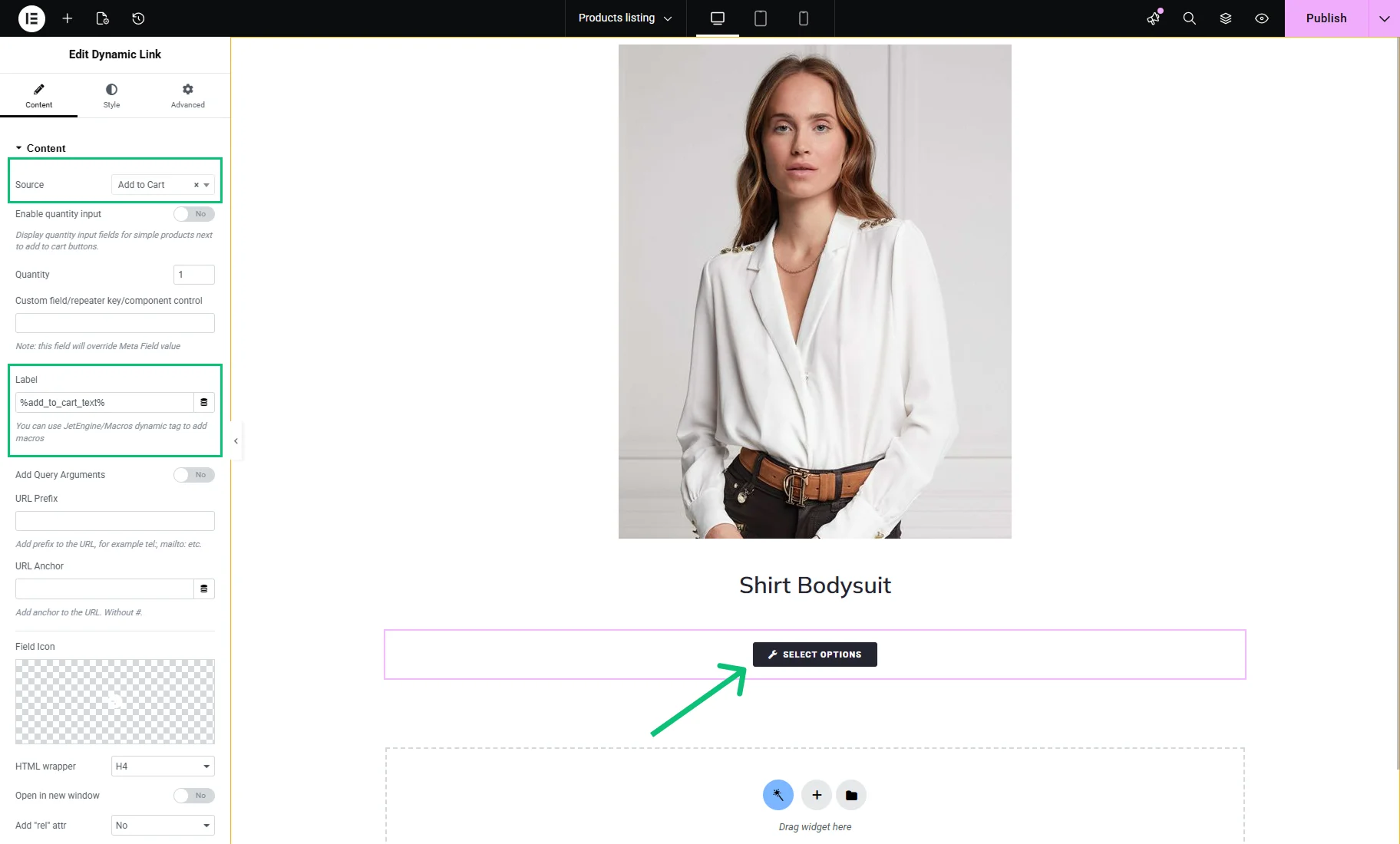
- %add_to_cart_text% (“Add to Cart Text”) — returns the text displayed on the “Add to Cart” button on WooCommerce products (‘Add to Cart,’ ‘Read More,’ etc.). Can be pasted in the Label field of the Dynamic Link widget. If the Source of the Dynamic Link is set as “Add to Cart,” it will function as an “Add to Cart” button;
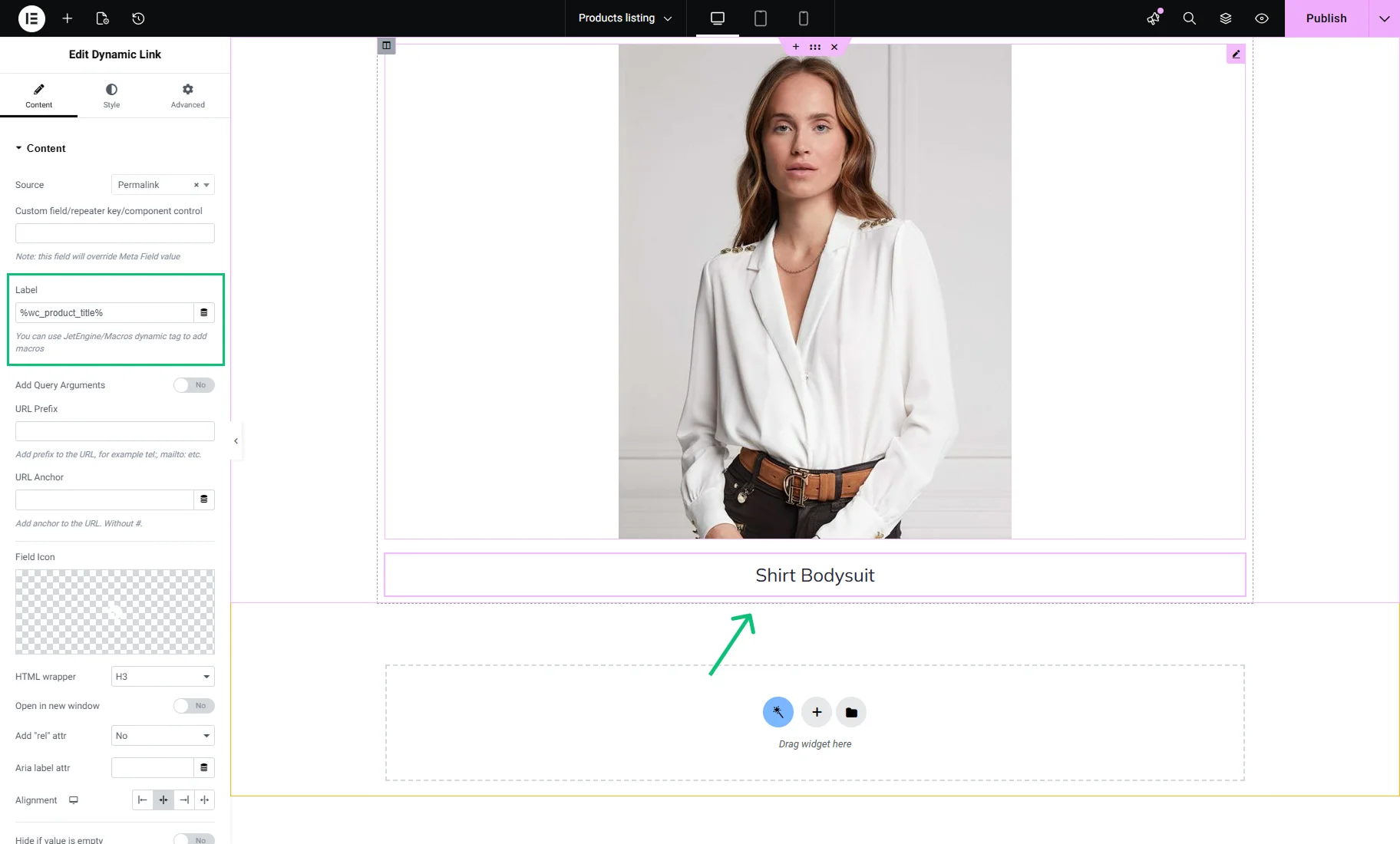
- %wc_product_title% (“WC Product Title”) — returns the title of a WooCommerce product and can be pasted into the Label field of the Dynamic Link. Alternatively, you can use the %title% macro, or click the “Dynamic Tags” (database) icon, select “WooCommerce Product Field,” and choose “Title” in the settings pop-up.
Macros in WC Product Query
Other WooCommerce macros can be used in the “WC Product Query” created with the JetEngine Query Builder.
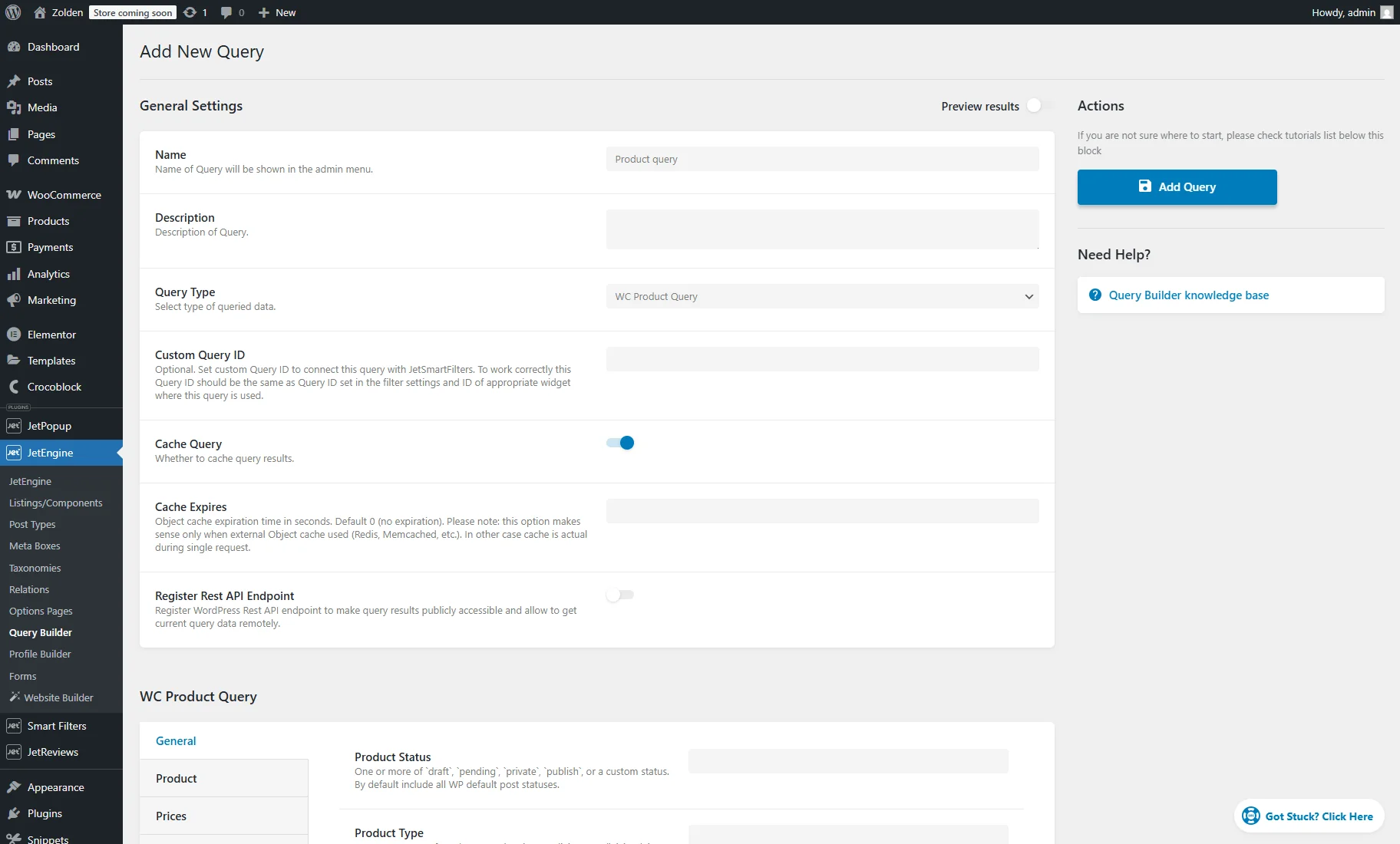
Scroll down to the WC Product Query > General tab and press the “database” icon near the Include field to open the macros list:
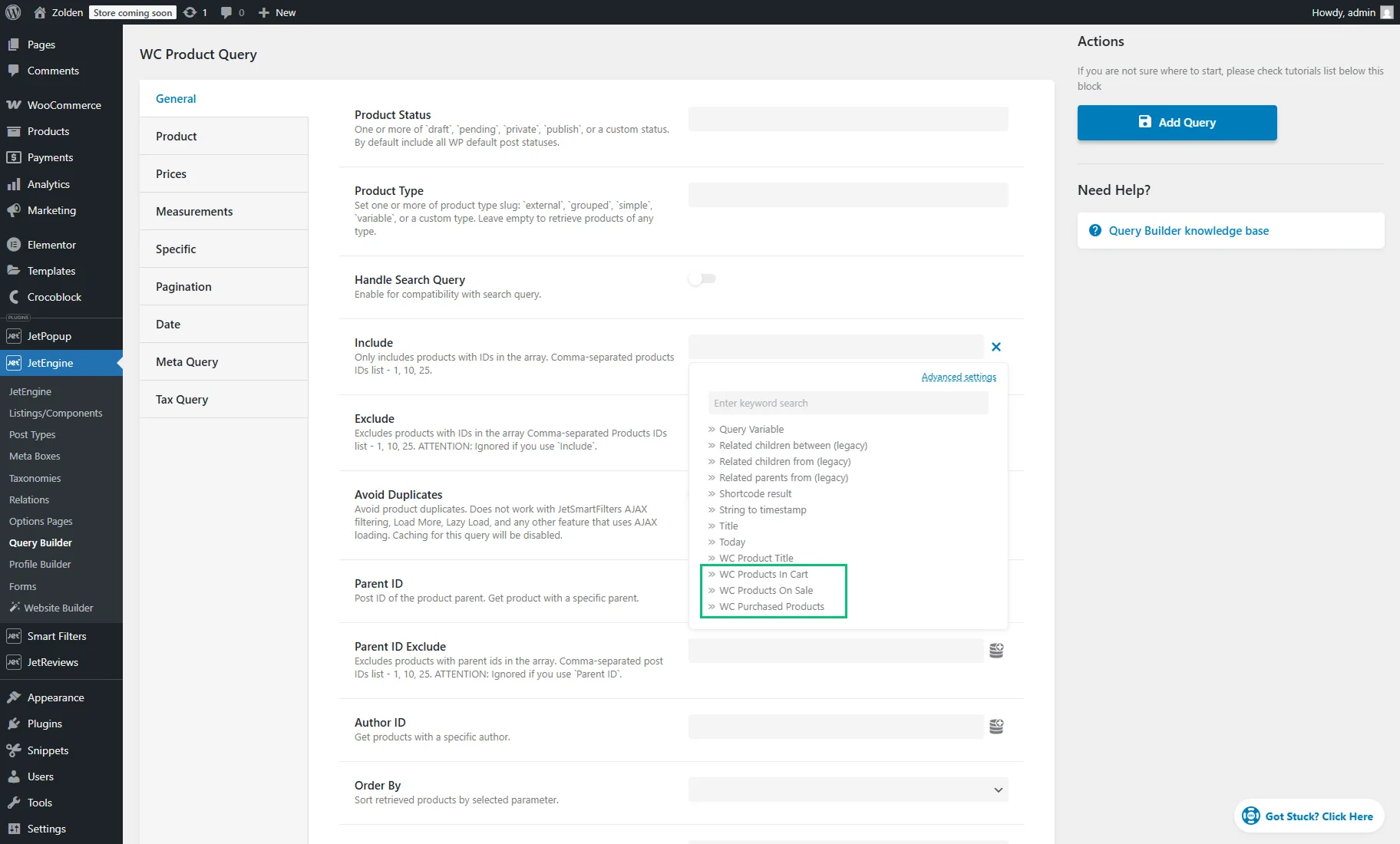
- %wc_get_products_in_cart% (“WC Products in Cart”) — returns the IDs of products that are added to the cart;
- %wc_get_products_on_sale% (“WC Products On Sale”) — fetches the IDs of all WooCommerce products currently on sale;
- %wc_purchased_products% (“WC Purchased Products“) — retrieves a list of products that a logged-in user has previously purchased.
That’s all. Now you know how WooCommerce macros work and how to use them in JetEngine listings, single product pages, and queries to display dynamic product data in WordPress. Additionally, you can check the general Macros Guide for JetEngine and other Crocoblock plugins.