

Multi-Day Calendar Widget Overview
Discover how to add and set up the Multi-Day Calendar widget from the JetEngine WordPress plugin to display the advanced events layout.
The Multi-Day Calendar widget offers a new layout that is not available within the Dynamic Listing Calendar widget. Unlike the Dynamic Listing Calendar, the Multi-Day Calendar allows customization of the Listing Item to one’s needs, with no limits, so the item can span several cells. Additionally, several events can be displayed in one cell.
Check our video tutorial for the Multi-Day Calendar widget overview and to discover how to fix the multi-day booking issue and to connect start/end date meta fields.
Enable the Dynamic Calendar Module
First, the Dynamic Calendar module should be enabled in WordPress Dashboard > JetEngine > JetEngine > Modules > Default Modules.
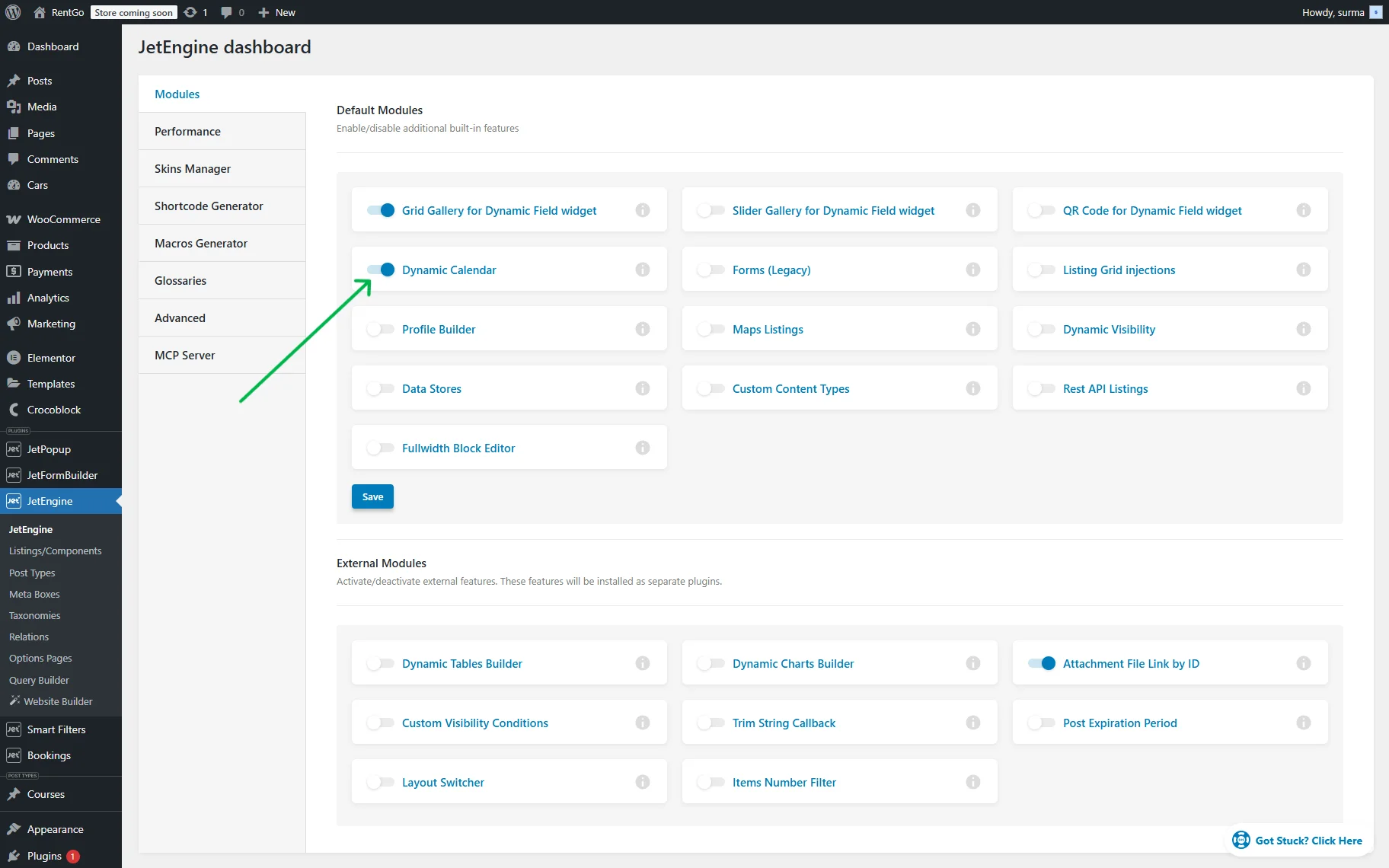
The “Save” button should be clicked.
General Settings
The Multi-Day Calendar widget can be added to the edit page.

In the General tab, the following settings are presented:
- Listing to open — from this dropdown, the listing item that will be used to display the full event content in the pop-up by clicking the event badge in the calendar can be selected;
- Group posts by — in this selection, one can choose whether the posts in the widget will be grouped by the “Post publication date”, “Post modification date”, “Date from custom field”, “Query Item creation date”, or “Booking date”;
- Meta field name — this field appears when the “Date from custom field” option is selected in the Group posts by dropdown. In the input, the Date field’s name should be added;
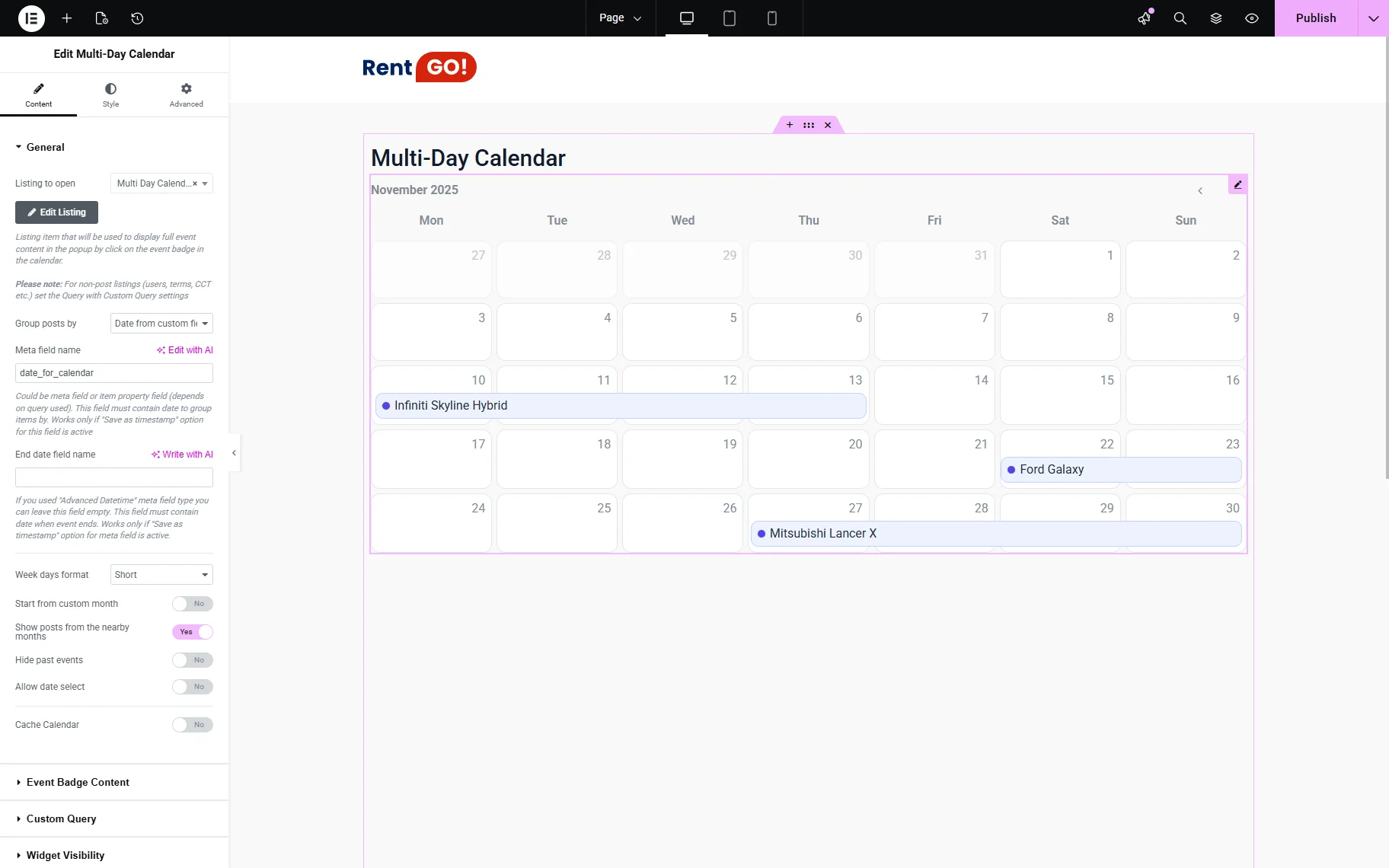
- End date field name — in case a separate field for the end date exists, its name should be entered in this input;
- Week days format — defines how to display day names:
- Full — by full format (e.g., “Monday”);
- Short — short format (e.g., “Mon”);
- Initial letter — initial letter only (e.g., “M”).
- Start from custom month — if activated, it allows selecting a specific month and year that the calendar will show by default after uploading the page;
- Show posts from nearby month — if enabled, this option displays posts from overlapping weeks. When a specific month is shown, it includes part of the last week of the previous month and the first week of the following month;
- Hide past events — if activated, it shows only events that will happen in the future;
- Allow date select — when enabled, it activates the month and year selectors. Additionally, it enables the Min select year and Max select year fields, where such values can be used: static years (e.g., “1970” and “2038”), strings (e.g., “+3years”, “-1year”, “this year”), and JetEngine macros;
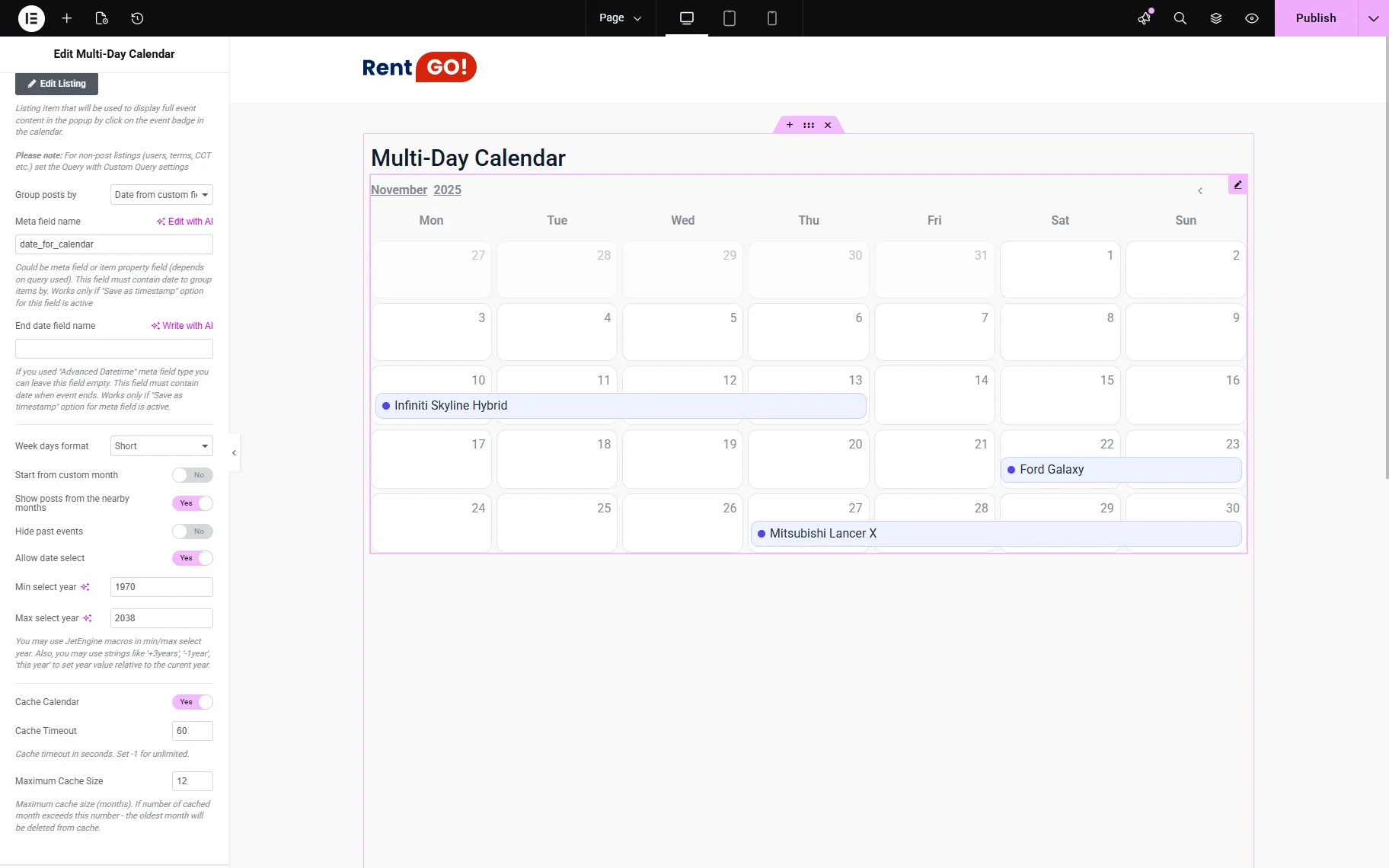
- Cache Calendar — if activated, enables such options:
- Cache Timeout — a field where the cache timeout in seconds can be set (e.g., “60”). “-1” value can be inserted for unlimited;
- Maximum Cache Size — a field where the maximum cache size in the number of months can be set (e.g., “12”). If the number of cached months exceeds this limit, the oldest month will be removed from the cache.
Event Badge Content
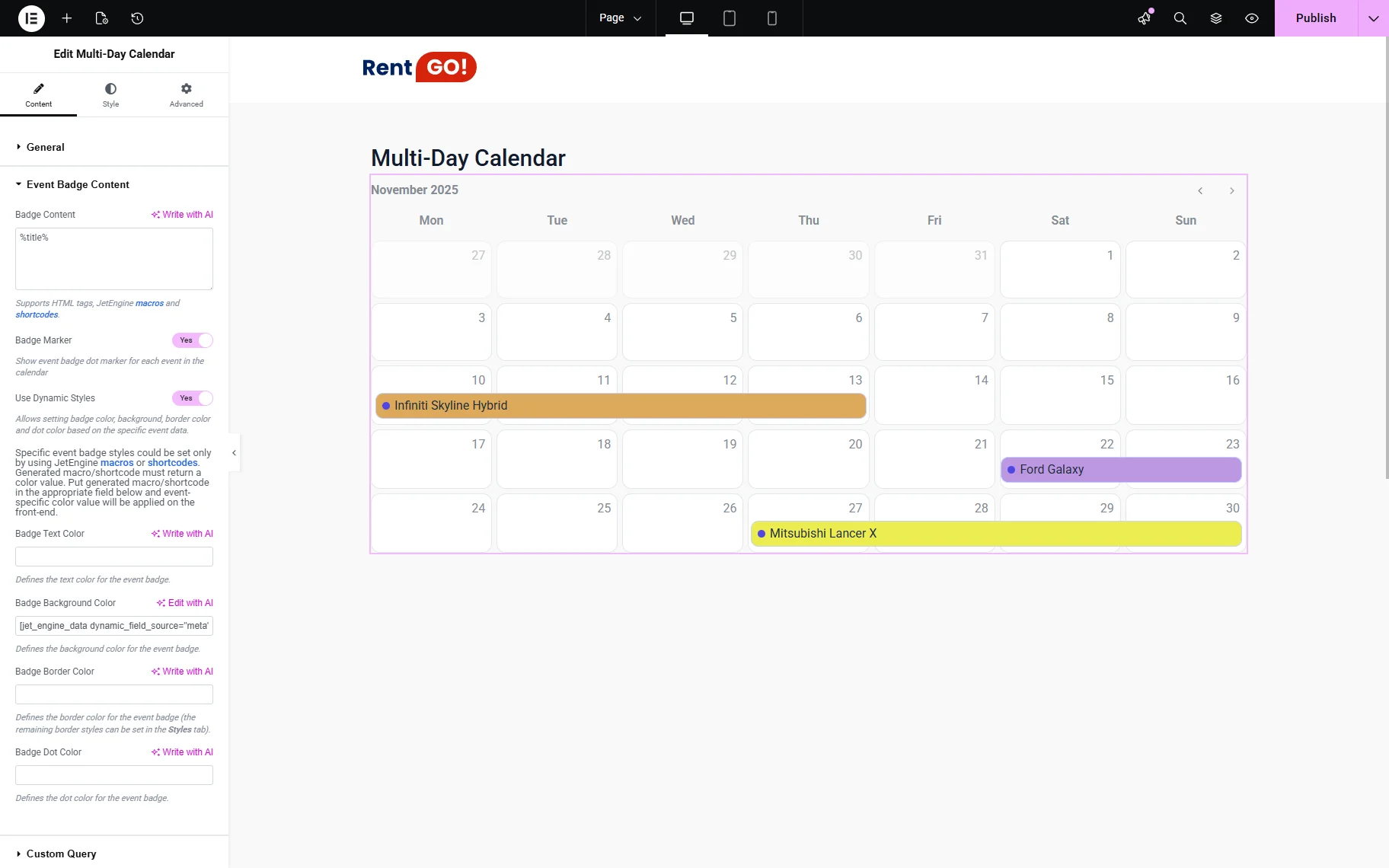
In the Event Badge Content tab, the content of the event shown in the calendar can be set. The following settings are offered:
- Badge Content — in this input, one can set all the content of the badge in the calendar. The input supports HTML tags, JetEngine macros, and shortcodes;
- Badge Marker — the toggle allows one to show the event badge dot marker for each item in the calendar;
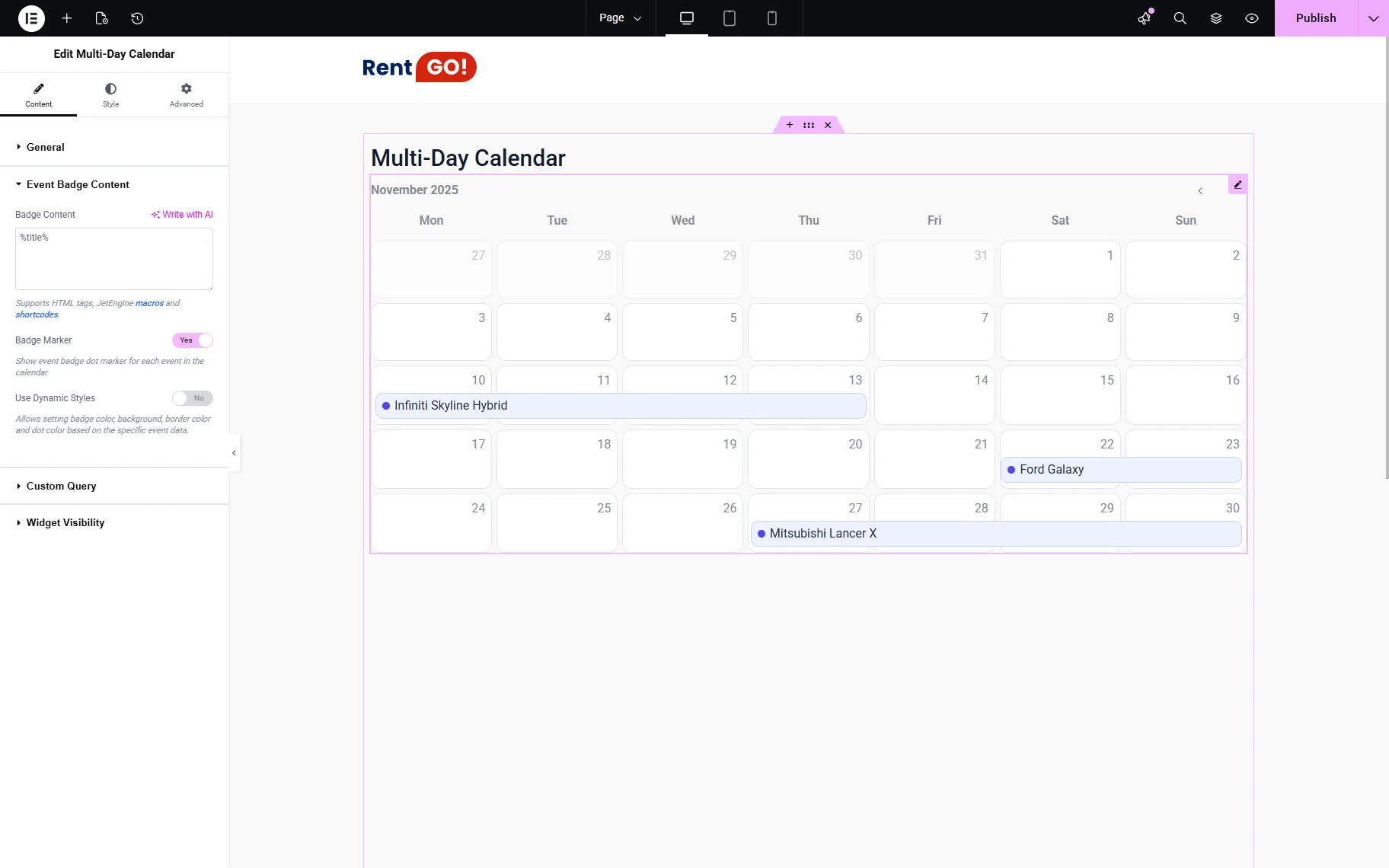
- Use Dynamic Styles — the toggle lets one set the badge color, background, border color, and dot color based on the specific event data. Specific event badge styles could be set only by using JetEngine macros or shortcodes. The generated macro/shortcode must return a color value. When it is enabled, the following settings open:
- Badge Text Color — defines the text color for the event badge;
- Badge Background Color — defines the background color for the event badge;
- Badge Border Color — defines the border color for the event badge;
- Badge Dot Color — defines the dot color for the event badge.
Custom Query
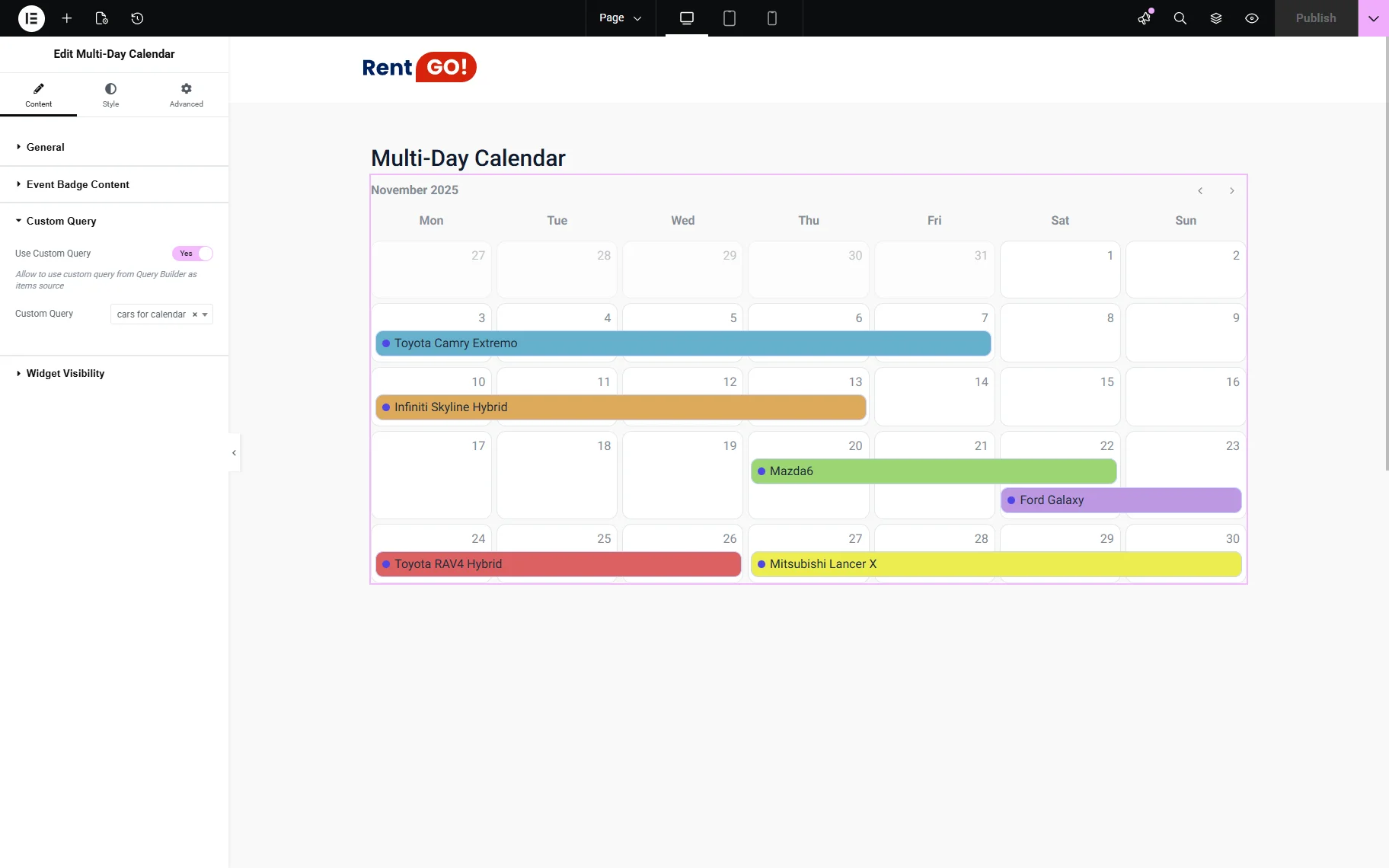
The Custom Query tab offers to use the custom query created by JetEngine as the source for calendar events.
- Use Custom Query — allows the use of a custom query from the Query Builder as an item source;
- Custom Query — provides the list of available queries to select.
Widget Visibility
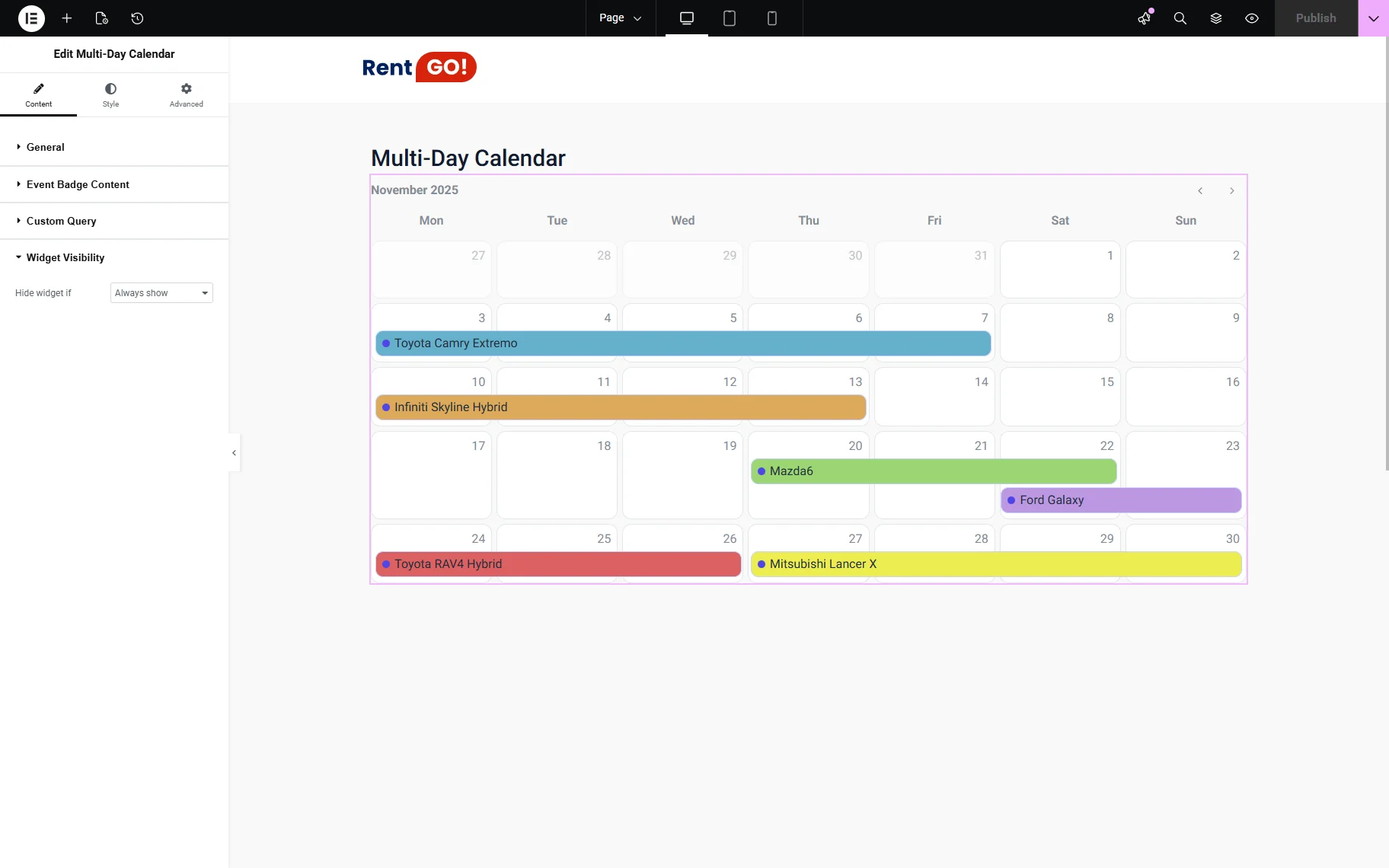
The Widget Visibility section contains the Hide widget if dropdown menu with the “Always show” and “Query is empty” options.
Style Settings
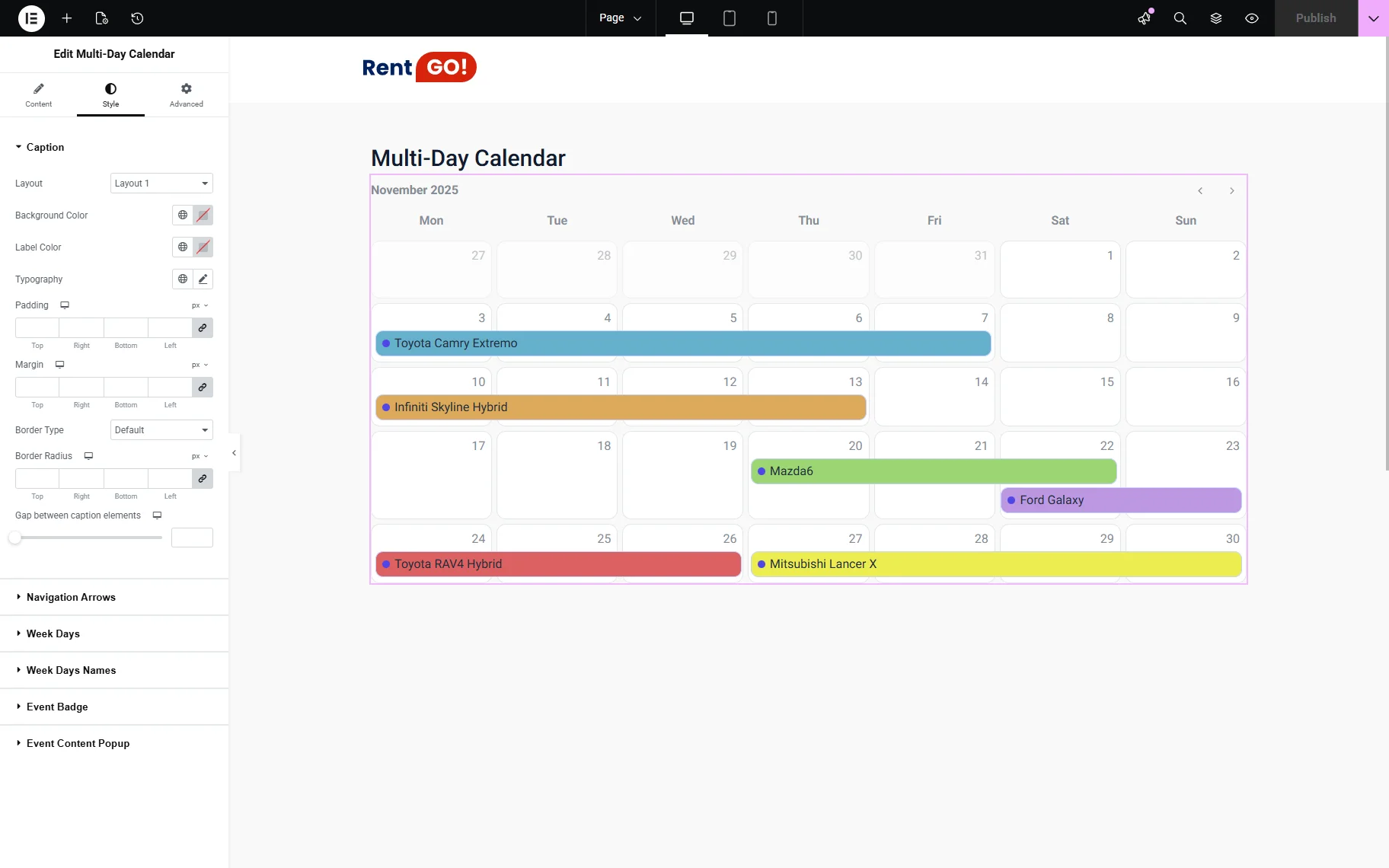
The Style settings tab of the Multi-Day Calendar widget lets one customize the caption, navigation arrows, weekdays, weekday names, event badges, and event content pop-ups.
That’s it for creating and setting up the Multi-Day Calendar widget from the JetEngine WordPress plugin, which allows displaying the advanced events layout.