
Showing User Age in the Listing Grid via Calculated Callback Add-on
Learn how to calculate the difference between years and display the user’s age or experience without forms and specific fields using the JetEngine’s Calculated callback add-on for WordPress.
Before you start, check the tutorial requirements:
- Elementor (Free version), Block editor (Gutenberg), or Bricks
- JetEngine plugin installed and activated with the Profile Builder Module enabled and the free Calculated callback add-on installed and activated
This tutorial exemplifies a case of calculating and displaying the user-associated data on the front end without using forms and specific fields. In particular, here we use a code that adds a new callback to the Dynamic Field widget to display the user’s experience (in years) on the front end using a value inserted previously into a “Date” meta field.
Create a Meta Box for Users
First, move to the WordPress Dashboard > JetEngine > Meta Boxes directory. The “Add New” button at the top of the page allows one to add a new meta box.
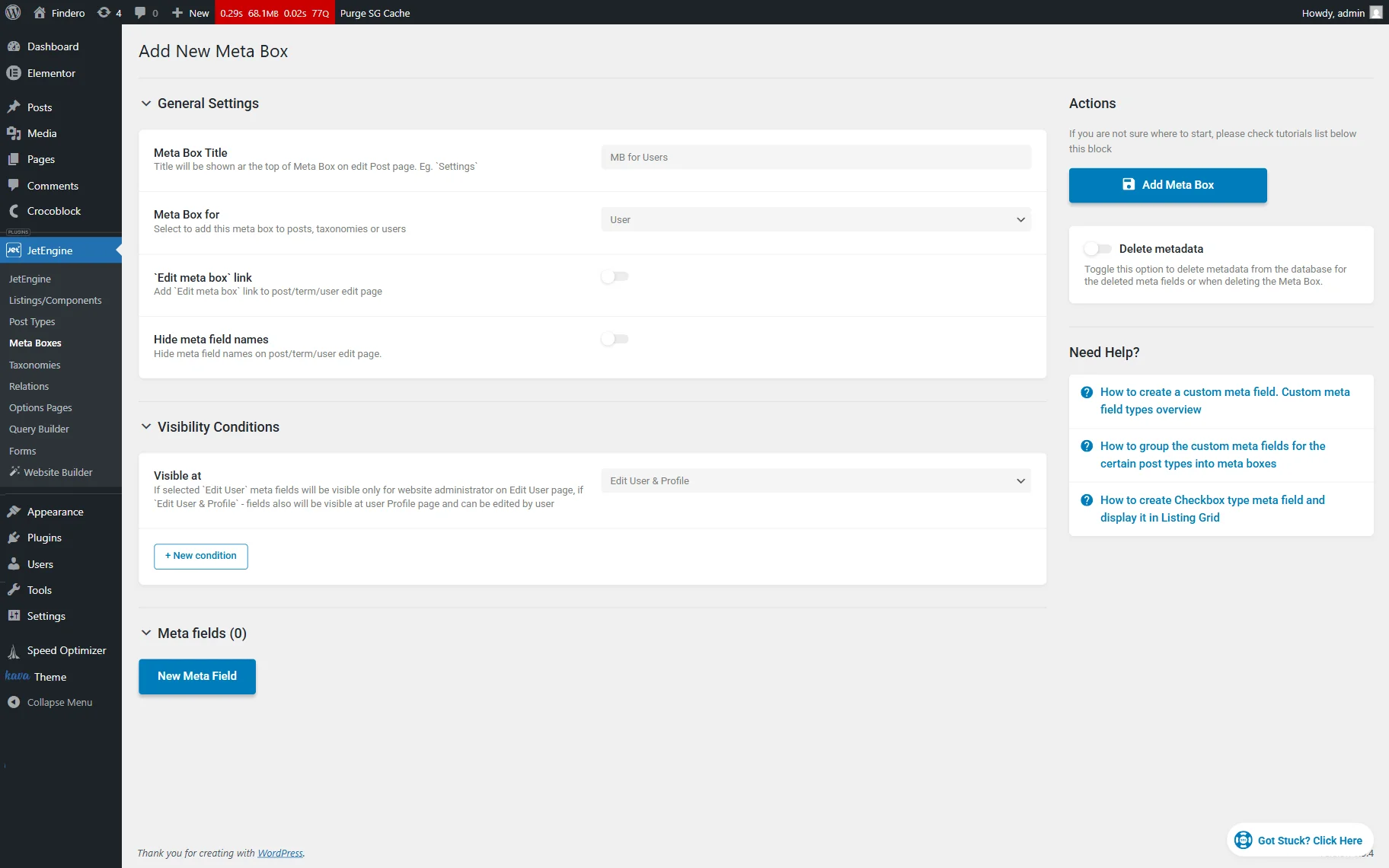
Here, first fill out the Meta Box Title text field (we type “MB for Users”), next set the “User” Meta Box for, and move to the Visibility Conditions section to specify the “Edit User & Profile” option in the Visible at drop-down list.
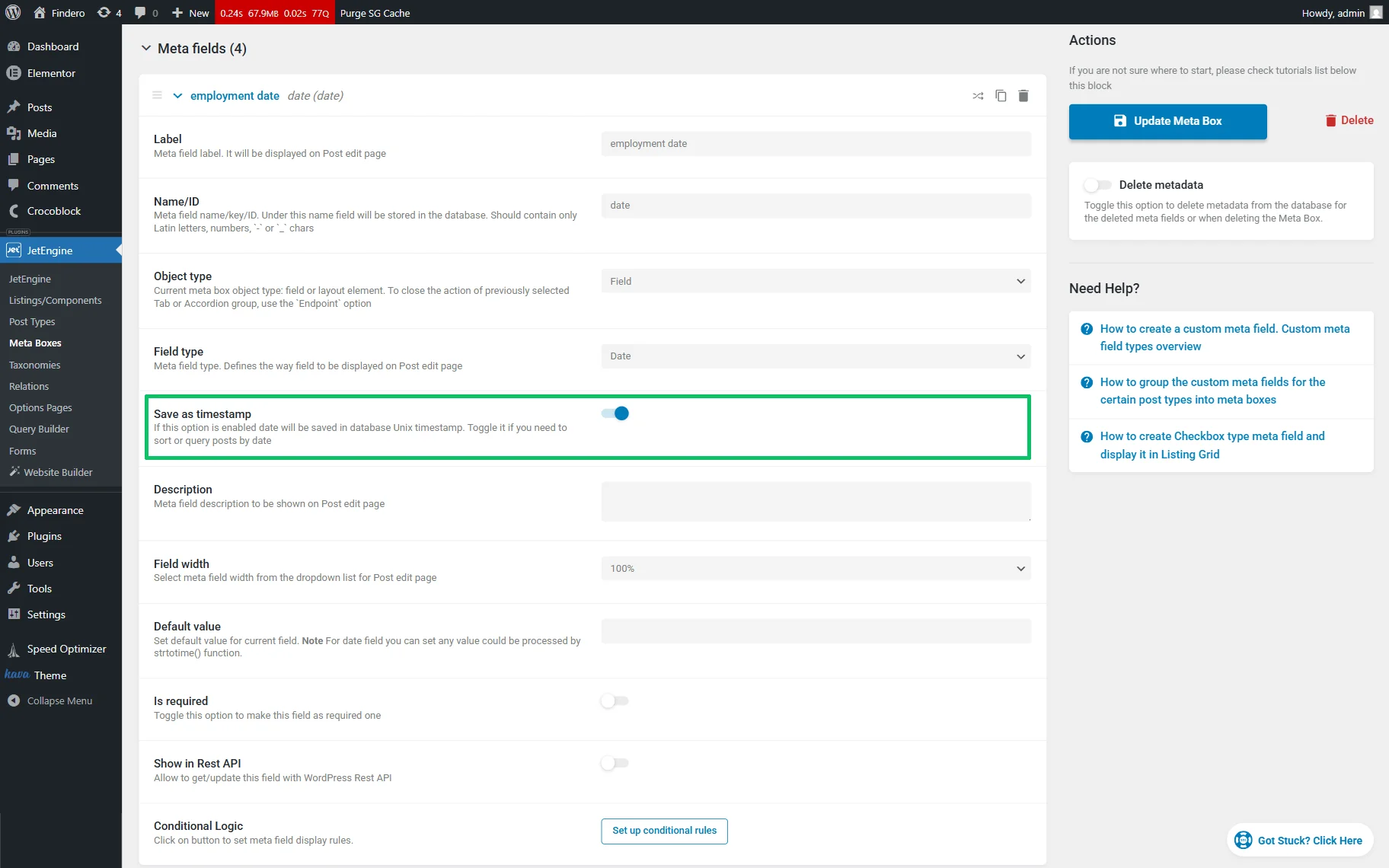
After that, move to the Meta fields section and press the “New Meta Field” button. Here, create a “Date” meta field: fill out the Label text field (we type the “employment date”), set the “Date” Field Type, and enable the Save as timestamp toggle.
If needed, add other meta fields to the Meta Box.
After that, save the changes by pressing the “Create/Update Meta Box” button.
The How to Apply Meta Boxes to Users tutorial provides you with more details about configuring the user profile’s settings
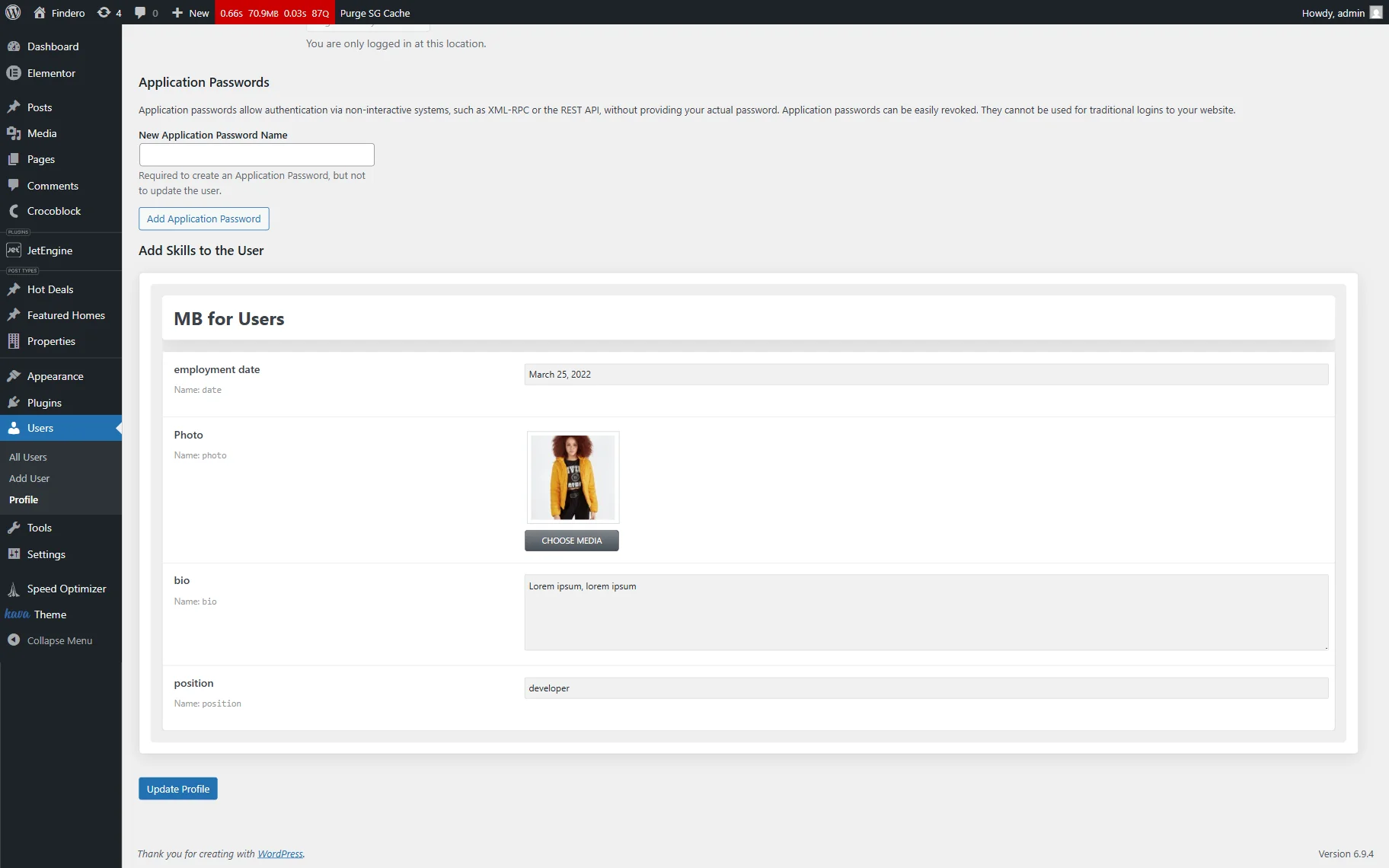
In the last step, move to the WordPress Dashboard > Users > All Users tab and click the “Edit” button under the needed user or create a new one. Among the other default settings at the bottom of the page, you will see the meta fields you created previously. Fill in the fields with the appropriate information and click the “Update Profile” button.
Download and Activate the Add-on
First, navigate to the Crocoblock Dev Tools page to observe all available add-ons.
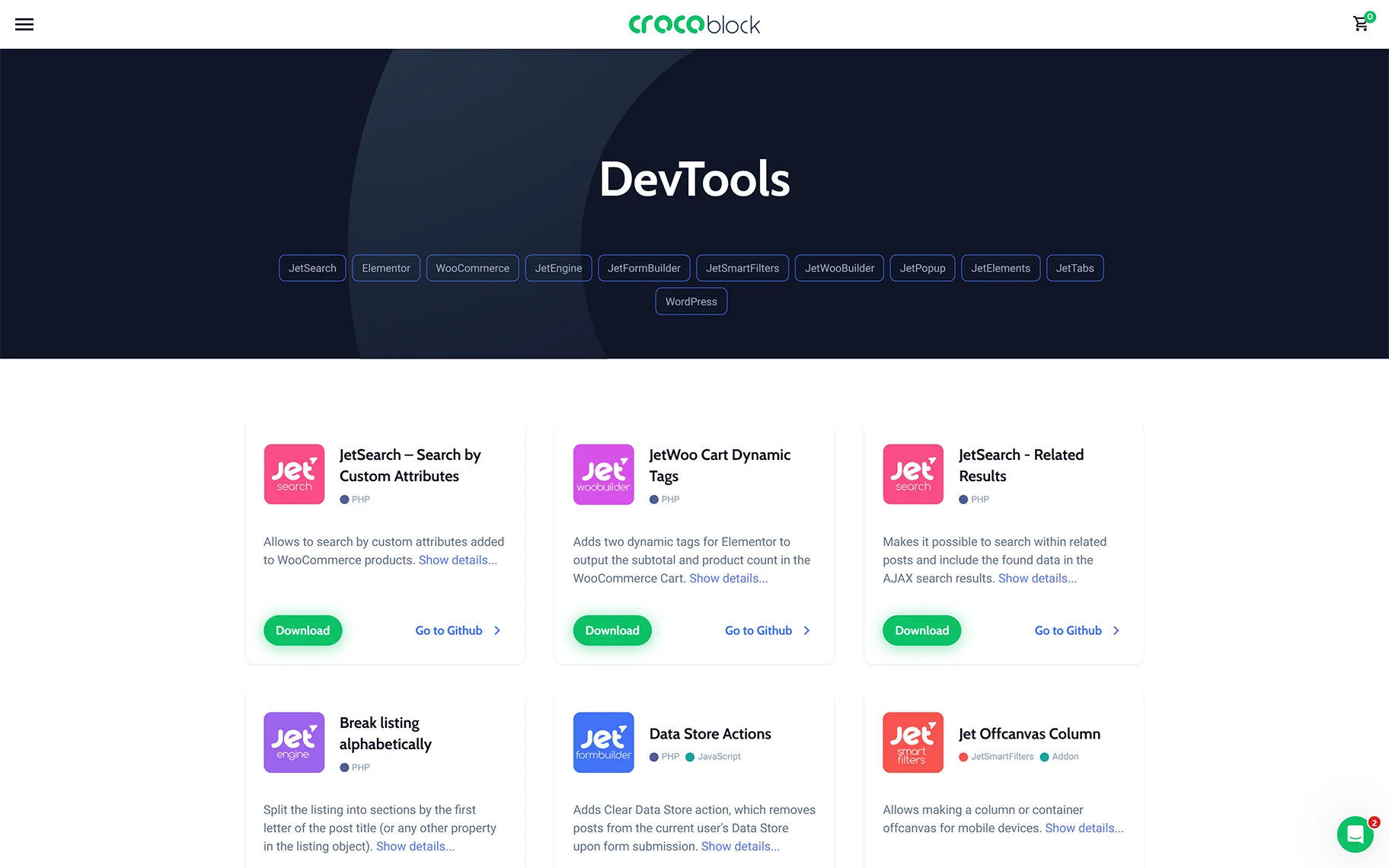
On this page, you can find the Calculated callback add-on, or click the JetEngine tab to download it there.
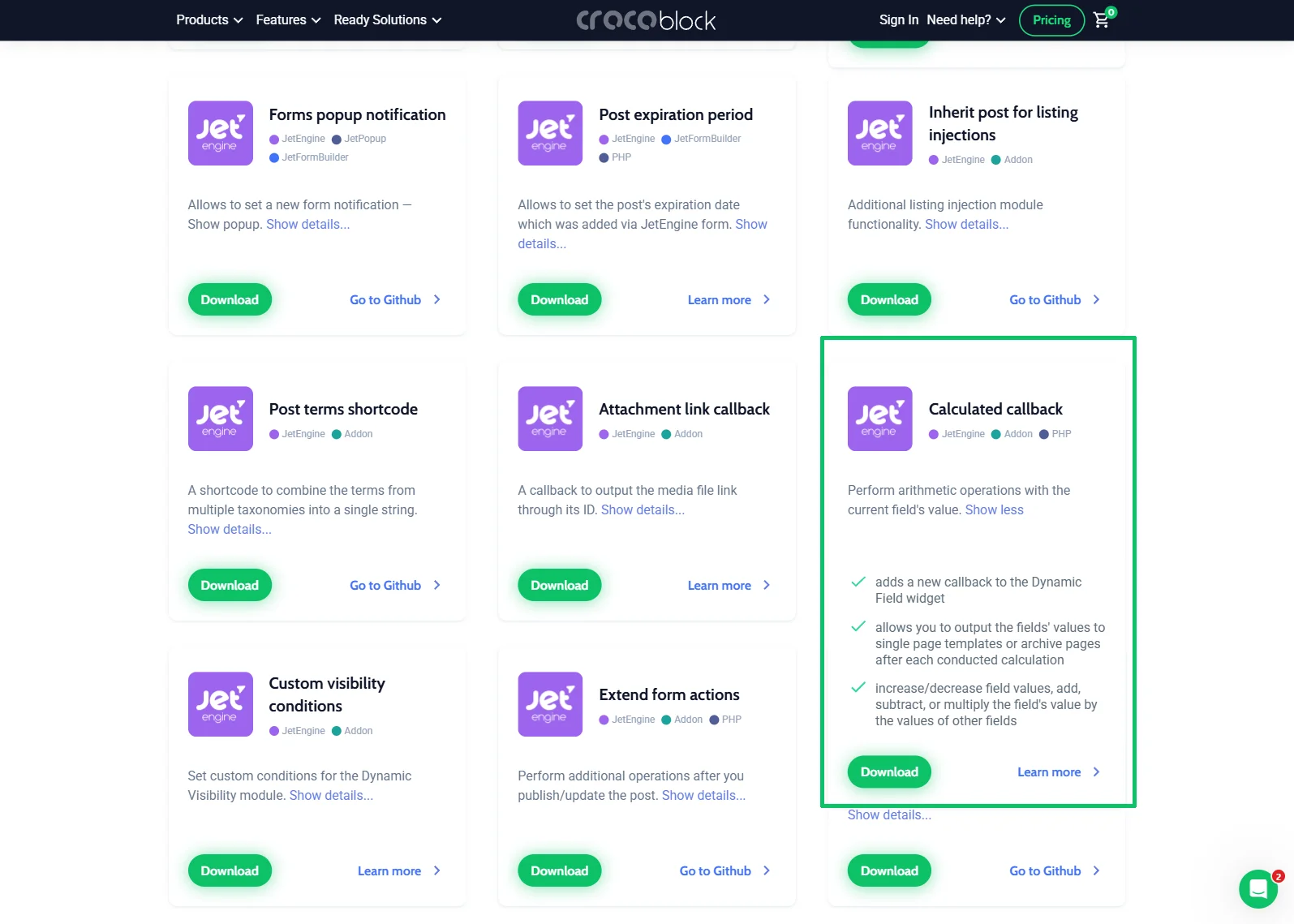
After that, install and activate the add-on as any WordPress plugin. Read more details in the How to Install Plugins Manually and How to Install JetPlugins via WordPress Dashboard tutorials.
Add the Code
Next, head to the WordPress Dashboard > Appearance > Theme Editor and paste the code at the end of the Theme Functions file of your active WordPress theme.
add_filter( 'jet-engine-calculated-callback/config', function( $callbacks = array() ) {
          $callbacks['DOB'] = function( $field_value ) {
                $dob = getdate($field_value);
        $today = getdate();
        $year_diff = $today['year'] - $dob['year'];
        if ($today['mon']>$dob['mon'] || ($today['mon']==$dob['mon'] && $today['mday']>=$dob['mday'])){
           return $year_diff;

        }


        return $year_diff-1;

  };


  return $callbacks;

} );
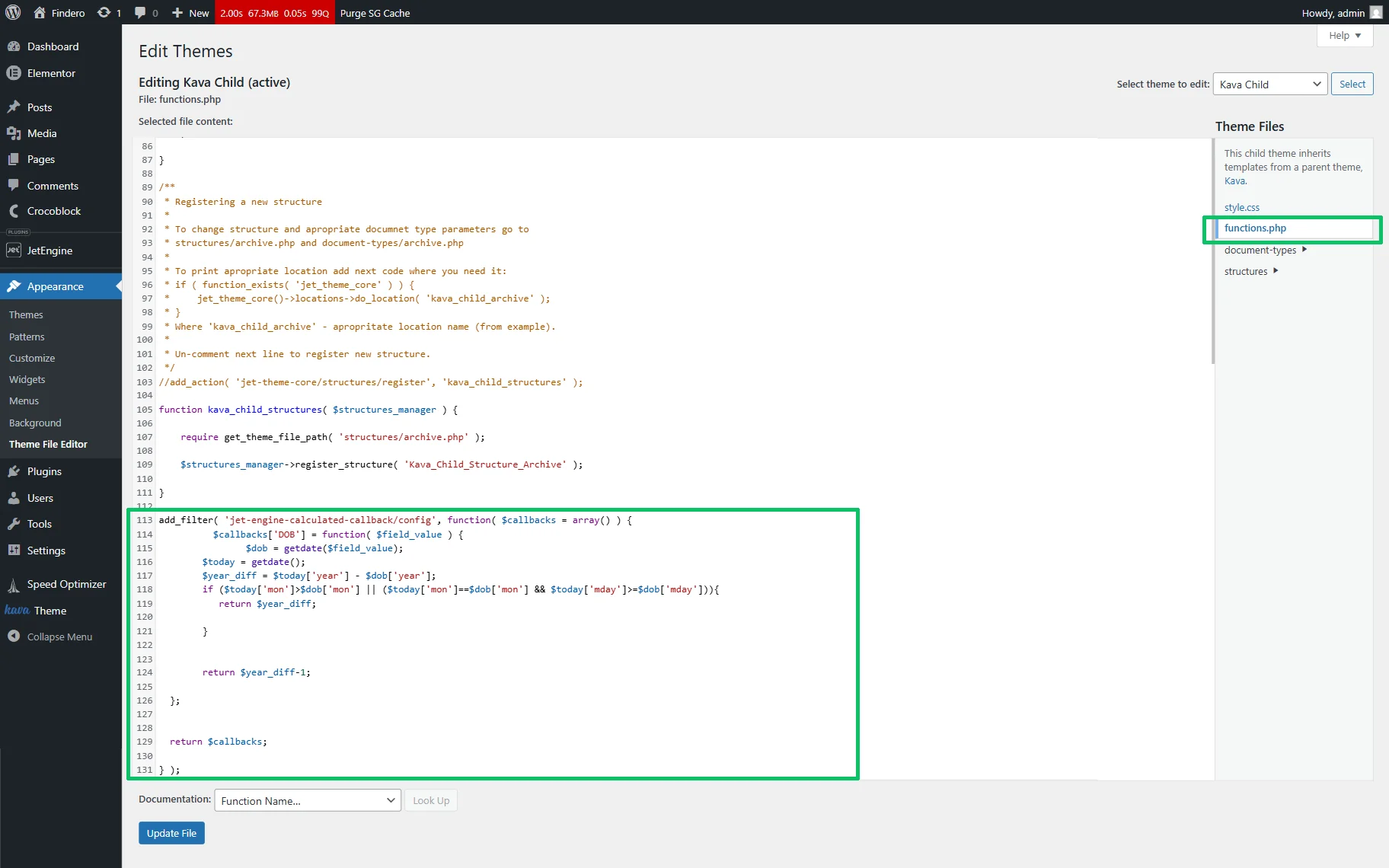
In this code, one can edit the callback name by typing it instead of the ‘DOB’ text.
Finally, once completed, press the “Update File” button.
Apply the Callback
Proceed to WordPress Dashboard > JetEngine > Listings/Components and click the “Add New” button. Select the “Users” option in the Listing source field. To create a “User Type” Listing, enter the specific name and choose the “Elementor” option in the Listing View field.
Then, add the Dynamic Field widget and configure the following settings: first, enable the Filter field output toggle; next, select the “Calculated field” Callback, and after that, choose the callback added via the code in the Calculated callbacks drop-down list (the ‘DOB’ callback, according to its name in the code).
In the last step, enable the Customize field output toggle and insert the needed text in the appeared Field format field.
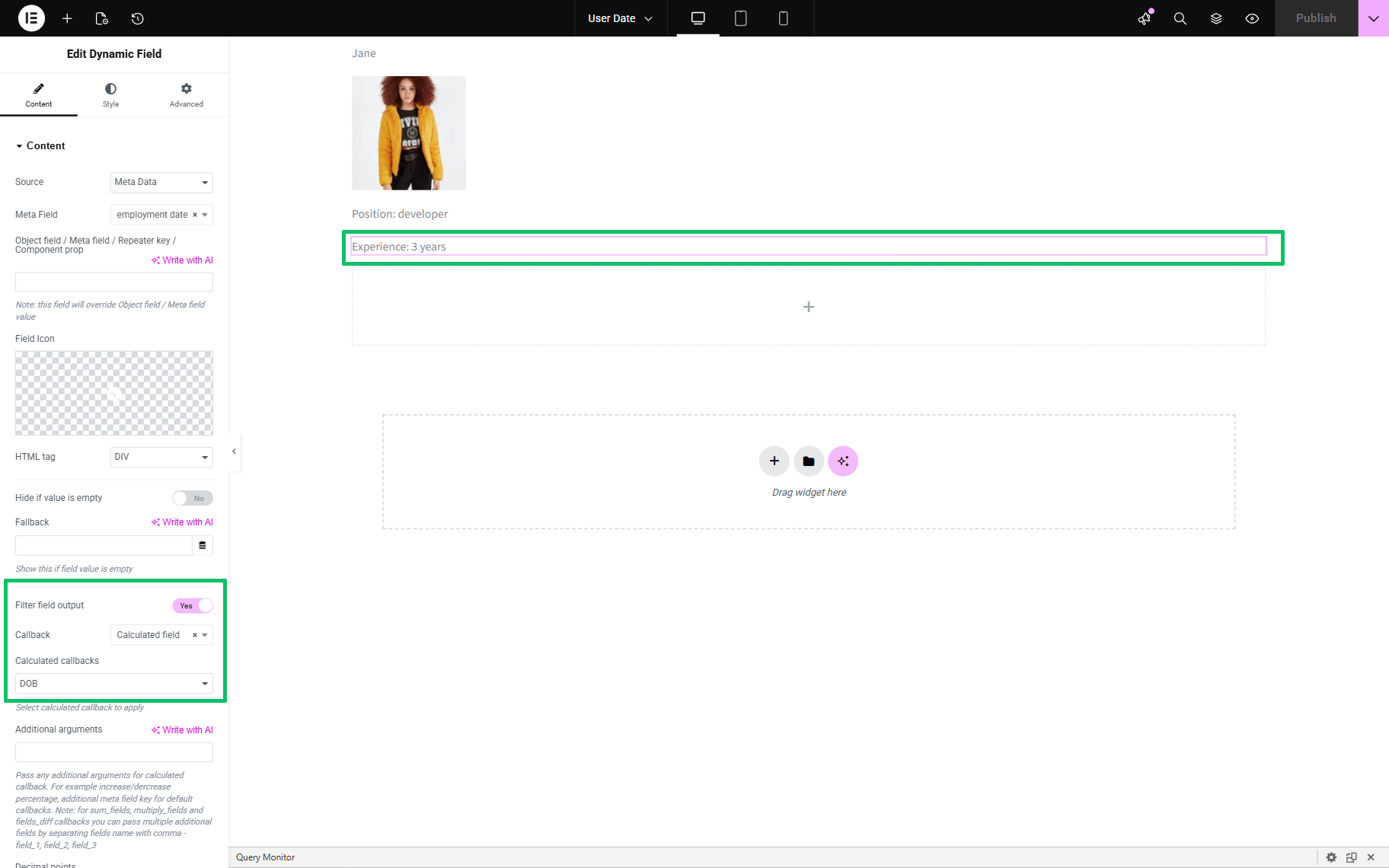
Finally, publish the listing.
That’s it. Now you know how to calculate the difference between years and display the user’s age or experience without forms and specific fields using the JetEngine’s Calculated callback addon for WordPress.