
What to Do When the Dynamic Templates Installation Stucks
What should I do when the Dynamic Template installation gets stuck?
If you encounter an issue where the installation process becomes stuck at the Importing Sample Data stage and the progress bar fails to fill, follow these steps.
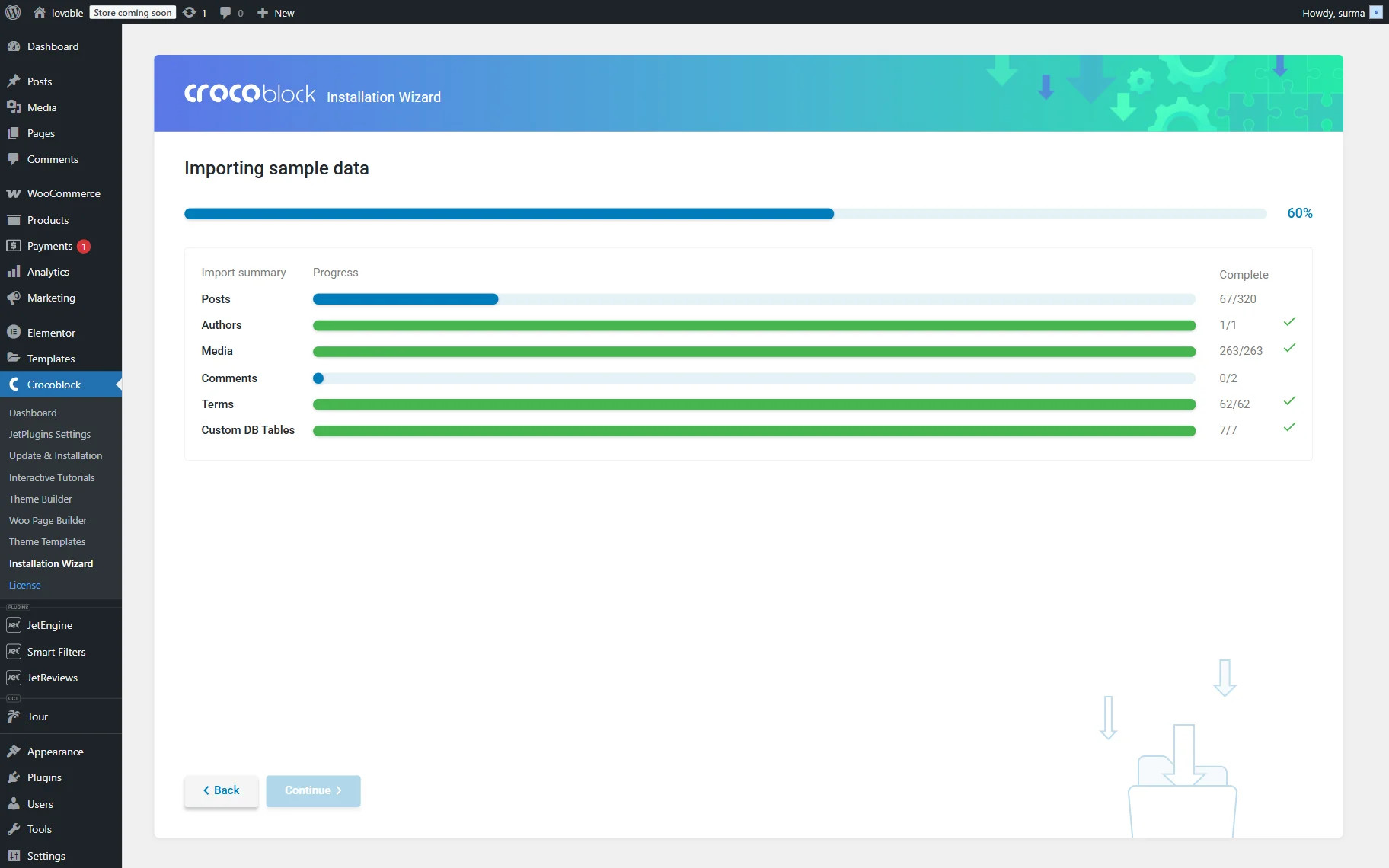
First, try to deactivate all third-party plugins – ensure that the Crocoblock Wizard remains activated.
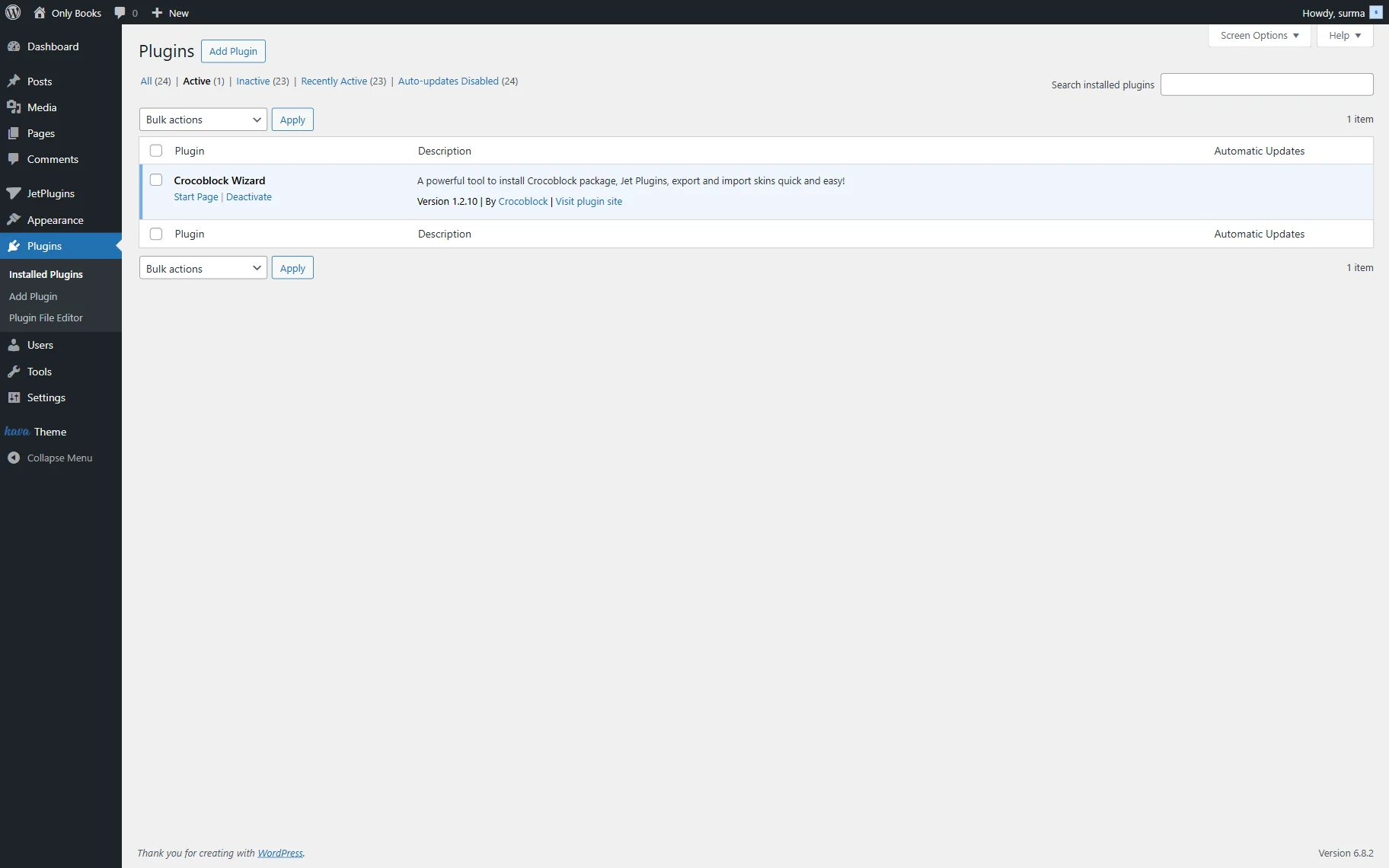
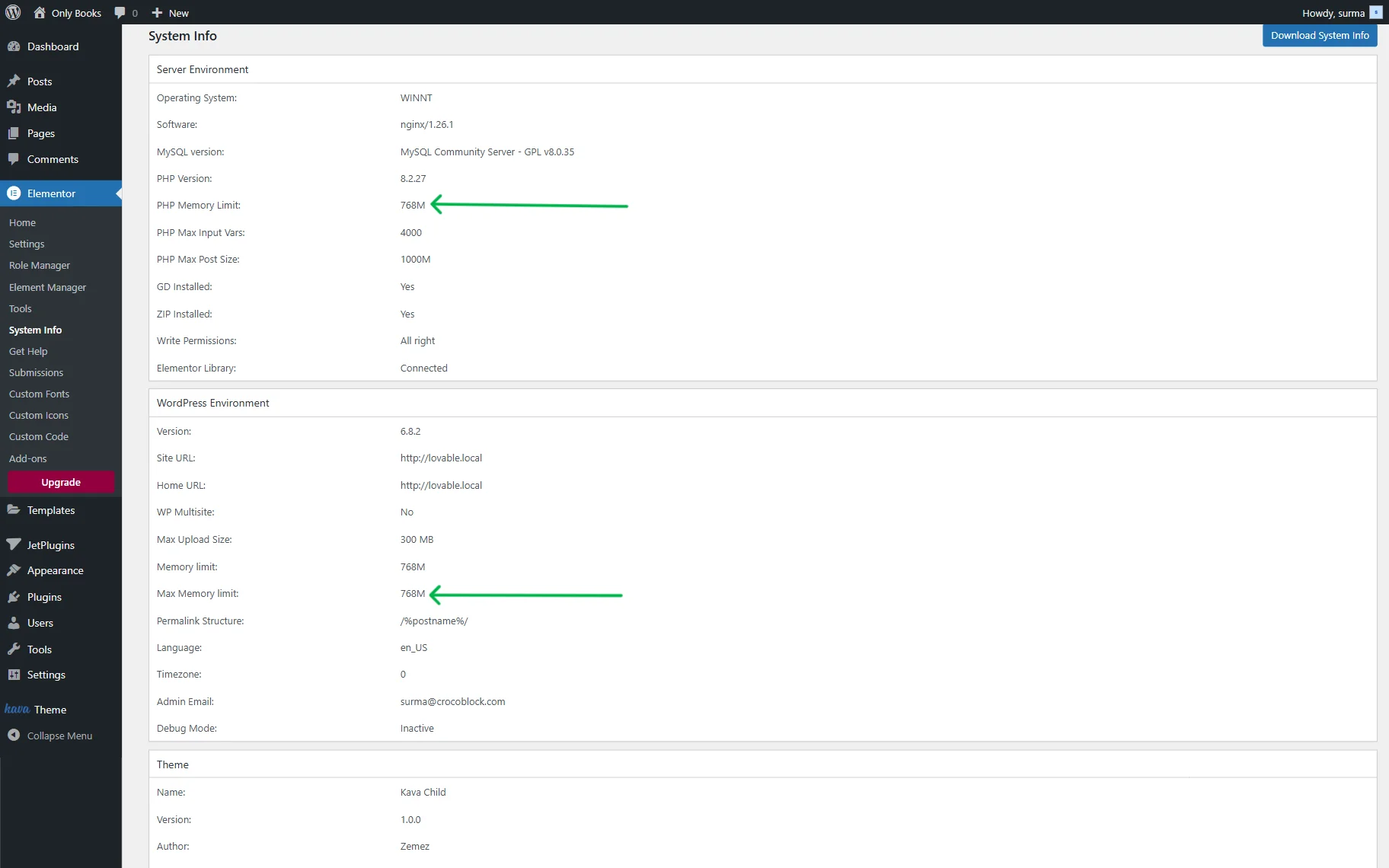
Then, ensure that the Memory limit is set to at least 768M (you can check this in Elementor > System Info). If you are unsure about the settings, refer to the How to Set Proper Memory Limit in WordPress Environment System Info article.
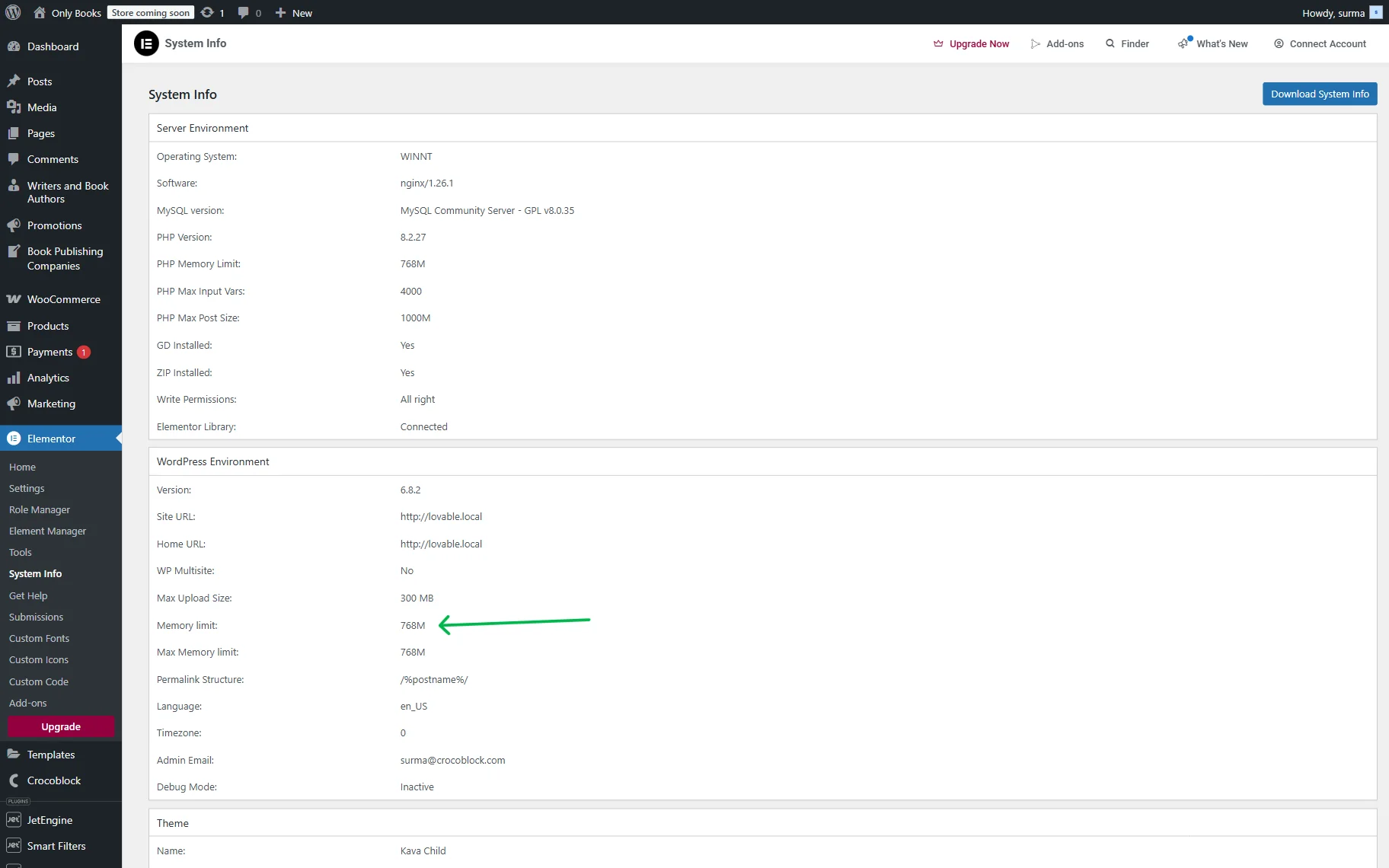
Check the PHP Max Post Size and Max Upload Size parameters (you can check them in Elementor > System Info). This might be the reason the installation process fails — the server may not allow our files through. Increase these parameters to 512M.
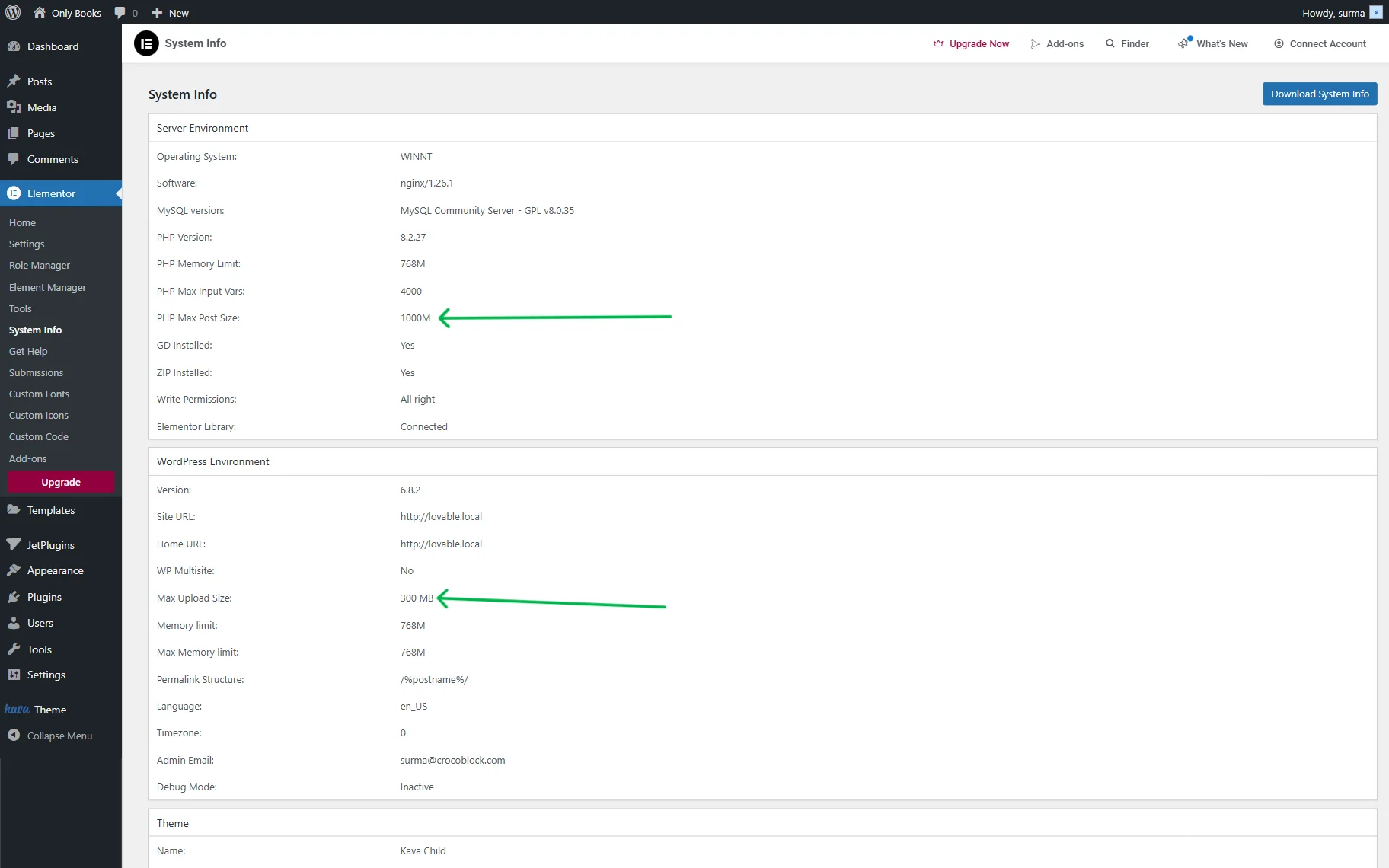
Check the PHP Memory Limit and Max Memory Limit parameters (also in Elementor > System Info). If necessary, increase them to 512M.
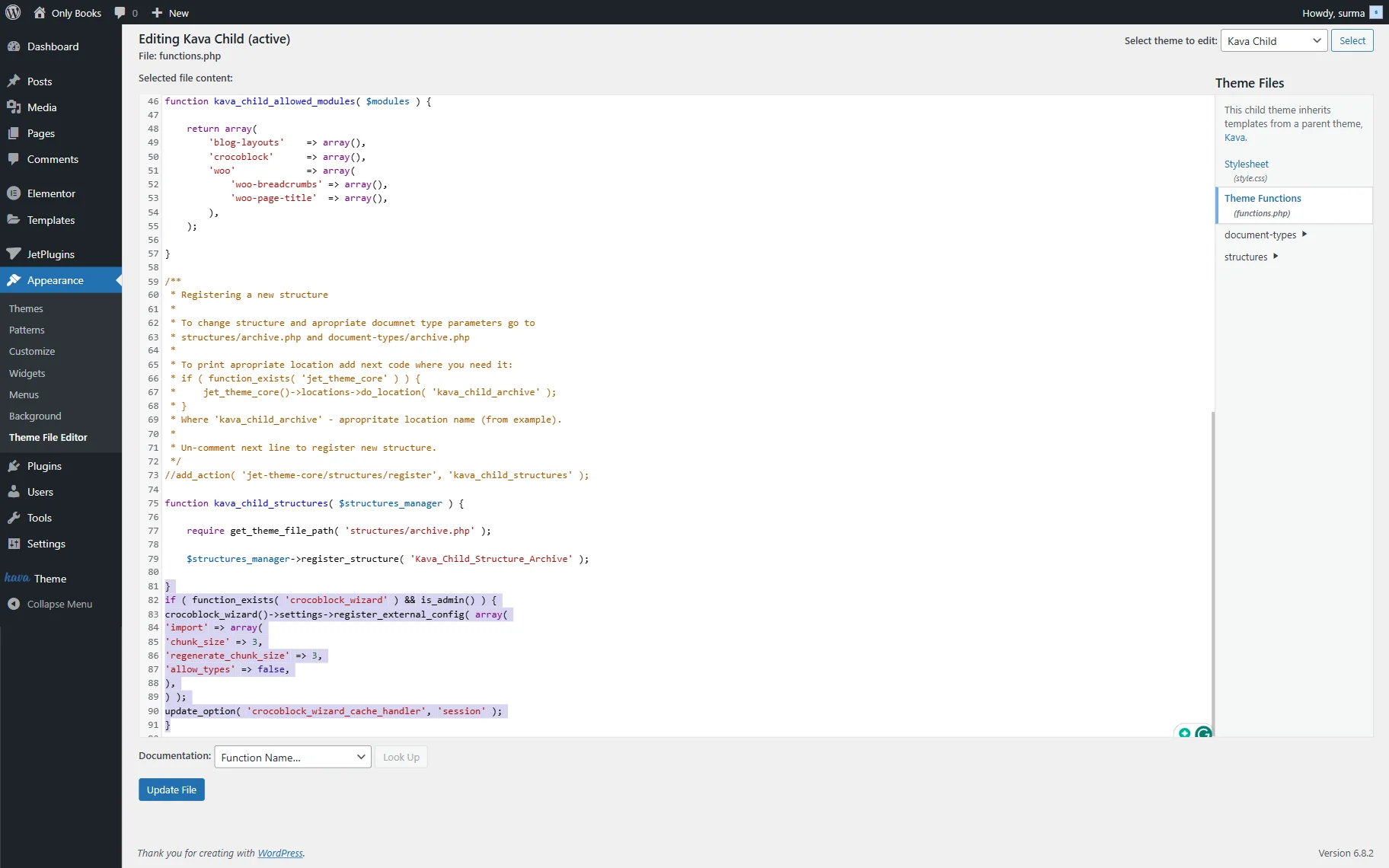
If none of the steps above help, copy the following code and paste it into the functions.php file of the child theme (for that, proceed to WordPress Dashboard > Appearance > Theme File Editor > Theme Functions (functions.php)):
if ( function_exists( 'crocoblock_wizard' ) && is_admin() ) {
crocoblock_wizard()->settings->register_external_config( array(
'import' => array(
'chunk_size' => 3,
'regenerate_chunk_size' => 3,
'allow_types' => false,
),
) );
update_option( 'crocoblock_wizard_cache_handler', 'session' );
}
Click the “Update File” button once the code is added.
Clean the cache on the site, server, and browser, and then try reinstalling the Dynamic Template.
If nothing helps, please refer to our Support Team. Ensure that the creds for the site access and Complete FTP details are ready to be provided.
Now, you know how to troubleshoot WordPress Dynamic Template installation issues and fix errors when the process gets stuck at any stage.