
Fixing the "Booking Dates Already Taken" Error
How to fix the "Booking dates already taken" error?
Error messages about “Booking dates already taken” or “Selected dates are not available” in your booking form often are caused by incorrect date formatting, damaged database columns, outdated or duplicated booking tables, or stored availability cache.
This guide focuses on troubleshooting the JetBooking booking dates already taken error on a WordPress website and restoring proper booking availability detection.
Why Does the “Selected Dates Are Not Available” Error Appear
The JetBooking “Selected dates are not available” error commonly appears in the following cases:
- the date format in WordPress does not match the format used in JetBooking or the booking form;
- timestamps are stored incorrectly;
- booking DB columns were duplicated or configured incorrectly;
- booking tables were not updated after changing settings;
- cached availability data is outdated;
- overlapping booking logic detects false conflicts.
As a result, JetBooking may consider available dates as already occupied, even when no actual booking exists.
Before You Start
Before troubleshooting the booking database settings, ensure the following steps are completed:
- create a full website backup;
- export the database if possible;
- avoid performing DB cleanup on a live website with active bookings.
Check the WordPress Date Format
An inconsistent date format is one of the most common causes of the WordPress “booking dates already taken” issue.
To check and change WordPress Date Settings, navigate to WordPress Dashboard > Settings > General. Then check the Date Format field.
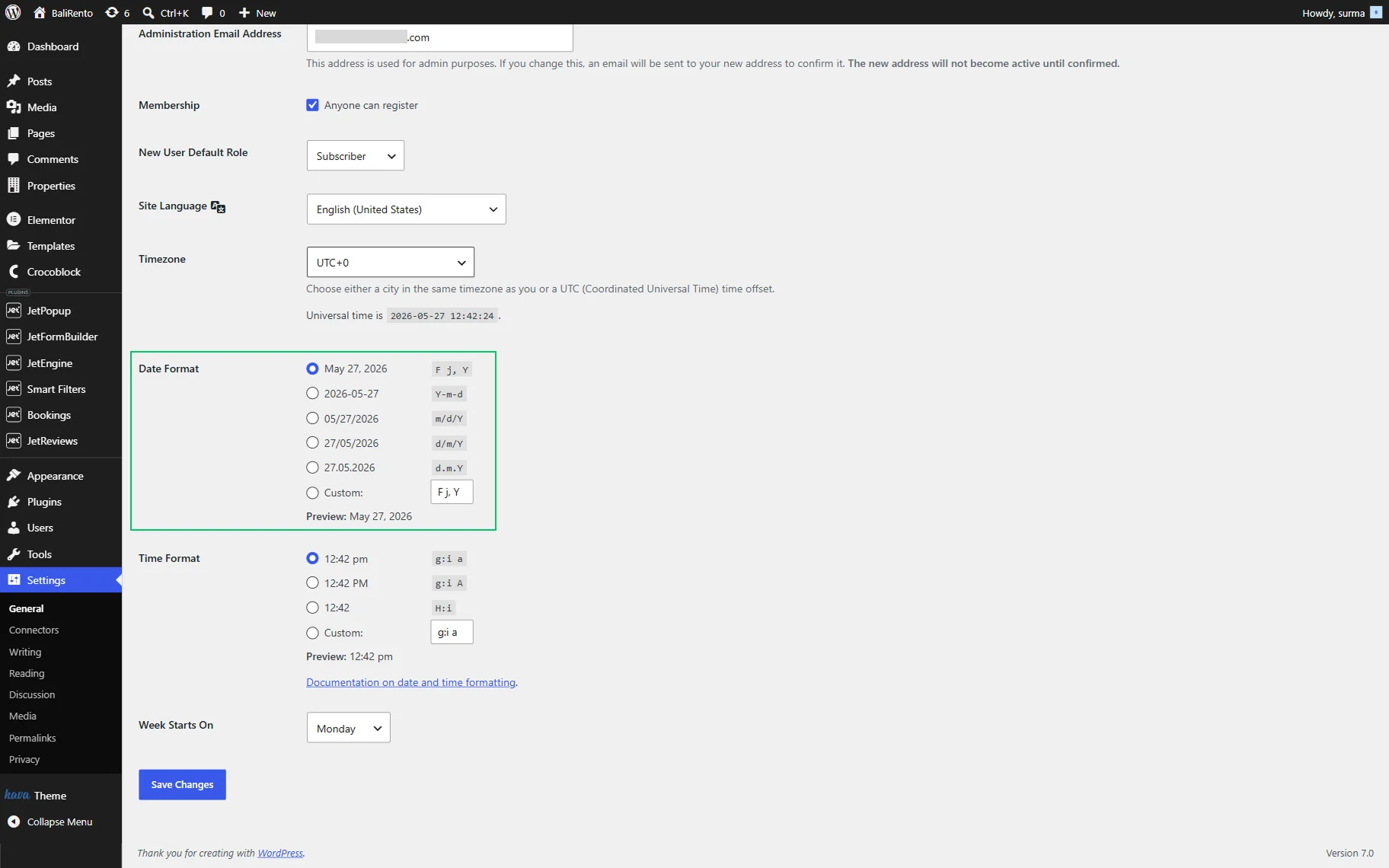
Use a standard and consistent format across the website: in general WordPress settings, JetBooking settings, and booking forms.
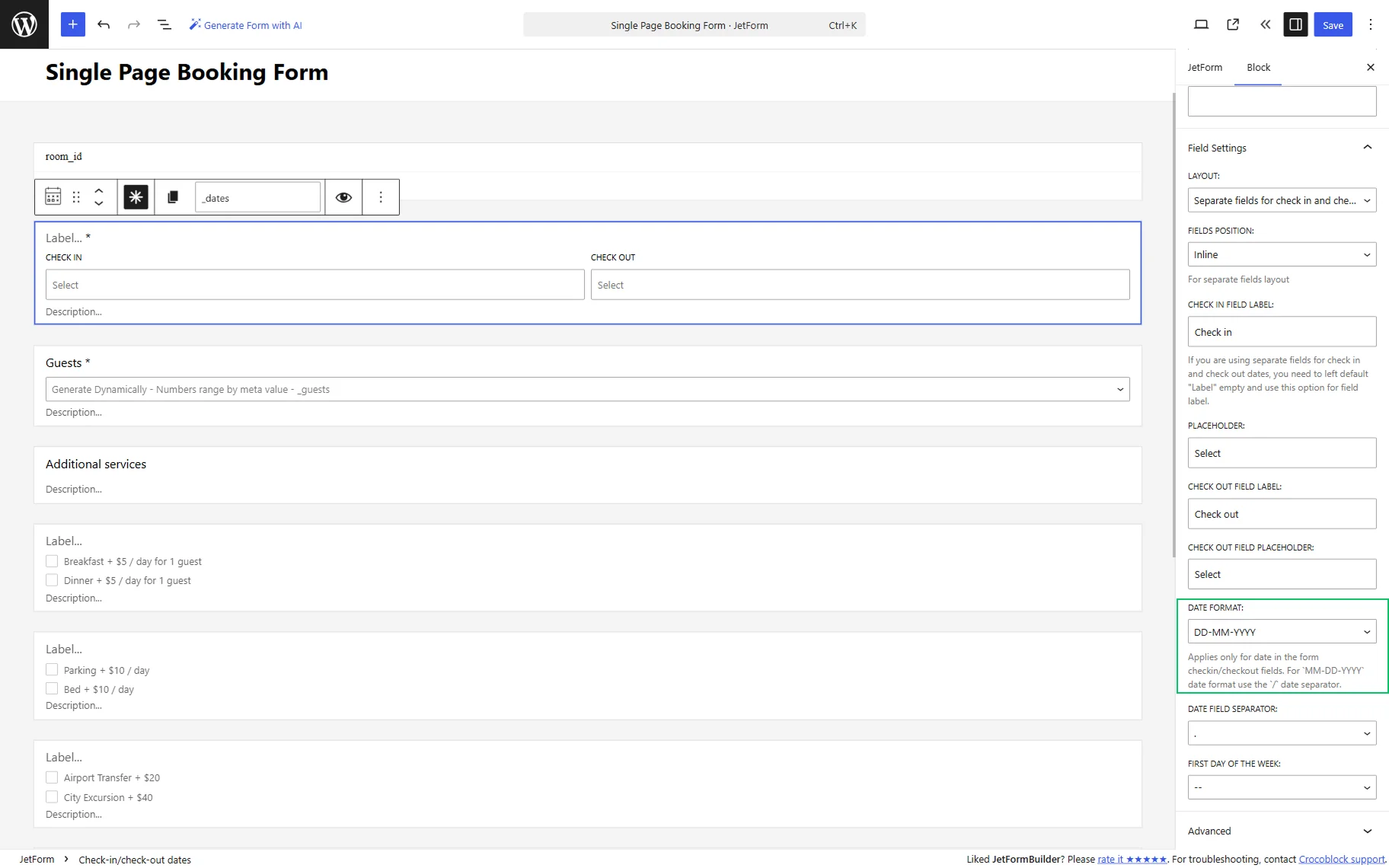
Additionally, mind the time format set in your browser, as it can also affect the issue — the time format usually depends on the timezone settings.
After changing the Date Format in the General settings of WordPress:
- click the “Save Changes” button;
- clear website cache;
- re-test the booking form.
Check JetBooking DB Columns
Another common reason for the JetBooking “booking dates already taken” error is an incorrect DB structure.
To manage the DB Columns, navigate to WordPress Dashboard > JetBooking > Settings > Tools. Check whether custom columns were manually created even though JetBooking already generated them automatically. If duplicated columns exist:
- delete incorrect or duplicated columns;
- click the “Update Booking Tables” button to save the settings;
- recreate the DB columns properly and save the changes.
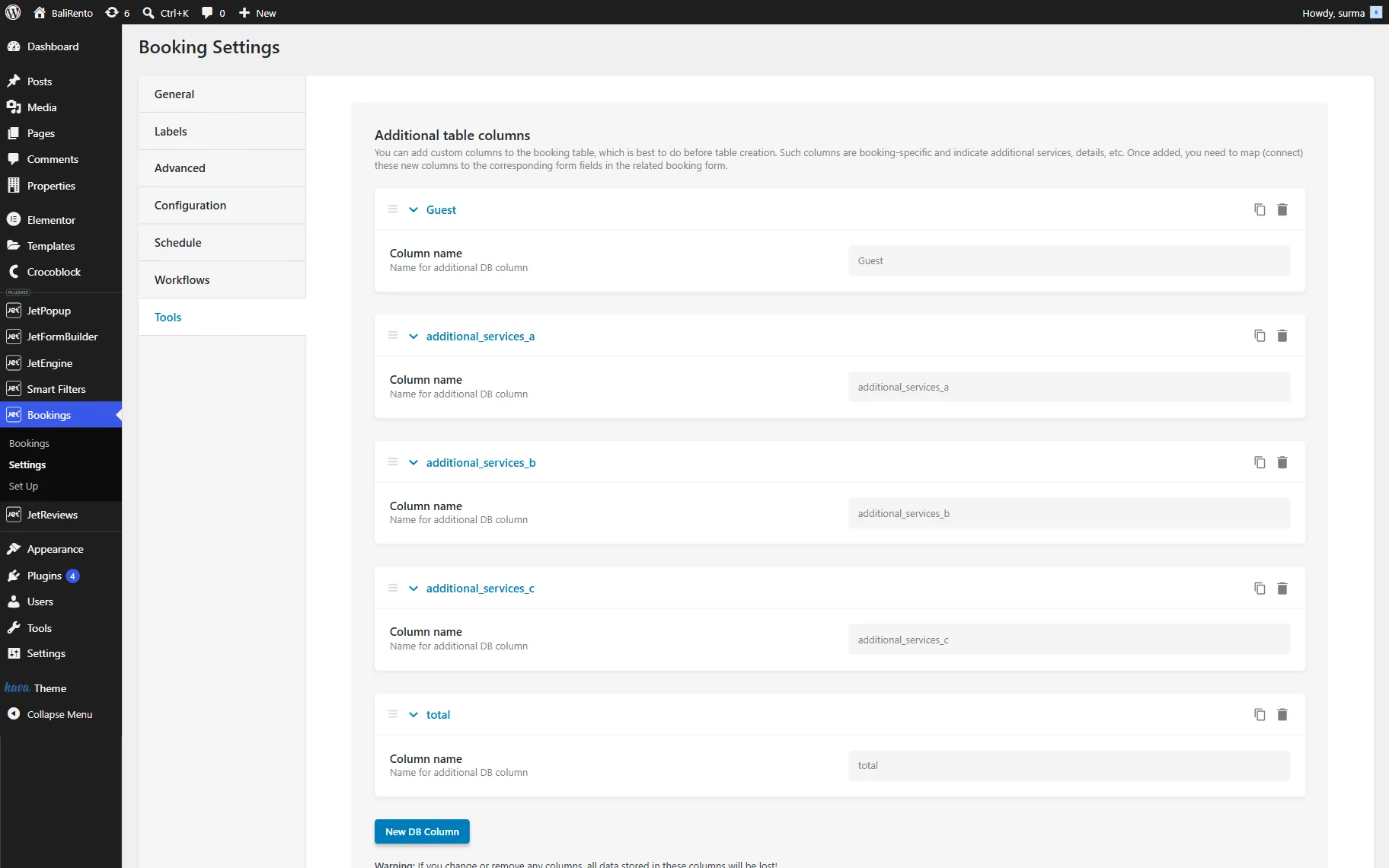
This helps resolve a JetBooking DB column setup problem.
Clear All Website Cache
Sometimes the booking calendar shows outdated availability because cached data is still being served. This may cause issues with booking calendar dates being cached or not refreshing, or false overlap detection.
Clear the following cache layers:
- WordPress cache plugins;
- server cache;
- CDN cache;
- browser cache;
- object cache.
After clearing the cache, open the booking page in an incognito window and test several date combinations again.
Additional Troubleshooting Tips
If the issue still exists, check the following:
- temporarily disable caching plugins;
- switch to a default WordPress theme;
- disable third-party booking-related plugins, except for the Elementor, WooCommerce if it is used, and all Crocoblock plugins;
- regenerate permalinks;
- update JetBooking, Elementor, and all Crocoblock plugins;
- try to recreate a booking form.
Remember that you can always contact the Crocoblock support team if you have any issues or questions.
FAQ
Usually, the issue is caused by mismatched date formats, corrupted booking DB columns, outdated booking tables, or cached availability data. JetBooking may incorrectly interpret free dates as occupied.
Start by checking the WordPress Date Format, verifying the Check-In/Check-Out fields in the booking form configuration, recreating DB columns, running the “Update Booking Tables” tool, and clearing all cache layers.
You can find the “Update Booking Tables” button in WordPress Dashboard > JetBooking > Settings > Tools directory. Use it after changing DB columns, modifying booking settings, or troubleshooting availability synchronization issues.
Yes. Incorrect timestamps, mismatched date formats, or damaged DB columns can make JetBooking think dates are already booked even when the calendar appears available.
That’s it. Now you know how to fix the “Booking Dates Already Taken” and “Selected Dates Are Not Available” errors in the JetBooking form on a WordPress site.