
Form Shows Error on the Front End During Submission
I created the form and set it up, but once I tried to submit it on the front end, the form showed an error message. How can I fix it?
The very frequent errors that occur while form submission are the “nonce _failed” error and “One or more fields have an error. Please check and try again.” errors. In this tutorial, we explain how to fix both. In addition, more error details and ways to fix them are presented in the Common JetFormBuilder Errors: Complete Solutions 2025 article.
“nonce _failed” error
The “nonce _failed” error is one of the most common WordPress security-related errors, since the “nonce”, by its essence, is a one-time security verification token with a limited time of action. Regarding the submitted forms, this problem may arise if the security tokens expire while the forms continue to use obsolete validation information.
The following ways to fix it are proposed:
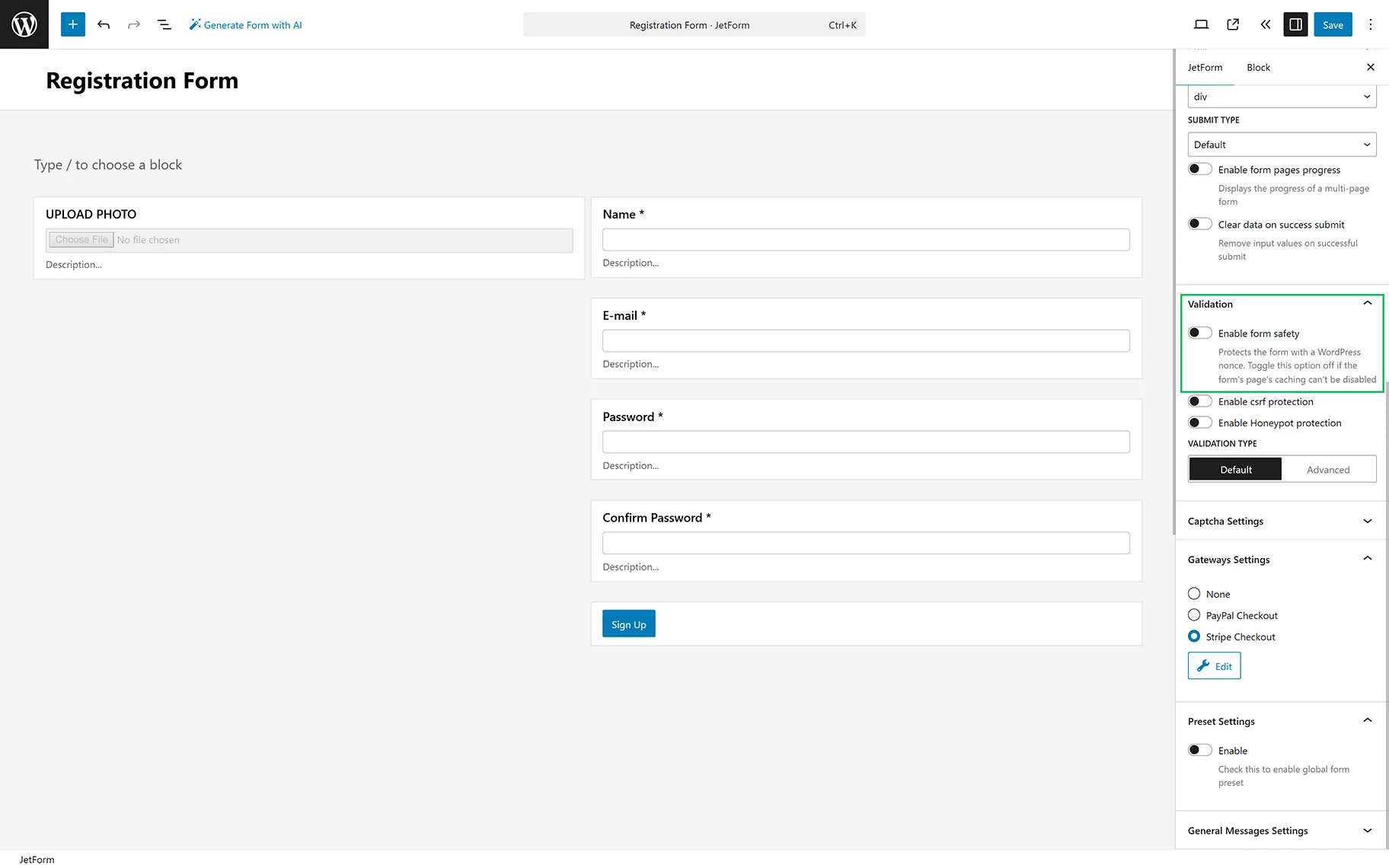
- disable the Enable form safety toggle of the form’s settings;
- disable cache on forms;
- clean up the browser’s cache;
- shorten the cache time to less than twelve hours.
In particular, to disable the Enable form safety toggle, move to the settings: JetForm > Validation section.
Watch the JetFormBuilder Dev Mode: How to Identify and Fix Validation Errors Quickly video to learn how to quickly identify and fix validation issues in forms, navigate errors, and streamline your development process.
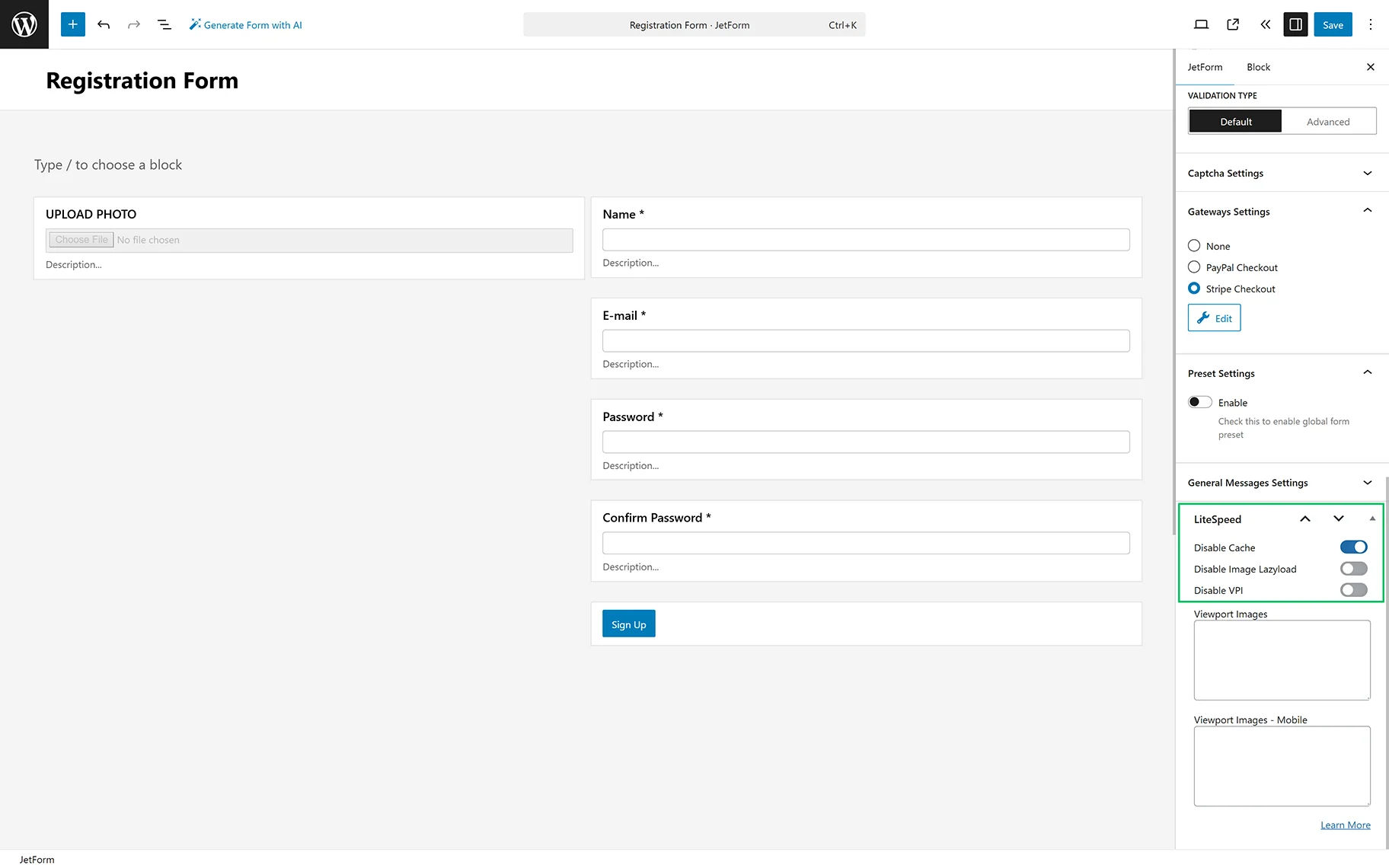
Also, using caching plugins (e.g., WP Rocket, LiteSpeed Cache, WP-Optimize, Hummingbird, W3 Total Cache, etc.) speeds up your site but can also conflict with security tokens. Therefore, you can turn on the specific controls to disable cache. For example, if you use the LiteSpeed Cache plugin, the LiteSpeed setting block with the Disable Cache toggle will be added to the form’s settings.
In addition, the last recommendation is to clear your browser’s cache.
One or more fields have an error. Please check and try again.
In this case, firstly, you have to define which field(s) contain(s) the error(s).
Read the Common Mistakes in Working With JetFormBuilder and Avoiding Them article to get more information on this topic.
JetFormBuilder forms
If you have added the “Save Form Records” Post Submit Action to the form, navigate to the WordPress Dashboard > JetFormBuilder > Form Records tab. You can read more about this page in the Form Records Page tutorial. On this page, all submission records are collected.
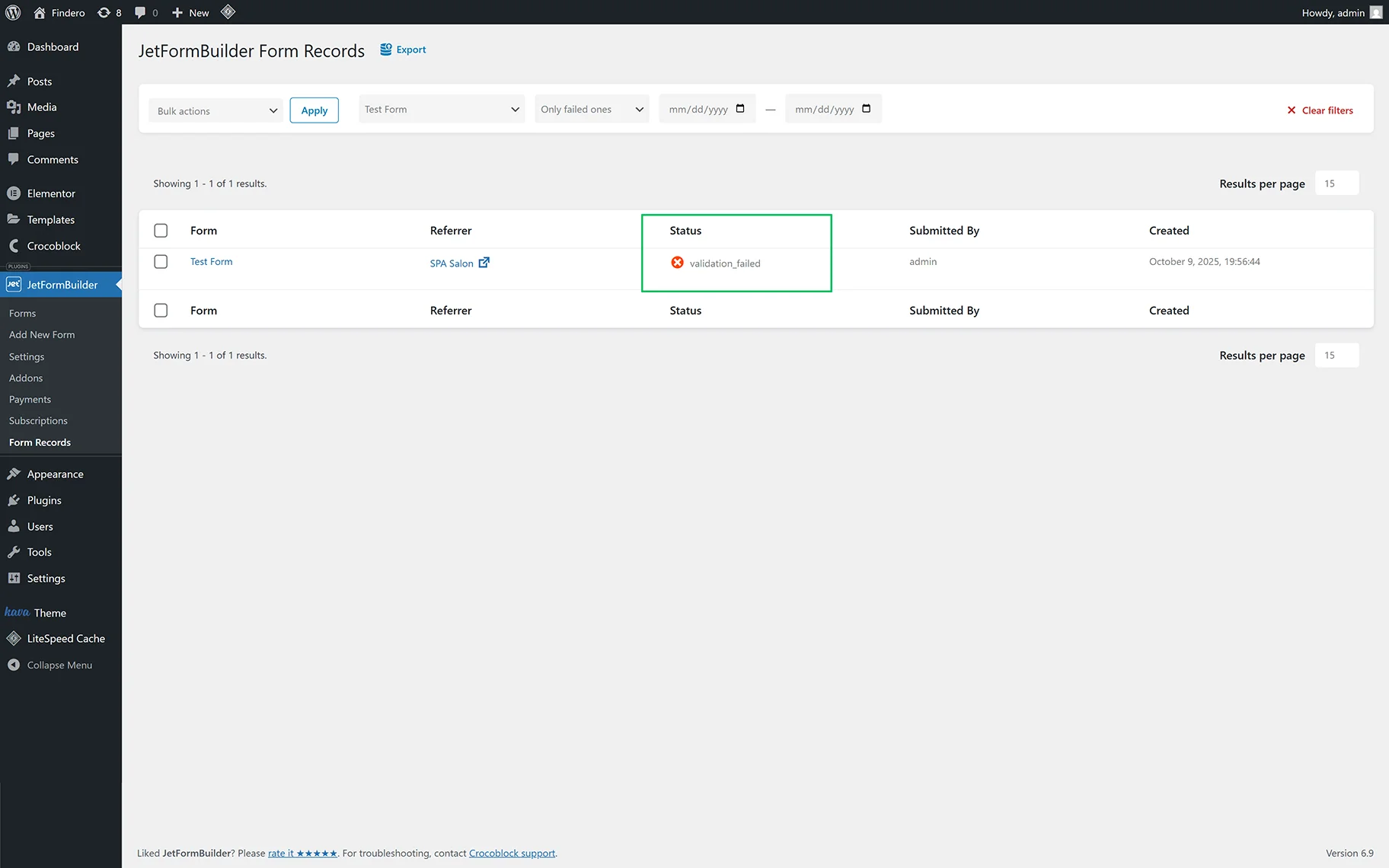
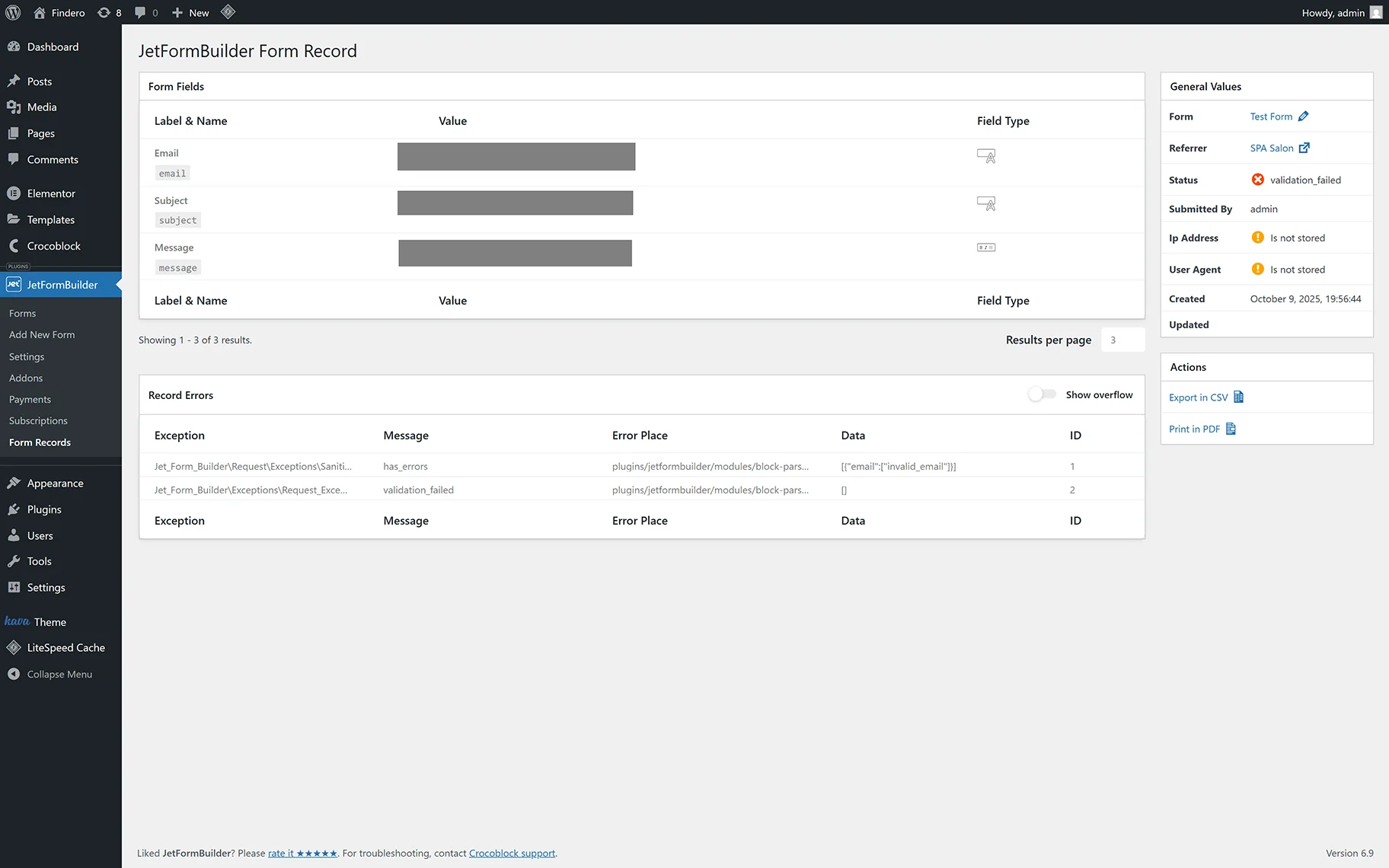
Unroll the needed form (in this case, we open the “Test Form” with the “validation_failed” Status) and check if the record displays all the form’s fields, and after that, move to the Record Errors block to observe the Error Place. In this case, the Name field record hasn’t been saved, so one can consider something wrong with this field.
In contrast, if you do not add the “Save Form Records” Post Submit Action to the form, you have to check all the form’s fields manually to find the poorly set field name(s). In this case, the usage of prohibited symbols can be anticipated (for example, the FORM FIELD NAME must contain neither uppercase letters nor spaces, while the LABEL field can have both).
JetEngine forms
The most common reason the form is not submitted is that it is poorly set up. For instance, the field’s Name must contain neither uppercase letters nor spaces, while the Label field can have both.
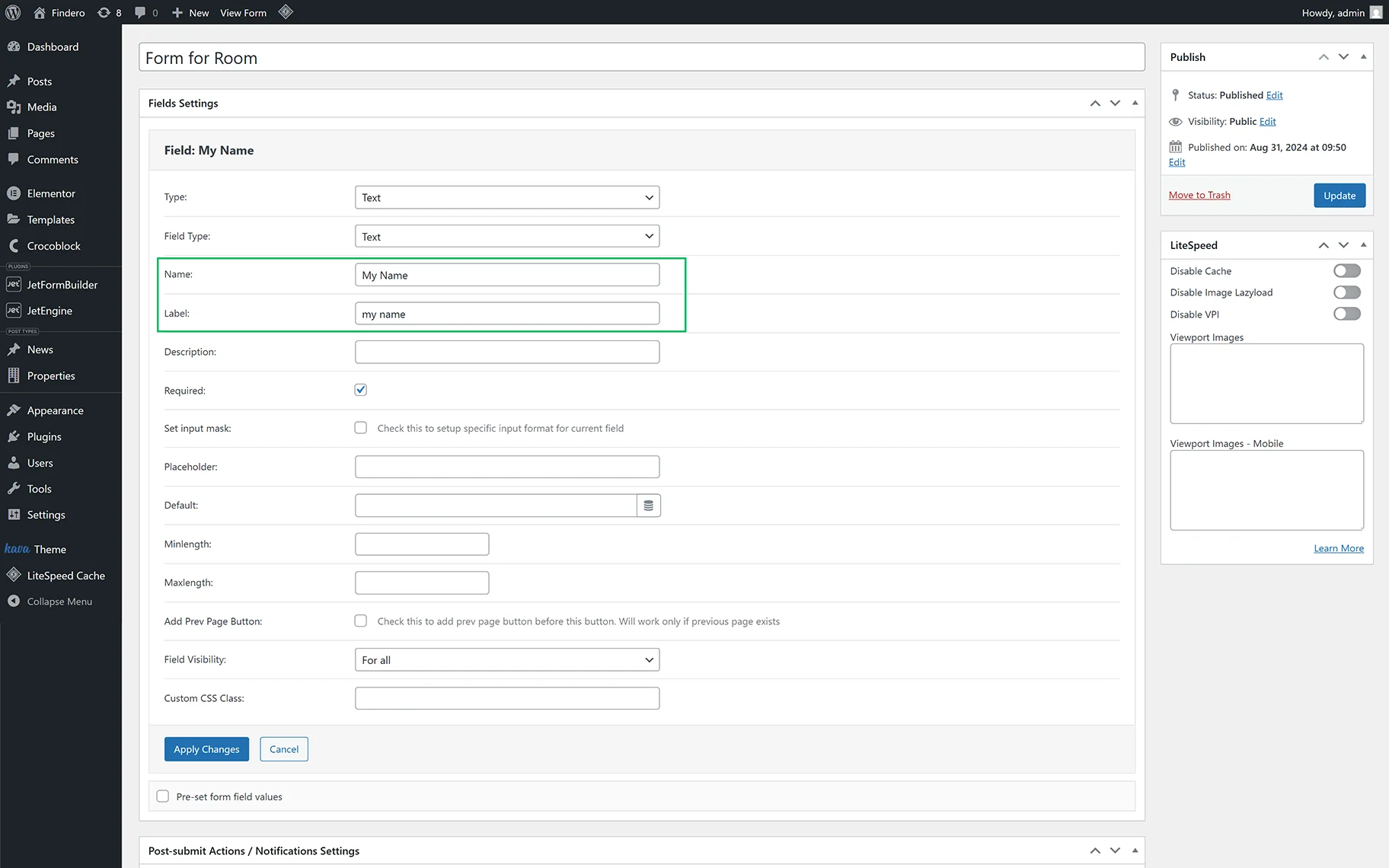
Here’s an example of how you should fill in this field: “my_name,” “myname,” “name,” or “_name”.
That’s all about the frequent errors that occur while submitting the forms built by the JetFormBuilder and JetEngine plugins for WordPress and the ways to fix them.