JetEngine 3.8.0 comes with many exciting updates and new tools, and one of the highlights is the MCP Server and Command Center. Let’s take a closer look at how they work.
But that’s not all – JetEngine already includes two AI tools: AI Website Structure Builder and AI SQL Query Builder. And the best part is, they can all work together, each in its own domain.
In this article, I’ll explain the MCP Server and the new Command Center, and show how all the AI tools can work in harmony using a practical example: building an educational website from scratch.
MCP Server Explained
MCP stands for Model Context Protocol – an open-source, unified way for AI models to communicate with external apps, platforms, plugins, and systems.
It solves an important problem: AI speaks one “language,” software systems speak another, and something has to translate between them while keeping everything secure and predictable. That “something” is the MCP server.
It works as a smart middle-layer that sits between the AI and your website. As a result, you don’t give the AI direct access to your database, admin panel, or internal APIs; the MCP server exposes a strict, limited, and intentionally safe set of capabilities.
Also, it’s important to note that the MCP server is not a physical server where information is stored, but rather software that runs on a cloud or hosting server.
The MCP server provides:
- a defined list of tools the AI is allowed to use;
- structured input/output rules;
- a clear boundary around what’s accessible;
- context about the current system, but only certain parts.
JetEngine Command Center
JetEngine 3.8.0 introduced the Command Center – essentially an AI chat, but with one major advantage over a regular ChatGPT window: it understands your website’s context because it connects through the MCP Server.
It works with the OpenAI API platform, so you should have an account there and some money on your balance – you will be charged depending on the model you choose and the number of used tokens. Generate an API key and insert it into the API field in Crocoblock > Command Center.
After inserting the API key, you will see a chat interface. You can also configure settings:
- select which context is exposed to the AI;
- view the registered resources and tools, including the exact JSON parameters exposed to the AI;
- change the OpenAI model.
💡 You can also use the MCP server with VS Code or GitHub Copilot – follow these instructions.
What is JetEngine Command Center capable of?
To understand what it’s capable of, think about your typical ChatGPT chat (and, depending on the model you use, its capabilities), plus it knows the context of your particular website. So, you don’t always have to ask the AI to create something for you, but can just discuss things and see its suggestions.
You can also find the list of capabilities in JetEngine > MCP Server tab. To put it simply, this is what it can do or help with:
- Creating a Glossary (the JetEngine-specific tool) – a list of options for Select/Radio/Checkbox fields to be used by JetEngine, JetFormBuilder, and JetSmartFilters. It’s really handy, as you don’t have to create import options.
- Creating Query Builder custom queries. This feature can definitely be useful for beginners and assist experienced Crocoblock users. However, you should check it anyway – for example, in my example below, the AI hasn’t chosen the post type, even if it was clearly stated in the prompt. Next time, though, when I was creating a similar query, the post type was selected. So, it’s up to the AI behaviour.
- Creating Meta Boxes. JetEngine has two ways of adding custom fields: directly to default or custom post types, in the JetEngine > Post Types interface. In this case, these meta fields will belong only to this particular CPT. Pay attention that you can’t add fields this way using Command Center.
Another way is by using the Meta Boxes feature. It creates a set of fields that can be assigned to several CPTs, Taxonomies, or even Users and WooCommerce options. And this is what the Command Center can create for you. - Creating custom content types.
- Registering custom post types.
- Registering taxonomies (but not taxonomy terms).
- Creating a Listing template (without styling).
Building an Educational Website Using Crocoblock AI Tools
JetEngine offers AI tools for every stage of website development: from creating a structure to building complex SQL queries. This is what it has:
- AI Website Structure Builder – a tool to start with when you create a website from scratch. It doesn’t work as the Command Center and doesn’t need your OpenAI account connected. It’s a trained AI model by the Crocoblock team, which is why it’s really smart at doing what it’s designed to do. You write a prompt, and it can create CPTs with meta fields, CCTs, taxonomies, relations, and even JetSmartFilters filter sets. Also, it builds basic Query Builder queries and basic CPTs based on them. Thus, you have a solid foundation to start with.
What is also great about it is that you get a dashboard with all of the posts, relations, fields, and filters in one place, having a visual representation of the website structure and handy links to edit everything. - AI Command Center – the tool to use after you’ve created a website structure.
- AI SQL query type. Creating SQL queries can be challenging if you are not very good with SQL, so this tool can be helpful.
To demonstrate how these tools can work together, I will create an educational website from scratch. This site should have these elements:
- Courses CPT with a Length custom field;
- Tutors CPT with Name and Expertise custom fields;
- Tutors to Courses relation;
- Categories and Mode taxonomies.
⛏️ I will use the Website AI Builder tool for this.
On one of the pages, I want to display only courses that have more than 10 lessons. That’s why I need a custom query that would retrieve only posts where the Length value is equal to or greater than “10.”
I also need a glossary that includes all EU countries, as well as the USA and Australia, since these are the regions where the course provider operates.
This is the result.
Also, even if it was a “Server error” message from AI, the Glossary was created anyway.
I’ve also added the Start meta field manually to the Course CPT and stored it as a timestamp, so it can be used in time-based queries.
SQL query built with AI
I will create a page titled “Courses Starting This Month” to display all Course CPTs whose Start meta field value is a date within the current month. Also, I want to display only future events.
This is the prompt I used. Note that I’ve clearly stated the field format (timestamp) and the slug:
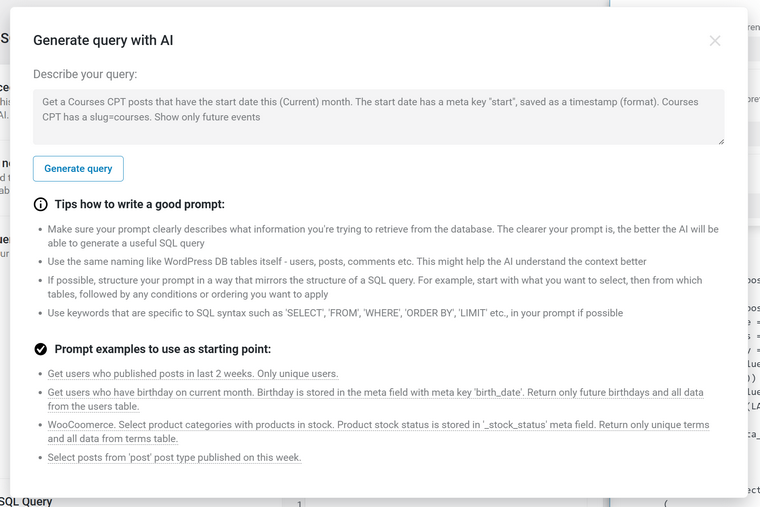
AI generated an SQL query and, in the Preview window, I can see that it works perfectly well:
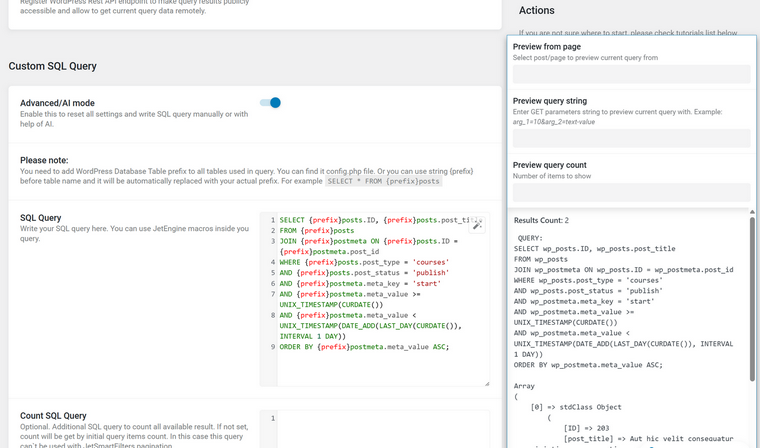
The SQL AI Query Builder, just like the AI Website Structure Builder, doesn’t require connecting your OpenAI account, as it uses a tool hosted by Crocoblock.
As you can see, Crocoblock offers a cool and handy set of AI tools to streamline your workflow. But, as with any AI use case, it can’t do everything for you, and you still need a solid understanding of the tools and plugins you’re working with.
Bonus: Angie Integration
Angie is a new agentic AI by Elementor that can work with any website. Since it’s still in Beta and lacks an MCP server to provide context, it isn’t very efficient on its own. With JetEngine’s MCP server, however, it can perform the same tasks as the Command Center. For now, there’s little reason to install it separately, but if Angie gains new features or integrations in the future, it might become a useful alternative – it’s up to you. Check this article to see how it works with JetEngine.
FAQ
The AI Website Builder and the AI SQL Query Builder have monthly limits of 60 created website models and prompts, respectively, as Crocoblock provides these AI tokens for free.
An MCP (Model Context Protocol) server acts as a secure middle layer between an AI model and a website or application. It controls what data, tools, and actions the AI can access, preventing direct exposure to systems, WordPress websites, in our case.
With the AI Command Center, it’s safe, as AI doesn’t have direct admin or database access. The reason is that you use an MCP server and can see exactly which data is exposed in the Command Center settings.
Yes. Novamira is fully compatible with JetEngine and the rest of the Crocoblock plugins. You can use it on websites built with JetEngine, whether you’re creating dynamic content, custom post types, listings, forms, or other Crocoblock-powered features.
Wrapping Up
In this article, I’ve demonstrated how Crocoblock AI tools, including the brand new Command Center tool, help you in website building.
However, AI won’t magically build a perfect website for you, but it can save you a lot of time on the boring, repetitive, and error-prone parts. When you understand your tools and use AI as an assistant rather than a replacement, it becomes a real productivity boost instead of a black box. This is part of a broader WordPress AI shift, where tools like Novamira and similar are also targeting JetEngine-style dynamic data workflows.