Translating your website allows you to reach a wider audience and connect with visitors in their native language. It enhances the user experience, builds trust, and improves your ranking in new language markets.
TranslatePress offers a simple translation interface that requires no coding knowledge, along with various methods to automate translating your WordPress site and other useful features. In this review, we’ll explore its offerings in detail, including pricing, ease of use, and overall performance.
By the end, you’ll have a clear understanding of whether TranslatePress is the right choice for you.
What Is TranslatePress?

As mentioned in the introduction, TranslatePress is a WordPress translation plugin that enables you to translate your content into different languages.
The plugin is beginner-friendly and makes the translation process pretty much plug-and-play. All you have to do is pick a source and target language, and you can start converting your site – either by hand or using automatic machine translation.
After that, TranslatePress’s many SEO features help rank your content for the intended language and locale. The plugin is available in both free and paid versions and is highly compatible with all themes and plugins, including popular SEO plugins, page builders, and WooCommerce (for multilingual online shops).
Plugin Features
Let’s review what TranslatePress excels at.
Translate everything
The first standout feature is that, unlike other translation plugins, TranslatePress works with the HTML output of your web pages, rather than, for example, the strings saved in the WordPress database.
This allows you to translate everything appearing on your site, from menus and widgets to shortcodes and even output from WordPress themes and plugins. Additionally, it enables you to localize images on your website for different languages. That way, you can display translated image text or more culturally appropriate visuals for various markets.

Best of all, the translation stays on your site and server. It’s not coming from a cloud service; instead, it’s stored in your database. That means you only have to translate your content once, and it stays on your website.
To help visitors select the right language, the plugin features a fully customizable language switcher that can be placed anywhere on your site.
Automatic translation options
Another noteworthy feature is TranslatePress’s numerous options for utilizing machine translation to translate your site’s content automatically.
The most comfortable option is the built-in TranslatePress AI. It connects to several machine translation services and selects the most suitable one for your chosen language pairs to ensure the most accurate translation. You simply have to switch it on, choose your source and target languages, and the rest happens automatically (we’ll go over an example below).
Alternatively, Google Translate and DeepL are also available as translation engines via their respective APIs.
Great SEO tools
On the SEO front, TranslatePress generates static, indexable pages for all your translations, complete with their own unique URL. This means Google can crawl, index, and rank them as their own entities.
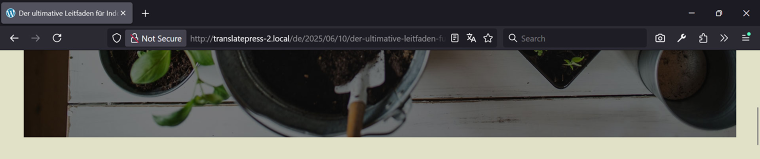
Additionally, the plugin automatically creates hreflang tags, clearly indicating which language and locale you want your translations to rank for.
The SEO Pack add-on (included in TranslatePress Pro) enables you to translate SEO metadata, including alt text, page URLs, page titles, and meta descriptions. It also generates a multilingual sitemap for submission to search engines.
Additional features
Besides what’s already mentioned, TranslatePress Pro has these features:
- lets you view your site as different user roles, for example, to translate content that requires a site membership;
- automatically displays in your visitors’ preferred language, based on their browser settings or IP address;
- allows you to grant direct site access to translation agencies and freelancers for translation and proofreading purposes;
- allows configuring different menu content for different languages.
TranslatePress Pricing Plans
No TranslatePress review is complete without talking about cost. The plugin comes in a free version as well as a paid edition with three pricing tiers:
- Personal (€99/year);
- Business (€199/year);
- Developer (€349/year).
These differ in features and add-ons you have access to, the number of websites you can use the plugin on, and the number of tokens included for automatic AI translation.
For example, the Free license lets you add one new language (two total) to one website, gives you 2,000 AI-translated words and unlimited manual translations, and can connect to Google Translate for automatic machine translation via API.
- A Personal license is valid for one site, includes 50,000 words for AI translation, gives you access to the SEO Pack add-on, and allows you to use as many target languages as you want.
- The Business license lets you use TranslatePress on up to three websites, comes with 200,000 AI-translated words included, and gives you access to all available add-ons. It also unlocks DeepL as an option for automatic site translation.
- The Developer license is eligible for unlimited sites and gives you 500,000 AI tokens. Everything else is the same as the Business license.
If you want to buy more AI translation credits, you can do so in your TranslatePress account. Prices start at €24 for 100,000 words, with discounts available for bulk purchases.
How to Install and Configure TranslatePress
Besides offering a solid list of features, the translation plugin is also easy to use.
Installing the plugin
You can install TranslatePress like any other WordPress plugin. For the free version, log in to your site and go to Plugins > Add Plugin.
Then, search for the plugin by name and click “Install Now” when you find it.

Activate it once it has been installed.
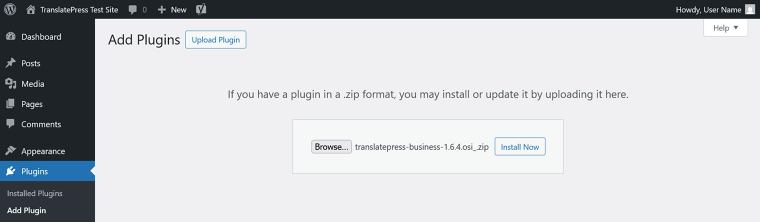
If you purchase TranslatePress Pro, you need to install the plugin manually. Go to your TranslatePress account and download it there.

Then, log in to your WordPress website and, again, go to Plugins > Add Plugin. Here, click the “Upload Plugin” button at the top, then use “Browse” to navigate to the plugin file on your hard drive. Select it, click “Install Now,” and then activate it once it’s on your site.
Adding a new language
After installing TranslatePress, you can add one or more languages to your site under WordPress Dashboard > Settings > TranslatePress > General. Just choose your default language at the top, then use the drop-down menu under All Languages to select your target language(s) and click “Add.”

When you now save at the bottom, you can start translating your site.
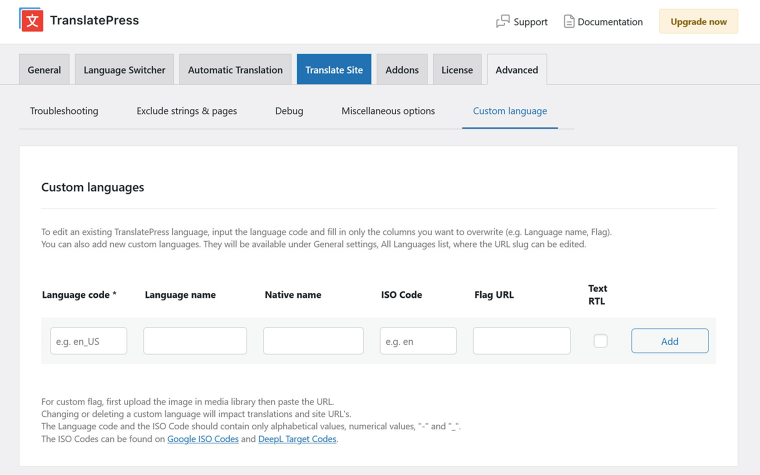
The list has hundreds of languages. If, for some reason, your desired one isn’t there, you also have the option to add custom languages under Advanced > Custom language.
Get familiar with the translation interface
To manually convert your site’s language, click “Translate Site/Page” in the settings or the WordPress taskbar.

This takes you to the TranslatePress translation interface. It consists of a preview of your site’s front end on the right and translation tools on the left.

Use the drop-down menu at the top to switch the preview to your target language. Then, navigate to the text you want to translate in the preview window. You can do so either via the second drop-down menu, the forward and backward arrows, or by hovering over it in the preview screen and clicking the pen icon.

After you do that, the left sidebar will show a new field for the translation. Input the translated content, then click “Save” at the top or press Cmd/Ctrl+S on your keyboard.
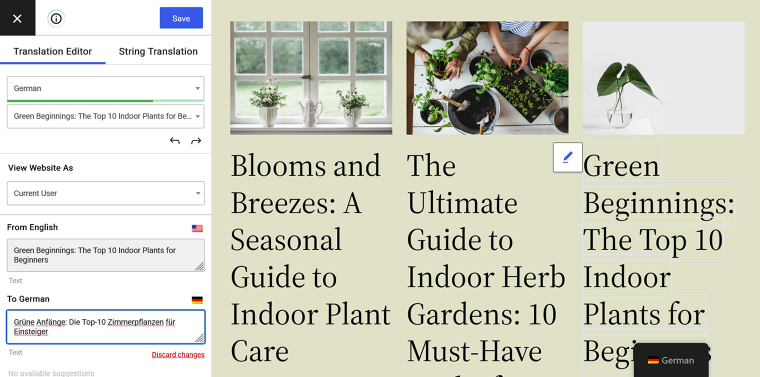
When you now go to the front end of your site and use the language switcher to change the site’s language, you can see the translation showing up there.

The same process works for images. Select one from the preview window, then paste a link to the localized version or choose it from your WordPress media library.

Finally, translating sitewide strings for the back end, such as taxonomy slugs, Gettext, and emails, occurs under String Translation.
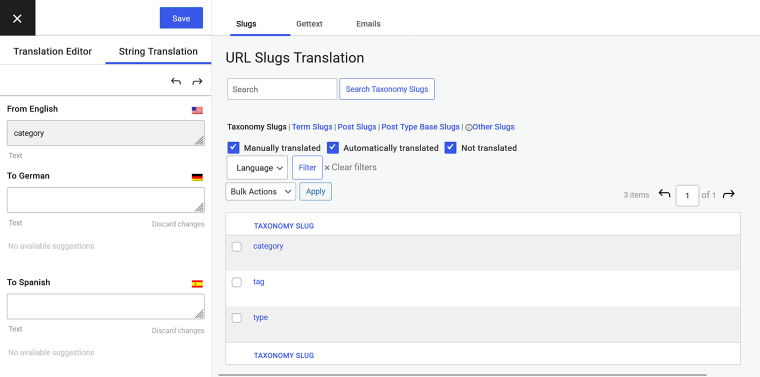
You can also find them in the drop-down menu in the translation sidebar.
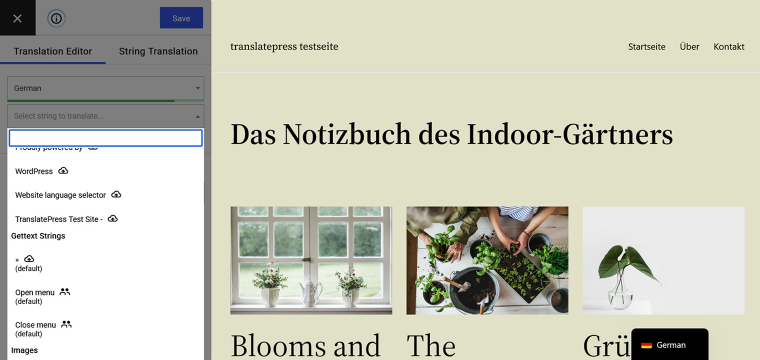
You can use the TranslatePress interface to both manually translate your content and review and correct automatic translations.
Using automatic machine translation
Speaking of which, to take advantage of TranslatePress’s machine translation features, head over to Automatic Translation in the TranslatePress settings and hit the switch for Enable Automatic Translation.

From this point, you have several options. If you have TranslatePress AI credits, just save at the bottom, and the plugin will automatically translate your site into your target language(s) using its AI. In fact, when you return to your site’s front end and switch languages, you’ll likely find that the translation is already complete.

Further down the page, you’ll find an option to set a daily character limit for automatic translations to help you budget more effectively.
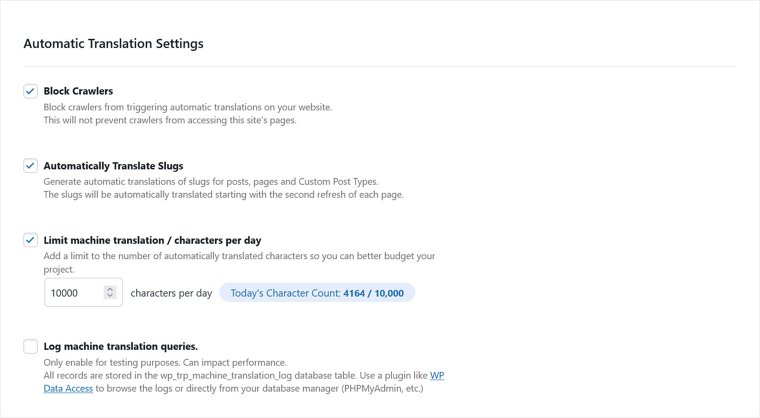
TranslatePress AI is the most comfortable option. It’s already connected to your site, so no additional setup is necessary.
Alternatively, you can click the arrow under Alternative Engines and then pick “Google Translate v2” or “DeepL” as your translation engines (on free plans, only Google Translate is available).
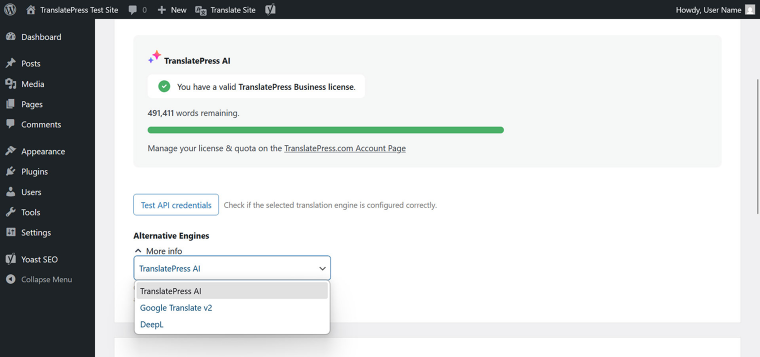
Please note that you need to create an API key for each service to use it (instructions can be found here and here) and provide it within the plugin settings.

Please note that additional costs for API usage may apply if you exceed a specific threshold, which you must address directly with Google and DeepL. TranslatePress AI incurs no additional expenses beyond the plugin license and credits.
Once in place, translation via Google Translate and DeepL works the same way as described before – it simply happens automatically in the background.
Configuring the language switcher
TranslatePress offers several ways for visitors to switch the language of your website. You manage them under Language Switcher.
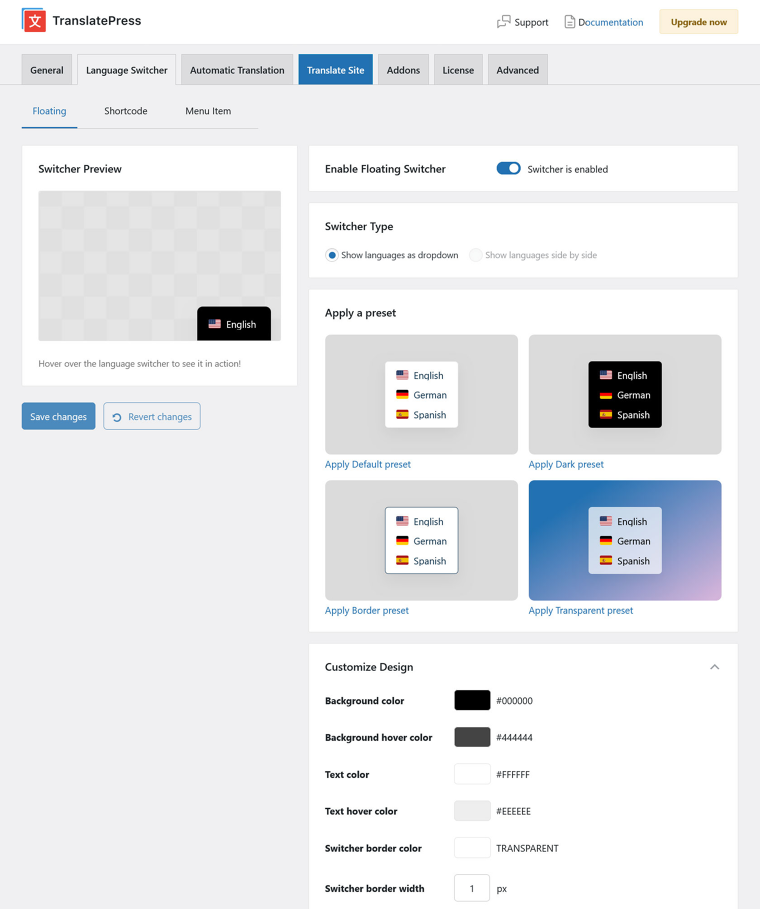
Available methods include:
- a floating button appears in one of the screen corners;
- using a shortcode or block to place it anywhere you want;
- a menu item (in classic WordPress themes).
For each, you have a multitude of customization options to make the language switcher fit the rest of your website design:
- change background and text color (including on hover);
- add a border and control its width and color;
- modify text and flag size, position, and shape (or completely disable language flags);
- customize the switcher position, width, padding, and more.
Some options can be customized separately for the desktop and mobile versions of your website. There are also presets that you can implement with one click, along with a preview of your changes.
Exploring TranslatePress add-ons
Finally, under Addons, you can manage TranslatePress extensions if you have the Pro version.

Simply use the “Activate” or “Deactivate” button for add-ons you are or aren’t interested in. The functionality then becomes available in the plugin.
TranslatePress Reviews
What do other TranslatePress reviews have to say about the plugin? Let’s go over some of them to find the answer.
“TranslatePress makes it very easy to create an SEO-friendly, easily navigable multilingual WordPress site. The visual translation interface is super simple to use; you can use manual translation or instant automatic translation through TranslatePress AI (or the Google Translate or DeepL APIs), and all of your translation data still stays on your own server and in your site’s database.” (WP Mayor)
“Whether you’re a blogger looking to translate content, a business looking to expand into different territories, or a store owner looking to sell to other countries, TranslatePress is an ideal choice for translating your content. (Cloudways)
“TranslatePress is one of the simplest ways to translate a WordPress website. Anyone can use it to create a bilingual or multilingual website. (WP Hive)
“Reviewers overwhelmingly had a great experience with this company. Customers appreciate the plugin’s comprehensive features, which include manual translation, AI-powered options, and content exclusions, allowing for seamless adaptation to diverse website needs. People highlight the ease of setting up the plugin for multiple languages, as well as its professional interface. The plugin provides exactly what users need to operate their websites worldwide. Consumers consistently praise the customer support team for their responsiveness, knowledge, and friendly attitude. Reviewers mention that the support team quickly addresses issues, even those specific to individual site configurations. Users also appreciate the plugin’s ease of use, accurate translations, and seamless integration with WordPress sites. The optimization for SEO is also very good. (Trustpilot rating: 4.6/5)
FAQ
Yes, TranslatePress works seamlessly with Elementor and other popular page builders. Use this TranslatePress Elementor tutorial for detailed instructions.
On your website, navigate to WordPress Dashboard > Settings > TranslatePress > General and select the Default Language option from the drop-down menu. Be aware, however, that changing your default language will invalidate existing translations.
You can delete TranslatePress like any other WordPress plugin. In your WordPress Dashboard, go to WordPress Dashboard > Plugins > Installed Plugins. Find TranslatePress, click “Deactivate,” and then select “Delete.” Be aware that the plugin does not automatically delete the translations saved in your database (for safety reasons). To remove these and other metadata, you must manually delete the corresponding database tables.
The Bottom Line
TranslatePress is a powerful WordPress plugin for creating multilingual websites. Its beginner-friendly interface and built-in machine translation make the process seamless, even for non-technical users.
The plugin also includes robust SEO features to help your site rank in multiple languages, along with a customizable language switcher that ensures a consistent user experience across all languages.
With the free version, you can add one extra language to your site and even connect to Google Translate for automated translations. For advanced functionality like AI-powered translation, support for unlimited languages, and enhanced SEO tools, consider TranslatePress Pro.