
Divi Installation Wizard Guide
This overview covers the installation wizard steps of the JetEngine Divi Views addon.
The Divi theme is now compatible with the JetSmartFilters and JetEngine plugins. If the JetEngine Divi Views addon is installed and activated on the website, the content created with these plugins can be edited in the Divi Builder.
After activating the JetEngine Divi Views addon, the installation wizard should be completed, as covered in this guide.
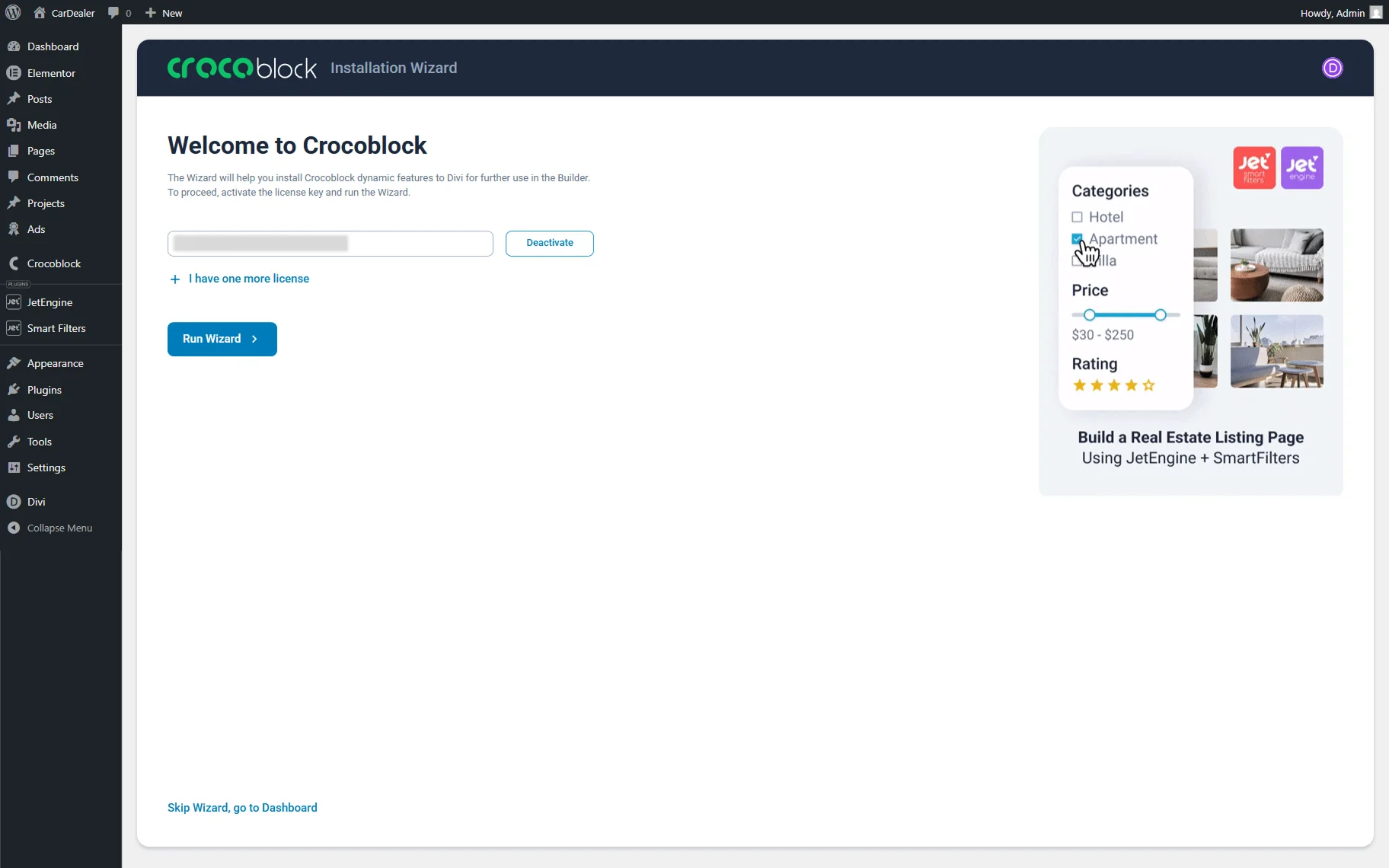
In the first step, a License key can be added if not done already, or one more license can be added by pressing the “I have one more license” button. The license key can be found in the Crocoblock account.
Once the license key is pasted, the “Run Wizard” button should be pressed.
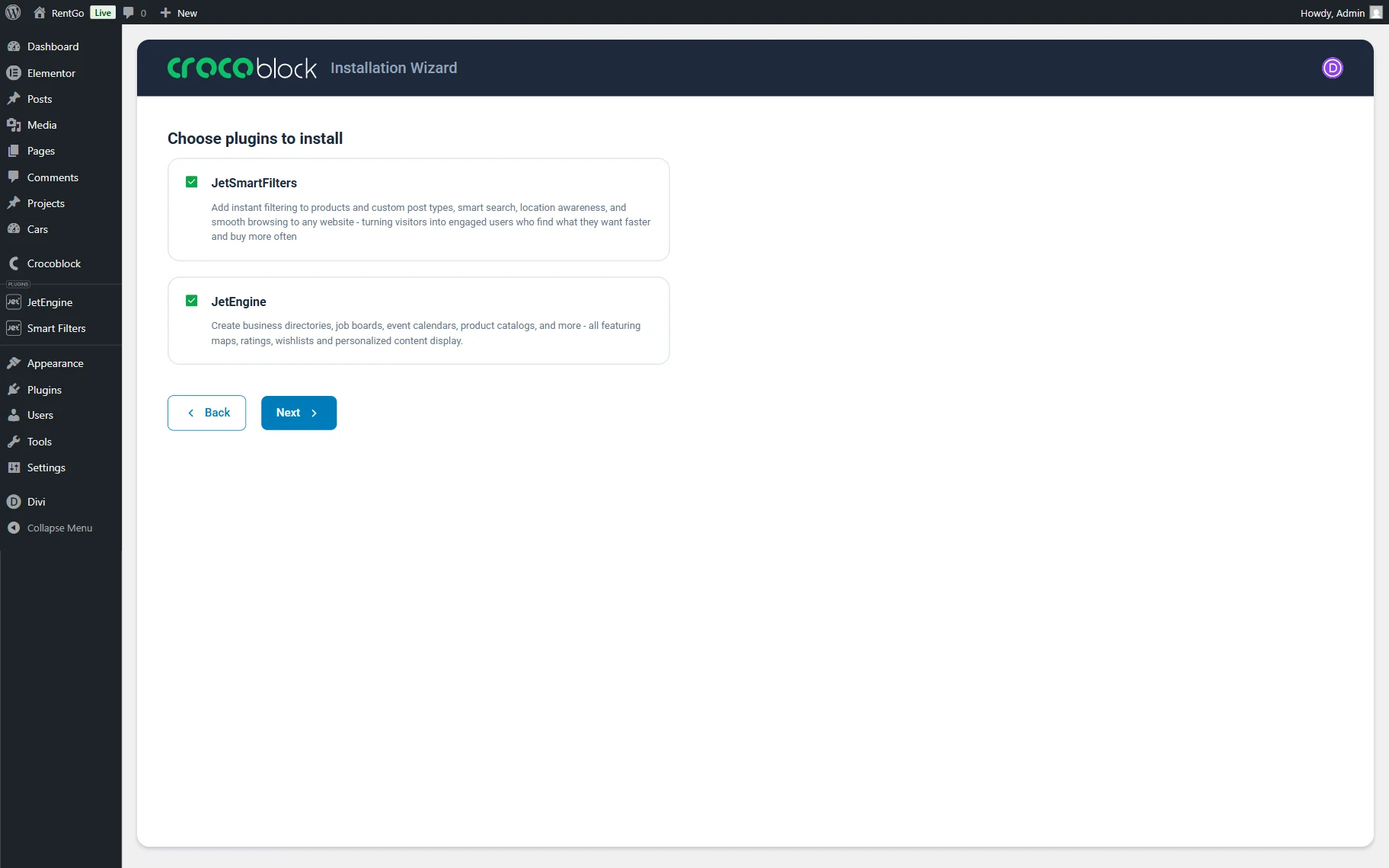
On the next page, the plugins to be installed should be selected. If JetSmartFilters and JetEngine have not been installed yet, they can be installed at this step.
The “Install plugins” button should be pressed to proceed.
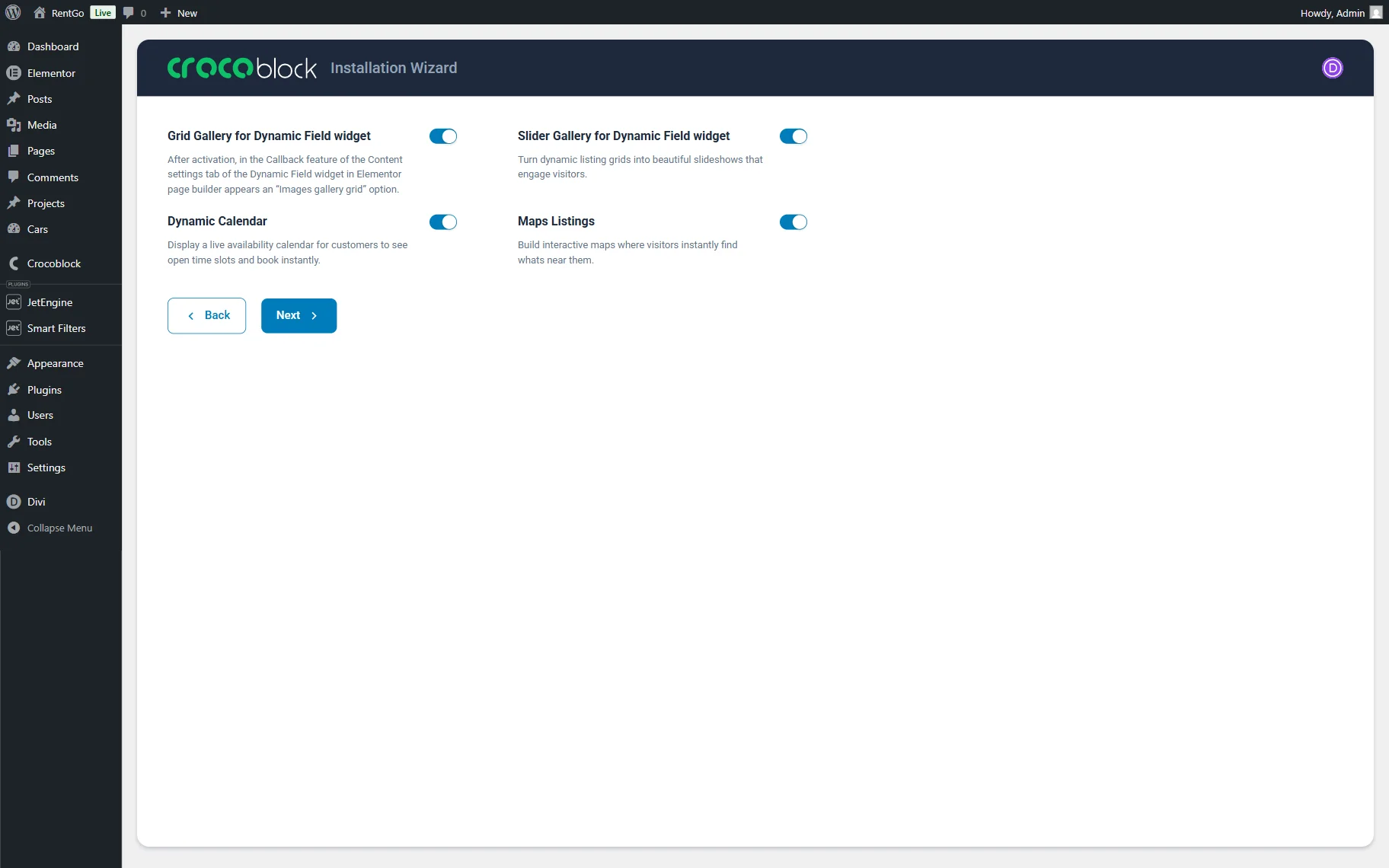
On the next page, the required modules/widgets should be activated. Among the suggested options are:
- Grid Gallery for Dynamic Field widget;
- Dynamic Calendar;
- Slider Gallery for Dynamic Field widget;
- Maps Listings.
When the needed options are selected, the “Next” button should be clicked.
That’s all for the JetEngine Divi Integration installation wizard. Once it is completed, JetEngine and JetSmartFilters content can be edited in the Divi builder on WordPress websites.