
How to Create an Archive Template for a Custom Post Type
This tutorial will show how to create a Custom Post Type Archive template with the help of the WordPress JetEngine and JetThemeCore plugins.
Before you start, check the tutorial requirements:
- Elementor (Free version) and Block editor (Gutenberg)
- JetEngine plugin installed and activated, with the Custom Post Type created
- JetThemeCore plugin installed and activated
Managing the Custom Post Types with the JetEngine WordPress plugin is handy. However, you will need an archive template to show the resulting grid. This tutorial will focus on creating an archive template for CPTs using the WordPress JetThemeCore plugin and page builders, such as Elementor and Gutenberg.
Creating an Archive Template
Navigate to WordPress Dashboard > Crocoblock > Theme Builder, scroll down to the “All Archives” (“Jobs (Vacancies) CPT” in this tutorial), and click the plus-shaped icon.
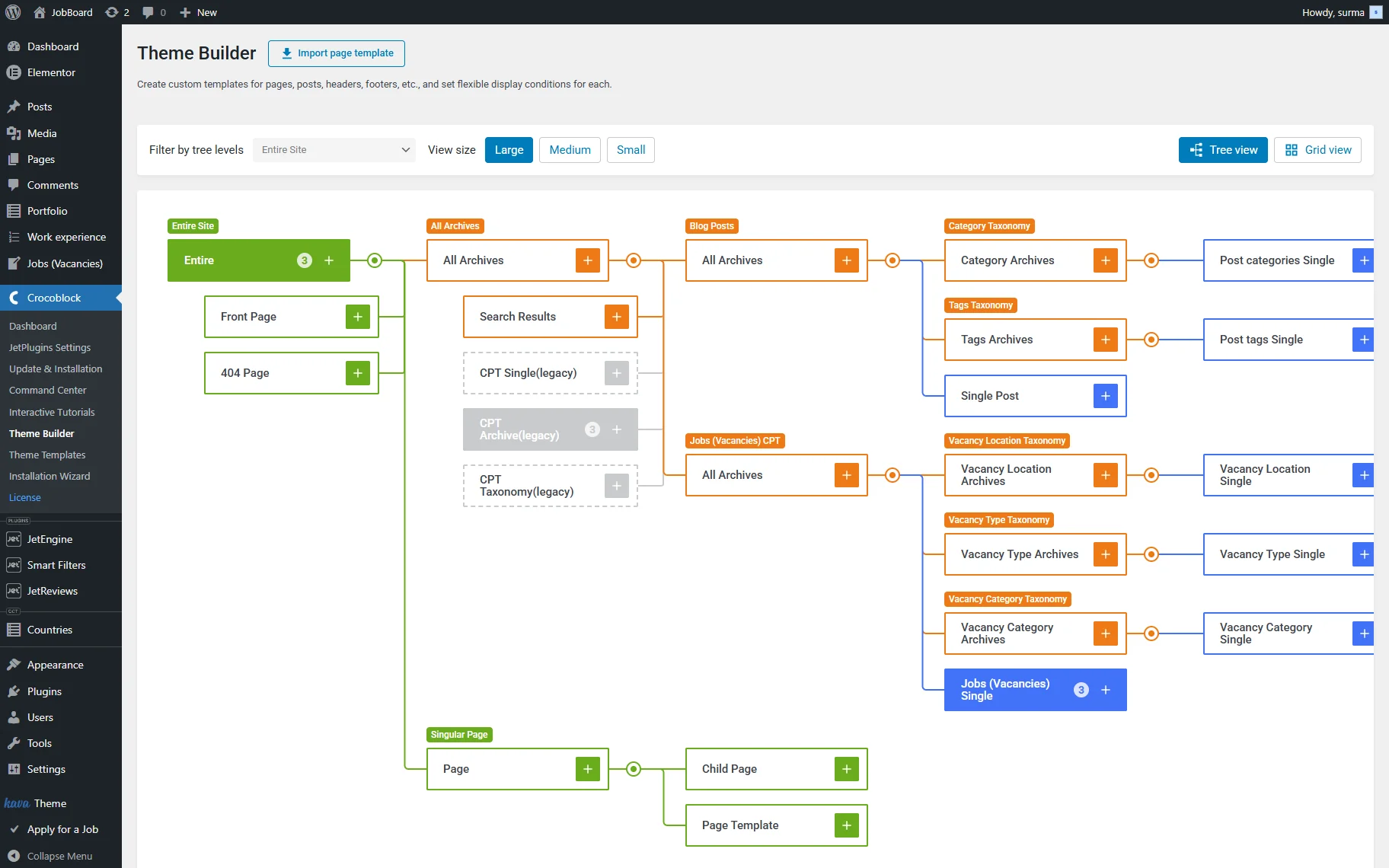
In the newly opened pop-up, the template conditions should be set up.
Pick the “Include” option in the first drop-down, then move to the second, where the “Archive” option should be selected. In the next dropdown, select the “All CPT Name Archives” (for this case, it is “All Jobs (Vacancies) Archives”).
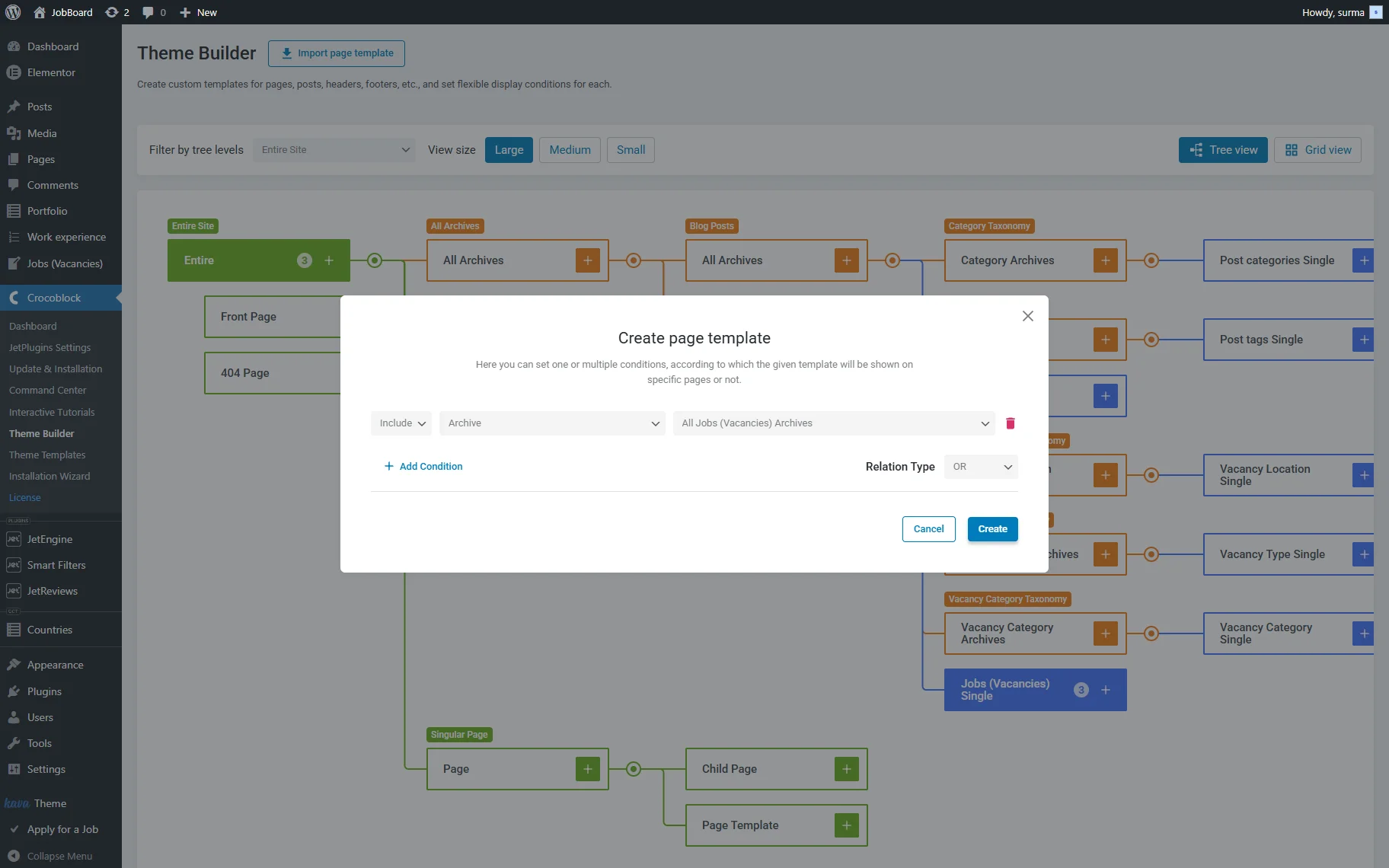
Click the “Create” button.
We are redirected to the page with the newly created template. Type the name for the template.
Then click the “+” icon next to the “Overwrite theme body” input and select the “Create Template” option. You can choose a template from the library if you have one, but we will guide you through a step-by-step process for creating one.
Set Up an Archive Template in Elementor
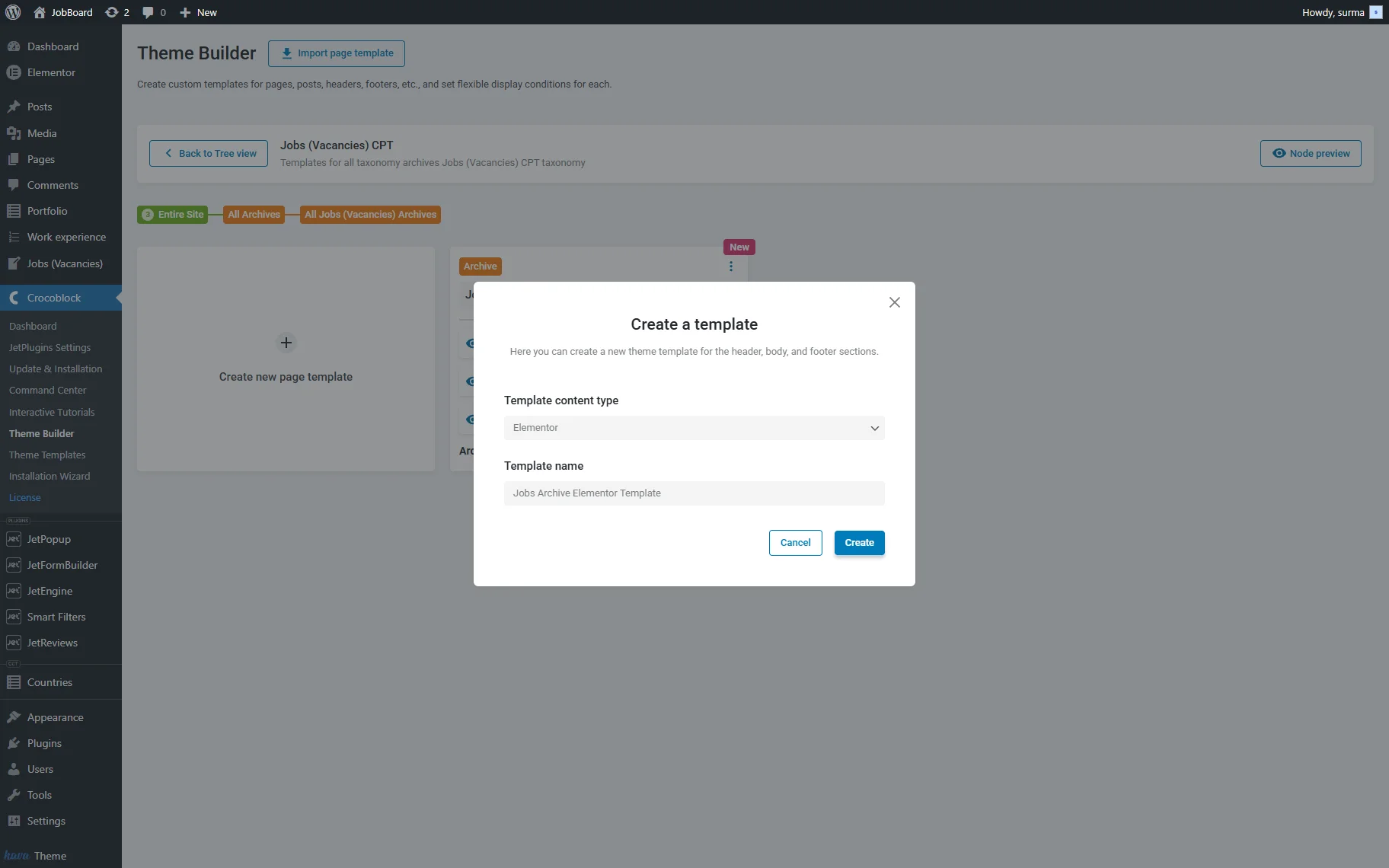
Once you have clicked the “Create Template” option, a new pop-up will appear. Choose the “Elementor” option for the Template content type, and enter the Template name. Then, click the “Create” button.
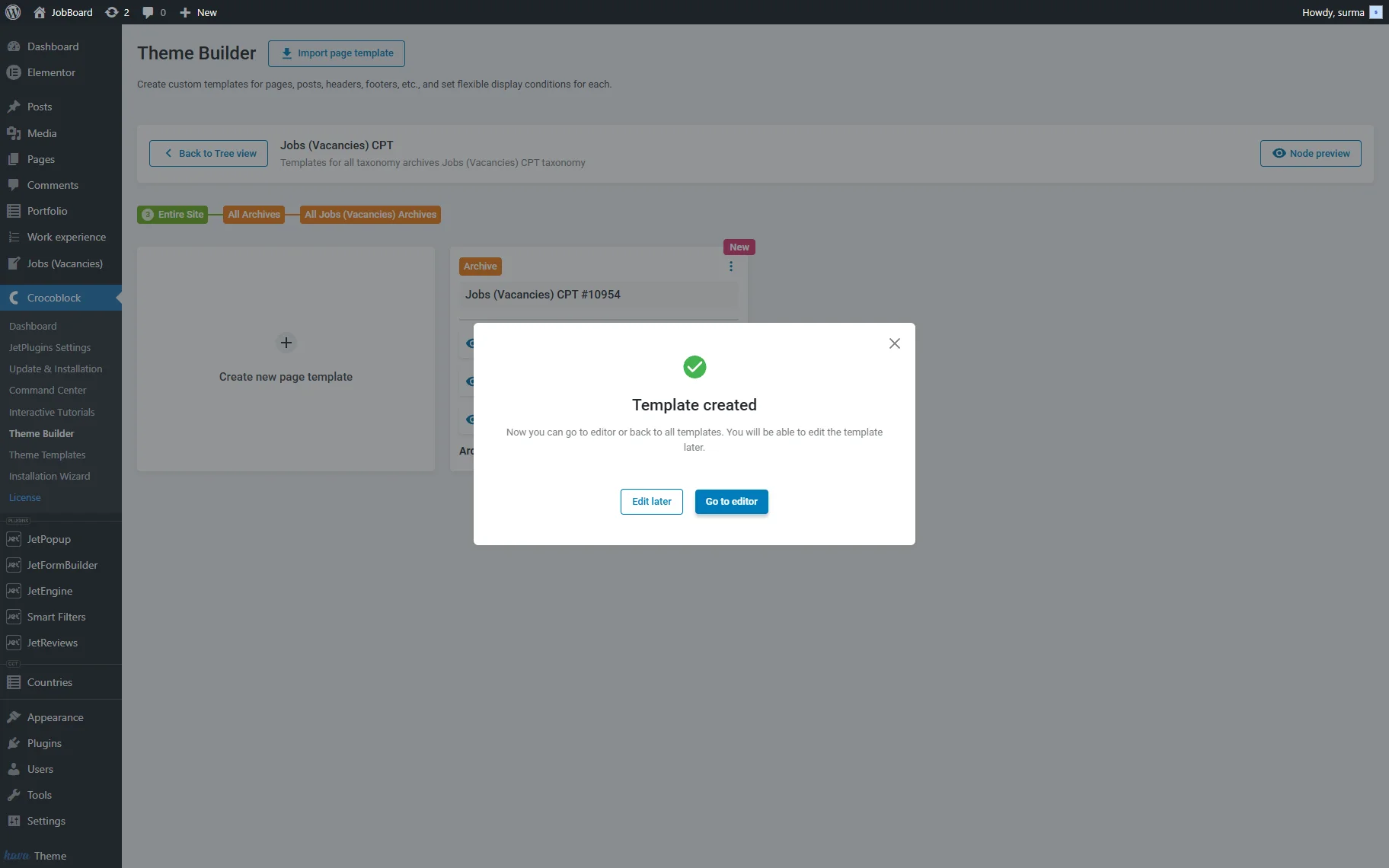
After that, you get the Template created pop-up, where you can choose to set it up now or later. In this case, we click the “Go to editor” button.
In the template editor, add the Listing Grid widget, customize it, and create a layout and design that suits your needs.
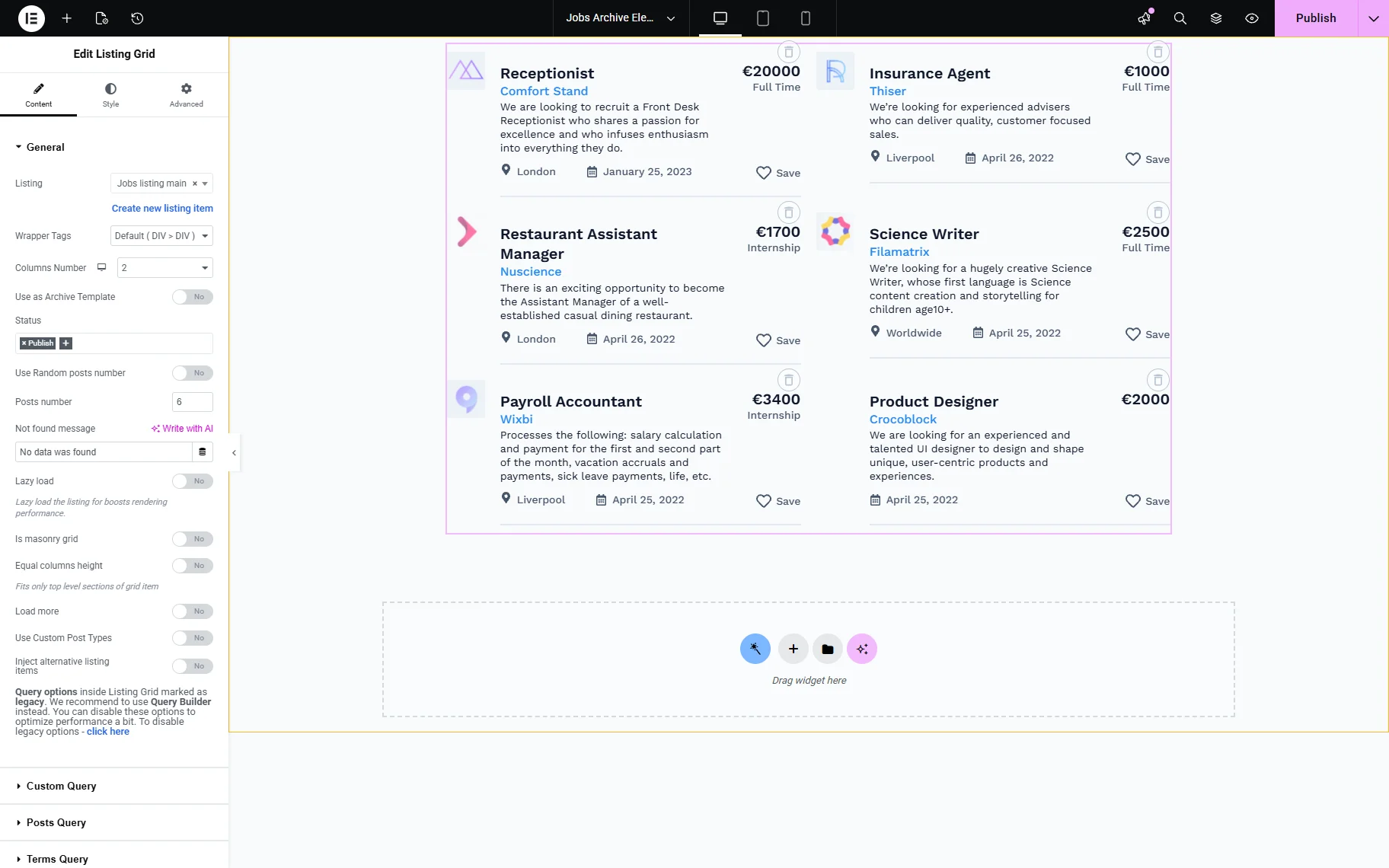
The Use as Archive Template toggle in the Listing Grid allows you to pull the number of posts to be displayed on the archive page from the default query. Enable this option to exclude the Listing Grid query settings.
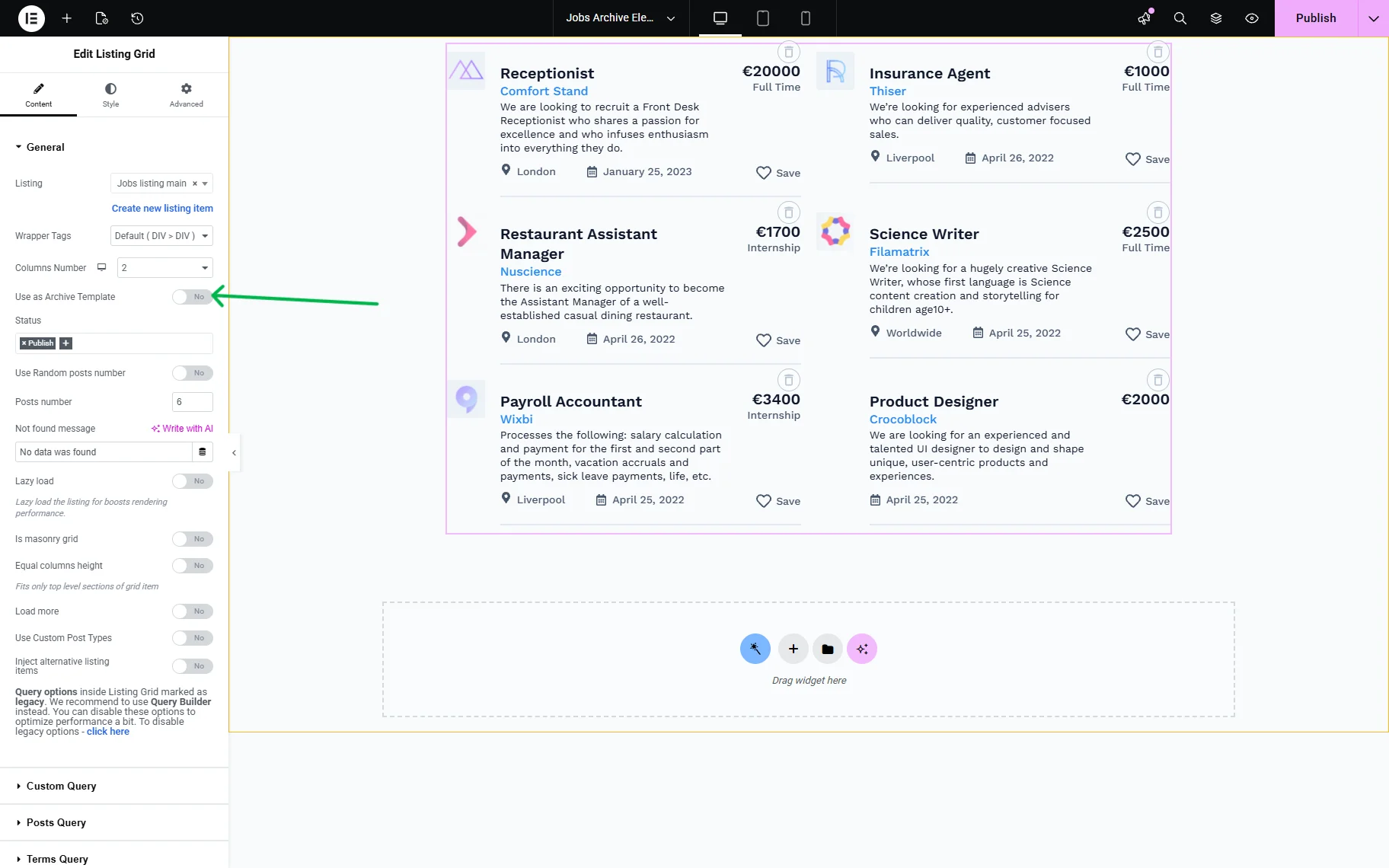
Otherwise, you can set up a custom query in the Query Builder and apply it in the Custom Query tab.
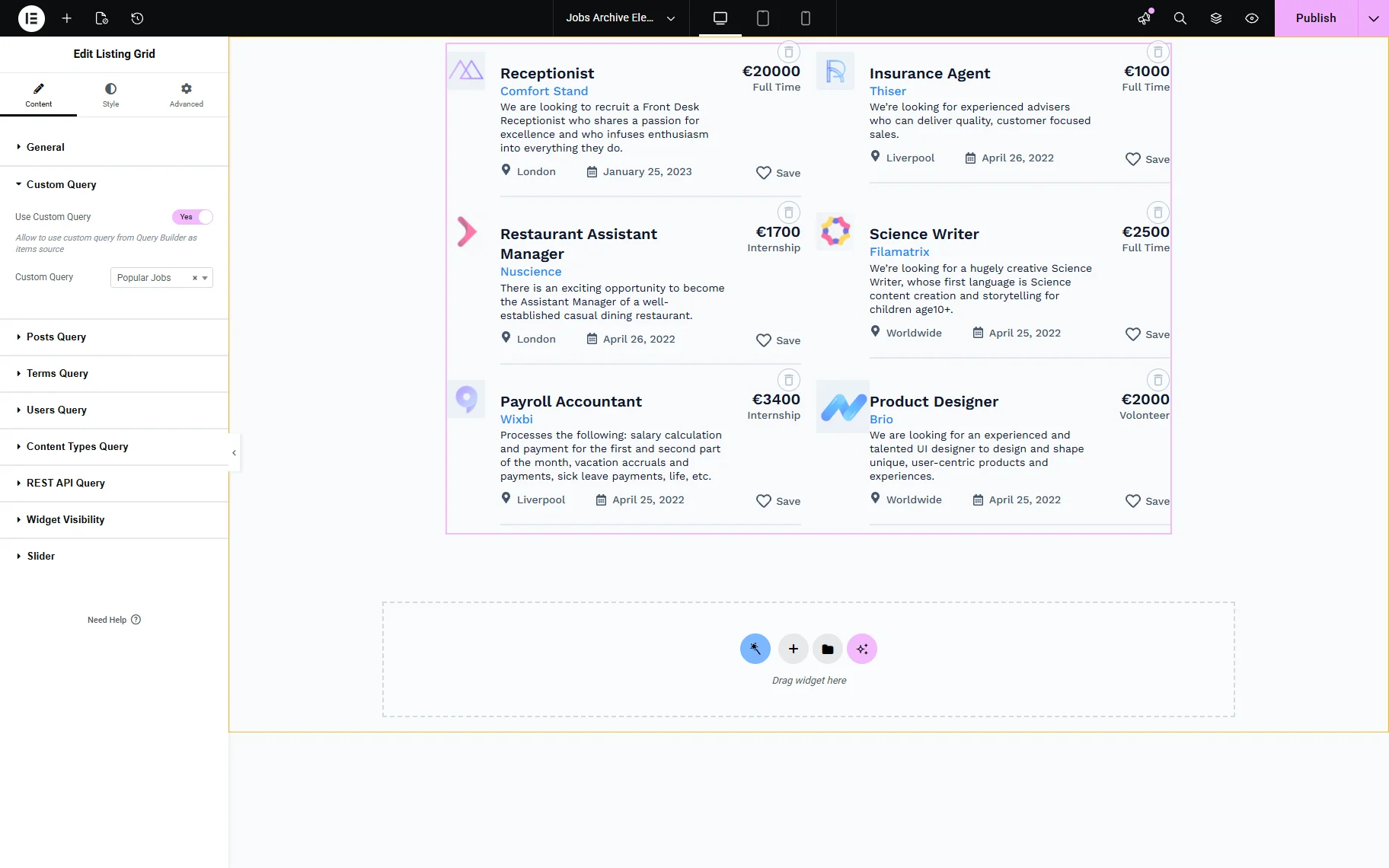
You can also add filters, search bars, advertising banners, and any other widgets to the template. Click the “Publish” button once you are ready.
Set Up an Archive Template in Gutenberg
When you choose the “Create Template” option, a new pop-up will appear. Select the “Block Editor” option for the Template Content Type, and type in the Template Name. Click the “Create” button.
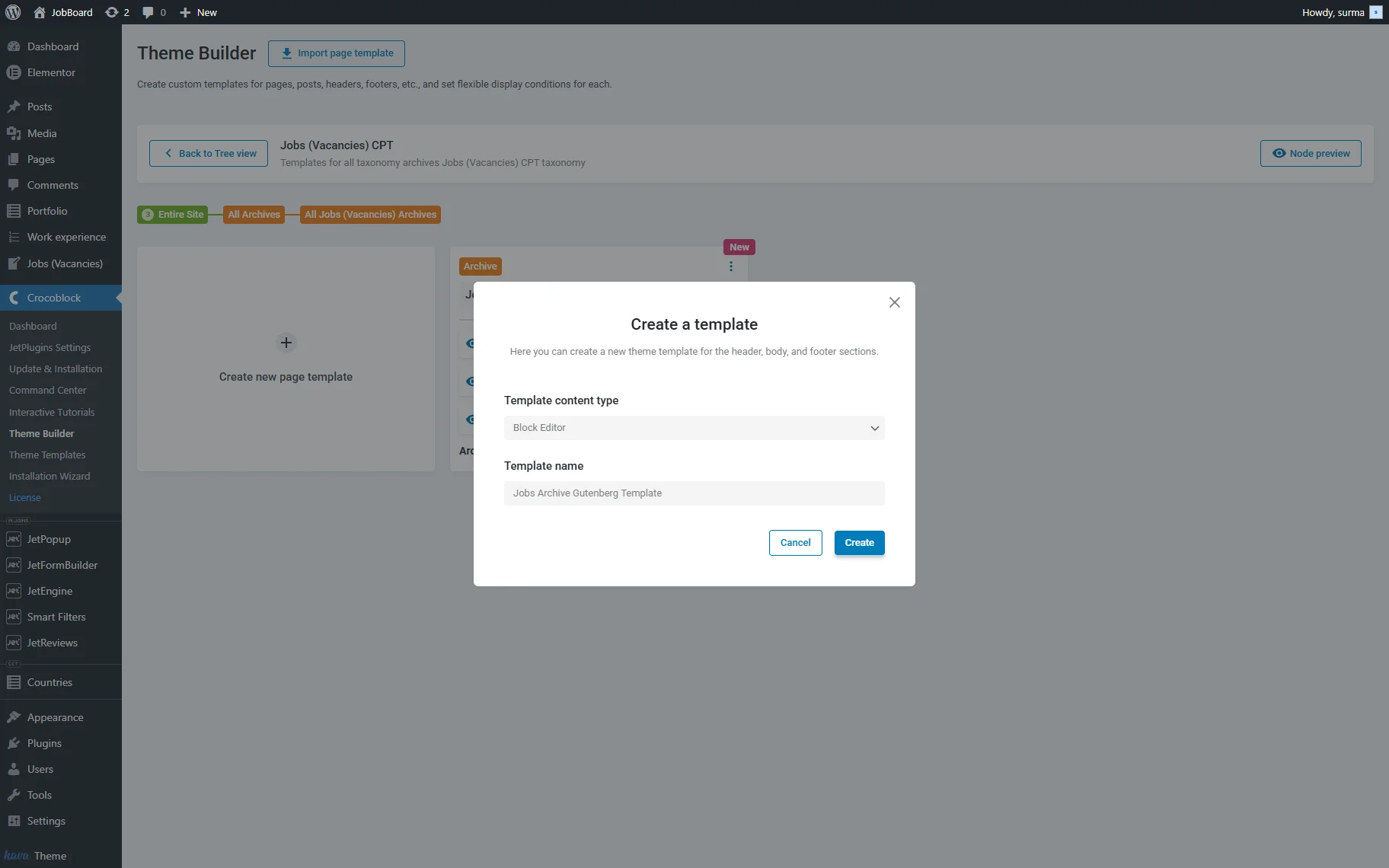
In the Template created pop-up, click the “Go to editor” button.
Now, on the template-editing page, add the Listing Grid block. Select the required Listing Template and configure the block settings as needed.
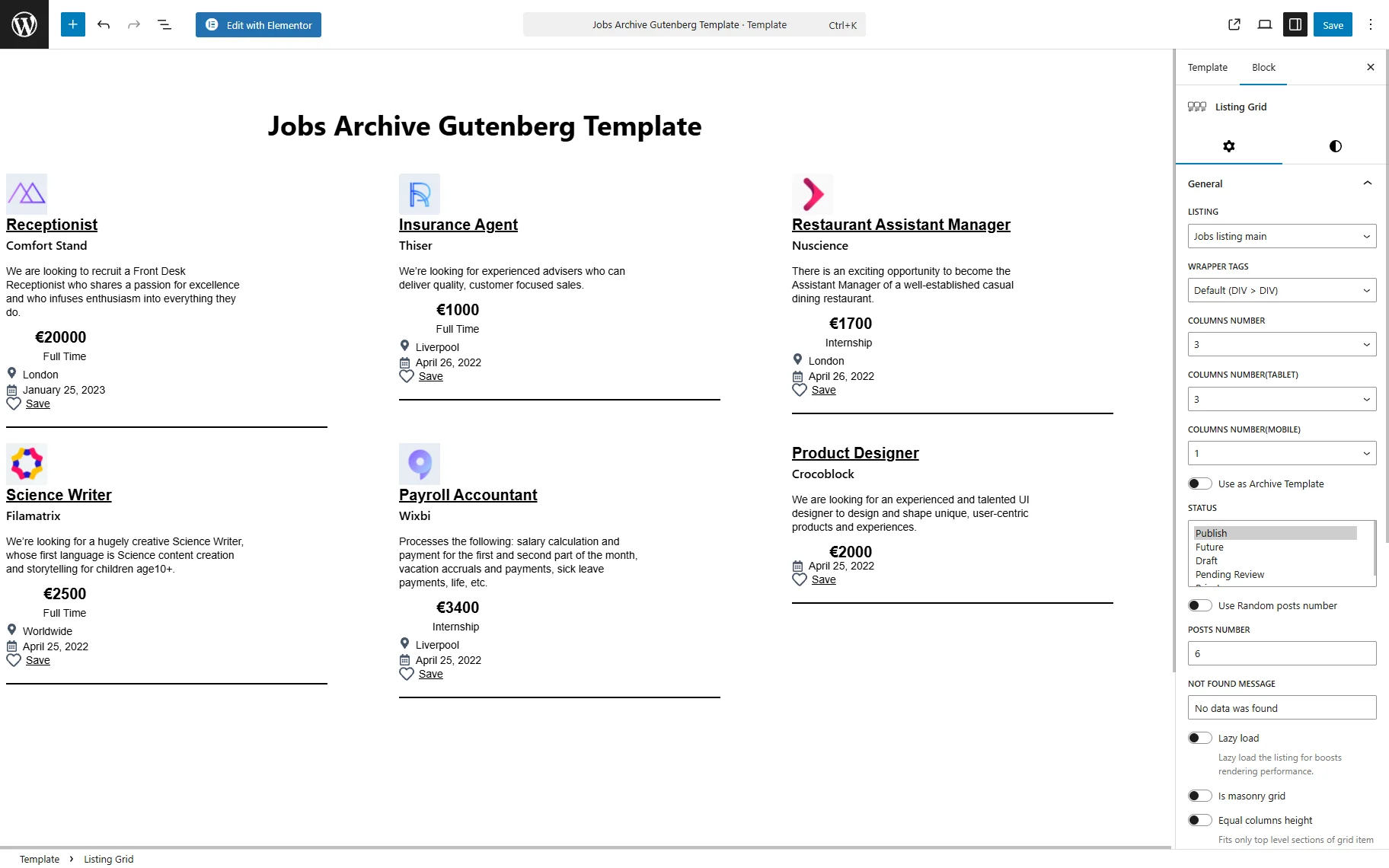
You can synchronize the number of posts on your archive page with the default query by turning on the Use as Archive Template toggle within the Listing Grid. It ensures that the Listing Grid‘s specific query settings are ignored.
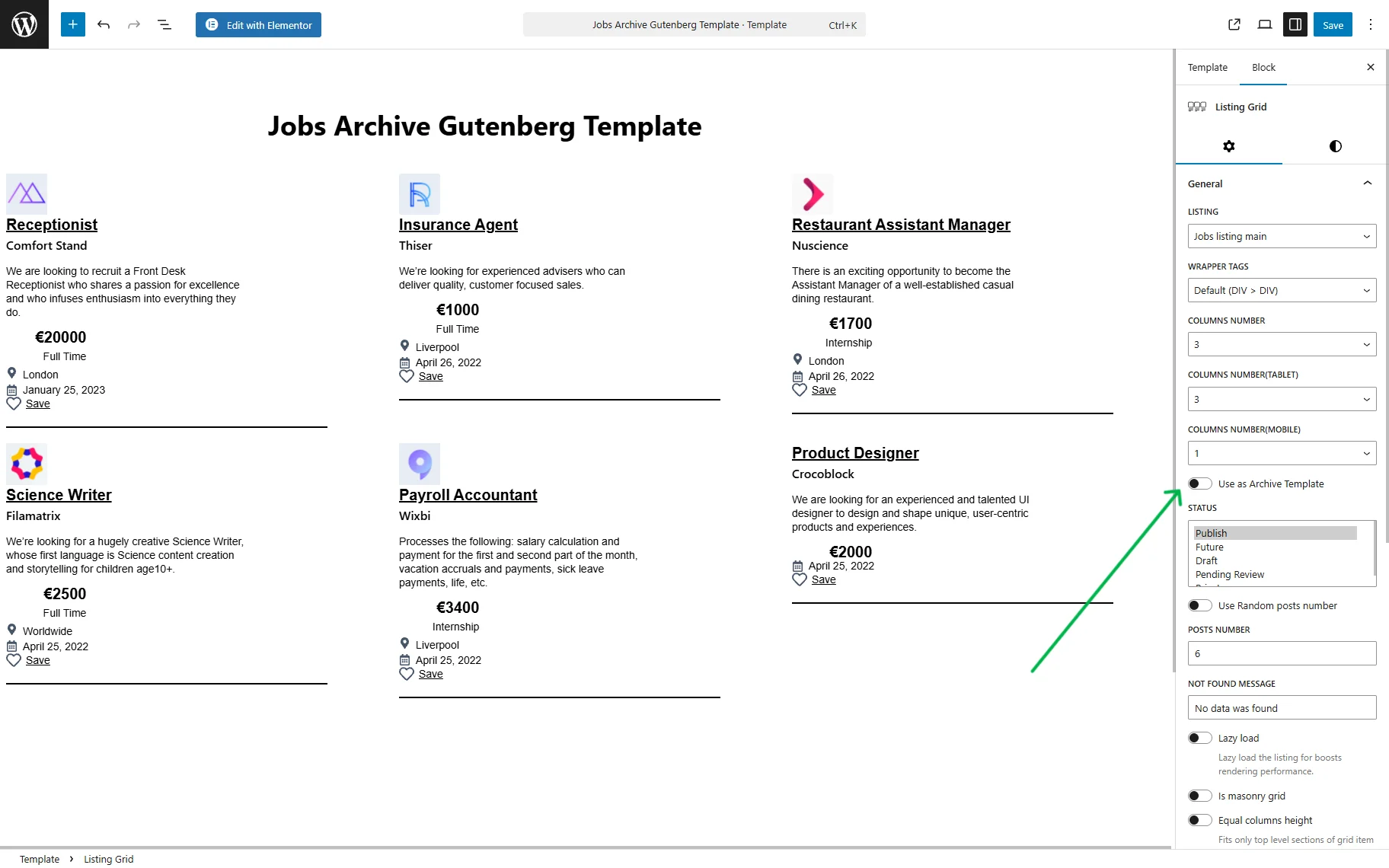
If you need to specify which posts to show, use the Query Builder. Your custom Posts Query can be applied in the Custom Query section.
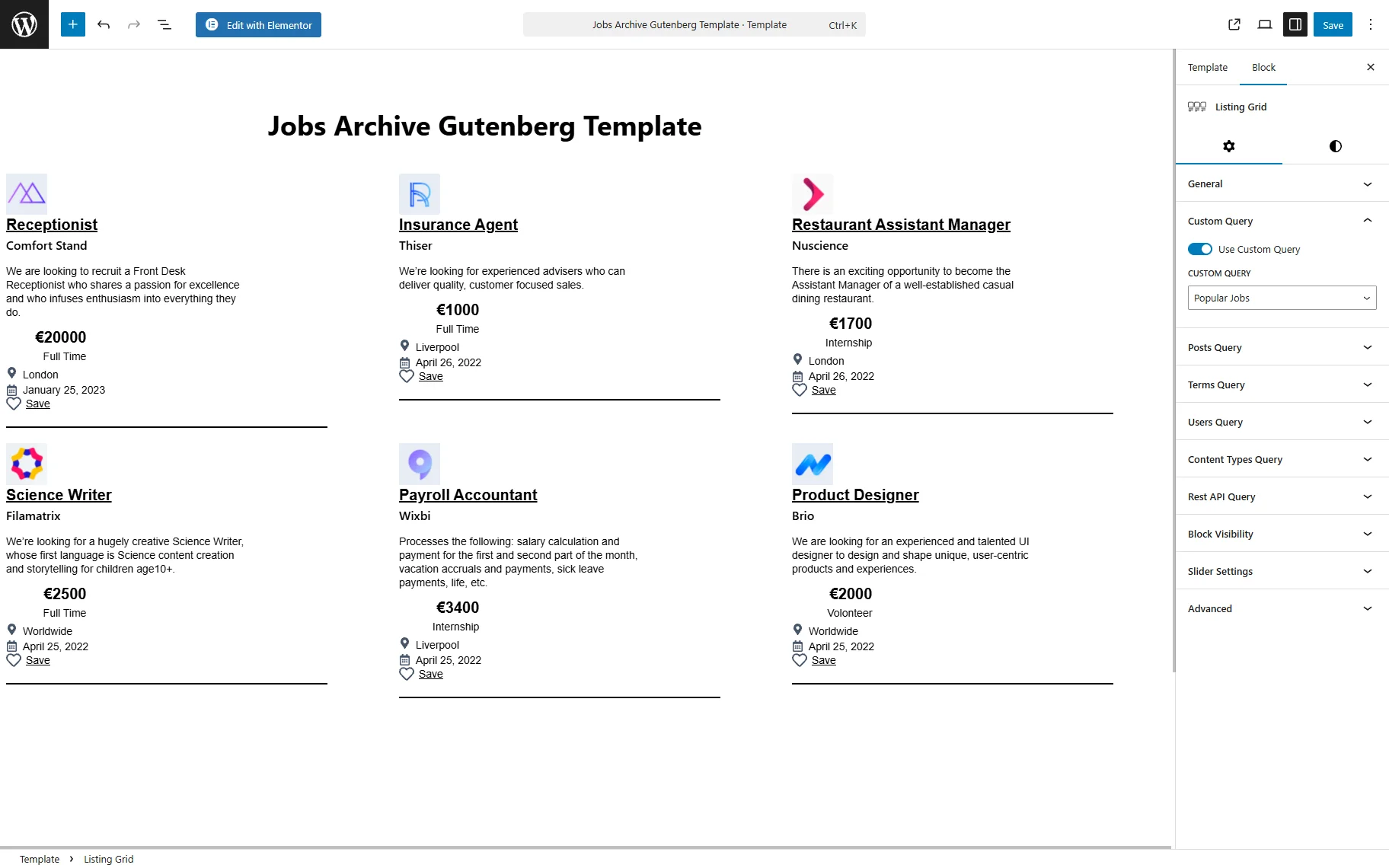
Furthermore, you can incorporate filters, search functions, promotional banners, and other widgets into the template. Hit the “Save” button when finished.
Add Custom Header and Footer to the Archive Template
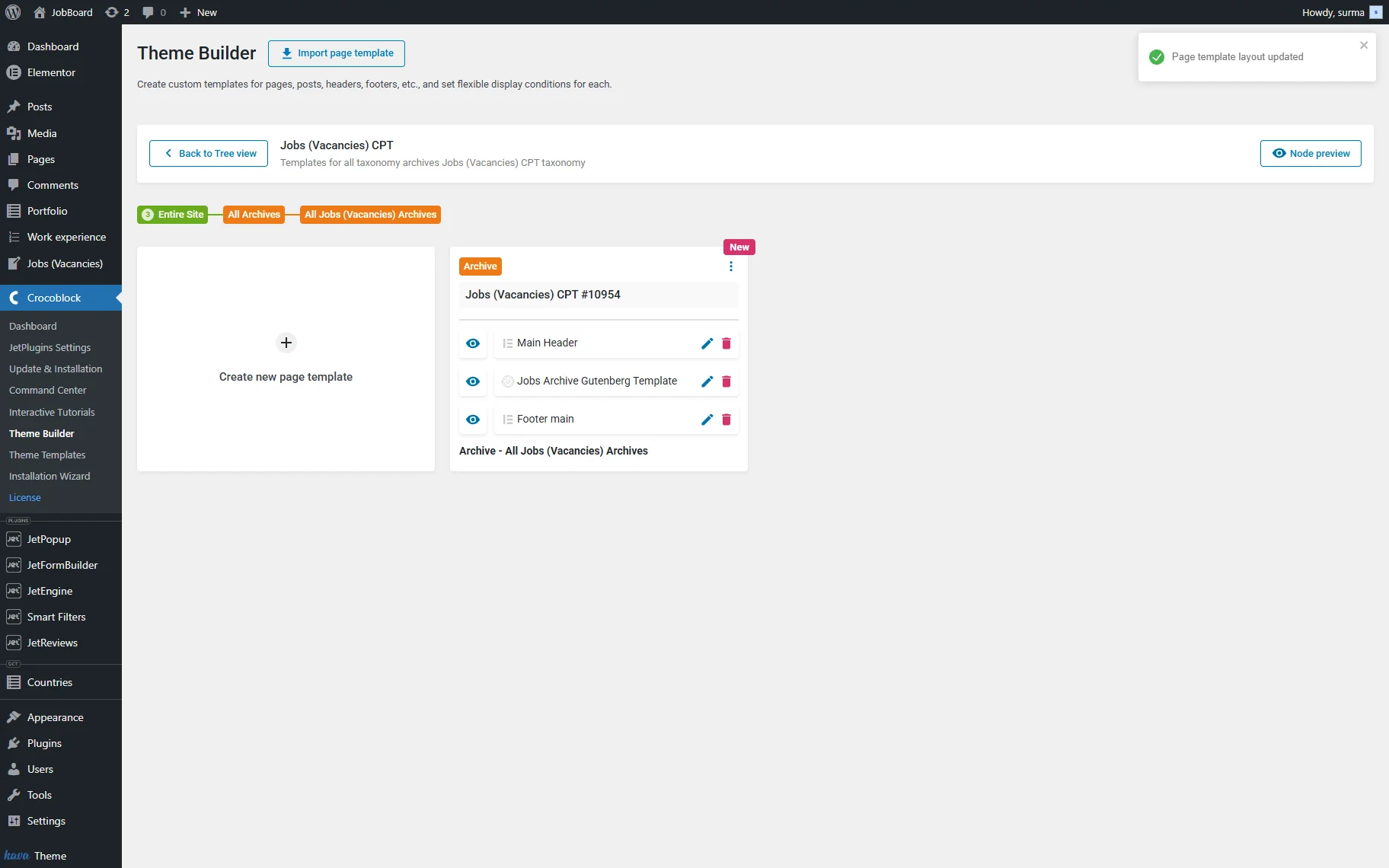
Once the main body of the archive is set, you can add a custom header and footer on the Theme Builder page. Alternatively, you can keep the theme header and footer.
On WordPress Dashboard > Crocoblock > Theme Builder > CPT Archive, you can create a new template or add an existing one from the library.
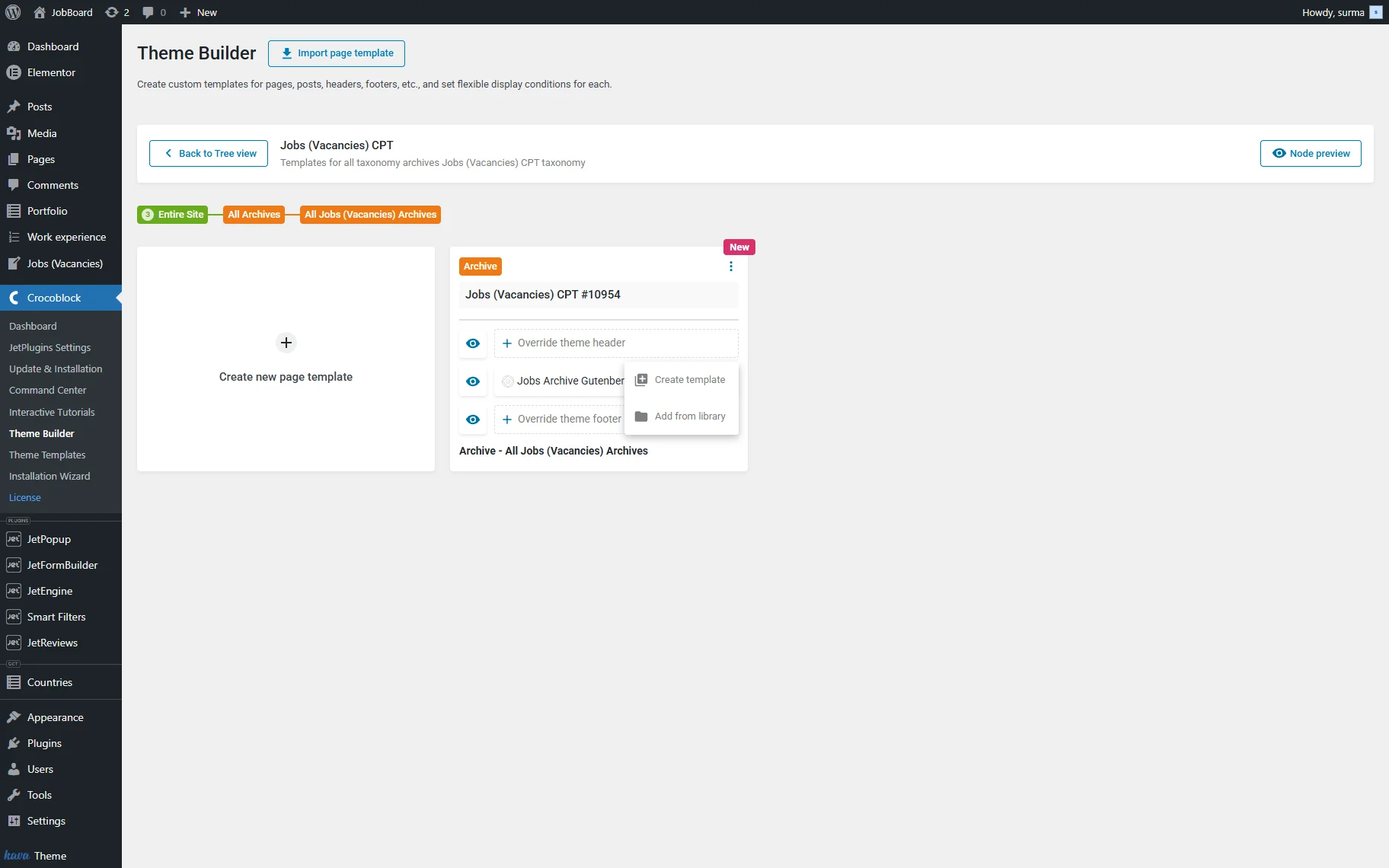
In this case, we add the already existing header and footer to the archive template. The changes are saved automatically.
That’s it. Now you know how to create a CPT archive template using the WordPress JetEngine and JetThemeCore plugins.