
How to Translate Custom Fields and Meta Boxes Using WPML
In this guide, you will discover how to translate the JetEngine’s custom fields and meta boxes on WordPress websites using the WPML plugin.
Before you start, check the tutorial requirements:
- WPML plugin installed and activated
- JetEngine plugin installed and activated
with the meta fields created
With WPML, you can make your JetEngine custom fields and meta boxes translatable. Proper meta field translation ensures that all dynamic website data is transferred correctly across all language versions.
To make the Meta Boxes and Meta Fields translatable, go to the WordPress Dashboard > WPML > Settings page and scroll down to Custom Fields Translation.
This section allows you to manage WPML custom fields translations and control how different meta elements behave in multiple languages.
By default, the “Don’t translate” option is set to all the custom fields. You can select one of four translation options for the custom fields using radio buttons:
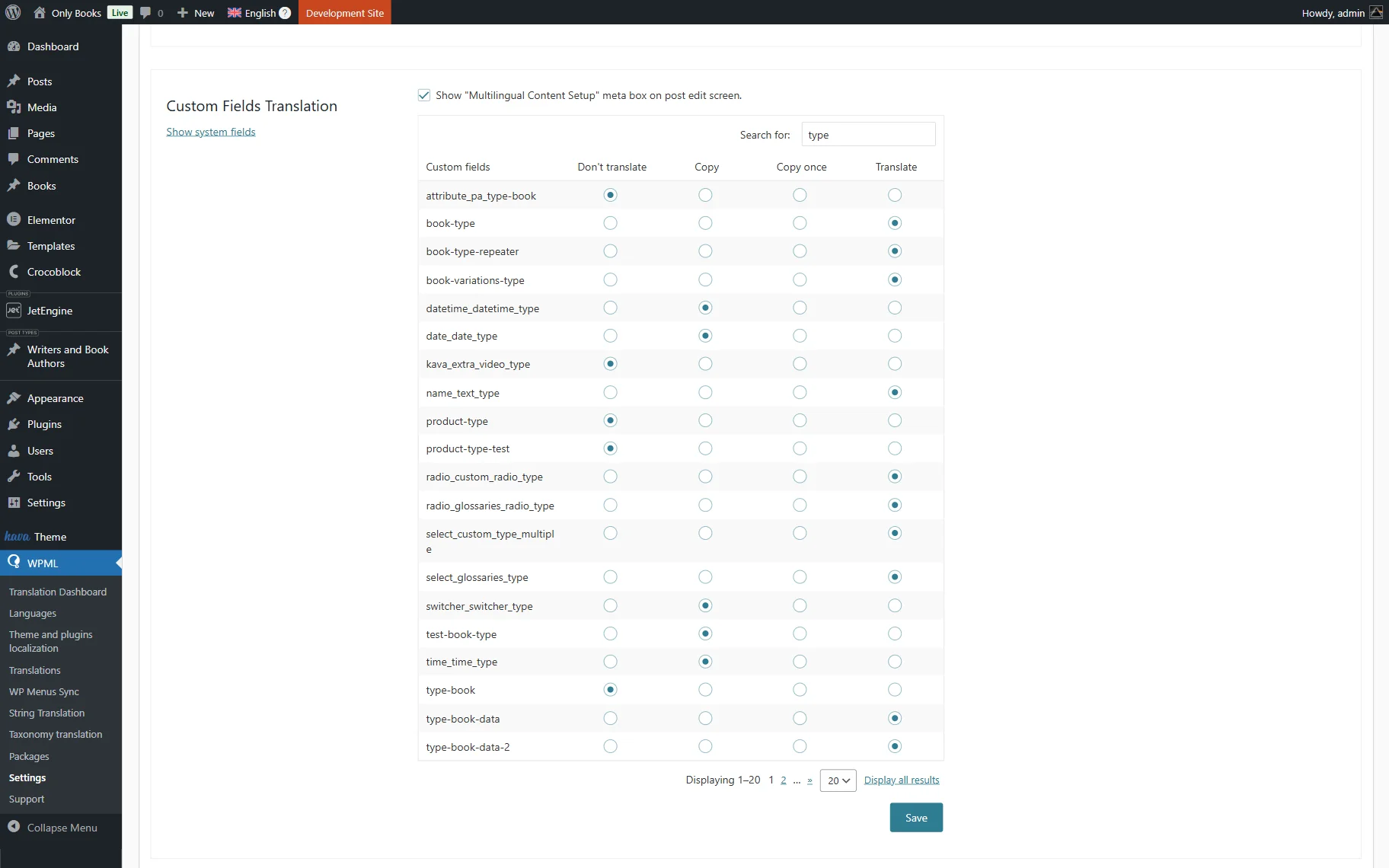
- Don’t translate — the system will output the given custom fields “as is”;
- Copy — the custom field value will always be copied to secondary languages, whether you decide to modify the default-language custom field or not;
- Copy once — the custom field value will be copied to the secondary-language site version during the initial translation process. However, you can set a different value for it that won’t be overridden by the value of the default-language custom field;
- Translate — you will be able to translate meta fields and perform WPML translate custom fields actions wherever they appear.
When all radio buttons are checked, hit the “Save” button. To dig even deeper, press the “Show system fields” button (located under the Custom Fields Translation section name), and you’ll see the system components that can be made either translatable or not.
However, playing with system fields can be tricky. Be cautious and always create a backup copy of your site content before making any changes to the backend. This ensures safe meta translation.
- Go to WordPress Dashboard > Pages > All Pages and use the admin bar language switcher to view the pages that belong to a given language;
- Click to edit the needed page/post;
- You will see a warning. Press the “Edit anyway” button;
- Input the missing translations by hand and hit the “Update” button to save the changes.
Both Crocoblock and WPML development teams are aware of this issue and are working to fix it.
Concerning meta fields, remember that you do not want to change any Field attributes except the Label. If you make any other changes, there is a possibility that the website won’t work correctly.
That’s all; now you know how to translate JetEngine custom fields and meta boxes using the WPML plugin.