In today’s competitive eCommerce market, optimizing every customer interaction is essential for business success. One of the most effective strategies for increasing the average order value and improving the customer experience is implementing a robust related products system. Whether you’re showcasing complementary accessories, alternative product options, or items often purchased together, Crocoblock’s WooCommerce-related products widget can be a powerful tool to guide customers toward additional purchases, enhancing their shopping experience.
Understanding how to implement and customize related products using tools like JetWooBuilder can significantly improve your store’s performance. This guide explains why the related products feature exists, how to set it up with JetWooBuilder, and the key differences among WooCommerce’s various product recommendation systems.
Understanding WooCommerce Product Relationships
In WooCommerce, upsell products, cross-sell products, and related products are all methods to boost sales, but they serve different purposes, and as a rule, they’re displayed in other locations.
From a developer perspective, WooCommerce stores upsell, cross-sell, and related products data in different ways:
- Upsells and cross-sells are stored in the wp_postmeta table as post meta fields:
- Upsells use the meta key _upsell_id, which you can use to create custom queries as described in this tutorial;
- Cross-sells use the meta key _crosssell_ids;
- Related products are not stored in the database; instead, they are dynamically generated. WooCommerce calculates related products on the fly using shared product categories and tags.
Upsell products
Upsell products are recommended as alternatives to the current product, usually higher-end or more costly versions of the same item, or accessories compatible with the chosen product.
These complementary items are:
- shown on the single product page, usually below the product description;
- aimed to encourage customers to choose a higher-value product, thereby increasing the overall value of each purchase.
JetWooBuilder offers a dedicated Single Upsells widget that can be placed on a single-product page template. Now let’s see how to fine-tune this widget to display upsells on a single product page.
Note
Before we begin, ensure that you have the JetWooBuilder, JetEngine, and WooCommerce plugins installed and activated.
Step 1: Select the upsells
To alter the individual selection of up-selling products, go to WordPress Dashboard > Products > All Products, then scroll down to the Product data section, choose the Linked Products tab, and add up to 4 items.
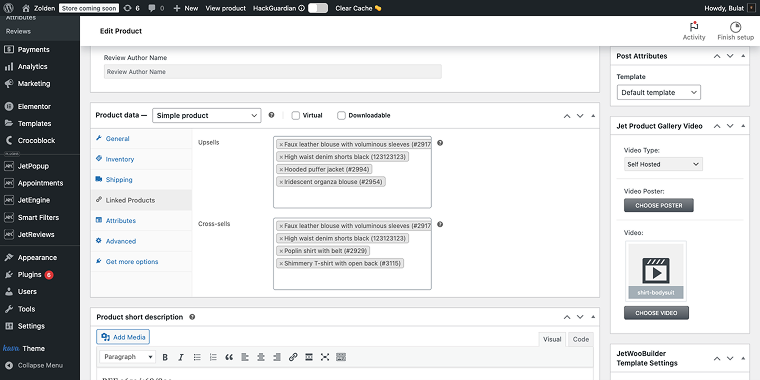
When done, click the “Update” button to save the progress. Now we need to create the template that will show the products on the front end.
Step 2: Create the upsell template
Go to WordPress Dashboard > Crocoblock > Woo Page Builder, then click “Create New Template” to open the Create template pop-up.
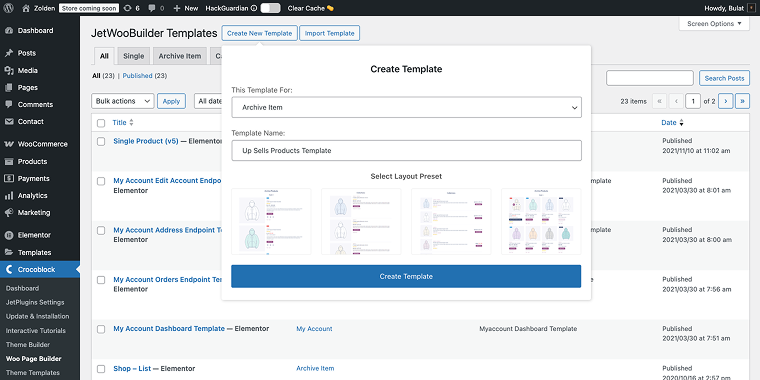
Configure the template settings:
- This Template For field set to “Archive Item”;
- Template Name field set to “Up Sells Products Template.”
Click “Create Template” to save, and you’ll be redirected to your selected editor (in my case, it’s Elementor), where you can add all the required widgets.
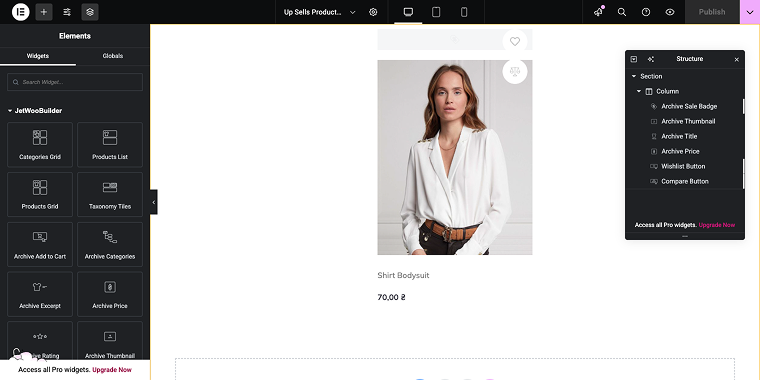
The range of widgets may include, but is not limited to:
- Archive Thumbnail — will display the product image;
- Archive Title — will show the product name;
- Archive Price — will display the product price;
- Archive Add to Cart — will provide the “Add to Cart” button functionality.
Optional widgets:
- Archive Sale Badge — will show sale/discount indicators;
- Archive Rating — will display product star ratings;
- Wishlist Button — allows customers to save products for later;
- Compare Button — enables product comparison functionality.
These items will generate a standard product card layout that displays key product details and purchasing options for your upsell items. The template will automatically display the upsell products you’ve configured in your WooCommerce product settings (Step 1).
Now we need to assign the template via JetWooBuilder settings.
Step 3: Assign the template
Go to WordPress Dashboard > WooCommerce > Settings and click on the JetWooBuilder tab.
Scroll down to the Archive Product section and in the Related and Up-Sells Products Template field, select the template you created in Step 2.
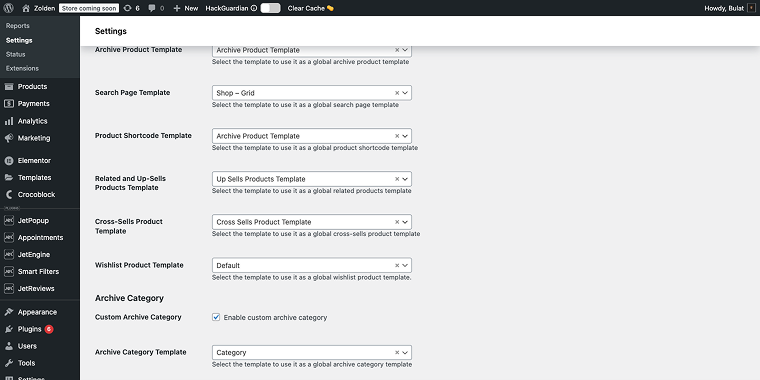
Finally, scroll down the page to the Number of up-sell products to show field and set the value to “4” to limit the number of products. To display more products, set a higher value.
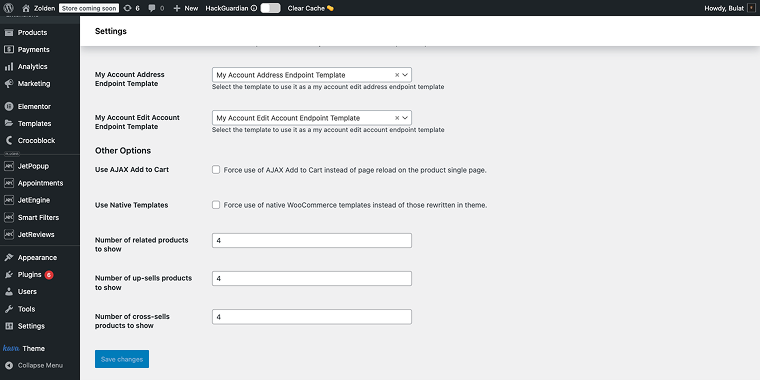
Click “Save changes” at the bottom of the page.
Step 4: Add the Upsells widget
Lastly, navigate to your Single Product Template (if you don’t have it, you need to create one) in the template editor and add the SingleUpsells widget to the desired location.
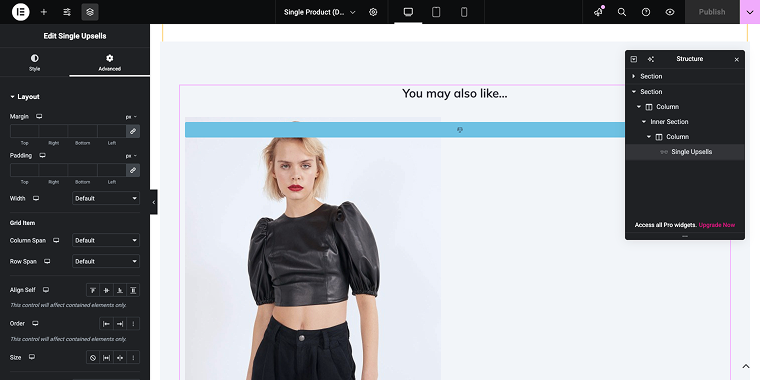
On the front end, these items will appear as follows:
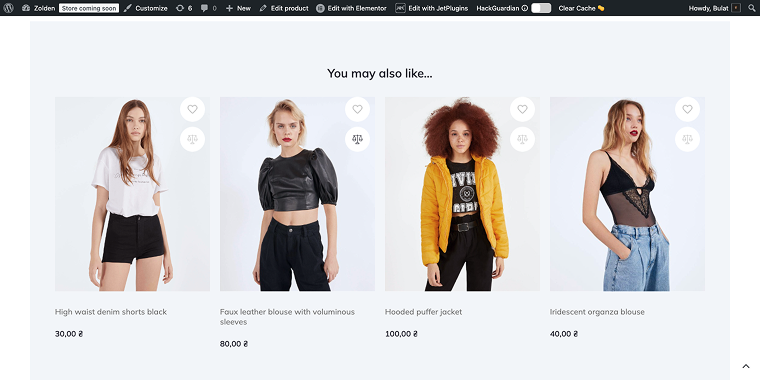
Cross-sell products
JetWooBuilder’s Cross-sell widget is typically used on cart or checkout pages. It displays product(s) that complement item(s) already in the customer’s cart, increasing the chances of additional purchases.
Fine-tuning the Cross-sell widget is nearly identical to the Upsells widget. Here are the similar steps, listed briefly:
- Step 1: add the cross-selling products via the Linked Products tab, Cross-sells input field;
- Step 2: create the Cross-sells template, going to WordPress Dashboard > Crocoblock > Woo Page Builder, feel free to use the same selection of widgets;
- Step 3: assign the template by going to the WordPress Dashboard > WooCommerce > Settings. This time, you need to find the Cross-Sells Product Template field. On the same page, limit the number of displayed products via the Number of cross-sells products to show field;
- Step 4: add the Cart Cross Sells widget to the cart template:
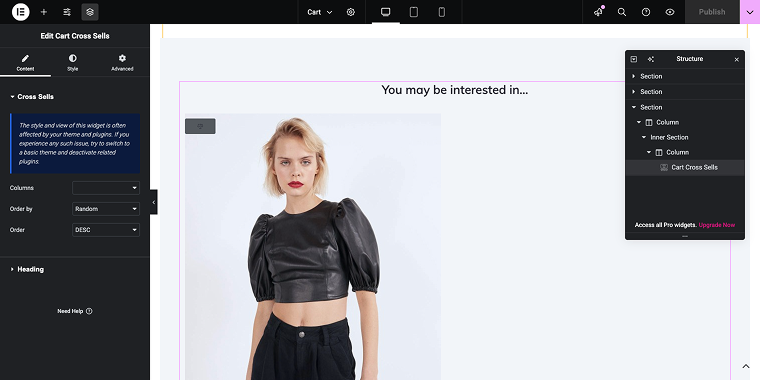
On the front end, this will appear as follows:
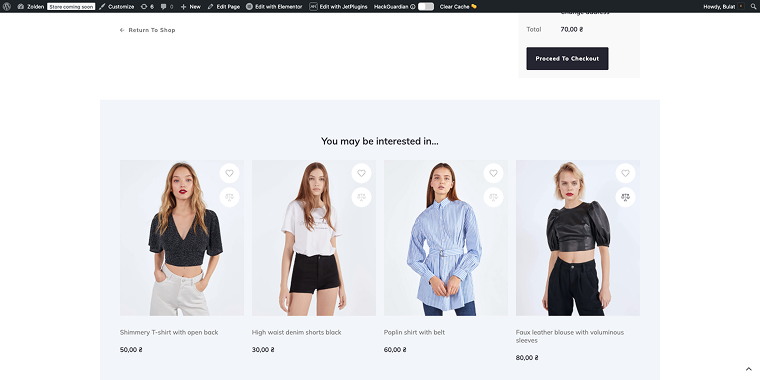
Easy-peasy.
Related products
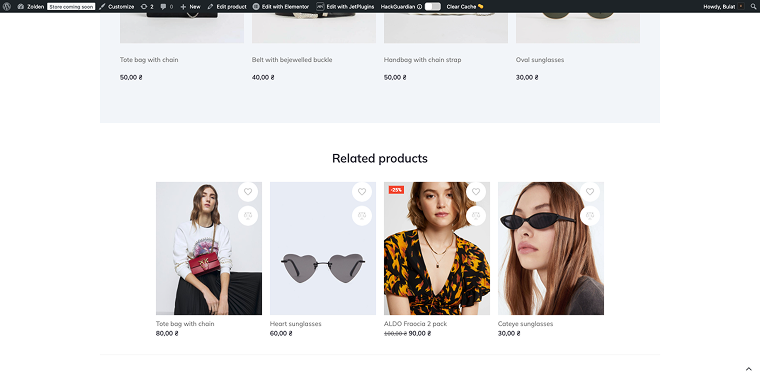
JetWooBuilder’s Single Related Products widget automatically shows related products. You don’t need to list them manually; they will appear on the page if they share categories or tags (with the product you’re currently viewing). Therefore, ensure you have a logical structure for the WooCommerce taxonomies.
The good news is that you don’t need to create a new template for this widget or fill it with widgets because it uses the same template as the Single Upsells widget. Just open the single product template in the Elementor editor and add a Single Related Products widget where you want it. In this example, I’ve placed it at the bottom of the page body.
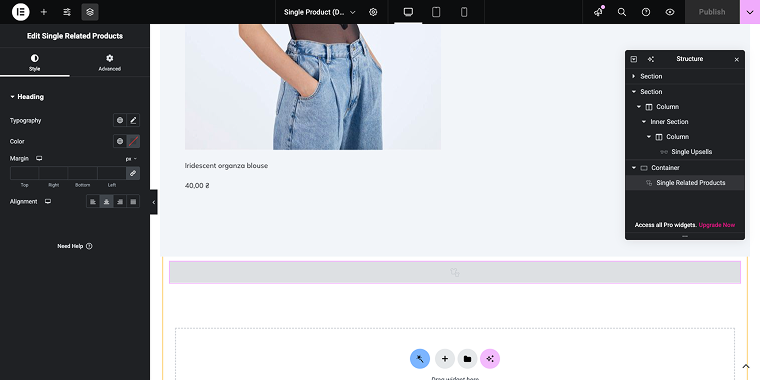
On the front end, the widget recommendations will appear as shown below.
The downsides of product recommendations
The psychological aspect of product recommendations is not to be understated.
✅ On one hand, when customers see products that complement their current selection, it creates a sense of completeness and helps them visualize how different items work together.
❌ On the other hand, when customers are presented with too many options, it can actually worsen decision-making rather than improve it. The “paradox of choice” shows that excessive options can lead to cart abandonment. In some cases, it may be necessary to turn off related products for WooCommerce entirely to simplify the shopping experience.
This means that custom-related products for WooCommerce should be implemented thoughtfully, serving as a “choice architecture” that will not complicate the user experience.
3 Popular Upsell and Related Products Plugins
While JetWooBuilder offers excellent widgets for product recommendations, various third-party plugins can improve your upselling with specialized tools and advanced algorithms. These plugins often focus on increasing conversion rates and may provide features that complement JetWooBuilder’s display options.
Checkout Upsell and Order Bumps (Freemium)
🏆 Best for WooCommerce stores seeking simple and effective checkout upsells without complex setup.
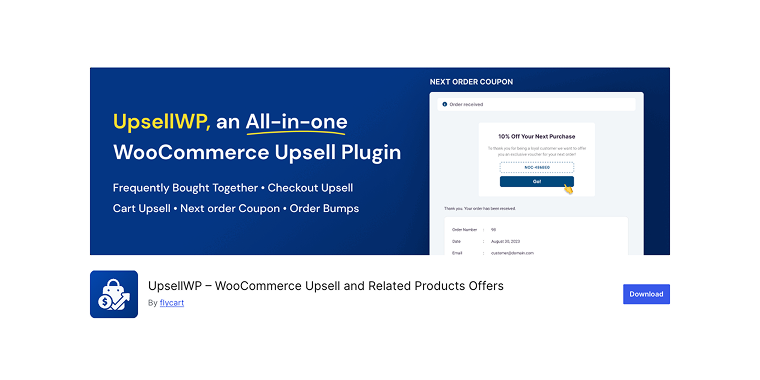
Checkout Upsell and Order Bumps is a plugin that focuses on adding strategic upsell opportunities right at the checkout. The plugin allows you to display complementary products or services as optional add-ons during checkout, capitalizing on the moment when customers are most ready to make a purchase. It is designed to be lightweight and easy to use, making it accessible for store owners who want to increase the average order value without complicating their checkout process.
Pricing: free, with optional premium features available.
Key features:
- simple checkout upsell integration;
- order bump functionality for last-minute additions;
- customizable product selection rules;
- basic styling options for checkout display;
- compatibility with standard WooCommerce themes.
Pros:
- completely free core functionality;
- easy setup with minimal configuration required;
- lightweight and doesn’t slow down checkout;
- focuses specifically on high-conversion checkout moments;
- works with most WooCommerce themes out of the box.
Cons:
- limited advanced customization options;
- basic styling compared to premium alternatives;
- fewer targeting and personalization features;
- no A/B testing functionality in the free version.
Checkout Upsell Funnel for WooCommerce (Freemium)
🏆 Best for advanced stores wanting comprehensive post-purchase upsell funnels with detailed analytics.
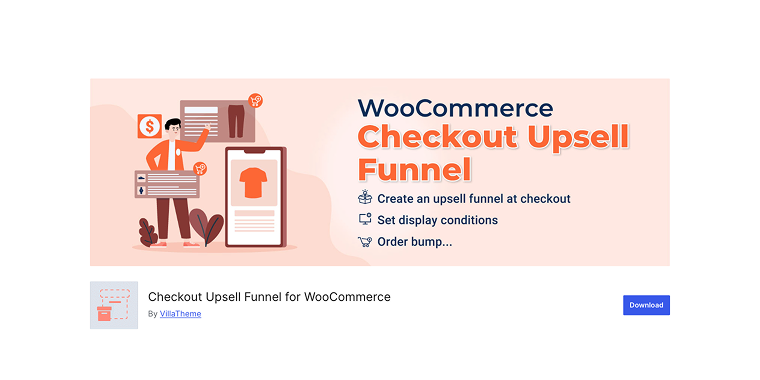
Checkout Upsell Funnel for WooCommerce builds sophisticated upsell sequences that extend beyond the initial purchase. The plugin emphasizes post-purchase upsells, enabling you to offer additional products immediately after customers complete their transaction, when their satisfaction and trust are at their highest. It includes advanced features such as funnel creation, A/B testing, and detailed conversion tracking to enhance your upselling strategy.
Pricing: starting at $67 for a single site license, with higher tiers for multiple sites and additional features.
Key features:
- post-purchase upsell funnel creation;
- A/B testing capabilities for different offers;
- detailed analytics and conversion tracking;
- integration with popular payment gateways.
Pros:
- focuses on high-conversion post-purchase timing;
- comprehensive funnel building capabilities;
- detailed analytics help optimize performance;
- seamless payment processing for upsells.
Cons:
- higher price point than simpler alternatives;
- requires time investment to set up effective funnels;
- learning curve for advanced funnel features;
- may be overkill for simple upselling needs.
WooCommerce Product Recommendations (Premium)
🏆 Best for enterprise-level stores requiring granular personalization and advanced recommendation algorithms.
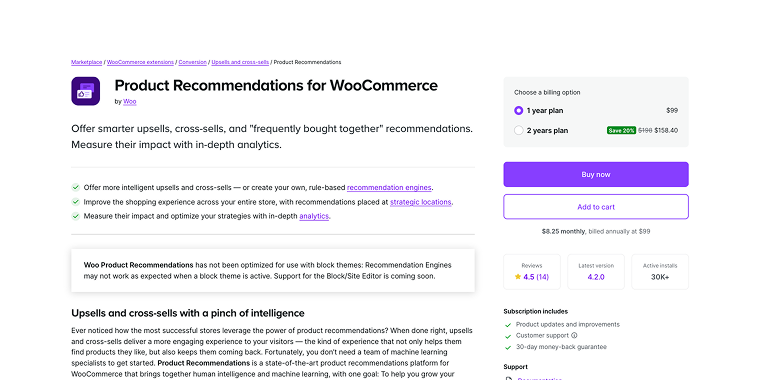
WooCommerce Product Recommendations is the official premium extension that offers smart, automated product suggestions for your store. The plugin utilizes advanced algorithms to analyze customer behavior, purchase history, and product relationships, offering highly personalized recommendations throughout your site. It goes beyond simple related products by using machine learning to continually improve the accuracy and relevance of recommendations.
Pricing: $99/year for a single site, with volume discounts for multiple sites.
Key features:
- AI-powered recommendation engine;
- multiple recommendation types (similar, complementary, trending);
- real-time personalization based on customer behavior;
- comprehensive placement options throughout the store;
- detailed performance analytics and reporting.
Pros:
- official WooCommerce extension ensures compatibility;
- comprehensive analytics and performance tracking;
- multiple recommendation types in one plugin;
- enterprise-level support and documentation.
Cons:
- premium pricing may be prohibitive for smaller stores;
- complex setup and configuration options;
- annual subscription model with no perpetual license;
- may require additional server resources for larger catalogs.
FAQ
Related products in WooCommerce are automatically generated based on common categories and tags, whereas recommended products typically rely on manual selection or algorithmic suggestions derived from customer behavior. You can get related products for WooCommerce to display through the default system or customize them using JetWooBuilder’s Related Products widget, which allows you to display both types depending on your settings.
Yes, JetWooBuilder offers both automatic and manual control over related product displays. Through the WooCommerce related products settings, you can use custom queries, exclude specific products or categories, and even create entirely manual product relationships with custom fields and JetEngine integration. If needed, you can also turn off related products WooCommerce functionality for specific products or pages.
The ideal number varies depending on the industry and product type, but usually, 3-6 related products work well. Too few options limit discovery, while too many can overwhelm customers. JetWooBuilder makes it simple to test different counts and monitor conversion rates to find your best setup.
Conclusion
JetWooBuilder is a powerful tool for creating advanced related product systems without needing extensive technical skills. Its extensive widget library, combined with its ability to integrate with other Crocoblock tools like JetEngine, enables highly customized recommendation systems that usually require custom development. For stores that need to implement the WooCommerce related products remove feature for certain pages or products, JetWooBuilder also provides granular control over where and when recommendations appear.
Understanding the differences among related products, upsells, and cross-sells is essential for maximizing the effectiveness of your recommendation strategy. Each type elicits different psychological responses and is best suited for specific points in the customer journey. JetWooBuilder’s flexibility allows you to implement all three effectively, creating a comprehensive system that guides customers from initial discovery to purchase completion.