If you’re running a WooCommerce store, you know how important product images are. They’re often the deciding factor between a sale and an abandoned cart. But let’s be honest, the default WooCommerce gallery isn’t exactly impressive. It’s basic, not very engaging, and if you have more than a few product images, it can look cluttered and unprofessional.
The good news? You don’t need to be a tech wizard to fix this. With the right Gallery Slider for WooCommerce plugin, you can transform your boring product galleries into beautiful, professional-looking sliders that actually help you sell more. In this guide, we’ll show you exactly how to do it, compare the best options available, and help you choose the perfect solution for your store.
Why Your Product Gallery Matters More Than You Think
Before we dive into solutions, let’s talk about why this matters for your business.
Think about the last time you shopped online. Did you buy something after seeing just one tiny photo? Probably not. Customers want to see products from every angle (front, back, close-ups, in different colors, and in action). The more confident they feel about what they’re buying, the more likely they are to complete the purchase.
Now let’s look at how to make this happen.
JetProductGallery: Top Gallery Slider for WooCommerce Plugin
If you’re using Elementor or want more design control, JetProductGallery from Crocoblock is worth serious consideration. It comes with a Crocoblock subscription (starting at $199/year) or as a standalone product for $23, and offers significantly more flexibility than its free alternatives. The best thing about this Woo gallery plugin is that instead of being stuck with one product gallery layout, you’ll get four completely different gallery widgets.
Gallery Slider widget
This is a traditional WooCommerce sliding gallery that gives you full control over how your product images/videos are displayed (horizontally or vertically).
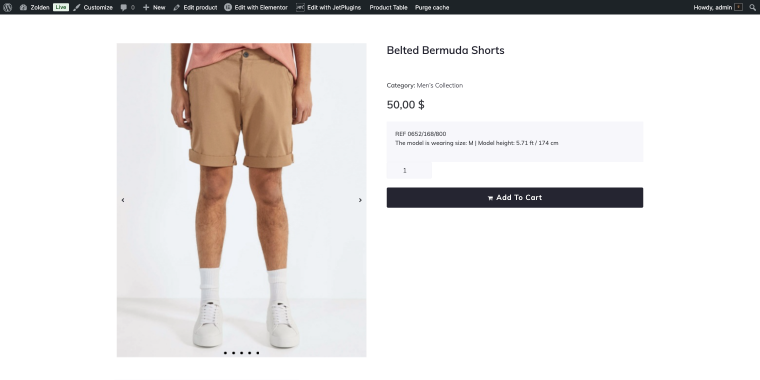
With this widget, you can enable zoom functionality so customers can get a closer look at product slider details (with adjustable magnification 1-2x), and there’s a full gallery lightbox option for browsing all images in a pop-up.
How to add and fine-tune the Gallery Slider widget?
Adding a product gallery to your WooCommerce store takes just a few minutes.
Step 1: Install JetProductGallery plugin
First, you need to purchase the JetProductGallery either as part of a Crocoblock subscription (starting at $199/year) or as a standalone plugin for $23. After purchasing, download the plugin from your Crocoblock account, then go to the Plugins section and install it.
The plugin is now ready to use on your site.
Step 2: Create or edit the Single Product template
To use the plugin widgets instead of the standard Woo product images, you need to make minor changes to the single product template. If you have a bunch of Crocoblock plugins on your website, including JetWooBuilder, go to WordPress Dashboard > Crocoblock > Woo Page Builder, and in the Single tab, you will find the needed template.
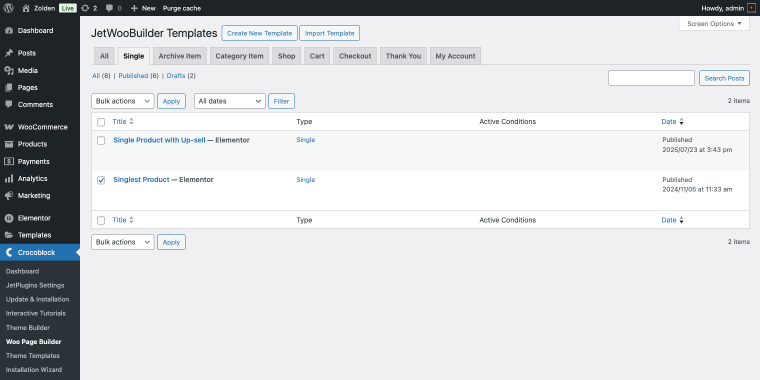
If you’re starting fresh, click the “Create New Template” button and follow the steps outlined in this video guide.
It covers all aspects of creating a single product template on a Woo store.
Step 3: Add the Gallery Slider widget
In the Elementor editor sidebar, search for “gallery slider” in the widgets panel.
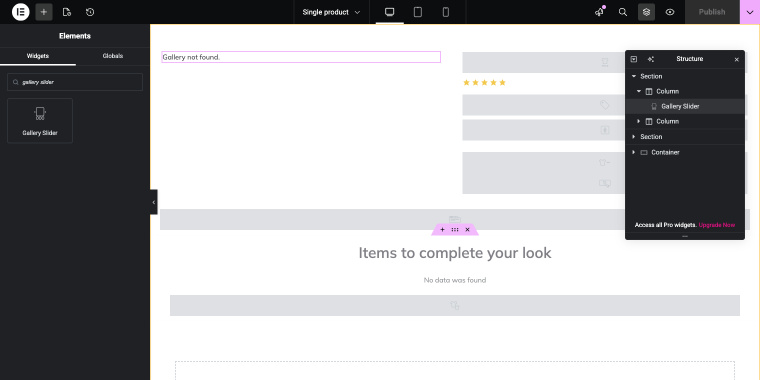
Drag the Gallery Slider widget to your desired location on the template (typically where the default product image appears). Make sure “WooCommerce Products” is selected in the Source field to fetch your product images correctly.
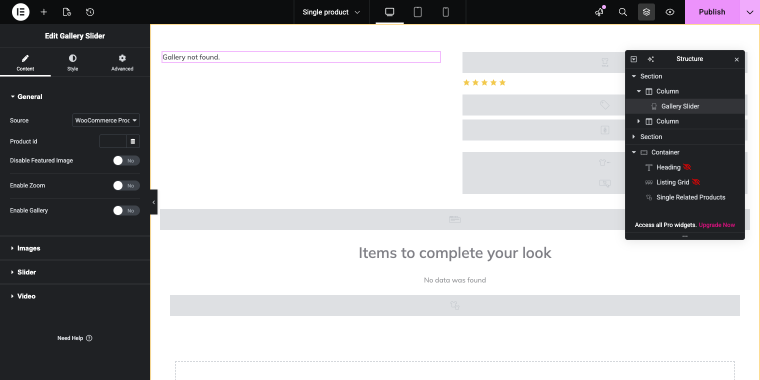
If you need to add images manually, there’s a “Manual Select” option.
Feel free to click the Preview Changes button (“eye” icon) at the top right corner of the Elementor editor to see how your gallery looks on the front end. If everything looks good, click “Publish” (or “Update” if you’ve published before).
Don’t forget that the Gallery Slider widget has a ton of features that let you fine-tune the front-end look.The General tab controls core features, such as enabling the lightbox (toggle Enable Gallery to activate the full-screen lightbox on the front end), zoom functionality (Enable Zoom with adjustable magnification), and whether to show the featured image.
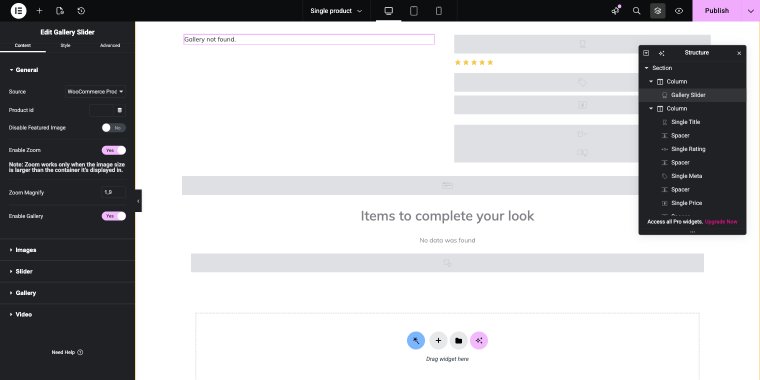
When enabled, one can preview the gallery by clicking the zoom lens icon in the corner of the product image.
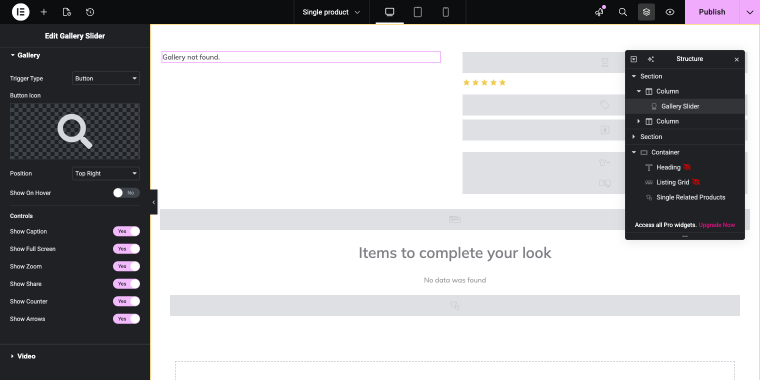
The Gallery tab appears when you enable the lightbox feature. A set of features is quite impressive; you can add a trigger (with a custom icon and position) and enable controls such as captions, full-screen mode, zoom, social sharing, an image counter, and navigation arrows. There’s even a Show on Hover toggle for the trigger button.
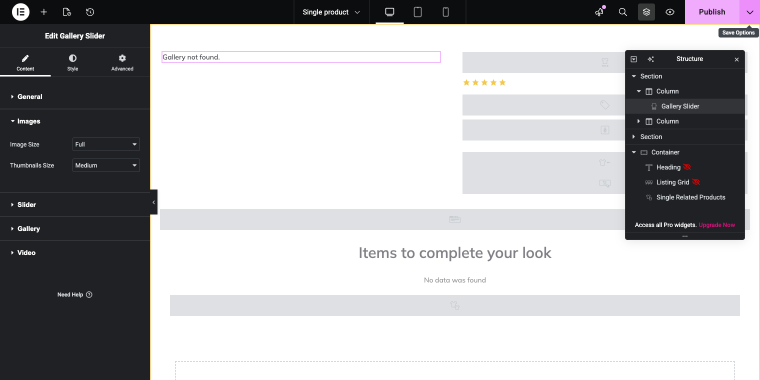
The Images tab contains image and thumbnail size settings that control how large your product photos appear and how big the navigation thumbnails should be.
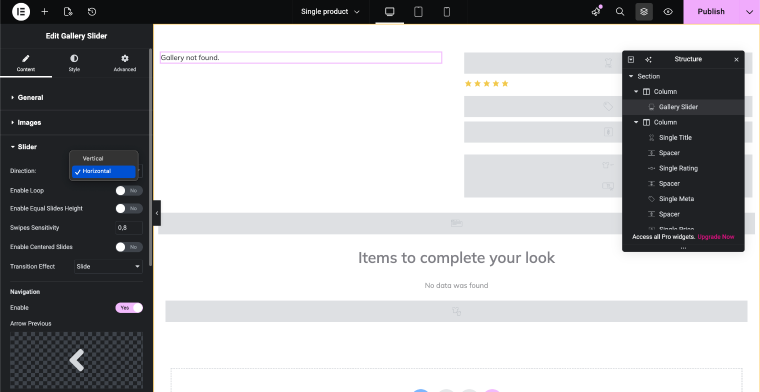
The Slider tab includes settings to configure the gallery slider, which is highly customizable. You can choose between “Horizontal” or “Vertical” scrolling, enable infinite looping, adjust swipe sensitivity for touch devices, and pick your transition effect (slide or fade). The navigation arrows are customizable with different icons and can be set to show on hover.
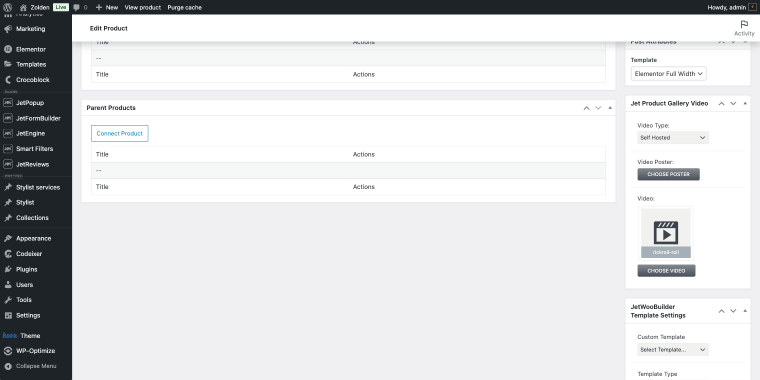
The Video tab allows you to add video support by choosing where videos display in the gallery. You can embed self-hosted, YouTube, or Vimeo videos right in the slider (with 16:9 aspect ratio), control whether they autoplay or loop, mute them, add overlay colors, and customize the play button appearance. To add a YouTube or your own video files, find a Jet Product Gallery Video block in the product editor.
This feature is huge for products that require demonstration, such as kitchen gadgets, software, furniture assembly, makeup application, clothing, etc.
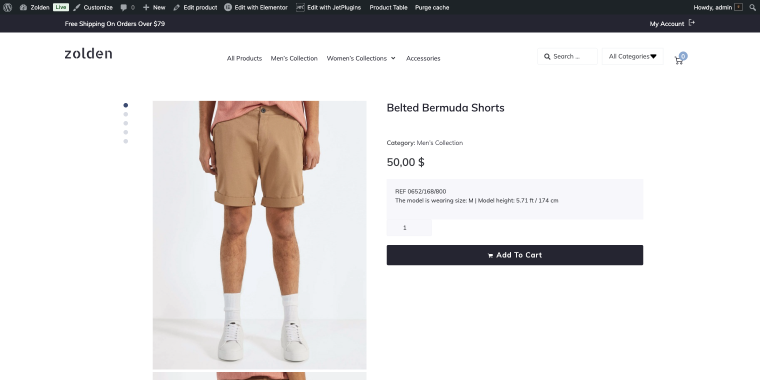
On the front end, the Slider Gallery widget with a video may look like this:
Gallery Anchor Navigation widget
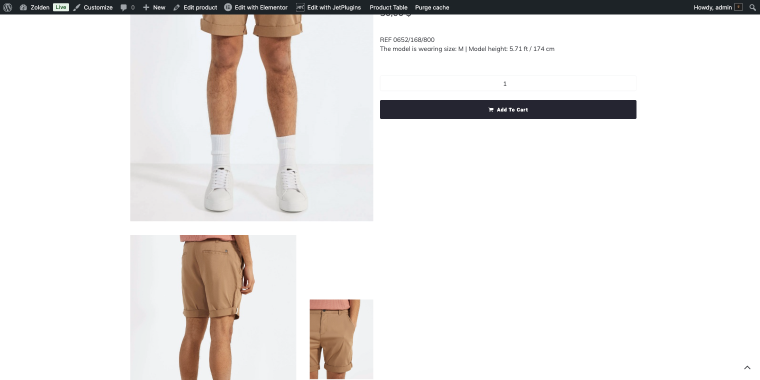
As the name suggests, it’s a scrollable gallery with a side navigation menu that displays your product images in a scrollable way and provides quick access to all images via an integrated side navigation menu.
Users can click the anchor points in the navigation to jump directly to specific product images, creating a seamless browsing experience. This widget is ideal for products with multiple images, allowing customers to view all angles and details efficiently. The clean, organized layout keeps the focus on your product photography while maintaining easy navigation.
Gallery Grid widget
This widget arranges your product images in a clean, customizable grid layout that lets customers view multiple images at once. Although it’s not exactly a slider, this widget has lightbox functionality with a horizontally scrollable gallery.
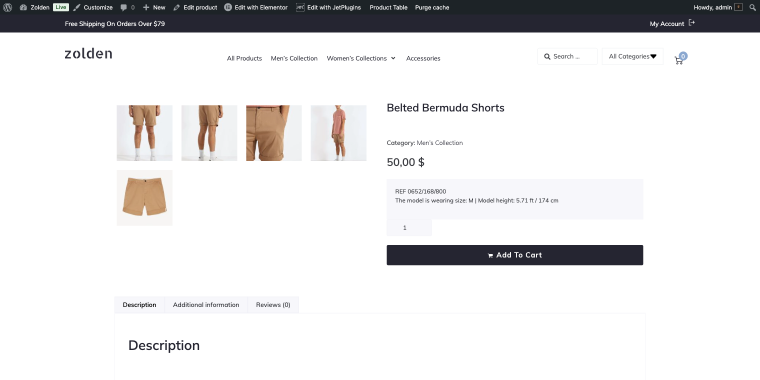
Gallery Modern widget
This widget features a large image display with a row of smaller thumbnail images positioned below for easy navigation. This layout highlights the main product image and provides customers with quick access to additional photos with a single click. Same as the previous widget, this one has a scrollable lightbox gallery.
Additional Gallery Slider Plugin Options
Let’s look at a few more alternatives so you can make the best choice for your store.
Product Gallery Slider for WooCommerce (Freemium)
🏆 Best for stores needing a simple, user-friendly slider plugin with excellent page builder compatibility.
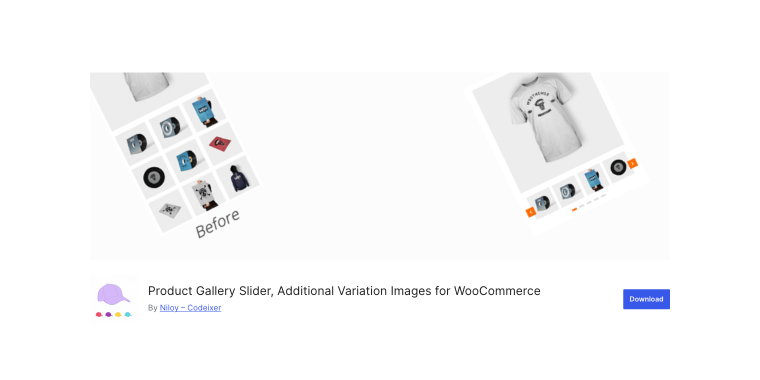
The Product Gallery Slider plugin is one of the most popular free options, with over 20,000 stores using it. It’s straightforward to set up and gets the job done without overwhelming you with complicated settings. The premium version of the plugin includes a separate gallery widget, while the free version lets you display the gallery using the [product_gallery_slider] shortcode.
Pricing: free with a premium version available starting at $69/year.
Key features:
- unlimited images for product variations;
- mobile-optimized design;
- supports popular page builders (Elementor, Divi, Beaver Builder, and WP Bakery);
- lightbox functionality with zoom options.
Pros:
- easy installation and setup;
- fully responsive design;
- solves Woo limitation of one image per variation;
- compatible with most premium themes and page builders;
- regular updates and bug fixes.
Cons:
- some advanced features are only available in Pro;
- occasional conflicts were reported.
WooGallery (Premium)
🏆 Best for stores that need pro layouts with the ability to assign different gallery styles to specific products or categories.
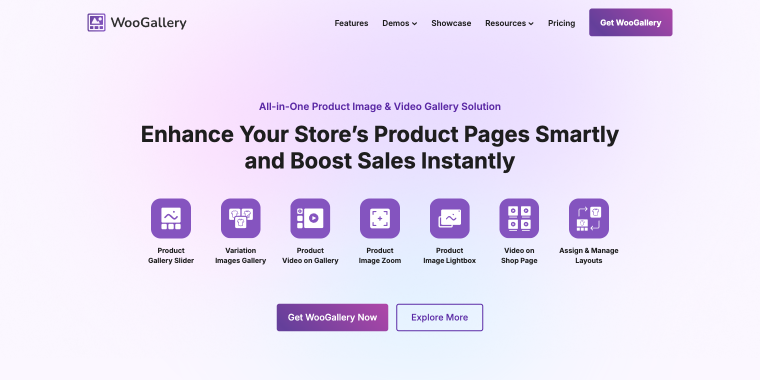
WooGallery transforms basic WooCommerce product galleries into modern, engaging displays with 16 unique layouts, including slider, grid, anchor navigation, and vertical scroll options. The plugin lets you assign different gallery styles to specific products or categories, giving you complete control over how each product is presented. With unlimited variation images, video support across five platforms, and three advanced zoom styles, it’s built to showcase your products in the most compelling way possible.
Pricing: starts at $89/year for a single site, with lifetime licenses available starting at $378.
Key features:
- 16 gallery layouts (slider, grids, anchor navigation, tiles, and vertical scroll);
- unlimited product images and videos per variation;
- three zoom styles with customizable lens color and window size;
- assign unique gallery layouts to individual products or entire categories;
- lightbox with five transition effects, thumbnails navigation, social sharing, and full-screen mode.
Pros:
- exceptional layout variety;
- different gallery layouts can be assigned to specific products;
- shop page featured videos with autoplay;
- strong reputation and support team.
Cons:
- higher price compared to competitors;
- extensive feature set may feel overwhelming;
- steeper learning curve;
- focused on visual customization rather than performance.
TP WooCommerce Product Gallery (Freemium)
🏆 Best for budget-conscious stores that need solid core features with an affordable Pro upgrade path.
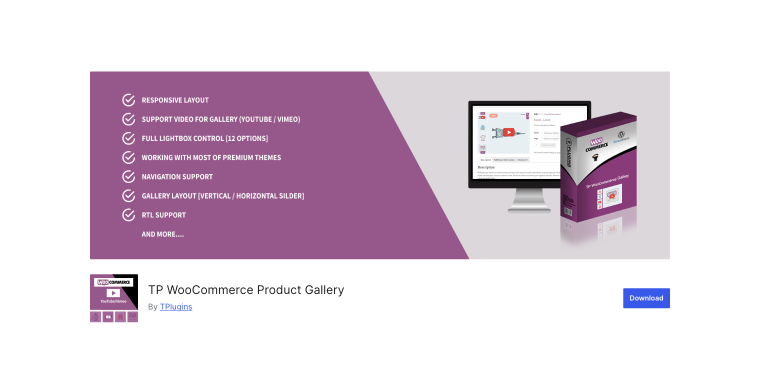
TP WooCommerce Product Gallery upgrades the default WooCommerce gallery with a clean, functional slider interface that supports both horizontal and vertical layouts. The plugin focuses on essential features such as responsive design, smooth navigation, and reliable zoom functionality, without overcomplicating things. It includes lightbox support with 30 transition effects in the Pro version and works seamlessly with most premium themes.
Pricing: a free version is available; Pro starts at $29/year for one site and $79/year for three sites.
Key features:
- horizontal and vertical slider layouts;
- four zoom options (hover, grab, click to activate, and click to toggle);
- lightbox with 30 transition effects;
- YouTube and Vimeo support;
- variation image support with center mode and infinite loop options.
Pros:
- very affordable pricing with a functional free version;
- minimal learning curve;
- reliable core features;
- good value for budget stores.
Cons:
- limited layout options;
- fewer customization options;
- the feature set may be poor for stores wanting advanced galleries.
FAQ
Using basic plugins like Product Gallery Slider, all products share the same gallery style. If you need different styles for different categories (for example, a grid for clothing and a slider for electronics), you’ll need a more advanced solution, such as JetProductGallery. It lets you create custom product page templates with Elementor, allowing you to design unique galleries for each category.
Product Gallery Slider, WooGallery, and JetProductGallery are highly optimized plugins. In any case, after installing the plugin, test your page speed with Google PageSpeed Insights or GTmetrix to ensure performance remains good.
Yes, but it depends on which plugin you choose. The free version of Product Gallery Slider doesn’t support videos; you’ll need the Pro version. JetProductGallery includes video support in the basic subscription and makes it very easy (simply paste a YouTube or Vimeo URL).
Conclusion
Upgrading your WooCommerce product gallery from the default setup to a professional slider is one of the easiest ways to improve your store’s performance and boost conversions. You don’t need technical skills, and with the right plugin, you can have a stunning gallery up and running in under 15 minutes.
JetProductGallery stands out as the most flexible solution, especially if you’re already using Elementor. For just $23 (or included in a Crocoblock subscription starting at $199/year), you get four different gallery widgets to choose from, complete video support, powerful zoom and lightbox features, and unlimited customization options. It’s designed to give you the same professional product displays you see on major eCommerce sites, without the enterprise-level price tag.
If JetProductGallery doesn’t fit your needs, alternatives like WooGallery (with its 16 unique layouts) or TP WooCommerce Product Gallery (a budget-friendly option with a solid free version) are worth considering, depending on your specific requirements and budget.
Your product images are often the deciding factor between a sale and an abandoned cart. Investing 15 minutes to set up a proper gallery slider can transform your product pages from “meh” to “wow.”