Comparing JetMenu and DiviMenus is not an obvious task. In fact, anyone familiar with WordPress builders would immediately point out the issue: JetMenu is built for Elementor and Block Editor and deeply integrated with the Crocoblock suite, while DiviMenus is designed only for the Divi Builder. They do not overlap, they do not compete directly, and they cannot replace each other within the same website environment.
Yet for many agencies, freelancers, and in-house teams, cross-ecosystem comparisons are often necessary, as you may be migrating a client from Elementor to Divi, or vice versa. You may need to evaluate capabilities before recommending a stack. Or you may simply want to benchmark features conceptually to understand how each builder approaches navigation, templates, and menu behavior.
So, let’s compare these two powerful plugins made for creating mega menus.
JetMenu: Powerful Tool for Custom Mega Menus

JetMenu is a plugin for creating custom mega menus, offering full freedom to create any menu layout you wish. It works in Elementor and the Block Editor, and by using these builders or even combining them, you can build fully customized mega menu layouts.
Where JetMenu stands out is its visual approach. It doesn’t force you into predefined columns or rigid structures but lets you design menus the same way you design any page section. You can add images, dynamic data, product grids, icons, badges, and even embed forms or listings – all while keeping the structure responsive and clean.
More importantly, JetMenu doesn’t lock you into a single workflow. If your site is built with Elementor, you build directly inside the Elementor canvas. If your site uses the Block Editor, you design with blocks. And if your client has a hybrid setup, JetMenu adapts without forcing a redesign. For example, you can design a menu in the Block Editor to be more lightweight for better performance, as it loads above the fold, and then use it on your Elementor-powered site.
From a practical standpoint, it saves a lot of time. You don’t need custom code or a combination of some tricky tools to achieve complex layouts, and you definitely don’t need to rely on theme-specific menu systems. You simply activate the Mega Content where you need it, open it in the editor, and design the section visually. The result feels cohesive with the rest of the site because you’re using the same design tools you use everywhere else.
Another strong point is how JetMenu handles styling. Colors, spacing, typography, hover states, mobile behavior – everything is adjustable in a straightforward way. You can set up a minimal dropdown, a multi-column catalog-style menu, or a rich promotional panel.
And on top of that, JetMenu integrates well with large websites. If you’re working with WooCommerce, you can pull dynamic categories or featured products into the menu. If you’re using JetEngine, you can pull any dynamic content designed as listing templates or just use its dynamic widgets. This flexibility is what makes JetMenu practical for both simple brochure sites and heavy, content-driven platforms.
How to create menus with JetMenu
For starters, you can display simple menus just using its widgets – no special setup is needed, just drag and drop the JetMenu widget/block. There are three to choose from:
- Mega Menu – a universal widget/block for displaying any menu, from simple one-row menus to complex mega menus. You create a menu in Dashboard > Appearance > Menus, and then select this menu in the Mega Menu widget/block. In the settings, you can choose a layout: horizontal, vertical, or dropdown (hamburger).
There is a dedicated section for a mobile menu layout where you can control all the details or even select a separate menu for mobile.
And, of course, you can style every detail of the menu: items, subitems, and the layout and behaviour of a mobile menu.
In case you have a mega menu, it will be displayed with its own layout and styling. I will cover the mega menu topic in more detail in the next section.
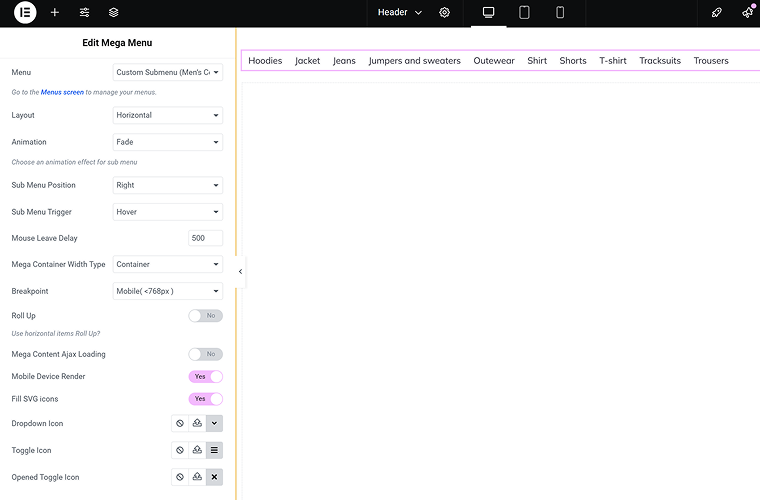
- Vertical Mega Menu widget/block – created specifically for displaying vertical menus, without the unnecessary settings and functionality that the Mega Menu widget has.
- Hamburger Menu – made specifically for hamburger layouts, and it has a very useful element: you can insert a template on top and bottom of this menu. It can be anything – a login form, banner, another custom menu, etc.
Building mega menus using the JetMenu plugin
To activate mega menu functionality, go to Dashboard > Appearance > Menus, and add the top-level menu. Then, for the items that should have a mega menu, click the “Settings” button next to them – you will see a pop-up with the toggle to activate mega menu functionality.
There, you can also add an icon and set up spacing for this menu.
Then click the “Edit Mega Content” button and create the layout you want for the mega menu. You can add any element there, including other menus – just pay attention to how they look on mobile, as I believe you don’t want them to turn into hamburger menus there, so switch off their mobile rendering.
This way, you can add whatever elements you want. After constructing your mega menus, add the Mega Menu widget/block to your page header and check how it looks on the preview.
🔍 Check the live demonstration of mega menus built using the JetMenu plugin on this demo website.
DiviMenus by DonDivi: Cool Interactive Layouts Tool
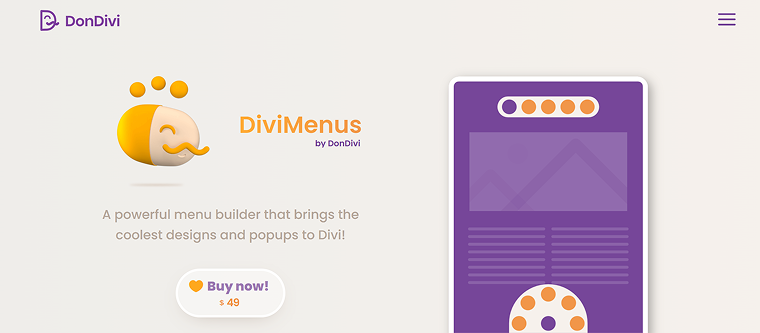
DiviMenus is a plugin for Divi Builder with quite an interesting setup and layouts. Well, it can work as a traditional mega menu plugin, but that’s not really where its strength lies. DiviMenus feels more like a creative layout tool that can function as a menu, not a menu system that happens to look creative.
Instead of giving you a classic dropdown or multi-column structure, DiviMenus focuses on highly visual, interactive layouts. Circular menus, floating action menus, radial arrangements, image-driven links, and custom hotspots are where the plugin truly shines. It’s perfect when you want something eye-catching, a bit unconventional, and intentionally design-centric.
Unlike traditional mega menu plugins, DiviMenus doesn’t rely on container-based menu logic. You place a module on the page, design the menu visually, and then connect each item to a link or dynamic content. This approach gives you freedom, but it also means you’re building menus more like page elements rather than navigation components tied to WordPress’ native system.
For designers who like to break the grid and create “experience-first” navigation, like product showcases, interactive category wheels, or custom promotional layouts, DiviMenus offers far greater creative potential than standard mega menu tools. And because it’s based on the Divi framework, everything is adjusted within the familiar Divi module settings, including responsive behavior, animations, and styling.
However, this also means DiviMenus is less about large-scale navigation management and more about visual storytelling. If you need a highly structured, scalable menu across the entire site, it may require extra planning. But if you’re building hero-level navigation sections, landing-page menus, or visually driven UI elements, DiviMenus gives you the flexibility to create something truly unique without custom code or additional plugins.
How to build menus with the DiviMenus plugin
After the plugin installation, you will see two new modules:
- DiviMenus – a module that by default offers interactive layouts, not traditional menus.
- DiviMenus Flex – offers a Flexbox layout for building menus with dropdowns and mega menus.
But what is also important is the templates, which you can import to the Library and use for your layouts.
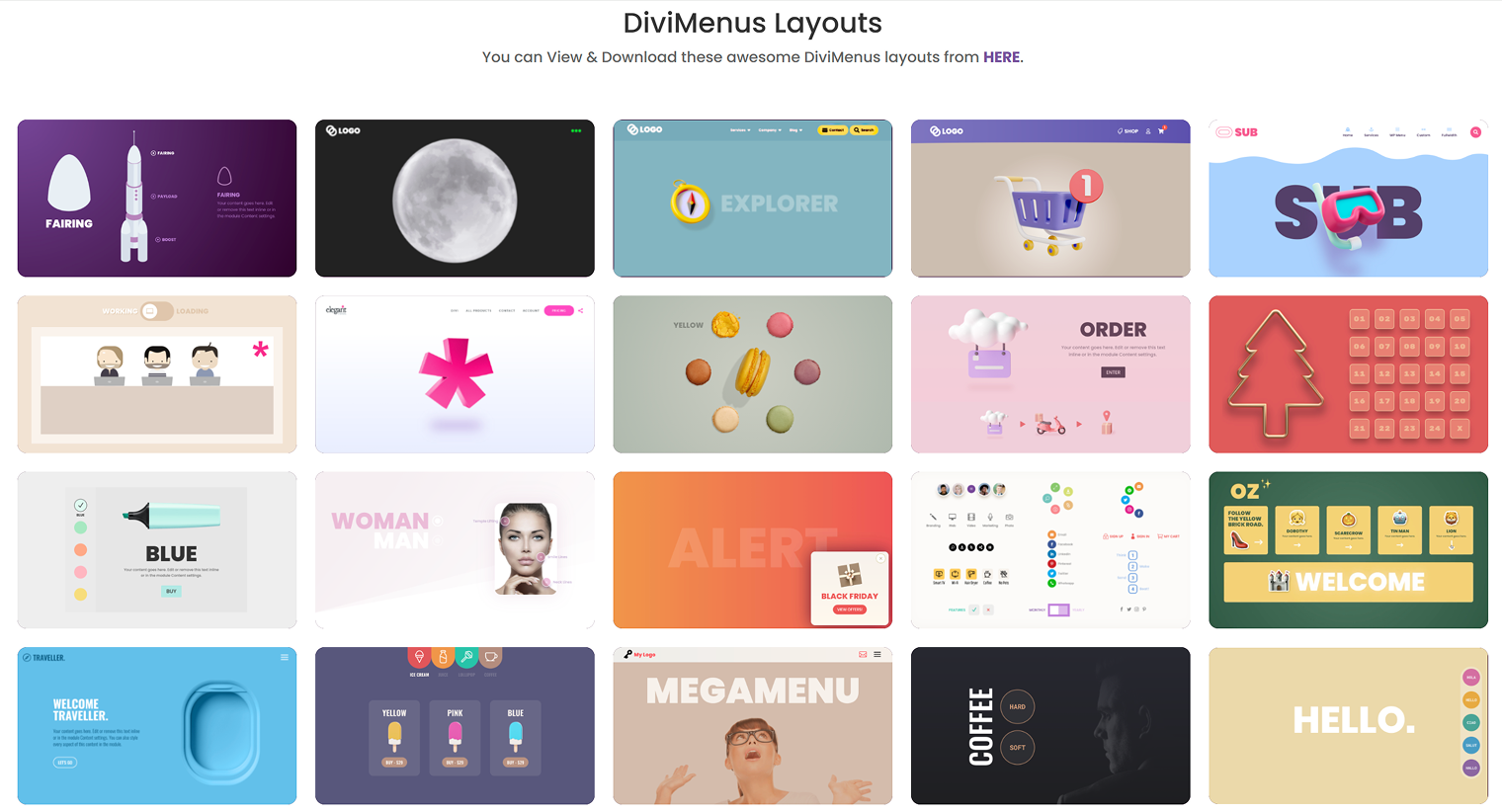
Building menus with the DiviMenus plugin
Building menus with the DiviMenus module and DiviMenu Flex follows a slightly different flow. With the DiviMenus module, you add a hamburger icon (or whatever you select instead), and on click or hover, the menu items will appear, or they are visible by default. You can select icons and their styling, as well as choose a layout – horizontal, vertical, or circular.
Each item has three link options: URL, pop-up, or the “show” option. The latter means that, on hover or click, the item with the ID you specify will be shown. And you can select the item’s initial state, decide whether to keep it visible, and so on.
In case you use the DiviMenu Flex module, you get a flexbox-like layout (vertical or horizontal), and there is an additional option for links: Submenu. And there, you can either add certain links or the full layout from your library, thus creating mega menus.
JetMenu vs. DiviMenus
JetMenu and DiviMenus solve two very different problems, even though both can be used to build custom menus. JetMenu focuses on structured, scalable, full-site navigation.
DiviMenus focuses on creative, interactive layouts that feel more like custom UI elements than traditional menus. Understanding this difference helps decide which tool fits your project’s design, workflow, and long-term maintenance needs.
So, to make it more visual, I’ve created this head-to-head comparison table.
| Feature / Criterion | JetMenu | DiviMenus |
| Price | Starting at $43/year. Also can be purchased within a Crocoblock suite with other 20+ plugins, starting at $199/year | $49/year |
| Primary purpose | Full-featured mega menu system | Visual/interactive layout tool that can act as a menu |
| Builder support | Elementor + Block Editor | Divi Builder only |
| Design approach | Structured, column-based, scalable navigation | Visual, unconventional, creative UI layouts |
| Best for | Large menus, WooCommerce shops, and dynamic data | Hero menus, landing pages, interactive sections |
| Content type support | Can load widgets, templates, and dynamic fields | Visual modules with links and UI items |
| Ease of maintenance | High – integrates with WordPress menu system | Medium – menu behaves like a Divi module, not native WordPress nav |
| Dynamic data | Yes (JetEngine, WooCommerce, posts, taxonomies) | Limited – mostly static links or Divi dynamic fields |
| Mobile menus | Built-in responsive and mobile styling | Custom design per module; not a native mobile menu |
| Learning curve | Straightforward for Elementor/Block workflows. But has a lot of settings | Easy for Divi users, but requires design planning |
FAQ
No. JetMenu works only with Elementor and the WordPress Block Editor. It cannot run inside the Divi Builder environment.
A mega menu is a large dropdown panel that can contain multiple columns, images, icons, products, or widgets. It’s used to organize complex navigation and improve UX on content-heavy or eCommerce sites.
Yes, in most cases. Native WordPress menus support only simple dropdowns, so plugins like JetMenu, Max Mega Menu, UberMenu, or DiviMenus (with templates) are used to build advanced layouts.
Divi has a simple dropdown menu, but no visual mega menu builder out of the box. To create structured or interactive mega menus, you need modules like DiviMenus or custom layouts added to submenus.
Takeaway
Menus define how users move through your website, so choosing the right menu tool matters more than it seems. So, build navigation that feels natural and don’t overcomplicate it when a clean menu does the job.
In this article, I reviewed two plugins with different focuses and from different ecosystems, but both can add cool navigation functionality to your WordPress websites.