
How to Create a WordPress Child Theme with Crocoblock
Learn how to create a child theme with Crocoblok (e.g., to install any WordPress theme (both parent and child) by uploading a corresponding zip-file, use a child-generation plugin to create the child-theme, or when installing dynamic templates using the Crocoblock Wizard plugin).
You can install any WordPress theme (both parent and child) by uploading a corresponding zip file, using a child-generation plugin to create the child-theme, or when installing dynamic templates using the Crocoblock Wizard plugin. For more details about installing the theme, such as Crocoblock’s default Kava theme, refer to the How to Install Kava Theme via WordPress Dashboard tutorial. Also, you can install the Kava theme manually by downloading it from your Crocoblock account.
Create the Kava Child Theme with the Wizard Plugin
Proceed to the WordPress Dashboard > Plugins > Add Plugins tab and press the “Upload Plugin” button.

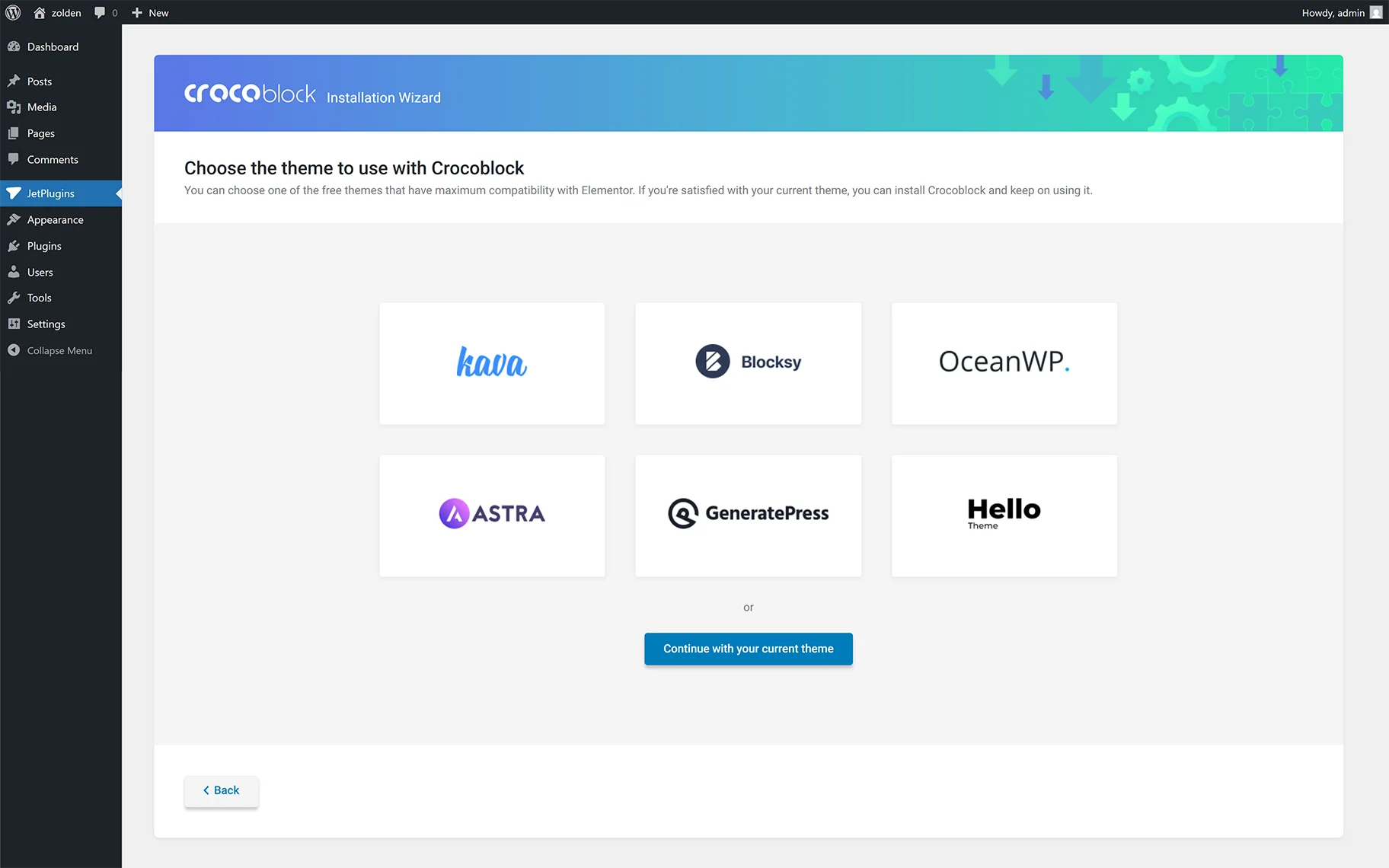
Then, perform the necessary actions to install the required content. In the corresponding step, select the preferred theme.
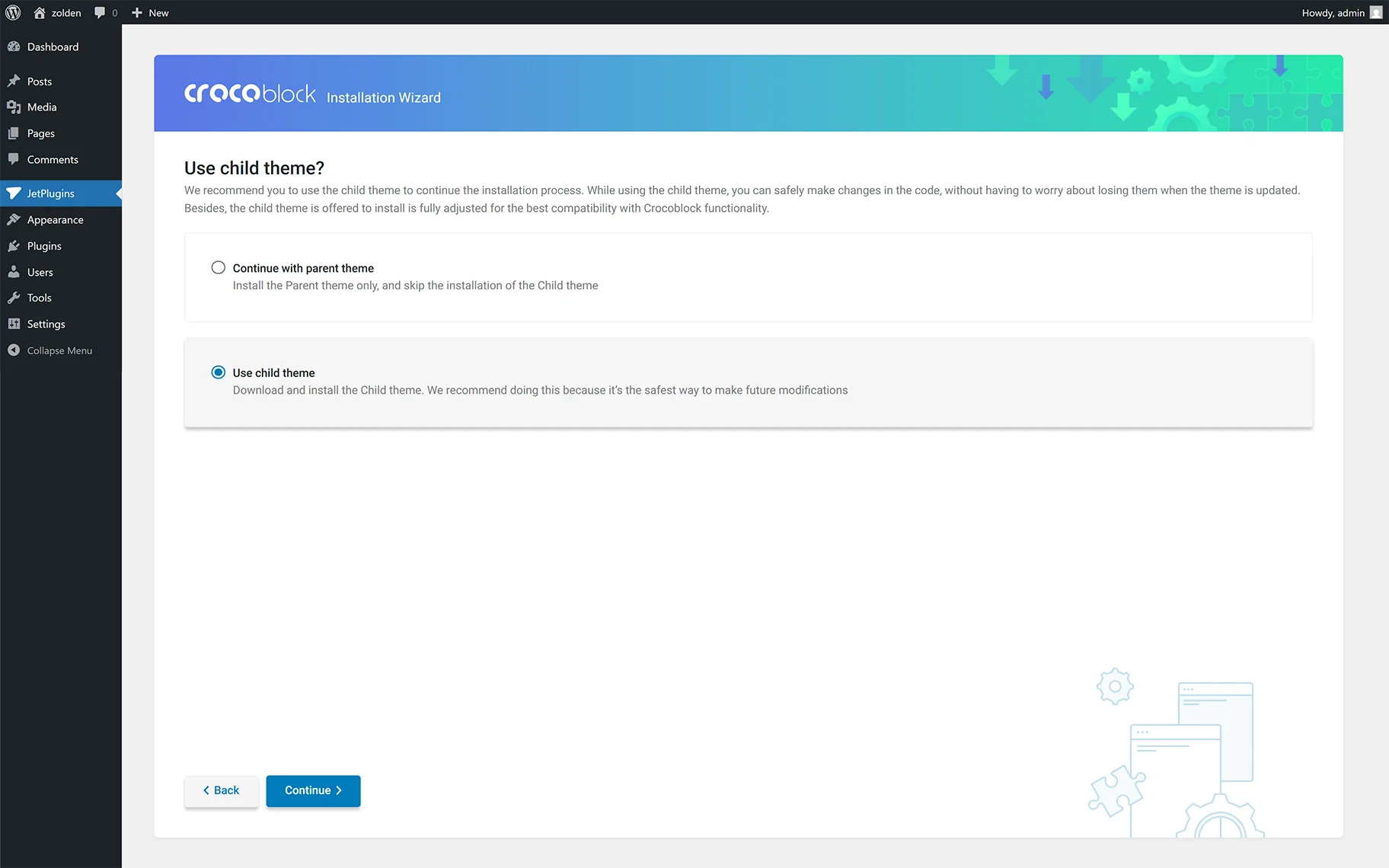
Next, pick the “Use child theme” option and complete the installation.
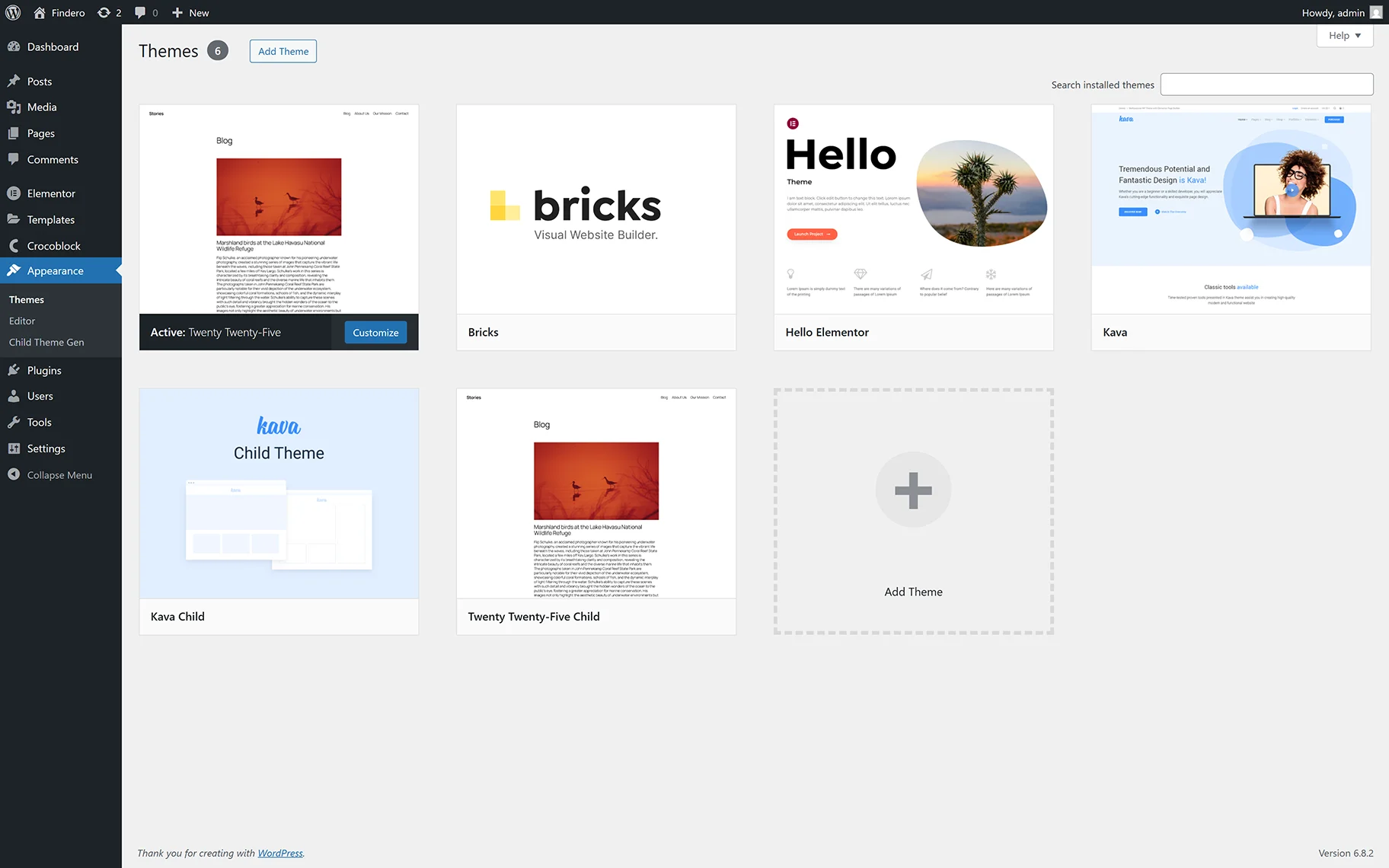
After everything is done, go to the WordPress Dashboard> Appearance > Themes tab. Here, you will see the active theme labeled as “Child”.
Upload the WordPress Child Theme
In this tutorial, we download the Kava child theme from the Crocoblock account.
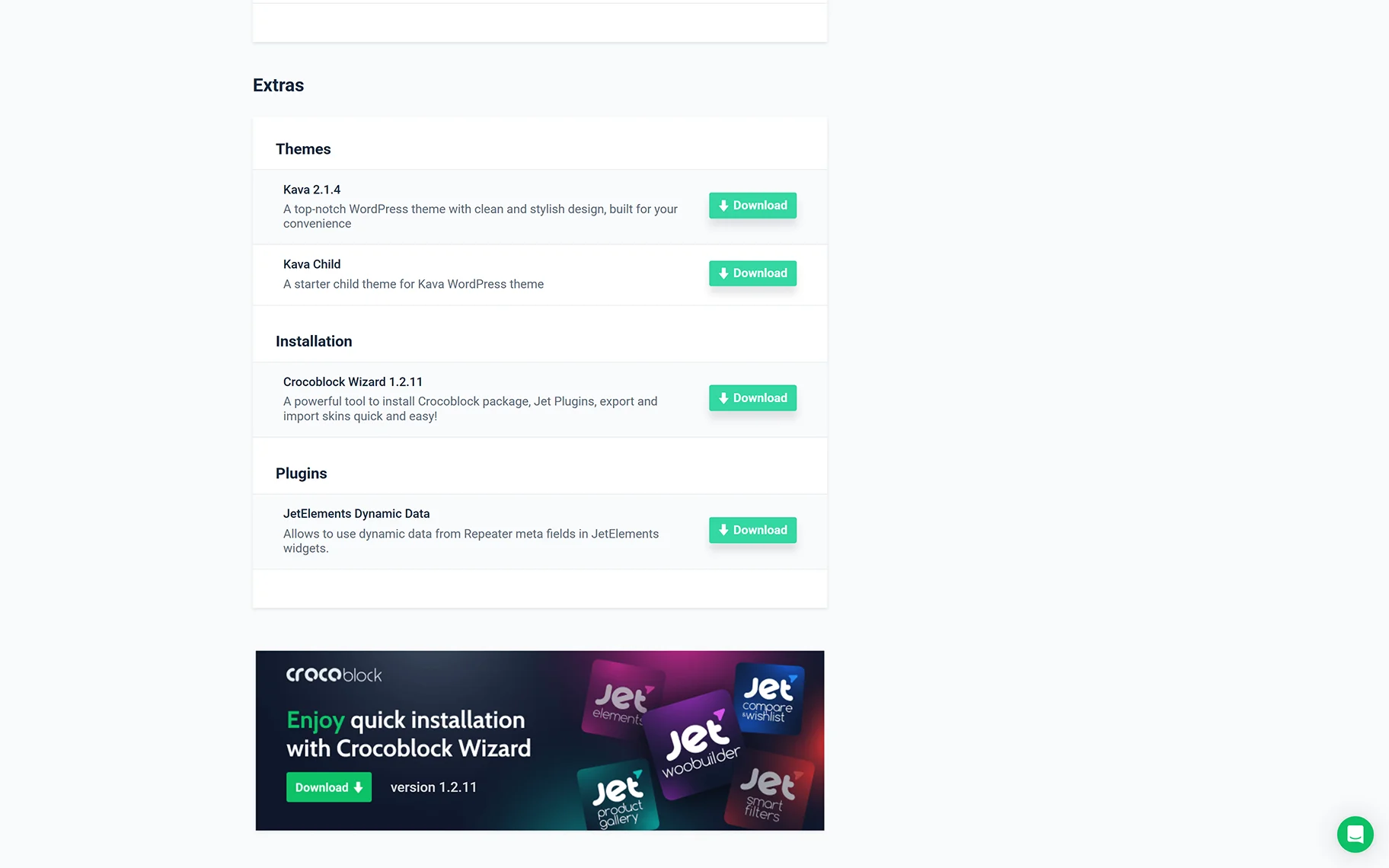
Then, move to WordPress Dashboard > Appearance > Themes and press the “Add Theme” button. Next, upload the child theme zip file.
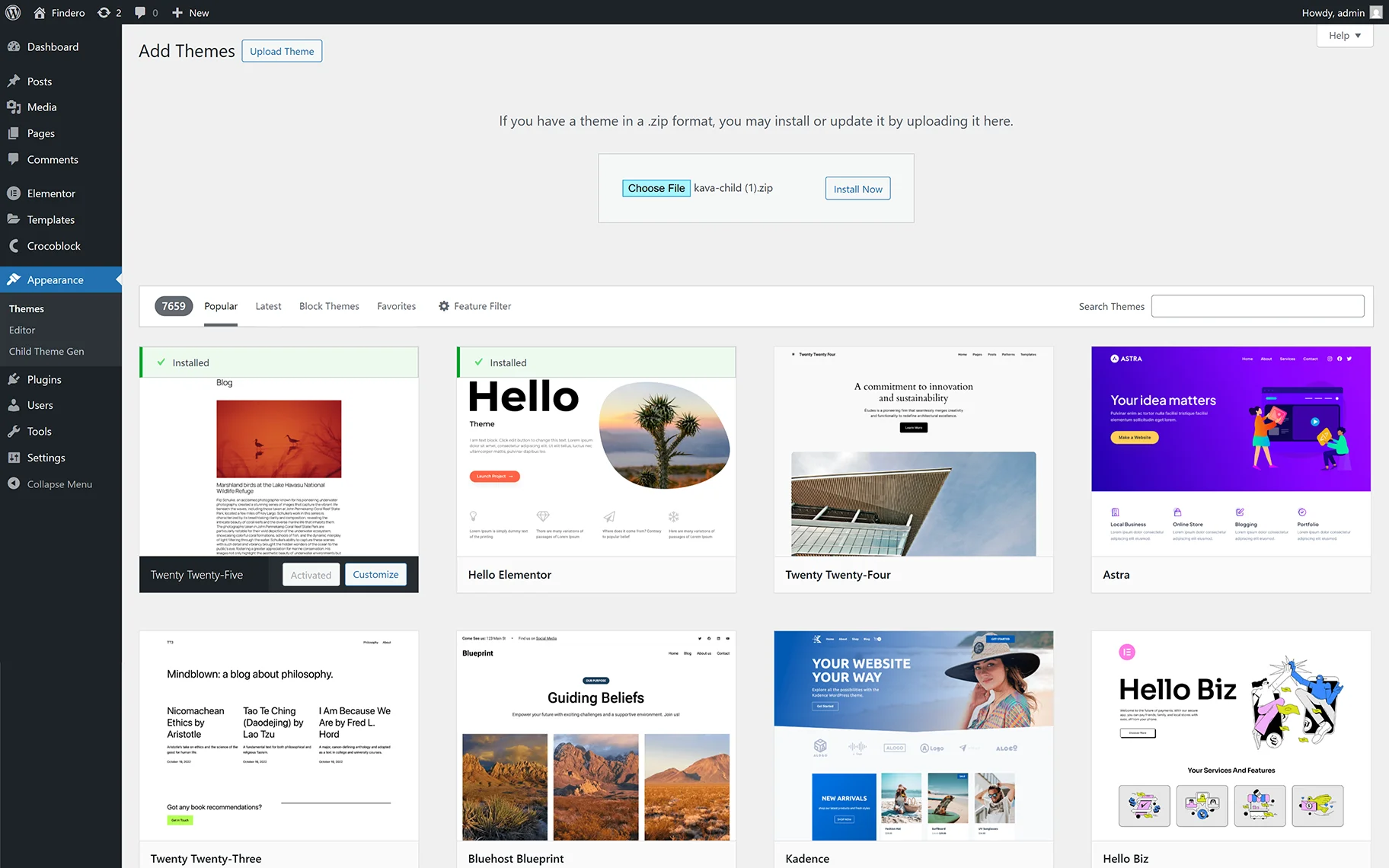
After that, click the “Install Now” button and then activate the needed theme.
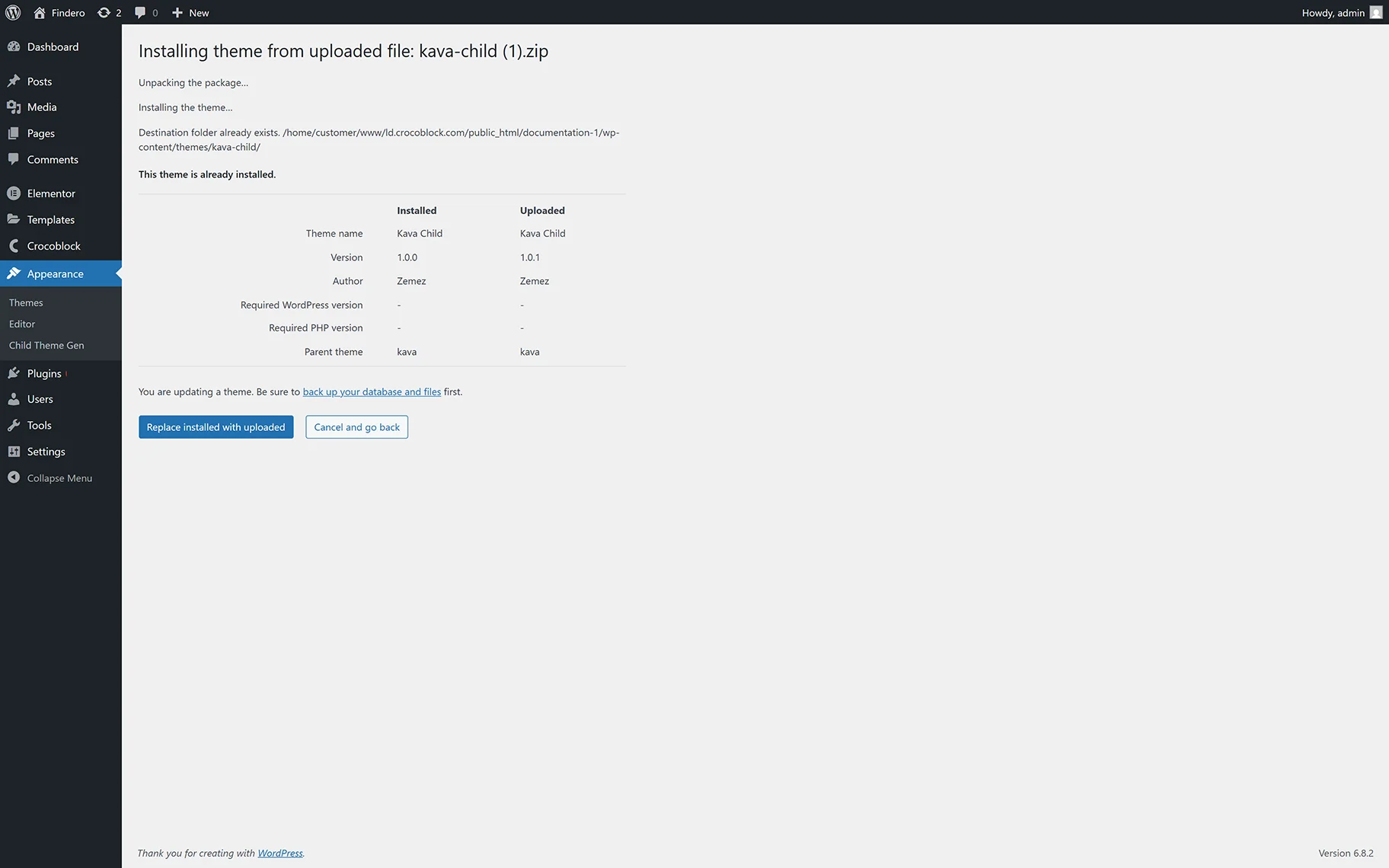
Create a WordPress Child Theme Using Plugins
Install and activate the child-generation plugin. In this case, we use the free WordPress Child Theme Generator plugin.
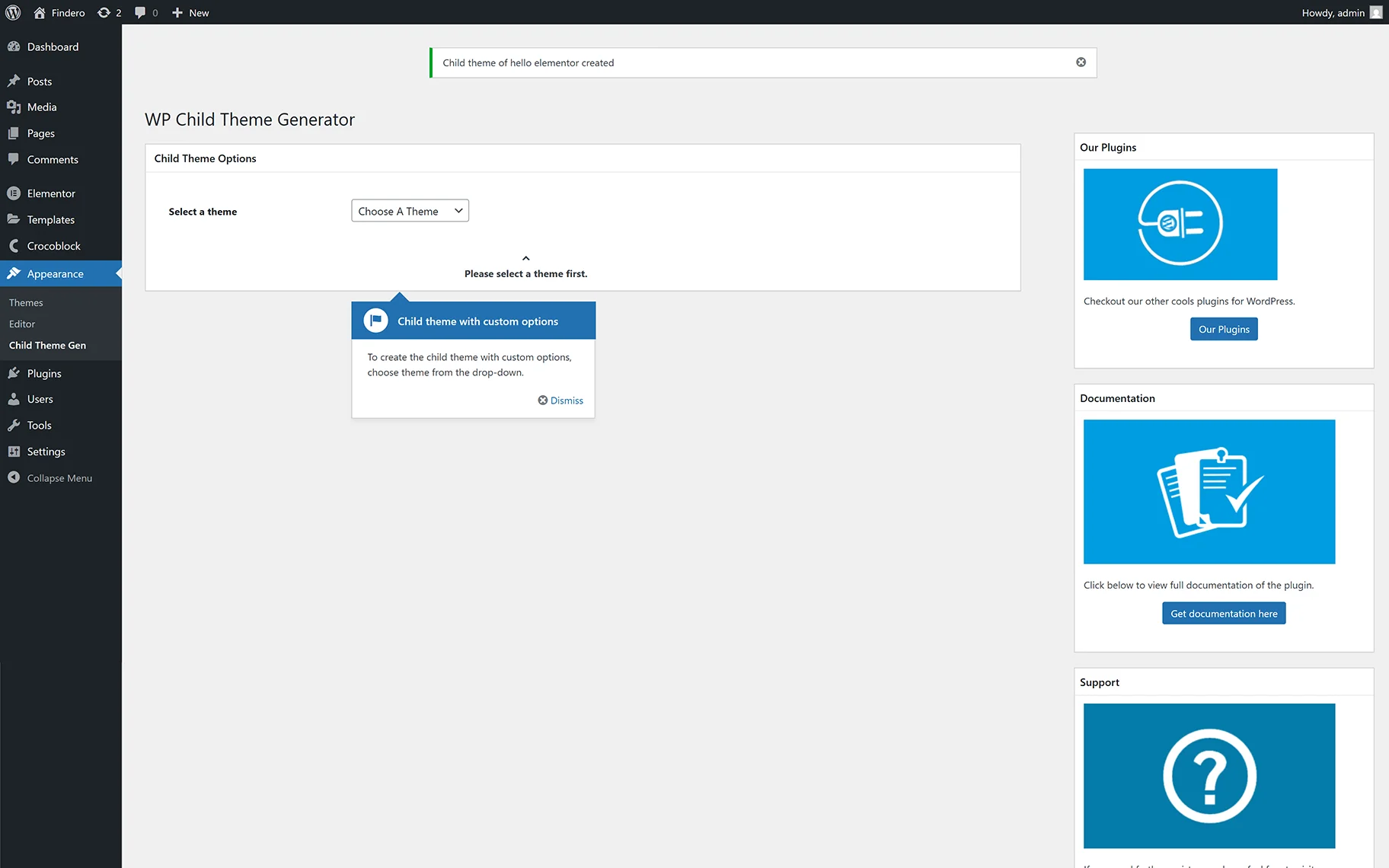
Once activated, the plugin adds the WordPress Dashboard > Appearance > Child Themes Gens tab. In this tab, Select a theme in the corresponding drop-down list. Then tick the required options and click the “Create Child Theme” button. In this case, we generate a Hello Elementor Child theme.

After that, the corresponding heading will be shown at the top of the tab.
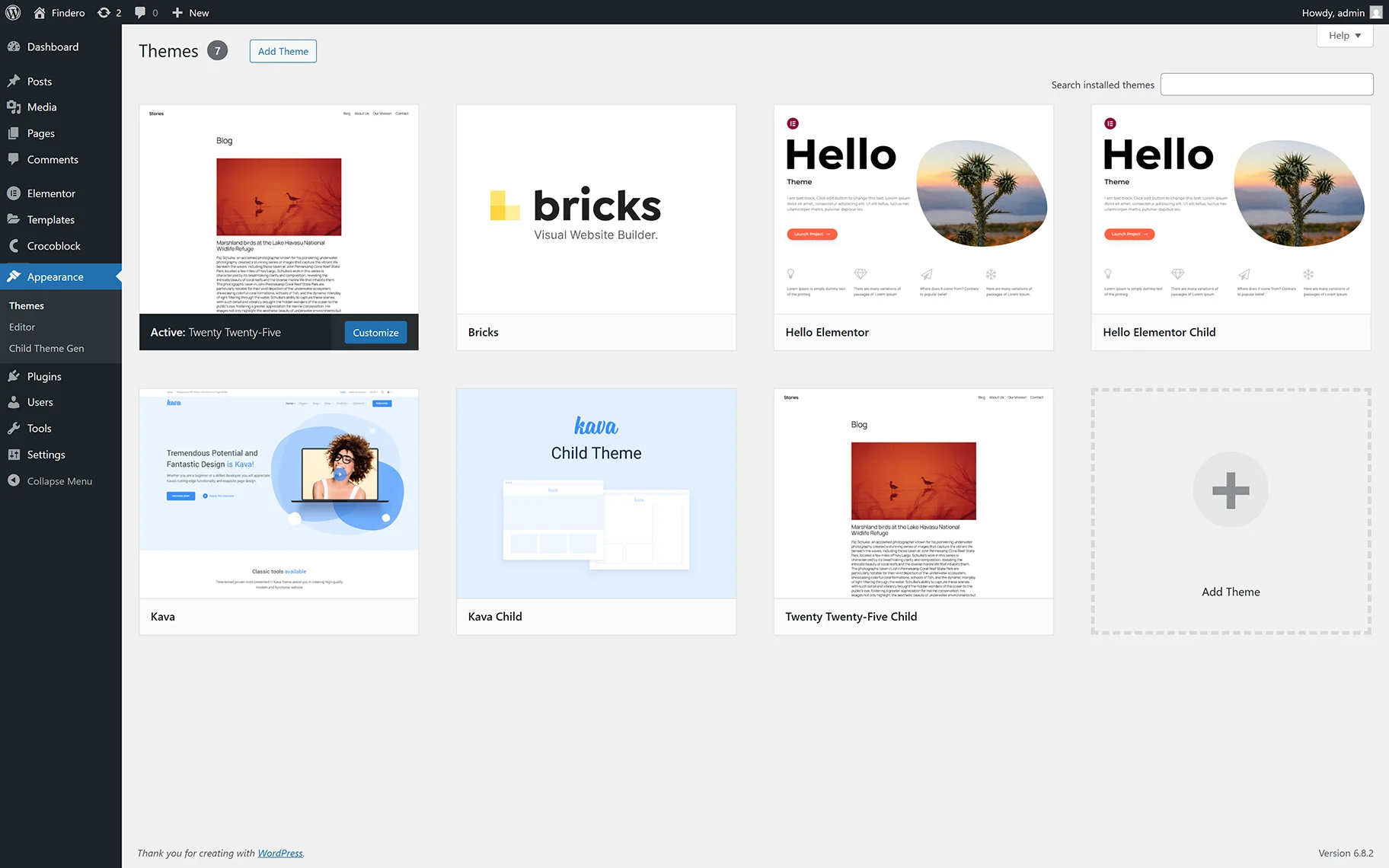
Also, the created child theme will be added to the theme’s list.
That’s it. Now you know how to create child themes with the help of Crocoblock functionality.