In this article, I’m pleased to share the case of Waldemar Deutsch, who presents his custom Crocoblock-based solution for saving a customer’s filter combination and sending email updates based on it.
This is definitely a very useful and clever feature that eCommerce developers will appreciate – kudos to Waldemar.
Introduction
Hello, my name is Waldemar Deutsch. I live in Germany and am currently building my own marketplace for used electric cars. The idea originated back in 2022. At first, I used an out-of-the-box WordPress solution, but I quickly realized how limited I was. You depend entirely on the developer’s roadmap, and customization becomes nearly impossible.
After researching alternatives, it became clear that the Crocoblock suite, especially JetEngine, provides everything needed to build a fully customized, powerful marketplace. So after two years, I restarted the entire project from scratch and migrated the whole platform, FirstEV, to Crocoblock.
The Challenges of Building a Vehicle Marketplace
Vehicle marketplaces come with complex data relationships. On my platform, both private sellers and car dealers can publish listings. Additionally, I maintain a directory of EV-friendly repair shops, which must be connected to certain dealers.
Implementing all these relationships would not be possible without JetEngine’s Query Builder.
I also discovered how flexible JetEngine truly is when I solved my biggest challenge so far: allowing visitors to save their filter combinations and receive automatic email alerts whenever a matching new vehicle is published.
This feature, let’s call it Saved Search Alerts, is not available out of the box in Crocoblock. Still, with surprisingly simple tools, I built a complete search-alert manager.
How the Saved Search Alerts Manager Works
The system allows users to save any combination of JetSmartFilters and receive email notifications when new matching entries appear.
Required components:
- a Custom Post Type or Custom Content Type;
- JetSmartFilters;
- JetFormBuilder;
- an email automation tool (in this case: FluentCRM);
- one JavaScript file;
- one PHP snippet.
Step 1. Creating the Saved Searches CPT
I created a custom post type (CPT) called Saved Searches, which contains custom meta fields where all filter values are stored.
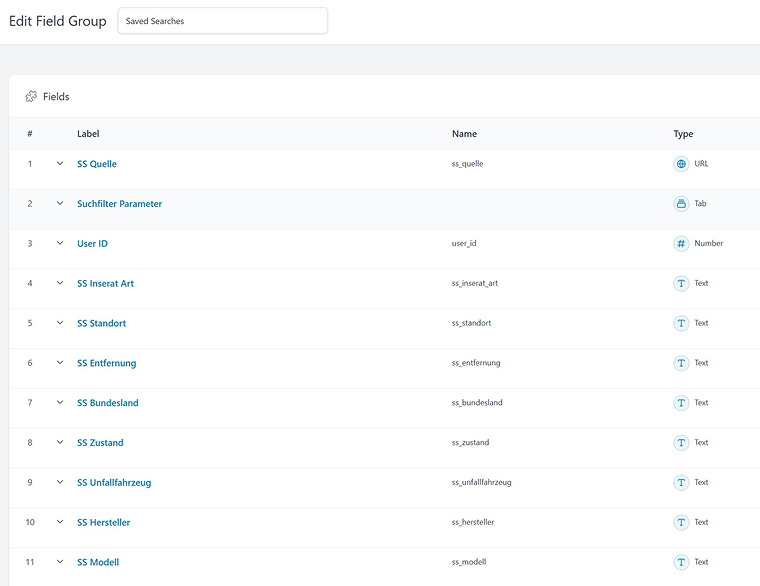
Step 2. Setting up JetSmartFilters
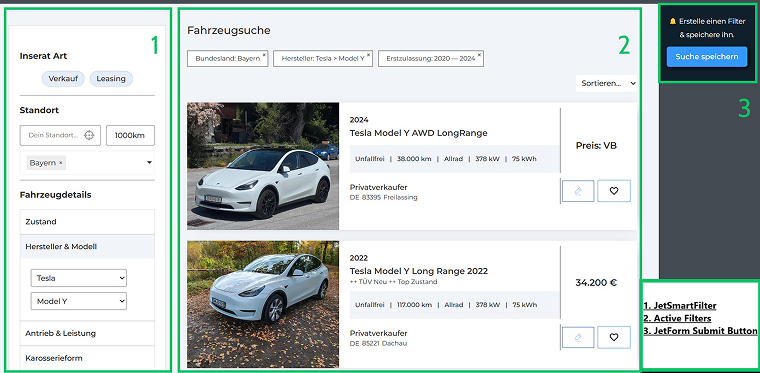
Create a filter system using JetSmartFilters. The filters (1), the Active Filters (2) elements, and the form submit button (3) are then placed on the same page as the vehicle Listing Grid.
Using JetEngine’s Dynamic Visibility, show the form’s button if the user is logged in. Thus, you can save their data in the CRM.
Step 3. JetFormBuilder form with hidden fields
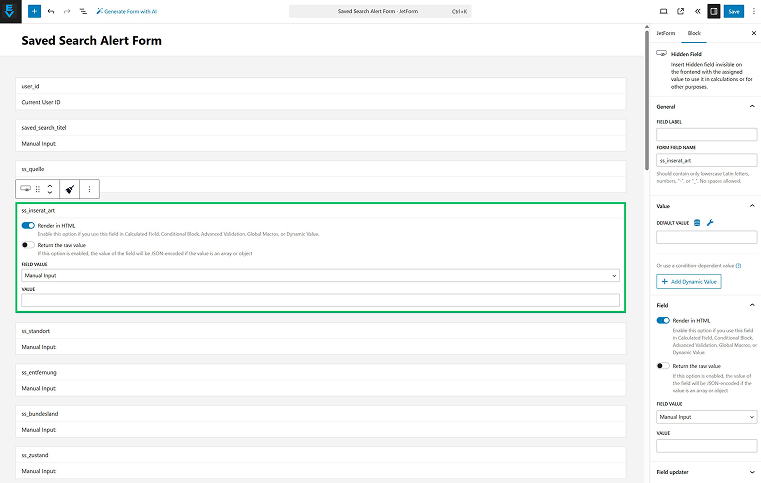
Create a form with hidden fields. The form contains hidden copies of all filter fields as well as the user ID and a custom title.
They will be populated using the JavaScript from the next step.
Step 4. JavaScript to map active filters to the form
When users click the “Save Search” button, the script reads all active filters and fills in the hidden fields before the form is submitted. This creates a new Saved Search entry.
Use this JavaScript code – add it using your favorite snippet plugin or directly to your WordPress files.
Change the field names in the script to match your JetFormBuilder fields, and make sure your JetSmartFilters active-filters block uses the default classes (.jet-active-filter__label / .jet-active-filter__val). The filter labels must match the ones in the switch-cases, and the script must run on the same page where the filters and the form are both visible. Include the script in the footer so it loads after everything is rendered.
Step 5. PHP snippet for automated matching
And this is the second code snippet for automating the matching of the user’s filter choice with the website’s updates.
This is how it works:
- A new vehicle has been added.
- The script compares its values to all saved searches.
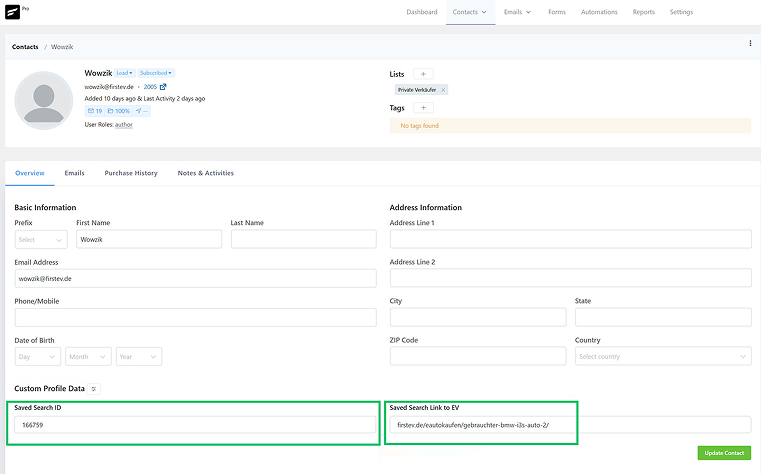
- If there is a match, the vehicle URL is stored in the user’s FluentCRM profile.
- This field update triggers an automation email.
Feel free to adapt both scripts for your websites, using your knowledge and, of course, some AI tools.