JetSmartFilters is a powerful filter plugin that works with WooCommerce, Elementor, and Bricks by filtering their content loops. Before version 3.7.0, though, if you wanted to create a post loop in the Block Editor or free version of Elementor, you had to rely on JetEngine’s Listing Templates. And while most Crocoblock users likely already have JetEngine, as it’s one of the most powerful plugins on the WordPress market, it still meant adding an extra dependency.
Now, the Crocoblock team has added Listing Builder powered by the JetSmartFilters plugin. Let’s see how it works.
JetSmartFilters’ Listing Builder
Before I start talking about the new provider, it’s important to note that the filters and their settings remain the same – you’ve just got a new provider, or, in other words, the content loop builder for posts.
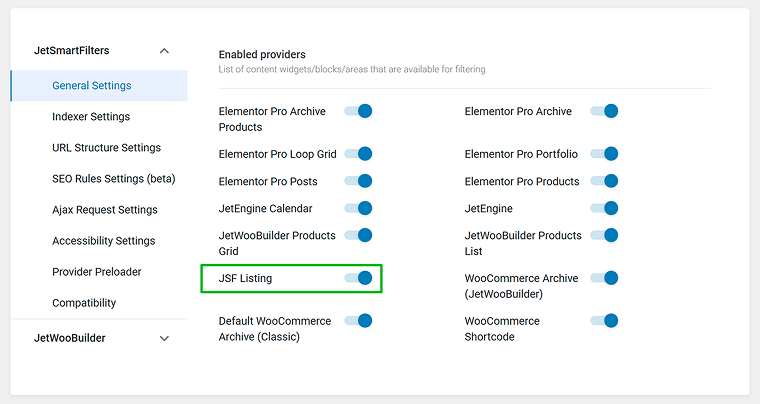
So, first of all, go to JetSmartFilters > Settings, and make sure the JSF Listing provider is activated:
Now, you can proceed to creating content loops, or, if you are a JetEngine user, you will be even more familiar with the term “listing template.”
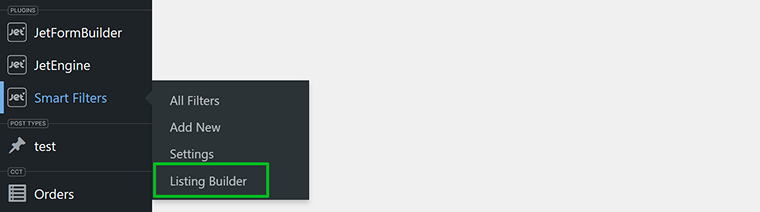
You will find a new link in the JetSmartFilters section in the dashboard menu – Listing Builder.
There, you will see two tabs: All Listings and All Items, with the corresponding buttons for adding new:
- Item is for designing a single element in a loop;
- Listing is for setting up the whole grid.
Let’s build the Item first.
Building and styling an Item
Click “Add New Item,” and you will see a Block Editor. Don’t freak out if you are not a big fan of its styling instruments – JetSmartFilters provides an additional design panel with detailed settings for spacing, typography, colors, and borders.
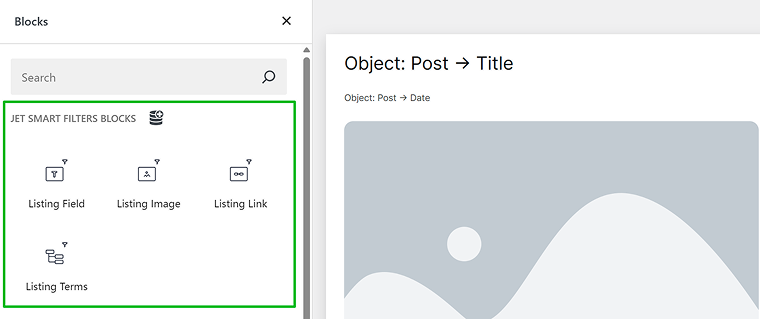
You will see the editor with four dynamic blocks to use:
- Listing Field – responsible for all text content, including objects (e.g., Title, Date, etc.) and custom meta fields.
- Listing Image – for all images in the listing, from thumbnail to images from meta fields. You can make it clickable by enabling the “Is Linked” toggle and selecting a source: permalink, attachment URL, meta field value, or a value from Option Pages.
- Listing Link – for all links, from the post permalink to links from meta fields, attachment URLs, or a value from Option Pages.
- Listing Terms – to display all kinds of taxonomy terms, from categories or tags to WooCommerce-specific ones (e.g., variations).
Along with adding blocks and setting up sources, there are two other useful controls:
- Customize Field Output: to add HTML tags for granular styling inside the dynamic field, or additional texts before or after the value.
- Filter Value Before Output: (“filter” here means hook filters) to change date format, get image by ID, get dynamic values via another value, do shortcodes, etc.
You can also add paragraphs, lists, headings, columns, and containers. To ensure clean output and fast performance, other Block Editor blocks are not available, at least in the 3.7.0 release.
Finally, after you’re done with the settings, switch to the Styling tab and choose colors, typography, margins, paddings, etc.
If you want more controlled behaviour, you can add a CSS class in the Advanced section.
This is it, you’ve created a Listing Item.
Building a Listing
Now, switch to the Listings and create a new listing. There you will find three tabs for your settings:
- Query: to select post types you want to see in your grid, include or exclude some posts by ID, status, taxonomies, or, what is even cooler, by meta field values. And, certainly, you can combine all of these selection criteria.
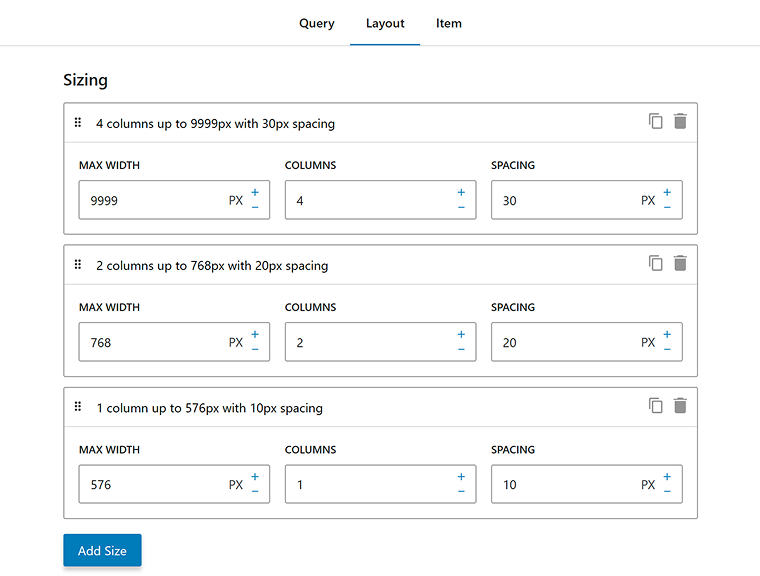
- Layout. In this section, you’ll find three default options that correspond to common screen sizes – mobile, tablet, and desktop – and you can also add your own custom breakpoints. For each screen size, you can define how many columns to display and adjust the spacing between them.
- Item. This is a very straightforward control to select the Item for this Listing.
💡 For documentation, check these links:
- JetSmartFilters Listing Builder Overview
- JSF Listing Builder Blocks Overview
- How to Create Filters with JSF Listing
How to Use the JetSmartFilters Listing?
After creating your Listing, go to the page where your filterable content should appear, and insert the Listing using the dedicated block, widget, or element in the Block Editor, Elementor, or Bricks.
Add filters, and select JSF Listing as a provider for each filter.
That’s it – you get a fast, responsive, and fully dynamic grid powered entirely by JetSmartFilters.
This setup is ideal for:
- Blog archives: filter posts by category, author, or tags without any page reloads.
- Product catalogs: combine price, category, and attribute filters for WooCommerce stores while keeping pages lightweight.
- Portfolio listings: showcase projects or case studies, filterable by type, tools, or completion date.
- Event or directory listings: let users refine results by city, date, or event type using clean, fast AJAX filtering.
You no longer need to juggle multiple plugins just to make filters work. The new JSF Listing is fast, native, and straightforward – a perfect fit for those who want speed without sacrificing flexibility. Whether you’re building a minimal website, a high-traffic blog, or a custom WooCommerce layout, JetSmartFilters 3.7.0 gives you the kind of smooth filtering experience that used to require multiple tools working together.
Why This Update Matters and How It Changes the Workflow
The introduction of the JetSmartFilters Listing Builder may seem like a minor addition, but it fundamentally changes how Crocoblock users interact with dynamic content. Before this release, anyone building filterable listings had to rely on JetEngine’s Listing Templates. Now, JetSmartFilters can handle that part on its own – a big win for performance, simplicity, and independence.
A faster, lighter approach
Benchmark tests show that the new JSF Listing performs at the same level as the most optimized native loop solutions, e.g., Bricks Query Loop, with both demonstrating very low render times and stable performance even when displaying around twenty listings per page.
From a technical perspective, JSF Listing maintained a minimal render time and moderate memory usage while handling more listings per page than any of the builder-based JetEngine loops. Its filtering operations were also highly responsive, staying well within the fastest range of tested providers.
Among the JetEngine-based setups, the Twig Listing performed efficiently, which is quite logical. The Elementor JetEngine Listing exhibited higher memory usage and slower filtering responses, which is expected due to its more complex builder structures. Finally, the Elementor Pro Loop demonstrated the slowest rendering and the highest memory footprint.
Looking ahead
As this is the initial release of the JSF Listings feature, it will continue to evolve, eventually gaining support for the Query Builder and user-based queries. That would make it even more flexible, allowing dynamic data filtering without relying on JetEngine at all.
Certainly, more flexibility will be added to the way items can be styled and aligned.
Questions and Answers About New Functionality of JetSmartFilters 3.7.0
You don’t have to. If you prefer creating listings using JetEngine (paired with Elementor, Twig, Bricks, or Block Editor), you can continue doing it, as it’s even more powerful – because there, you can use Users or complex queries by Query Builder (in the future, the JSF Listings will have this functionality, too). Also, if you prefer using Bricks or Elementor Pro loops, feel free to continue.
The key benefits are speed, simplicity, and independence. JSF Listings don’t rely on any builder or heavy plugin logic, so they render faster, consume less memory, and keep your site lightweight. It’s a clean, builder-agnostic solution designed for pure performance.
Yes, just use the JSF Listing widget/element.
Yes, and you have full control over the breakpoints in All Listings > Layout. You can add additional screen sizes and configure the number of columns and spacing for each one.
As of now, for filterable map listings, combine JetSmartFilters with JetEngine’s Map Listing functionality.
Yes. You can connect JSF Listings to any registered post type and use dynamic sources from meta fields.
In internal tests, JSF Listings demonstrated performance comparable to Bricks’ native loop, Twig, or Block Builder-based JetEngine’s listings, while also achieving significantly faster load and filter times than Elementor. In short, it’s designed to deliver native-WordPress speed with fully dynamic functionality – this is the perfect solution for content-heavy pages.
Takeaway
JetSmartFilters 3.7.0 isn’t just another update – it’s a move toward giving users full control over dynamic loops without extra dependencies. Until now, you have always needed a builder or JetEngine’s Listing Templates to get a dynamic loop running. With the new JSF Listing Builder, you can do the same job directly in the Block Editor, using only JetSmartFilters.
It feels faster, lighter, and more native. You don’t have to load heavy builder logic just to show a few posts or products – everything works within WordPress itself. The filters respond instantly, layouts stay flexible, and you can control the look with simple styling tools instead of layers of widgets.
For developers, it’s one less dependency to worry about. For content creators, it’s an easier way to build pages that look clean and load fast.