When someone uses your website’s search bar, they’re telling you exactly what they want. That moment is an opportunity – either you guide them to the right content, or you lose them to frustration (and possibly to a competitor). Unfortunately, the default WordPress search results page often feels like an afterthought: plain lists, little context, and zero personality.
But it doesn’t have to be that way. A thoughtfully designed search results page can do more than return links; it can showcase your content, help users refine their queries, and even encourage exploration. From clean and minimal layouts to bold, image-driven grids or eCommerce-style filters, WordPress gives you plenty of room to get creative.
In this article, I’ll cover the 14 best practices for the search result page and will demonstrate how exactly you can implement them using Crocoblock plugins. Also, there are some creative search page layout examples for your inspiration.
Search Result Page Best Practices and How to Implement Them With Crocoblock
In WordPress, the search results page is the archive template type that displays whenever a visitor uses the site’s search bar. By default, WordPress pulls content that matches the query and lists it in a simple loop, usually showing the post title, excerpt, featured image (if enabled), and a link. The template behind it is typically search.php in your theme, or the Search Results template if you’re using the FSE.
But there’s one problem. Out of the box, this page is barebones and doesn’t account for user intent. There are no filters, no keyword highlighting, no “did you mean” suggestions, and no guidance when results are empty. That’s why customizing this page is so important: it can transform search from a basic WordPress function into a user-friendly discovery tool that actually drives conversions and keeps visitors exploring your site.
Using visual builders, such as Elementor, Bricks, or plugins like JetThemeCore, you can visually modify the Search page template without coding. However, a good template will not save the situation if the search functionality is bad – that’s why you will also need a good search plugin to get something better than the lousy results the default WordPress search engine is capable of.
That’s why I’ll start by covering best practices for the plugins you will need to implement. And in the next section, I will briefly explain why these particular plugins are capable of delivering really good results.
WordPress search result page: best practices
Let’s have a look at the best practices for search result pages.
AJAX-powered instant search and live suggestions
Before users are sent to the dedicated search result page, they should have a chance to select the thing they are looking for right in the search input. Moreover, it is also very important, not only for users but for website owners, to be directed by custom suggestions – so businesses (especially if it’s an eCommerce site) have a chance to influence their decisions a bit.
📌Things to consider: requires a really good AJAX search plugin and causes some performance overhead.
🟠 Priority level: highly recommended.
🟢How to implement it with Crocoblock?
The JetSearch plugin supports AJAX out of the box. It also features an advanced suggestions functionality, allowing you to add them manually or based on previous searches. You can control the number of suggestions per user to save and fix duplicates automatically.
And, of course, you can select a dedicated search result page template.
Mobile-first optimizations
Keep the search bar sticky on top while scrolling. Create a drawer-style side panel for the filters that slides in and optimizes tap targets (buttons at least 44px high).
📌Things to consider: responsive layouts and touch-friendly controls.
🟠 Priority level: must-have.
🟢How to implement it with Crocoblock?
For a search input, JetSearch offers a mobile-friendly widget/block/element with settings for better responsiveness in Elementor, Bricks, and Block Editor.
When it comes to filters that are highly recommended on a search page, there’s a free JetSmartFilters add-on for even better filter responsiveness in Elementor, but it’s responsive out of the box, too.
Smart core elements (query display, excerpts, metadata)
It’s simple yet effective: to display search term, result count, title, excerpt, metadata, and pagination, and handle “no results” gracefully.
📌Things to consider: the structure and design should be customized for different content types.
🟠 Priority level: mandatory.
🟢How to implement it with Crocoblock?
JetSearch offers settings for every detail, including pagination, search query highlighting, category visibility, metadata, and full control over custom fields for display. Moreover, you can select specific templates for displaying additional details and suggestions. When it comes to WooCommerce product search queries, you can display details, rating, price, and the “Add to Cart” button right on the search results page.
Grid/list hybrid with featured Imagery
Search results are shown in a grid or list format, enhanced with small featured images to make results more visually appealing. It helps users scan results faster, provides context, and effectively captures customers’ attention to various options they might not have considered purchasing before. Also, it enhances context very well.
📌Things to consider: image loading impact and accessibility considerations.
🟠 Priority level: highly recommended.
🟢How to implement it with Crocoblock?
Using a combination of the JetEngine Listing Template feature (or just “Listings”) and JetThemeCore, you can create a custom search result page template. But that’s not all – you can fully customize how the results are displayed right in the search dropdown.
So, there’s no limit to what you can display there – any element with any styling, and everything can be fetched dynamically.
eCommerce-inspired layouts (thumbnails, ratings, filters)
Such layouts are inspired by Amazon or WooCommerce and include thumbnails, ratings, sorting, and filters right in the results. It adds trust and rich details.
📌Things to consider: it requires more well-thought-out and detailed design and development, and in most cases, will not work for other website types.
🟠 Priority level: optional.
🟢How to implement it with Crocoblock?
JetSearch has dedicated settings for WooCommerce products – to display prices, rating, images, and add products to the cart right from the search results dropdown. But when it comes to a dedicated search result page, you can create any layout using JetThemeCore.
Faceted filters and sorting
If the page has quite a search results, a user can get lost and overwhelmed. That’s why filtering (by category, price, tag, type, etc) and sorting are so important – it empowers users to continue searching and sorting, to find items on your website instead of switching to another one.
📌Things to consider: it requires extra setup and interface configuration.
🟠 Priority level: highly recommended for websites with many search results.
🟢How to implement it with Crocoblock?
JetSmartFilters is a plugin for creating advanced filters for any content type, and it works great on the search result page. Simply add a filter widget block to the search result template, select the desired filter functionality from the available options, and enjoy the result.
Clear query feedback
Show the user’s search term at the top (e.g., “Results for ‘red blouse’”), and the number of results found to set expectations. If there are no results, provide helpful alternatives (spelling suggestions, related categories, popular searches).
📌Things to consider: dynamic term handling and fallback states for zero results.
🟠 Priority level: must-have.
🟢How to implement it with Crocoblock?
You can create a custom message to display when no results are shown in the AJAX dropdown in JetSearch settings. Additionally, you can take it to the next level by utilizing JetEngine’s Listing Templates for such cases – e.g., to display suggestions and additional results.
As you can see, Crocoblock provides a complete toolkit for displaying search results in virtually any way you need. With JetPlugins, you can create even the most advanced templates. That’s why, in the following sections, I won’t go into detail about how to implement these solutions with Crocoblock – you’ve already seen that everything is possible using the plugins and tools mentioned above.
Visual hierarchy and scannability
Use consistent card or list structures so users can skim quickly by highlighting search keywords within titles or excerpts. Additionally, adding contrast and whitespace would be beneficial to distinguish results from ads, filters, and related content.
📌Things to consider: requires a consistent design system, typography, and spacing rules.
🟠 Priority level: must-have.
Thumbnail and media previews
Add featured images, product thumbnails, or icons when relevant, as they aid recognition. For video or media-heavy content, include play icons or duration overlays.
📌Things to consider: image quality, performance impact, and placeholders for missing media.
🟠 Priority level: recommended.
Accessibility
Ensure results are keyboard navigable. Use aria-live regions for dynamic updates in AJAX search. Maintain strong color contrast for text and highlights.
📌Things to consider: compliance with WCAG standards, testing with assistive tech.
🟠 Priority level: must-have.
Personalization and context
Offer recent searches or “Because you searched for X, you may also like…” suggestions. Integrate behavior-based personalization (e.g., returning users see results tailored to past clicks). Also, use contextual relevance (e.g., searching within a category vs. global site search).
📌Things to consider: privacy regulations, data collection, and personalization algorithms.
🟠 Priority level: good-to-have.
Handling “zero results” gracefully
Never leave the page blank or just a frustrating message that nothing is found. Instead, you can offer spelling corrections (“Did you mean…?”), suggest related keywords or categories, or show the most popular or trending content.
📌Things to consider: synonym library, fallback content, and clear messaging.
🟠 Priority level: highly recommended.
Engaging microinteractions
Subtle loading animations are used when fetching results, and highlight transitions occur when a filter is applied. Consider using animated keyword highlighting to reassure users that the system “understood” their input.
📌Things to consider: keep animations lightweight and non-distracting.
🟠 Priority level: good-to-have.
Analytics and Iteration
Track most searched terms and no-result queries, use analytics to refine synonyms, indexing rules, and content gaps. Also, it’s good to test different layouts (grid vs list) to see which boosts engagement.
📌Things to consider: analytics setup, event tracking, and ongoing monitoring.
🟠 Priority level: highly recommended.
5 Creative Search Result Page Designs for Your Inspiration
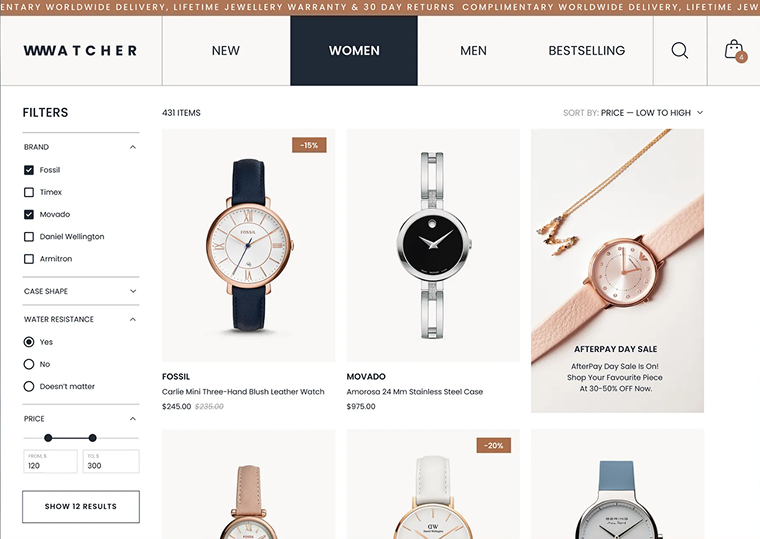
Combined filter layout
Your filters can be placed not only on one side – why not put two sets of filters, as the Ronas IT team did?
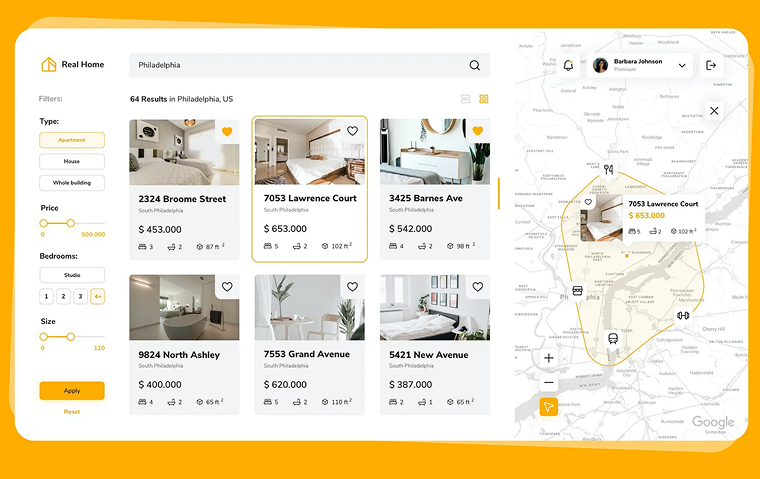
Displaying properties on a map
Real estate listings or similar items that require being displayed on a map can be demonstrated beautifully, as Merixstudio suggests. By the way, you can implement it with Crocoblock as well – check this demo to see how it may look.
Simple and elegant layouts
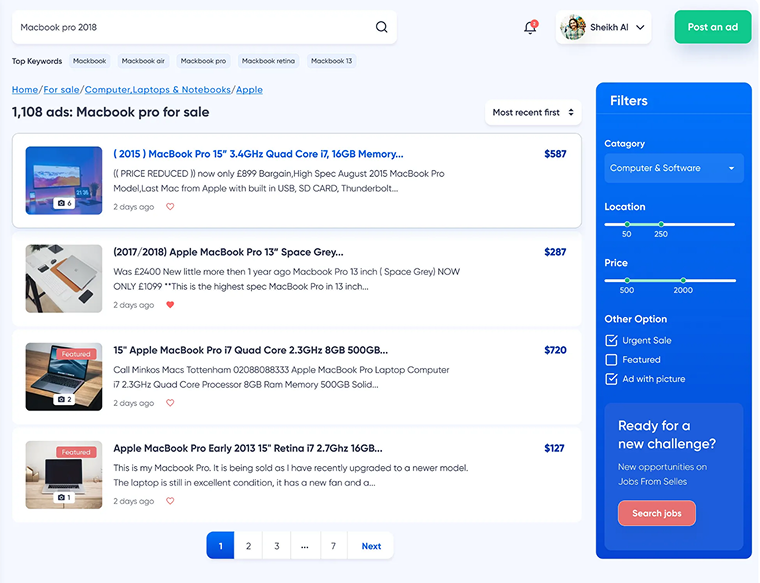
Layouts that don’t have too many elements can look very elegant if implemented properly, like Sayed Ragu suggests:
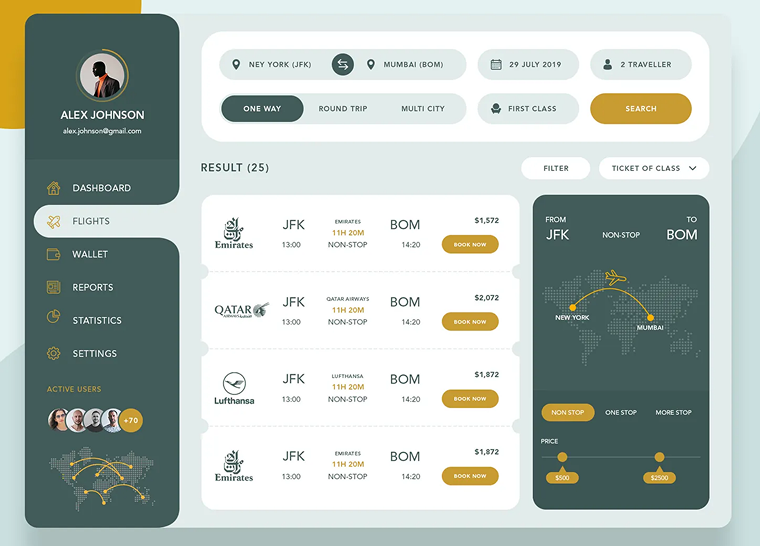
Creative filter design
You can incorporate filters in a very simple but creative way, just like in this example by Stano Bagin:
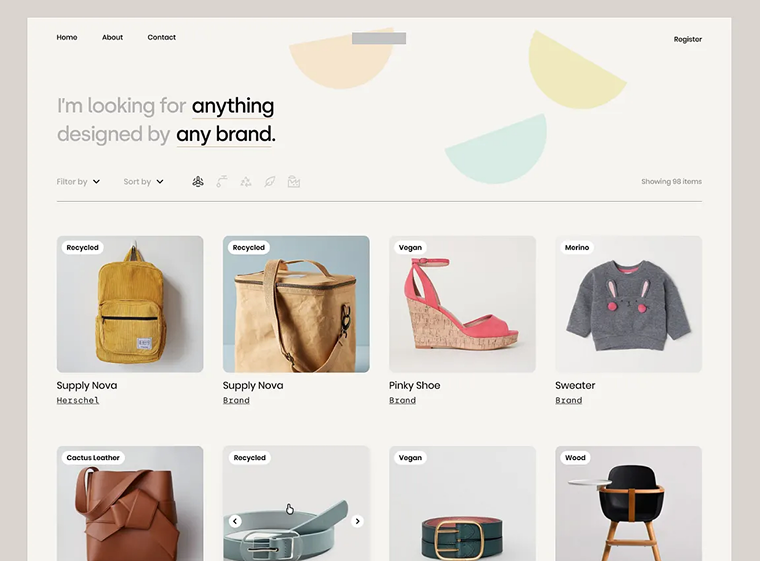
Using cool shapes
You can switch from traditional boxy shapes to different blocks and use something more creative, like Mindinventory:
FAQ
You can edit the search.php template in your theme, use the block editor’s Search Results template, or rely on plugins like JetThemeCore or other theme builders for more advanced features.
Yes. Plugins like JetThemeCore let you add category filters, price ranges, tags, and sorting controls directly to your results page.
Focus on clear layouts, keyword highlighting, featured images, and helpful “no results” messages. Adding filters and live suggestions also improves usability.
The default WordPress search is basic and often ignores custom fields. Using plugins like JetSearch gives you more control over relevance and indexing.
Takeaway
Here’s the bottom line: a boring search page can frustrate visitors and cost you clicks. But as we’ve explored, it doesn’t have to be that way. The moment someone uses your search bar is a perfect opportunity to guide them exactly where they need to go. By using the right tools, like the plugins we’ve covered, you can go beyond a basic list of links and create something truly useful. Add smart features like live suggestions, filters, and visually appealing layouts, and you’ll transform your search page into a powerful discovery tool that keeps people engaged and helps them find what they’re looking for.