
JetPlugins Not Working After Domain Change or Migration
After the website migration/domain change, I experienced issues with JetPlugins. Some of the content is missing. How can I fix it?
After migrating a WordPress site to a new domain or hosting, JetPlugins may stop working due to a combination of issues: outdated URLs stored in the database, a license tied to the old domain, and misconfigured post type or filter settings that reference the previous environment.
This issue typically appears when moving from staging to live, changing a domain name, or switching hosting providers — and manifests as missing license updates, 404 errors on CPT pages, non-responsive filters, or broken form submissions.
This is a common JetPlugins not working after migration issue, and can also appear as a Crocoblock not working after domain change problem on WordPress websites.
It affects all JetPlugins — JetEngine, JetSmartFilters, JetFormBuilder — on WordPress sites built with Elementor, Gutenberg, or Bricks Builder.
Before proceeding with the reading, check our JetPlugins Staging to Live: Checklist tutorial.
Replace Old Domain URLs in the Database
One of the most common reasons for non-working JetPlugins after migration is that the old domain is still stored in the database.
It often affects the plugin settings, so if the old domain is still present in the database, some JetPlugins may continue pointing to invalid URLs or outdated objects.
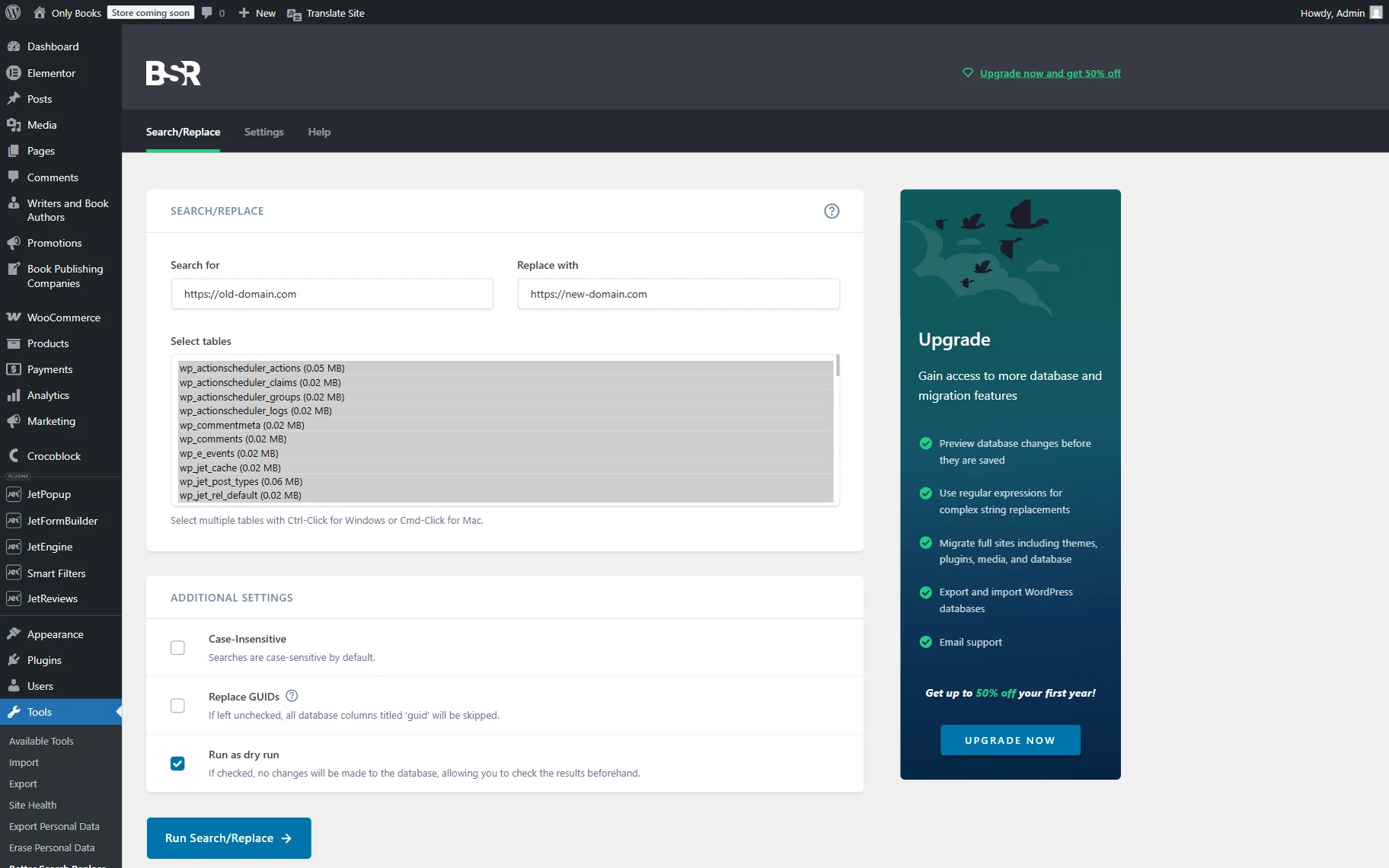
Use a proper search and replace tool to update all old URLs to the new domain.
For example, you can use the Better Search Replace plugin or WP-CLI search-replace commands.
Check wp-config.php URL Constants
If the old domain is hardcoded in the wp-config.php file via the WP_HOME and WP_SITEURL constants, WordPress may keep redirecting requests to the previous domain even after the database migration.
Open the wp-config.php file and check whether the following constants are set:
define( 'WP_HOME', 'https://your-old-domain.com' );
define( 'WP_SITEURL', 'https://your-old-domain.com' );
If they still point to the old domain, update them or remove them if they are no longer needed.
Check SSL and Mixed Content Issues
If the website was moved from HTTP to HTTPS, some frontend functionality may stop working because of mixed content issues. This may affect AJAX requests of the smart filters.
Make sure all website URLs use HTTPS and that the SSL certificate is configured correctly.
If necessary, you can:
- update internal URLs manually;
- use an SSL plugin such as Really Simple SSL;
- clear cache after making changes.
Once the general migration settings are checked, proceed to the plugin-specific issues below.
JetPlugins Show the “Update package not available” Notice
If all JetPlugins show the “Update package not available” notice after migration, the plugin may still be linked to the old domain.
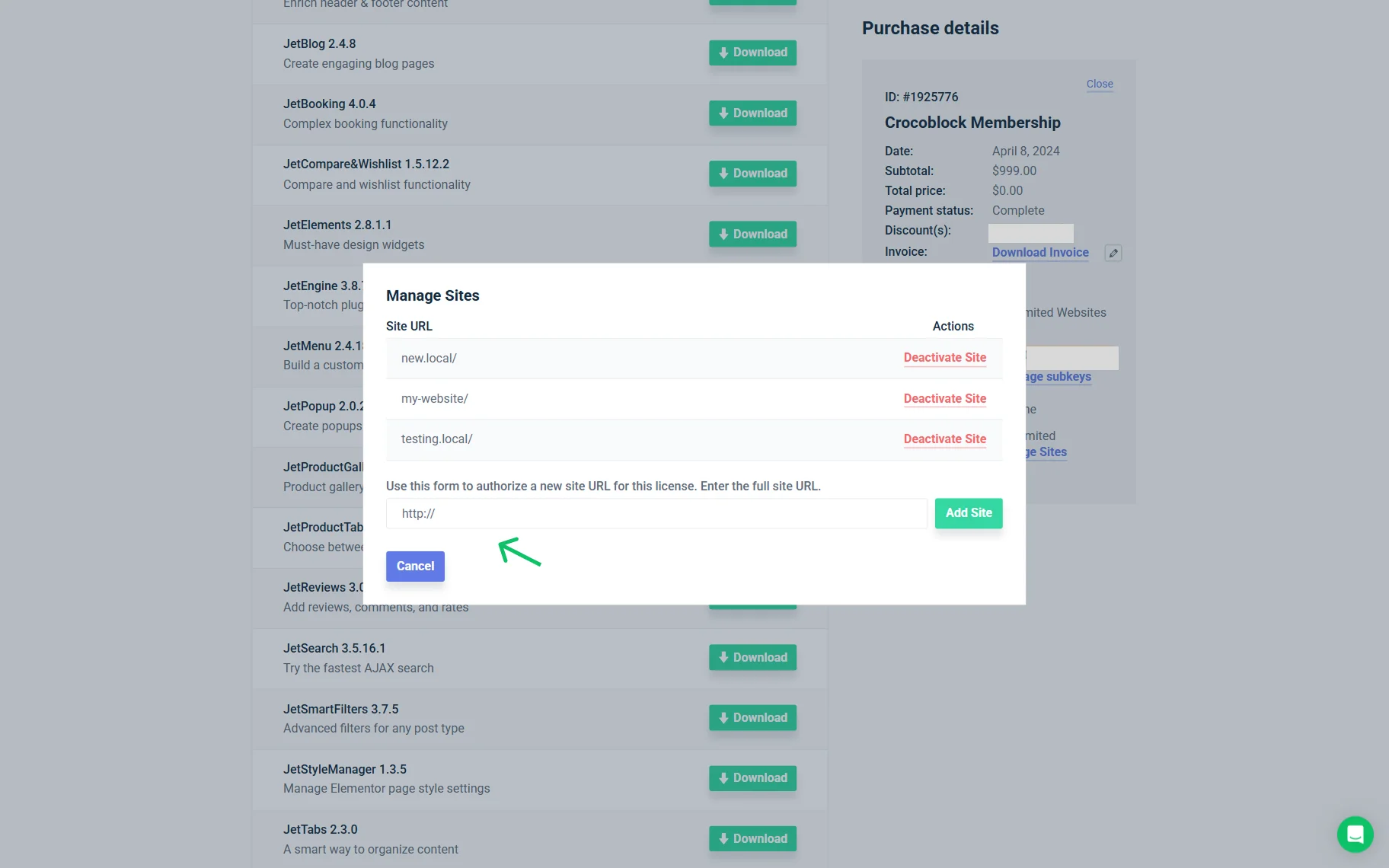
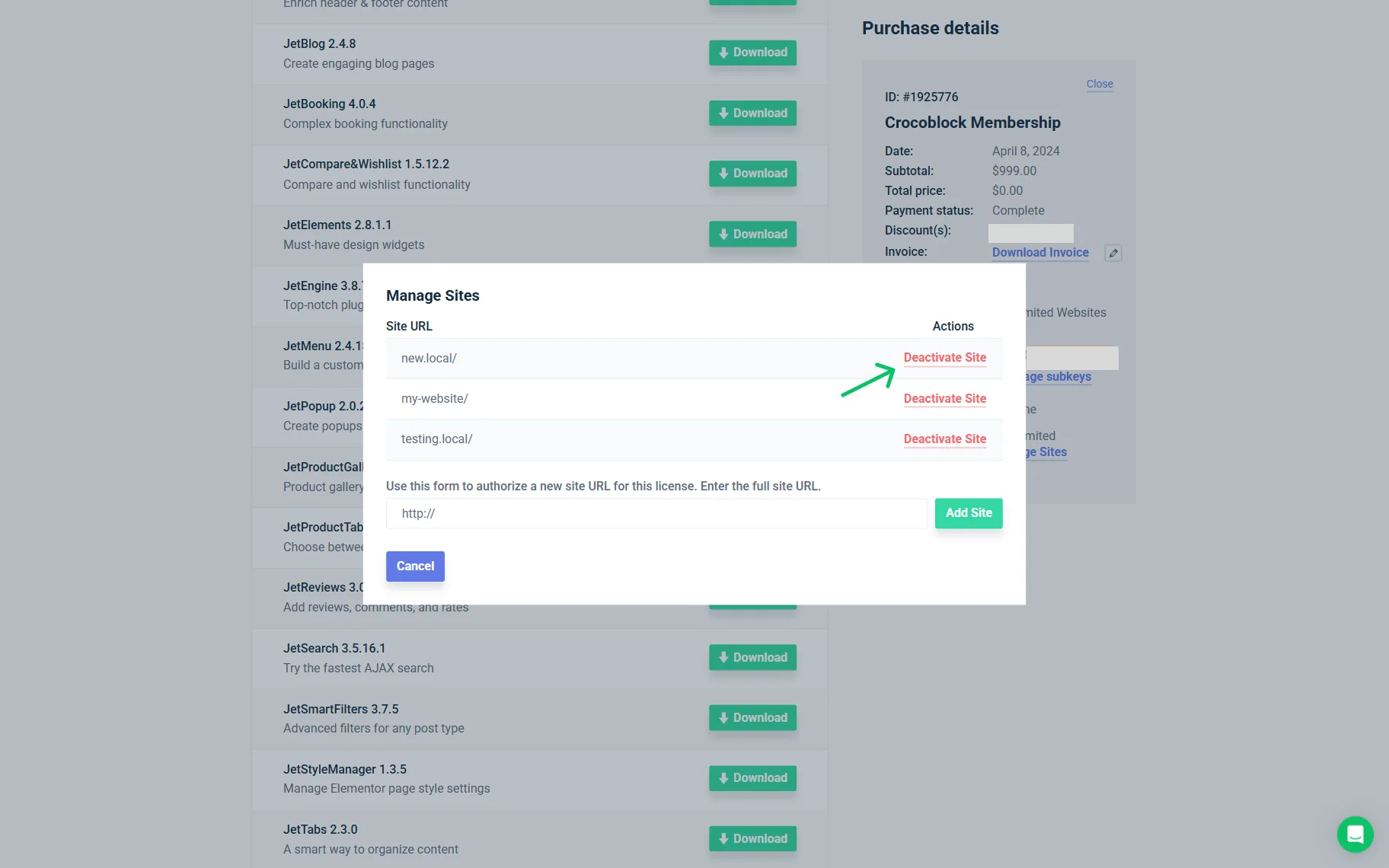
To fix it, log in to your Crocoblock account. Here, go to the Manage Sites section and check whether the new live domain is listed there.
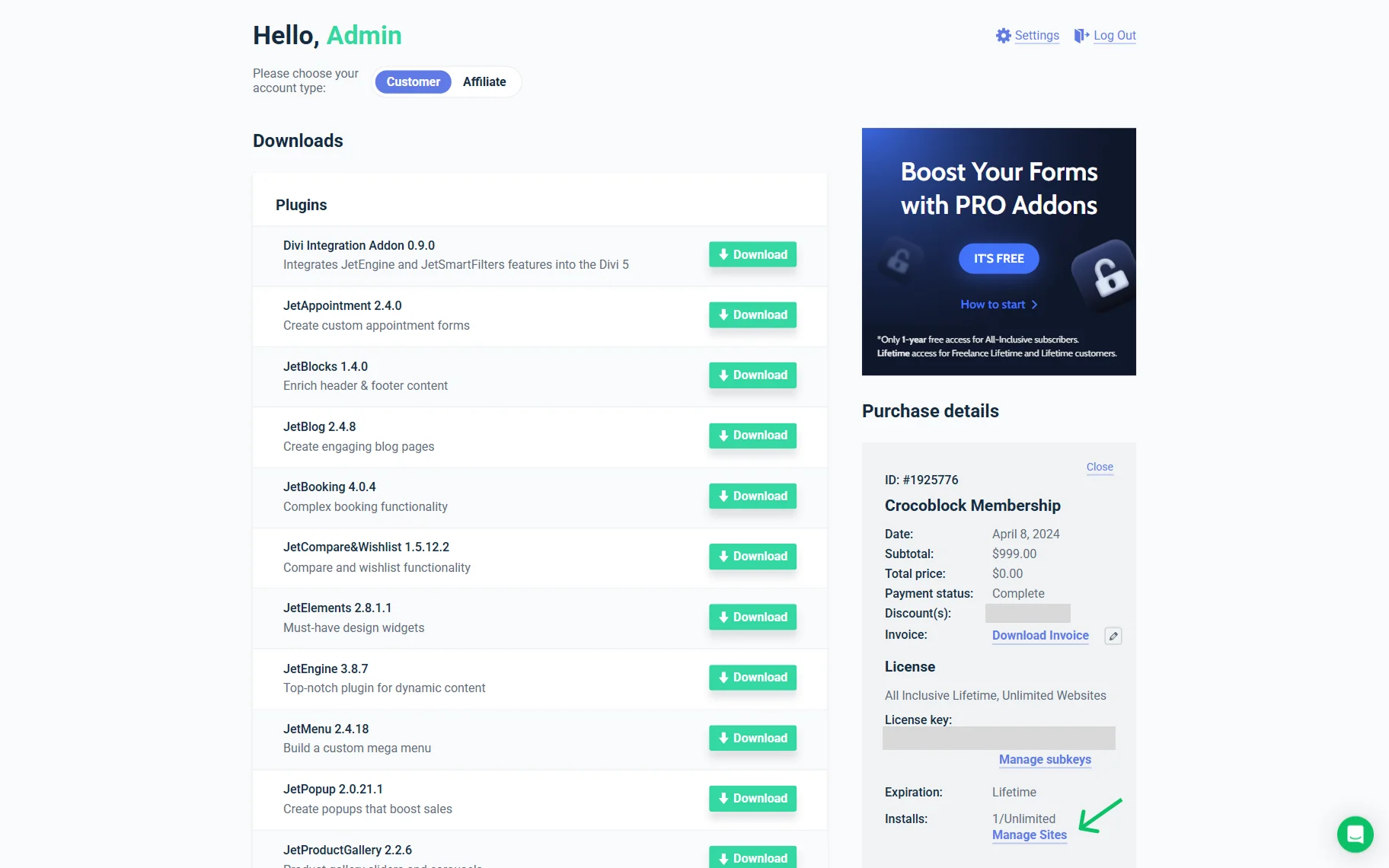
If it is not listed, you can add the new domain manually or deactivate and reactivate the license.
If the activation limit has already been reached, remove the old or staging domain first and then activate the active domain.
JetEngine Custom Post Types Return 404 Errors
After a migration or domain change, WordPress rewrite rules may not be regenerated automatically. This often causes 404 errors on CPT single pages and archives.
To fix it, go to WordPress Dashboard > Settings > Permalinks and click the “Save Changes” button without changing anything.
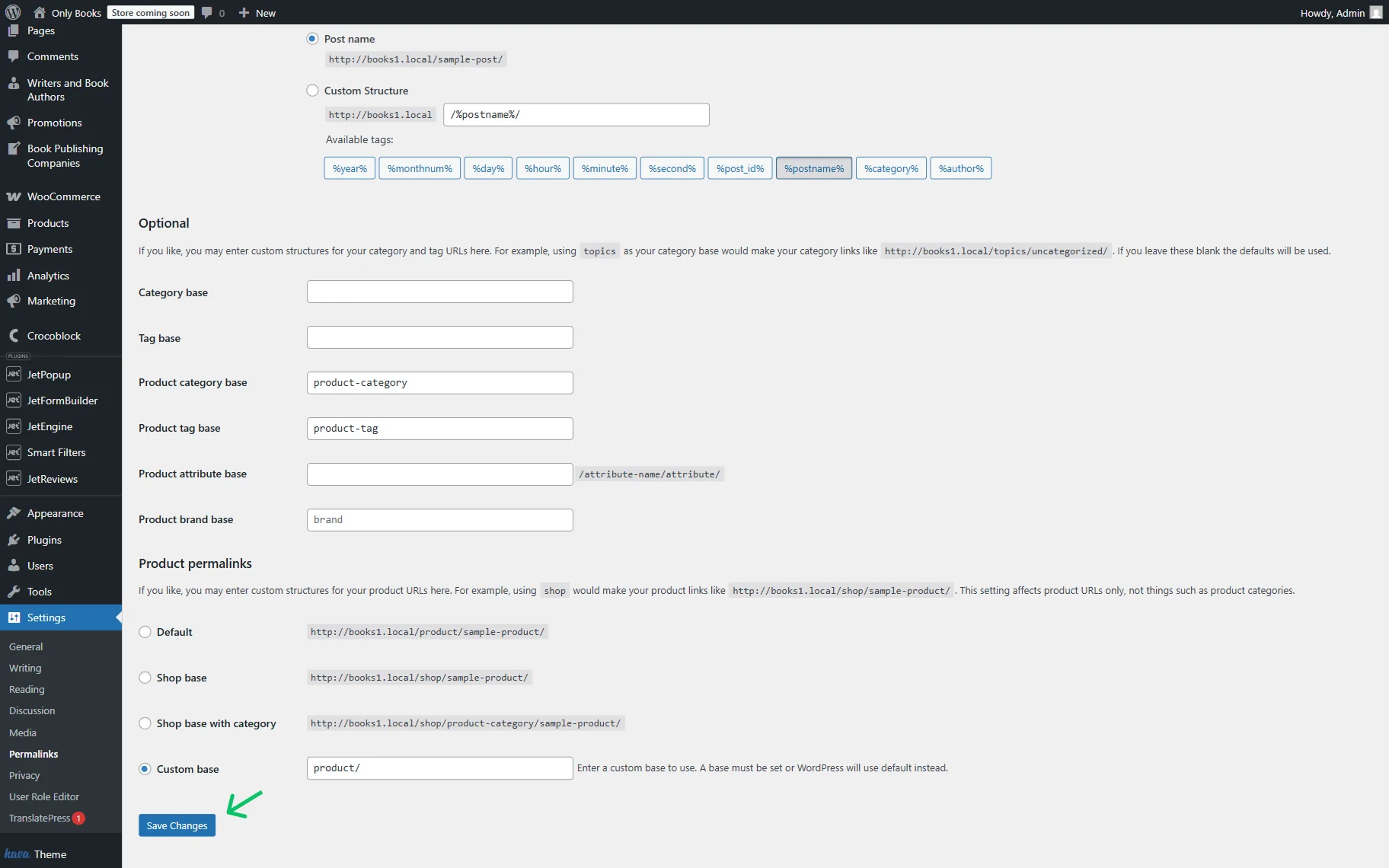
This action refreshes the rewrite rules and often restores CPT page access.
JetSmartFilters Filters Don’t Affect the Listing Grid
If JetSmartFilters filters no longer work after migration, the filter may be connected to the wrong provider. This often happens when the page or template was duplicated, rebuilt, or imported during the migration process.
To fix it, open the page or template where the filter is placed. Select the filter widget/block/element/module.
Check the Query ID attached to it.
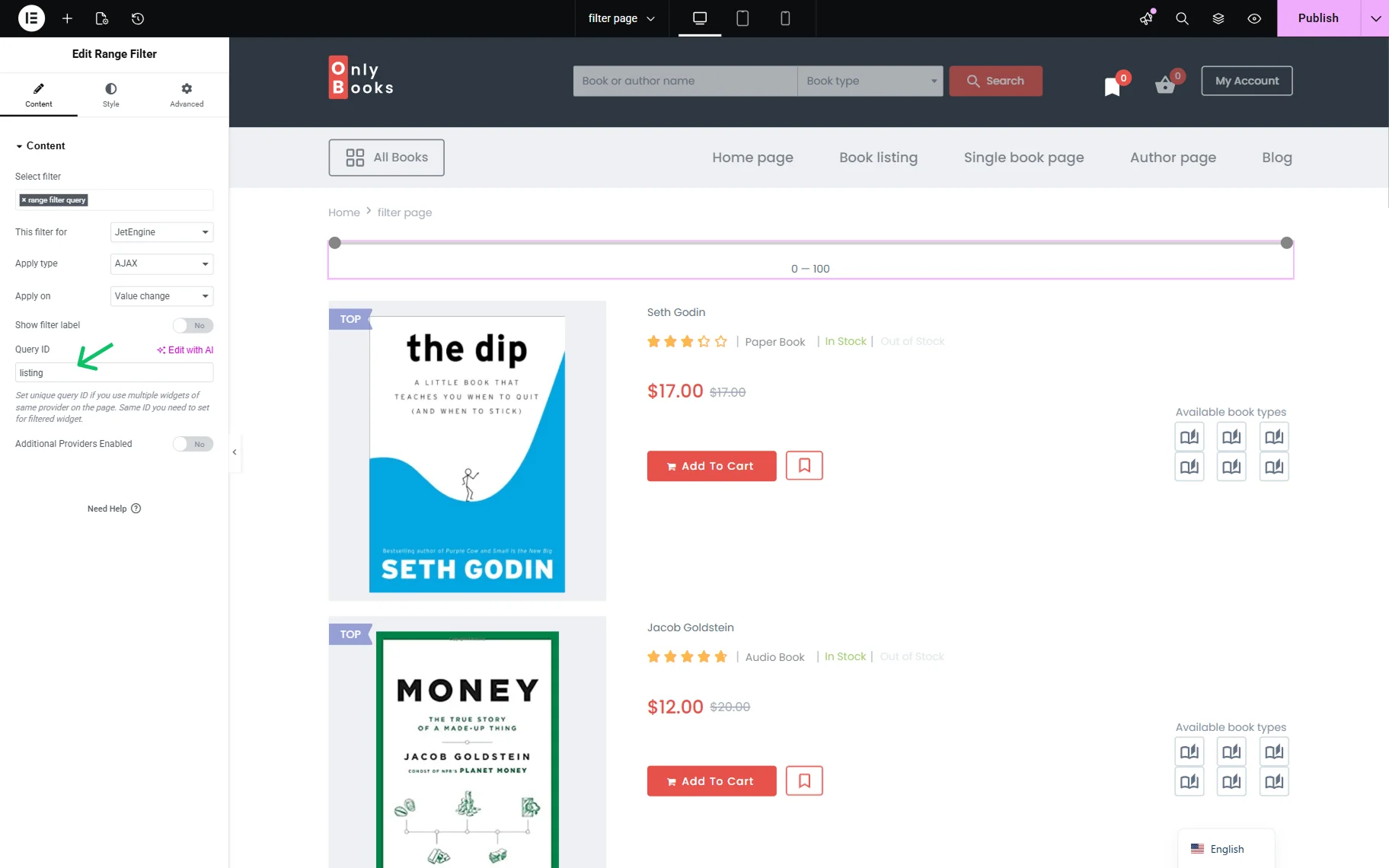
Now, proceed to the provider settings. We use the Listing Grid widget in Elementor, so we open the Advanced tab of the widget settings and check the CSS ID field. It should be identical to the value set in the Query ID field of the filter widget.
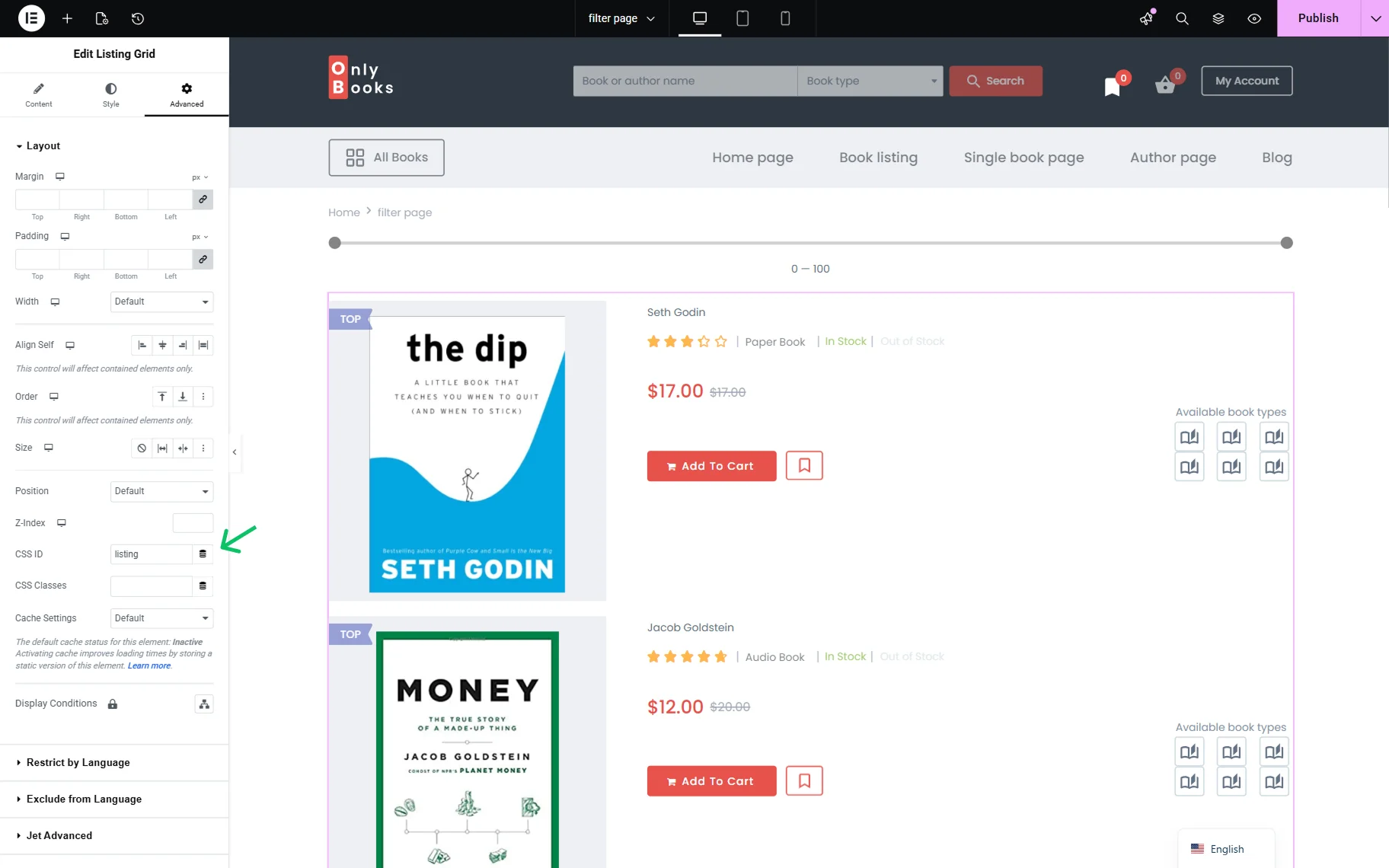
After migration, the Listing Grid ID on the new website may differ from the one used on the staging website.
JetFormBuilder Forms Don’t Submit Data to a Custom Post Type
If JetFormBuilder forms no longer create or update posts after the migration, the selected post type in the form action may no longer match the current website setup.
This may happen if the form was imported before the related Custom Post Type was created or registered on the new website.
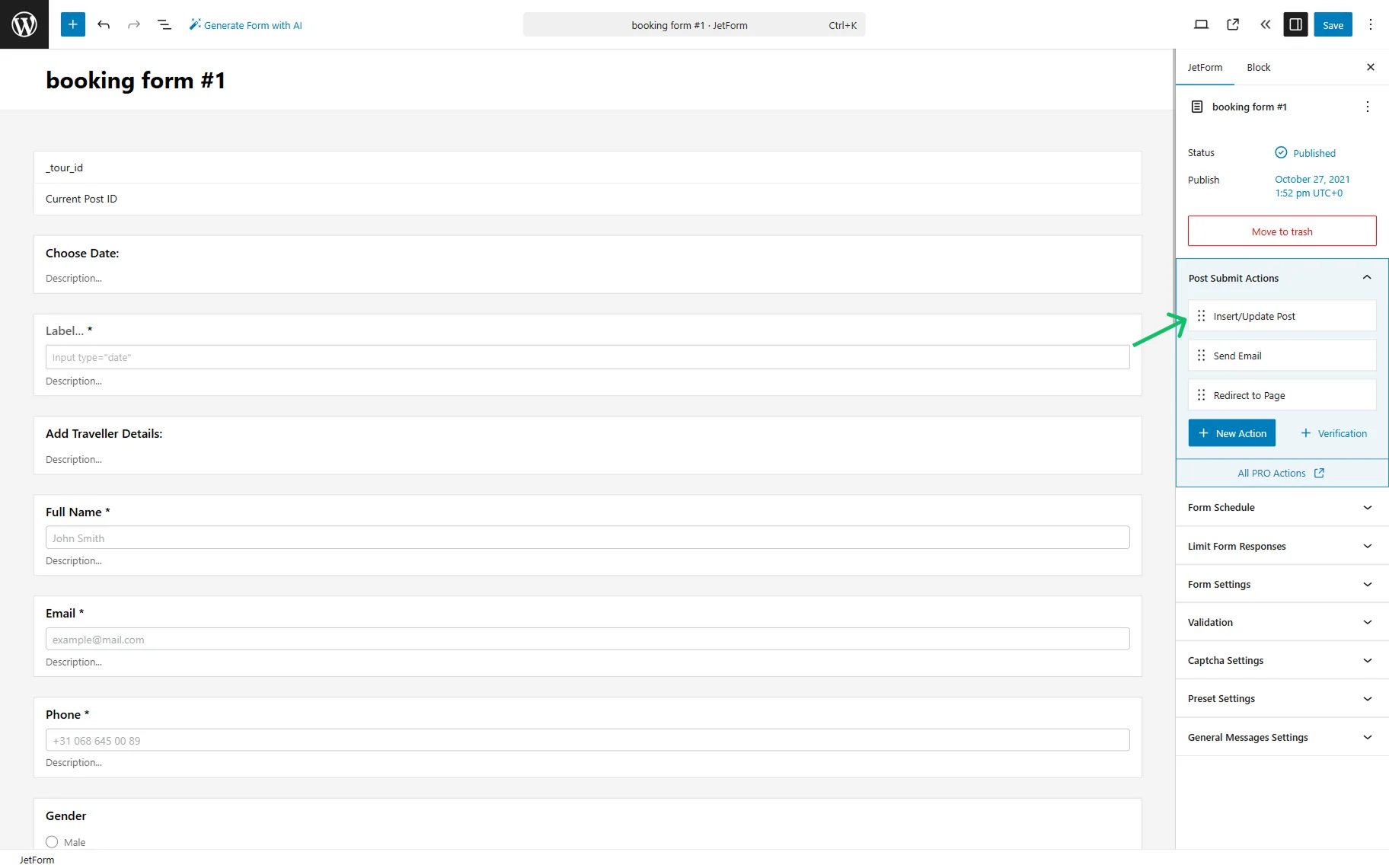
To fix it, open the form editor and go to the Post Submit Actions section.
Hover over the “Insert/Update Post” action and click the “pencil” button to open the settings pop-up.
Check that the correct POST TYPE is selected.
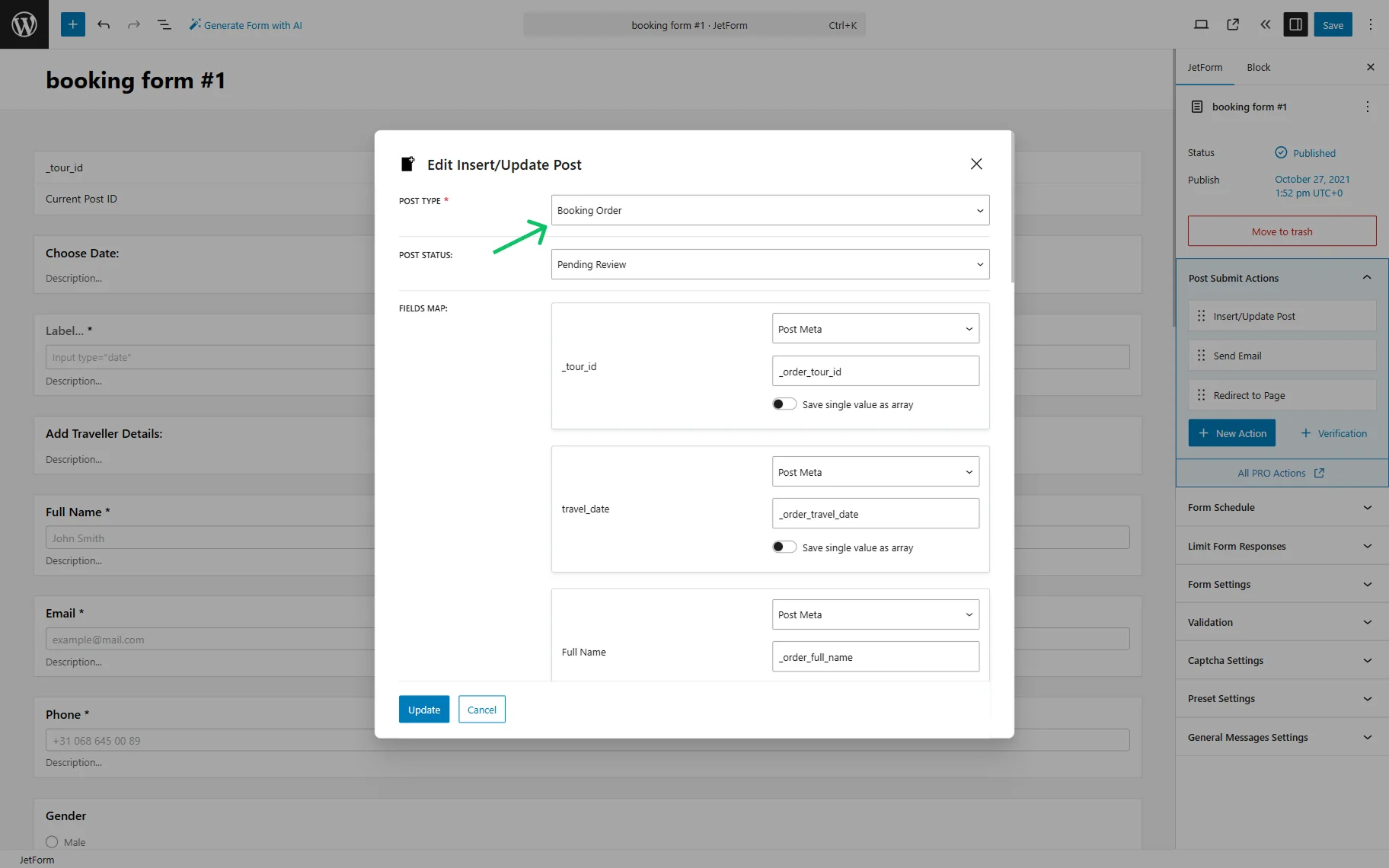
Save the changes in the pop-up and then resave the form.
The License Activation Limit Has Been Reached
If you moved the website from a staging domain to a live domain, the license may still be occupying an occupation slot on the old domain.
To fix it, log in to your Crocoblock account and open the Manage Sites section.
Deactivate the old/staging domain and activate the new live domain.
That’s all; now you know how to fix JetPlugins not working after migration on your WordPress website after the domain change or migration.