Do you design a WordPress website and choose between rigid pre-made themes or hiring a developer to custom-code templates? JetThemeCore will give you full control over your site’s structure. It helps you to create and manage templates directly from a visual builder interface.
This guide will introduce you to JetThemeCore’s website template editor, its features, and possibilities.
Why Choose JetThemeCore Over Other WordPress Template Builders?
JetThemeCore is a WordPress plugin from Crocoblock that lets you build and manage custom templates like headers, footers, single post layouts, and archive pages. It works with both Elementor and the native Block Editor (Gutenberg). The plugin gives you full control over your site’s structure, regardless of the theme.
One of its key strengths is full site template control — not just for headers and footers, but also for single posts, pages, archives, 404 pages, and search results. JetThemeCore’s flexible display conditions allow you to assign specific templates to different scenarios, such as showing one header for logged-in users and another for guests, or using a custom archive layout for a particular category.
What You Can Create with JetThemeCore
Header and footer templates
Instead of relying on theme limitations or editing code, you can build headers and footers visually. You decide where and when to show each one: for example, one header for landing pages, another for blog posts, or different versions for mobile users. Templates are reusable, and any edits apply globally.
Single post and page templates
Create layouts for blog posts, custom post types, or standalone pages like “About” or “Services.” JetThemeCore website template builder helps you to design dynamic templates that automatically display the right content based on post type, or other custom criteria. Its flexible display conditions help assign the perfect layout to each situation.
Archive templates
Customize how post lists or product archives appear – by taxonomy or term. This is especially useful for blogs, stores, and directory websites, where you want archive pages to match your desired structure rather than the default theme output.
For more advanced control over layout and filtering, combine JetThemeCore with JetSmartFilters and JetEngine listing templates.
404 and search templates
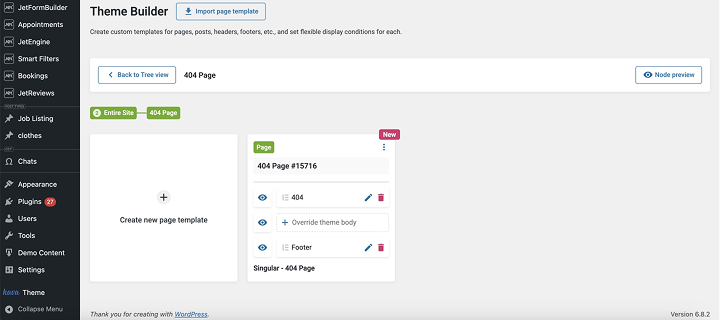
You’re not limited to your theme’s default design. You can customize the appearance of 404 error pages and search results – for example, by adding a search field, helpful links, or a layout that better reflects your site structure.
WooCommerce templates
Using JetThemeCore, you can create custom templates for various WooCommerce single pages and archives. But combined with JetWooBuilder, you have full control not only over the combination of the body with different headers and footers, but what’s inside all WooCommerce templates – product pages, category layouts, and checkout flow.
Read more details about JetThemeCore and JetWooBuilder in this article.
How to Create a Custom Template with JetThemeCore
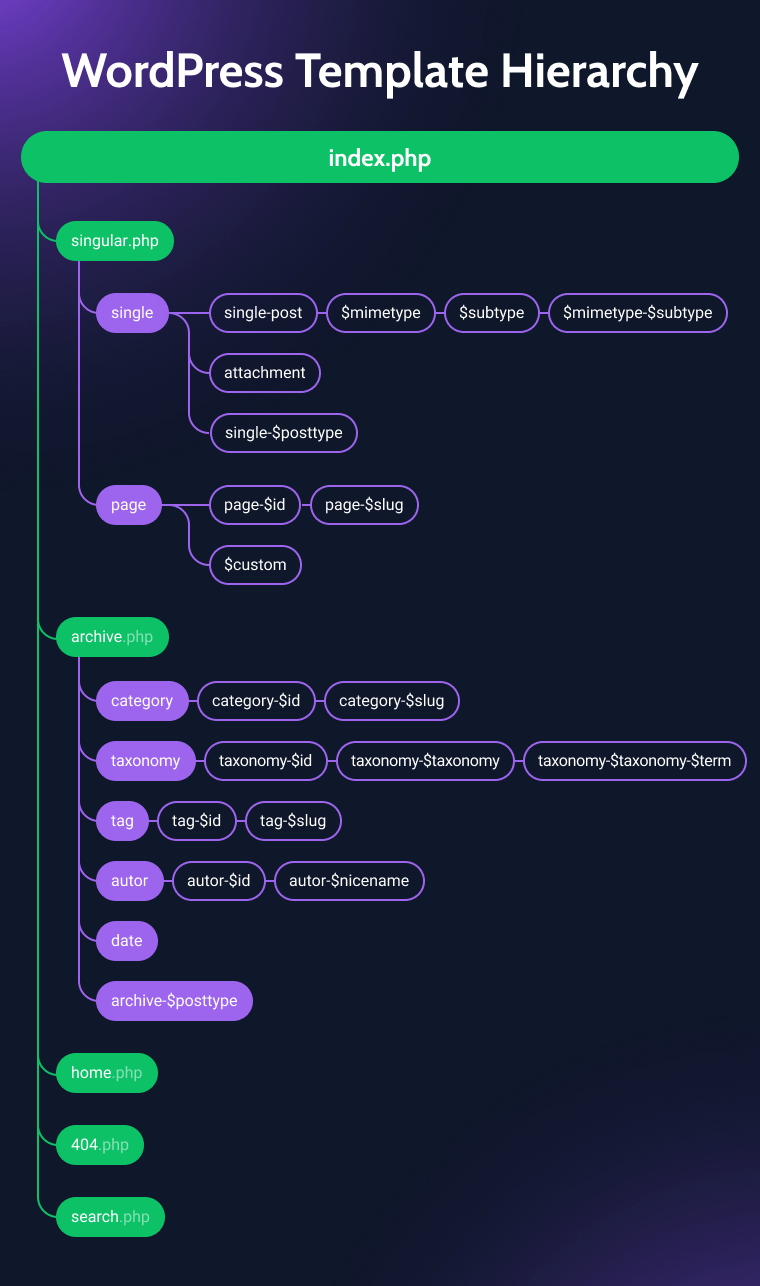
Since version 2.3 (March 2025), JetThemeCore offers a completely redesigned Theme Builder interface with a new Tree View that reflects WordPress’s full template structure in a visual and intuitive way.
Open the Theme Builder
Go to WordPress Dashboard > Crocoblock > Theme Builder.
The first time you open it after the update, you’ll be prompted to convert any legacy conditions – feel free to proceed; you’ll still see what each legacy template was responsible for.
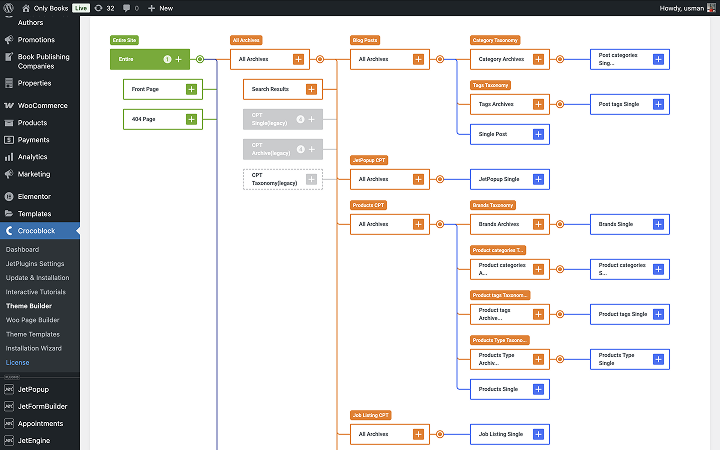
By default, the Theme Builder opens in Tree View, which shows a visual hierarchy of all your templates.
You can switch back to the Grid View anytime, but Tree View offers several advantages:
- better organization and faster navigation;
- colored blocks: orange for archives, blue for singles, gray for legacy templates;
- visual status indicators: solid borders mean a template is assigned, dashed – not affected;
- quick navigation through hierarchy using breadcrumb-style titles;
- a “+” button on each node lets you quickly create new templates with automatically suggested conditions.
Add a new template
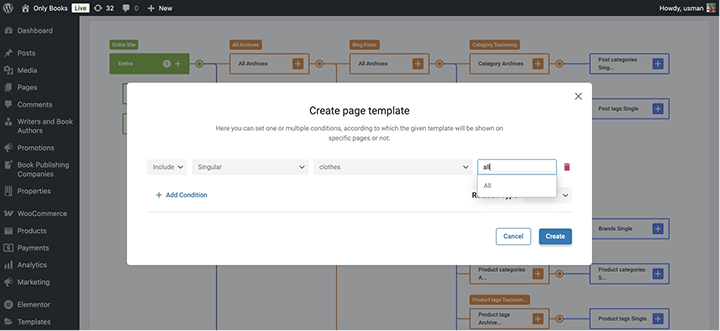
Click the “+” icon on any node (e.g., for a specific CPT or taxonomy). A modal will open where you can choose which template type you want to create – header, footer, single, archive, 404, etc.
‼️ If you’re creating a template for a custom post type (CPT), make sure to select “All” when assigning the condition. Otherwise, the template might not apply to all posts of that type.
Build the template
After choosing the template type and condition, you’ll be redirected to the editor. JetThemeCore works with both Elementor and Gutenberg.
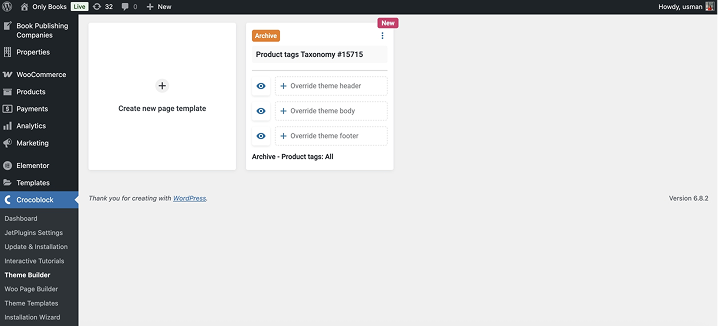
Design your layout using dynamic content elements – post title, featured image, author, meta fields, and more. You can build full-page templates or assign specific headers, footers, or body parts.
Set or adjust display conditions
JetThemeCore’s advanced display conditions allow you to apply templates based on:
- post type, category, tag;
- specific pages or posts;
- user roles (e.g., guest vs. logged-in);
- device type (mobile, desktop, tablet);
- mobile OS or browser;
- URL parameters or WordPress options;
- combined logic (AND/OR relationships).
This flexibility means you can target your templates very precisely, e.g., show a special header only on mobile Safari, or display a promo layout for users landing via a specific URL.
Save and preview
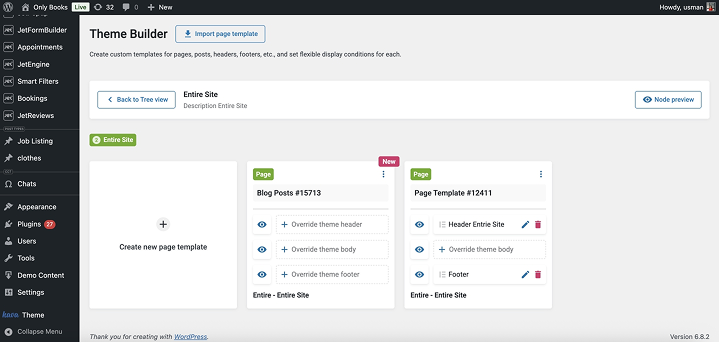
After saving your template, you can preview it instantly using the “Node Preview” button next to the item in Tree View. This helps you validate the output quickly without switching between tabs.
Template Management Tips
As the number of templates grows, it’s helpful to keep them organized. This makes it easier to edit, avoid mistakes, and manage display settings. Here are a few practical tips:
- Use clear names. Avoid generic names like “Template 1.” Instead, name templates based on their purpose: “Blog Post – Minimal,” “Header – Logged In Users,” or “Archive – Products.” It helps quickly identify each template in the list.
- Duplicate when needed. If you need a similar layout, duplicate an existing template instead of building a new one from scratch. Hover over the template in the list and click “Duplicate” to create a copy.
- Group by type. Headers, footers, post templates, and archives can be filtered by type in the dashboard. This helps you find and manage them faster.
- Export templates before big edits. Before making major changes, export your template as a JSON file. This lets you restore the original version if needed.
- Avoid conflicting display rules. Check your display conditions regularly. If two templates apply to the same page, JetThemeCore will choose one based on priority, which might not always be the expected one.
- Set default templates. Make sure you have default versions of essential templates (header, footer, post). These will be used when no other conditions are met.
- Delete what you don’t use. Review your template list from time to time and remove unused ones. It keeps your workspace more manageable.
Common Issues and Troubleshooting
Even with a user-friendly interface, some common issues may occur:
- Template not displaying. Make sure the template is published and has display conditions set. Without conditions, the template won’t be shown.
- Conflicting conditions. If more than one template targets the same page (e.g., two headers for the homepage), only the one with higher priority will be used. Review your conditions to avoid overlap.
- Compatibility problems. If you are using Elementor, make sure both JetThemeCore and Elementor are updated to the latest versions. To identify conflicts, temporarily deactivate other plugins. JetThemeCore also works with the native WordPress Block Editor (Gutenberg) and other setups, so check compatibility accordingly.
- Template not applied to all CPT items. When assigning a template to a Custom Post Type, make sure to set the Include condition to “All” for that CPT (not just a single item). If this step is skipped, the template won’t appear across all posts related to that particular post type.
After editing templates, always save and publish them, and clear your cache to see changes on the live site. If problems persist, the Crocoblock support team and user forums can help troubleshoot more specific cases.
FAQ
No, you can use JetThemeCore with the free version of Elementor.
Yes! JetThemeCore is theme-independent, so it works well with almost any WordPress theme.
Yes, if you use JetWooBuilder along with JetThemeCore, you can create custom product pages, shop archives, cart, and checkout templates.
Conclusion
With JetThemeCore, you can create custom headers, footers, single post templates, archive pages, 404 pages, and more. It works perfectly with both Elementor and Block Editor, so you’re free to choose your favorite editor.
Its biggest advantages are advanced display conditions that let you control exactly where each template appears, full support for dynamic content, and compatibility with any WordPress theme.
Using JetThemeCore, your site will look professional, load fast, and deliver a flawless experience, so your visitors will be impressed every time they visit.
If you want to build a stunning, fully customized WordPress site that stands out and converts, JetThemeCore is your ultimate solution.