Customizable product pages let you go beyond the standard WooCommerce layout by designing unique, tailored pages that fit your brand and product needs. Instead of relying on a default structure, you can adjust the layout, add custom elements, and highlight features that matter most to your customers. With JetWooBuilder, this process becomes simple and flexible, giving you full control over how your products are displayed and helping you create a more engaging shopping experience.
What Are WooCommerce Product Pages?
WooCommerce product pages are the individual pages created for each product in a WooCommerce store. They serve as the digital equivalent of a product display in a physical shop – the place where customers can see details, evaluate options, and decide whether to purchase.
Each product page is generated by WooCommerce once you add a product through the WordPress dashboard. By default, WooCommerce applies a standard template that includes core product information and purchase functionality.
A standard product page usually includes:
- Product title – the product’s name.
- Product images and gallery – the featured image and any additional images.
- Price – regular price, and if set, a sale price.
- Short description – appears near the price and “Add to Cart” button.
- Add to Cart button – the action to add the product to the shopping cart.
- Product meta information – such as SKU, categories, and tags.
- Product data tabs – usually “Description,” “Additional Information” (attributes like weight, dimensions, or custom fields), and “Reviews.”
This default layout works well for simple products, but stores offering complex or customizable products often need more flexibility.
Limitations of default WooCommerce product pages
While WooCommerce provides a functional starting point, the default product page has some limitations:
- limited design flexibility without custom code or a page builder;
- basic variation handling may not be suitable for complex product configurations;
- a generic template that may not fully reflect a brand’s unique design or sales strategy.
Why You Should Use Customizable Product Pages
The default WooCommerce product page is a solid starting point, but it doesn’t cover every online store’s needs. For some businesses, especially those selling simple products and following a minimalist branding approach, the basic template may be enough. However, as soon as you want to showcase more details, offer personalization, or create a page that reflects your brand’s unique identity, the limitations of the standard setup become clear.
Customizable product pages let you design a shopping experience that goes far beyond the basics. Here’s why they matter:
1. More options for customers
Modern shoppers increasingly expect the ability to personalize their purchases. This could mean selecting product variations, adding gift wrapping, or even customizing an item with text or design. Flexibility directly impacts customer satisfaction.
2. Richer product information
Research by Nielsen Norman Group shows that incomplete or unclear product information is one of the main reasons for purchase abandonment. Customizable product pages allow you to add FAQs, variation swatches, 360-degree views, or videos – everything customers need to make confident buying decisions.
3. Stronger brand identity
A perfect product page is not only a place to sell but also a space to communicate your brand. The default WooCommerce layout looks the same for every store, while customization lets you add unique design elements, brand colors, and tailored calls-to-action. This creates a consistent and professional shopping experience that builds trust with your audience.
4. Higher conversions and average order value
A well-designed, informative, and interactive product page can directly boost your revenue. By reducing friction in the buying process, answering key questions upfront, and offering add-ons or bundles, customizable product pages help increase both conversions and average order value.
What Is JetWooBuilder and Why Use It?
JetWooBuilder is a dynamic WooCommerce plugin developed by Crocoblock, designed to help store owners create fully customizable product pages and other WooCommerce templates without any coding. By integrating seamlessly with Elementor, it provides a visual, drag-and-drop interface, making it easy to build and style product pages, shop layouts, and checkout flows.
🔑 JetWooBuilder key features:
- Custom templates for every page: JetWooBuilder lets you design unique layouts for single product pages, shop pages, cart, checkout, and account pages. Templates can be applied globally or to specific products and categories, giving you full control over how products are presented.
- Extensive WooCommerce widgets: the plugin includes over 60 Elementor widgets tailored for WooCommerce. You can customize every element of your product pages, from titles, images, and prices to ratings, add-to-cart buttons, and more, ensuring the page matches your brand and improves the shopping experience.
- Dynamic content support: product pages automatically display content based on the item being viewed. Variations, descriptions, pricing, and other details are dynamically loaded, so each page stays accurate without manual updates.
Why use JetWooBuilder?
JetWooBuilder empowers store owners to create personalized, professional, and conversion-focused product pages. Its intuitive interface, rich widget library, and dynamic content capabilities make it an essential tool for enhancing the online shopping experience and driving sales.
How to Create a Customizable Product Page with JetWooBuilder?
Before we start creating your customizable product page, make sure that both WooCommerce and JetWooBuilder are installed and activated.
Step 1: Add product attributes
Before adding custom options on the product page, define the product variations in WooCommerce:
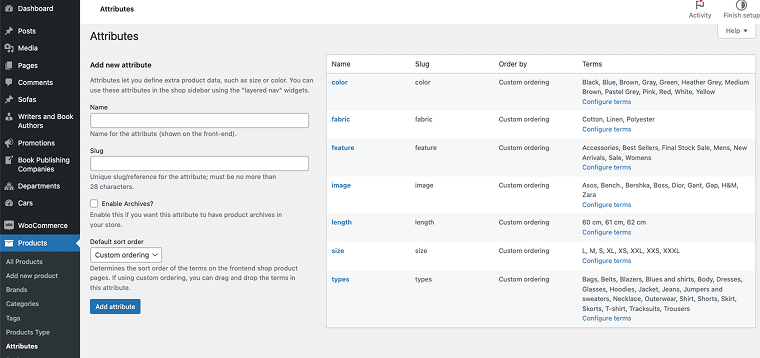
- Navigate to Products > Attributes.
- Create attributes like Color, Fabric, and Size.
- For each attribute, configure terms (for example, Color: Red, Blue, Green).
- Click “Add attribute” and then configure terms for each attribute.
Step 2: Configure product variations
- Go to Products > Add New (or edit an existing product).
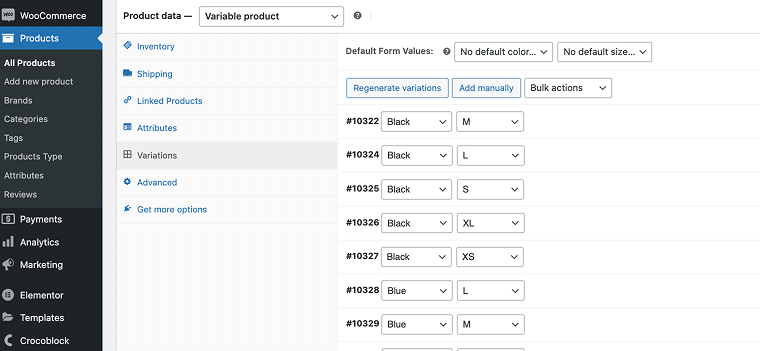
- In the Product Data section, set the product type to “Variable Product.”
- Navigate to the Variations tab.
- Assign the attributes you created earlier (Color, Size, Fabric) to the product. You can either Regenerate variations, which automatically creates all possible combinations, or manage them manually.
- Make sure to set the price for each variation if it differs based on size, color, or material.
Step 3: Create a custom template
Now we need to create a custom single product template. To do this:
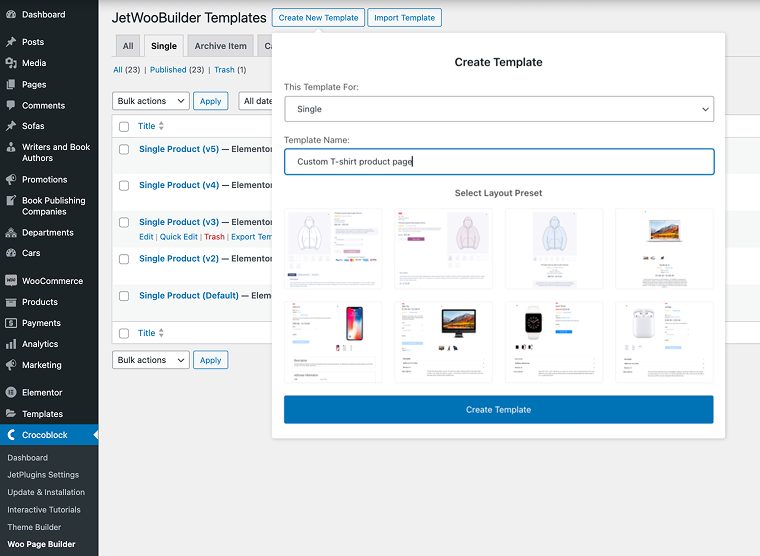
- Navigate to Crocoblock > Woo Page Builder > Create New Template.
- Choose a template name.
- Select Single as the template type, pick Layout Preset, and click “Create Template.”
Step 4: Add content to the page template
Using Elementor, add JetWooBuilder widgets such as:
- Single Title;
- Single Images;
- Single Price;
- Single Add to Cart (the plugin automatically displays the product variations you configured earlier);
- Single Meta;
- Single Data Tabs (for specifications, sizing guide, etc.).
Optionally, add call-to-action sections, banners, or custom HTML blocks to enhance design. But remember to keep the design clean and avoid overloading the page with too many widgets to maintain speed and usability.
Step 5: Apply the template
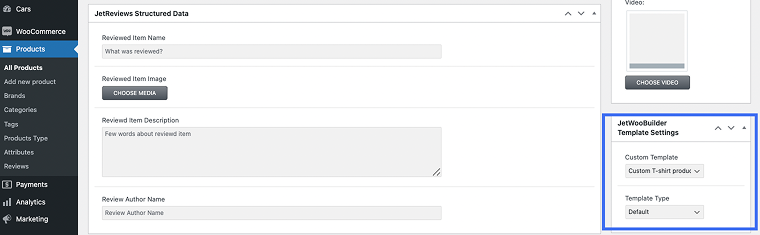
To assign a template to products, go to Products and select the items to which you want to apply it. In the JetWooBuilder Template Settings, choose the template you created. You can apply it to All Products, a specific category, or selected individual products.
Step 6: Preview the page
Preview the page on desktop and mobile to check responsiveness. Test selecting different variations and verify that selections appear correctly in the cart and checkout.
Step 7: Publish the page
Once everything works as expected, click “Publish” in Elementor.
Your product page is now live with customizable WooCommerce product options.
Best Practices for Optimized Customizable Product Pages
To make customizable product pages effective and user-friendly, follow these key practices:
Avoid overloading the page
Adding too many options or widgets can overwhelm users and slow down page performance. Include only WooCommerce product options and elements that add real value and help customers make a purchase decision.
Ensure mobile responsiveness
Custom elements should display correctly on all devices. Buttons, selection options, and interactive blocks must remain easy to use on smartphones and tablets.
Structure information clearly
Even with extra options and custom blocks, the page should remain easy to navigate. Arrange elements logically, highlight key features, and separate sections so users can quickly find what they need.
Use interactive but lightweight elements
Dynamic options like color, size, or personalized text selections should work smoothly without delays. Avoid elements that could slow down the page or interfere with other interactive features.
Maintain visual brand consistency
Custom pages should look natural and match your brand style. Use brand colors, fonts, and design elements to create a professional and cohesive shopping experience.
Test and optimize
Before publishing a custom page, check it on different devices, browsers, and page speeds. Make sure all custom WooCommerce product options function correctly and do not negatively impact conversions.
FAQ
You can edit titles, descriptions, price layouts, galleries, add-to-cart buttons, product variations, related products, and more.
No. All customization is done visually with Elementor widgets. However, basic CSS knowledge can help with more advanced styling.
Crocoblock, the developer of JetWooBuilder, offers comprehensive documentation and video tutorials. Additionally, their support is available for troubleshooting and assistance.
Conclusion
Creating a customizable product page with JetWooBuilder gives you full control over how your products are displayed in WooCommerce. Instead of relying on a single default template, you can adjust the layout, add or remove elements, and structure the page to highlight what matters most to your customers.
The flexibility of JetWooBuilder lies in its widget-based approach, where each element of the product page, including the title, gallery, price, Add to Cart button, and related products, can be arranged and styled individually. This allows you to design product pages that are both functional and aligned with your product offerings.