
Macros Guide for JetBooking
This guide explains how JetBooking macros work and how to use them to display dynamic booking data in Elementor, Gutenberg, Listings, and iCalendar Templates.
This tutorial explains how the JetBooking macros work and how to use them to dynamically pull booking instance information.
How to Use Macros
Some of the macros are intended specifically for the JetBooking iCalendar Template functionality, which can be found in WordPress Dashboard > Bookings > Calendars:
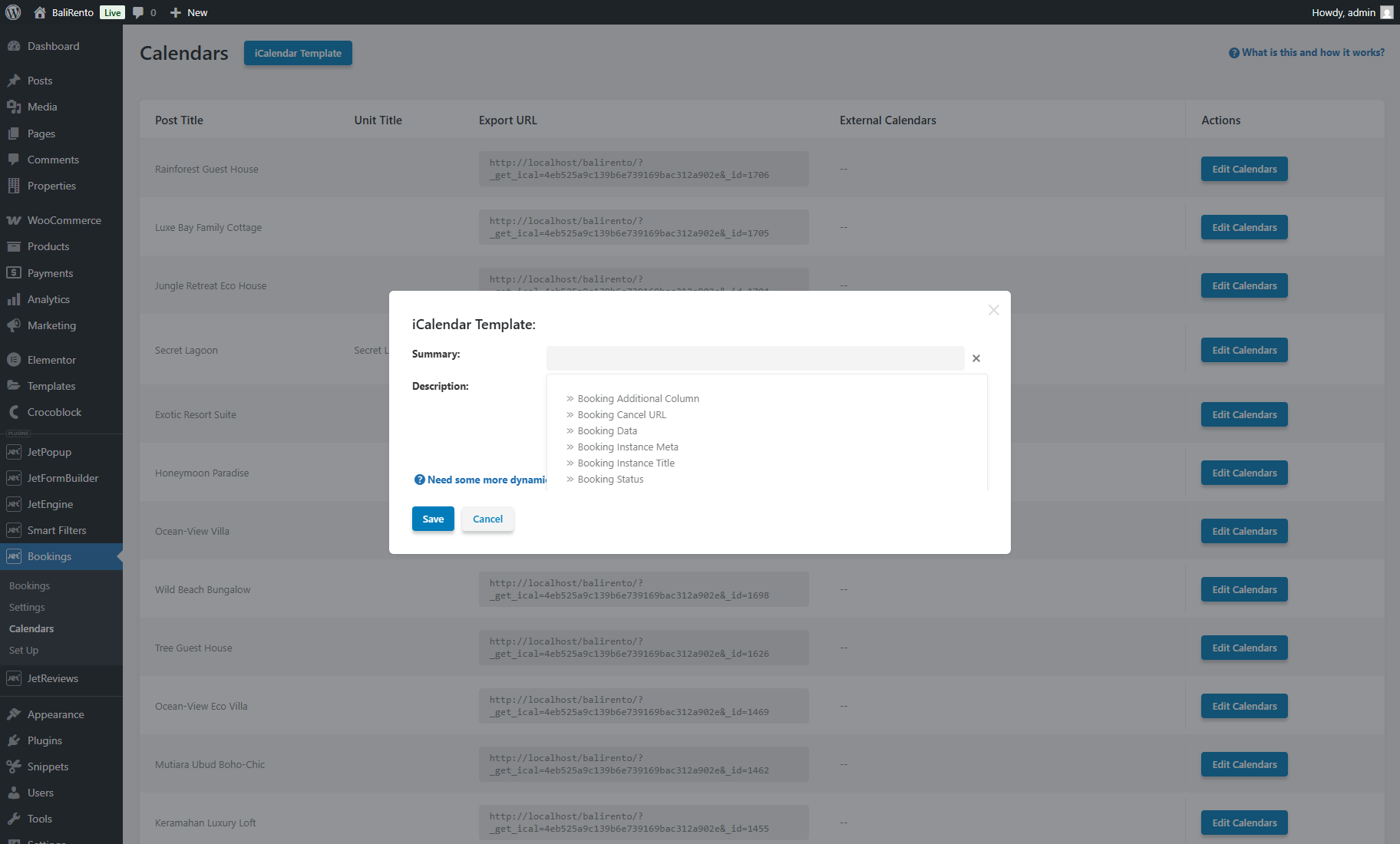
- Booking Additional Column;
- Booking Cancel URL;
- Booking Data;
- Booking Instance Meta;
- Booking Instance Title;
- Booking Status;
- Booking Unit Title.
Some of the JetBooking macros can be inserted in the Single page, Listing template, or pop-ups with booking instances created in Elementor via the JetEngine “Dynamic Tags” button:

- Accommodation Status;
- Booking Price;
- Bookings count;
- Price per day/night;
- Units count.
For more details, check the JetBooking tags chapter of the Dynamic Tags Overview.
In the WordPress Block Editor (Gutenberg), some macros are also available with JetEngine for Single page, Listing template, or pop-ups with booking instances:
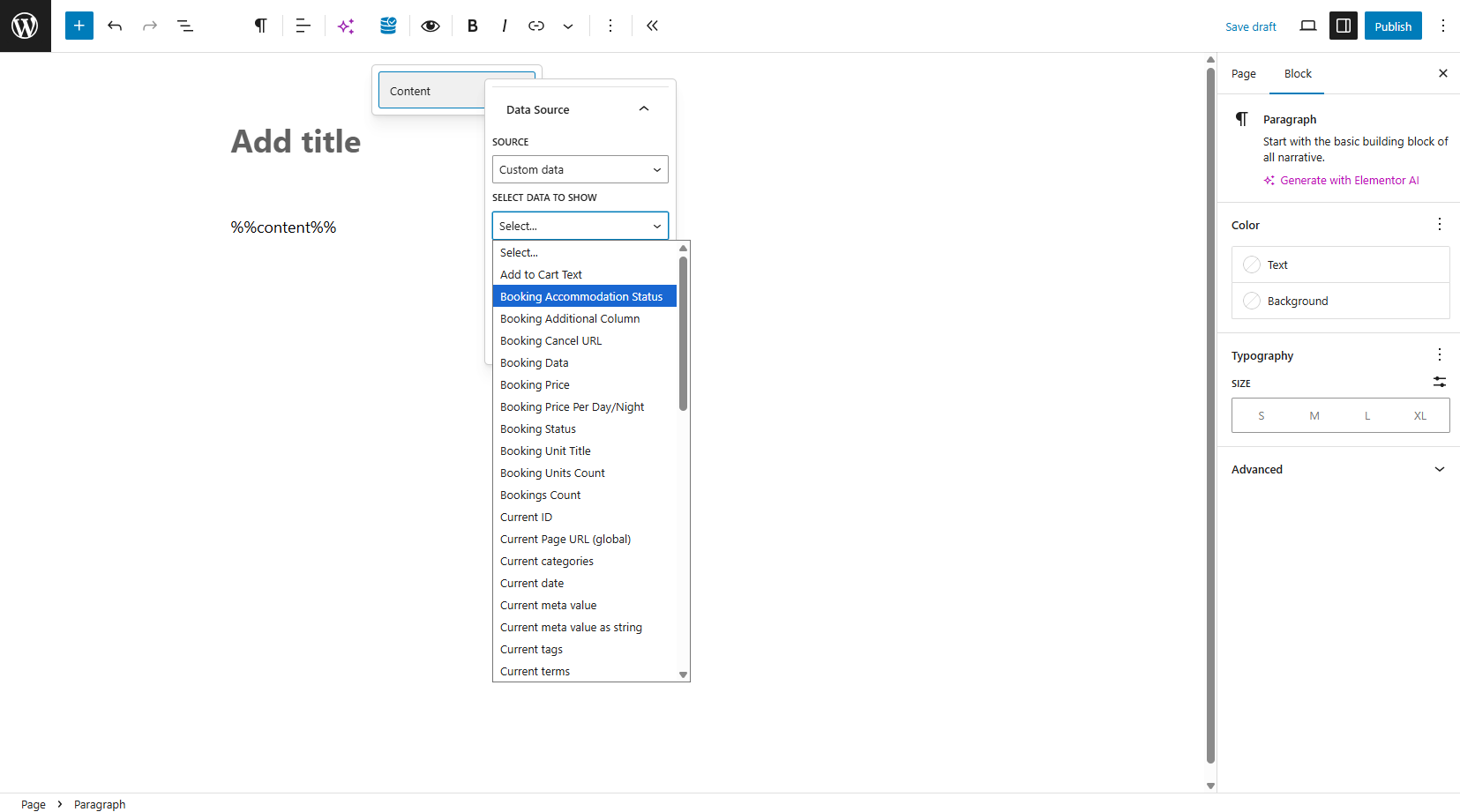
- Booking Accommodation Status;
- Booking Additional Column;
- Booking Cancel URL;
- Booking Data;
- Booking Price;
- Booking Price Per Day/Night;
- Booking Status;
- Booking Unit Title;
- Booking Units Count;
- Bookings Count.
Press the “Dynamic Content” button in the block toolbar and select the “Custom data” SOURCE. In the SELECT DATA TO SHOW dropdown, you’ll see the list of macros, including JetBooking’s. More information can be found in the How to Add Dynamic Tag in Gutenberg tutorial.
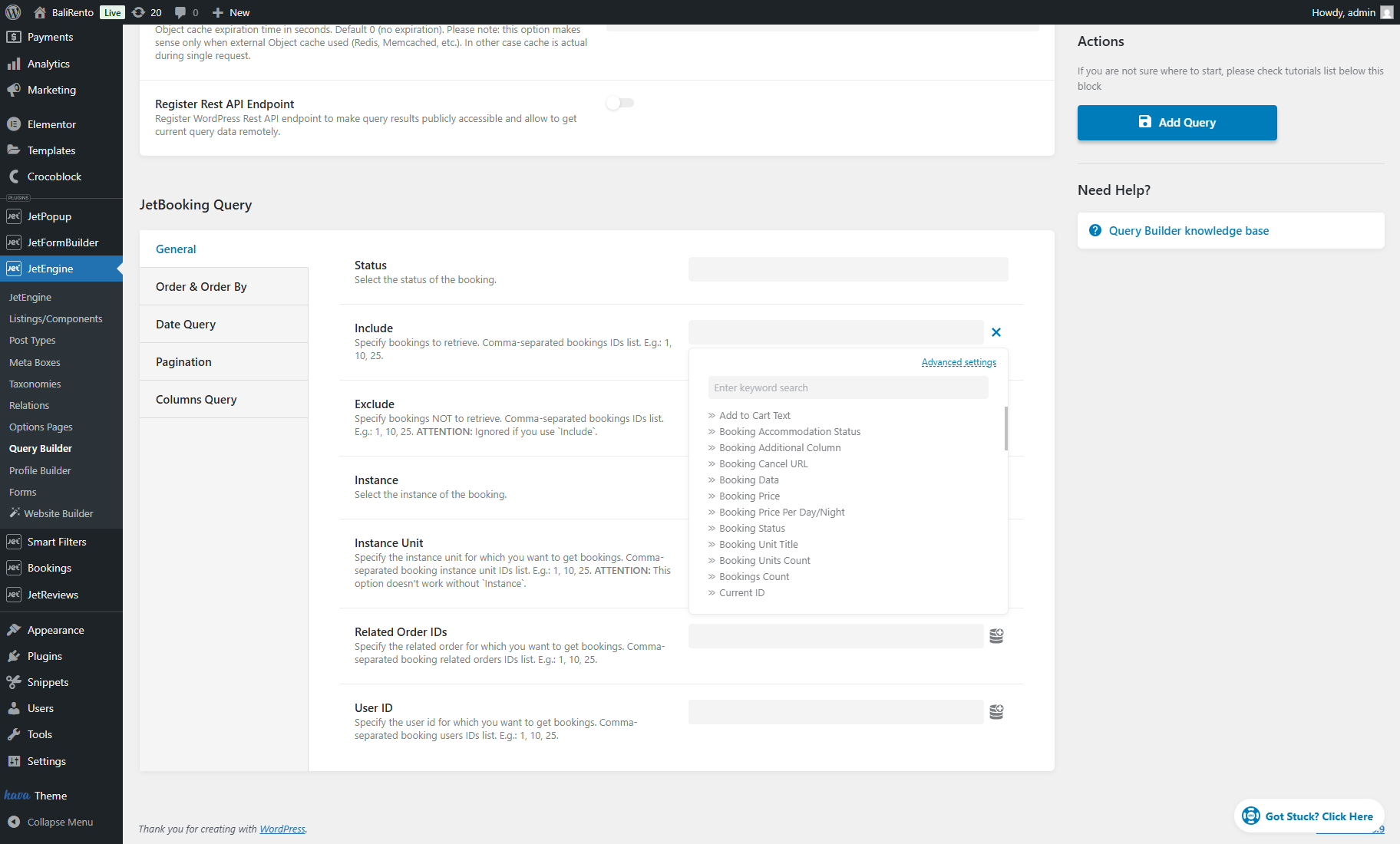
The same set of macros is available in the JetEngine Query Builder. Additional information on macros usage in custom queries can be found in the Macros for Query Builder guide.
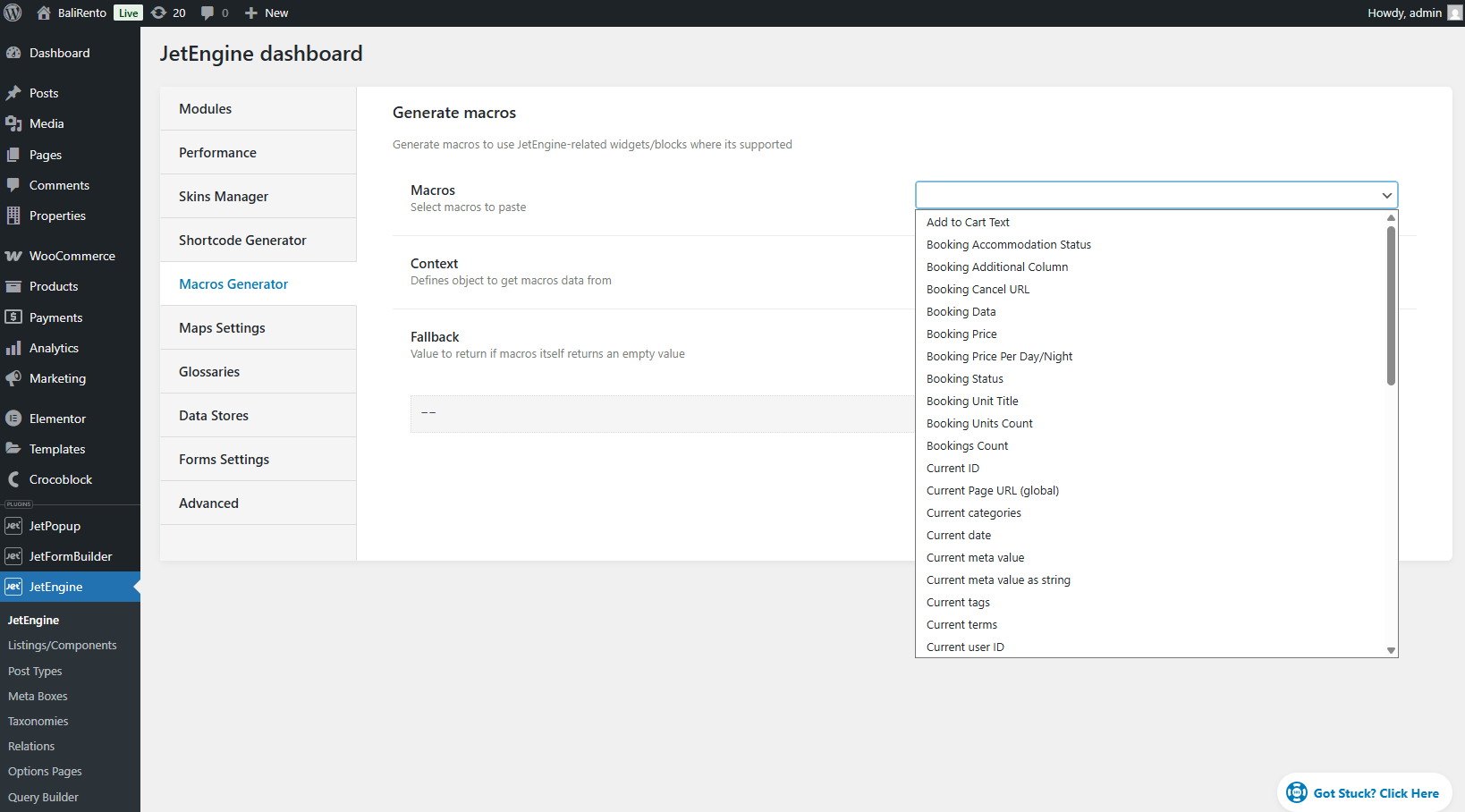
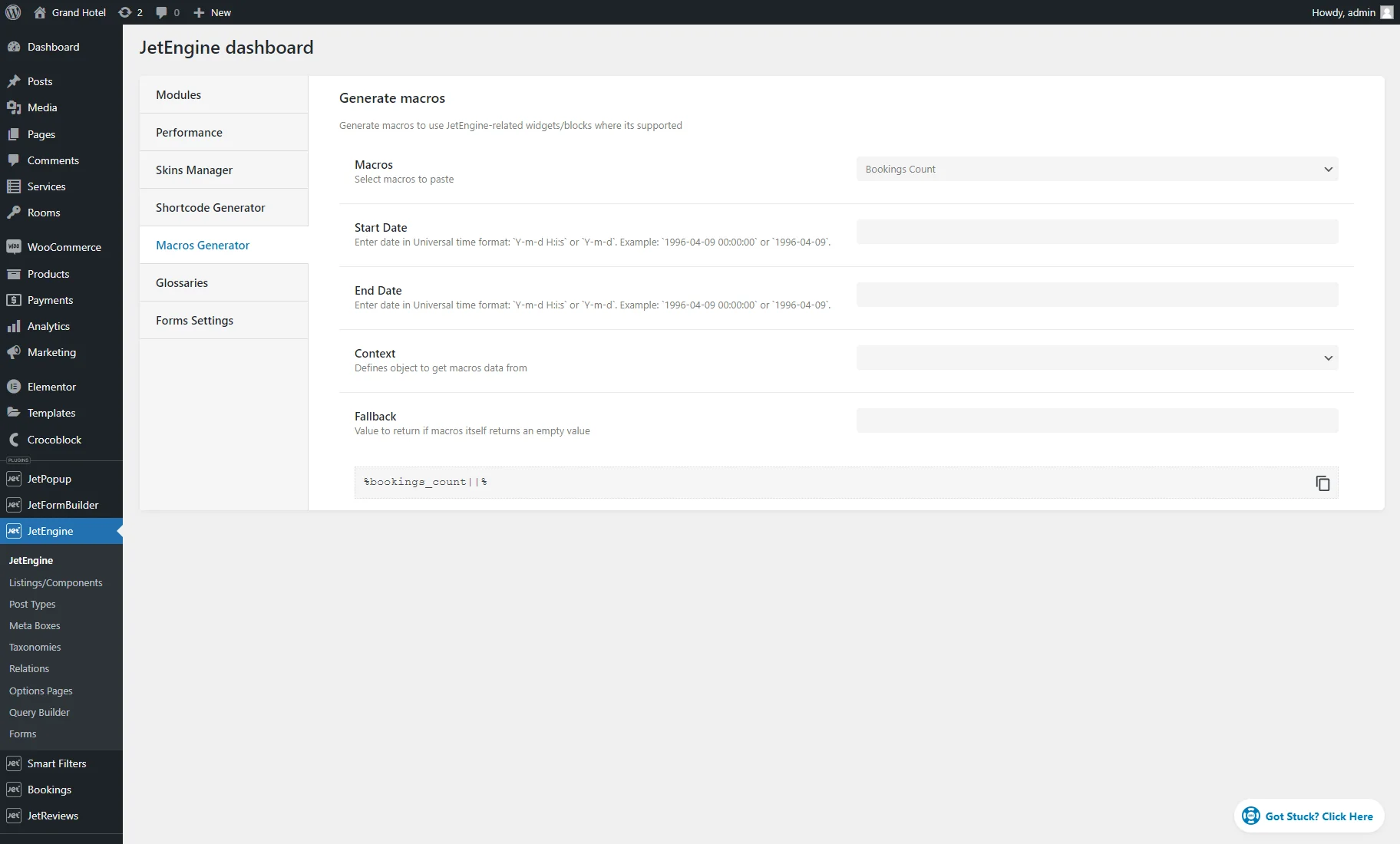
The same set of macros can also be set in the Macros Generator feature located in the JetEngine Dashboard.
JetBooking Macros List
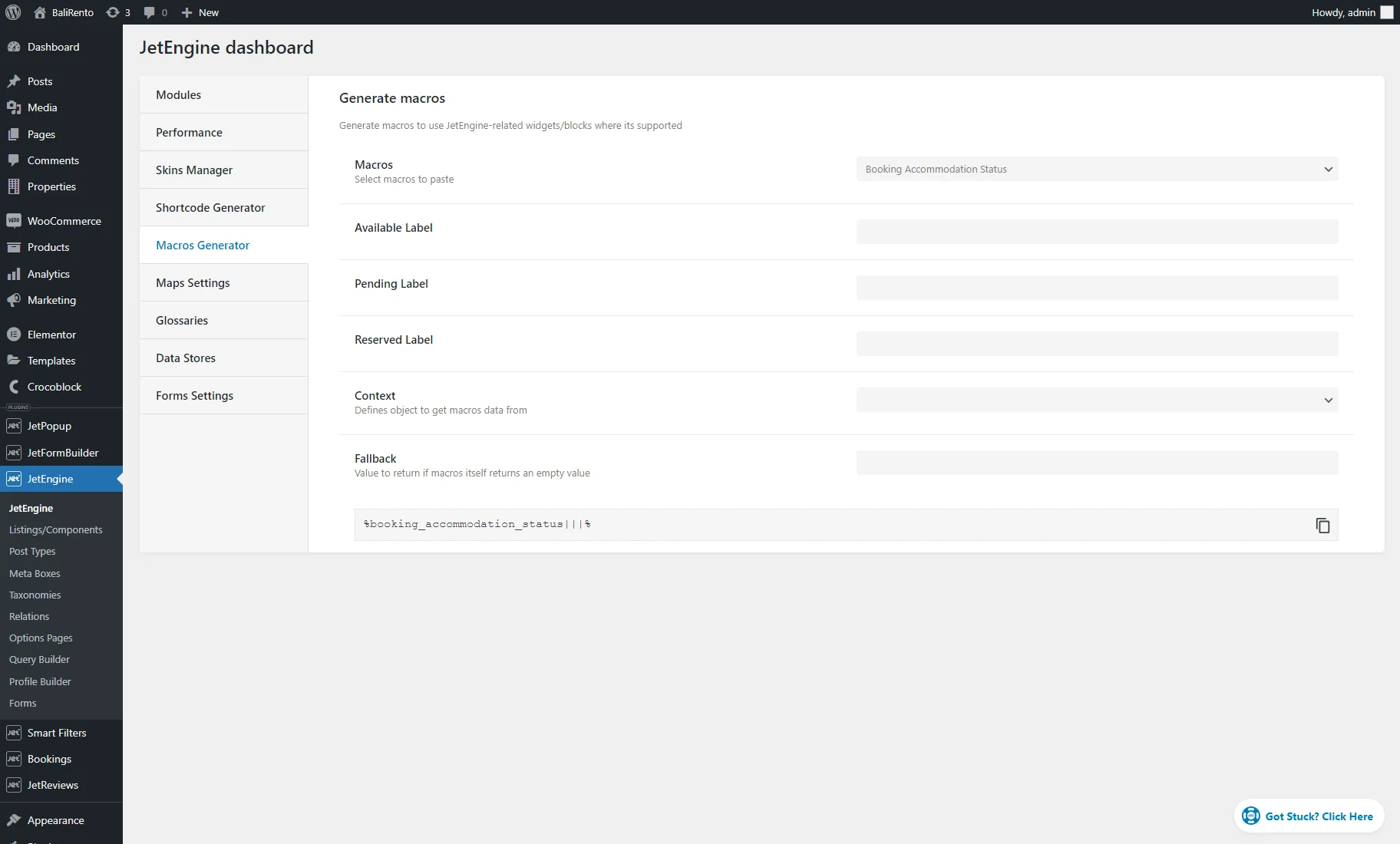
- %booking_accommodation_status|available-label|pending-label|reserved-label% (“Booking Accommodation Status”) — returns the current reservation state for a booking instance.
This macro evaluates the upcoming seven-day period relative to the current date. If the entire week is fully booked, it outputs the “reserved” label. If availability changes during this period, it returns a “pending” or “available soon” state, along with the exact date when the unit becomes free. The date format follows the settings from the administrative panel (the Date Format option from the WordPress Dashboard > Settings > General tab).
With this macro, the custom Available Label, Pending Label, and Reserved Label can be set.
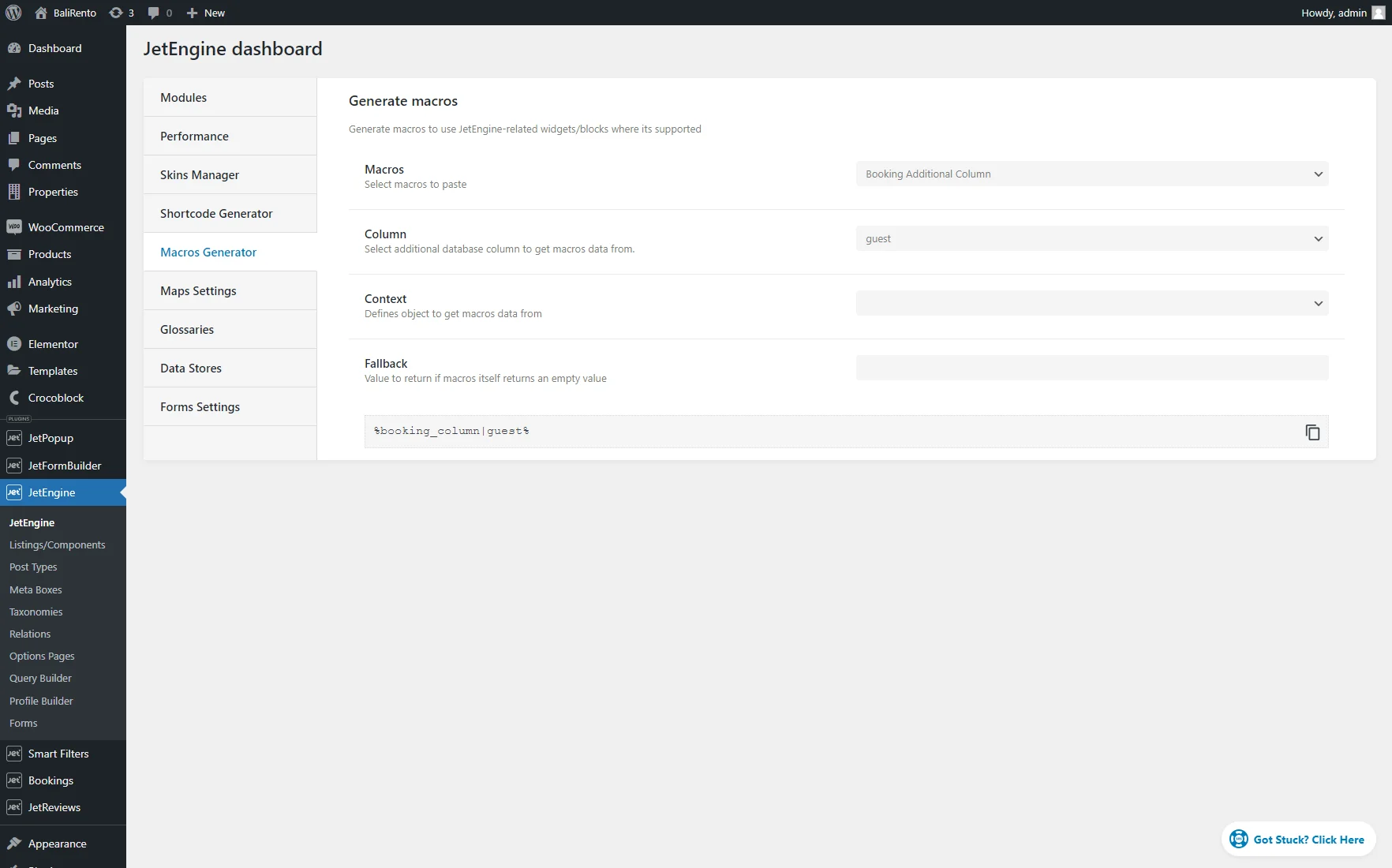
- %booking_column|column-name% (“Booking Additional Column”) — returns the value of the additional booking columns (e.g., “guest”) that can be added during the booking setup or in the WordPress Dashboard > Bookings > Settings > Tools tab.
- %booking_cancel_url% (Booking Cancel URL) — returns the cancellation link for the current booking;
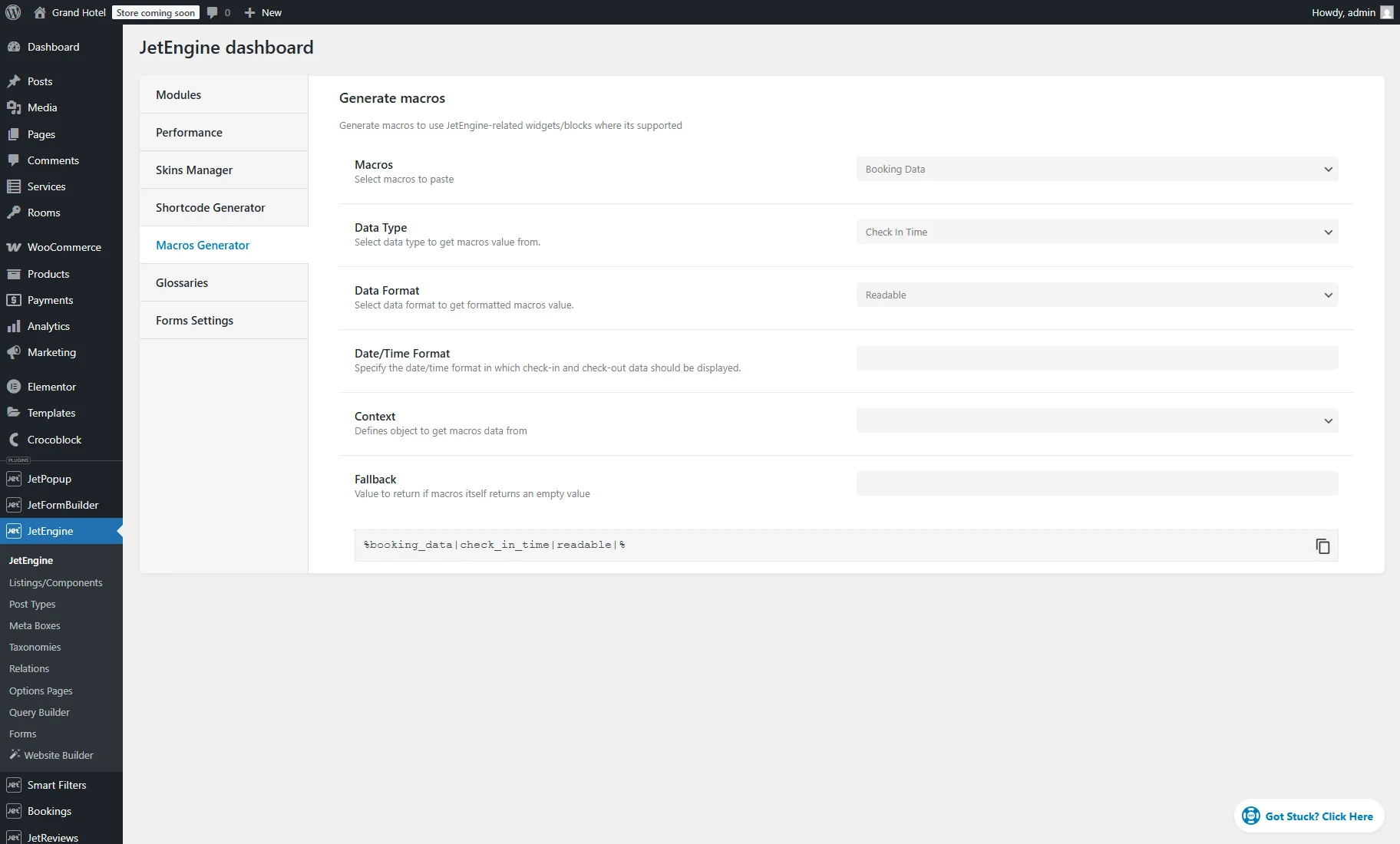
- %booking_data|booking-data-clarification% (“Booking Data”) — returns the booking data: “ID,” “Instance,” “Order ID,” “User ID,” “User Email,” “Check In Date,” “Check In Time,” “Check Out Date,” or “Check Out Time.”
If you select the “Check In Date,” “Check In Time,” “Check Out Date,” or “Check Out Time” Data Type, the Data Format field is available. If the “Plain” option is selected, it uses a consistent and standardized format for easy parsing and processing. If the “Readable” option is chosen, it activates the Date/Time Format field, where the user-friendly date/time format can be set. Learn more from the Customize date and time format article.
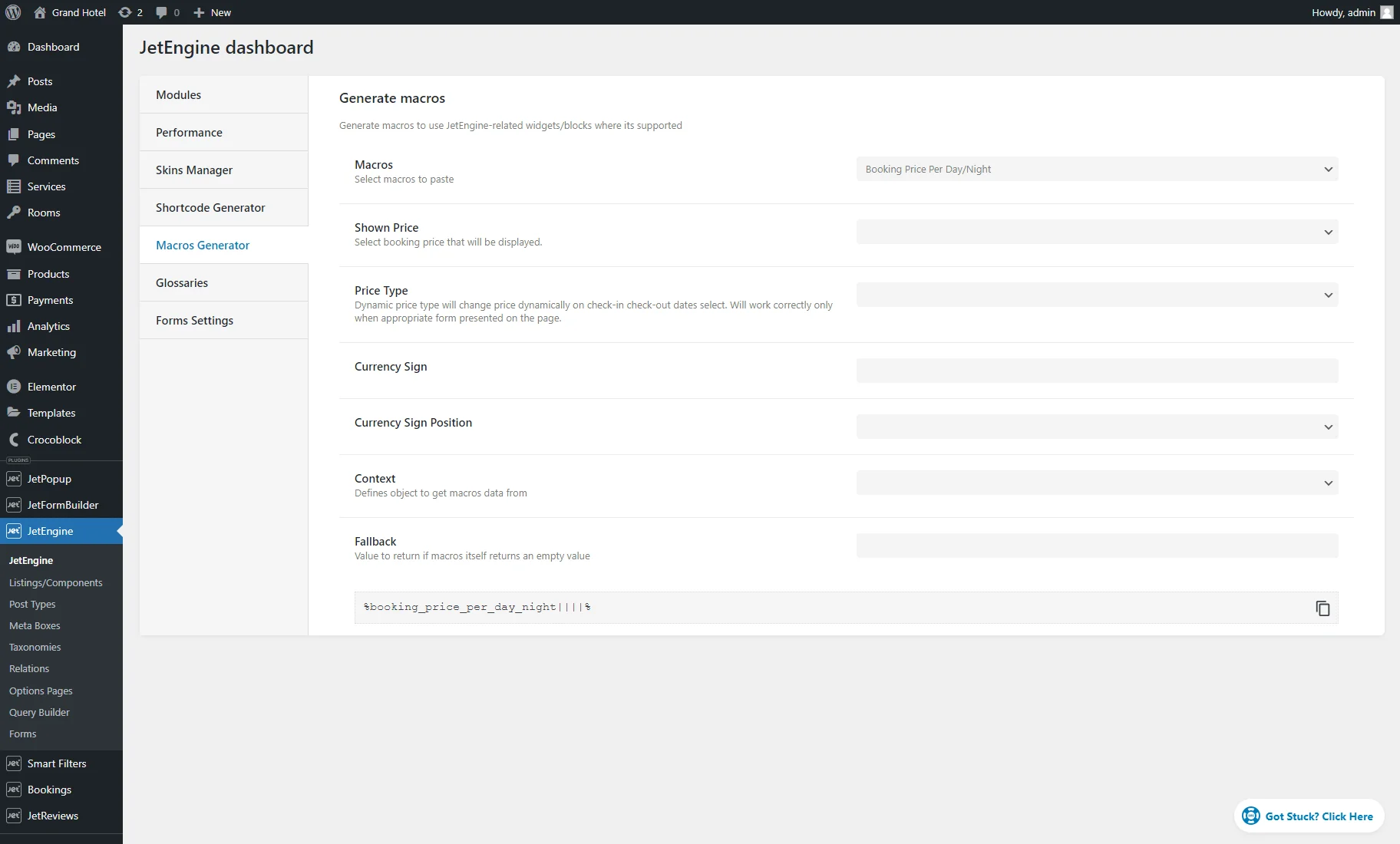
- %booking_price_per_day_night% (“Booking Price Per Day/Night”) — returns the unit’s cost per day or per night, depending on the Booking period defined in WordPress Dashboard > Bookings > Settings > Configuration.
The macro includes several configuration options for price output:
- Shown Price — defines which price value should be returned:
- Price Type — one can select “Static” and “Dynamic” here. The “Dynamic” price type recalculates pricing based on selected check-in and check-out dates. It works only when the booking form is presented on the page;
- Currency Sign — custom currency symbol;
- Currency Sign Position — before or after price.
- %booking_status% (“Booking: Status”) — returns the booking’s internal status;
- %booking_unit_title% (“Booking: Unit Title”) — outputs the unit’s name (if defined). To learn more, proceed to the How to Manage Units tutorial;
- %booking_units_count% (“Booking Units Count”) — returns the number of units still available for booking (e.g., “2 rooms left”);
- %bookings_count|start-date|end-date% (“Bookings Count”) — returns the total number of bookings made for a specific instance within a defined date interval.
The start and end parameters accept dates in universal formats: ‘Y-m-d H:i:s’ or ‘Y-m-d’. Example: ‘1996-04-09 00:00:00’ or ‘1996-04-09’.
That’s all. Now you know how JetBooking macros work, how to use them with iCalendar Templates, Dynamic Tags, Query Builder, and Macros Generator, and dynamically display booking data on your WordPress site. Additionally, you can check the general Macros Guide for JetEngine and other Crocoblock plugins.