When it comes to online shopping, seeing is believing. Your customers can’t physically touch or examine your products, which makes a high-quality visual presentation absolutely critical. This is where a product lightbox becomes an invaluable asset for your WooCommerce store.
What Is a Product Lightbox and Why Does Your Store Need One?
A product lightbox is a feature that opens images (and sometimes videos) in an overlay window that dims the background content. This focused viewing experience lets customers examine product details without leaving the current page or losing their browsing context.
Think of it as creating a mini showroom experience right within your website. When a customer clicks on a product image, the lightbox expands it to fill most of the screen, often with zoom capabilities and easy navigation between multiple images.
Which store types benefit most from product lightboxes?
While virtually any eCommerce store can benefit from a lightbox plugin, certain types of businesses find them particularly essential. Let’s see what we can find in the Made with Croco gallery.
Fashion and jewelry stores need customers to see fabric textures, gemstone clarity, and intricate craftsmanship details. On a MiOrganics site, a WooCommerce lightbox plugin allows shoppers to zoom in on these crucial details that influence purchase decisions.
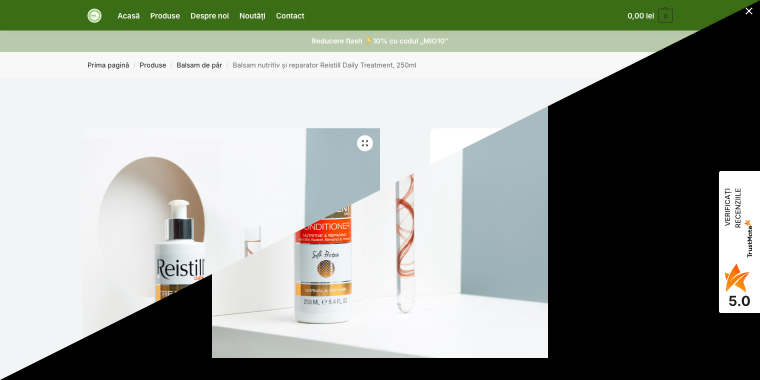
Architecture and property businesses selling design plans, blueprints, or property listings need customers to examine fine details. Lightboxes allow Coventa clients to zoom in on floor plans, architectural drawings, and property features, making it easier to evaluate spaces and design elements before making purchasing decisions.
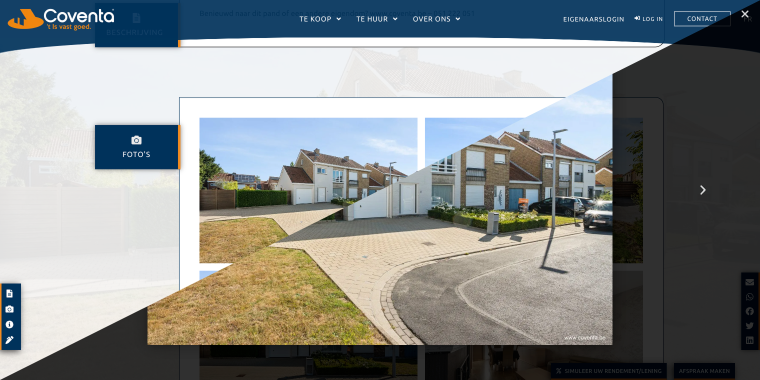
Automotive dealerships and car part retailers may use lightbox features to showcase vehicle interiors, engine components, and custom modifications. On the Autokey Ocasión website, the ability to zoom in on dashboard features, upholstery details, or specific car angles helps buyers make informed decisions and reduces uncertainty about vehicle conditions or part compatibility.

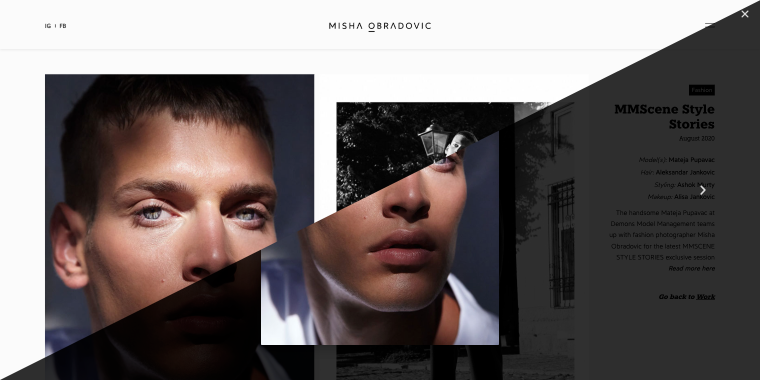
Art and photography stores depend entirely on high-resolution image display. A gallery lightbox WordPress plugin ensures that Misha Obradovic’s artworks are presented in the best possible light, maintaining color accuracy and detail.
Handmade and clothes marketplaces need to showcase the unique qualities of each item. Byazier lightboxes help highlight the details or elements that make each product special.
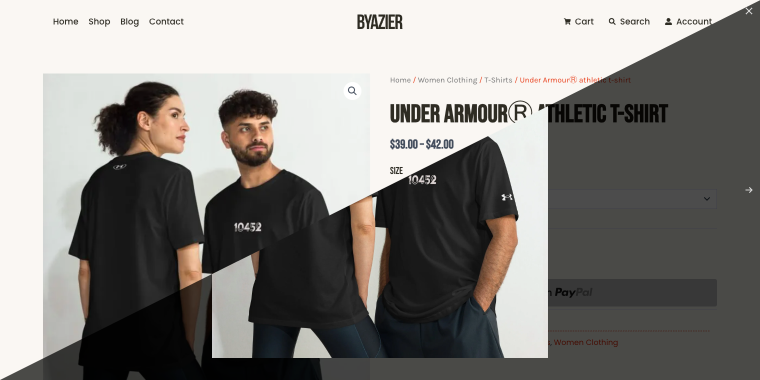
In general, stores that implement quality lightbox features often see increased engagement time, lower bounce rates, and higher conversion rates. When customers can clearly see what they’re buying, they’re more confident in their purchase decisions.
Practical Application: The Zolden Fashion Store Example
Consider Zolden, an online fashion retailer dynamic template specializing in contemporary clothing. To address a common challenge many fashion stores faced, Zolden uses a lightbox feature that allows customers to appreciate the textures of fabrics, the details of garments, and the true colors in standard product images, thus transforming product presentation:
- Customers can zoom in on fabric weaves and stitching details to assess quality.
- Texture and material characteristics become visible in high resolution.
- Multiple angles of each garment can be viewed seamlessly without page reloads.
- Styling videos showing how clothes fit and move can be displayed in the same lightbox interface.
The lightbox feature handles a fundamental challenge in online fashion retail: helping customers feel confident about garment quality and fit when they can’t physically touch or try on items. By providing this detailed visual-examination capability, stores like Zolden can better compete with in-store shopping experiences.
This practical example illustrates why choosing the right WordPress lightbox plugin isn’t just about aesthetics; it’s about building customer trust and reducing purchase hesitation.
Creating an Image Lightbox with JetProductGallery
Let’s focus on enhancing your product images with a dedicated gallery lightbox WordPress plugin. JetProductGallery provides four distinct gallery widgets, each offering lightbox functionality tailored to different presentation styles.
Why choose a dedicated gallery lightbox plugin
While quick-view pop-ups are good for showing comprehensive product information, a dedicated gallery lightbox plugin prioritizes image quality and presentation. This approach is ideal when:
- your products are highly visual (artwork, photography, fashion);
- image quality and zoom capabilities are critical to sales;
- you want customers to focus solely on product appearance;
- you have multiple high-resolution images per product.
JetProductGallery transforms standard WooCommerce image galleries into professional, engaging visual experiences that rival dedicated photography websites.
Understanding the four gallery widget options
JetProductGallery offers four gallery widgets, each with unique layouts and interaction patterns.
Gallery Grid displays thumbnails in a grid layout with a large featured image. When customers click on any image, the lightbox opens with full navigation capabilities. This traditional layout works well for most product types.
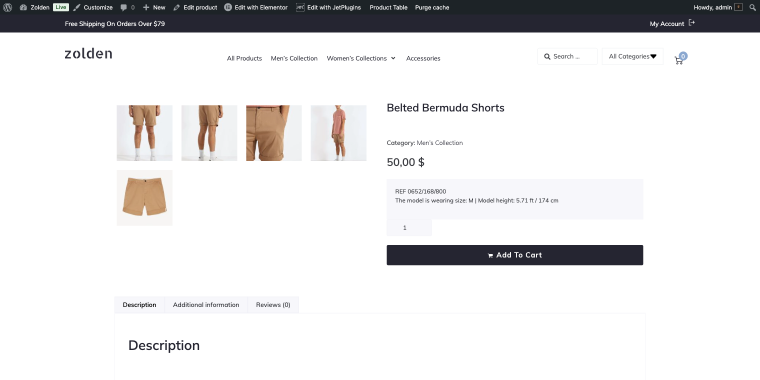
Gallery Slider presents images in a carousel format with automatic or manual sliding. The lightbox maintains the sliding navigation within the expanded view, creating a cohesive browsing experience.
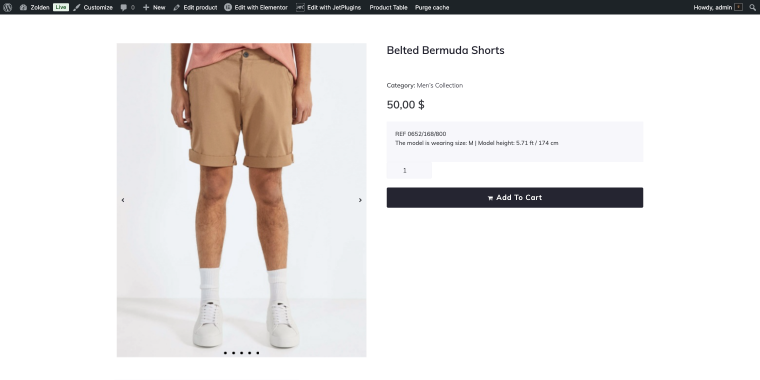
Gallery Modern offers a contemporary stacked layout where images overlap slightly, creating visual interest. This style is particularly well-suited to fashion and lifestyle products where aesthetic presentation matters.
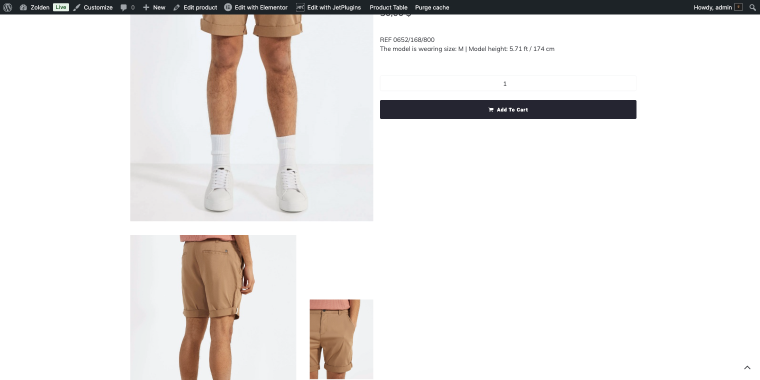
Gallery Anchor Navigation creates a vertical or horizontal thumbnail strip with a large main image. Clicking any element opens the lightbox with anchor-based navigation, excellent for products with many detailed shots.
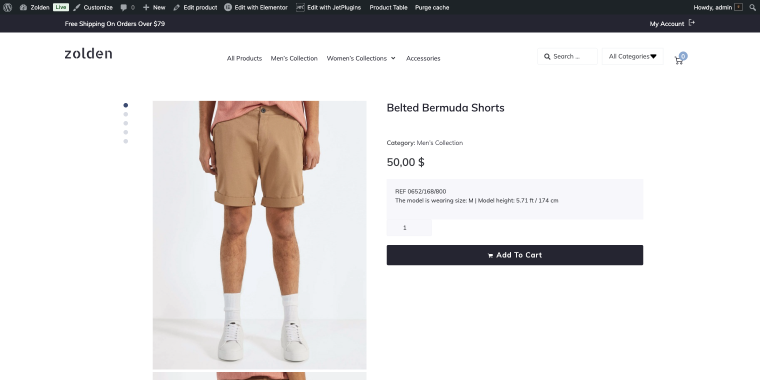
Each widget includes full lightbox functionality, with options to customize zoom behavior, navigation controls, and display settings.
Implementation guide
Step 1: Install JetProductGallery
First, you need to buy the plugin, either as a standalone solution for $23/year or as part of an All-Inclusive membership starting at $199/year. Then install and activate the JetProductGallery plugin through your WordPress dashboard.
The plugin integrates directly with Elementor and WooCommerce, requiring no additional configuration to get started.
Step 2: Edit your single product template
Navigate to your single product template in Elementor (or create a new one using JetWooBuilder).
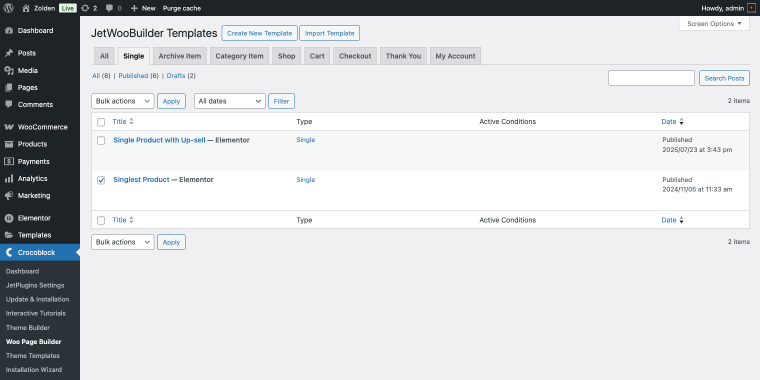
Step 3: Add your chosen gallery widget
In the template, you need to remove and replace the default WooCommerce product images section. Drag one of the four JetProductGallery widgets onto your template.
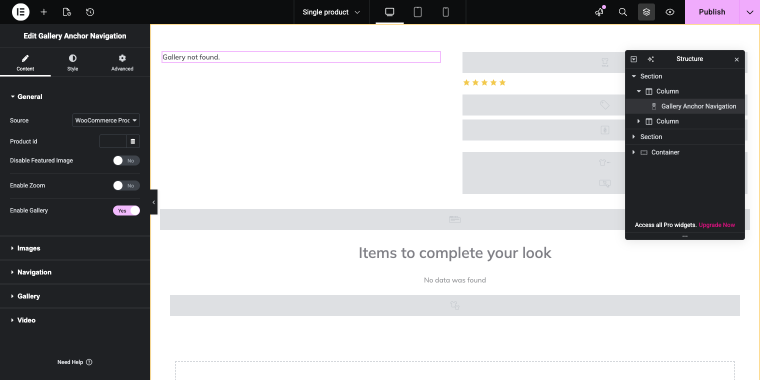
Each widget needs minor fine-tuning. In the Source field, select the “WooCommerce Products” option, and the widget will automatically pull images from your WooCommerce product gallery, so no manual image assignment is needed.
If you want to assign images manually, there’s an option called “Manual Select” in the same field.
Step 4: Configure lightbox settings
Within the widget Content tab, General settings, locate and enable the Enable Gallery toggle. Then go to the Gallery settings, where you can fine-tune a set of controls, each of which will either enable or disable certain lightbox features/capabilities:
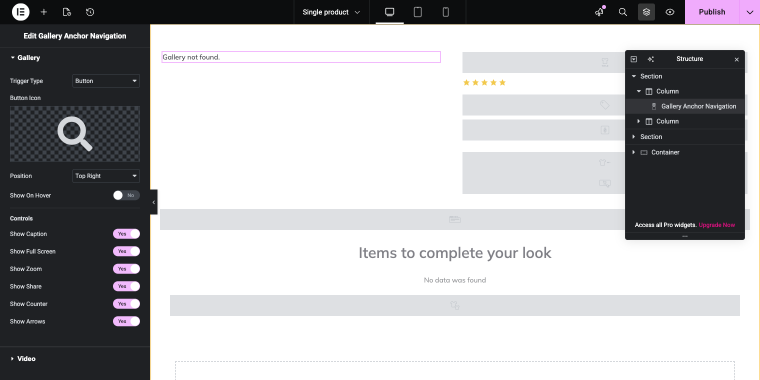
- Trigger Type — choose how users activate the lightbox (“Button” is the preferred option, which displays a clickable icon overlay on images);
- Button Icon — select or upload a custom icon that appears on your product images to indicate the lightbox functionality (the magnifying glass icon is an industry standard);
- Position — determines where the lightbox trigger button appears on your images (options include “Top Right,” “Top Left,” “Bottom Right,” “Bottom Left,” and “Center Center”);
- Show On Hover — this toggle enables the lightbox button to appear only when users hover over the image, creating a cleaner initial appearance;
- Show Caption — this toggle enables image captions to display within the lightbox, providing additional context or descriptions for each photo;
- Show Full Screen — this toggle allows customers to expand images to full-screen mode for maximum detail viewing;
- Show Zoom — this toggle activates zoom functionality so users can magnify specific areas of your product images;
- Show Share — this toggle adds social sharing buttons within the lightbox, letting customers share products directly from the image viewer;
- Show Counter — this toggle enables display image numbering (e.g., “3 of 8”) so users know their position within the gallery;
- Show Arrows — this toggle enables navigation arrows to move between images in the lightbox view.
Once you’ve configured these settings to your liking, it’s time to see how your lightbox performs on the actual product page. The front-end experience is where all these settings come together to create the seamless, professional image viewing experience your customers will interact with.
Let’s examine how the lightbox appears and functions when customers browse your products.
Best Practices for Gallery Lightbox Implementation
To maximize the effectiveness of your gallery lightbox WordPress plugin:
- upload high-resolution images (at least 2000px on the longest side) to support zoom functionality;
- include 4-6 images per product that capture different perspectives, details, and contexts;
- mix detail shots with lifestyle images showing products in use (this helps customers envision the product in their lives);
- ensure your zoom settings allow enough magnification to see important details without degrading image quality through excessive enlargement;
- for products that benefit from motion (clothing, jewelry, mechanical items), add a video to your gallery; the WordPress video lightbox plugin functionality handles these seamlessly.
FAQ
A lightbox plugin focuses on displaying images and videos in an overlay window with zoom and navigation features. A quick view plugin creates a pop-up that shows comprehensive product information, including images, descriptions, prices, and add-to-cart functionality. Lightbox plugins prioritize visual presentation, while quick view plugins provide a complete shopping experience. Some solutions, like those described in this article, can combine both approaches for maximum effectiveness.
Not if implemented correctly. Quality plugins like JetProductGallery and JetPopup are optimized for performance and use efficient loading techniques. The key is properly optimizing your product images before uploading them, compressing high-resolution images to reduce file size while maintaining visual quality. Most lightbox plugins also support lazy loading, meaning images download only when customers view them. With proper optimization, a lightbox enhances the user experience without negatively impacting load times.
Yes, both methods discussed support video integration. JetProductGallery lets you add videos to your product gallery alongside images, and they display seamlessly in the same lightbox interface. For quick-view pop-ups, you can include video widgets in your JetWooBuilder template. Videos are particularly effective for demonstrating product features, showing products in use, or providing 360-degree views. Ensure videos are hosted on platforms like YouTube or Vimeo or optimized for self-hosting to maintain good performance.
Conclusion
Adding a product lightbox to your WooCommerce store isn’t just about following design trends; it’s about providing customers with the visual information they need to make confident purchase decisions. With JetProductGallery, you’re investing in a better shopping experience that can directly impact your bottom line.
The fashion store example of Zolden demonstrates the real-world impact: when customers can truly see and examine your products, they buy with more confidence and contact support less frequently. These benefits apply across virtually every eCommerce category, from jewelry to furniture to electronics.
The method outlined in this article provides professional-grade lightbox functionality without requiring custom development. Both approaches leverage powerful plugins that integrate seamlessly with WooCommerce and Elementor, making implementation accessible even if you’re not a developer.
Start by evaluating your specific needs, considering your product types, and customer behavior patterns. Test your chosen approach in a staging environment, then monitor the results after implementation. With the right product lightbox solution in place, you’ll create a shopping experience that keeps customers engaged and converts browsers into buyers.