A well-structured product category page helps shoppers find what they need faster and decide with confidence. When a store grows and product lines expand, default WooCommerce layouts often fall short of showing items in a way that matches your brand or guides customers through collections naturally.
JetWooBuilder provides tools to rebuild category and product listing pages from the ground up using Elementor. It lets you design custom templates, create flexible grids, and add dynamic sections that highlight featured products or promotions, all while keeping your store lightweight and easy to navigate.
Let’s see how it works by creating category pages with dynamic product listings.
Key Elements Product Category Page Should Have
A product category page is your primary tool for converting a browsing visitor into a confident buyer. It needs to guide the customers easily from a general intention (“I want new running shoes”) to a specific selection (“I’ll buy black shoes size 8”).
When do you need a front-end category page?
- Large product assortment (100+ items): without them, customers get lost in a sea of products. Categories provide structure and logic.
- SEO for broad queries: a “Women’s dresses” page captures organic traffic for that exact keyword.
- Improved navigation: they reduce the number of clicks required to reach the desired product.
When can you skip them?
- Small assortment: sometimes, it’s simpler to have one All Products page with powerful filters. This eliminates the need for an extra, unnecessary navigation step. You might have categories for filtering purposes, but the storefront itself is just a single, filterable list of all products.
Key elements of an effective category page
If you’ve determined a category page is necessary for your store, here are the key elements.
1. Clear navigation and site architecture
The category page must fit logically into your overall site structure. The goal is to reduce the user’s cognitive load.
- Breadcrumbs: they show the customers where they are (Home > Shoes > Sneakers) and provide an easy way to move back one level.
- Consistent menu placement: the primary navigation menu should remain in the same place on all pages so customers aren’t forced to search for the exit every time.
2. Effective filtering and sorting options
When a category has hundreds of products, filters help customers quickly pare down the selection and focus on relevant options.
- Critical filters: brand, price, size, and color. For clothing, add style; for electronics, add technical information.
- Mobile UX: on mobile, filters should open as a full-screen overlay, not a sidebar that shrinks the main content area.
- Avoid unnecessary filters: don’t add filters that no one uses. Every extra option increases decision time.
3. High-quality visuals and product presentation
We shop with our eyes. The quality of images on the category page is just as important as on the product page itself.
- Informative thumbnails: the image should instantly answer the question, “What is this?” If color variants are available, display the primary one or enable “swatching” colors directly on the product card.
- Load speed: heavy images destroy conversion rates. Image optimization is non-negotiable.
- Consistency: all images must be shot in the same style (on the same background) and maintain a uniform size. This makes your store look professional, not like a flea market.
4. Trust signals and social proof
- Ratings and reviews: star ratings and the number of reviews should be visible on the product card immediately.
- Badges: labels like “Bestseller,” “Low stock,” or “Free shipping,” create urgency and highlight value.
5. Clear, scannable product cards
Each card must contain enough information to allow easy comparison with competing products nearby.
- Critical info: product name, price, image, and availability status.
- CTAs: the “Add to Cart” or “Quick View” button (if appropriate for your product type) should be visible but not aggressive.
JetWooBuilder: WooCommerce Categories Plugin for Elementor
JetWooBuilder is an eCommerce plugin developed by Crocoblock that empowers you to build fully custom shop, category, and product layouts within WooCommerce, using Elementor as the page builder. The plugin enables you to create custom page templates, such as cart, checkout, and account pages, showcasing WooCommerce products using multiple widgets, and query them as well.
Core features
- Advanced product listing controls: JetWooBuilder offers more options than standard Elementor/WooCommerce widgets. For example, it boasts 67 widgets (vs. ~24 WooCommerce in Elementor Pro) and multiple presets for displaying product grids (titles, descriptions, tooltips, etc.).
- Dashboard and settings panel: via the WordPress dashboard, you can enable/disable widgets for performance, select render methods, and assign templates to specific page types (shop page, archive category).
Templates and layouts:
- Archive templates: JetWooBuilder provides presets and allows you to create an “Archive” template for product categories or the main shop. You can then fill it with widgets like product titles, thumbnails, ratings, prices, and more.
- Single product templates: using compatible widgets (Single Title, Single Images, Add to Cart, Meta, etc.), you can build custom single product pages and assign them globally.
- Shop, Cart, Checkout, My Account, and Thank You Pages: this WooCommerce categories plugin supports full customization of all eCommerce flow pages, giving you control over the look and behavior.
Widgets for category and product layouts:
- Categories grid: displays product categories or tags as clickable tiles, with options to hide empty categories, display counts, set ordering, etc.
- Products grid: displays product lists or carousels with presets, allowing configuration of columns, ordering, quick-view, and other visual controls.
- Products list: a list-type layout widget for product display, enabling attributes like price, SKU, “Add to Cart” button, stock status to be shown.
- My Account Page widgets: though slightly outside the pure category layout, these widgets allow customizing the user account experience (dashboard, orders, addresses, etc.), which enhances the overall store experience.
However, the widgets I mentioned above are made more for quick templating or for additional blocks, e.g., Related Products, while the real power of JetWooBuilder when building category or storefront pages is in the functionality of creating custom templates for each item – be it a product list or grid item, or one for categories.
You can include any custom elements you need, like personalized badges or elements controlled by dynamic visibility. Then, using this loop item, you can design a template, grid or list, with complete control over the number of columns, gaps, and overall layout.
How to Create a Category Listing with JetWooBuilder
What you need first:
- WooCommerce – installed and configured. Create several product categories (for example, “Women,” “Men,” “Accessories”) and add products to each category.
- Elementor – installed.
- JetWooBuilder – installed and activated.
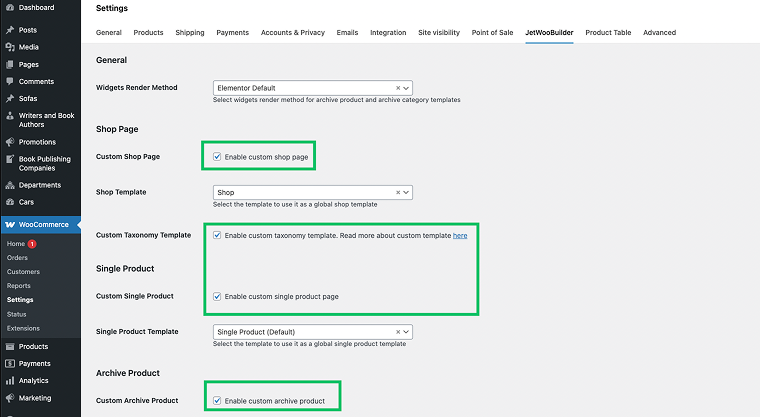
The setup process is very simple, so let’s get started. First, go to WooCommerce > Settings > JetWooBuilder and check all the boxes to enable custom templates. This will make your work easier later on.
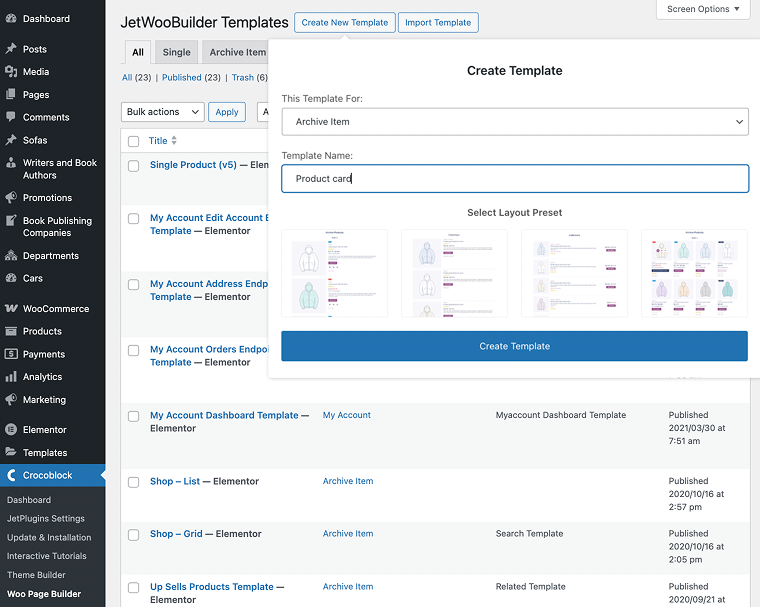
Next, we need to create a product template that will later appear inside the product grid of the category page. Go to Crocoblock > Woo Page Builder > Create New Template. Select “Archive Item” in the This Template For field and name it, for example, Product card.
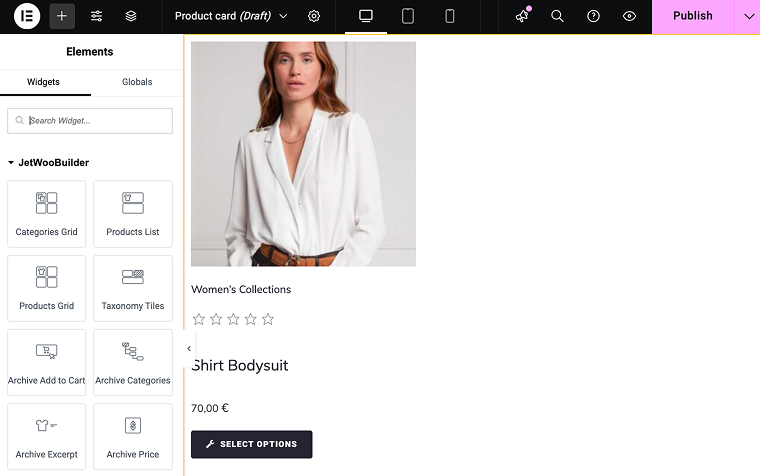
In Elementor, use JetWooBuilder widgets to add any information you want your product card to display. For example, I added a thumbnail, title, rating, price, category, and an “Add to cart” button. You can style and design the card however you like.
Additionally, click the gear icon on the top panel, select the number of columns you want on the final category page, and adjust the gaps as needed. Once you’re done, don’t forget to click “Publish.”
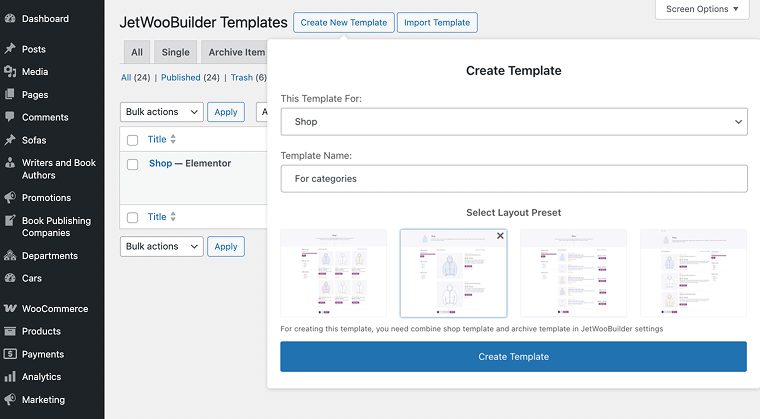
Then go again to Crocoblock > Woo Page Builder > Create New Template. Set the This Template For field to “Shop” and name it, for example, For Categories. If you prefer, you can also select a pre-made layout preset.
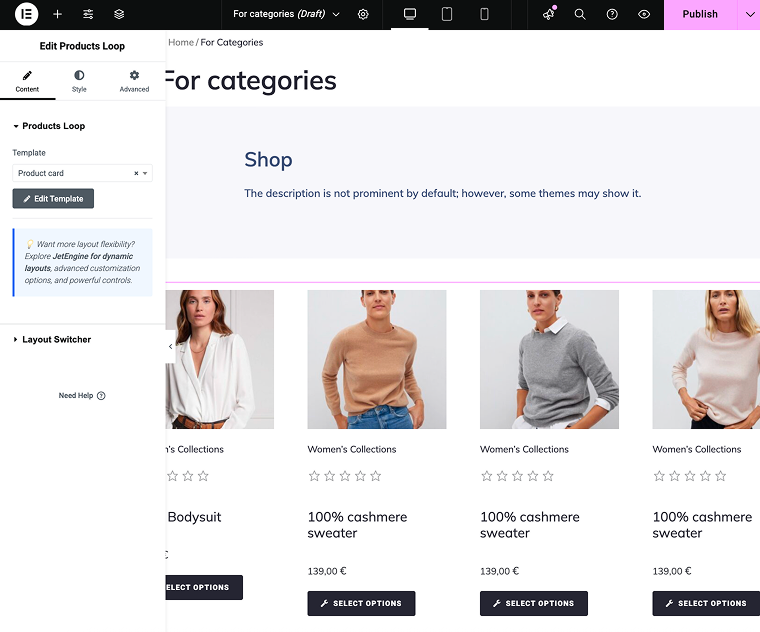
To display your grid, add the Products Loop widget and, in the Template field, select the Product card template you created earlier.
Another cool thing about the Products Loop widget is that you can use two different layouts (Archive items) and switch between them. To use this feature, open the Layout Switcher section and assign the item layouts. You can also edit icons and labels.
To adjust the number of columns and gaps, return to the product card template and click the gear icon on the top panel to open the settings. When everything looks right, click “Publish.”
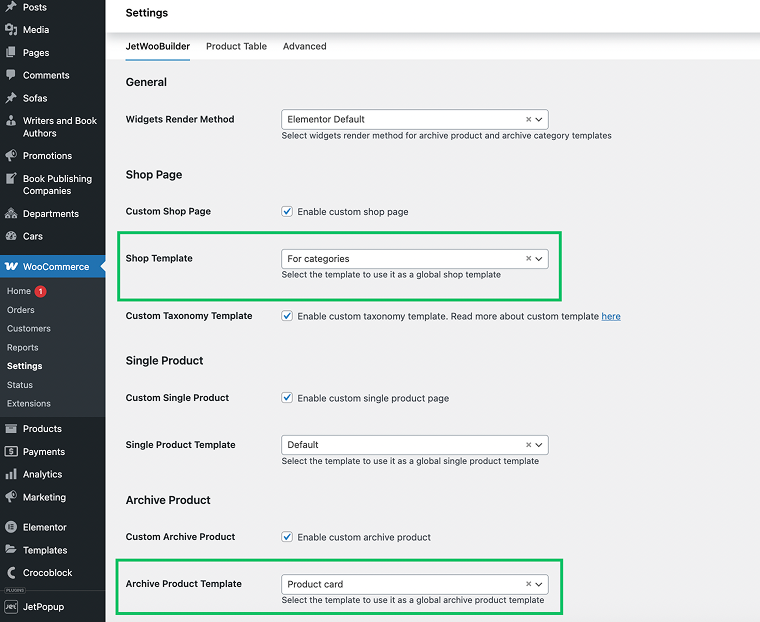
Now it’s time to set conditions for the templates. Head to WooCommerce > Settings > JetWooBuilder. For the Shop Page, choose the “For categories” template, and for the Archive Product, select the “Product Card” template. When everything is done, save changes.
However, if you had previously checked the marks for allowing custom templates in WooCommerce settings, all Archive pages and the Shop page will inherit this template, as it’s now considered the default one. But assigning particular templates gives you more control, especially if you use different ones for Shop and Archive. I will discuss this further in the next section.
Finally, check your site; everything should now display correctly.
Creating different grids for the Homepage and Category Pages
If you want your grid or product card to appear differently on the shop homepage versus category pages, you can easily do so.
The process is the same: create a new Archive Item, adjust the design as needed (or duplicate your existing Product card if it fits). Click on the gear icon of the Elementor’s top panel of the card template and adjust the number of columns and other settings to get the layout you want.
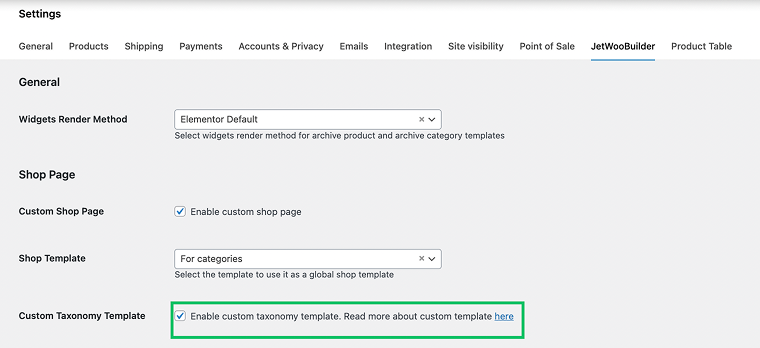
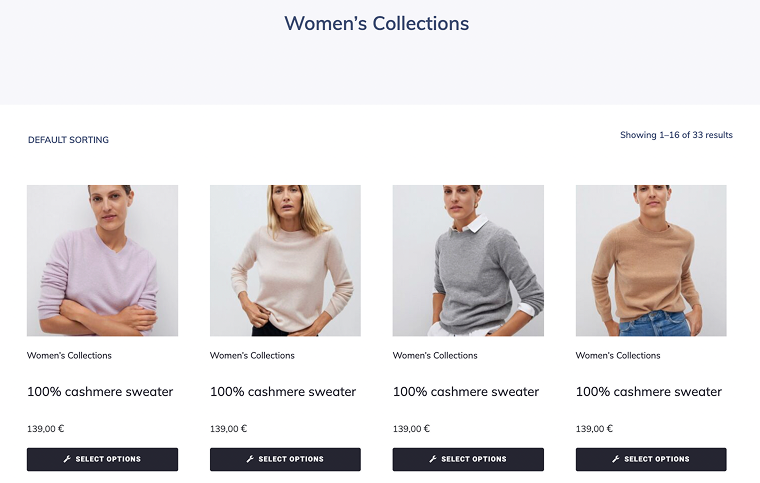
Then, go to the Shop tab in Crocoblock > Woo Builder and create a new template. There, in a Products Loop widget, select the Archive item you’ve just created. Preview how it looks and enjoy the result. Whenever you want to change something, there’s a shortcut button “Edit Template” for editing an Archive item right in the Shop template. Then go to WooCommerce > Settings > JetWooBuilder > JetWooBuilder, where you’ll find Custom Taxonomy Template – it includes full guidance on assigning a new template.
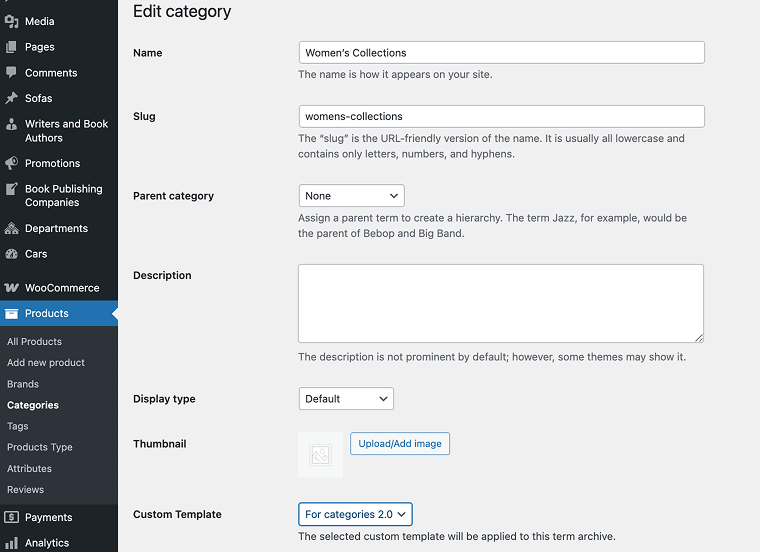
Go to Products > Categories, select a category, scroll down to the Custom Template section, choose the new template, and click “Publish.”
That’s it!
What to add to your pages?
- “Compare” and “Add to Wishlist” buttons to help shoppers keep track of what they liked.
- JetSmartFilters to allow filtering by size, color, price, or availability (fully compatible with the products grid).
- Banners or hero sections to highlight seasonal collections or discounts.
- SEO text or short descriptions to describe each category and improve search visibility.
How to Improve Category Pages
Here are key strategies that can help you upgrade your category page:
Conduct keyword and SEO optimization
Category pages often serve as high-intent landing pages for broad search queries, for example, “Women’s jackets” rather than a specific model. According to Neil Patel, category pages enable you to target high-volume keywords and direct users to relevant product listings.
Practical steps include:
- Structuring URLs hierarchically (/shop/women/jackets) to reflect site organization and improve crawling.
- Optimizing title tags, meta descriptions, and headings with target keywords, but without keyword stuffing.
- Adding unique descriptive copy (100+ words) above or below product listings to help search engines and customers understand the category.
Improve navigation, filters, and UX
Good navigation and filtering reduce friction and help shoppers find what they want. Allowing visitors to select multiple filters, showing available colours, and presenting ratings/reviews directly on category pages remain top features.
Practical steps include:
- Provide clear, consistent categories and subcategories so users can quickly move to the right subset.
- Integrate filters (brand, price, and attributes) and sorting options, ensuring they function well on mobile devices.
- Maintain fast load times and mobile-friendly layouts.
Enhance visuals, product discovery, and engagement
Visual presentation and browsing experience have a direct impact on conversions. A well-structured category page enables visitors to compare products more easily, reducing friction in the decision-making process.
Practical steps include:
- Use high-quality thumbnails and consistent image formatting for all items.
- Provide “quick shop” options when suitable to reduce steps to purchase.
- Highlight urgency or promotional cues (“Sale,” “Limited Stock”) to draw attention and push clicking behaviour.
Iterate using conversion rate optimization (CRO)
Optimization is not a one-time task but an ongoing process. Ecommerce CRO includes user testing, A/B testing, and journey mapping, all of which apply to category pages as well.
Practical steps include:
- Measure key metrics on category pages (bounce rate, click-through to product pages, conversions).
- Identify pages with underperforming UX or navigation issues.
- Run tests for layout variants, filter options, banner placements, or image formats.
FAQ
No, JetWooBuilder works with the free version of Elementor.
You can create templates for the Shop page, Product Archive, Single Product, Cart, Checkout, My Account, and Thank You pages.
You can find a few free options for basic category layouts, but JetWooBuilder is a premium plugin, starting at $43 per year for one website. It delivers far more flexibility, visual control, and front-end quality than typical free alternatives.
Bottom Line
Creating custom category pages and product listings with JetWooBuilder doesn’t require advanced technical knowledge, most of the process happens visually inside Elementor. The plugin gives you full control over how collections, featured items, and product grids appear on the front end, so you can shape a browsing experience that fits your store’s style and logic.
By replacing WooCommerce’s static layouts with dynamic templates, JetWooBuilder helps you build pages that load smoothly, highlight promotions, and guide customers naturally from category to product. It provides a straightforward way to improve the appearance, clarity, and usability of your store.