I don’t know about you, but when a WooCommerce site loads with those default page layouts, my eyes roll and my knuckles practically crack as I gear up for a full-on battle with the templates. Hooks were once my go-to, but there are better ways now, and I’m about to show you. This solution is perfect if you’re running WooCommerce with Elementor.
WooCommerce Shops Powered by Elementor
Some years ago, the WooCommerce plus Elementor combo wasn’t a very good solution for a fast and reliable setup; beyond small shops, it felt like a stretch. These days, thanks to WooCommerce’s revamped storage system and the improvements Elementor has added, even for stores edging into mid-size, though truly massive ones still require extra planning.
However, Elementor doesn’t allow you to edit WooCommerce templates directly as much as is needed in many cases, as those templates follow a fixed internal logic. So, if we use WooCommerce and Elementor, there should be a plugin that makes our lives easier, right? Here it is, JetWooBuilder by Crocoblock.
This plugin provides design flexibility, enabling you to customize WooCommerce templates as needed.
Improving WooCommerce Website Layout Using JetWooBuilder
Let’s see how JetWooBuilder can improve the way a WooCommerce furniture shop looks and functions.
Custom product grid layout
This is how the default layout looks:
It doesn’t look that bad, but I’m definitely not happy with the typography and buttons. To change them without a plugin, I would need to dig into CSS and possibly use some hooks if I want to alter the blocks’ order.
But this is how to change it using JetWooBuilder.
NOTE
Before you start, make sure you use Elementor-optimized themes: Hello, Kava, or others, but not one of the FSE themes, as they will try to rewrite templates.
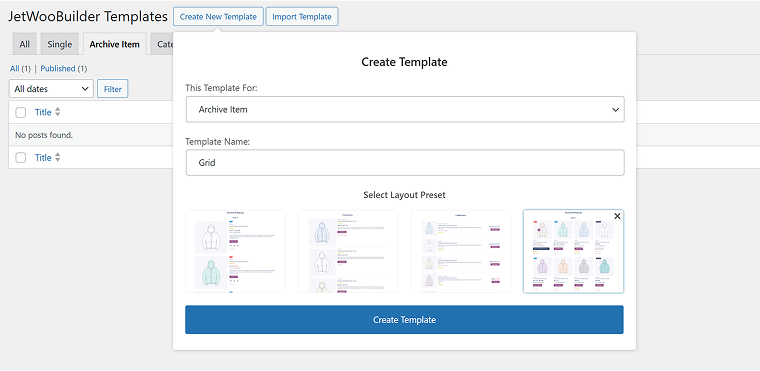
Go to Crocoblock > Woo Page Builder, and there you can either choose an existing layout or create a new one from scratch. I will use the existing one as a basis and then edit it.
Start with an Archive Item template, not the Shop template, as the Shop template uses existing product loops. Our goal now is to create a custom template for one product, so it will be repeated in a grid or list later.
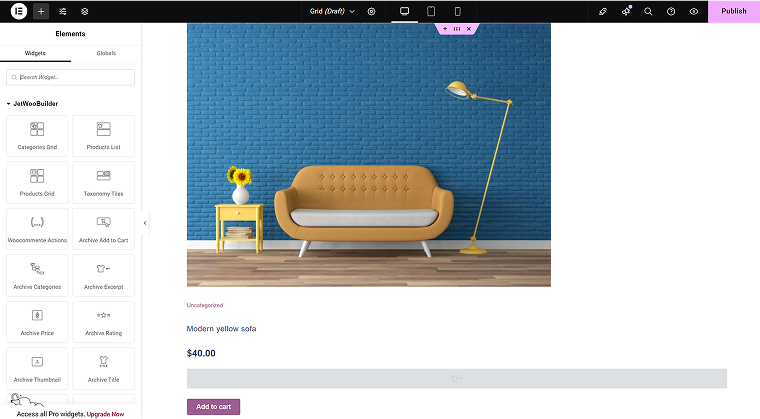
I will see a page where I can design one item, with all the required widgets on the left, with styling options for each of them.
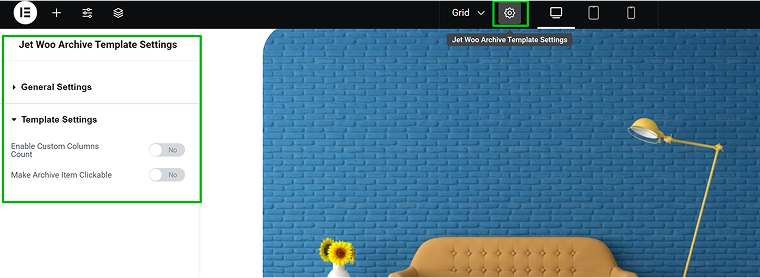
Additionally, by clicking the wrench icon at the top, I can access settings for the archive page and configure the number of columns, make them clickable, set up details for the container, and more.
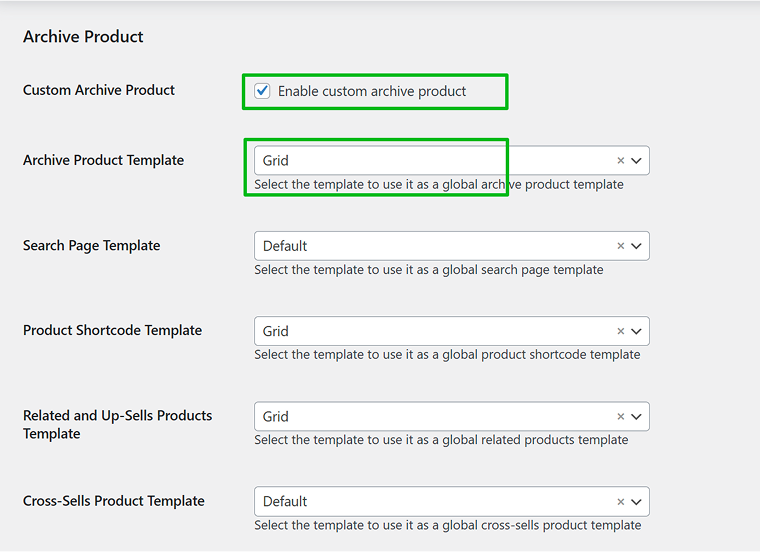
After designing the layout for a loop element, you want to see it on the archive page. To do this, go to WooCommerce > Settings > JetWooBuilder and enable it.
I will create another Archive template; this time, to position the products horizontally, so when I use the template in a loop, it will look like a list layout.
Go to Crocoblock > Woo Page Builder, open the Archive tab, and create it.
Now, you can go to the Shop tab and create a layout for the main shop page.
A cool widget to be used with such archives is called Layout Switcher. Thanks to it, you can switch between two different layouts – Grid and List, in my case.
Smart filtering and sorting integration
The element that is definitely missing in this shop template is the filters block. Let’s add them using another Crocoblock plugin – JetSmartFilters. It’s a powerful and flexible plugin that offers full compatibility with Elementor, Block Editor, and Bricks.
I will add two filters: a Visual filter for the Color attribute and a Range filter by price.
First, install the plugin and then, in the Dashboard, navigate to JetSmartFilters > Add New. The process of adding filters is quite intuitive, especially if it’s a filter by taxonomies or meta values. However, you can create even the most complex filters by custom query.
If there are a few loops on one page that you want to filter separately, assign an ID to the containers in Advanced > CSS ID in Elementor. Then, in the filter widget, insert this ID in the Query ID input. Thus, filtering will be applied only to the container with this ID.
I will also add a Sorting filter, but it doesn’t require any settings on the back end, just drag and drop the widget, and adjust it right in the Elementor editor.
Custom product badges
You can add product Sales badges using JetWooBuilder functionality. Let’s get back to the Archive Item template in Crocoblock > Woo Page Builder, and in the editor, add the Sales Badge widget.
Style it the way you want, but remember that it will only be shown if the product has a sale price. If the Sale price input is empty, the badge will not be displayed.
You can either display the discount percentage or the absolute discount amount.
- %percentage_sale% – shows the discount percentage (e.g., -20%);
- %numeric_sale% – shows the discount amount in currency (e.g., -$10).
However, you can add any type of custom badge using custom fields for WooCommerce. I will talk about it in the next section.
Custom fields for products (including custom badges)
The Sales badge I’ve mentioned belongs to the default WooCommerce functionality, and JetWooBuilder is a plugin for styling default WooCommerce elements and layouts. But what if you want to add custom fields and badges?
First of all, this functionality is not limited to badges alone. Using this method, you can add any kind of custom field – from texts to additional images. It can be useful for adding technical specifications, maps, additional descriptions, etc. Sure, you can combine the fields, e.g., add images plus texts, or icons plus texts. Repeater fields are also an option, and they have a lot of potential.
You can achieve all of that using JetEngine’s Meta Boxes – sets of custom fields that can be added to any post type or to users and reused multiple times. To display them on the front end, use the Dynamic Field widget or others by JetEngine.
💡 Read more about adding custom fields to WooCommerce projects in this article.
You can add these field values not only to the product template but also to archive pages; for example, to display them as badges or in other custom ways.
Single product page, Cart, Account, Thank you page, and Checkout page customization
Of course, the functionality of JetWooBuilder is far more than just editing Archives. You can design any WooCommerce template with its help. For each template, you will see a slightly different set of widgets available, except for the global ones.
Except for the JetWooBuilder widgets, you can use JetEngine’s ones to display custom fields, calculated values, or global data from Option pages.
But that’s not all! Add dynamic visibility to show specific content based on user role, time period, day of the week, or any of a dozen other conditions.
FAQ
JetWooBuilder extends WooCommerce by letting you design custom templates for product pages, archives, carts, and more, all visually in Elementor without coding.
Yes, but it depends on how you build. With optimized layouts, minimal widgets, and good hosting, JetWooBuilder-powered stores run fast, even with mid-sized catalogs.
No, JetWooBuilder works with the free version of Elementor; however, pairing it with Elementor Pro provides even more design flexibility.
Absolutely. JetWooBuilder integrates seamlessly with JetSmartFilters, allowing you to add advanced AJAX filtering and sorting to your product listings.
Yes, you can assign custom templates conditionally, so clothing, digital goods, or furniture items each get their own tailored layout.
Takeaway
Running a WooCommerce store doesn’t mean you’re stuck with stiff, cookie-cutter product pages. JetWooBuilder lets you shape things your way, with clean layouts, product badges, filters, whatever makes shopping easier for your customers. It’s not about throwing in every widget possible, but about keeping it simple, clear, and built around what your store actually needs.