Open a registration form on almost any WordPress site, and you’ll find the same blind spot: it accepts whatever is typed into the email field – [email protected], or a coworker’s address entered by mistake, or even a disposable inbox that expires in ten minutes; all of it may go straight into the database as a “real” user.
The scale of the problem is larger than most assume. Real-time email verification can cut invalid addresses by about half, and double opt-in reduces temporary or disposable email signups by roughly 75%. That’s not a marginal cleanup; it means a large share of “new registrations” on an unprotected form were never going to convert.
The downstream cost isn’t just a messy user table. Mailbox providers treat a bounce rate above about 2% as a reputation risk, and repeated bounces are one of the fastest ways for a domain to be filtered into the spam folder instead of the inbox. In other words: a registration form with no verification step can quietly damage the deliverability of every other email your site sends (password resets, order confirmations, notifications), not just the marketing newsletter.
The Real Cost of Unverified Registration Forms
Picture a standard JetFormBuilder registration form with User login, Email, Password, and a “Submit” button.
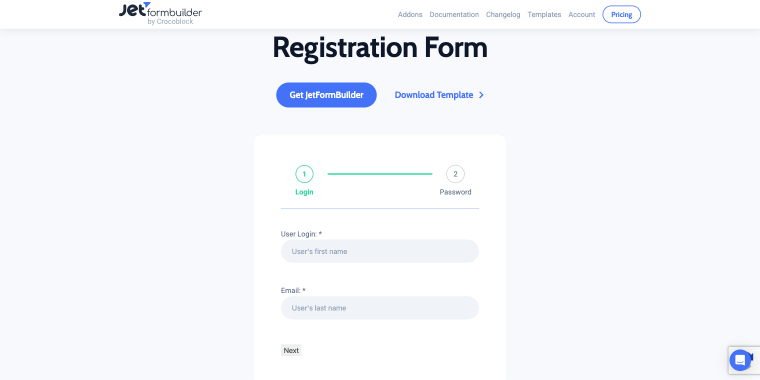
With no verification enabled during the first week after going live, the form may collect dozens of odd addresses, many misspelled by a single character, some clearly copy-pasted, and a handful from disposable-inbox domains.
The consequence chain runs predictably:
- Junk accumulates in the email list, and every unusable address still counts as a “user”; it shows up in your admin dashboard, your CRM sync, your reporting. They never convert, but inflate every metric including conversion rate, list size, sales forecasting.
- Transactional emails like a password reset, an order update, a booking confirmation, sent to an address that never existed, start bouncing.
- Domain reputation may take a hit because mailbox providers don’t distinguish between bounces because the marketing list is stale from bounces because a registration form let garbage in.
PLEASE NOTE
A bounce is a bounce, and once a domain crosses the reputation threshold, providers may start routing all mail from it (including the emails real customers are waiting on) into spam or junk folders.
What WordPress Users Try Before Email Verification
Most site owners don’t jump straight to email verification. They try to patch the symptom first, usually with whatever’s already installed or the fastest to implement. Each approach captures part of the problem and misses the rest.
| Method | What it catches | What it misses |
|---|---|---|
| CAPTCHA | Automated bot submissions | A human entering a real-looking but fake, mistyped, or someone else’s email: CAPTCHA confirms “not a robot,” not “this inbox exists” |
| Regex + domain blocklist | Malformed addresses, known disposable domains, unwanted providers (e.g., blocking Gmail/Yahoo to force corporate emails) | Whether the address is actually reachable, a syntactically valid, non-blocklisted address can still be dead, mistyped, or belong to someone else |
| Manual admin approval | A human reviews each signup | Scale: fine for a few signups a week, a bottleneck once volume grows; also delays legitimate users waiting on account activation |
| External double opt-in via email marketing tool (Brevo, MailerLite, etc.) | Confirms and verifies inbox ownership | Adds an external dependency and a second system to maintain; duplicates logic that can live in the form itself |
The pattern across all four: none of them confirm the one thing that actually matters, namely that the person submitting the form controls the inbox they typed in.
How JetFormBuilder’s Verification Action Solves These Limitations
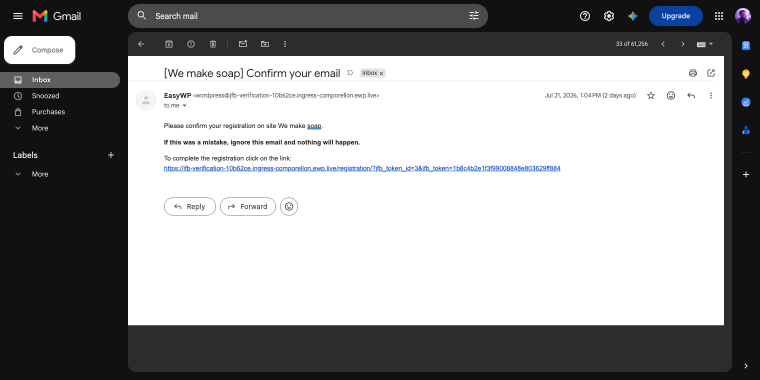
The mechanism is simple: add a Verification action to a form’s post-submit actions. Instead of running the remaining actions immediately, JetFormBuilder emails the user a confirmation link first. The remaining actions (registering a user and creating a post) fire only after that link is clicked.
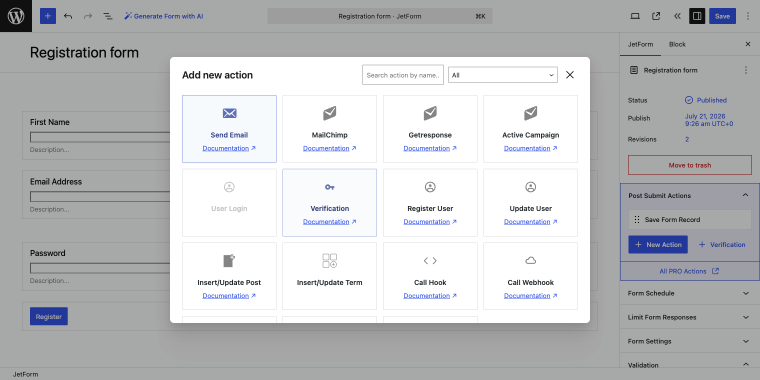
For sending out custom confirmation emails, you can use the Send Email action:
- Each submission receives a secure, unique token tied to that record. Clicking the link verifies the token, triggering a success event and enabling the rest of the form’s actions.
- An expired or already-used token triggers a failed event instead. You don’t need to build this state machine yourself, but it’s worth knowing it exists because it explains a few edge cases covered in the next section.
An important detail worth more than the action itself: the user record isn’t created until verification succeeds, so no WordPress user account exists for an address until someone proves they control it.
‼️ This means that the accounts that are created are backed by a working human-owned inbox.
JetFormBuilder Email Verification Edge Cases
Let’s look at some situations where you might have doubts or concerns about email verification.
Link Lifespan left at 0
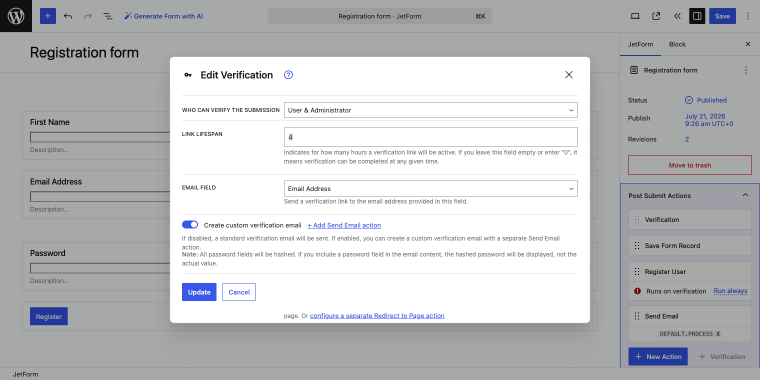
This one is easy to miss because it looks like a harmless default rather than a setting. A confirmation link with no expiration is a standing security risk; anyone who gets hold of an old email (forwarded, leaked, or sitting in a shared inbox) can still activate it months later. Set an explicit lifespan that matches the use case: short for anything security-sensitive (account registration, password-adjacent flows), longer for something like a newsletter opt-in where a delayed confirmation isn’t a risk.
SMTP path
This is the pitfall most likely to trigger a support ticket. The Verification action doesn’t have its own delivery channel; it uses whatever mail setup the site/hosting account already uses.
If that setup is broken (no SMTP plugin configured, SiteGround Optimizer or another caching/optimization layer interfering), the verification email simply won’t arrive, and it will look exactly like “the feature doesn’t work,” even though the actual cause is the same delivery issue that also breaks ordinary notification emails. Before troubleshooting Verification in isolation, confirm that regular form notification emails are being delivered.
Manual email approval
Verification doesn’t have to be fully automatic. In a form’s records (JetFormBuilder > Form Records), an admin can open a submission’s Verification block and click “Verify” manually, approving a submission without the user ever clicking the email link.
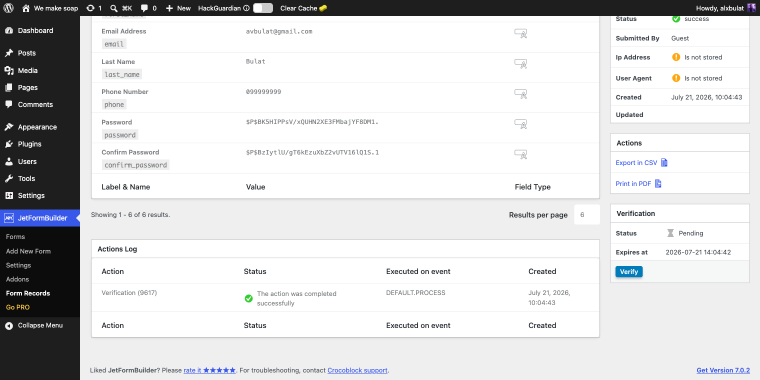
Manual approval doesn’t scale as a primary method, but as an override for edge cases (a user whose email client stripped the link, a support request to activate someone manually), it’s built into the same system rather than requiring a separate admin-approval plugin.
Creating a Registration Form with Verification
Now let’s go step-by-step and create a registration form with email verification.
After installing the JetFormBuilder plugin, go to JetFormBuilder > Add New Form in your WordPress Dashboard.
Feel free to use the AI assistant to create the form. Describe which fields you need, and the AI will create it for you.
Now let’s add the Verification post-submit action.
Inside the post-submit action pop-up, feel free to adjust the following fields:
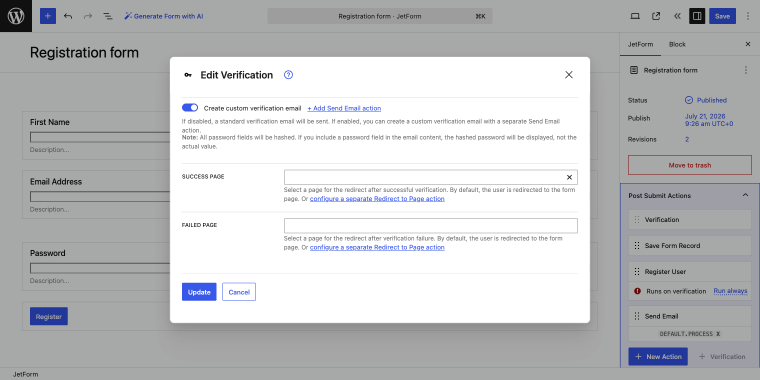
- WHO CAN VERIFY THE SUBMISSION — here, you can either restrict user verification and approve all registrations manually or select the “User & Administrator” option to use both options;
- LINK LIFESPAN — choose the value deliberately, don’t leave the default;
- EMAIL FIELD — select the form field where JetFormBuilder will pull the recipient address from.
Scroll further to configure the Success Page and Failed Page, which the confirmation link redirects to for each outcome.
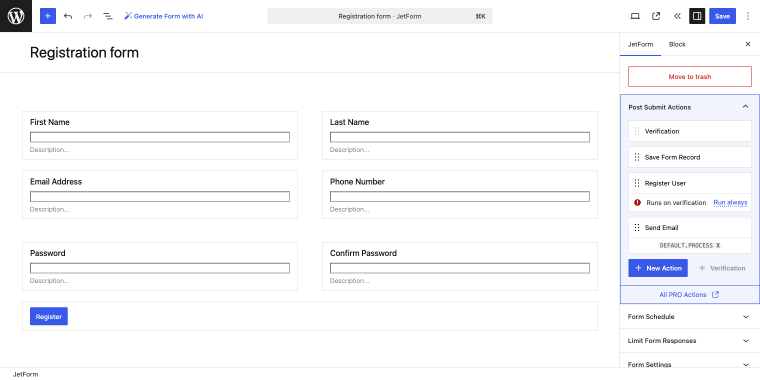
Finally, you can add more after-submit actions your website’s functionality requires: Register User, Insert/Update Post, and notification emails.
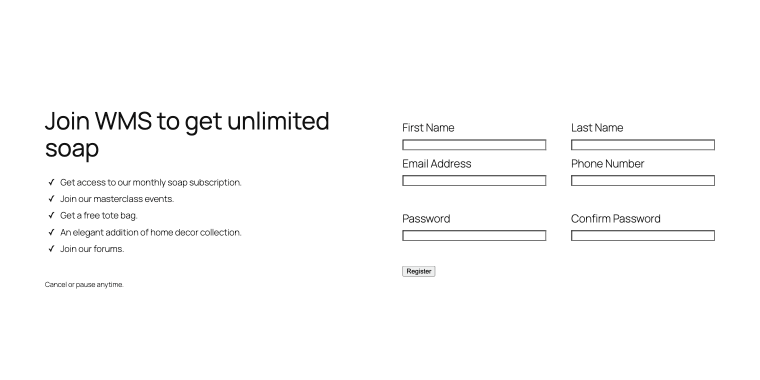
Test the full loop starting from the registration form.
Up to the verification email and account creation.
After completing all these steps, your user base will be safe and sound, filled with real emails.
FAQ
These are two separate checks. Verification confirms ownership of the address; uniqueness is a separate validation check. Use both together on a registration form.
Check mail delivery before checking verification. A successful form record means the submission action has fired. In JetFormBuilder, the form record will display the current verification status, whether it is pending or successful.
Indirectly, yes. An account created through verified registration is guaranteed to have a working inbox, so password reset emails to that address are far more likely to arrive. Accounts created without verification carry the same delivery risk for resets as they did at registration.
The verification process will not be performed. In this case, the user has to be verified either manually or by repeating the registration process.
Yes, an admin can open the submission in JetFormBuilder’s Form Records, find the Verification block, and click “Verify” directly.
Yes, Link Lifespan is configured per form and per Verification action; there’s no site-wide default that applies to all forms. A registration form and a newsletter opt-in on the same site can have different expiration windows.
Conclusion
An unverified registration form doesn’t fail loudly; it fails quietly, with each bounced email and inflated user count gradually revealing issues. This often manifests as a password reset that never arrives or emails landing in spam folders. CAPTCHA, regex, and manual reviews each catch parts of the problem, but none verify the critical fact that the entered address truly belongs to the user.
JetFormBuilder’s Verification action makes confirmation the default rather than an afterthought, gating account creation behind a clicked link, with a manual override still available when delivery itself is the obstacle. The setup takes a few minutes. The alternative is a sender reputation that degrades slowly and is much harder to restore.