In many articles and videos, when talking about PDF generation, PDF is treated as a printed copy of what the user typed. That’s a narrow view of what the workflow can do. On a WordPress site built with JetFormBuilder and Crocoblock ecosystem, the PDF can pull data from almost anywhere, site-wide, and that changes the kind of documents you can produce.
So, in this article, I will discuss use cases that take advantage of those capabilities.
What Is the PDF Attachment Addon for JetFormBuilder Actually Capable Of?
When talking about PDF generation, it’s important to clearly explain what exactly I mean and which capabilities are involved. Very often, when people mention PDF generation from WordPress forms, they mean nothing more than saving entered text and number values into a simple PDF file.
With JetFormBuilder, the functionality is far more powerful. The reason is its really impressive support for dynamic data handling. And, of course, I strongly recommend using it together with JetEngine, as this combination unlocks dozens of additional dynamic features.
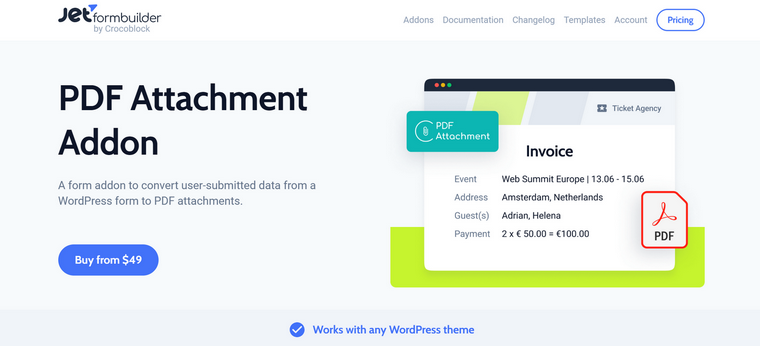
Some advantages of JetFormBuilder and its PDF add-on
Here are just a few examples of why JetFormBuilder and its PDF add-on are among the best tools for such document generation.
PDF templates can pull data from anywhere on the site
Because JetFormBuilder can pull data from basically anywhere on the website, you can fetch these values by Hidden fields and then use them in the PDF template – either as they are or their calculated and modified versions.
For example, you have your registered customer, and they don’t have to re-enter their data; it can be pulled from their profile. Also, you can fetch data from the queried user, current or related post, and even URL query variables – so, you can get data from the previous page the user visited to get more context.
As a result, the PDF combines what the user just submitted with what your site already knows.
This video demonstrates how many options for fetching dynamic data you have available. Note that since the April 2026 release, you no longer need to use the complex formulas described there, and the number of dynamic generators has expanded, providing even more flexibility and possibilities.
A set of macros to transform your data
You can transform data based on the values the form fetches.
For example, you display a set of posts from your website, and a user selects one of them. It returns this post ID, but we need a post title. So, in the PDF template, we should use %post_field|post_title_by_id%.
There are more useful macros:
- %inserted_post_id|post_url_by_id%
- %inserted_post_id|post_link_by_id%
- %post_field|post_title_by_id%
- %post_field|post_titles_by_ids%
- %term_field|term_title_by_id%
- %term_field|term_titles_by_ids%
- %media_field|img_url_by_id%
- %media_field|file_url_by_id%
You can find more macros in the Macros guide.
This way, you can display data exactly the way you want.
It chains with other post-submit actions
A single submission can trigger the PDF generation plus a webhook to Make, Zapier, or other third-party and automation services, an email notification, a custom post creation, a status update, or any other action JetFormBuilder supports. The PDF stays on your server; the webhook handles whatever downstream integrations you need.
The template handles real document content. Tables that expand based on submission data, embedded images from form uploads, signature fields, and custom HTML blocks for anything the standard editor doesn’t cover. Multi-page documents work without special handling.
Here’s also a simple example of how you can use AI in the actions chain. Instead of saving something as a post, you can submit things via a form automatically – and, by the way, with the Formless Action Addon, you can perform post-submit actions without actually filling out forms.
7 Use Cases for Generating PDFs from Forms
Surely, there are many more cases for using PDF, but let me demonstrate to you just a few examples.
Custom B2B order forms for catalog websites
Many B2B or niche catalog websites require custom inquiry forms, like those described here, as the price and other terms and conditions depend on many details. It can be wholesale or vice versa, very unique items. But both scenarios require special treatment, inquiry confirmations, and the best form of it is a PDF.
The advantage over an email-only confirmation is that the customer has a tangible document to attach to their internal purchase order, share with their accounting team, or reference later. The advantage over a SaaS document tool is that the order data, customer record, and document all live in the same WordPress install – no syncing, no API drift, and no third-party vendor in the middle.
The form collects the order details, calculated fields handle pricing math (quantities, negotiated rates, applicable taxes, totals), and the template generates a formal order confirmation or invoice with the customer’s billing details, line items, and payment instructions. The customer receives the document; a copy goes to the operator’s accounting inbox; the webhook step pushes the structured order data to whatever accounting or ERP system the business uses.
Property inquiry sheets that combine visitor data with listing details
Real estate is one of the heavier WordPress verticals, and JetEngine-powered property directories are common. The standard schedule a viewing or request more info forms usually produce an email with the visitor’s name, phone, and a property reference, which means the agent has to open the listing manually, pull together the details, and respond.
A smarter version produces a PDF property info sheet on submission. The form captures the visitor’s inquiry. The template pulls the full property details from the JetEngine listing post: photos, floor plan, square footage, taxes, neighborhood data, agent contact, and combines them with the visitor’s specific questions.
The visitor gets a professional info sheet within minutes of submitting, with everything they need to evaluate the property. The agent gets a copy with the inquiry pre-attached.
The behavioral effect is meaningful in a category where most agencies still send just the smappy “thanks for your interest, we’ll contact you” emails. But a polished info sheet delivered immediately reads as competent, established, and worth following up with.
Service agreements for solo operators
Many freelancers – photographers, coaches, tutors, designers, consultants – are running on WordPress sites. Most of them either skip written agreements (and regret it later) or pay for a contract tool to do something they only need a few times a month.
A booking or intake form combined with the PDF add-on can handle this natively. The client fills out the form with their project scope, timeline, deliverables, and contact details. The template merges those into a pre-written service agreement with the standard terms, the operator’s business details, and a signature line.
The client receives the agreement as a PDF, already filled in, already personalized, and can sign and return it.
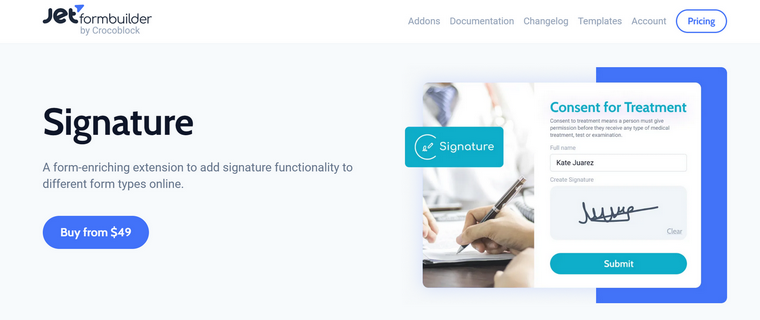
For operators who want a signed copy back, the form itself can include a signature field, in which case the generated PDF includes the signature inline and the agreement is effectively executed at submission.
The webhook step can fire a notification to the operator’s email or Slack, and the file lands in their site’s uploads folder as a permanent record.
The Signature add-on for JetFormBuilder is included in the PRO Addons pack.
Directory and membership listing confirmations
Directory sites, membership platforms, and community sites built on JetEngine commonly include a submission form for new listings – businesses adding themselves to a directory, professionals joining a network, and products being submitted for inclusion. After submission, the user usually gets a “we’ll review your listing” email and not much else.
A PDF copy of their submitted listing changes that experience. The template renders what they submitted as it will appear in the directory, with their photos, business details, and any custom fields. They get a professional preview document instead of a thank-you email. If the site charges a listing fee, the same PDF can double as a receipt with payment confirmation. If listings require approval, the document gives the submitter something concrete to reference while they wait.
For agencies building directory sites for clients, this is a small feature that signals polish.
💡 Also, with JetFormBuilder, you can add a user verification action to make sure the listings are real.
Invoices for freelancers
Of course, there can be invoice generation by the website owner – just a little automation inside the dashboard. But also, it can be a generation for a few front-end users. Let’s have a look at the workflow in this case.
Each client lives as a custom post type entry: billing address, tax ID, currency, payment terms, etc., so issuing an invoice starts with picking a name from a dropdown rather than retyping a header block. A repeater field handles line items, the form calculates subtotals and tax on the fly, and the due date is derived from the client’s stored terms. An atomic counter assigns the next invoice number on submission, so two invoices issued in the same minute can’t collide.
The generated PDF carries the freelancer’s letterhead, the client’s billing block, structured line items, totals, and payment instructions. It goes to the client by email, copies the freelancer, and lands in the media library attached to the submission entry. Paid/unpaid is a meta field on that entry, which means the overdue list is one query and a chase email is one filter away.
📌📌 Important technical information for building invoices
For invoices, you will need repeater fields in most cases. Use this custom script to add the functionality of displaying repeater field values in the PDF (it works for emails as well).
This is an example of a table with such values, where:
invoice_items – the main repeater
item_count – auto-generated number
invoiceitem, invoiceqtv, invoiceprice, totalfeeder – repeater fields
(Thanks, stranger-x007 GitHub user, for the example.)
<table border="1" cellpadding="5" cellspacing="0" style="width: 100%;">

  <thead>

    <tr>

      <th>#</th>

      <th>Item</th>

      <th>Quantity</th>

      <th>Price</th>

      <th>Total</th>

    </tr>

  </thead>

  <tbody>

    %repeater_content(invoice_items|)%

    <tr>

      <td>{item_count}</td>

      <td>%invoiceitem%</td>

      <td>%invoiceqty%</td>

      <td>%invoiceprice%</td>

      <td>%totalfeeder%</td>

    </tr>

    %repeater_content%

  </tbody>

</table>
Event ticket sales
Each event is a post type with date, venue, capacity, and price. The public-facing form lets a buyer pick the event, choose how many seats, and enter attendee names; the form checks remaining capacity against confirmed submissions before accepting payment, so overselling is structurally prevented rather than caught after the fact. Payment runs through whatever gateway the site already uses for WooCommerce or a JetFormBuilder payment action.
On a successful charge, the PDF generates one ticket per attendee with event branding, date and venue, attendee name, and a unique code rendered as a QR by a service connected using API keys or a webhook.
🔖 Check a few inspiring real-life use cases by the Crocoblock user here.
Generating booking confirmations for JetBooking and JetAppointment
JetFormBuilder can be used in JetBooking and JetAppointment for booking forms. So, obviously, you can generate a PDF with booking details.
If you use plain mode (where JetFormBuilder payment methods are used, not WooCommerce checkout), there’s a very straightforward logic: if the payment is successful, you send a confirmation email and a PDF.
In case you prefer WooCommerce checkout, you can still generate a PDF with all the details, except for the payment confirmation.
Setting Up the PDF Attachment Addon for JetFormBuilder
The setup is short. The longest part is designing a template you’re happy with.
- Install JetFormBuilder and the PDF Attachment Addon. Both are available through the standard WordPress plugin flow.
- Build the form. Use the JetFormBuilder editor for whatever inputs the document needs and, of course, dynamically generated data, using Hidden fields if needed. Calculated fields handle any math and conditional formulas; conditional logic for fields handles fields that depend on previous answers.
- Design the PDF template. Templates use the WordPress block editor that uses paragraphs, headings, tables, images, and custom HTML (limited number of blocks, to be aligned with the PDF format). Insert field macros (%field_name%) from the dynamic dropdown wherever submission data should appear. Pull in data from elsewhere on the site using JetEngine dynamic fields or user meta where needed.
I really prefer using HTML and CSS – you can use AI for designing it. It’s much more efficient and flexible than designing everything with blocks. - Test with awkward data. Use long names, empty optional fields, special characters, and addresses that wrap to four lines. Templates that look perfect with short test data often need adjustment for real submissions.
- Add the post-submit action. In the form’s Post Submit Actions tab, add a Generate PDF action and point it at your template. Configure delivery: email attachment, direct download, or otherwise, as you will get a macro to insert your PDF wherever you need it.
- Chain any other actions you need. Email notifications, webhook calls, post creation, and status updates. Order matters: actions run sequentially, and later actions can reference data set by earlier ones.
FAQ
Not really. WooCommerce is a complete eCommerce system with its own workflow for handling orders, payments, emails, and notifications. Because of that, third-party form plugins cannot directly integrate into its core order-processing flow. So, for WooCommerce order PDFs and notifications, it’s better to use a dedicated WooCommerce PDF plugin instead, unless it’s a custom inquiry form and there’s no order processing.
No, as WordPress core has no PDF engine, you either write custom PHP using a library like Dompdf or TCPDF, or use a form plugin with a PDF add-on.
JetFormBuilder itself is free on WordPress.org. The PDF Attachment Addon is a separate extension, available as part of a paid add-on package.
Yes. Images uploaded via file or media fields can be embedded directly in the template using the corresponding field macros, and they render inline in the final PDF. You can use HTML and CSS to control its size.
It’s saved to the server and attached to the form submission entry. You can find the link in the JetFormBuilder > Form Records. Each form has a dedicated folder, where such files are stored.
Takeaway
The interesting part of form-to-PDF generation isn’t the PDF itself but the fact that the document can pull together at the moment of submission. Once the template can reach into the rest of the site, the form stops being a contact form and starts being the front end of a small document workflow, which is really useful. Also, thanks to JetFormBuilder’s powerful dynamic functionality, you can operate not only the data entered in the particular form but also other data pulled from the website – and all that can be included in the PDF.