Most websites treat their search results page as a simple output: you type a keyword, the site returns a list, and the journey ends there. But on content-heavy websites, that list isn’t always helpful. Users often need a way to move from “here are all the results” to “here are the results that actually matter to me.”
That’s where JetSmartFilters changes the experience. Instead of leaving users with a static page full of mixed content, you can turn your search results into a real discovery tool – something interactive, structured, and genuinely useful. Filters help users refine their search in place, explore different content groups, and navigate large collections without having to start over.
In this article, I will explore how to transform your search results page from a basic output to a guided, filter-powered experience using JetSmartFilters. And, in particular, how a search filter can make this page much more efficient.
Website Search Functionality vs. Search Filters
If we talk about a search filter, it can be really confusing at first, because it sounds a lot like the website’s main search, but it actually serves a different purpose: instead of finding content, it helps users organize, narrow, and refine the results they already see, making large lists of content much easier to navigate and explore.
Search functionality and search filters play distinct but complementary roles on a website. A search engine, whether it’s the default WordPress search or an advanced WordPress search plugin with filter capability, focuses on matching user input with content in the database. Its goal is to return all relevant results based on the keywords entered.
For example, if someone searches for “pricing,” the results could include:
- a pricing overview page;
- a blog post comparing plans;
- a support article mentioning prices;
- a product page with a pricing table.
Even the best search and filter WordPress plugin doesn’t know the user’s exact intent – it simply delivers results that match the query.
That’s where search filtering becomes essential. Filters enable users to refine and organize the search results that are already displayed, allowing them to find what matters without having to start a new search.
With the same “pricing” search, filters can help the user narrow the results to:
- documentation only;
- blog posts only;
- articles published this year;
- content related to a specific product.
Filters help narrow down search results so users can quickly find what they’re looking for. There are various types of filters, including checkboxes, range sliders, and dropdowns, which handle general attributes such as category, price, size, or color.
But what is often overlooked on a search results page is the search filter itself, because some developers assume that, because users are already on a search results page, there’s no need for another search. In reality, a search filter can add significant value by refining those results further.
Here’s how it works in practice: a search filter works in conjunction with the other filters. For example, a user can first narrow results using a checkbox filter for color, a range filter for price, or other general attributes. Then, on top of that, they can use a search filter to target a very specific keyword within the already filtered results. This is especially useful for details that aren’t covered by the standard filters, such as a particular material type, shape, or any specific property that doesn’t have its own checkbox or radio filters. By combining general filters with a search filter, users can drill down to exactly what they need, even in a large or complex dataset.
So, a search filter doesn’t replace other filters – it complements them. It transforms a filtered list into a highly precise set of results. And yes, it can be and should be used on a search results page.
How to Add a Search Filter to a Search Page
Adding a search filter to your search results page, as well as to any archive page, is straightforward with Crocoblock plugins, and it can significantly improve the user experience by making large sets of results easier to navigate. In this example, I’ll use JetThemeCore, JetSmartFilters, and Elementor to create a fully functional search results page for a WooCommerce website.
First, go to JetSmartFilters > Add New and add a search filter. Settings are simple: you can either use the general search functionality or set up a particular field (query variable). If you need the latter option, there’s a list of macros – you can choose some WooCommerce-specific field (e.g., weight, length, etc.), taxonomy, or the “plain” option – to enter a specific custom field name.
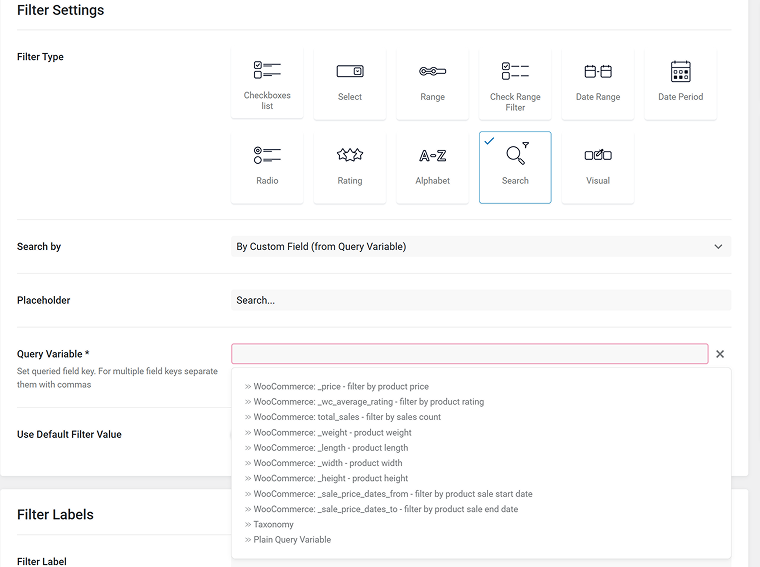
However, I assume you will use the default search, as it encompasses all search options.
There, you can add labels and assign a default filter value. Save the filter, and it’s time to add it to the front end.
The process starts with JetThemeCore, which is very powerful for assigning templates to specific pages.
You can create a template using Elementor or the Block Editor and then define conditions for where that template should appear. For a search results page, you simply set the condition to “Search Page.”
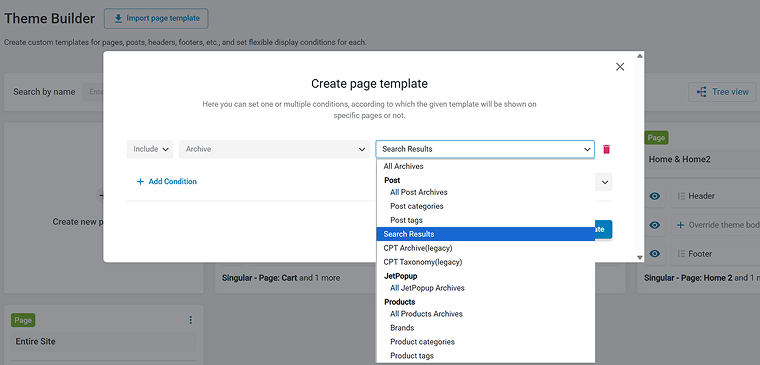
This ensures that your template is automatically applied whenever a user runs a search, maintaining consistency in design and functionality.
Once the template is created and assigned in Crocoblock > Theme Builder, you can open it in Elementor to build the page itself. In my case, I added a grid of products to display the WooCommerce search results. To create such a grid, you can either use the Elementor Pro widget or the JetWooBuilder one. If it’s not a WooCommerce site, JetEngine’s Listing Grid would be a perfect option. But starting from the 3.7 release of JetSmartFilters, you can create such grids using the built-in functionality of the plugin.
This grid will serve as the main results container, interacting directly with the filters you add.
Next, on the left-hand side of the page (or wherever it fits your layout), you can add filters using JetSmartFilters. JetSmartFilters allows you to add various types of filters – checkboxes, dropdowns, range sliders, and, of course, the search filter.
At this point, it’s very important to select what will be filtered – the provider you used for adding a product grid.
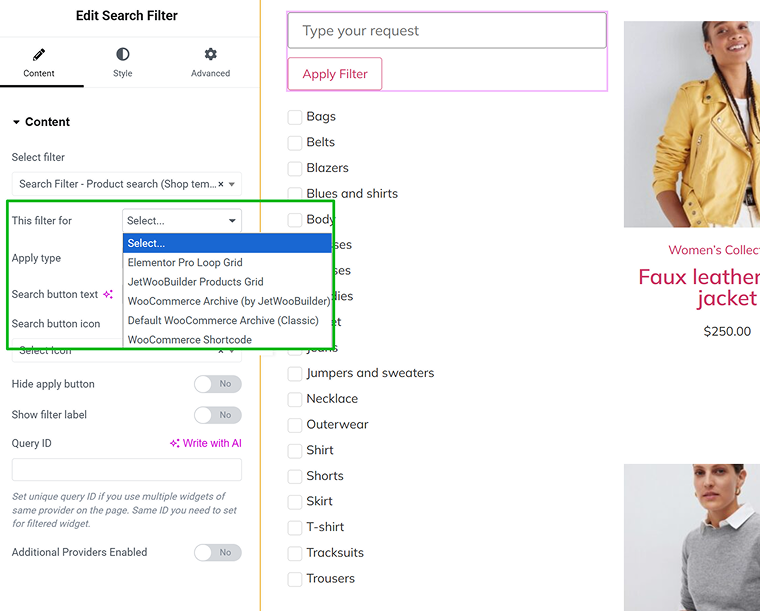
Also, you can add a query ID – in case you want to perform a search only in a particular grid (if you have a few on your page), go to the Advanced tab of that container and add some CSS ID. Then, insert this ID in the “Query ID” field in the filter settings.
I’ve also added Checkbox filters for categories, colors, and price. In this setup, users can filter by general attributes, such as color, price, or category, and then use the search filter to target specific keywords within those already filtered results.
This combination turns the search results page into a highly interactive and precise discovery tool, allowing users to find exactly what they’re looking for without leaving the page or running multiple searches.
FAQ
Search filtering refines the results of a keyword search, allowing users to narrow down content by post type, taxonomy, or custom fields. Using a search filter WordPress plugin, you can enhance results without running a new query.
Yes. A standard search bar finds content across the entire site. A WordPress search plugin, provided that it offers both filtering and searching, organizes results and makes them easier to navigate on a particular page, which is especially useful on large sites.
Absolutely. You can combine a product grid with checkboxes, range sliders, and a search filter plugin in WordPress to filter by categories, price, or attributes, while targeting specific keywords within already filtered results.
JetThemeCore is used to create and assign templates, including search results pages. Combined with JetSmartFilters, it enables advanced search and filtering functionality on your WordPress page.
Yes. Search filtering works together with checkboxes, dropdowns, and range sliders. Using a filter search plugin WordPress or a search and filter plugin WordPress, you can create a precise, highly interactive results page.
Takeaway
A search results page doesn’t have to be a static list, and with JetSmartFilters, you can turn it into a real discovery tool, letting users refine, explore, and find exactly what they need quickly and intuitively. In this article, I specifically discussed how to use the Search filter on a search result page, allowing users to narrow their search – a smart solution, especially for large websites.