If you’re here, you’re probably looking for a solution that lets you show or hide Elementor content based on a visibility rule (user role, login status, purchase history, or day of the week) and aren’t sure whether that requires a plugin. Short answer: it depends on your stack.
Elementor Pro has its own native Display Conditions feature (Advanced tier and up), and JetEngine’s Dynamic Visibility module covers the same ground with a larger condition set and no Pro-tier requirement.
Further, we’ll take a look at what each tool does and three real-world use cases built on both.
What Is Dynamic Visibility?
Dynamic visibility means showing or hiding parts of a page based on conditions, such as who the visitor is, what they’ve done, or when they’re viewing the page. Instead of a single static layout for everyone, the same page adapts to each visitor without you touching the content itself.
Personalized content is no longer a nice-to-have. Seventy-four percent of eCommerce businesses now deliver some form of personalized experience on their site, and shoppers are significantly more likely to buy when the experience feels tailored to them. On WordPress specifically, that personalization usually comes down to one mechanic: showing or hiding a widget, section, or template based on a rule or a set of rules.
A store might show a discount banner only to logged-in members. A job board might automatically hide expired listings. A restaurant site might update its Today’s Special section daily without anyone editing the page. All of these can be controlled with dynamic visibility, and all three can be built in Elementor without custom code: either with Elementor Pro or JetEngine.
How Does It Work in Elementor?
Elementor Pro includes a native feature called Display Conditions. It is located on the Advanced tab of any widget, section, or column, under Layout > Display Conditions.
Add a condition by selecting from a set of criteria (user role, date and time, day of the week, device, WooCommerce data, custom fields, and more). Elementor then shows or hides that element based on the result.
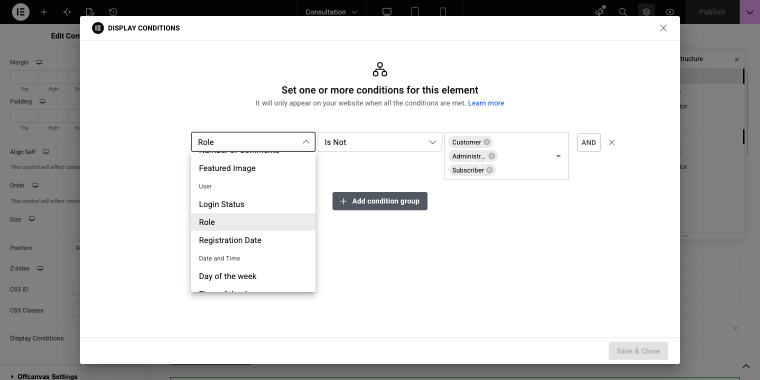
Elementor allows chaining conditions in AND groups, where every condition must be true, and in OR groups, where any one condition is enough. That’s enough to build layered conditional logic, for example, an element that appears for logged-in customers OR on weekends, but never both at once if you want it excluded from one of the two.
Please note that the Display Conditions option is a Pro-only feature and is further gated by plan.
Crocoblock Dynamic Visibility module does the same job through a separate settings panel, with over 50 built-in conditions. Before enjoying this extensive list of conditions, we need to go to WordPress Dashboard > JetEngine > Modules and enable the Dynamic Visibility module.
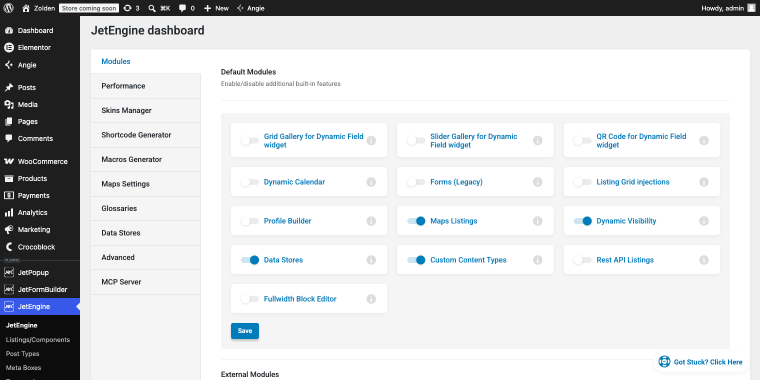
This module isn’t tied to an Elementor subscription and works with other page builders, including Gutenberg, Bricks, and Divi 5.
| Elementor Pro Display Conditions | JetEngine Dynamic Visibility | |
| Requires | Elementor Pro starting from $60/year | JetEngine (works for any Elementor version, including free as well as for Gutenberg, Bricks, and Divi 5) starting from $75/year |
| Conditions count | 20+ | 70+ |
| Logic | AND / OR | AND / OR |
| Strongest at | Native page/template targeting, WooCommerce archive logic | Custom fields, custom queries, cross-JetPlugins functionalities |
| Applies to | Widgets, sections, columns, templates, archives | Widgets, sections, columns, listings, templates, archives |
- If you’re already deep into Elementor dynamic visibility custom fields and query loops with JetEngine, staying within its Dynamic Visibility module keeps your logic in one place.
- If you’re working with a lightweight build and don’t want to manage another plugin’s settings panel, Display Conditions covers most day-to-day cases without leaving Elementor Pro.
Now let’s take a look at some use cases recreated with both Elementor and JetEngine.
Use case 1: Show content only to logged-in/out users
Hiding/revealing content by login status is the most common visibility rule on any membership or WooCommerce site: exclusive sections for members, sign-up prompts for guests, or a stripped-down preview for those who haven’t yet registered.
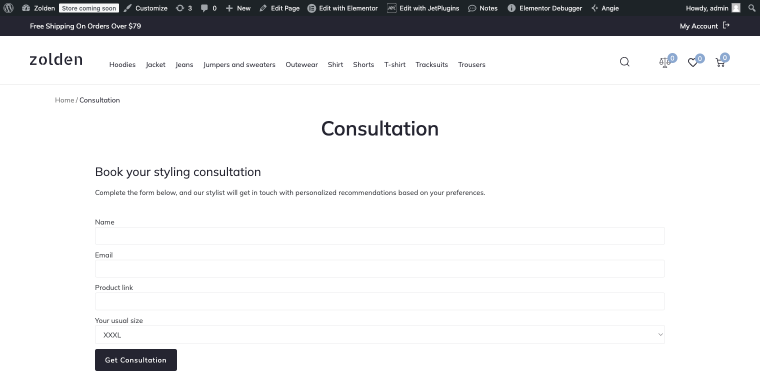
Let’s say we have a consultation form that only logged-in users can see. Both Elementor and JetEngine will handle this perfectly.
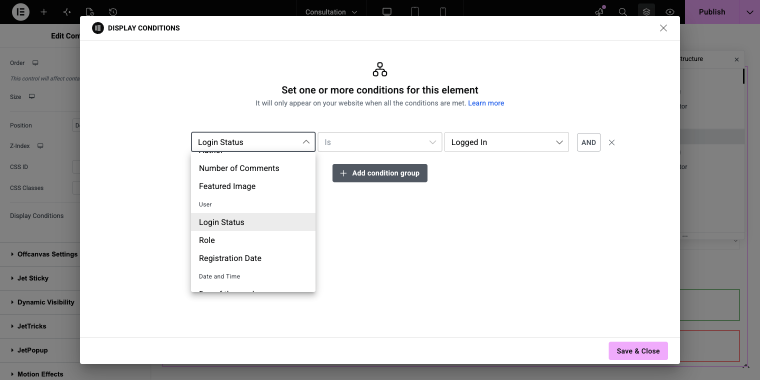
In Elementor Pro, it’s a single Display Condition in the “Login Status” option, set to “Logged in.”
In JetEngine, the same logic is located in the Advanced tab under Dynamic Visibility. To use the Dynamic Visibility options, you need to switch Enable.
This will reveal all available conditions. Since we need to make a selection visible when the Elementor dynamic visibility user roles condition is met, opt for the following set of settings:
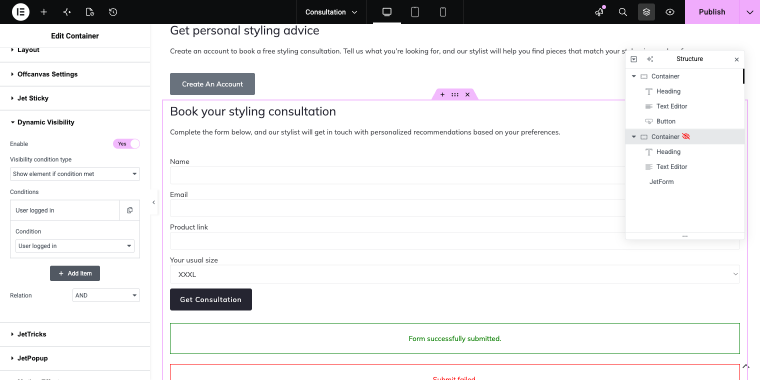
- Visibility condition type — set to “Show element if condition met”;
- Condition — set to “User logged in.”
The user status visibility option is quite practical: both Elementor Pro and JetEngine handle it well. Elementor uses a pop-up interface, while JetEngine’s options are built into the settings panel. Both solutions are intuitive and practical.
Use case 2: Display special offers based on user activity
Showing an offer based on what a visitor has actually done (not just who they are) needs a condition that reads WooCommerce or user metadata, not just login state.
Let’s say we need to show a sale banner only to the customers of our store, i.e., those who made a purchase.
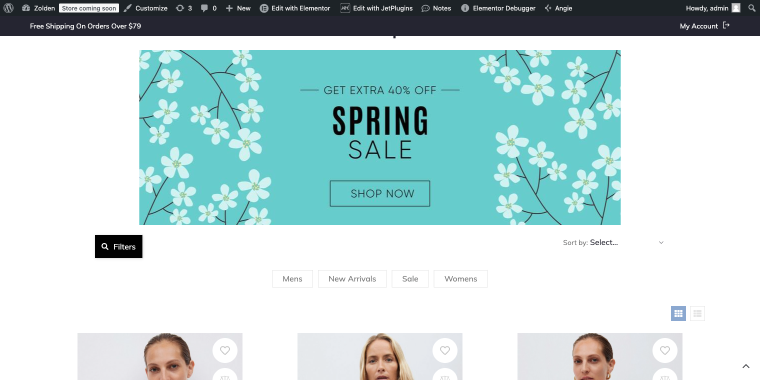
WooCommerce automatically assigns the “Customer” role to anyone who has completed a purchase, so both plugins handle this easily.
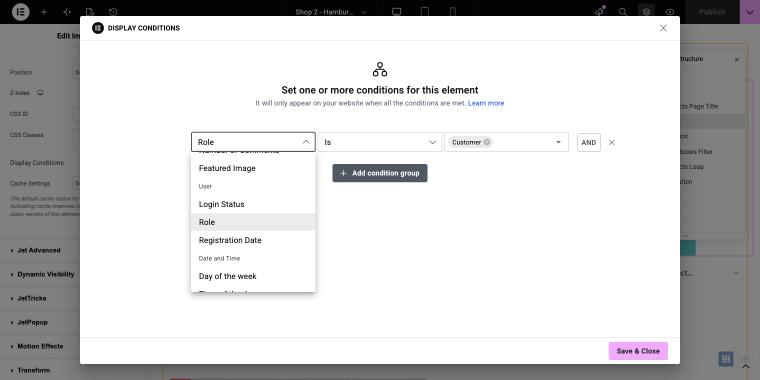
In Elementor Pro, a Display Condition is set to Role > Customer.
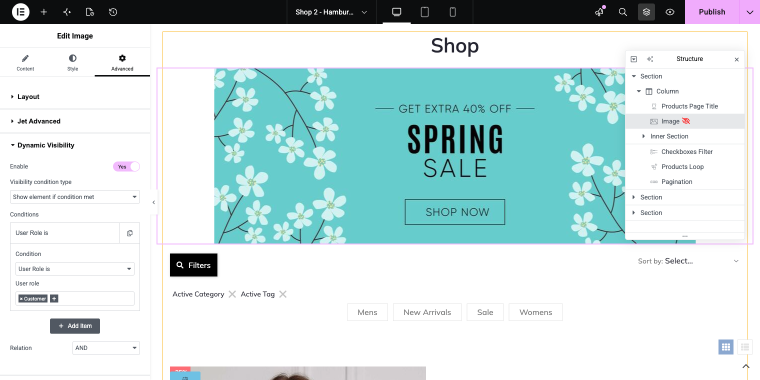
In JetEngine, the same rule is selected in a few clicks:
- Visibility condition type — set to “Show element if condition met”;
- Condition — select the option “User Role is” and then specify the role “Customer.”
Use сase 3: Set content based on the days of the week
Day-of-week visibility is built for anything on a recurring schedule: a restaurant’s daily special, a limited weekend promotion, or business hours messaging that shouldn’t need manual updates.
Let’s use the sale banner from Use сase 2 and set a condition to display it only on weekends.
Elementor Pro’s Display Conditions include a native “Day of the week” condition: pick the days, save, done.
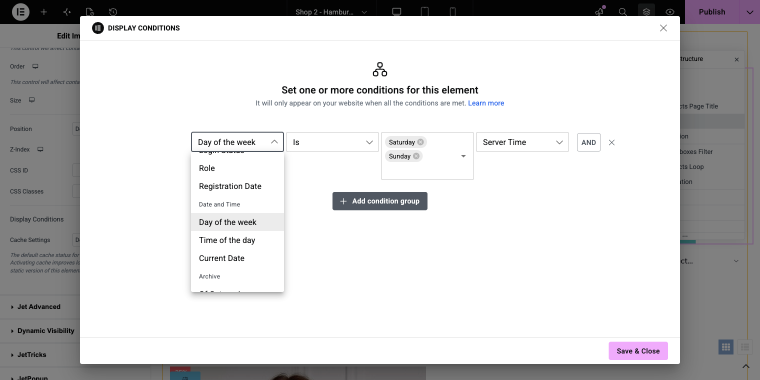
JetEngine covers the same case through its own date/time conditions inside Dynamic Visibility. Opt for the following set of conditions:
- Visibility condition type — set to “Show element if condition met”;
- Condition — select the option “Days of the week” and then specify the days “Saturday,” “Sunday.”
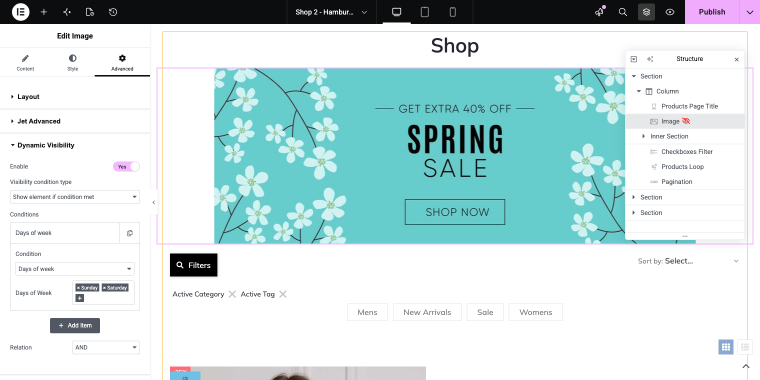
As with both previous use cases, selecting this condition required only a few clicks. Both Elementor Pro and JetEngine did a great job.
Extending WordPress Dynamic Visibility With JetEngine
WordPress Dynamic visibility isn’t limited to Elementor widgets with a role or date condition; the same logic works wherever JetEngine’s condition engine applies, including other JetPlugins.
One example: a floating cart-reminder banner built with JetPopup and JetEngine that only appears when there’s at least one item in the visitor’s cart, using a “JetEngine dynamic visibility query has items” condition rather than a static always-on pop-up. A similar setup can key visibility off an active JetSmartFilters selection instead of cart contents. Both are covered in detail in floating bars and sticky banner use cases.
JetEngine also covers some Display Conditions that Elementor doesn’t touch at all. A few worth knowing.
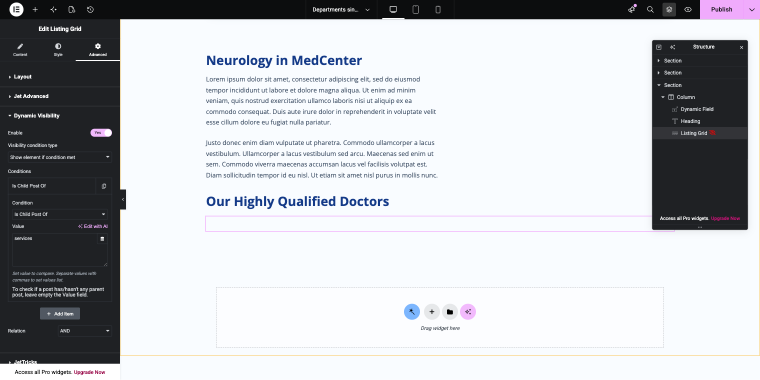
Is Parent Post / Is Child Post of
This might check real parent-child Relations between hierarchical CPTs (try not to mix this with a shared taxonomy term). Use it when each child post has one specific parent post, and only that one (for example, a single apartment listed under one specific building, a single chapter that belongs to one specific guide). If several posts could share the same “parent” label (like a category), that’s a taxonomy, not a parent/child relationship, and this condition doesn’t apply.
Query Has Items / Query Has Not Items
This shows or hides an element based on whether a separate query returns results. It is useful when a listing grid already hides itself when results are empty, but a heading or a counter needs its own rule (for example, a notification banner that is displayed if a user has left an item in their cart).
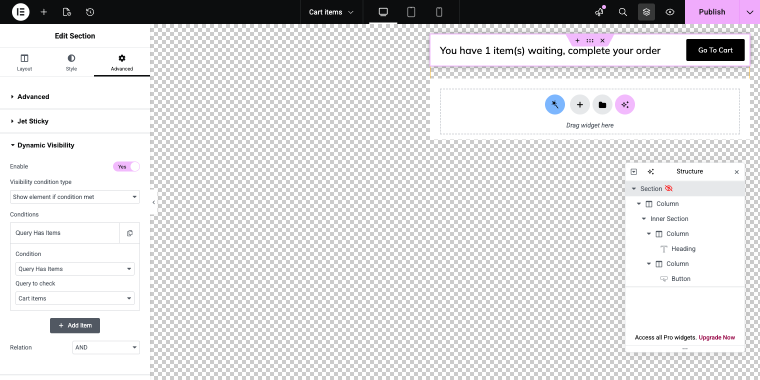
A similar setup can trigger visibility based on an active JetSmartFilters selection rather than cart contents.
Switcher condition
The JetEngine-specific condition that allows using the Switcher field type in the CPT. With its help, we show or hide a widget/column on the front end based on whether it’s toggled on or off.
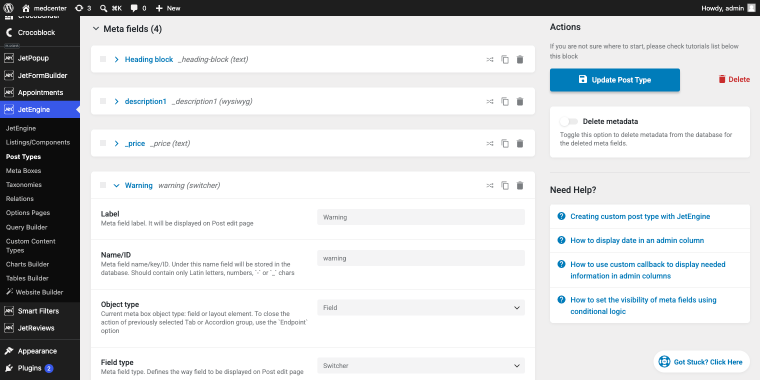
For example, a medical services CPT can have a “warning” Switcher field: when enabled on a specific service, the Single template can show a disclaimer Text widget.
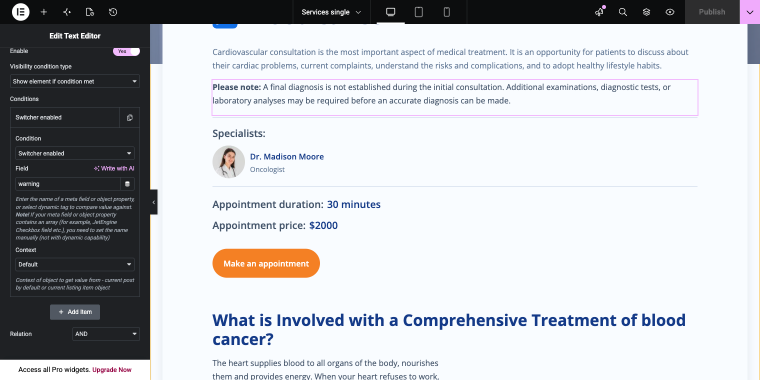
- Visibility condition type — set to “Show element if condition met”;
- Condition — select the option “Switcher enabled”;
- Field — enter the name ID of the Switcher field, in this case “warning.”
This is useful for services like diagnostics, where a final diagnosis can’t be confirmed without further lab tests.
WooCommerce dynamic visibility conditions
Dynamic Visibility for WooCommerce has lots of interesting applications. For example, if a product has a status of Sold individually, when a corresponding checkbox is selected in the product editor.
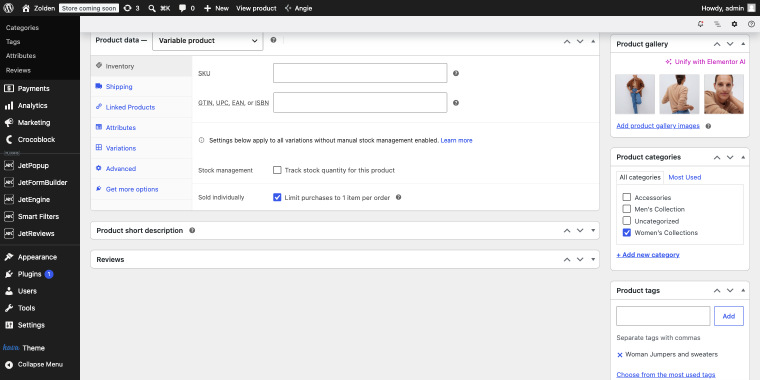
To visualize this status on the front-end, we can create a dynamic badge with a set of conditions, including:
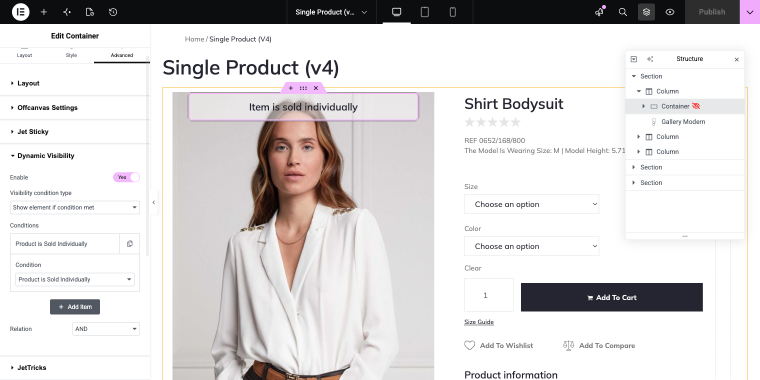
- Visibility condition type — set to “Show element if condition met”;
- Condition — select the option “Product is Sold individually.”
That’s it. If you created an interesting application for Dynamic Visibility, feel free to share it in our Discord community.
FAQ
Elementor Pro includes Display Conditions natively, available on the Advanced, Expert, and Agency Pro tiers, as well as on Elementor Hosting. The free version and the Essential Pro plan don’t include it. JetEngine’s Dynamic Visibility module serves as an alternative that doesn’t depend on your Pro tier.
Display Conditions is native to Elementor Pro, with roughly 20 conditions organized into AND/OR groups. JetEngine ships with 50+ conditions and extends into custom fields, CPT queries, and cross-plugin implementations.
Yes, in both tools. Elementor Pro groups conditions using AND and OR logic. JetEngine’s Dynamic Visibility also supports combined condition sets, so you can require a user role and a date range at the same time, for example.
Yes. Common uses include showing offers only to the “Customer” role WooCommerce assigns after a first purchase, hiding out-of-stock products, and displaying cart-aware elements.
No. JetEngine’s Dynamic Visibility module works with the free version of Elementor because it’s a JetEngine feature.
Conclusion
Elementor Pro’s Display Conditions and JetEngine’s Dynamic Visibility solve the same core problem from different angles. Display Conditions is the faster path if you’re already on a Pro tier that includes it and your rules stay close to role, date, and WooCommerce data. JetEngine is the better fit once you need custom fields, CPT-based logic, or a feature set that doesn’t depend on which Elementor Pro plan you’re on.
The cases above all work either way. The decision point isn’t which tool is more powerful in the abstract; it’s whether your specific condition (a role, a meta field, a date) lives inside Elementor’s own data or JetEngine’s.